See Details
Logo CPaaS Help Center Developer Premium Support Status
Sign in Contact Support
  1. 8x8 CPaaS Help Center
  2. Other

Other

  • Scenarios & Tutorials

    Scenarios & Tutorials

    This section provides practical, step-by-step scenarios for solving common business problems using the 8x8 WhatsApp solution. These guides combine portal tools like the Campaigns and Automation Builder with concrete API concepts, including full JSON payloads for templates, message sending, and interactive replies.

    Appointment Reminders via WhatsApp

    This scenario shows how to proactively send a reminder and automatically handle the customer's confirmation or reschedule request.

    Tools Used: Campaigns (or API) + 8x8 Automation Builder

    Goal: Reduce no-shows by confirming appointments automatically.

    The Flow

    1. Step 1: Create the Template (Business-Initiated) You first create a UTILITY template to send the reminder.

      Click to view `Template Creation Payload` (API Request)

      POST https://chatapps.8x8.com/api/v1/accounts/{accountId}/channels/{channelId}/templates

      {
      "language":"en_US",
      "name":"appointment_reminder_v1",
      "category":"UTILITY",
      "components":[
      {
      "type":"BODY",
      "text":"Hi {{1}}, this is a reminder for your appointment on {{2}} at {{3}}. Please reply '1' to Confirm or '2' to Reschedule.",
      "examples":[
      "Maria",
      "Nov 10, 2025",
      "10:30 AM"
      ]
      }
      ]
      }
    2. Step 2: Send the Reminder An automated system (or a user in the Campaigns portal) sends the approved template to the customer 24 hours before their appointment.

      Click to view `Template Sending Payload` (API Request)

      POST https://chatapps.8x8.com/api/v1/subaccounts/{subAccountId}/messages

      {
      "user":{
      "msisdn":"+15551234567"
      },
      "type":"template",
      "content":{
      "template":{
      "language":"en_US",
      "name":"appointment_reminder_v1",
      "components":[
      {
      "type":"body",
      "parameters":[
      {
      "type":"text",
      "text":"Maria"
      },
      {
      "type":"text",
      "text":"Nov 10, 2025"
      },
      {
      "type":"text",
      "text":"10:30 AM"
      }
      ]
      }
      ]
      }
      }
      }
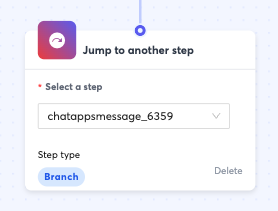
    3. Step 3: Handle the Reply (Automated) An Automation Builder workflow is set to the Inbound Chat Apps trigger. When the customer replies, the workflow catches the message and executes a Branch step.

      Click to view `Inbound Webhook Payload` (User replies "1")

      {
      "namespace":"ChatApps",
      "eventType":"inbound_message_received",
      "payload":{
      "umid":"abc...123",
      "subAccountId":"Your_SubAccount",
      "timestamp":"2025-11-09T14:35:01.000Z",
      "user":{
      "msisdn":"+15551234567",
      "channelUserId":"15551234567"
      },
      "recipient":{
      "channel":"whatsapp",
      "channelId":"8x8-channel-id-..."
      },
      "type":"Text",
      "content":{
      "text":"1"
      }
      }
      }

      If the user replied "1" (Confirm): The workflow sends a freeform text message (no template needed, as the 24-hour window is open).

      Click to view `Automated Response Payload` (Freeform Text)

      {
      "user":{
      "msisdn":"+15551234567"
      },
      "type":"text",
      "content":{
      "text":"Thank you, your appointment is confirmed. We look forward to seeing you!"
      }
      }

      If the user replied "2" (Reschedule):

      Click to view `Automated Response Payload` (Freeform Text)

      {
      "user":{
      "msisdn":"+15551234567"
      },
      "type":"text",
      "content":{
      "text":"To reschedule, please call our office at 1-800-555-1234 or visit our booking page: [your-link].com"
      }
      }

    Order & Delivery Notifications

    This scenario details how to automatically send order updates from an e-commerce platform, including a dynamic tracking button.

    Tools Used: API (or Automation Builder with HTTP Trigger)

    The Flow

    1. Step 1: Create the Template Create a UTILITY template with a dynamic URL button for the tracking link.

      Click to view `Template Creation Payload` (API Request)

      POST https://chatapps.8x8.com/api/v1/accounts/{accountId}/channels/{channelId}/templates

      {
      "language":"en_US",
      "name":"order_shipped_v2",
      "category":"UTILITY",
      "components":[
      {
      "type":"BODY",
      "text":"Hi {{1}}, good news! Your order #{{2}} has shipped.",
      "examples":[
      "Maria",
      "987-XYZ"
      ]
      },
      {
      "type":"BUTTONS",
      "buttons":[
      {
      "type":"URL",
      "text":"Track Your Order",
      "url":"[https://your.tracker.com/track/](https://your.tracker.com/track/){{1}}",
      "examples":[
      "987-XYZ"
      ]
      }
      ]
      }
      ]
      }
    2. Step 2: Send the Notification When your e-commerce backend (e.g., Shopify) flags an order as "shipped," it calls the 8x8 API to send the template.

      Click to view `Template Sending Payload` (API Request)

      POST https://chatapps.8x8.com/api/v1/subaccounts/{subAccountId}/messages

      {
      "user":{
      "msisdn":"+15551234567"
      },
      "type":"template",
      "content":{
      "template":{
      "language":"en_US",
      "name":"order_shipped_v2",
      "components":[
      {
      "type":"body",
      "parameters":[
      {
      "type":"text",
      "text":"Maria"
      },
      {
      "type":"text",
      "text":"987-XYZ"
      }
      ]
      },
      {
      "type":"button",
      "index":"0",
      "subType":"url",
      "parameters":[
      {
      "type":"text",
      "text":"987-XYZ"
      }
      ]
      }
      ]
      }
      }
      }

    Support Deflection with an FAQ Bot

    This scenario uses automation to answer common questions and escalate to a live agent. This flow is user-initiated, so no template is required to start.

    Tools Used: 8x8 Automation Builder + 8x8 Converse

    The Flow

    1. Step 1: Customer Asks for Help (User-Initiated) A customer sends: "Hi, I need help with my bill." Your Automation Builder workflow is triggered.

    2. Step 2: Automation Responds with Main Menu The workflow replies with an Interactive Button Message to open the 24-hour window.

      Click to view `Automated Response Payload` (Interactive Buttons)

      {
      "user":{
      "msisdn":"+15551234567"
      },
      "type":"interactive",
      "content":{
      "interactive":{
      "type":"button",
      "header":{
      "type":"text",
      "text":"Welcome to Support!"
      },
      "body":{
      "text":"I can help with common questions. Please select an option:"
      },
      "action":{
      "buttons":[
      {
      "type":"reply",
      "reply":{
      "title":"Billing Questions",
      "id":"faq_billing"
      }
      },
      {
      "type":"reply",
      "reply":{
      "title":"Tech Support",
      "id":"faq_tech"
      }
      },
      {
      "type":"reply",
      "reply":{
      "title":"Talk to Agent",
      "id":"escalate_agent"
      }
      }
      ]
      }
      }
      }
      }
    3. Step 3: Customer Selects "Billing Questions" The user taps the "Billing Questions" button. Your automation receives a webhook, branches, and sends a follow-up interactive message.

      Click to view `Inbound Webhook Payload` (User taps button)

      {
      "namespace":"ChatApps",
      "eventType":"inbound_message_received",
      "payload":{
      ...
      "type":"Text",
      "content":{
      "text":"Billing Questions"
      }
      }
      }

      Click to view `Automated Response Payload` (Interactive Buttons)

      {
      "user":{
      "msisdn":"+15551234567"
      },
      "type":"interactive",
      "content":{
      "interactive":{
      "type":"button",
      "body":{
      "text":
      },
      "action":{
      "buttons":[
      {
      "type":"reply",
      "reply":{
      "title":"Yes, thanks!",
      "id":"solved"
      }
      },
      {
      "type":"reply",
      "reply":{
      "title":"No, talk to agent",
      "id":"escalate_agent_2"
      }
      }
      ]
      }
      }
      }
      }
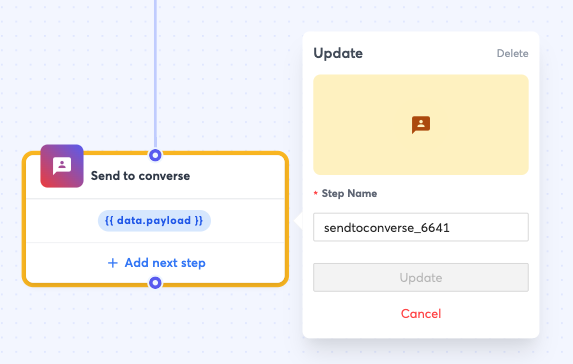
    4. Step 4: Customer Escalates to Agent The user taps "No, talk to agent." The automation executes the Send to Converse step and sends a final confirmation text.

      Click to view `Automated Response Payload` (Freeform Text)

      {
      "user":{
      "msisdn":"+15551234567"
      },
      "type":"text",
      "content":{
      "text":"Please hold, I am connecting you with a live agent..."
      }
      }

    Re-engagement Campaigns

    This scenario sends a promotional Carousel Template to a list of opted-in customers using the Campaigns tool.

    Tools Used: Campaigns + API (for template creation)

    The Flow

    1. Step 1: Create the Carousel Template First, you must create a MARKETING template that contains the CAROUSEL component.

      Click to view `Template Creation Payload` (API Request)

      POST https://chatapps.8x8.com/api/v1/accounts/{accountId}/channels/{channelId}/templates

      {
      "language":"en_US",
      "name":"summer_sale_carousel_v1",
      "category":"MARKETING",
      "components":[
      {
      "type":"BODY",
      "text":"Hi {{1}}, our summer sale is on! Swipe through to see our top deals.",
      "examples":["Alex"]
      },
      {
      "type":"CAROUSEL",
      "cards":[
      {
      "components":[
      {
      "type":"HEADER",
      "format":"IMAGE",
      "examples":["https://.../product_A.png"]
      },
      {
      "type":"BODY",
      "text":"Product A - 20% Off"
      },
      {
      "type":"BUTTONS",
      "buttons":[
      {
      "type":"URL",
      "text":"Shop Now",
      "url":"https://.../product/{{1}}",
      "examples":["A"]
      }
      ]
      }
      ]
      },
      {
      "components":[
      {
      "type":"HEADER",
      "format":"IMAGE",
      "examples":["https://.../product_B.png"]
      },
      {
      "type":"BODY",
      "text":"Product B - Buy One Get One"
      },
      {
      "type":"BUTTONS",
      "buttons":[
      {
      "type":"URL",
      "text":"Shop Now",
      "url":"https://.../product/{{1}}",
      "examples":["B"]
      }
      ]
      }
      ]
      }
      ]
      }
      ]
      }
    2. Step 2: Send the Campaign via Portal or API You can send this via the Campaigns tool by mapping CSV columns to the variables. Or, you can send it via the API.

      Click to view `Template Sending Payload` (API Request)

      POST https://chatapps.8x8.com/api/v1/subaccounts/{subAccountId}/messages

      {
      "user":{
      "msisdn":"+15551234567"
      },
      "type":"template",
      "content":{
      "template":{
      "language":"en_US",
      "name":"summer_sale_carousel_v1",
      "components":[
      {
      "type":"body",
      "parameters":[
      {
      "type":"text",
      "text":"Alex"
      }
      ]
      },
      {
      "type":"carousel",
      "cards":[
      {
      "cardIndex":0,
      "components":[
      {
      "type":"header",
      "parameters":[
      {
      "type":"image",
      "url":"https://.../product_A_live.png"
      }
      ]
      },
      {
      "type":"button",
      "index":0,
      "subType":"url",
      "parameters":[
      {
      "type":"text",
      "text":"A"
      }
      ]
      }
      ]
      },
      {
      "cardIndex":1,
      "components":[
      {
      "type":"header",
      "parameters":[
      {
      "type":"image",
      "url":"https://.../product_B_live.png"
      }
      ]
      },
      {
      "type":"button",
      "index":0,
      "subType":"url",
      "parameters":[
      {
      "type":"text",
      "text":"B"
      }
      ]
      }
      ]
      }
      ]
      }
      ]
      }
      }
      }

    Simple WhatsApp Support Bot (with API lookup)

    This is a complete, user-initiated bot that handles a specific request by calling an external API.

    Tools Used: 8x8 Automation Builder + 8x8 Converse

    The Flow

    1. Step 1: Customer Asks for Help (User-Initiated) Customer sends "Hi". The Automation Builder workflow is triggered.

    2. Step 2: Automation Responds with Main Menu The workflow replies with an Interactive Button Message.

      Click to view `Automated Response Payload` (Interactive Buttons)

      {
      "user":{
      "msisdn":"+15551234567"
      },
      "type":"interactive",
      "content":{
      "interactive":{
      "type":"button",
      "body":{
      "text":"Welcome to support! How can I help you?"
      },
      "action":{
      "buttons":[
      {
      "type":"reply",
      "reply":{
      "title":"Check Order Status",
      "id":"check_order"
      }
      },
      {
      "type":"reply",
      "reply":{
      "title":"Talk to an Agent",
      "id":"escalate_agent"
      }
      }
      ]
      }
      }
      }
      }
    3. Step 3: Path 1 - "Check Order Status" The user clicks "Check Order Status." The automation receives the webhook, branches, and replies with a freeform text message.

      Click to view `Automated Response Payload` (Freeform Text)

      {
      "user":{
      "msisdn":"+15551234567"
      },
      "type":"text",
      "content":{
      "text":"Please reply with your 8-digit order number (e.g., 12345678)."
      }
      }
    4. Step 4: User Replies with Order ID The automation, using a Wait For Reply step, receives the order number (e.g., "98765432"). It saves this as a variable ({{data.order_id}}).

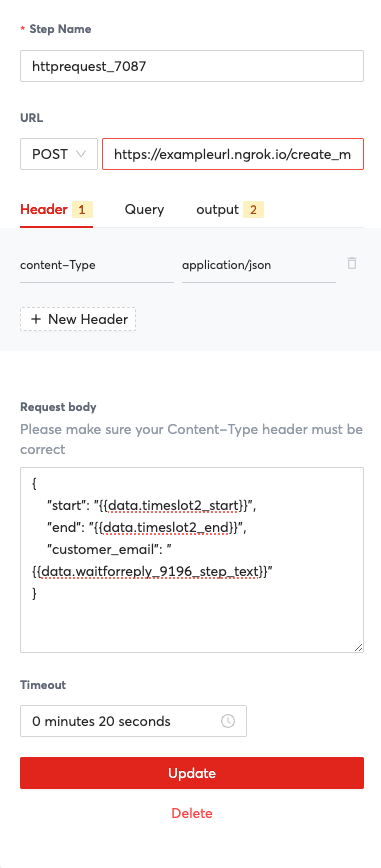
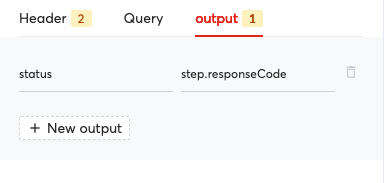
    5. Step 5: Automation Calls External API The automation uses the HTTP Request step to call your internal e-commerce API.

      • Method: GET

      • URL: https://api.my-ecommerce.com/orders/{{data.order_id}} The automation saves the response (e.g., {"status": "Shipped"}) as a variable ({{step.responseBody.status}}).

    6. Step 6: Automation Responds with Status The workflow sends a final freeform text message with the data from the API call.

      Click to view `Automated Response Payload` (Dynamic Freeform Text)

      {
      "user":{
      "msisdn":"+15551234567"
      },
      "type":"text",
      "content":{
      "text":"Your order #{{data.order_id}} status is: {{data.order_status}}. \n\nCan I help with anything else?"
      }
      }

      (Note: The variables {{data.order_id}} and {{data.order_status}} are populated by the Automation Builder from its saved context.)

    7. Step 7: Path 2 - "Talk to an Agent" If the user had clicked "Talk to an Agent" in Step 3, the automation would execute the Send to Converse step and send a final confirmation message.

      Click to view `Automated Response Payload` (Freeform Text)

      {
      "user":{
      "msisdn":"+15551234567"
      },
      "type":"text",
      "content":{
      "text":"Thank you. I am transferring you to the next available agent. Please hold."
      }
      }

    Source: https://developer.8x8.com/connect/docs/whatsapp/scenarios-tutorials · 8x8 CPaaS Developer Docs. Synced for support deflection.
  • Vertical Playbooks

    Vertical Playbooks

    These vertical playbooks provide deep, practical examples of how the 8x8 WhatsApp solution can be applied to solve specific industry challenges. Each playbook includes a common scenario, a high-level flow, and the complete, end-to-end JSON payloads required to build it, from template creation to the final automated reply.

    Retail & eCommerce

    Value: Drive sales, reduce cart abandonment, and provide instant post-purchase support.

    Scenario: Abandoned Cart Recovery

    Flow: A MARKETING carousel template is sent 2 hours after a customer abandons their cart. If they reply, an automation sends them a direct link to their saved cart.

    Tools Used: API (or Automation Builder with HTTP Trigger)

    1. Step 1: Create the Carousel Template

    First, create a MARKETING template with a carousel to showcase the items left in the cart.

    Click to view `Template Creation Payload` (API Request)

    POST https://chatapps.8x8.com/api/v1/accounts/{accountId}/channels/{channelId}/templates

    {
    "language":"en_US",
    "name":"retail_abandoned_cart_v1",
    "category":"MARKETING",
    "components":[
    {
    "type":"BODY",
    "text":"Hi {{1}}, you left some items in your cart! Are you ready to complete your purchase?",
    "examples":["Alex"]
    },
    {
    "type":"CAROUSEL",
    "cards":[
    {
    "components":[
    {
    "type":"HEADER",
    "format":"IMAGE",
    "examples":["https://.../product_A.png"]
    },
    {
    "type":"BODY",
    "text":"Item 1: Running Shoes"
    },
    {
    "type":"BUTTONS",
    "buttons":[
    {
    "type":"quick_reply",
    "text":"Complete My Order"
    }
    ]
    }
    ]
    },
    {
    "components":[
    {
    "type":"HEADER",
    "format":"IMAGE",
    "examples":["https://.../product_B.png"]
    },
    {
    "type":"BODY",
    "text":"Item 2: Sports Jacket"
    },
    {
    "type":"BUTTONS",
    "buttons":[
    {
    "type":"quick_reply",
    "text":"Complete My Order"
    }
    ]
    }
    ]
    }
    ]
    }
    ]
    }

    2. Step 2: Send the Template

    Your e-commerce platform's automation triggers this API call when a cart is abandoned for 2 hours.

    Click to view `Template Sending Payload` (API Request)

    POST https://chatapps.8x8.com/api/v1/subaccounts/{subAccountId}/messages

    {
    "user":{
    "msisdn":"+15551234567"
    },
    "type":"template",
    "content":{
    "template":{
    "language":"en_US",
    "name":"retail_abandoned_cart_v1",
    "components":[
    {
    "type":"body",
    "parameters":[{"type":"text","text":"Alex"}]
    },
    {
    "type":"carousel",
    "cards":[
    {
    "cardIndex":0,
    "components":[
    {
    "type":"header",
    "parameters":[
    {
    "type":"image",
    "url":"https://.../item_1_live.png"
    }
    ]
    }
    ]
    },
    {
    "cardIndex":1,
    "components":[
    {
    "type":"header",
    "parameters":[
    {
    "type":"image",
    "url":"https://.../item_2_live.png"
    }
    ]
    }
    ]
    }
    ]
    }
    ]
    }
    }
    }

    3. Step 3: Handle the Reply

    The customer clicks "Complete My Order." An Automation Builder workflow (or your webhook) receives this reply, opening the 24-hour service window.

    Click to view `Inbound Webhook Payload` (User taps button)

    ```json { "namespace": "ChatApps", "eventType": "inbound_message_received", "payload": { ... "type": "Text", "content": { "text": "Complete My Order" } } } ```

    4. Step 4: Send the Checkout Link

    The automation replies with an Interactive Button Message containing the dynamic checkout link.

    Click to view `Automated Response Payload` (Interactive CTA Button)

    ```json { "user": { "msisdn": "+15551234567" }, "type": "interactive", "content": { "interactive": { "type": "cta_url", "body": { "text": "Great! Your cart is saved. Click here to check out." }, "action": { "parameters": { "display_text": "Go to Checkout", "url": "[https://your-store.com/checkout/cart/a1b2c3d4e5](https://your-store.com/checkout/cart/a1b2c3d4e5)" } } } } } ```

    Financial Services / Fintech

    Value: Securely authenticate users, provide real-time fraud alerts, and deliver account updates.

    Scenario: Transaction One-Time Passcode (OTP)

    Flow: A user attempts a high-value transaction. Your system calls the 8x8 API to send an AUTHENTICATION template with a "Copy Code" button for a seamless user experience.

    Tools Used: API

    1. Step 1: Create the Authentication Template

    This template uses the special COPY_CODE button.

    Click to view `Template Creation Payload` (API Request)

    POST https://chatapps.8x8.com/api/v1/accounts/{accountId}/channels/{channelId}/templates

    {
    "language":"en_US",
    "name":"finance_otp_v3",
    "category":"AUTHENTICATION",
    "components":[
    {
    "type":"BODY",
    "text":"Your one-time passcode for your transaction is {{1}}.",
    "examples":[
    "123456"
    ]
    },
    {
    "type":"FOOTER",
    "text":"This code expires in 5 minutes. Do not share it with anyone."
    },
    {
    "type":"BUTTONS",
    "buttons":[
    {
    "type":"COPY_CODE",
    "examples":[
    "123456"
    ]
    }
    ]
    }
    ]
    }

    2. Step 2: Send the OTP Message

    When the transaction is initiated, your server generates a code and sends this API request.

    Click to view `Template Sending Payload` (API Request)

    POST https://chatapps.8x8.com/api/v1/subaccounts/{subAccountId}/messages

    {
    "user":{
    "msisdn":"+15552223333"
    },
    "type":"template",
    "content":{
    "template":{
    "language":"en_US",
    "name":"finance_otp_v3",
    "components":[
    {
    "type":"body",
    "parameters":[
    {
    "type":"text",
    "text":"852913"
    }
    ]
    },
    {
    "type":"button",
    "index":"0",
    "subType":"copyCode",
    "parameters":[
    {
    "type":"couponCode",
    "couponCode":"852913"
    }
    ]
    }
    ]
    }
    }
    }

    Logistics & Delivery

    Value: Automate delivery notifications, provide proof of delivery, and manage rescheduling requests.

    Scenario: Failed Delivery & Rescheduling

    Flow: A driver marks a delivery as "failed." An automated UTILITY template is sent with a DOCUMENT header (the "missed delivery" note) and quick reply options to reschedule.

    Tools Used: API + 8x8 Automation Builder

    1. Step 1: Create the Failed Delivery Template

    Click to view `Template Creation Payload` (API Request)

    POST https://chatapps.8x8.com/api/v1/accounts/{accountId}/channels/{channelId}/templates

    {
    "language":"en_US",
    "name":"delivery_failed_v1",
    "category":"UTILITY",
    "components":[
    {
    "type":"HEADER",
    "format":"DOCUMENT",
    "examples":[
    "https://.../delivery_note.pdf"
    ]
    },
    {
    "type":"BODY",
    "text":"Hi {{1}}, we're sorry we missed you for your delivery (Order #{{2}}). We've attached the delivery note. What would you like to do?",
    "examples":[
    "Carlos",
    "774-ABC"
    ]
    },
    {
    "type":"BUTTONS",
    "buttons":[
    {
    "type":"quick_reply",
    "text":"Reschedule"
    },
    {
    "type":"quick_reply",
    "text":"Change Address"
    },
    {
    "type":"quick_reply",
    "text":"Contact Support"
    }
    ]
    }
    ]
    }

    2. Step 2: Send the Notification

    The driver's app calls an API endpoint that triggers this message.

    Click to view `Template Sending Payload` (API Request)

    POST https://chatapps.8x8.com/api/v1/subaccounts/{subAccountId}/messages

    {
    "user":{
    "msisdn":"+15554445555"
    },
    "type":"template",
    "content":{
    "template":{
    "language":"en_US",
    "name":"delivery_failed_v1",
    "components":[
    {
    "type":"header",
    "parameters":[
    {
    "type":"document",
    "url":"https://.../live-delivery-note-774-ABC.pdf"
    }
    ]
    },
    {
    "type":"body",
    "parameters":[
    {
    "type":"text",
    "text":"Carlos"
    },
    {
    "type":"text",
    "text":"774-ABC"
    }
    ]
    }
    ]
    }
    }
    }

    3. Step 3: Handle the "Reschedule" Reply

    The customer taps "Reschedule." An Automation Builder workflow receives this reply.

    Click to view `Inbound Webhook Payload` (User taps button)

    ```json { "namespace": "ChatApps", "eventType": "inbound_message_received", "payload": { ... "type": "Text", "content": { "text": "Reschedule" } } } ```

    4. Step 4: Offer New Time Slots

    The automation replies with an Interactive List Message showing the next available slots.

    Click to view `Automated Response Payload` (Interactive List)

    ```json { "user": { "msisdn": "+15554445555" }, "type": "interactive", "content": { "interactive": { "type": "list", "header": { "type": "text", "text": "Reschedule Delivery" }, "body": { "text": "Please select a new time slot for order #774-ABC." }, "action": { "button": "Select Slot", "sections": [ { "title": "Available Times", "rows": [ { "id": "slot_1", "title": "Tomorrow (Nov 7)", "description": "10:00 AM - 12:00 PM" }, { "id": "slot_2", "title": "Tomorrow (Nov 7)", "description": "2:00 PM - 4:00 PM" }, { "id": "slot_3", "title": "Day After (Nov 8)", "description": "10:00 AM - 12:00 PM" } ] } ] } } } } ```

    Healthcare & Clinics

    Value: Securely remind patients of appointments, send pre-visit instructions, and manage confirmations.

    Scenario: Appointment Reminder with Location

    Flow: Send a UTILITY template 48 hours before an appointment that includes the clinic's location as a LOCATION header.

    Tools Used: API or Campaigns

    1. Step 1: Create the Reminder Template

    This template uses the LOCATION header type.

    Click to view `Template Creation Payload` (API Request)

    POST https://chatapps.8x8.com/api/v1/accounts/{accountId}/channels/{channelId}/templates

    {
    "language":"en_US",
    "name":"clinic_reminder_v1",
    "category":"UTILITY",
    "components":[
    {
    "type":"HEADER",
    "format":"LOCATION"
    },
    {
    "type":"BODY",
    "text":"Hi {{1}}, this is a reminder of your appointment with {{2}} on {{3}} at {{4}}.",
    "examples":[
    "Lee",
    "Dr. Smith",
    "Nov 10, 2025",
    "3:00 PM"
    ]
    },
    {
    "type":"FOOTER",
    "text":"Please reply to confirm or call to reschedule."
    }
    ]
    }

    2. Step 2: Send the Reminder

    Your scheduling system triggers this API call 48 hours before the appointment.

    Click to view `Template Sending Payload` (API Request)

    POST https://chatapps.8x8.com/api/v1/subaccounts/{subAccountId}/messages

    {
    "user":{
    "msisdn":"+15556667777"
    },
    "type":"template",
    "content":{
    "template":{
    "language":"en_US",
    "name":"clinic_reminder_v1",
    "components":[
    {
    "type":"header",
    "parameters":[
    {
    "type":"location",
    "location":{
    "latitude":"1.2857",
    "longitude":"103.8479",
    "name":"Downtown Medical Clinic",
    "address":"123 Health St, Medical Tower, #05-01"
    }
    }
    ]
    },
    {
    "type":"body",
    "parameters":[
    {"type":"text","text":"Lee"},
    {"type":"text","text":"Dr. Smith"},
    {"type":"text","text":"Nov 10, 2025"},
    {"type":"text","text":"3:00 PM"}
    ]
    }
    ]
    }
    }
    }

    Education & Training

    Value: Engage new students, send course materials, and provide event reminders.

    Scenario: New Student Welcome & Orientation

    Flow: A UTILITY template is sent upon enrollment, featuring a VIDEO header (a welcome message from the director) and a URL button linking to the new student portal.

    Tools Used: API or Campaigns

    1. Step 1: Create the Welcome Template

    Click to view `Template Creation Payload` (API Request)

    POST https://chatapps.8x8.com/api/v1/accounts/{accountId}/channels/{channelId}/templates

    {
    "language":"en_US",
    "name":"student_welcome_v1",
    "category":"UTILITY",
    "components":[
    {
    "type":"HEADER",
    "format":"VIDEO",
    "examples":[
    "https://.../welcome_video.mp4"
    ]
    },
    {
    "type":"BODY",
    "text":"Welcome to the university, {{1}}! We're thrilled to have you. Your student ID is {{2}}. Get started by visiting your student portal.",
    "examples":[
    "Sam",
    "S98765A"
    ]
    },
    {
    "type":"BUTTONS",
    "buttons":[
    {
    "type":"URL",
    "text":"Go to Student Portal",
    "url":"[https://portal.university.edu/login/](https://portal.university.edu/login/){{1}}",
    "examples":[
    "S98765A"
    ]
    }
    ]
    }
    ]
    }

    2. Step 2: Send the Welcome Message

    Your Student Information System (SIS) triggers this API call upon successful enrollment.

    Click to view `Template Sending Payload` (API Request)

    POST https://chatapps.8x8.com/api/v1/subaccounts/{subAccountId}/messages

    {
    "user":{
    "msisdn":"+15558889999"
    },
    "type":"template",
    "content":{
    "template":{
    "language":"en_US",
    "name":"student_welcome_v1",
    "components":[
    {
    "type":"header",
    "parameters":[
    {
    "type":"video",
    "url":"https://.../live_welcome_video.mp4"
    }
    ]
    },
    {
    "type":"body",
    "parameters":[
    {"type":"text","text":"Sam"},
    {"type":"text","text":"S98765A"}
    ]
    },
    {
    "type":"button",
    "index":"0",
    "subType":"url",
    "parameters":[
    {
    "type":"text",
    "text":"S98765A"
    }
    ]
    }
    ]
    }
    }
    }

    Source: https://developer.8x8.com/connect/docs/whatsapp/vertical-playbooks · 8x8 CPaaS Developer Docs. Synced for support deflection.
  • Operations, Monitoring & Troubleshooting

    Operations, Monitoring & Troubleshooting

    This section covers the tools and data you need to monitor your 8x8 WhatsApp solution, diagnose issues, and understand operational costs. Effective monitoring involves a combination of 8x8 Connect portal analytics, API error handling, and processing real-time webhooks.

    Analytics & Monitoring in 8x8 Connect

    The 8x8 Connect portal provides a visual dashboard for monitoring your message activity.

    1. Dashboard

    The Dashboard provides a high-level, filterable view of your key metrics, including:

    • Message Delivered vs. Undelivered: Track successful and failed messages.

    • Delivery Rate: Monitor your overall delivery percentage.

    • Received Messages: See the volume of inbound messages from users.

    • WhatsApp Conversations: View a breakdown of conversations by Meta's categories (Authentication, Utility, Service, Marketing).

    2. Reports

    The Reports tab provides a detailed, exportable breakdown of your WhatsApp conversation usage and costs, filterable by subaccount, channel, and date range.

    3. Logs

    The Logs tab provides a real-time, message-by-message list of all inbound and outbound messages. This is your primary tool for investigating a specific message failure. You can filter by:

    • Subaccount

    • Channel (WhatsApp)

    • Direction (Inbound/Outbound)

    • Status (e.g., Delivered, Read, Undelivered, Rejected)

    • Country

    • UMID (the 8x8 Unique Message ID)

    Troubleshooting: API Errors (Synchronous)

    Synchronous errors are returned immediately in the API response to your POST request. They indicate that your request itself was invalid and was never sent to WhatsApp.

    Example Error Response (400 Bad Request):

    {
    "code":1005,
    "message":"Invalid parameter(s): 'user.msisdn'",
    "errorId":"a1b2c3d4-...",
    "timestamp":"2025-11-10T10:30:00Z"
    }
    8x8 Code 8x8 Reason How to Fix
    1002 Invalid MSISDN The user.msisdn value is missing, incorrectly formatted, or does not include the country code.
    1005 Invalid Parameter A required field is missing (like content.template) or a field is misspelled. Check the message for details.
    1200 Unauthorized Access Your Authorization: Bearer header is missing or your API key is incorrect.
    3038 Template not found The name or language in your send payload does not match any approved template.
    3040 Empty template parameters You sent a template that requires parameters (e.g., {{1}}), but you did not include a parameters array in your components object.
    3041 Invalid Template parameter You provided the wrong number of parameters (e.g., the template expected 2, you sent 1).

    Troubleshooting: Delivery Events (Asynchronous Webhooks)

    Asynchronous errors occur after you have successfully submitted your message (i.e., you received a 200 OK response). These errors indicate that Meta or the carrier could not deliver your message to the end-user.

    You are notified of these failures via the outbound_message_status_changed webhook.

    Asynchronous Error Webhook Payload

    When a message fails, you will receive a webhook with state: "undelivered". The errorCode and errorMessage fields provide the reason.

    {
    "namespace":"ChatApps",
    "eventType":"outbound_message_status_changed",
    "description":"ChatApps outbound message delivery receipt",
    "payload":{
    "umid":"<UNIQUE_MESSAGE_ID>",
    "subAccountId":"<SUBACCOUNT_ID>",
    "channel":"whatsapp",
    "user":{ ... },
    "status":{
    "state":"undelivered",
    "detail":"rejected_by_operator",
    "timestamp":"2025-11-10T10:30:05Z",
    "errorCode":1022,
    "errorMessage":"Message window expired"
    }
    }
    }

    WhatsApp Error Codes

    When a message fails to deliver, you'll receive an errorCode and errorMessage in the webhook payload. To understand what each error code means and how to resolve it, see the complete reference:

    📘 Error Code Reference

    For the complete list of all WhatsApp error codes, including Meta error code mappings, descriptions, and troubleshooting guidance, see the Messaging Apps Delivery Error Codes reference.

    Operational Webhooks (Non-Error)

    In addition to delivery receipts, you should subscribe to these webhooks to monitor the health of your account and templates.

    1. Template Status & Quality Updates

    These webhooks alert you to changes in your templates, such as rejection, approval, or a quality drop.

    • eventType: template_status_update: Fires when your template is APPROVED, REJECTED, PAUSED, or DISABLED.

    • eventType: template_quality_update: Fires when your template's quality score changes (e.g., from GREEN to YELLOW).

    • eventType: template_category_update: Fires if Meta automatically changes your template's category (e.g., from UTILITY to MARKETING).

    Sample Payload (Template Rejected):

    {
    "eventId":"0f88f5c4-...",
    "timestamp":"2025-01-01T00:00:00.00Z",
    "provider":"WhatsApp",
    "eventType":"template_status_update",
    "eventDetails":{
    "templateName":"<YOUR_TEMPLATE_NAME>",
    "templateLanguage":"en_US",
    "meta":{
    "status":"REJECTED",
    "reason":"INCORRECT_CATEGORY"
    }
    }
    }

    2. Phone Number Quality & Limit Updates

    This webhook alerts you to changes in your portfolio's messaging limit (e.g., an upgrade from TIER_1K to TIER_10K) or a change in your number's quality rating.

    • eventType: phone_number_quality_update

    Sample Payload (Messaging Limit Upgrade):

    {
    "eventId":"0f88f5c4-...",
    "timestamp":"2025-01-01T00:00:00.00Z",
    "provider":"WhatsApp",
    "eventType":"phone_number_quality_update",
    "eventDetails":{
    "displayPhoneNumber":"15550783881",
    "meta":{
    "event":"UPGRADE",
    "currentLimit":"TIER_10K",
    "oldLimit":"TIER_1K"
    }
    }
    }

    WhatsApp Pricing Model (PMP)

    WhatsApp Business pricing is based on a Per-Message Pricing (PMP) model. Charges are applied when a template message is delivered.

    Pricing Model and Chargeable Events

    • Per-Message Pricing (PMP): As of July 1, 2025, charges apply only when a template message (type: "template") is delivered.

    • Rate Drivers: Charges vary by two factors:

      1. The template's category (marketing, utility, authentication).

      2. The recipient's WhatsApp phone number country calling code.

    • Volume Tiers: Volume discounts are available for utility and authentication categories. As your monthly message volume increases, you move into higher tiers with lower per-message rates.


    Source: https://developer.8x8.com/connect/docs/whatsapp/operations-monitoring · 8x8 CPaaS Developer Docs. Synced for support deflection.
  • Reference & Resources

    Reference & Resources

    This section provides a consolidated list of key terms, API reference links, and other resources to help you successfully build and manage your 8x8 WhatsApp solution.

    Glossary – WhatsApp & 8x8 Terms

    A quick reference for the common terminology used in this documentation.

    8x8 Terms

    Term Definition
    8x8 Account Your primary customer account with 8x8.
    Subaccount A logical grouping within your 8x8 Account, used to separate billing, permissions, and API credentials (e.g., for "Dev" vs. "Prod"). All API calls are made in the context of a subAccountId.
    Channel A specific communication service configured within a Subaccount. For this guide, it represents your WhatsApp Business Phone Number that is linked to 8x8.
    8x8 Connect The all-in-one web portal for managing your 8x8 services, including creating API keys, managing templates, and running campaigns.
    8x8 Converse 8x8's omnichannel agent desktop for managing two-way customer conversations (including WhatsApp) in a ticket-based system.
    Automation Builder A visual, no-code workflow builder in 8x8 Connect used to create chatbots and automated processes.
    Campaigns A tool in 8x8 Connect (formerly Multi-Channel Sender or MCS) for sending bulk messages to a list of recipients.
    Webhook A URL on your server that 8x8 sends POST requests to, notifying your application of real-time events like an incoming message or a delivery status change.
    UMID (Unique Message ID) The unique identifier 8x8 assigns to every message, which is returned in API responses and webhooks.

    Meta / WhatsApp Terms

    Term Definition
    Meta Business Portfolio (Formerly Meta Business Manager). The top-level Meta-hosted account used to manage all your business assets, including ad accounts and WhatsApp Business Accounts (WABAs).
    WABA WhatsApp Business Account. The specific account within your Meta Business Portfolio that holds your phone numbers, templates, and quality ratings.
    WhatsApp Business Platform The overall Meta service and infrastructure that businesses use to connect to WhatsApp.
    Meta Cloud API The specific Meta-hosted API that 8x8 integrates with to provide the WhatsApp service. All functionality described in this documentation is based on the Cloud API.
    MM Lite API A specialized, high-throughput Meta API for marketing messages. This is a separate Meta product and is not part of the 8x8 integration described in this documentation.
    Template Message A pre-approved message (in a specific category) required to initiate a conversation with a user or reply outside the 24-hour window.
    Interactive Message A "freeform" (non-template) message that can only be sent inside the 24-hour window. Includes text, media, buttons, and lists.
    Customer Service Window The 24-hour period after a user sends a message, during which you can reply with freeform Interactive Messages.
    Authentication Template A template category for sending One-Time Passcodes (OTPs).
    Marketing Template A template category for any promotional content or offers.
    Utility Template A template category for non-promotional, transactional updates (e.g., order confirmation, shipping alert).
    Messaging Limit The maximum number of unique users a business can initiate conversations with in a 24-hour period. This limit is set at the Portfolio level and is tiered (e.g., 250, 2k, 10k, Unlimited).
    Quality Rating A (High, Medium, Low) rating for your phone number, based on customer feedback (e.g., blocks). Low quality can lead to a PAUSED template status.

    API Reference Links

    This documentation provides tutorials and cookbooks. For the complete, detailed API specifications, please refer to the primary API reference guides.

    • Send Message (Template & Interactive): POST /subaccounts/{subAccountId}/messages

      • See: Sending a Template Message via API
      • See: Template Message API Library
    • Send Interactive Message: POST /subaccounts/{subAccountId}/messages

      • See: User-initiated Conversations: Interactive Messages
      • See: Interactive Message API Library
    • Create Template: POST /accounts/{accountId}/channels/{channelId}/templates

      • See: Creating a Template via API
      • See: Template Message API Library
    • Upload Media: POST /subaccounts/{subAccountId}/files

      • See: Media Hosting & Management
    • Webhooks (Inbound & Status):

      • See: Webhooks Reference
      • See: Operations, Monitoring & Troubleshooting

    Source: https://developer.8x8.com/connect/docs/whatsapp/reference-resources · 8x8 CPaaS Developer Docs. Synced for support deflection.
  • Learning Paths

    Learning Paths

    This documentation is comprehensive, but not all sections are relevant to every role. Use these learning paths as a "fast track" to the sections that matter most to you.

    We recommend all users start with Concepts & Fundamentals to understand the 24-hour window, message types, and platform rules.

    Business User Path (Campaigns & Support)

    This path is for non-technical users, marketers, and support managers who will use the 8x8 Connect portal to manage campaigns and agent-based support.

    1. Start Here:

      • Concepts & Fundamentals: Understand the core rules of WhatsApp.

      • Getting Started with WhatsApp (Portal-first): Learn how to get your account set up using the 8x8 Connect portal.

    2. Learn Portal Tools:

      • Message Types & Templates: Learn how to create and manage the templates you will use in your campaigns.

      • WhatsApp in 8x8 Connect: This is your primary guide to using the Campaigns tool, 8x8 Converse for agents, and the Automation Builder.

    3. See it in Action:

      • Scenarios & Tutorials: Review these practical, step-by-step guides for appointment reminders, support bots, and marketing campaigns.

      • Vertical Playbooks: Find examples specific to your industry, such as Retail or Healthcare.

    Developer Path (API & Automation)

    This path is for software developers and integrators who will automate WhatsApp messaging by integrating the 8x8 Messaging App API into backend systems.

    1. Understand the Core:

      • Concepts & Fundamentals: Understand the 24-hour window, template categories, and portfolio-based limits.

      • WhatsApp over 8x8 API: This is your primary technical guide. Pay close attention to:

        • Authentication

        • Business-initiated Conversations: Templates (Creating vs. Sending Templates)

        • User-initiated Conversations: Interactive Messages (Sending Interactive Messages)

        • Webhooks Reference (Receiving Webhooks and Event Handling)

    2. Master Templates & Media:

      • Message Types & Templates: Understand template categories, use cases, and portal management.

      • Template Components Reference: Detailed technical specifications for all component constraints (character limits, button types, header formats, parameter rules).

      • Template Message API Library: Use this as your quick reference for the exact Create and Send JSON payloads for every template type (Auth, Media, Carousel, etc.).

      • Interactive Message API Library: Complete reference for all interactive message types with JSON examples.

    3. Build & Troubleshoot:

      • Advanced Capabilities: Learn how to combine templates and interactive messages to build conversational journeys.

      • Operations, Monitoring & Troubleshooting: This is your guide for debugging. Use the API/webhook error code matrix to understand why a message failed.

      • Governance, Security & Compliance: Review the compliance and security (e.g., AIT prevention) rules.


    Source: https://developer.8x8.com/connect/docs/whatsapp/learning-paths · 8x8 CPaaS Developer Docs. Synced for support deflection.
  • Concepts & Fundamentals

    Concepts & Fundamentals

    Before you send your first message, it's essential to understand the core concepts and rules of the WhatsApp Business Platform. These rules govern how you can interact with customers, what you can send, how you are billed, and how your account's reputation is managed.

    Meta & 8x8 Platform Hierarchy

    These are the fundamental components provided by Meta that represent your business on WhatsApp, organized hierarchically and typically managed through the 8x8 Connect portal:

    1. Meta Business Portfolio: (Formerly Meta Business Manager) Meta's top-level container for managing business assets, crucial for initial onboarding and Business Verification.

    2. WhatsApp Business Account (WABA): Your specific business profile container within the Meta Portfolio, holding your phone numbers, templates, and quality rating.

    3. Business Phone Number: A verified phone number linked to your WABA, used via 8x8 to send/receive messages. This acts as your "Sender ID" on WhatsApp.

    4. Message Templates: Pre-approved message formats required for initiating conversations or replying outside the 24-hour window, managed via the 8x8 Connect portal.

    Business-Initiated Conversations (Outbound)

    A business-initiated conversation occurs when you send the first message to a customer, or if you message a customer after the 24-hour Customer Service Window (see User-Initiated Conversations) has closed.

    1. Template Messages

    To initiate a conversation, you must use a Template Message.

    • What they are: Pre-approved, structured message formats.

    • When to use them:

      1. To initiate a new conversation with a customer.

      2. To reply to a customer outside the 24-hour customer service window.

    • Content: Can include text, media (image, video, document, location), and interactive buttons (Quick Reply, Call to Action, Copy Code).

    • Impact: Sending a template message opens a new, 24-hour template-based conversation, which is billed according to its category. If the customer replies, they open a 24-hour Customer Service Window.

    2. Template Categories

    Every Template Message you create must be assigned one of three categories. This category defines the template's purpose and is used by Meta to determine billing.

    Category Description Common Use Cases
    Authentication Enables you to send one-time passcodes (OTPs) to authenticate users. User login, account verification, password reset, integrity checks.
    Marketing Used for promotions, offers, or announcements to drive customer engagement and sales. New product alerts, sale notifications, re-engagement campaigns.
    Utility Facilitates a specific, agreed-upon request, transaction, or update for an existing customer. Order confirmations, delivery status, appointment reminders, account statements.

    User-Initiated Conversations (Inbound)

    A user-initiated conversation occurs when a customer sends your business a message first, or when they reply to one of your Template Messages. This action triggers specific time windows that determine your messaging capabilities and costs.

    To receive inbound messages from customers, you need to configure webhooks. See Webhooks Reference for setup and payload details.

    Regarding July 1, 2025 Pricing Changes: Under the per-message pricing model, understanding these windows is essential to utilizing free messaging tiers.

    1. The 24-Hour Customer Service Window (CSW)

    The Customer Service Window is the standard period for two-way support interactions.

    • What it is: A 24-hour window during which you can reply to customers using non-template (freeform) messages or specific template types.
    • How it starts: The window opens automatically when a customer sends you a message.
    • How it resets: The 24-hour timer resets every time the customer sends a new message.
    • What happens when it closes: After 24 hours from the customer's last message, the window closes. You can no longer send freeform messages and must use a paid Template Message to re-initiate contact.

    Pricing & Capabilities within the CSW

    While this window is open, the following rules apply:

    Message Type Delivery Status Cost
    Non-Template (Text, Image, Audio) Allowed Free
    Utility Templates Allowed Free
    Marketing / Auth Templates Allowed Paid (Standard Rates)

    Key Takeaway: To minimize costs, maximize the use of freeform text and Utility templates while the customer is actively conversing with you.

    2. The 72-Hour Free Entry Point (FEP) Window

    The Free Entry Point window is a special promotional period triggered by specific Meta advertising interactions. It offers the widest range of free messaging.

    • How it starts: This window opens only when a user messages your business through:

      • A Meta Click-to-WhatsApp Ad.
      • A Facebook Page Call-to-Action (CTA) button.
    • Activation Requirement (Critical): The FEP window does not open immediately upon the user's message. To activate the 72-hour free window, you must reply to the user's message within 24 hours.

      • If you reply within 24 hours: The 72-hour FEP window activates immediately upon your reply delivery.
      • If you do NOT reply within 24 hours: The opportunity is lost. Any subsequent message you send must be a paid Template Message, and it will not trigger the 72-hour free window.
    • Duration: Once activated, it lasts for a fixed 72 hours.

    • Reset Rules: Unlike the CSW, this timer does not reset if the customer replies. It is a single, continuous 72-hour window.

    Pricing & Capabilities within the FEP

    During this 72-hour period, standard pricing is overridden:

    • All Messages are Free: This includes non-template messages and all categories of Template Messages (including Marketing, Authentication and Utility).
    • Interaction with the CSW:
      • The FEP and the 24-hour CSW run in parallel.
      • If the standard 24-hour CSW closes (e.g., the customer hasn't replied in 24 hours) but the 72-hour FEP is still active, you can still send Template Messages for free.

    Summary of Windows

    Feature Customer Service Window (24h) Free Entry Point Window (72h)
    Trigger Any incoming user message/reply Click-to-WhatsApp Ad or Page CTA
    Duration 24 hours (Resets on new message) 72 hours (Fixed, does not reset)
    Freeform Messages Allowed & Free Free (Must be within active CSW)
    Utility Templates Free Free
    Marketing/Auth Templates Paid Free

    3. Interactive (Freeform) Messages

    These are the messages you can send inside an open 24-hour Customer Service Window. They do not require pre-approval.

    Message Type Description
    Text A simple text message.
    Media An Image, Video, Audio, or Document, which can include an optional text caption.
    Location A map pin of a specific geographic location.
    Interactive Buttons A message with a body, optional header/footer, and up to 3 Quick Reply buttons.
    Interactive List A message that opens a pop-up menu of up to 10 items, ideal for selection menus.
    Interactive CTA URL Button A message with text that features a single, prominent button that opens a website URL.

    Quality Rating & Messaging Limits

    Meta monitors your account's sending activity to protect users from spam. This is managed through quality ratings and messaging limits.

    1. Quality Rating

    • What it is: A rating (High, Medium, Low) for your business phone number based on customer feedback, such as how many times your messages are blocked or reported as spam.

    • Where to find it: You can find your rating in the Meta WhatsApp Manager.

    • Impact: If your quality rating drops to Low, your templates may be automatically Paused (temporarily disabled) to protect your rating from dropping further.

    2. Messaging Limits (Portfolio-Based)

    • What it is: The maximum number of unique users you can initiate conversations with in a rolling 24-hour period. This is now set at the Business Portfolio level and shared across all phone numbers in that portfolio.

    • Note: This limit does not apply to replies within an active 24-hour customer service window. You can have unlimited customer service conversations.

    Messaging Tiers:

    • Tier 1 (250): All new portfolios start here, able to message 250 unique users per 24 hours.

    • Tier 2 (2,000): You can upgrade to this tier by:

      1. Verifying your business (see Business Verification & Raising Limits).

      2. OR Sending 2,000 high-quality template messages to unique users within a 30-day window.

    • Automatic Scaling (Tier 3+): After reaching 2,000, your portfolio can be automatically upgraded to 10k, 100k, and finally Unlimited users. Upgrades happen if:

      1. You are sending high-quality messages.

      2. You have used at least 50% of your current limit in the last 7 days.

    • Webhook Notification: You will receive a phone_number_quality_update webhook when your portfolio's limit is upgraded (e.g., event: "UPGRADE", currentLimit: "TIER_10K").


    Source: https://developer.8x8.com/connect/docs/whatsapp/concepts-fundamentals · 8x8 CPaaS Developer Docs. Synced for support deflection.
  • Advanced Capabilities

    Advanced Capabilities

    Beyond sending and receiving individual messages, the 8x8 platform enables you to build sophisticated, multi-step customer journeys and rich interactive experiences. This section covers how to use 8x8's tools to create guided conversations that automate common tasks.

    Rich Interactive Experiences

    WhatsApp provides native interactive components that enable rich, engaging customer experiences without leaving the chat interface. These interactive elements can be combined to create seamless, guided conversations.

    Interactive Message Types

    WhatsApp supports several interactive message types for collecting user input and presenting options:

    Carousels

    Horizontally-scrolling sets of up to 10 cards, each with its own image/video, text, and buttons. Ideal for product discovery, marketing showcases, or presenting multiple options visually.

    Use Cases:

    • Product catalogs
    • Service packages
    • Featured offers
    • Multi-option comparisons

    See: Template Message API Library for complete carousel implementation.

    Interactive Lists

    Pop-up menus displaying up to 10 selectable items, perfect for structured option selection without cluttering the chat.

    Use Cases:

    • Support menu navigation
    • Appointment time selection
    • Department routing
    • FAQ topic selection

    See: Interactive Message API Library for list implementation examples.

    Reply Buttons

    Quick-reply buttons (up to 3) that users can tap to respond instantly, ideal for simple choices or confirmations.

    Use Cases:

    • Yes/No confirmations
    • Quick action triggers
    • Simple menu options
    • Callback requests

    See: Interactive Message API Library for button examples.

    WhatsApp Flows

    WhatsApp Flows take interactive experiences to the next level by enabling structured form-based data collection within the WhatsApp conversation. Unlike button or list messages that capture single selections, Flows provide a complete form interface with validation, multi-screen navigation, and complex data structures.

    What Makes Flows Different

    Flows are designed for scenarios requiring structured, validated multi-field input:

    Feature Interactive Buttons/Lists WhatsApp Flows
    Input Method Single tap selection Multi-field forms with text inputs, dropdowns, date pickers, checkboxes
    Validation None (any button tap is valid) Built-in validation (required fields, format checking, conditional logic)
    Data Collection One choice per message Multiple fields in single submission
    User Experience Chat-based taps Native form UI with screens and navigation
    Best For Quick selections, menus Data capture, onboarding, complex forms

    Key Benefits

    • Native Form Experience: Professional, mobile-optimized forms inside WhatsApp
    • Built-in Validation: Ensure data quality before submission reaches your backend
    • Reduced Message Volume: Collect 10+ data points in one Flow instead of 10+ messages
    • Structured Output: Receive consistent JSON payloads for easy processing

    Common Use Cases

    • Product Preference Capture: Size, style, budget, preferences
    • Appointment Scheduling: Location, service type, date/time selection
    • Lead Qualification: Company info, needs assessment, timeline
    • Account Onboarding: Profile creation, document collection, consent capture
    • Customer Feedback: Multi-question surveys with ratings and comments
    • Service Requests: Issue details, category selection, priority level

    When to Use Flows vs. Buttons/Lists

    Use Flows when you need to:

    • Collect multiple related fields (3+ inputs)
    • Validate input format (email, phone, date)
    • Guide users through multi-step processes
    • Capture both selections AND free-text input
    • Ensure data completeness before submission

    Use Buttons/Lists when you need to:

    • Get a single quick selection
    • Provide simple menu navigation
    • Trigger an action (not collect data)
    • Keep conversation flow lightweight

    Getting Started with Flows

    Flows require design, configuration, and integration work:

    1. Design: Build Flow UI using Meta's WhatsApp Flows Playground or JSON editor
    2. Create: Upload Flow definition via Flow Configuration API
    3. Publish: Make Flow available for use
    4. Send: Trigger Flow via Template button or Interactive message
    5. Receive: Process structured submissions via webhook

    See: WhatsApp Flows for complete documentation on creating, managing, and sending Flows, including API reference and integration patterns.

    See: Flow Examples Library for production-ready implementations across retail, healthcare, financial services, logistics, and more.

    Combining Templates + Interactivity

    The most powerful experiences combine business-initiated templates with user-initiated interactive messages. This pattern is the foundation for almost all automated customer journeys.

    The Template-to-Interactive Pattern

    Step 1: Business Initiates (Template Message)

    You cannot send interactive messages to start a conversation. You must send a pre-approved Template Message.

    Example:

    Template (UTILITY): "Your order has shipped!
    Would you like to track it or see related products?"
    [Button: Track Order] [Button: View Products]

    Step 2: User Replies (Service Window Opens)

    The customer taps a button or replies with text. This opens the 24-hour customer service window.

    Your webhook receives the inbound_message_received event with the user's choice.

    Step 3: Business Responds (Interactive)

    Now you can reply with freeform interactive messages—buttons, lists, or even Flows—without template approval.

    Example:

    Interactive List: "Select a product category:"
    - Electronics
    - Clothing
    - Home & Garden
    - Sports Equipment

    Or trigger a Flow for detailed preference collection.

    Advanced Pattern: Template → Interactive → Flow

    For complex data collection journeys:

    1. Template: Initiate conversation - "Ready to schedule your appointment?"
    2. Interactive Buttons: Quick pre-qualification - "New patient or returning?"
    3. Flow: Detailed data capture - Appointment form with location, date, time, reason

    This layered approach balances engagement (quick wins with buttons) and data quality (comprehensive capture with Flows).

    See: Scenarios & Tutorials for complete end-to-end examples of template-to-interactive patterns.

    Interactive Journeys with 8x8 Automation Builder

    While WhatsApp provides native interactive components (buttons, lists, Flows), the 8x8 Automation Builder orchestrates complete multi-step journeys by combining these components with business logic, external APIs, and conditional branching.

    What is Automation Builder?

    A visual, no-code workflow builder that creates stateful conversational journeys that react to customer input in real-time.

    Key Difference from Interactive Components:

    WhatsApp Interactive Components 8x8 Automation Builder
    Single interaction (one button tap, one Flow submission) Multi-step workflows with branching logic
    WhatsApp-native UI (buttons, Flows) Orchestration layer combining messages, APIs, data
    Data collection Data processing + decision-making

    How They Work Together

    Automation Builder uses WhatsApp interactive components as building blocks:

    1. Send Interactive Message → Wait for user selection
    2. Branch on Response → Different paths based on user choice
    3. Call External API → Fetch data or perform action
    4. Send Flow → Collect detailed information
    5. Process Flow Submission → Store data, trigger workflows
    6. Send Confirmation → Complete the journey

    Common Use Cases

    Appointment Booking with API Integration

    Flow:

    1. User sends "book appointment" → Automation triggers
    2. Automation sends interactive list → User selects service type
    3. Automation calls your API → Fetch available time slots
    4. Automation sends Flow → User fills appointment details
    5. Flow submitted → Automation calls booking API
    6. Automation sends confirmation message

    Lead Qualification & Routing

    Flow:

    1. User replies to marketing template → Automation triggers
    2. Automation sends buttons → "Existing customer?" Yes/No
    3. Branch on response:
      • Yes: Send login Flow → Route to support
      • No: Send qualification Flow → Route to sales
    4. Flow submitted → Automation calls CRM API
    5. Automation sends personalized next steps

    Customer Feedback Loop

    Flow:

    1. Order delivered → Automation triggers (time-based)
    2. Automation sends template → "Rate your experience"
    3. User taps button → Automation sends NPS Flow
    4. Flow submitted → Automation analyzes score
    5. Branch on score:
      • High: Thank you message
      • Low: Route to customer success team
    6. Store feedback in analytics system

    Key Automation Builder Steps

    • Trigger: Inbound Chat Apps - Start on message received
    • Action: ChatApps Message - Send templates, interactive messages, Flows
    • Action: Wait For Reply - Pause workflow until user responds
    • Action: Branch - Conditional logic based on user input
    • Action: HTTP Request - Call your APIs or third-party services
    • Action: Delay - Time-based actions (send reminder in 24 hours)

    Configuration Example: Appointment Booking

    Scenario: Customer wants to book an appointment. Automation Builder orchestrates the entire journey.

    Workflow Steps:

    1. Trigger: Inbound message containing "book"
    2. Send Interactive List: "What service do you need?"
      • General Consultation
      • Specialist Visit
      • Follow-up Appointment
    3. Wait For Reply
    4. HTTP Request: POST /api/availability with selected service
    5. Send Flow: Appointment booking Flow with available slots
    6. Wait For Flow Submission
    7. HTTP Request: POST /api/bookings to create appointment
    8. Send Confirmation: "Appointment confirmed for {date} at {time}"

    See: Automation Builder Documentation for complete configuration guides and workflow examples.

    Choosing the Right Approach

    Use this guide to select the best tool for your use case:

    Use Interactive Buttons/Lists When

    • ✅ You need a single quick selection
    • ✅ Presenting 2-10 clear options
    • ✅ Navigation or menu purposes
    • ✅ Simple user actions (yes/no, select topic)

    Example: "Would you like to track your order or contact support?"

    Use WhatsApp Flows When

    • ✅ Collecting multiple related fields (3+ inputs)
    • ✅ Data validation is critical (email, phone, dates)
    • ✅ Multi-screen guided processes
    • ✅ Combining selections with free-text input
    • ✅ Structured form submissions needed

    Example: Account onboarding with name, email, company, preferences, consents

    Use Automation Builder When

    • ✅ Multi-step journeys with branching logic
    • ✅ External API calls needed (fetch data, create records)
    • ✅ Stateful workflows (remember previous answers)
    • ✅ Conditional paths based on user input
    • ✅ Time-based triggers or delays
    • ✅ Orchestrating multiple interactive components

    Example: Complete appointment booking system with service selection → availability check → scheduling → confirmation → reminder

    Combine All Three When

    • ✅ Building complete customer journeys
    • ✅ High complexity with multiple decision points
    • ✅ Need both quick wins and deep data collection

    Example: E-commerce post-purchase flow:

    1. Template: "Your order shipped! Track it?"
    2. Button Reply: Opens service window
    3. Automation Builder: Branches based on user journey
    4. Interactive List: "Need help with: Returns, Support, Feedback"
    5. Flow: Detailed return request form OR feedback survey
    6. Automation Builder: Processes submission, calls APIs, sends confirmation

    Next Steps

    Explore Interactive Components:

    • Interactive Message API Library
    • Template Message API Library

    Implement WhatsApp Flows:

    • WhatsApp Flows Documentation
    • Flow Examples Library

    Build Complete Journeys:

    • 8x8 Automation Builder
    • Scenarios & Tutorials
    • Vertical Playbooks

    Source: https://developer.8x8.com/connect/docs/whatsapp/advanced-capabilities · 8x8 CPaaS Developer Docs. Synced for support deflection.
  • Network Requirements

    Network Requirements

    To run Video Interaction on your corporate network, please be sure the following points are covered by your IT team.

    Your network should allow the following:

    • HTTP / HTTPS / WSS (Secure Websocket) connections to *.wavecell.com and *.8x8.com
    • UDP connections to destination port range 10,000 - 20,000 of *.wavecell.com and *.8x8.com
    • Reserve sufficient bandwidth for UDP/RTP traffic

    If you are using the sFTP to get the recording files, please make sure the following IPs are whitelisted:

    13.251.201.173

    A full list of Domains, Ports and Static IPs is maintained and documented here:

    Whitelisting, ports/static IP ranges

    Whitelisting, domains


    Source: https://developer.8x8.com/connect/docs/vi-network-requirements · 8x8 CPaaS Developer Docs. Synced for support deflection.
  • FAQ (Frequently Asked Questions)

    FAQ (Frequently Asked Questions)

    This page contains Frequently Asked Questions regarding Video Interaction.

    Question Answer
    What is the data retention period for logs? 75 Days by default.
    What is the retention period for recordings? 24 hours by default, increasable up to 96 hours on ticket request. We will retry sending the recordings to your SFTP/S3 Bucket up till that time.
    What is the API Key used for Video Interaction? This is the same API Key that is on 8x8 Connect.
    What are the whitelisting requirements to embed VI? Please see the Network Requirements subsection of this documentation.
    What is the Video streaming quality for the Video Interaction? The default camera resolution is 720p.
    Where are the Video Interaction Servers located? Currently Video Interaction is hosted in Singapore. If you have differing geolocation requirements reach out to your 8x8 account manager.
    How many participants in a single video room are supported? Video Interaction is designed for one-to-one conversations so it is designed for 2 participants (customer and agent).
    How big the file size of a 3 minute recording for VI? Roughly 31 MB
    What is the quality of the video recording? 1080p (1920x1080 resolution)
    What is the format of the recording file? MP4 file format
    Recommended Bandwidth Upstream Bandwidth Recommended
    Roughly 3mbps for video
    40kbps for audioTotal is 3040kbps****Downstream Bandwidth Recommended
    2.5mbps for onstage video
    500kbps for one incoming stream at the lowest quality
    200kbps per thumbnail stream
    40kbps for audioTotal is 3240kbps
    What are the supported browsers? Please see this Jitsi link for supported browsers
    When are recordings available to the customer? Once the call is completed, 8x8 will send a RECORDING_ENDED and RECORDING_UPLOADED webhook that will allow you to download a recording file. This recording available shortly after the call has ended, usually within 1 minute of the call completing.
    What are the file sizes/resolution of the images being saved as a screenshot by Video Interaction? The resolution and size is dependent on the phone screen. It will usually range from 300-700 Kilobytes.

    Source: https://developer.8x8.com/connect/docs/vi-frequently-asked-questions · 8x8 CPaaS Developer Docs. Synced for support deflection.
  • Troubleshooting

    Troubleshooting

    Overview

    Troubleshooting a workflow is currently done via the Automation Builder API. Specifically the API allows you to retrieve error logs related to a workflow instance.

    Steps to Troubleshoot

    These steps are assuming you would like to retrieve the most recently executed instance of a workflow to see the errors, although you can easily modify them to retrieve errors for a previous instance.

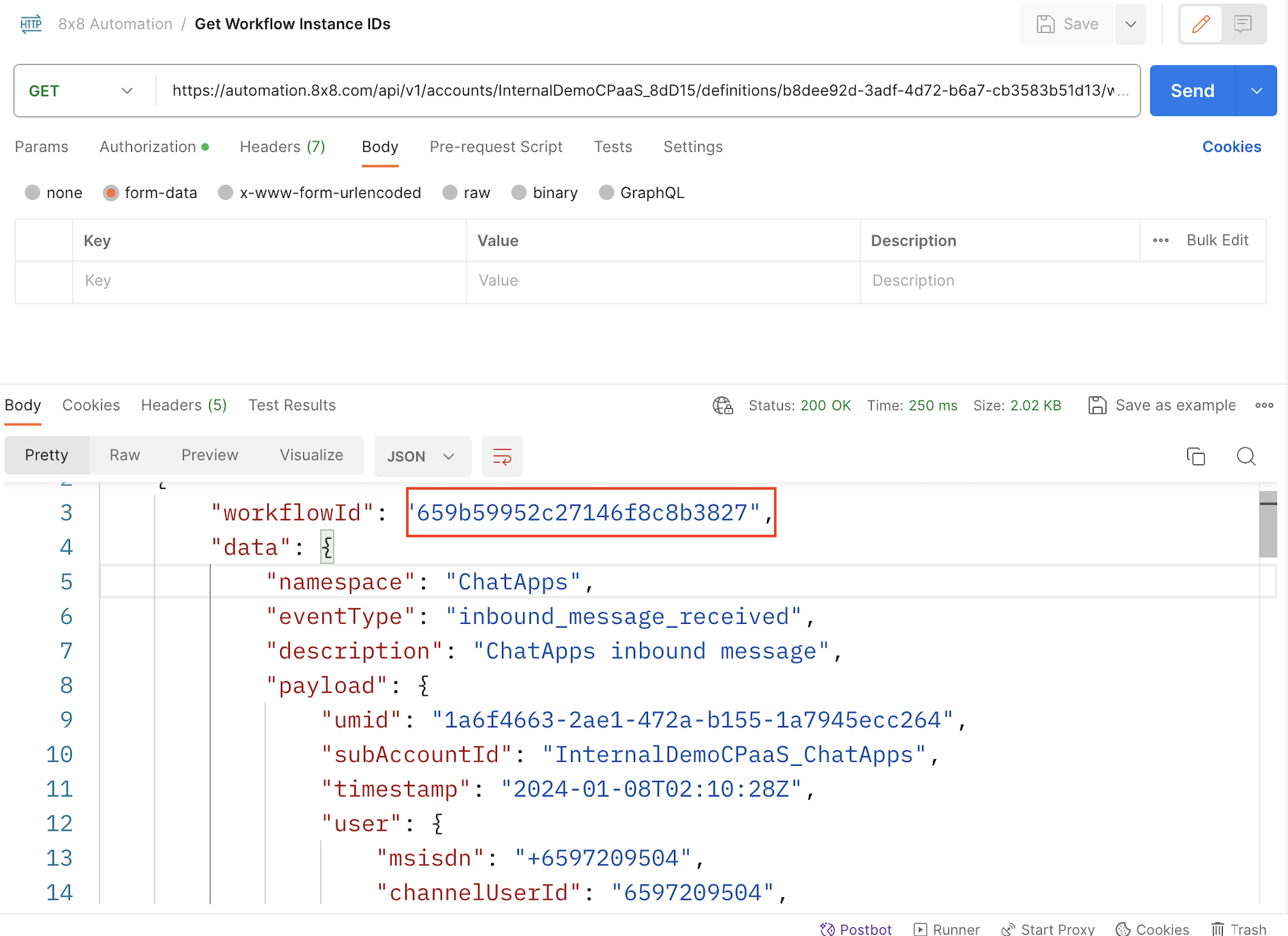
    1. Get list of workflow instances

    Use the following endpoint to retrieve a list of workflow instances currently active and choose the most recently ran instance.

    When calling this endpoint, you will receive a list of the most recent instances. Copy the workflowId from the instance you would like to check errors for which will be used in the next step.

    image

    2. Retrieve errors from workflow instance

    Once you have the most recently executed instance's workflowId, use this value in this endpoint to retrieve any errors associated with that workflowId.

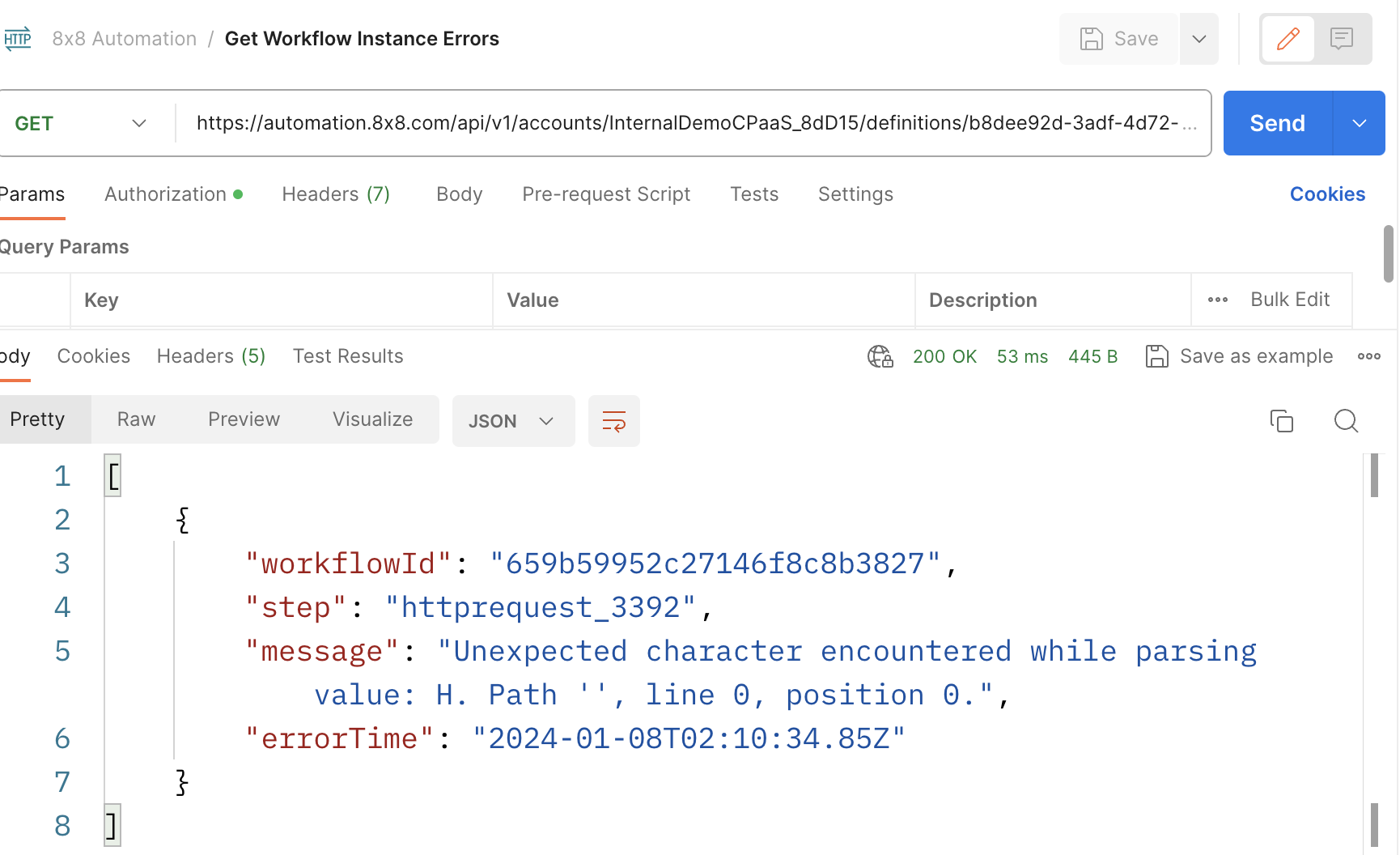
    In this case, there is an error in the HTTP Step that tells us that it is preventing the workflow from being completed.

    image

    Common Errors

    This is a list of commonly encountered error messages and general recommendations on how the issue may be resolved.

    If you are unable to resolve the error, please send an email with the error details to cpaas-support@8x8.com

    Error Message Example (may not match text exactly) Troubleshooting Recommendations
    Unexpected character encountered while parsing value: <. Path '', line 0, position 0 This is usually encountered with the HTTP Step due to an invalid JSON object encountered at the endpoint that the HTTP Step is sending to.
    Failed to send chat apps message because Invalid 'msisdn'.. Error id: xxxxxxx-xxxxxx Invalid phone number / msisdn provided in the Send Chat Message or SMS Message Step.
    Failed to send chat apps message because Empty 'user' Invalid user object that was provided in the Send Chat Message or SMS Message Step.
    Call failed. The SSL connection could not be established, see inner exception: POST https://chatapps.8x8.com/api/v1/subaccounts/subaccount_text_example/messages Internal error, please try to invoke the workflow again and report issue to support email above.
    Failed to evaluate the expression. Error: Object reference not set to an instance of an object. Internal error, please try to invoke the workflow again and report issue to support email above.

    Source: https://developer.8x8.com/connect/docs/troubleshooting · 8x8 CPaaS Developer Docs. Synced for support deflection.
  • Triggers & Steps

    Triggers & Steps

    🚧 [BETA]

    This product is currently in early access. Please reach out to your account manager to get more information.

    Triggers

    Here are the different triggers we support, at the moment:

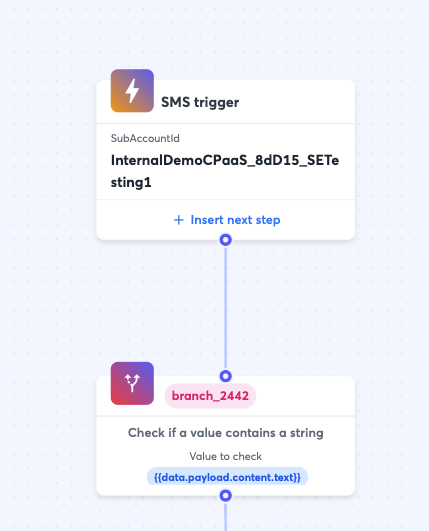
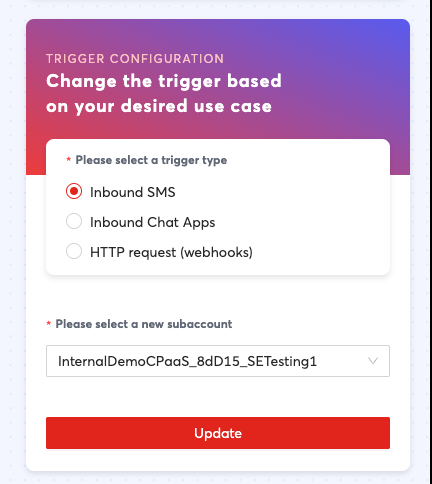
    inbound_sms : meaning when you receive a new incoming SMS on the specified subaccount.

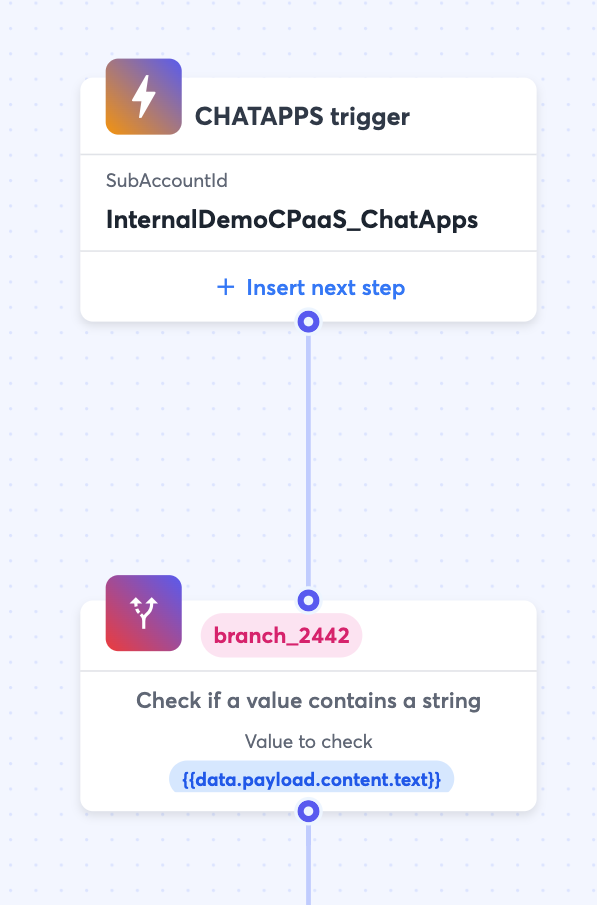
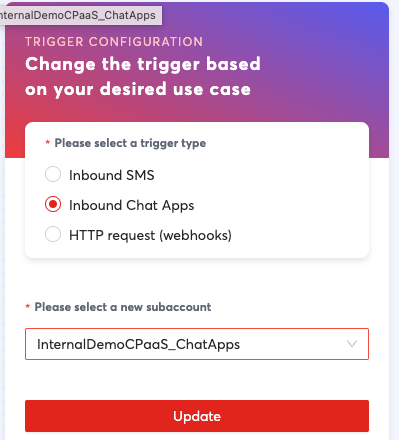
    inbound_chat_apps : meaning when you receive a new incoming ChatApps message on the specified subaccount.

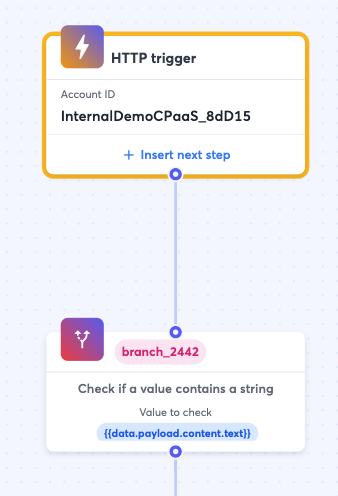
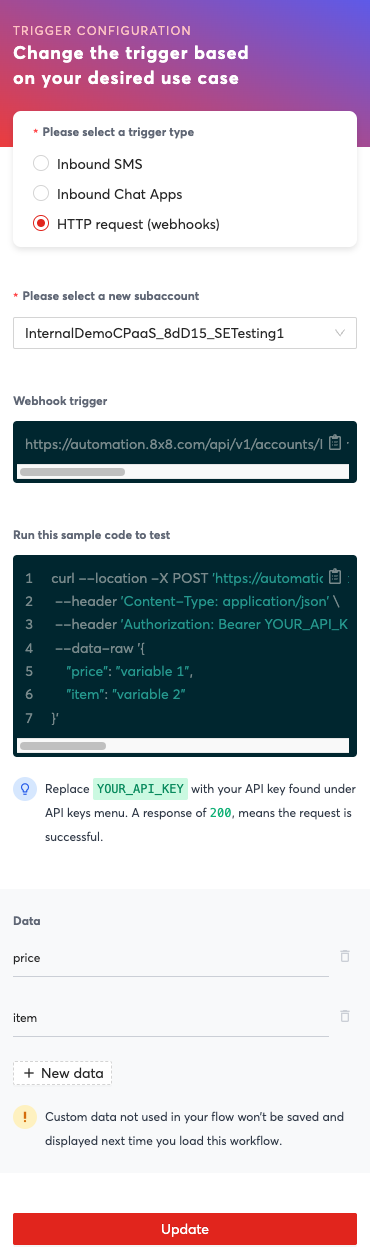
    http_request : generic trigger that can start a workflow via HTTP events like webhooks with any kind of payload (application/json). This is great if you want to trigger workflows from external systems. Example HTTP request to start your workflow:

    curl --location -X POST 'https://automation.8x8.com/api/v1/accounts/:your_account_id/triggers/http_request?subAccountId=:your_subaccount_id' \' \
    --header 'Content-Type: application/json' \
    --data-raw '{
    "f1": "value1",
    "f2": 123456,
    "f3": false,
    "o1": {
    "nf1": "value1",
    "nf2": "value2"
    }
    }'

    One workflow definition can only have one trigger, defining a trigger is mandatory. You can create similar workflows with different triggers, if needed.

    Steps

    Workflow definitions are collections of workflow steps. Every step must have an id and a step type. The id of the step must be unique within the workflow definition. Steps may have properties that can be set when you are creating a workflow definition (e.g. set a HTTP header for a HTTP request) or at runtime by the workflow using outputs (e.g. HTTP response code of a HTTP request).

    Here are the different Steps we support:

    • SMS
    • ChatAppsMessage
    • HttpRequest
    • Wait
    • If
    • WaitForReply
    • VoiceMessage
    • WaitForDTMF

    More details on each step:

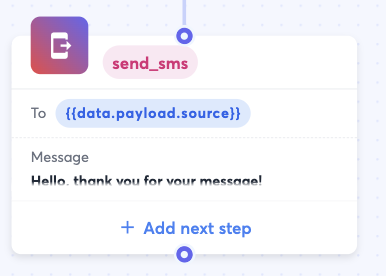
    Send an SMS :

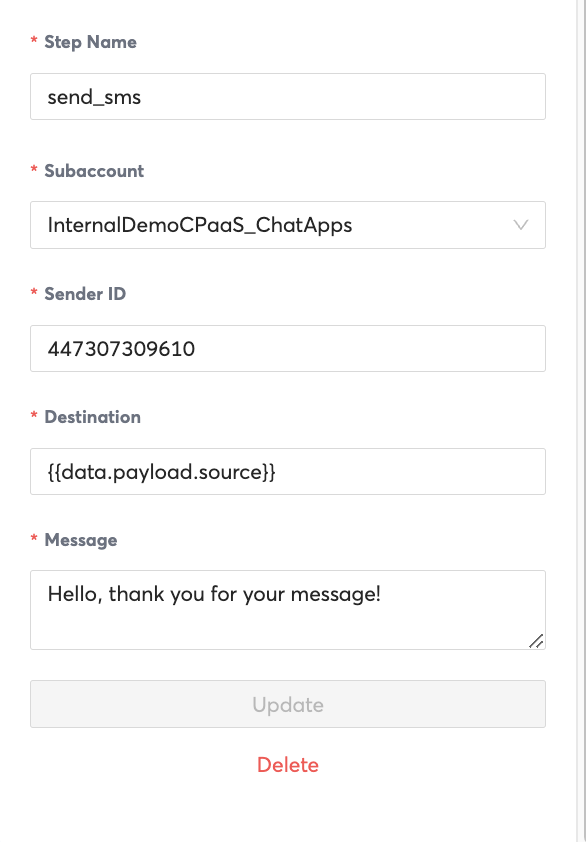
    SMS step allows you to send a message to a recipient as a SMS.

    {
    "id":"step1",
    "stepType":"SMS",
    "inputs":{
    "subAccountId":"acme_corp_sms",
    "destination":"+6512345678",
    "text":"Hello, world!"
    },
    "outputs":{
    "smsRequestId":"{{step.requestId}}",
    "smsUmid":"{{step.umid}}",
    "smsStatus":"{{step.status}}",
    "smsDescription":"{{step.description}}"
    },
    "nextStepId":"step2"
    }
    Property Description Type
    id Unique id of the step. string
    stepType Step type. string
    inputs Input parameters for SMS request:
    - subAccountId: Sub account id to send the message from.
    - source: Source number (senderId).
    - destination: MSISDN to send message to.
    - text: Message body.
    For information on all supported input options, refer to SMS documentation.
    object
    outputs Properties of the step to save to workflow execution context to use in other steps (Optional). Supported properties are:
    - requestId: Unique identifier of the HTTP request.
    - umid: Unique identifier of the message.
    - status: Status of the message request.
    - description: Descriptive message on the status of the message.
    For information on all supported statuses please refer to our SMS documentation.
    object
    nextStepId Step id of the next step to execute (Optional). If a next step id is not specified, workflow will terminate after this step. string

    Send a Chat Apps message :

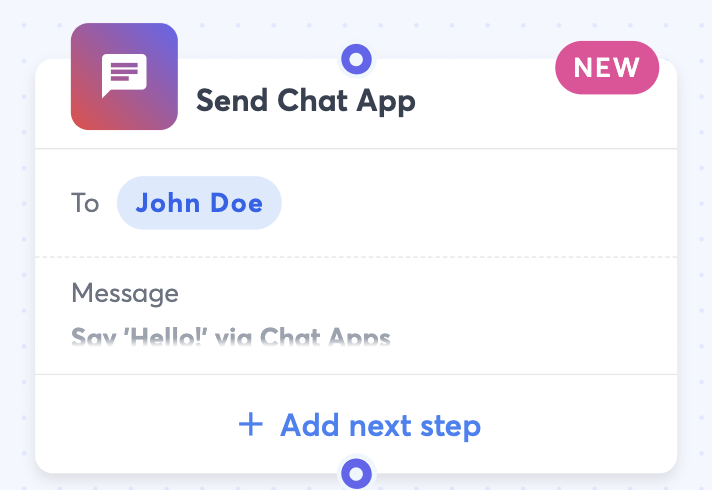
    ChatAppsMessage step allows you to send a message using 8x8 Chat Apps messaging API.

    {
    "id":"step1",
    "stepType":"ChatAppsMessage",
    "inputs":{
    "subAccountId":"acme_corp_chatapps",
    "user":{
    "msisdn":"+6512345678"
    },
    "type":"text",
    "content":{
    "text":"Hello, World!",
    "sms":{
    "encoding":"AUTO",
    "source":"SENDERID"
    }
    }
    },
    "outputs":{
    "requestId":"{{step.requestId}}",
    "requestUmid":"{{step.umid}}",
    "requestStatus":"{{step.status}}",
    "requestDescription":"{{step.description}}"
    },
    "nextStepId":"step2"
    }
    Property Description Type
    id Unique id of the step. string
    stepType Step type. string
    inputs Chat Apps message request parameters:
    - subAccountId: Sub account id to send the message from.
    - user: Recipient information.
    - type: Type of message.
    - content: Message content.

    For information on all supported user, type and content models please refer to our Chat Apps documentation.
    object
    outputs Properties of the step to save to workflow execution context to use in other steps (Optional). Supported properties are:
    - requestId: Unique identifier of the HTTP request.
    - umid: Unique identifier of the message.
    - status: Status of the message request.
    - description: Descriptive message on the status of the message.

    For information on all supported statuses please refer to our Chat Apps documentation.
    object
    nextStepId Step id of the next step to execute (Optional). If a next step id is not specified, workflow will terminate after this step. string

    Make a HTTP request :

    HttpRequest step allows you to make a custom HTTP request and consume its response. For HTTP requests with request data, automation currently supports application/json content type. Automation service will evaluate the dynamic request data at runtime, serialise the input body to json before sending the request.

    {
    "id":"step1",
    "stepType":"HttpRequest",
    "inputs":{
    "url":"https://sample.api.com/newrecord/",
    "method":"POST",
    "headers":{
    "Authorization":"Bearer 4ff3987hf934hf3895b469dc0"
    },
    "body":{
    "property_1":1,
    "property_2":"{{'umid: ' + data.umid}}",// dynamic field using javascript.
    "property_3":"{{data.receivedAt}}",// datetime field.
    "property_4":{
    "nested_property":"{{'msisdn: ' + data.source}}"
    }// Nested field.
    }
    },
    "outputs":{
    "httpCode":"{{step.responseCode}}",
    "httpReasonPhrase":"{{step.reasonPhrase}}",
    "httpResponse":"{{step.responseBody}}"
    },
    "nextStepId":"step2"
    }
    Property Description Type
    id Unique id of the step. string
    stepType Step type. string
    inputs Input parameters for make HTTP request:
    - url: Url with the path parameters.
    - method: HTTP method like GET, POST, PATCH, etc.
    - headers: HTTP headers as an object (Optional).
    - parameters: Query parameters as an object (Optional).
    - body: Request body.
    - timeoutSeconds: Request timeout in seconds (Optional).

    object
    outputs Properties of the step to save to workflow execution context to use in other steps (Optional). Supported properties are:
    - responseCode: HTTP status code.
    - reasonPhrase: HTTP reason phrase.
    - responseBody: HTTP response body.

    object
    nextStepId Step id of the next step to execute (Optional). If a next step id is not specified, workflow will terminate after this step. string

    Set a delay :

    Wait step allows you to make the workflow wait for a specified period of time before executing the next step. For example, you might have a workflow triggered by an incoming message received outside of office hours and you may want to make the workflow wait till office hours to send an automatic reply.

    {
    "id":"step1",
    "stepType":"Wait",
    "inputs":{
    "duration":"0.00:01:00"
    },
    "nextStepId":"step2"
    }
    Property Description Type
    id Unique id of the step. string
    stepType Step type. string
    inputs Wait step supports the following input parameters.
    - duration: time to wait before executing the next step (format: d.HH:mm:ss).

    object
    nextStepId Step id of the next step to execute (Optional). If a next step id is not specified, workflow will terminate after this step. string

    If condition :

    The if condition allows you to create multiple paths in a workflow. While you can use Branch step with just one branch to create an if condition, If step allows you to specify a conditional path more easily if you don't need complex branching. In the below example, the two new properties for If are do and inputs.condition. If the inputs.condition evaluates to true, all the steps specified inside do will be executed.

    {
    "id":"step1",
    "stepType":"If",
    "inputs":{
    "condition":"{{!isTimeOfDayBetween(data.payload.status.timestamp, '08:00:00', '17:00:00', 'Singapore Standard Time')}}"
    },
    "do":[
    [
    {
    "stepType":"HttpRequest",
    "id":"call_webhook",
    "nextStepId":"send_ca",
    "inputs":{
    "url":"http://localhost:8080/mock",
    "method":"GET"
    }
    },
    {
    "stepType":"ChatAppsMessage",
    "id":"send_ca",
    "inputs":{
    "subAccountId":"acme_corp_chatapps",
    "user":{
    "msisdn":"{{data.payload.user.msisdn}}"
    },
    "type":"text",
    "content":{
    "text":"Hello, world!"
    }
    }
    }
    ]
    ]
    }
    Property Description Type
    id Unique id of the step. string
    stepType Step type. string
    inputs If step supports the following input parameters:
    - condition: An expression that evaluates to true or false.
    object
    do Sequence of steps to be executed if the condition in inputs evaluates to true. string

    Wait for Reply :

    The WaitForReply step type allows your workflow to pause till you receive a reply from an end user. For example, you can create a workflow which sends a message to an end user, wait for their reply and act based on various scenarios based content of the reply, for example.

    If you have a workflow that that is waiting for a reply from user and the user replies, the automation service makes sure that the paused workflow resumes on their reply instead of starting new workflows of the same type.

    {
    "stepType":"WaitForReply",
    "id":"step1",
    "inputs":{
    "from":"+6500000000",
    "channel":"whatsapp",
    "timeout":"00:05:00"
    },
    "outputs":{
    "reply":"{{step.reply}}"
    },
    "selectNextStep":{
    "success_step":"{{step.reply != null}}",
    "failure_step":"{{step.reply == null}}"
    }
    }
    Property Description Type
    id Unique id of the step. string
    stepType Step type. string
    inputs If step supports the following input parameters.
    - from: Sender of the inbound message (or an expression that evaluates the sender). If you are waiting for a reply on SMS channel, wait on msisdn (data.payload.user.msisdn). If you are waiting on a chat apps channel, wait on channel user id (data.payload.user.channelUserId) (exact path depends on the MO version you are on.)
    - channel: Channel on which the sender should be replying. E.g. sms, whatsapp, viber, etc.
    - timeout: Wait timeout. If the user does not reply within this timespan, workflow continues to next step. Timeout parameter is optional. If not set, a system level default (usually one day) is used. Accepts a string in the format of “d.HH:mm:ss“. If you omit the “HH:mm:ss“ part, timespan is interpreted as days. Examples: 1. “duration“: “1.6:30:15“ indicates 1 day, 6 hours, 30 minutes and 15 seconds. Examples 2. “duration“: “00:30:00“ indicates 30 minutes. Examples 3. “duration“: “5“ indicates 5 days.
    object
    outputs WaitForReply exposes the data in the reply in the in the property reply. You can save it to workflow context using step.reply and use it in a following step. array
    selectNextStep Step selector for various outcomes. string

    Voice Message :

    The VoiceMessage step type allows your workflow to send a Voice Message using 8x8 Voice API. For example, you can create a workflow which sends a voice message reminder to an end user.

    As per the 8x8 Voice API, you can choose from 3 types of voice messages:

    • say: use text to speech to read your message to the end users
    • say&capture: use text to speech to read your message and allows to capture DTMF tone from the end users
    • playFile: play a recorded file to the end users
    {
    "id":"step1",
    "stepType":"VoiceMessage",
    "inputs":{
    "subaccountId":"acme_corp_voice",
    "clientRequestId":"myId123"
    "action":"say",
    "params":{
    "source":"+6500000000",
    "destination":"6500000000",
    "text":"Hello, world!",
    "repetition":1,
    "voiceProfile":"en-US-ZiraRUS",
    "speed":1
    }
    },
    "outputs":{
    "response":"{{step.response}}"
    },
    "nextStepId":"step2"
    }
    Property Description Type
    id Unique id of the step. string
    stepType Step type. string
    inputs Inputs supported by Call step:
    - subAccountId: Voice enabled subaccount id
    - clientRequestId: Client message request id.
    - action: Call action. Allowed actions are say, say&capture, playFile. Refer to voice API documentation for more information.
    - params: Call parameters. Call parameters supported by voice api as documented in voice API.
    object
    outputs Output properties supported by VoiceMessage step:
    - response: Response received from the voice API. Refer to voice API documentation for the exact response.
    object
    nextStepId Step id of the next step to execute (Optional). If a next step id is not specified, workflow will terminate after this step. string

    Wait For DTMF :

    The WaitForDTMF step type allows your workflow to wait for a user input (DTMF tone) after a Voice message step using say&capture action. Hence the WaitForDTMF step should be preceded by a VoiceMessage step.

    Important thing to note about WaitForDTMF step is in how to choose the correlationId, which is what is used to correlate an inbound call with the wait for DTMF step.

    correlationId is chosen based on clientRequestId (if present) or the uid in the DTMF response. Recommendation is to set a unique (per DTMF request-response transaction) clientRequestId in the Call that requests the DTMF response. For instance, you can use the uuid() function to generate a uuid for the client request id and use it as the correlation id (which is recommended by the voice team) or you can save the uid of the call response to workflow context and use it as the correlation id.

    {
    "id":"step1",
    "stepType":"WaitForDTMF",
    "inputs":{
    "dtmfRequestId":"{{data.clientRequestId}}",
    "timeout":"00:02:00"
    },
    "outputs":{
    "dtmf":"{{step.dtmfData.actionDetails.dtmf}}"
    },
    "selectNextStep":{
    "dtmf_1":"{{data.dtmf == '1'}}",
    "dtmf_2":"{{data.dtmf == '2'}}",
    "dtmf_3":"{{data.dtmf == '3'}}",
    "invalid_dtmf":"{{data.dtmf != null && data.dtmf != '1' && data.dtmf != '2' && data.dtmf != '3'}}",
    "no_reply":"{{data.dtmf == null}}"
    }
    }
    Property Description Type
    id Unique id of the step. string
    stepType Step type. string
    inputs Inputs supported by WaitForDTMF step:
    - dtmfRequestId: A unique identifier to correlate the DTMF response with DTMF request.
    - timeout: Wait timeout. If the user does not reply within this timespan, workflow continues to next step. Timeout parameter is optional. If not set, a system level default (usually one day) is used.
    Accepts a string in the format of “d.HH:mm:ss“. If you omit the “HH:mm:ss“ part, timespan is interpreted as days. Examples:
    1. “duration“: “1.6:30:15“ indicates 1 day, 6 hours, 30 minutes and 15 seconds.
    2. “duration“: “00:30:00“ indicates 30 minutes.
    3. “duration“: “5“ indicates 5 days.
    object
    outputs Output properties supported by WaitForDTMF step:
    - dtmfData: DTMF response received from the voice API. Refer to voice API documentation for the exact response.
    object
    selectNextStep Step selector for various outcomes. (Alternatively, you can use nextStepId and point to a branch step and work from there.) string

    Source: https://developer.8x8.com/connect/docs/triggers-steps · 8x8 CPaaS Developer Docs. Synced for support deflection.
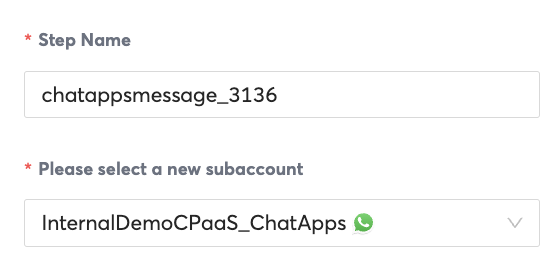
  • Triggers

    Triggers

    Overview

    Triggers are the initial entry point into your workflow definition. They define what event will start a workflow instance.

    For example, if you would like to start your workflow when the number tied to your subaccount receives an SMS, you can choose a "Inbound SMS" trigger. Further types of triggers are defined below.

    List of Triggers

    Name Description
    Inbound SMS Trigger the workflow when you receive a new incoming SMS on the specified subaccount.
    Inbound ChatApps Trigger the workflow when you receive a new incoming ChatApps message on the specified subaccount
    HTTP Request (Webhooks) Trigger the workflow when you receive a HTTP events like webhooks with any kind of payload (application/json). This is useful to trigger workflows from external systems.

    Trigger Descriptions

    Inbound SMS

    Below is an example of a SMS trigger step setup as part of the workflow. It is the first part of a workflow and the next step is a branch. This means when this subaccount receives an SMS, it will send it to the branch step.

    This may be useful to use when you want to trigger an event such as sending a reply to an inbound SMS to that subaccount.

    Inbound SMS as part of a Workflow Definition

    Inbound SMS Trigger as part of a Workflow Definition

    Inbound SMS Trigger Properties

    Inbound SMS Trigger Properties

    Property Description
    Please select a new subaccount Select the subaccount that should trigger this workflow when it receives an inbound SMS

    Inbound Chat Apps

    Inbound Chat Apps as part of a workflow

    Inbound Chat Apps Trigger as part of a workflow

    Inbound Chat Apps Properties

    Inbound Chat Apps Trigger Properties

    Similar to the Inbound SMS Trigger, this is triggered when a message is sent to the subaccount. However it is triggered off of a Chat Apps message such as an incoming WhatsApp/Viber message to a WhatsApp/Viber account tied to the subaccount.

    This may be useful to use when you want to trigger an event such as sending a reply to an inbound ChatApps message to that subaccount.

    Property Description
    Please select a new subaccount Select the subaccount that should trigger this workflow when it receives an inbound Chat apps message.

    HTTP Request (Webhooks)

    HTTP Trigger as part of a Workflow

    HTTP Trigger as part of a Workflow

    HTTP Trigger Properties

    HTTP Trigger Properties

    Property Description Example
    Subaccount The subaccount that should contain this URL endpoint "subaccount123"
    Webhook Trigger This property is not modifiable but it defines the URL endpoint your system should send an HTTP request to, in order to trigger the workflow https://automation.8x8.com/api/v1/accounts/InternalDemoCPaaS_8dD15/triggers/http_request?subAccountId=subaccount123
    Data This is a list of parameters that can be accepted by this endpoint. They will later be accessible in the workflow as variables such as {{data.propertyName}} If you define a "price" and "item" property in the trigger, then {{data.price}} and {{data.item}} will be variables in the workflow you can refer to for the values that were sent as part of the HTTP request to the webhook trigger.
    For example if a curl request is sent as follows:
    curl --location -X POST 'https://automation.8x8.com/api/v1/accounts/InternalDemoCPaaS_8dD15/triggers/http_request?subAccountId=subaccount123'
    --header 'Content-Type: application/json'
    --header 'Authorization: Bearer YOUR_API_KEY'
    --data-raw '{
    "price": "10",
    "item": "vacuum"
    }'
    Then {{data.price}} will be 10 and {{data.item}} will be vacuum in the workflow instance that is called.

    Source: https://developer.8x8.com/connect/docs/triggers · 8x8 CPaaS Developer Docs. Synced for support deflection.
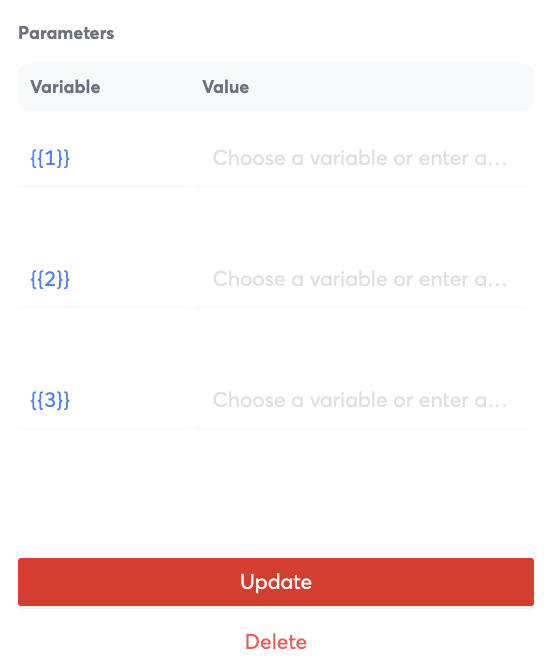
  • Steps

    Steps

    Overview

    Steps make up a workflow definition. Each step has a unique id that identifies it within that workflow definition. This page aims to define each type of step and the properties that make up that step to better understand how they can be used as part of a workflow definition.

    Steps allow you to create custom workflow definitions that can perform different actions within that workflow instance.

    List of Steps

    Step Name Description Example
    SMS Message SMS step allows you to send a message to a recipient as a SMS. Send an SMS message to a customer.
    ChatApps Message ChatApps Message step allows you to send a message using 8x8 Chat Apps messaging API. Send a ChatApps message to a customer.
    Wait Wait step allows you to make the workflow wait for a specified period of time before executing the next step. Wait 2 hours to send a reminder message to a customer.
    Branch Allows you to create multiple paths in a workflow. Use a Branch step to decide what message to send based on a customer's reply. If a customer replies with 1, send a reminder message. If they reply with 2, send a different message.
    WaitForReply The WaitForReply step type allows your workflow to pause till you receive a reply from an end user Wait till a customer responds to a message. You can pair it with a branch step to decide what to do based on that response.
    For example you may want to send a message asking a user to check their email for an OTP, then use Wait for Reply to wait for the user to input the OTP before proceeding to the next step.
    Voice Message Send a Voice Call to a number Play a voice message to a specified phone number with a reminder.
    HTTP Request Send an HTTP request to an endpoint. Useful for integrating with APIs. This may be useful to query an HTTP endpoint and use the value returned as part of the flow. For example you can query the Google Calendar API for available meeting slots and use the slots as part of a message response for a user.
    Jump To Skip to another step in the workflow definition. This is often useful to better organise your workflow definition. For example there may be a menu with many options and some of them refer to the same message such as:
    1) Office Hours of Restaurant Location 1
    2) Office Hours of Restaurant Location 2
    3) Office Hours of Restaurant Location 3
    If 1+2 are the same, you can use a Jump Step to point to a message that would contain the same message.
    Send to Converse Send the current conversation to Converse for an agent to take over. As part of a menu, you can give the option for the user to escalate to a live agent.

    Step Descriptions

    SMS Message

    SMS step allows you to send a message to a recipient as a SMS using the 8x8 SMS API.

    Example of Step

    Example of Step Properties

    Property Description Example Value
    Step Name Unique name that identifies a step. send_sms123
    Subaccount The 8x8 Subaccount that the message will be sent from. subaccount123
    Sender ID Either the SMS Sender ID or the Virtual Number that the message will be sent from and the user will see. 44703492340 (Number that is tied to the subaccount123)
    Destination The Phone Number that you would like to send the SMS to. {{data.payload.source}} (If the workflow was triggered by an inbound message, this variable would refer to the sender of that inbound message).

    ChatApps Message

    ChatAppsMessage step allows you to send a message using 8x8 Chat Apps API.

    Example of Step

    image Example of Step Properties

    Property Description Example Value
    Step Name Unique name that identifies a step. send_sms123
    Subaccount The 8x8 Subaccount that the message will be sent from. subaccount123
    Destination The Phone Number that you would like to send the SMS to. {{data.payload.source}} (If the workflow was triggered by an inbound message, this variable would refer to the sender of that inbound message).
    Select an exisiting template or compose a new message If required, you should select an existing template for the ChatApps Platform you are using. For example WhatsApp requires templates for the first message sent to a customer. N/A
    Message A Preview of the message that will be sent to a customer. Hi {{1}}, good news, your package has been shipped!
    Parameters Variables that can be inputted into a message template that will replace the placeholders. If the variable is {{1}} and the value is "Hello", {{1}} will be replaced by "Bob".Example Template:
    Hi {{1}}, good news, your package has been shipped!Replaced Message:
    Hi Bob, good news, your package has been shipped!

    Wait

    Wait step allows you to make the workflow wait for a specified period of time before executing the next step.

    Step and Properties in UI(Note: The duration is yet to be updated, that&#39;s why it shows 00:00:00 on the left)

    (Note: The duration is yet to be updated, that's why it shows 00:00:00 on the left)

    Property Description Example Value
    Step Name Unique name that identifies a step. wait_6686
    Duration Duration to wait before proceeding onto the next step 5 hours

    Branch

    Allows you to create multiple paths in a workflow.

    The example below shows the next steps after and before the branch to illustrate it's use.

    • The Wait For Reply Step (waitforreply_8622) just before this is waiting for a input from a user
    • The Branch Step (branch_8338) checks the value returned in the Wait For Reply Step
      • If 1, chatappsmessage_0501 step is executed, delivering the message "Please enter your email address:"
      • If 2, chatappmessage_9836 step is executed, delivering the message "Goodbye".

    image

    Example of Step Properties

    Property Description Example Value
    Step Name Unique name that identifies a step. branch_8338
    Please select a condition There are a few possibilities of values to check such as:
    1) Check if a value contains a string
    2) Check country code of a mobile number
    3) Check if date falls within some time of day
    4) Check the day of the week of a date
    5) Custom Condition
    Ii you select "Check if a value contains a string" that allows you to branch off of a user input provided in a previous step.
    Value to check This allows you to refer to a previous step in the workflow definition and the value it contains. Use the value a user inputted in a Wait For Reply Step as part of the branch logic
    Keywords to Compare Fixed values to check the property "Value to Check" against. You can add 1, 2, 3 as values to compare to create a menu such as the following:
    1) Enter 1 to reserve a table
    2) Enter 2 for restaurant hours
    3) Enter 3 for location

    Wait For Reply

    The WaitForReply step type allows your workflow to pause till you receive a reply from an end user.

    For example you may want to send a message asking a user to check their email for an OTP, then use Wait for Reply to wait for the user to input the OTP before proceeding to the next step.

    Example of Step

    image Example of Step Properties

    Property Description Example
    Step Name Unique name that identifies a step. waitforreply_8622
    From Define which phone number or channel source to wait for a reply from. {{data.payload.user.channelUserId}}

    Voice Message

    The Voice message has 3 possible actions which will change the properties available. There are also generic properties that are required by all 3 possible actions.

    Voice Message Step and Generic Properties Image

    ![Example of Step

    Example of Step Properties for](../images/b9d5d26-image.png)Example of Steps

    Example of required propertiesfor all actions

    for all actions

    Generic Properties required for all actions

    Property Description Example Value
    Step Name Unique name that identifies a step. voicemessage_5246
    Please Select a Voice Subaccount Choose the subaccount to use for the voice call. It should have a 8x8 Phone Number configured subaccount123
    Action Choose what type of voice message to play to a user:
    1) Message with DTMF
    2) Text to Speech
    3) Play an Audio File
    "Message with DTMF"
    Source The Phone Number to place the call from +6512345678
    Destination The Phone Number to call A Phone Number such as +6512345678. Or a variable such as {{data.PhoneNumber}} if the workflow is triggered by a HTTP trigger for exmaple.

    "Text to Speech" Action Properties Image

    Example of Step Propertie

    "Text to Speech" Action-specific Properties

    Property Description Example Value
    Language The Language of the message en-US for English (US)
    Voice Profile A customized and unique synthesis of vocal characteristics, pitch, and intonation created for a specific user, providing a personalized and natural-sounding audio experience. en-US en-US-AriaRUS for a Female English speaker
    Speed How fast to playback the message 1 for default speed, 2 for 200% speed.
    Repetition How many times to play the message 1 for playing the message once.

    "Play an Audio File" Action Image

    Example of Properties for Play an Audio File

    "Play an Audio File" Action Properties

    Property Description Example Value
    Repetition How many times to play the message "1" to play the message once
    Audio URL Publicly accessible URL of the audio file to play https://filestorage.com/file1.mp3

    "Message with DTMF" Properties Image

    Example of Message with DTMF Properties

    "Message with DTMF" Action Properties

    Property Description Example Value
    Message The message to play using text to speech "Hello, this is ABC Restaurants"
    Language The Language of the message en-US for English (US)
    Voice Profile A customized and unique synthesis of vocal characteristics, pitch, and intonation created for a specific user, providing a personalized and natural-sounding audio experience. en-US en-US-AriaRUSfor a Female English speaker
    Speed How fast to playback the message "1" for default speed, "2" for 200% speed.
    Repetition How many times to play the message "1" for playing the message once.
    Minimum Digit Minimum amount of digits of input to accept "1" for needing to accept 1 digit of input
    Maximum Digit Maximum amount of digits of input to accept "2", so it will only accept at maximum 2 digits
    DTMF Timeout (ms) How long in milliseconds to wait for a DTMF response "5000" would make the step wait for 5 seconds / 5000 milliseconds
    Call Timeout (ms) How long in milliseconds to wait for an answer to a call "5000" for making the step wait 5 seconds for an answered call.
    Complete on Hash Whether to complete the message on a hash "Yes" to require a hash to input a DTMF, "No" to accept DTMF input with just the digit
    Number of Tries How many times to try to collect input "2" for making the step try twice to collect a DTMF
    End Message Message to play after collecting a DTMF input "Thank you for your response" to play that message at the end of DTMF collection.
    DTMF Inputs Branching paths based on DTMF input. You can create multiple inputs for as many paths as you would like to support. Paths:
    1 for office hours
    2 for office location

    HTTP Request

    Send an HTTP request to an endpoint. Useful for integrating with APIs.

    Example of Step

    Example of Step Properties

    Example of &quot;Output&quot; Property

    Example of Query Preoperty

    Property Description Example Value
    Step Name Unique name that identifies a step httprequest_1255
    URL URL and Method to send an HTTP request to https://sheets.googleapi.com/v4/spreadsheets and GET to send a GET request to that URL
    Header HTTP Headers to attach to the request "content-type" and "application/json" to send this key value pair as a part of the HTTP header in the request.
    Query HTTP Query to attach to the request. "userInput" and "1" to send this key value pair as part of the HTTP request.
    Output Save outputs from the response of the HTTP request for use in either this step or subsequent steps. "status" and "step.responseCode" to save the status property for use later in the workflow. It can be referred as a variable by using {{data.status}}.
    You can use this value to take a different action depending on the response code in a branch step for example.
    Request Body The request body to send as part of the request. The format should match the Content-Type header that you supply as part of the request. For example if the endpoint you are sending expects JSON, you should specific the content type appropriately in the header and then send JSON in the request body such as:
    {
    "values": [
    [
    "{{data.PhoneNumber}}",
    "{{data.Name}}"
    ]
    ]
    }
    Timeout Timeout for the HTTP request "30 seconds" to wait 30 seconds before timing out

    Jump To

    Skip to another step in the workflow definition. This is often useful to better organise your workflow definition.

    image

    Property Description Example value
    Select a step This should refer to a step within the same workflow definition that you would like to execute after this jump step. "chatappsmessage_6359"

    Send to Converse

    Send the current conversation to Converse for an agent to take over.

    image

    Property Description Example Value
    Step Name Unique name that identifies a step "sendtoconverse_6641"

    Source: https://developer.8x8.com/connect/docs/triggers-and-steps-library · 8x8 CPaaS Developer Docs. Synced for support deflection.
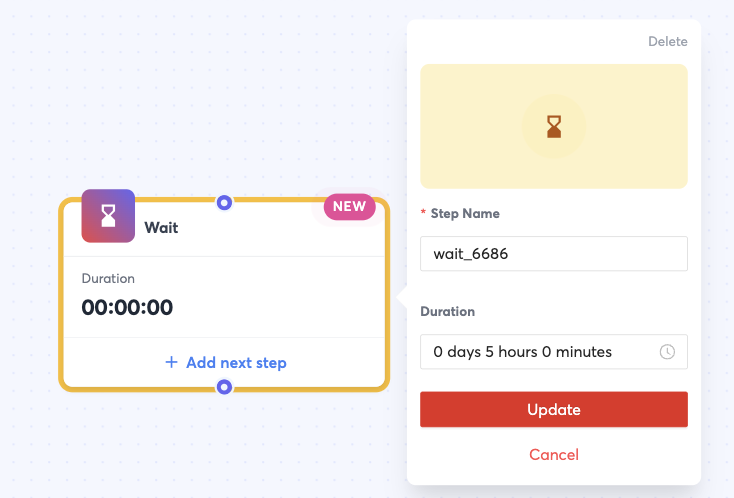
  • Time zone & Onboarding

    Time zone & Onboarding

    🚧 [BETA]

    This product is currently in early access. Please reach out to your account manager to get more information.

    Time Zones

    Certain date and time functions (in scripting) requires you to specify the timezone using a timezone id. You can get the supported time zone ids using the following request. You can use the optional parameter contains to filter timezones whose name contains the specified value.

    curl --location --request GET 'https://automation.8x8.com/api/v1/accounts/:accountId/steps/timezones?contains=europe' \
    --header 'Authorization: Bearer {apiKey}'

    If the request is successful, you will get the HTTP status code 200 with the following response body:

    [
    {
    "id":"Central Europe Standard Time",
    "name":"Belgrade, Bratislava, Budapest, Ljubljana, Prague (UTC+01:00)"
    },
    {
    "id":"Central European Standard Time",
    "name":"Sarajevo, Skopje, Warsaw, Zagreb (UTC+01:00)"
    },
    {
    "id":"E. Europe Standard Time",
    "name":"Chisinau (UTC+02:00)"
    },
    {
    "id":"W. Europe Standard Time",
    "name":"Amsterdam, Berlin, Bern, Rome, Stockholm, Vienna (UTC+01:00)"
    }
    ]

    Onboarding

    To get access to this service, you will need your CPaaS account to be enabled for the Automation API. Please reach out to your account manager to get this done.

    For the events to be sent to the Automation service, you don't need to change your webhooks. We will enable the Customer Integration on your account, for the events to be sent to the Automation service.

    You can still continue to manage your webhooks as usual and you will still receive the events.


    Source: https://developer.8x8.com/connect/docs/time-zone-onboarding · 8x8 CPaaS Developer Docs. Synced for support deflection.
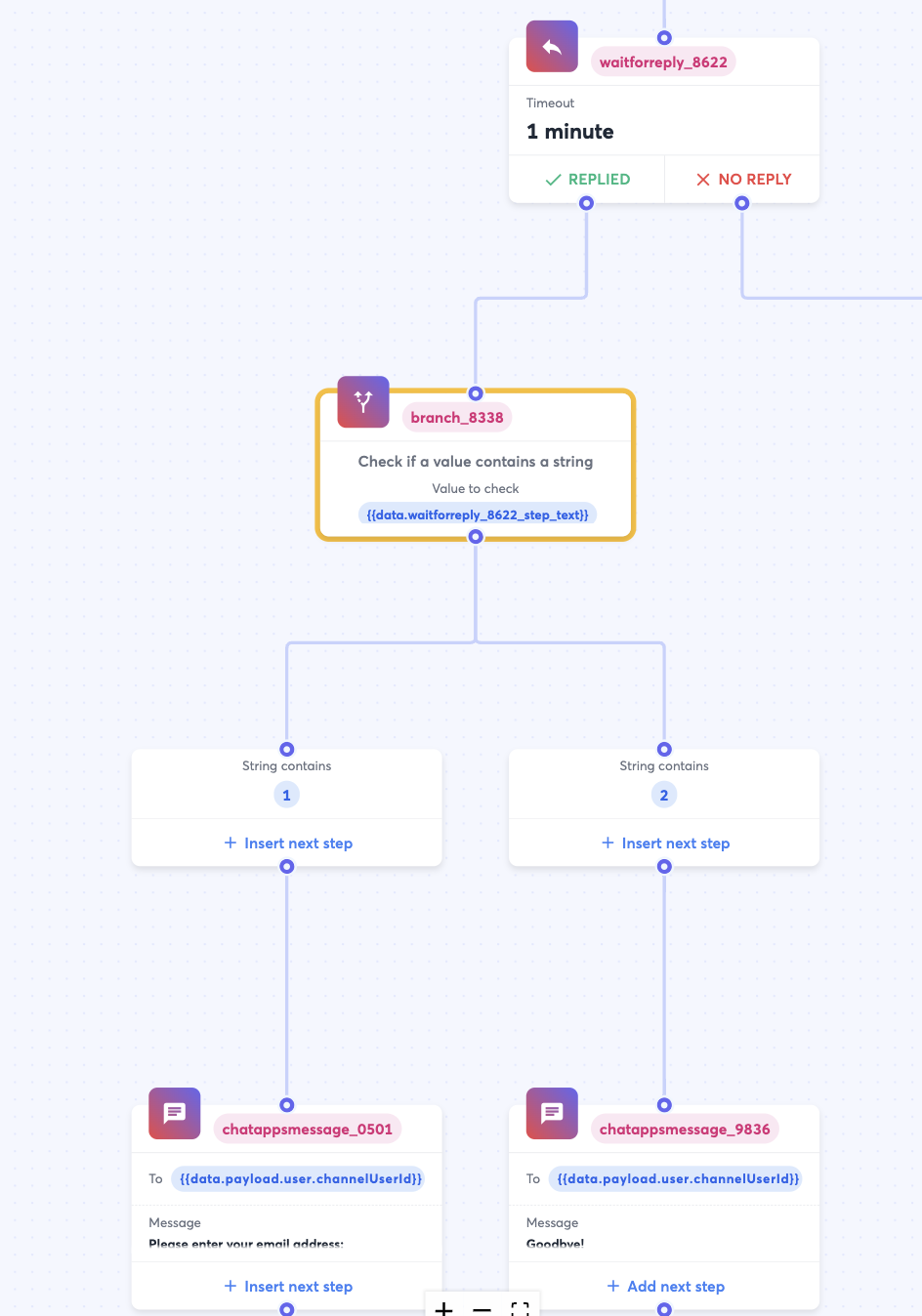
  • Reviewing Submission

    Reviewing Submission

    Sender ID Registration Review

    • Users will be able to view all the details for their Sender ID registration and will be able to save a draft or continue forward.(Drafts can be accessed https://connect.8x8.com/messaging/sender-id?tab=drafts)--)
    • User can also go back to any one of the steps to make any relevant changes

    image


    Source: https://developer.8x8.com/connect/docs/reviewing-submission · 8x8 CPaaS Developer Docs. Synced for support deflection.
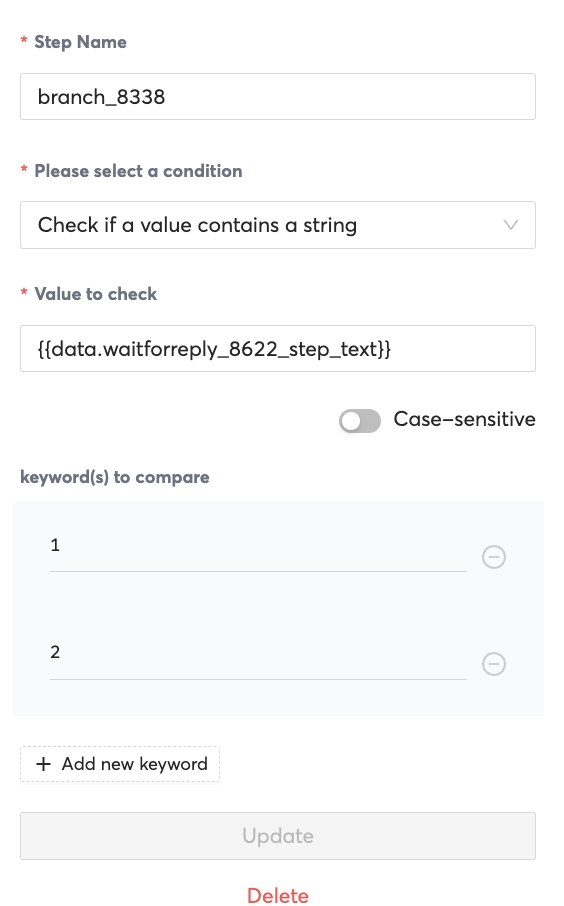
  • Moobidesk

    Moobidesk

    Moobidesk is a unified conversational platform that enables omnichannel customer engagement across WhatsApp, Email, and Facebook Messenger. The platform provides comprehensive contact center capabilities including conversation management, queue routing, broadcast messaging, and real-time analytics.

    To get access to Moobidesk, please reach out to your account manager (cpaas-sales@8x8.com).

    • Getting Started
    • User Roles & Dashboard
    • Contact Management
    • Agent Management
    • Queue Management
    • Conversations
    • Reports & Statistics
    • Settings & Configuration

    Source: https://developer.8x8.com/connect/docs/moobidesk · 8x8 CPaaS Developer Docs. Synced for support deflection.
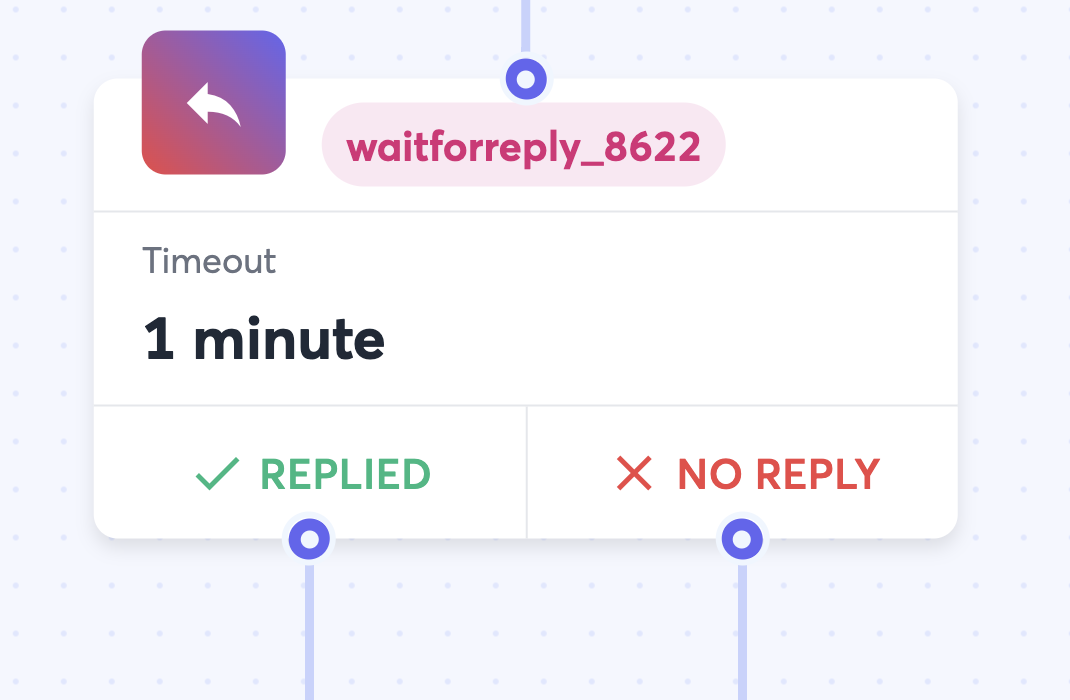
  • For Partner Admins: Managing Your Team

    For Partner Admins: Managing Your Team

    As a Partner Admin, you have full control over your team's access to customer accounts and specific features. This is managed through Roles and Users.

    Setting Up and Managing Roles

    Roles allow you to create templates of permissions that can be assigned to your team members. This is the best way to ensure consistent access levels across your organization.

    1. Navigate to Roles: Go to Partners > Roles in the left-hand menu.

    2. Create a New Role:

      • Click the + Create a role button.
      • Give the role a descriptive name (e.g., 'Support Analyst', 'Sales Viewer').
      • Click on the Modules section to open a detailed checklist of permissions.
      • Select the specific modules and sub-permissions this role should have. You can grant access to entire product areas or select granular permissions like 'View Logs' or 'View Reports'.
      • Click Apply and save the new role.

    Manage users

    Manage roles - Create a role Empty state

    Popover window

    1. Editing a Role: To modify an existing role, find it in the list and click the edit icon.

    Managing Users

    Once your roles are defined, you can manage your users' access.

    1. Navigate to Users: Go to Partners > Users in the left-hand menu.
    2. Assign Access: Select a user from the list to manage their permissions. From their profile, you can:
      • Assign a Role: Apply a pre-defined role to grant them a standard set of permissions.
      • Assign Customer Accounts: Select the specific customer accounts that this user should be able to view.

    Manage users


    Source: https://developer.8x8.com/connect/docs/for-partner-admins-managing-your-team · 8x8 CPaaS Developer Docs. Synced for support deflection.
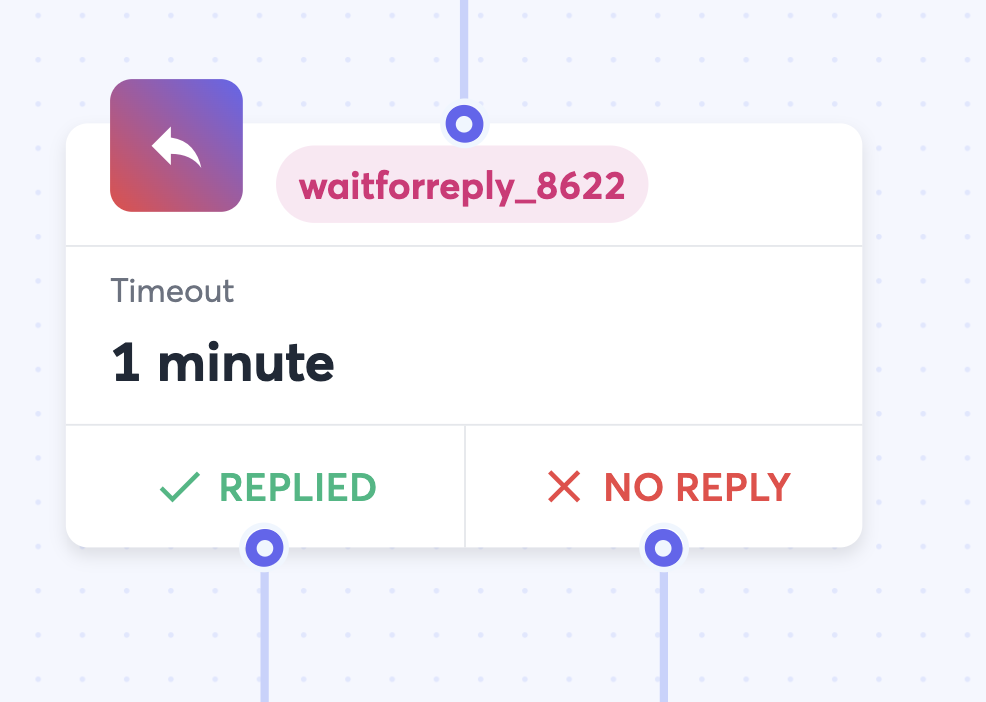
  • Examples

    Examples

    🚧 [BETA]

    This product is currently in early access. Please reach out to your account manager to get more information.

    Examples

    Chat Apps auto reply:

    {
    "subAccountId":"acme_corp_chatapps",
    "trigger":"inbound_chat_apps",
    "status":"enabled",
    "definition":{
    "name":"Auto Reply ChatApps",
    "steps":[
    {
    "id":"send_CA",
    "stepType":"ChatAppsMessage",
    "inputs":{
    "subAccountId":"acme_corp_chatapps",
    "user":{
    "msisdn":"{{data.payload.user.msisdn}}"
    },
    "type":"text",
    "content":{
    "text":"Hello, thank you for your message!"
    }
    }
    }
    ]
    }
    }

    SMS auto reply:

    {
    "subAccountId":"acme_corp",
    "trigger":"inbound_sms",
    "status":"enabled",
    "definition":{
    "name":"Auto Reply SMS",
    "steps":[
    {
    "id":"send_sms",
    "stepType":"SMS",
    "inputs":{
    "subAccountId":"acme_corp",
    "source":"Acme Corp",
    "destination":"{{data.payload.source}}",
    "text":"Hello, thank you for your message!",
    "encoding":"Auto"
    }
    }
    ]
    }
    }

    Out of Office with country branch:

    {
    "subAccountId":"acme_corp_chatapps",
    "trigger":"inbound_chat_apps",
    "status":"enabled",
    "definition":{
    "name":"Out of Office",
    "steps":[
    {
    "id":"branch_on_msg_country",
    "stepType":"Branch",
    "selectNextStep":{
    "message_from_ID":"{{isCountryCode(data.payload.user.channelUserId, 'ID')}}",
    "message_from_PH":"{{isCountryCode(data.payload.user.channelUserId, 'PH')}}",
    "message_from_Others":null
    }
    },
    {
    "id":"message_from_ID",
    "stepType":"If",
    "inputs":{
    "condition":"{{!isTimeOfDayBetween(data.payload.timestamp, '09:00:00', '18:00:00', 'SE Asia Standard Time')}}"
    },
    "do":[
    [
    {
    "id":"message_from_ID_out_of_business_hours",
    "stepType":"ChatAppsMessage",
    "inputs":{
    "subAccountId":"InternalDemoCPaaS_ChatApps",
    "user":{
    "msisdn":"{{data.payload.user.channelUserId}}"
    },
    "type":"text",
    "content":{
    "text":"Halo, terima kasih atas pesan Anda! Kami akan menghubungi Anda kembali besok."
    }
    }
    }
    ]
    ]
    },
    {
    "id":"message_from_PH",
    "stepType":"If",
    "inputs":{
    "condition":"{{!isTimeOfDayBetween(data.payload.timestamp, '09:00:00', '18:00:00', 'North Asia East Standard Time')}}"
    },
    "do":[
    [
    {
    "id":"message_from_PH_out_of_business_hours",
    "stepType":"ChatAppsMessage",
    "inputs":{
    "subAccountId":"acme_corp_chatapps",
    "user":{
    "msisdn":"{{data.payload.user.channelUserId}}"
    },
    "type":"text",
    "content":{
    "text":"Kumusta, salamat sa iyong mensahe! Babalikan ka namin bukas. \r\n Hello, thanks for your message! We will get back to you tomorrow."
    }
    }
    }
    ]
    ]
    },
    {
    "id":"message_from_Others",
    "stepType":"ChatAppsMessage",
    "inputs":{
    "subAccountId":"acme_corp_chatapps",
    "user":{
    "msisdn":"{{data.payload.user.channelUserId}}"
    },
    "type":"text",
    "content":{
    "text":"Hello, thanks for your message! We will get back to you as soon as possible."
    }
    }
    }
    ]
    }
    }

    Keyword detection:

    {
    "subAccountId":"acme_corp",
    "trigger":"inbound_sms",
    "status":"enabled",
    "definition":{
    "name":"Promo_register",
    "steps":[
    {
    "id":"keyword",
    "stepType":"branch",
    "selectNextStep":{
    "register_flow_1":"{{stringContains(data.payload.content.text, 'Register')}}",
    "others":null
    }
    },
    {
    "id":"register_flow_1",
    "stepType":"HttpRequest",
    "inputs":{
    "url":"https://sample.api.com/newrecord/",
    "method":"POST",
    "headers":{
    "Authorization":"Bearer 4f5b6f29654s36654xsvdc895b469dc0"
    },
    "body":{
    "register":1,
    "user":"{{'umid: ' + data.payload.source}}",
    "time":"{{data.receivedAt}}"
    },
    "outputs":{
    "httpCode":"{{step.responseCode}}"
    }
    },
    "selectNextStep":{
    "register_flow_2":"{{step.responseCode == '200'}}",
    "register_flow_fail":null
    }
    },
    {
    "id":"register_flow_2",
    "stepType":"ChatAppsMessage",
    "inputs":{
    "subAccountId":"acme_corp_chatapps",
    "user":{
    "msisdn":"{{data.payload.user.msisdn}}"
    },
    "type":"text",
    "content":{
    "text":"Hello, you are now registered, thanks !"
    }
    }
    },
    {
    "id":"register_flow_fail",
    "stepType":"ChatAppsMessage",
    "inputs":{
    "subAccountId":"acme_corp_chatapps",
    "user":{
    "msisdn":"{{data.payload.user.msisdn}}"
    },
    "type":"text",
    "content":{
    "text":"Hello, something went wrong, please try again later"
    }
    }
    }
    ]
    }
    }

    Menu using WaitForReply:

    {
    "trigger":"inbound_chat_apps",
    "subAccountId":"acme_corp",
    "status":"enabled",
    "definition":{
    "name":"ChatBot-123",
    "steps":[
    {
    "stepType":"ChatAppsMessage",
    "id":"Hello",
    "inputs":{
    "subAccountId":"acme_corp",
    "user":{
    "msisdn":"{{data.payload.user.channelUserId}}"
    },
    "type":"text",
    "content":{
    "text":"Hello, 👋\r\nThanks for contacting our team 🤖\r\n Please choose one of the option below: 🤓 \r\n 1️⃣ Technical Support \r\n 2️⃣ Product Questions \r\n 3️⃣ Sales Support \r\n 4️⃣ Billing Qestions \r\n 5️⃣ Other"
    }
    },
    "outputs":{
    "user_msisdn":"{{data.payload.user.channelUserId}}"
    },
    "nextStepId":"wait1"
    },
    {
    "stepType":"WaitForReply",
    "id":"wait1",
    "inputs":{
    "timeout":"00:05:00",
    "channel":"whatsapp",
    "from":"{{data.user_msisdn}}"
    },
    "outputs":{
    "reply1":"{{step.reply}}"
    },
    "selectNextStep":{
    "success":"{{data.reply1 != null}}",
    "failure":"{{data.reply1 == null}}"
    }
    },
    {
    "stepType":"Branch",
    "id":"success",
    "selectNextStep":{
    "branch1":"{{ data.reply1.payload.content.text == '1'}}",
    "branch2":"{{ data.reply1.payload.content.text == '2'}}",
    "branch3":"{{ data.reply1.payload.content.text == '3'}}",
    "branch4":"{{ data.reply1.payload.content.text == '4'}}",
    "branch5":"{{ data.reply1.payload.content.text == '5'}}"
    }
    },
    {
    "stepType":"ChatAppsMessage",
    "id":"branch1",
    "inputs":{
    "subAccountId":"acme_corp",
    "user":{
    "msisdn":"{{data.user_msisdn}}"
    },
    "type":"text",
    "content":{
    "text":"Thanks for choosing 1️⃣ Technical Support! \r\n This department will get back to you shortly"
    }
    }
    },
    {
    "stepType":"ChatAppsMessage",
    "id":"branch2",
    "inputs":{
    "subAccountId":"acme_corp",
    "user":{
    "msisdn":"{{data.user_msisdn}}"
    },
    "type":"text",
    "content":{
    "text":"Thanks for choosing 2️⃣ Product Questions! \r\n This department will get back to you shortly"
    }
    }
    },
    {
    "stepType":"ChatAppsMessage",
    "id":"branch3",
    "inputs":{
    "subAccountId":"acme_corp",
    "user":{
    "msisdn":"{{data.user_msisdn}}"
    },
    "type":"text",
    "content":{
    "text":"Thanks for choosing 3️⃣ Sales Support! \r\n This department will get back to you shortly"
    }
    }
    },
    {
    "stepType":"ChatAppsMessage",
    "id":"branch4",
    "inputs":{
    "subAccountId":"acme_corp",
    "user":{
    "msisdn":"{{data.user_msisdn}}"
    },
    "type":"text",
    "content":{
    "text":"Thanks for choosing 4️⃣ Billing Support! \r\n This department will get back to you shortly"
    }
    }
    },
    {
    "stepType":"ChatAppsMessage",
    "id":"branch5",
    "inputs":{
    "subAccountId":"acme_corp",
    "user":{
    "msisdn":"{{data.user_msisdn}}"
    },
    "type":"text",
    "content":{
    "text":"Thanks for choosing 5️⃣ other! \r\n This department will get back to you shortly"
    }
    }
    },
    {
    "stepType":"ChatAppsMessage",
    "id":"failure",
    "inputs":{
    "subAccountId":"acme_corp",
    "user":{
    "msisdn":"{{data.user_msisdn}}"
    },
    "type":"text",
    "content":{
    "text":"Ok if you don't reply I will chat with someone else 😥 Feel free to contact me again 👨‍💻"
    }
    }
    }
    ]
    }
    }

    Source: https://developer.8x8.com/connect/docs/examples · 8x8 CPaaS Developer Docs. Synced for support deflection.
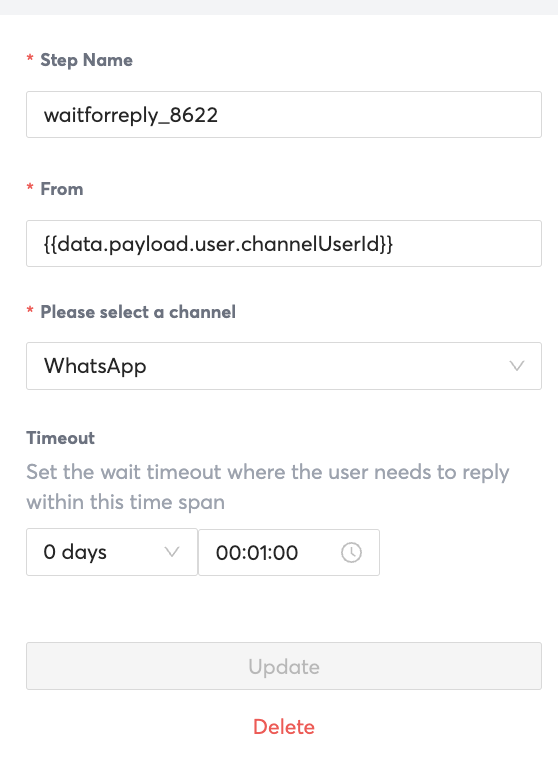
  • Platform Deployment Regions

    Platform Deployment Regions

    At 8x8 CPaaS, we understand that data latency and residency compliance are critical to delivering top-notch cloud communications. Our infrastructure leverages leading public cloud providers to store data in multiple regions, ensuring low latency and allowing you to select a location that best serves your customer base. Additionally, our geographically diverse infrastructure helps businesses meet regulatory requirements by keeping sensitive data within prescribed jurisdictions, giving you peace of mind and streamlined compliance.

    8x8 CPaaS Platform locations

    Platform Region Description
    Asia Pacific (default) Our primary data center is in Singapore, delivering reliable performance across the region.
    Europe (EMEA) Based in Europe to help mitigate risks associated with transferring personal data outside the UK/EEA. This facility assists businesses in complying with the GDPR, UK DPA, and offers enhanced control over data, including for the Middle East and Africa with improved latency. More details.
    North America Our North American data center provides robust performance and low latency across the region, while helping customers comply with U.S. data protection standards and local regulatory requirements.
    Indonesia Located in Indonesia to meet local regulatory requirements (GR 71 of 2019). This facility supports data protection, security mandates, and content regulations mandated for Electronic System Operators. Learn more .

    Setting your Platform region

    • New Account creation. The most relevant data center to your location is automatically preselected during the new account creation process. However, we understand that your business needs may vary, so we provide you with the flexibility to modify the data center selection during that process. This empowers you to choose the location that would best align with and benefit your specific business requirements.
    • Migrate existing account (available only to Enterprise accounts). Customers that have long–term contracts, account managed (enterprise) or purchase a significant amount of credits every month (USD 10,000/month or more) can email their account managers or our support team to request a migration of account data to another geographical region.

    API Endpoints and Platform Region

    To ensure optimal API performance, it is essential to select the appropriate base URL for API calls corresponding to the platform deployment region where your account is provisioned.

    The key advantages of correctly specifying the platform deployment region include:

    • Latency/Network Advantages: Reduced latency in API calls is achieved when your server, initiating the API calls, is geographically closer to the selected platform region of your account.
    • Data Isolation: Complying with data residency requirements is facilitated by using the appropriate URL for your API calls, ensuring that data and logs associated with the API calls are stored in the designated region.

    Here is a list of available regions and their corresponding base URLs. Replace {product} with the relevant product name you are using. The {product} placeholder supports several subdomains: sms, verify, smpp, lookup, contacts.

    Platform Region API Base URL
    Asia Pacific (default) https://{product-name}.8x8.com
    Europe https://{product-name}.8x8.uk
    North America https://{product-name}.us.8x8.com
    Indonesia https://{product-name}.8x8.id

    For example, if your account is provisioned in the Indonesian region, use https://sms.8x8.id for your SMS API calls instead of the default https://sms.8x8.com which will ensure you are connecting to the Indonesian platform region directly.


    Source: https://developer.8x8.com/connect/docs/data-center-region · 8x8 CPaaS Developer Docs. Synced for support deflection.
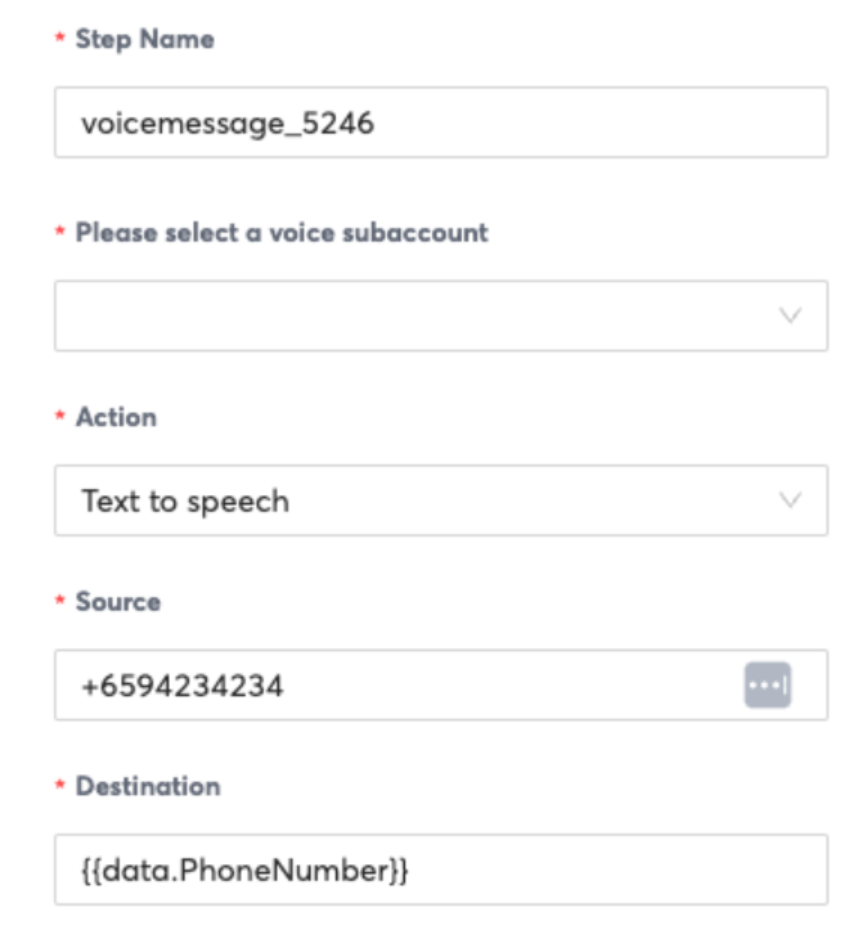
  • Details

    Details

    Filling Up Details

    • Select Destination country name (Currently Indonesia, Philippines, Singapore and Thailand are offered)
    • Select the Headquarters (this depends if your company has a local entity in the country). For some countries, headquarters is not a required field
    • For selected countries, Industry is a required field (this depends on the industry of your company)
    • Once the above fields are filled Company details will appear. Here you can can choose to add pre added company details as before by selecting Select company or you can choose to Add company details. This has been covered in Company Details portion

    image


    Source: https://developer.8x8.com/connect/docs/details · 8x8 CPaaS Developer Docs. Synced for support deflection.
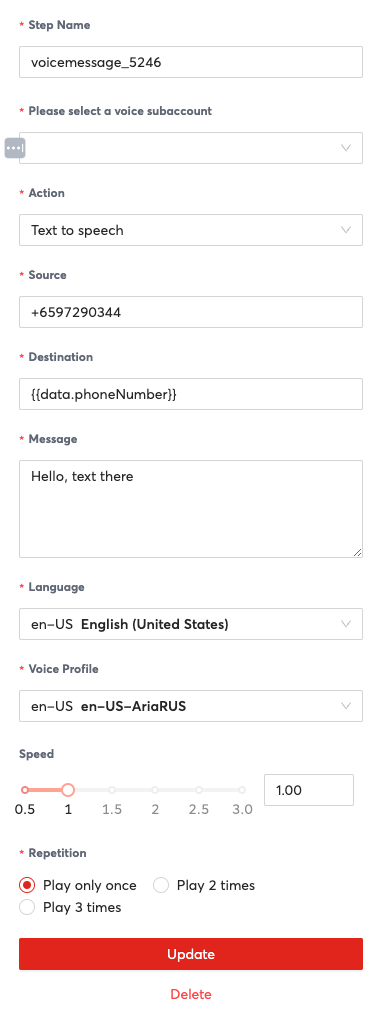
  • Context & Scripting

    Context & Scripting

    🚧 [BETA]

    This product is currently in early access. Please reach out to your account manager to get more information.

    Context

    Workflow context captures the scope in which a workflow is run. Workflow context persists data between steps that you can read from or write to at runtime. Workflow context exposes two state variables data and step. data is where all workflow-level data is stored. step is where all the step-level data is stored. When the step has completed execution, step data is automatically cleared. So, if you want to capture data from a step to use at a later time, you need to save it to data. You can interact with the workflow context using the inputs and outputs in the step definitions.

    Suppose you have a property in a step A called status which you want to use in a branch step later on. In order for the branch step to access this value, you need to output the value from step A to workflow context like

    {
    "outputs":{
    "custom_status":"{{step.status}}"
    }
    }

    Now, your workflow data has a property named custom_status that you access from any other step like

    {
    "selectNextStep":{
    "branchA":"{{data.custom_status == 'OK'}}",
    "branchB":null
    }
    }

    data can also store complex objects. For example, a workflow triggered by an outbound message may have nested properties like

    {
    "payload":{
    "status":{
    "code":1001,
    "errors":["first error","second error"]
    }
    }
    }

    and you can access this code in your workflow context by using data.payload.status.code and first error by using data.payload.status.errors[0].

    Scripting

    Automation service has rich support for scripting with JavaScript (supports most features of ECMAScript 2023) via input and output pipelines in the workflow context like member access operators (data.member, data['test']['key']), binary and tertiary operators like x == y ? 1 : 0; and the following functions we have defined for you.

    • Check country code of a phone number using isCountryCode(phoneNumber, countryCode). For example, isCountryCode('+6512345678', 'SG') evaluates to true.

    • Check if text contains a substring using stringContains(source,value,ignoreCase) For example, stringContains("hello, world","wor",true) evaluates to true. The ignoreCase param will ignore case-sensitivity is set to true. If ignoreCase is not set then the default is false which means it will be case-sensitive.

    • Check if a timestamp falls within some time of the day for the specified time zone using isTimeOfDayBetween(timestamp, timeFrom, timeTo, timezone). For example, isTimeOfDayBetween('2020-10-15T14:40:15+07:00', ‘09:00:00', ‘18:00:00’, 'Singapore Standard Time’) ** evaluates to true. Refer to Time Zones resource for supported timezones.
      To check if a timestamp falls outside a specific time interval you can either specify it as two time intervals chained with an
      || (logical OR) condition or a negation ! (logical NOT) on a single time interval. For example, !isTimeOfDayBetween('2020-10-15T14:40:15+07:00', ‘09:00:00', ‘18:00:00’, 'Singapore Standard Time’) is logically equivalent toisTimeOfDayBetween('2020-10-15T14:40:15+07:00', ‘00:00:00', ‘08:59:59’, 'Singapore Standard Time’) || isTimeOfDayBetween('2020-10-15T14:40:15+07:00', ‘18:00:01', ‘23:59:59’, 'Singapore Standard Time’)
      **

    • Check the day of the week of a date using isDayOfWeek(date, day). For example, isDayOfWeek('2021-05-25', 'Tuesday') evaluates to true. The date can be a simple date or a full datetime in the ISO8601 format. Supported days are Monday, Tuesday, Wednesday, Thursday, Friday, Saturday, Sunday. The days are not case sensitive. Any of Monday, monday, MONDAY is acceptable.

    Scripts must be enclosed in double curly brackets like {{data.msisdn == 6500000000}}. The preceding statement will access the msisdn property from workflow context at runtime and check that it equals to 6500000000.

    Scripts for populating strings can be defined like "{{'umid: ' + data.umid}}" or "umid: {{data.umid}}".

    Following restrictions are placed on scripts for security reasons:

    • Maximum length of scripts is 1000 characters.

    • Assignments, allocations and type declarations are forbidden.

    • Recursive functions are forbidden.

    • Scripts that take more than 500 milliseconds to execute are forbidden (configurable).


    Source: https://developer.8x8.com/connect/docs/context-scripting · 8x8 CPaaS Developer Docs. Synced for support deflection.
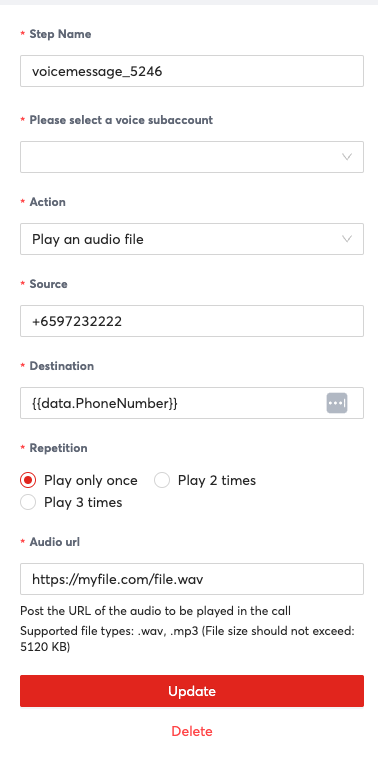
  • Configuration

    Configuration

    Only agents with a supervisor or administrator role can access the configuration page.

    1600

    You can do the following from the configuration page such as

    • Set number of hours a ticket will change its status from Resolved to Closed
    • Set number of hours a ticket will change its status from Pending to Closed
    • Set Maximum number of assigned tickets to an agent
    Editing Configurations

    To do this simply click the “Edit configuration” button on the top right corner. By default ticket resolutions are set to 1 hour. The maximum number of assigned tickets by default is five(5) for each agent. Once you set your desired configuration, simply click “Save changes” to instantly apply the changes or click “Discard changes” if you don’t want to apply your changes.

    1600


    Source: https://developer.8x8.com/connect/docs/configuration · 8x8 CPaaS Developer Docs. Synced for support deflection.
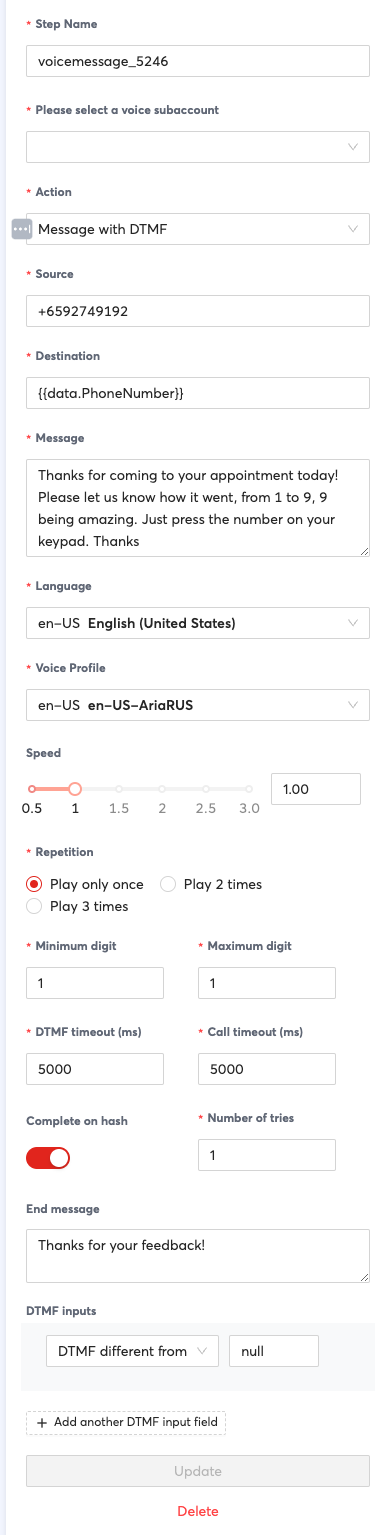
  • CPaaS: Connect & Communication APIs

    CPaaS: Connect & Communication APIs

    8x8 CPaaS (Communications Platform as a Service) is a comprehensive communication platform that enables businesses to engage with customers through various channels including SMS, Chat Apps, Voice, and Video. Our suite includes Connect (multi-channel portal), Converse (customer service), Video Interaction, and essential APIs. Explore our complete range of products and services designed to enhance your customer communication experience.

    Communication Channels

    Engage customers through the channels they already use and love.

    SMS

    Send single or batch SMS messages with global delivery and real-time status updates.

    WhatsApp Business

    Rich messaging with templates, media, interactive buttons, and lists for customer engagement.

    RCS

    Rich Communication Services with media, interactive cards, and branded messaging experiences.

    Viber Business

    Connect with customers through Viber Business Messages with rich media support.

    LINE Official

    Send notifications and messages through LINE Official Account platform.

    Zalo (ZNS)

    Reach customers in Vietnam through Zalo Notification Service with rich templates.

    Voice & Video Solutions

    Advanced voice and video communication tools for enhanced customer engagement.

    Voice Messaging

    Automated voice message delivery with text-to-speech and audio file playback for customer notifications and reminders.

    WhatsApp Business Calling

    Make and receive voice calls directly in WhatsApp for seamless customer conversations and support.

    IVR (Interactive Voice Response)

    Build automated phone menus with voice prompts, DTMF input capture, and dynamic call routing.

    Number Masking

    Enable secure calling through virtual numbers that keep real phone numbers private for both parties.

    Voice SDK

    Integrate high-quality VoIP calling into Android and iOS applications with our mobile SDKs.

    Video Interaction

    Face-to-face customer support with video calling, screen sharing, and co-browsing capabilities.

    Platform Services

    Essential tools and APIs for building robust communication solutions.

    Verification API

    2FA and OTP verification via SMS, Voice, and WhatsApp for secure authentication.

    Number Lookup

    Validate mobile numbers and get carrier information to improve delivery rates.

    Contacts API

    Manage customer contact databases with groups, tags, and custom fields.

    Automation Builder

    Create automated workflows and triggers for smart customer engagement.

    Verif8

    Advanced identity verification and fraud prevention platform.

    Management & Analytics

    Comprehensive tools for managing your communication platform and gaining insights.

    Connect Portal

    All-in-one multi-channel communications management portal with real-time analytics.

    Multi-channel Sender

    Send messages across multiple channels through one unified interface.

    Analytics & Reporting

    Real-time reports and insights for SMS, messaging apps, and video interactions.

    Template Management

    Create, manage, and get approval for WhatsApp templates and message templates.

    Converse

    Customer service platform with advanced queueing and conversation management.

    Sender ID Registration

    Register and manage branded sender IDs for SMS campaigns globally.


    Getting Started

    Get Started

    Begin your journey with 8x8 API

    Explore Integrations

    Connect with popular platforms and tools

    Developer Resources

    APIs, SDKs, and development tools


    Source: https://developer.8x8.com/connect/docs/8x8-cpaas-products · 8x8 CPaaS Developer Docs. Synced for support deflection.
  • «
  • ‹
  • 1
  • 2
8x8 Logo
  • 8x8 YouTube
  • 8x8 Facebook
  • 8x8 Twitter
  • 8x8 Blog
  • 8x8 LinkedIn
  • 8x8 Instagram

Company

  • About Us
  • Careers
  • Contact Us

Our Products

  • SMS
  • Chat Apps
  • Video Interaction
  • Voice
  • Pricing

Media

  • Customer Success Stories
  • News
  • Events
  • Blog

Resources

  • Documentation
  • Service Status
  • Ask for support
Privacy Policy | Terms of Use | Acceptable Use Policy
© 2025 8x8, Inc. All rights reserved.