See Details
Logo CPaaS Help Center Developer Premium Support Status
Sign in Contact Support
  1. 8x8 CPaaS Help Center
  2. Connect Portal (Web App)

Connect Portal (Web App)

  • Customer Interface

    Customer Interface

    Overview

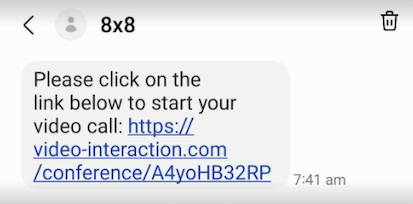
    When a customer is first invited by an agent to join a call, they will receive an SMS with a link to join a call. Upon clicking onto the link, it will launch their mobile browser where they can use the video conferencing solution to speak with an agent.

    SMS Link

    Here is what the SMS Link will look like for the customer.
    image

    Video Room

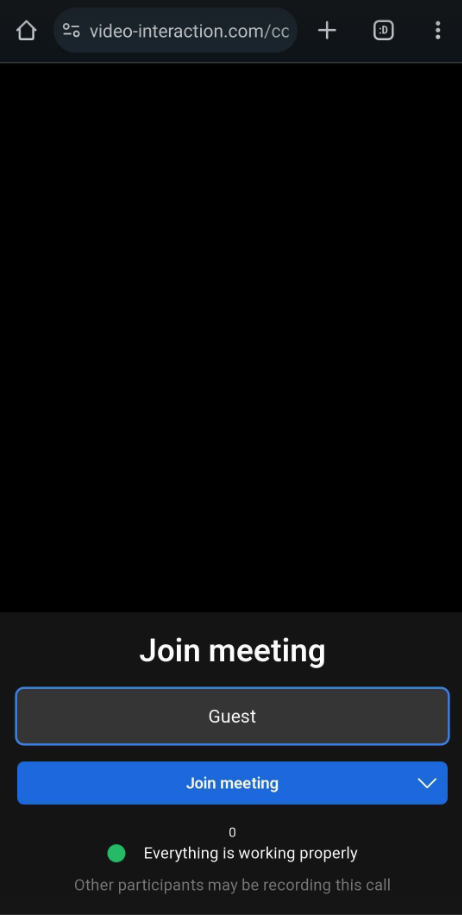
    Upon clicking the link, the customer will first be taken to a room lobby where they can fill out their display name for the agent to see.
    image

    Here is what the call screen looks like once the customer joins and the relevant buttons explained below.
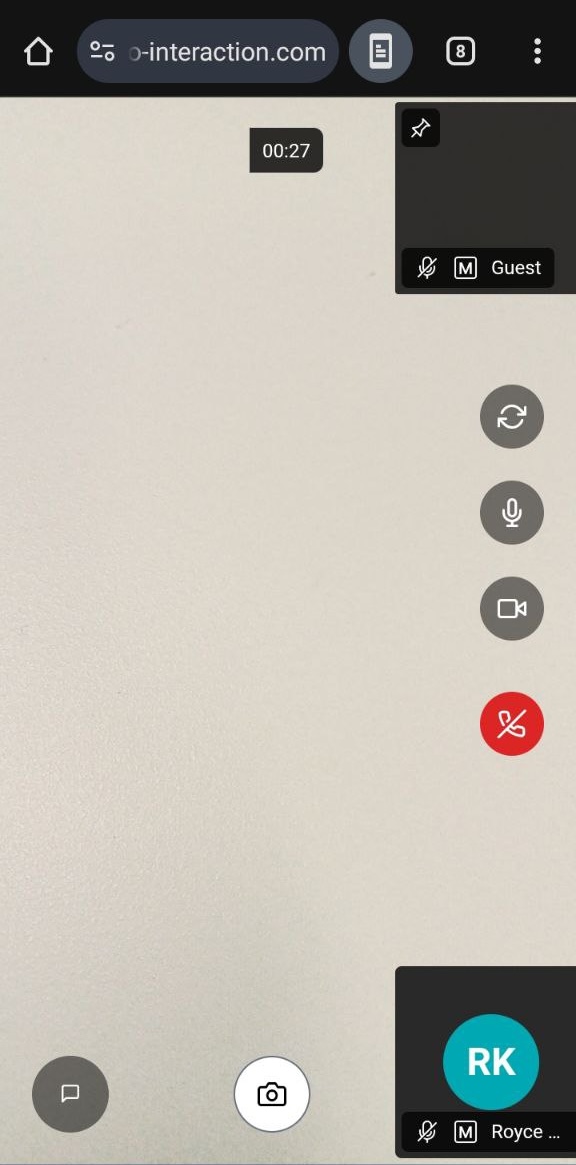
    Annotation user interface

    Camera Flip: Flip between front and back camera on the smartphone device.

    Mic On/Off: Allows customer to mute/unmute.

    Camera On/Off: Allows customer to turn on/off their camera.

    End Call: Ends the call for both agent and customer.

    Chat: Open Chat Window to allow the customer to chat.

    Take Screenshot: Take a screenshot of the current screen.

    The following options are available:

    1. Camera Flip: Flip between front and back camera on the smartphone device.
    2. Mic On/Off: Allows customer to mute/unmute.
    3. Camera On/Off: Allows customer to turn on/off their camera.
    4. End Call: Ends the call for both agent and customer.
    5. Chat: Open Chat Window to allow the customer to chat.
    6. Take Screenshot: Take a screenshot of the current screen.
    7. Take Photo: Take photo using the device camera. A dialog will appear asking the guest to grant permission and proceed with the photo capture.

    The image below shows the Chat window as it appears to a customer, which is used to exchange messages with an agent. The customer's messages are displayed in right-aligned blue bubbles, and the agent's messages are in left-aligned white bubbles.
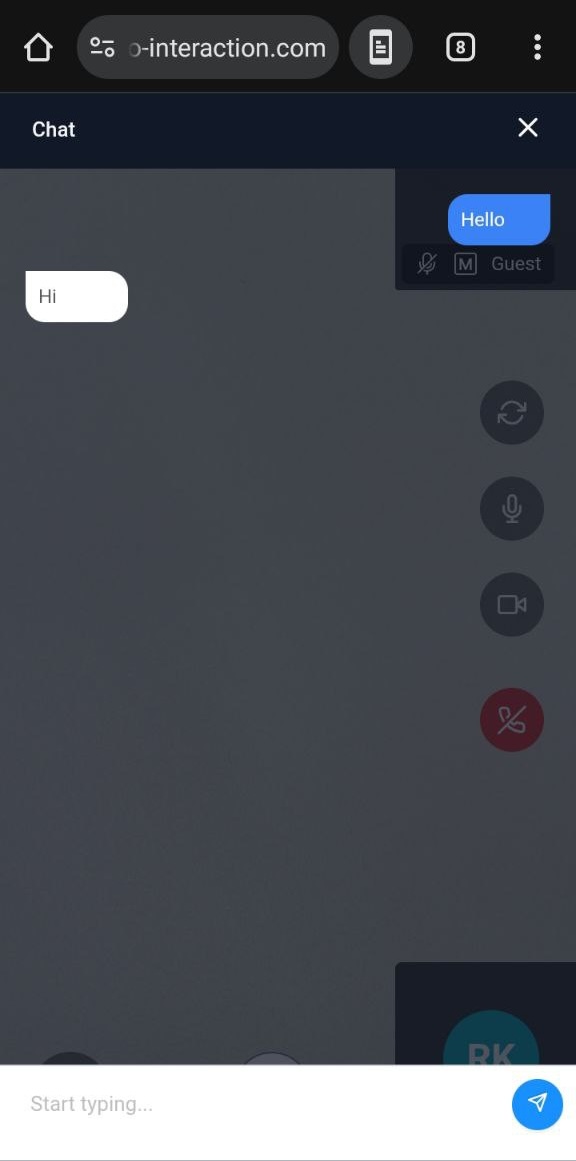
    image

    Take Screenshot - Annotation

    When using the Take Screenshot feature, it is possible for the agent and the customer to annotate a screenshot in real time.

    In the image below, yellow markings are from the customer while blue/teal markings are from the agent.
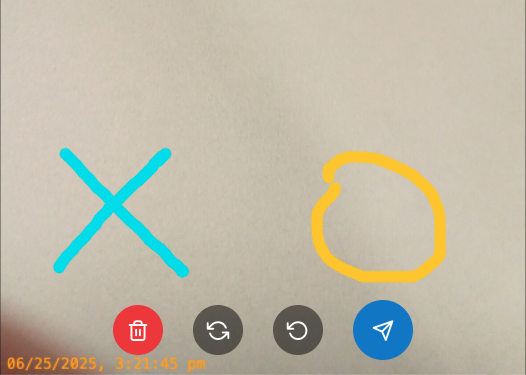
    Call user interface (agent view)

    Delete Screenshot: Immediately deletes the screenshot and resumes the normal video call.

    Undo all: Reverses either the customer or the agent's actions on the annotation.

    Undo Single: Reverses the last annotation by the customer or agent

    Send Annotation: Sends the current annotation image to the chat for either party to view.

    The available commands for both the customer and agent are:

    • Delete Screenshot: Immediately deletes the screenshot and resumes the normal video call.
    • Undo all: Reverses either the customer or the agent's actions on the annotation.
    • Undo Single: Reverses the last annotation by the customer or agent
    • Send Annotation: Sends the current annotation image to the chat for either party to view.

    Source: https://developer.8x8.com/connect/docs/vi-customer-interface · 8x8 CPaaS Developer Docs. Synced for support deflection.
  • Agent Interface

    Agent Interface

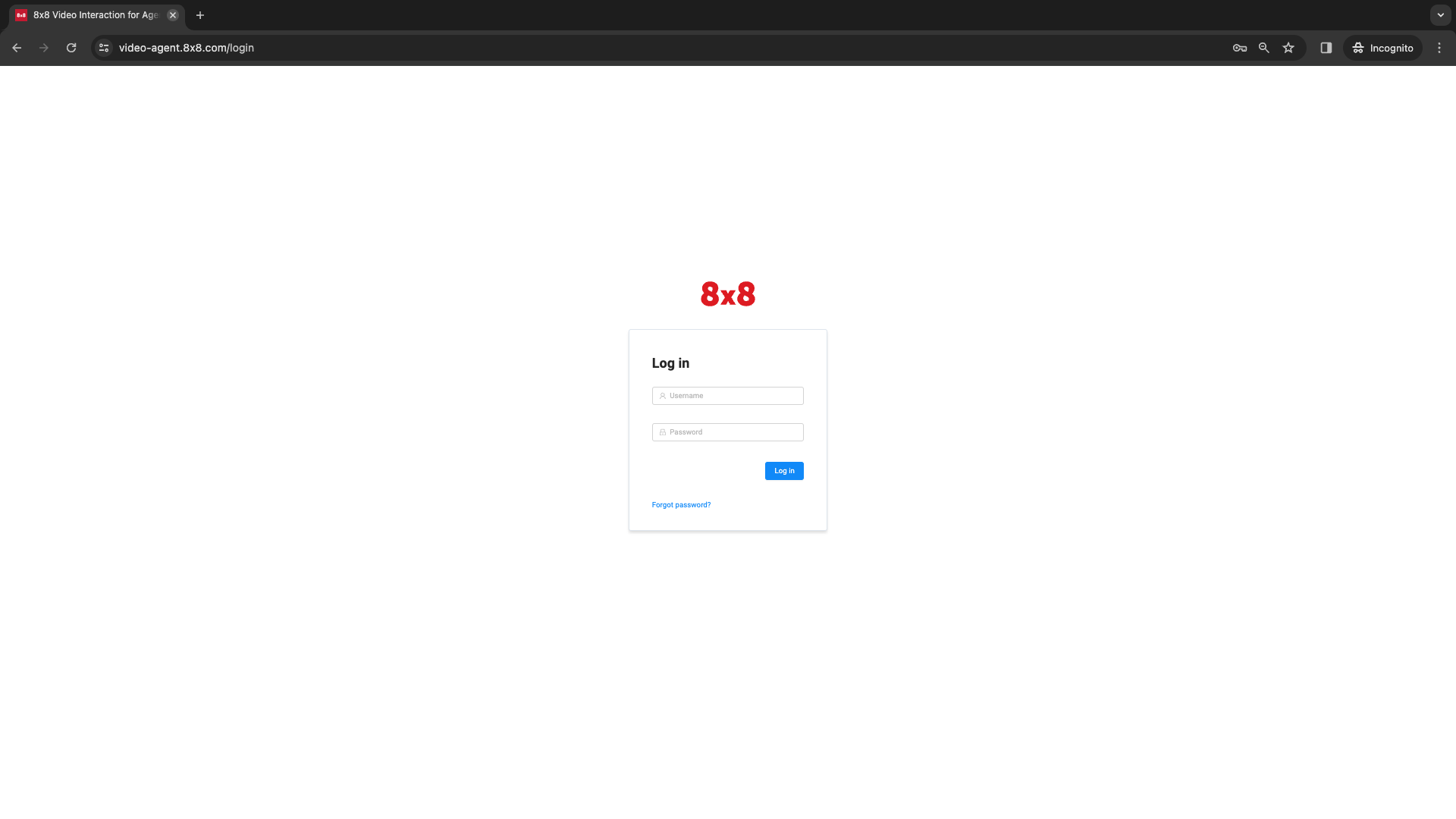
    Agent Login

    To login, the agent can open the following URL:

    🌍 https://video-agent.8x8.com/login (Only accessible after signing up for VI)

    Video Interaction Login ScreenVideo Interaction Login Screen

    Each agent will receive an invite via email and have their own login details.

    In the case of facing issues logging in, please try “Forgot Password” and follow the onscreen instructions.

    Placing a Call

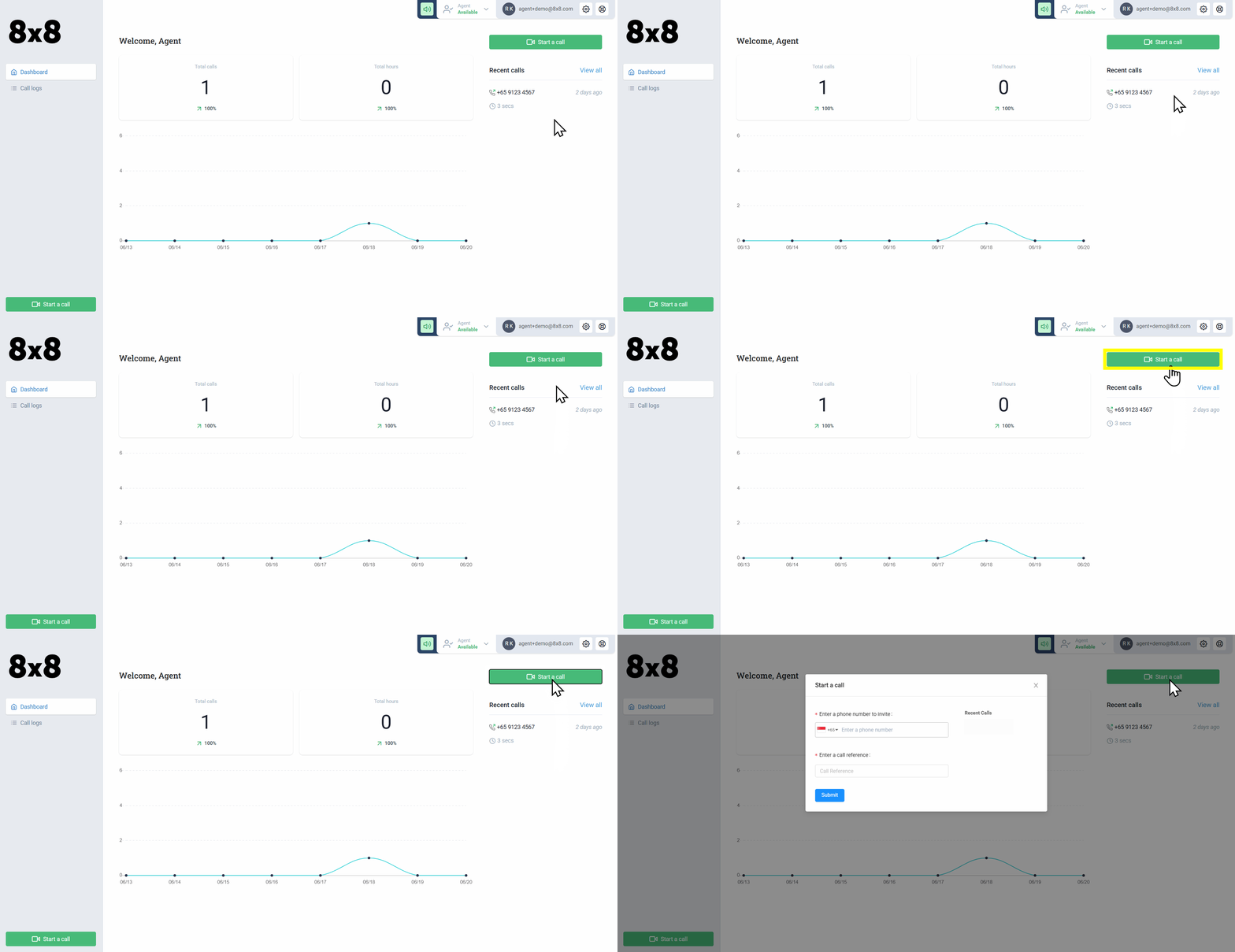
    From the home screen, an agent can place a call by clicking on the "Start a Call" button.

    image This will open a dialog box with two fields:
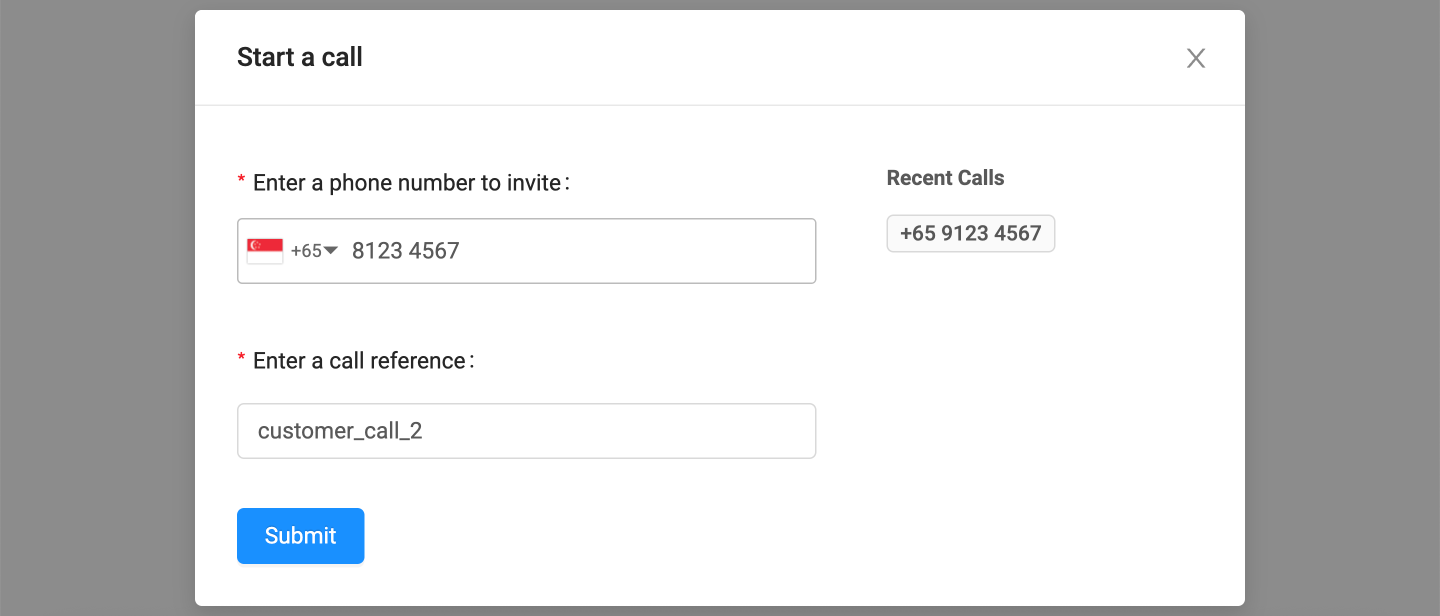
    • Phone Number: The customer phone number to send an SMS invite to.
    • Enter a Call Reference: This is so you can enter a unique string (such as "customer_call_2") which would be associated with this call. This used not only in the VI User Interface Call Log but also in the API when you want to later refer to a call.

    image Once the invitation is placed, the agent will see this pop up screen while they wait for the customer to accept the call.
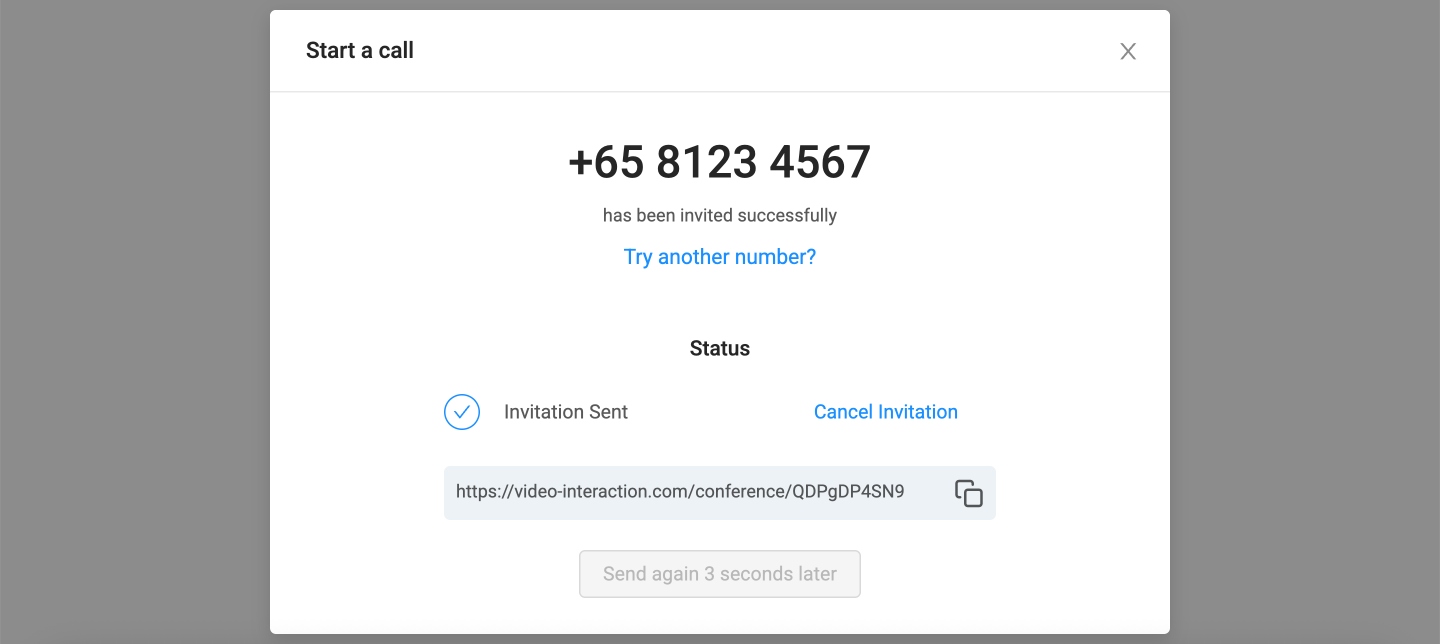
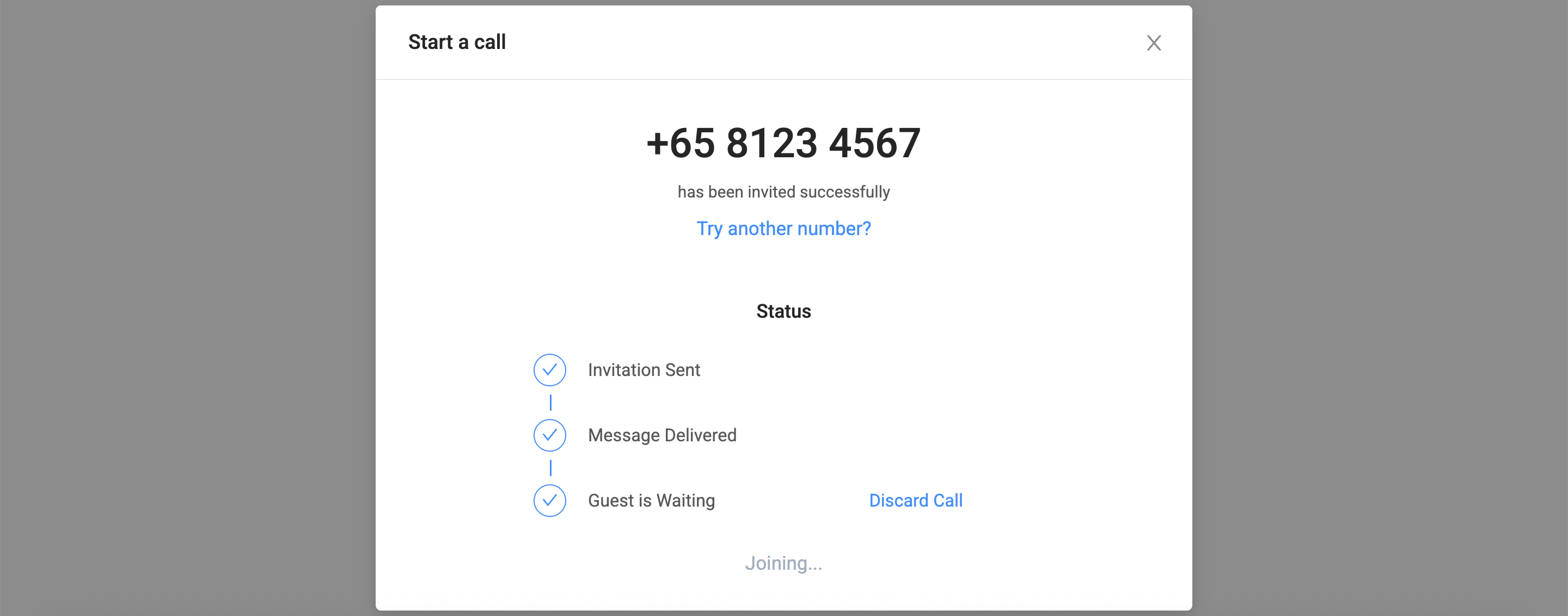
    image When the customer opens the invitation link to the call, the pop up screen will be updated and the agent will be automatically connected to the call.
    image

    During a call

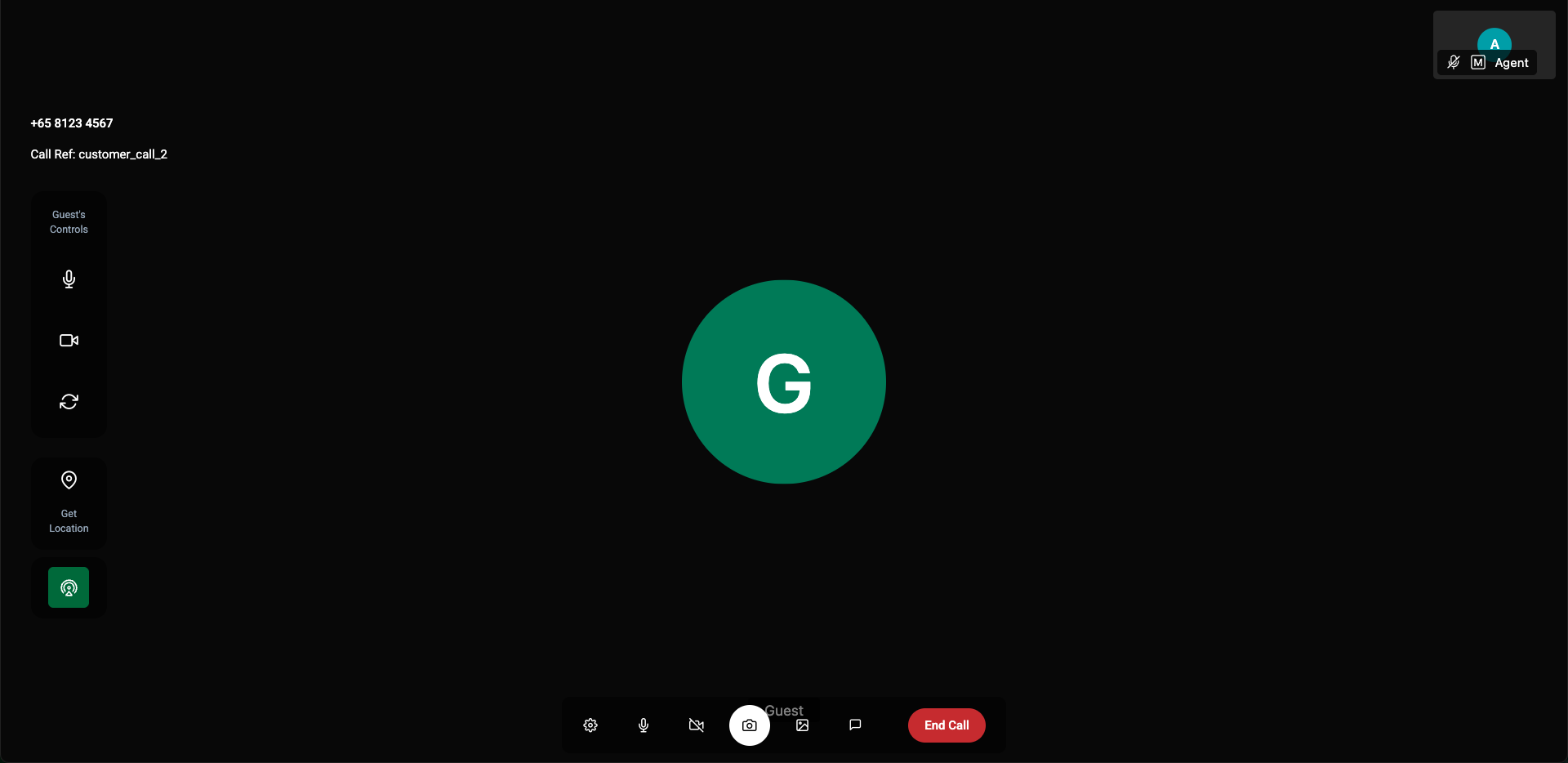
    Once the customer joins the call, the agent will also join the call. The call interface is shown below with the key settings available to the agent explained.

    Call user interface (agent view)

    Mute Customer Audio: Turn on/off the customer's microphone.

    Turn On/Off Customer Video: Turn on/off the customer's camera.

    Flip from Back to Front Camera: Forces the customer camera to either back or front cameras of their smartphone device.

    Obtain Customer Location: This will open up a map to display a customers current location in a longitude/latitude format.

    Low Bandwidth Mode: This will toggle the quality of video received by the agent.

    Agent Settings: Control Various Settings related to the agent's UI.

    Mute Microphone: Mute's the agent's microphone.

    Turn on/off Agent's Camera: Enable/Disable the agent's camera.

    Take Screenshot: Takes a screenshot of the agent's video view and allow annotation.

    Virtual Background Settings: Change the Agent's Virtual Background Settings such as the image to use, blur, etc.

    Open Chat: Open's the Chat Window Between the Agent and the Customer, supports text-only messaging.

    End Call: Terminate and leave the call.

    Here are the following options available to the agent:

    1. Mute Customer Audio: Turn on/off the customer's microphone.
    2. Turn On/Off Customer Video: Turn on/off the customer's camera.
    3. Flip from Back to Front Camera: Forces the customer camera to either back or front cameras of their smartphone device.
    4. Obtain Customer Location: This will open up a map to display a customers current location in a longitude/latitude format.
    5. Low Bandwidth Mode: This will toggle the quality of video received by the agent.
    6. Agent Settings: Control Various Settings related to the agent's UI.
    7. Mute Microphone: Mute's the agent's microphone.
    8. Turn on/off Agent's Camera: Enable/Disable the agent's camera.
    9. Take Screenshot: Takes a screenshot of the agent's video view and allow annotation.
    10. Take Photo: Takes photo using guest's camera.
    11. The video stream will be paused as the guest's camera is required for photo taking.
    12. Video stream will resume once the photo has been taken.
    13. Annotation isn't available.
    14. Virtual Background Settings: Change the Agent's Virtual Background Settings such as the image to use, blur, etc.
    15. Open Chat: Open's the Chat Window Between the Agent and the Customer, supports text-only messaging.
    16. End Call: Terminate and leave the call.

    Take Screenshot - Annotation

    When using the Take Screenshot feature, it is possible for the agent and the customer to annotate a screenshot in real time.

    In the image below, yellow markings are from the customer while blue/teal markings are from the agent.

    Hover over the buttons in the image below for more details.

    Call user interface (agent view)

    Delete Screenshot: Immediately deletes the screenshot and resumes the normal video call.

    Undo all: Reverses either the customer or the agent's actions on the annotation.

    Undo Single: Reverses the last annotation by the customer or agent

    Send Annotation: Sends the current annotation image to the chat for either party to view.

    The available commands for both the customer and agent are:

    1. Delete Screenshot: Immediately deletes the screenshot and resumes the normal video call.
    2. Undo all: Reverses either the customer or the agent's actions on the annotation.
    3. Undo Single: Reverses the last annotation by the customer or agent
    4. Send Annotation: Sends the current annotation image to the chat for either party to view.

    Call End

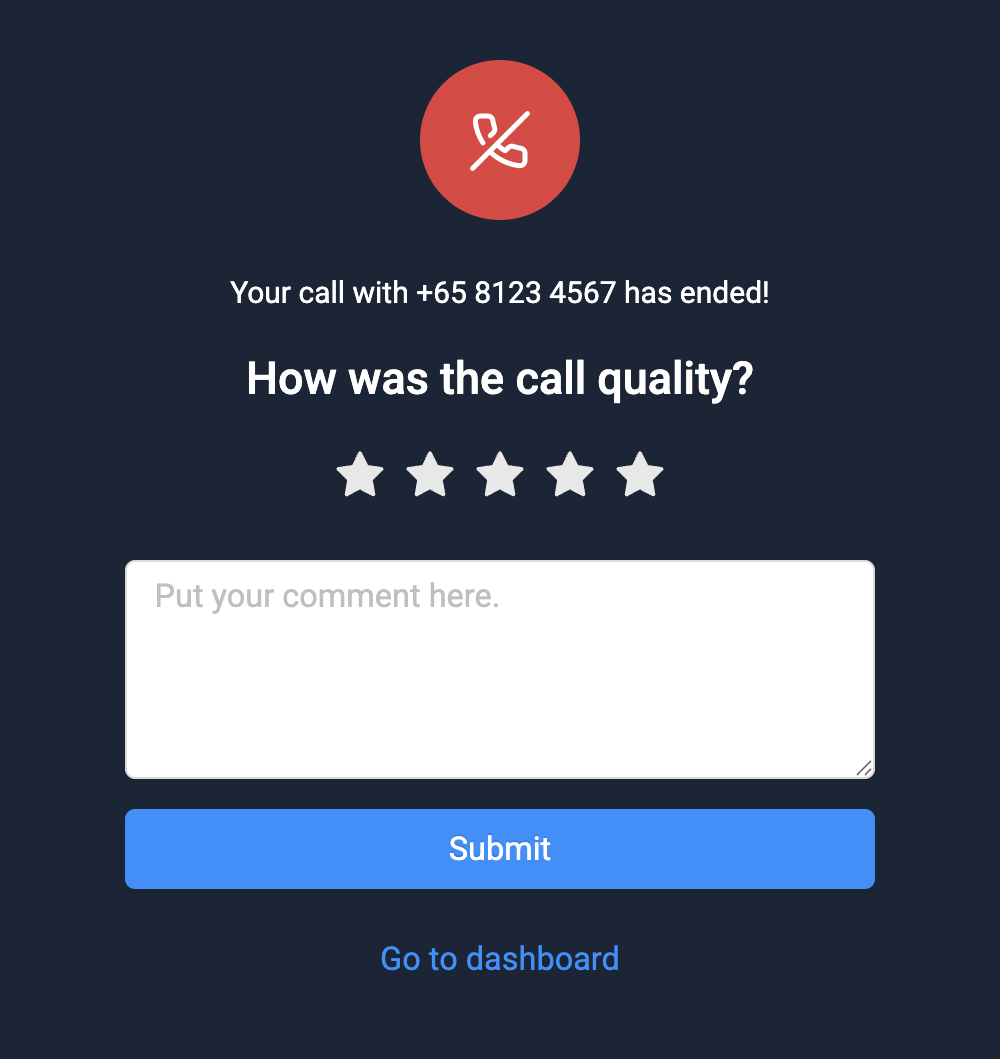
    After a call ends, both the agent and the customer will be able to rate the call quality and add a comment. The agent will also be able to return to their Agent Dashboard.

    image

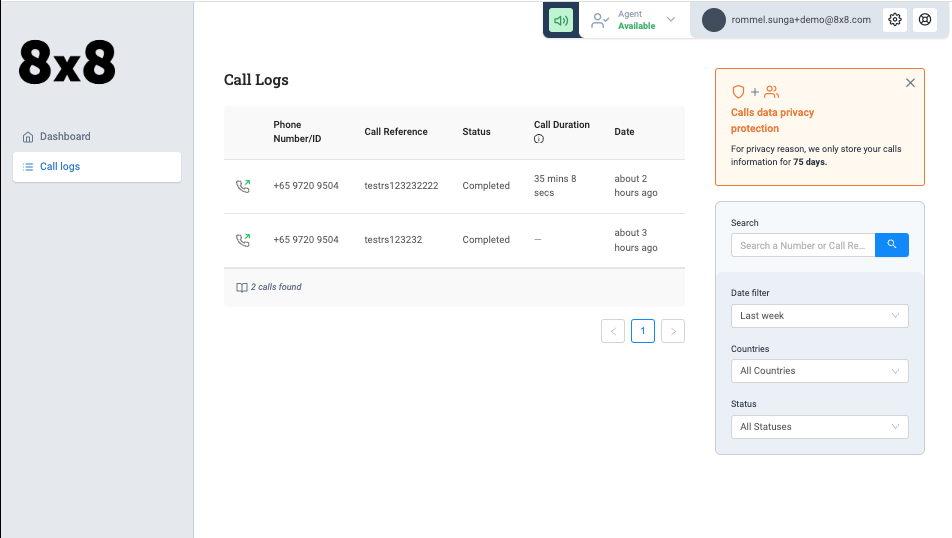
    Call Logs

    The agent can view details of previous calls in the call log menu including:

    • Phone Number : Refers to the number of the customer
    • Call Reference: What call reference value was inputted by the agent or via the API.
    • Status: Whether the call is completed, ongoing or other status.
    • Call Duration: Length of the call
    • Date: When the call was placed

    imageOpening each individual Call Log will reveal further detail about that call:
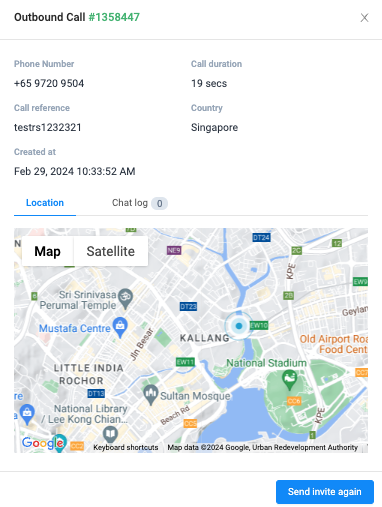
    • Location of the Customer: Available only if gathered during the call
    • Chat Logs: Messages sent in the chat window between the agent and customer.
    • Invite Again: The option to send another invitation to the customer.

    image

    Iframe Integration

    This documentation refers to the agent interface that is embedded into the Video Interaction Dashboard. However there is the option to embed the calling experience into another system via iframe. More information on how to integrate the iframe is available here.


    Source: https://developer.8x8.com/connect/docs/vi-agent-interface · 8x8 CPaaS Developer Docs. Synced for support deflection.

  • Administrator Interface

    Administrator Interface

    Accessing the Admin Panel

    To access the administration panel for Video Interaction, log into 8x8 Connect.

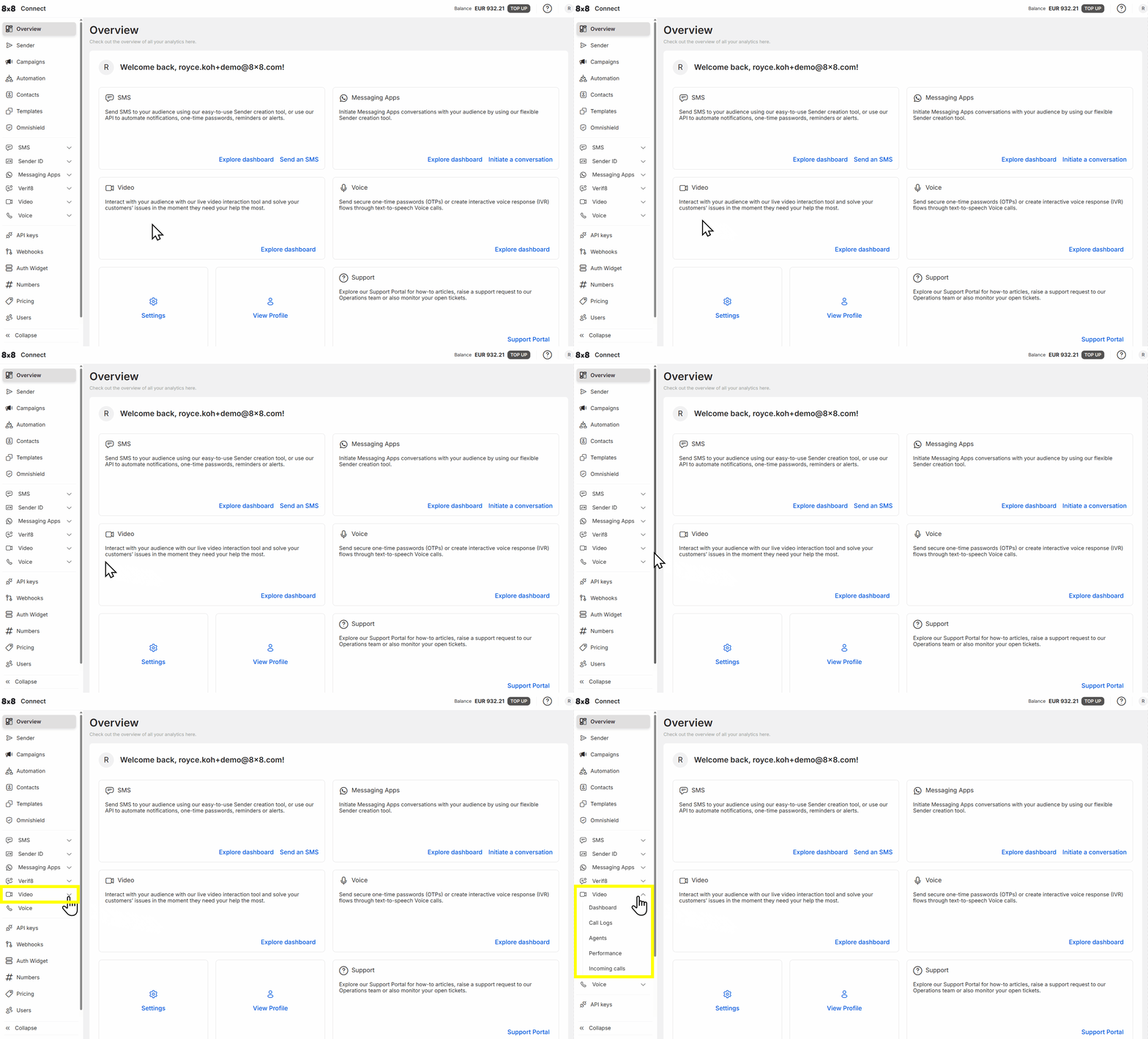
    You can access 8x8 Connect from this link. When you are logged into 8x8 Connect, from the Side Bar menu select "Video"

    image

    Dashboard

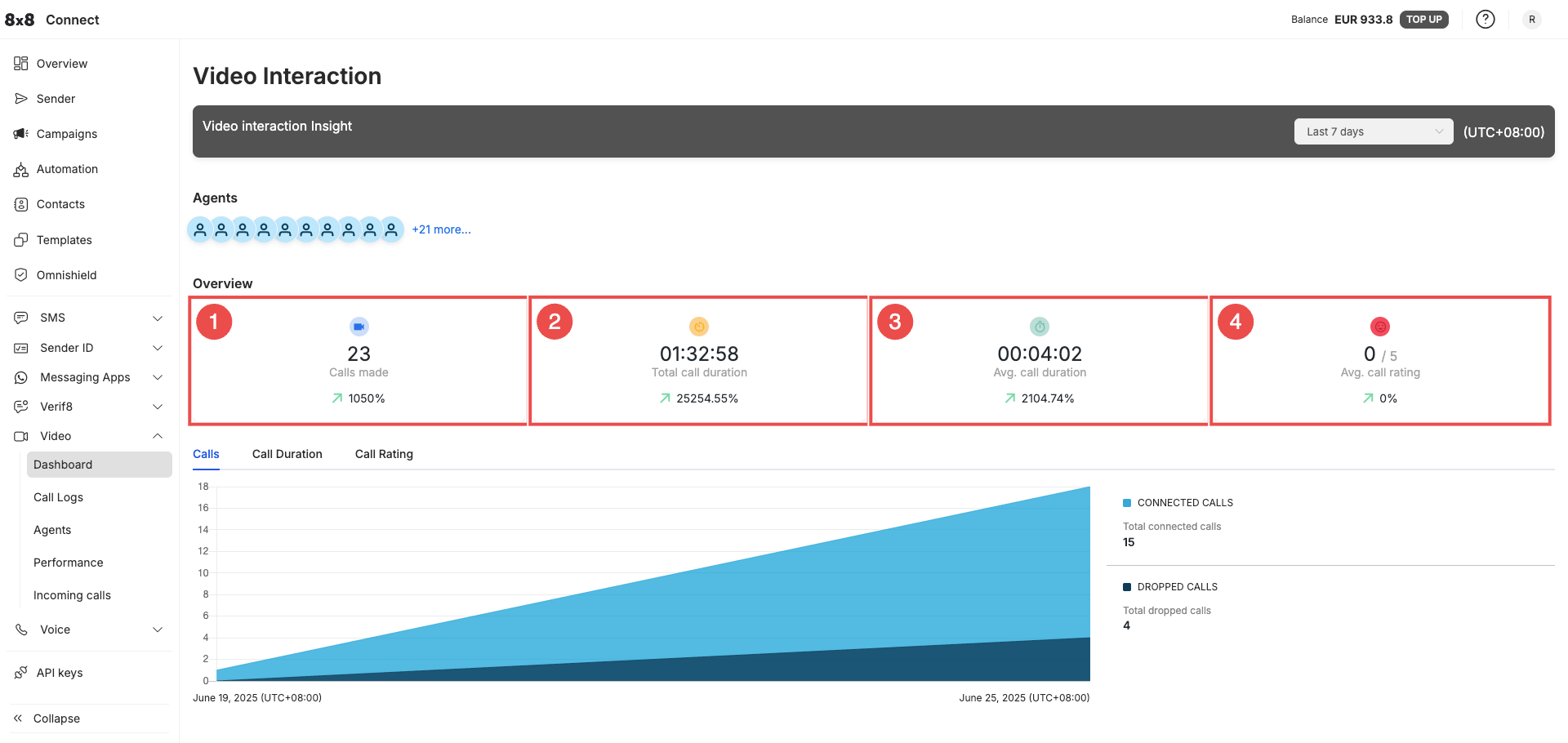
    The Dashboard gives an overview of Video Interaction calls across all of your agents.

    image In the screen you can select a date range from the dropdown menu in the top-right corner to view its corresponding metrics such as:
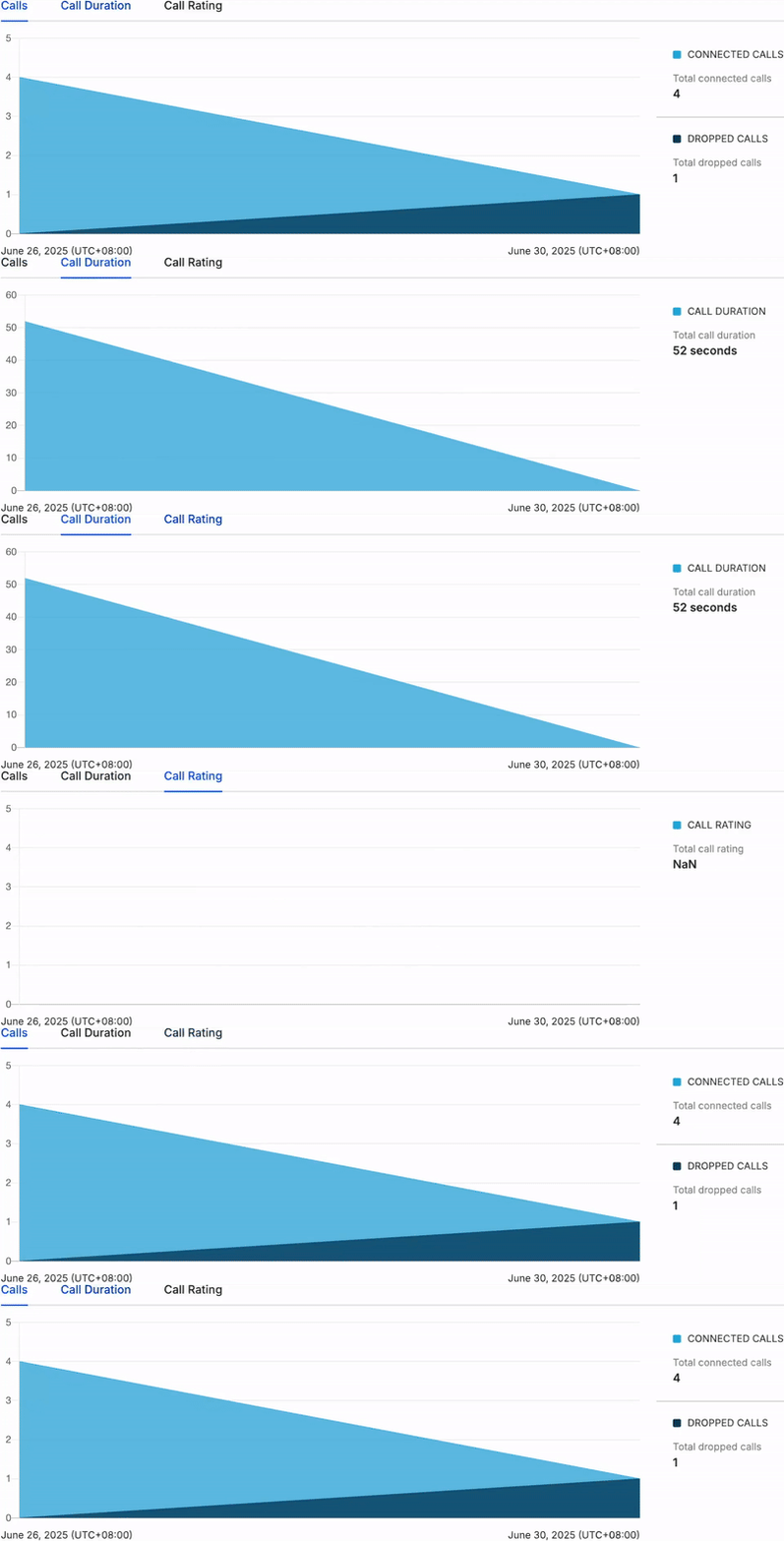
    1. Calls Made: # of calls made by agents over this date range.
    2. Total Call Duration: Duration of calls across all agents in this date range.
    3. Average Call Duration: How long on average each call lasted.
    4. Average Call Rating: Refers to the rating the customer gave regarding the call.

    The graphs also show the number of calls, call duration and call rating over time.

    image

    Call Logs

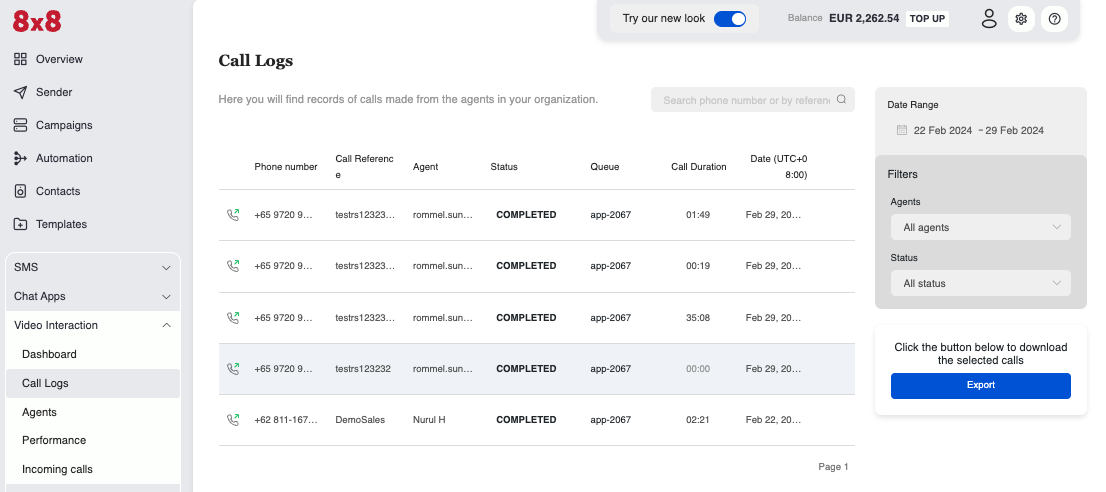
    The Call Logs screen displays a detailed breakdown of each agent's Video Interaction calls.

    image

    On the screen you will see information such as:

    • Phone Number: Refers to the phone number of the customer.
    • Call Reference: What call reference value was inputted by the agent or via the API.
    • Agent: Which agent handled the call.
    • Status: Whether the call is completed, ongoing or other status.
    • Queue: What queue the call was assigned to.
    • Call Duration: Length of the call.

    There is also the option to export the call logs as a .csv file to download to your browser.

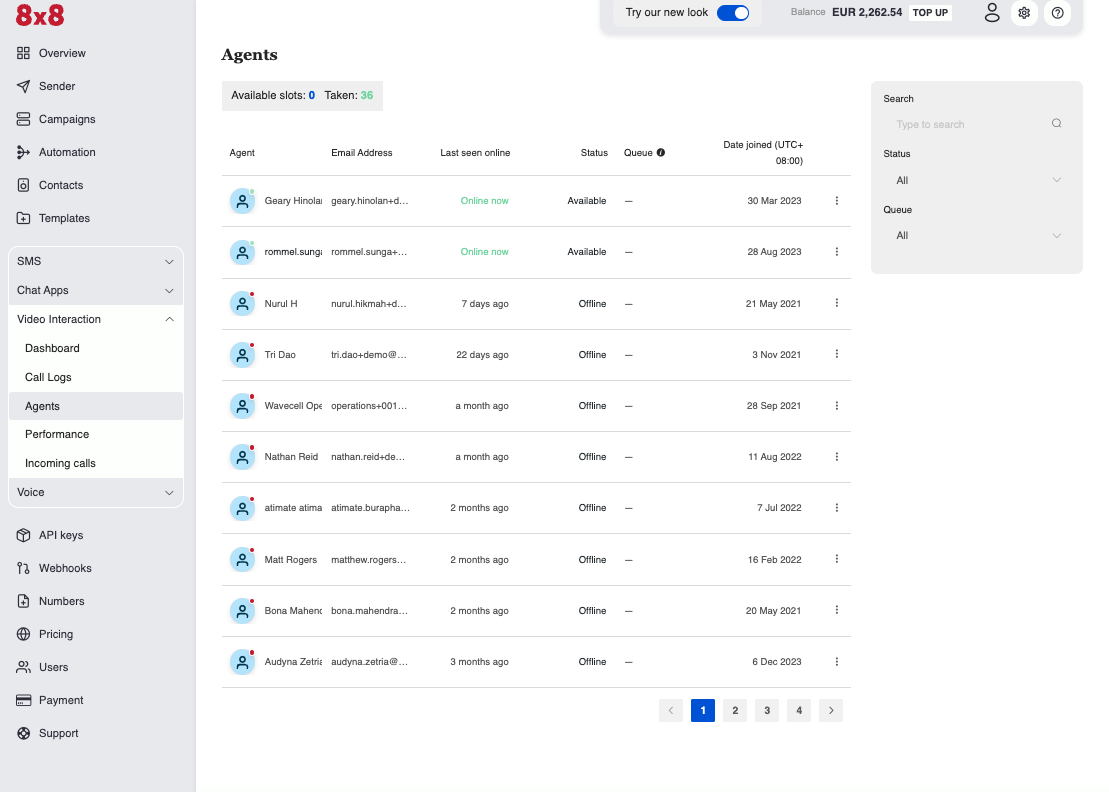
    Agents

    The agents screen will show information regarding your agents.

    image

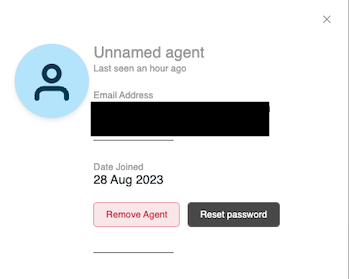
    It will have the following information for each agent:

    • Agent Name: Display Name of the Agent
    • Email Address: Login email address tied to the Agent
    • Last Seen Online: When the Agent was last seen online
    • Status: If Agent is Online/Offline
    • Queue: What Queue the Agent is currently tied to
    • Date Joined: When the Agent was added to the system

    Clicking an agent's opens their details page, where you can either remove them or reset their password.

    image

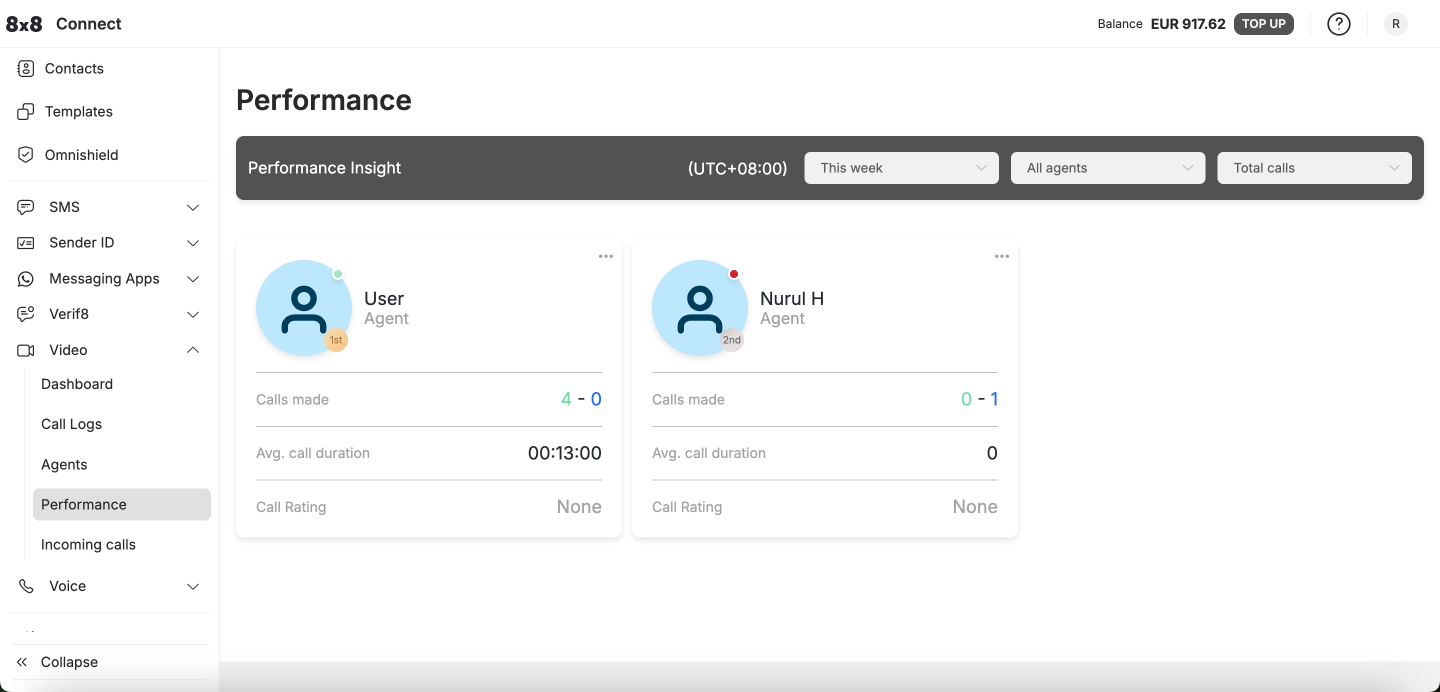
    Performance

    Inside the performance screen, you will be able to see each agent's performance for a given date range. It contains the following statistics:

    • Calls Made: Number of calls made, separated into Connected Calls (Green) and Failed Calls (Blue).
    • Avg. Call Duration: How long each connected call lasted.
    • Call Rating: The call rating given to the agent by customers.

    image You can view all agents performance at a glance or filter by a specific agent to help measure performance.
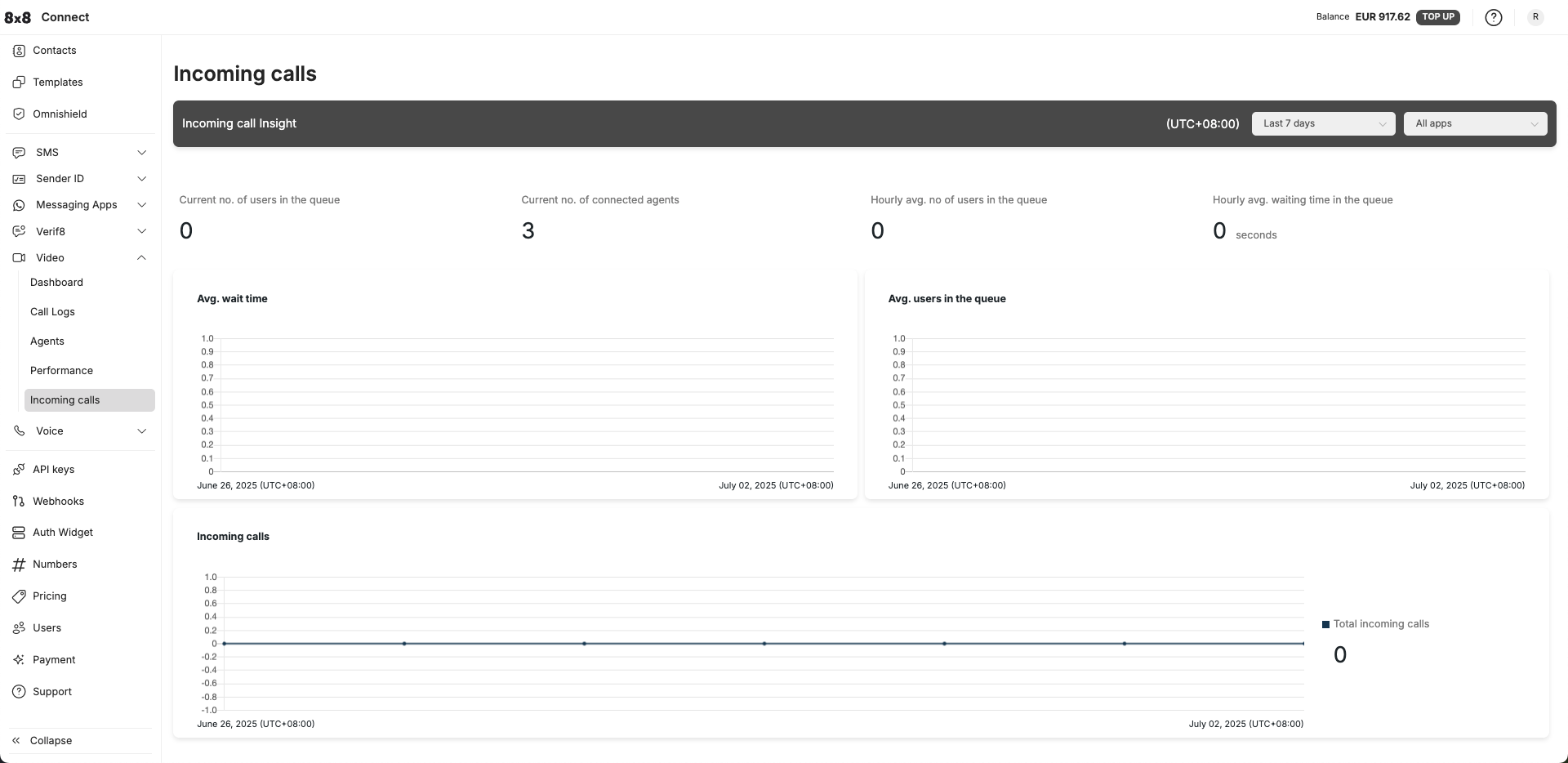
    Incoming Calls

    The incoming calls screen gives insights into the customer experience when it comes to waiting time in the queue for incoming calls. This includes measurements about the current status of the queue and the averaging wait for each customer over a given time period.

    image


    Source: https://developer.8x8.com/connect/docs/vi-administrator-interface · 8x8 CPaaS Developer Docs. Synced for support deflection.

  • User management

    User management

    The user management feature allows you to manage users from adding, deleting, disabling and giving access to Connect menus and features.

    Inviting or adding a new user on Connect

    (This assumes the user is already logged in and has "user management" access or with admin level privileges)

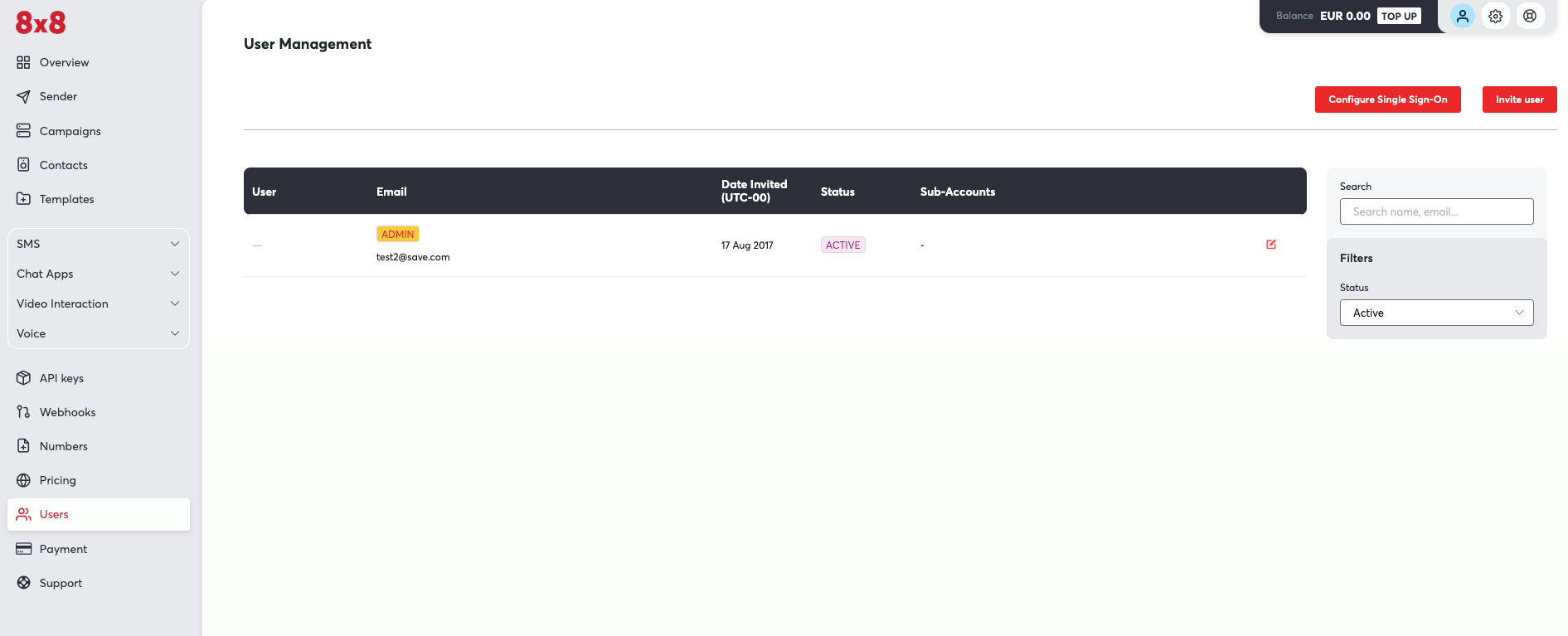
    1. Go to the left navigation menu and click "Users". Alternatively, you can also click the "gear" icon on the top right menu just beside your profile icon and select "User management".

    1891

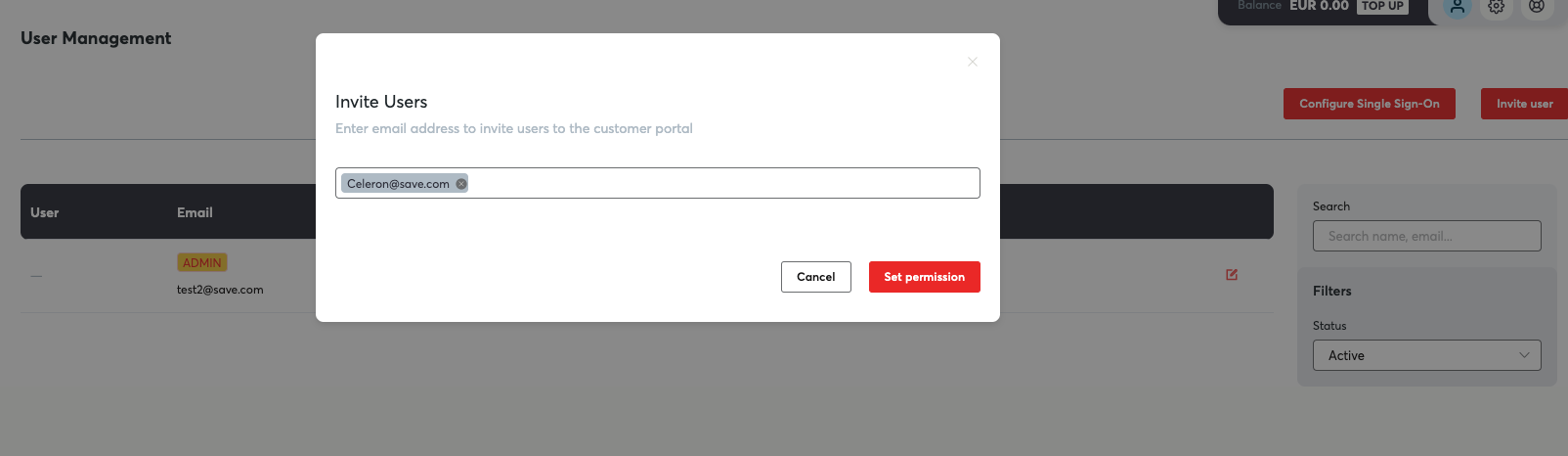
    1. Click "Invite user" and start typing the new user's email on the field provided.

    1604

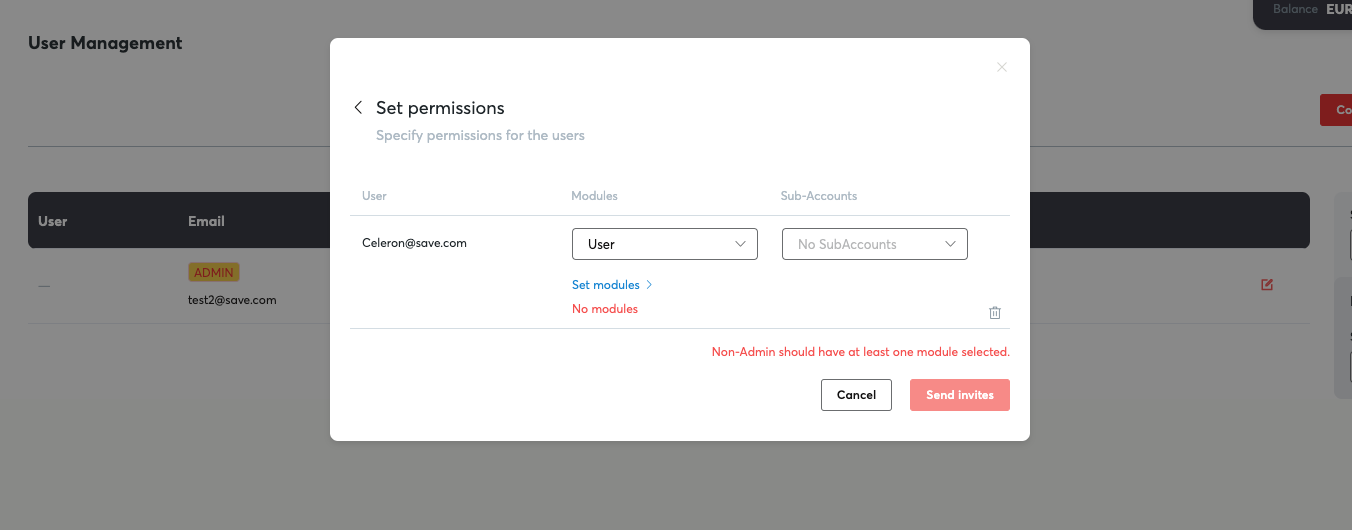
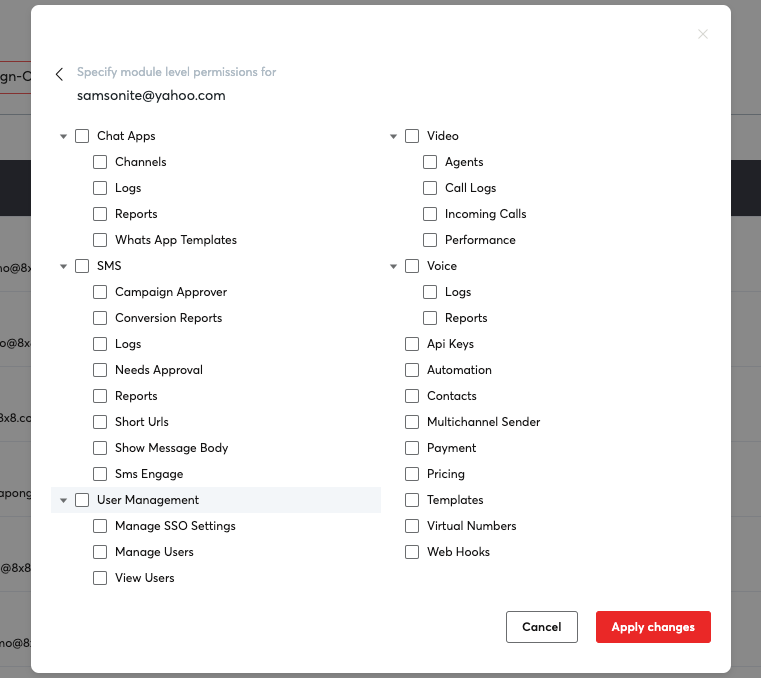
    1. Click "Set permissions" then click "Set modules" so you can start selecting the menus or features you want to give to your new user.

    1352

    1. Start selecting the menu or features you want to enable for your new user. Take note that some products like Chat Apps, Automation, Voice, Video are not enabled by default because these are premium products. If you are interested please contact your account manager or cpaas-support@8x8.com

    761

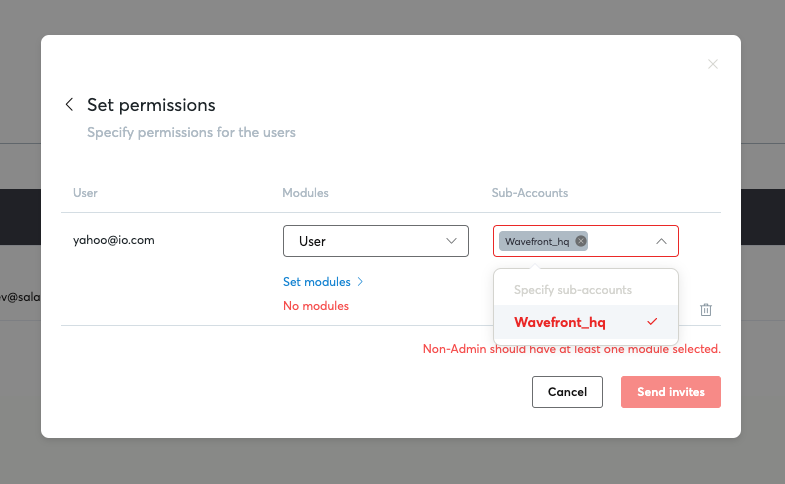
    1. Alternatively, you can also select the sub-accounts(if you have several sub-accounts configured under your account). Click "Send invites" once you are done selecting the menus or sub-accounts.

    785

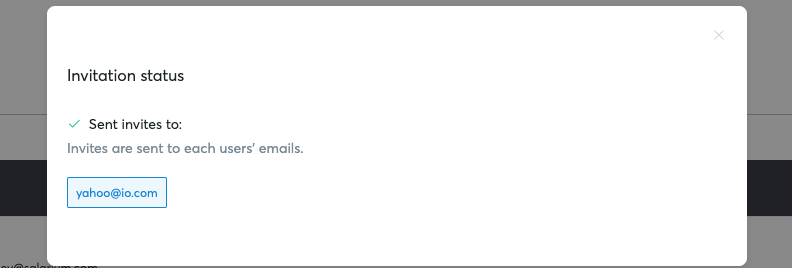
    1. A popup message will be shown confirming that the invite has been sent.

    792


    Source: https://developer.8x8.com/connect/docs/user-management · 8x8 CPaaS Developer Docs. Synced for support deflection.

  • Ticket Management

    Ticket Management

    *Here are the different actions available to the agent:

    1456Ticket Status
    An agent marks a ticket as RESOLVED:

    (A) A period of time (default is set to 1 hour, but configurable by managers) lapsed starting from the time it was marked resolved. This leads to the ticket to be marked as CLOSED

    (B) Within the defined period of time, the customer replies. Tickets will be reopened and this status will change back to OPEN.

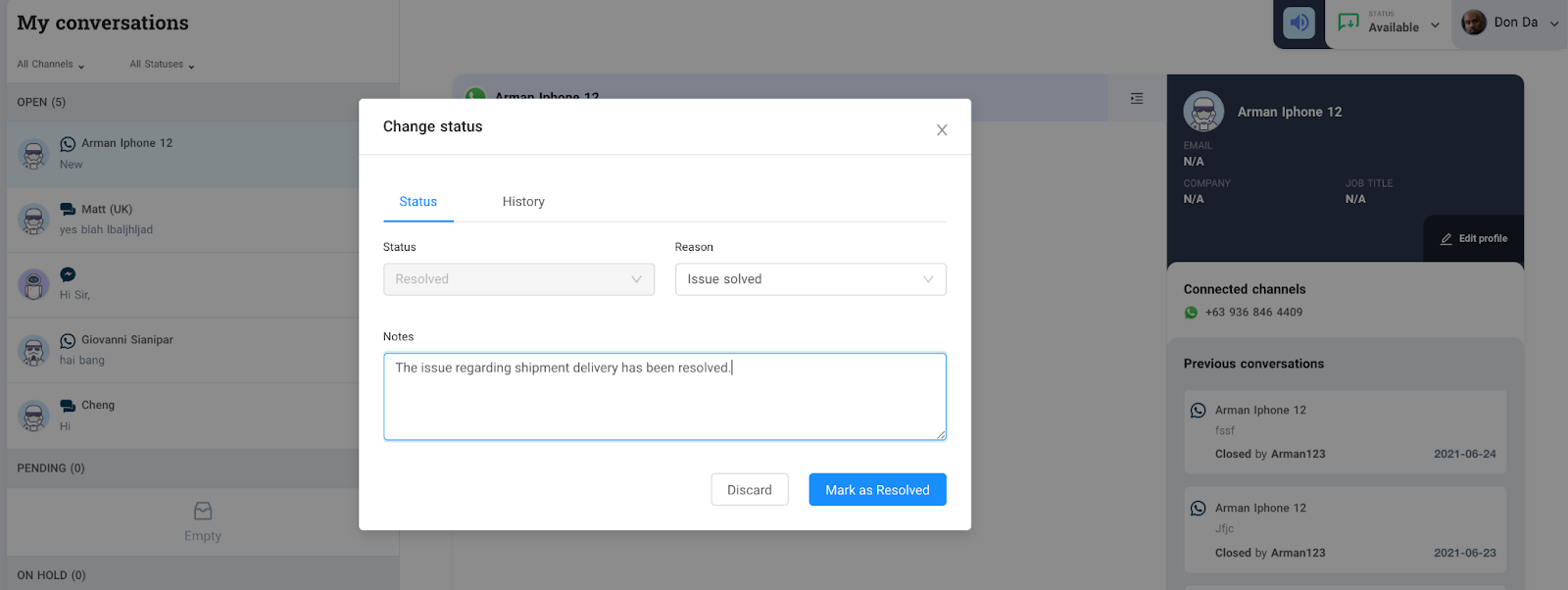
    When an agent marks a ticket as RESOLVED. He/She has the option to add Notes before marking it as shown below.

    1600

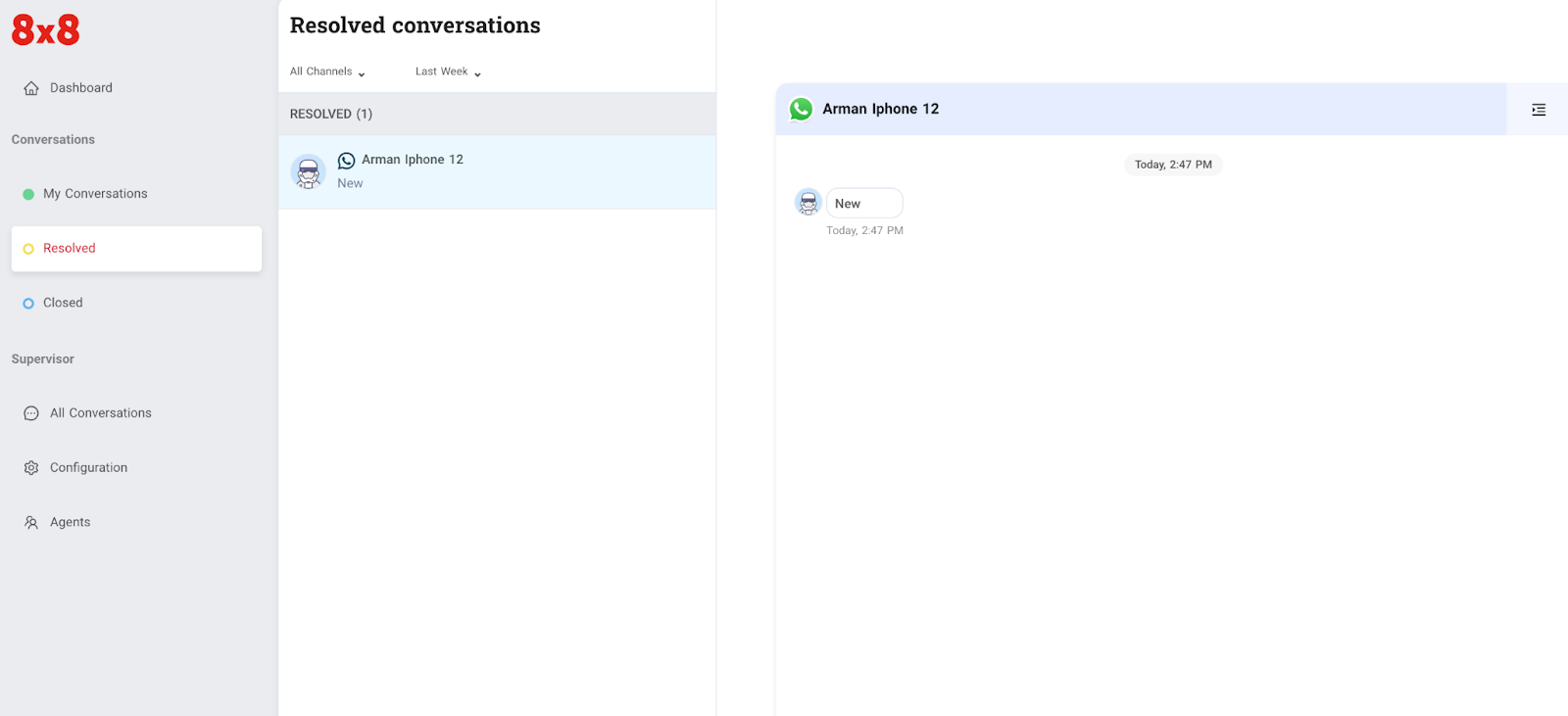
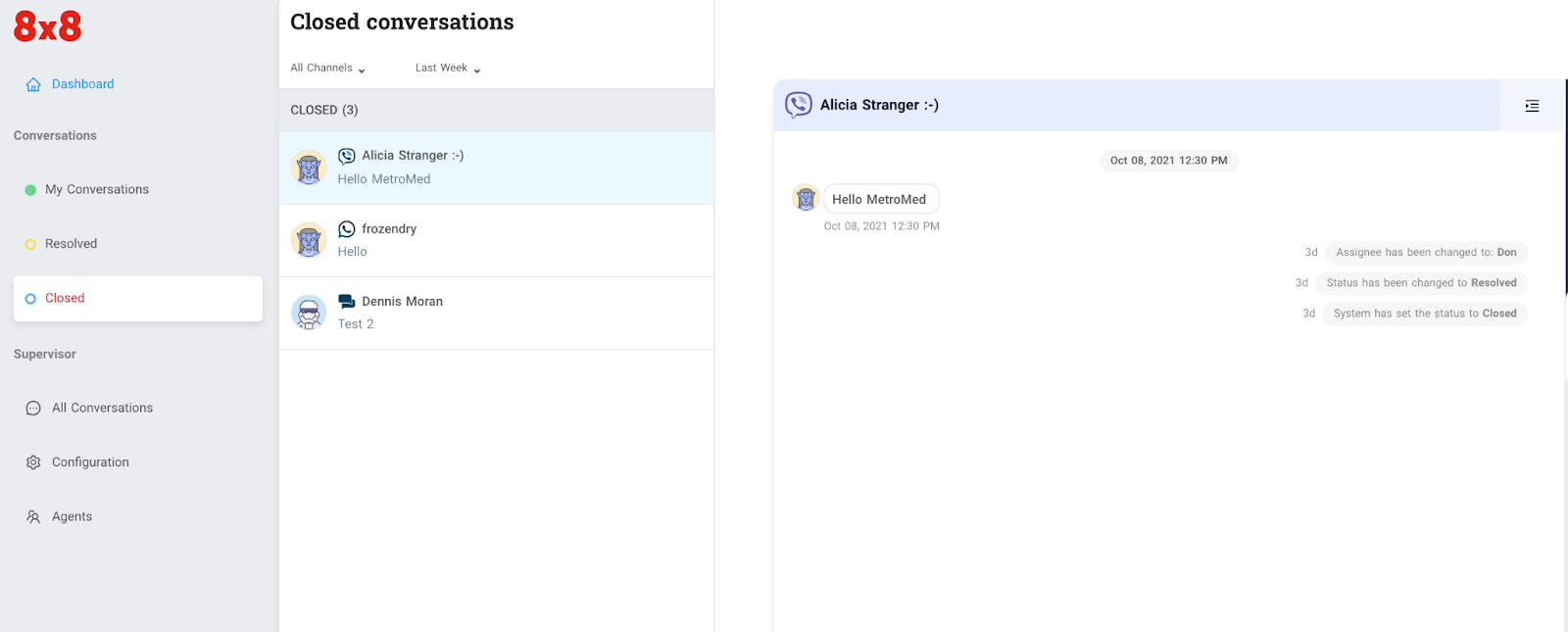
    A ticket marked as “Resolved” will be added to the agent’s Resolved conversations page as shown below

    1600

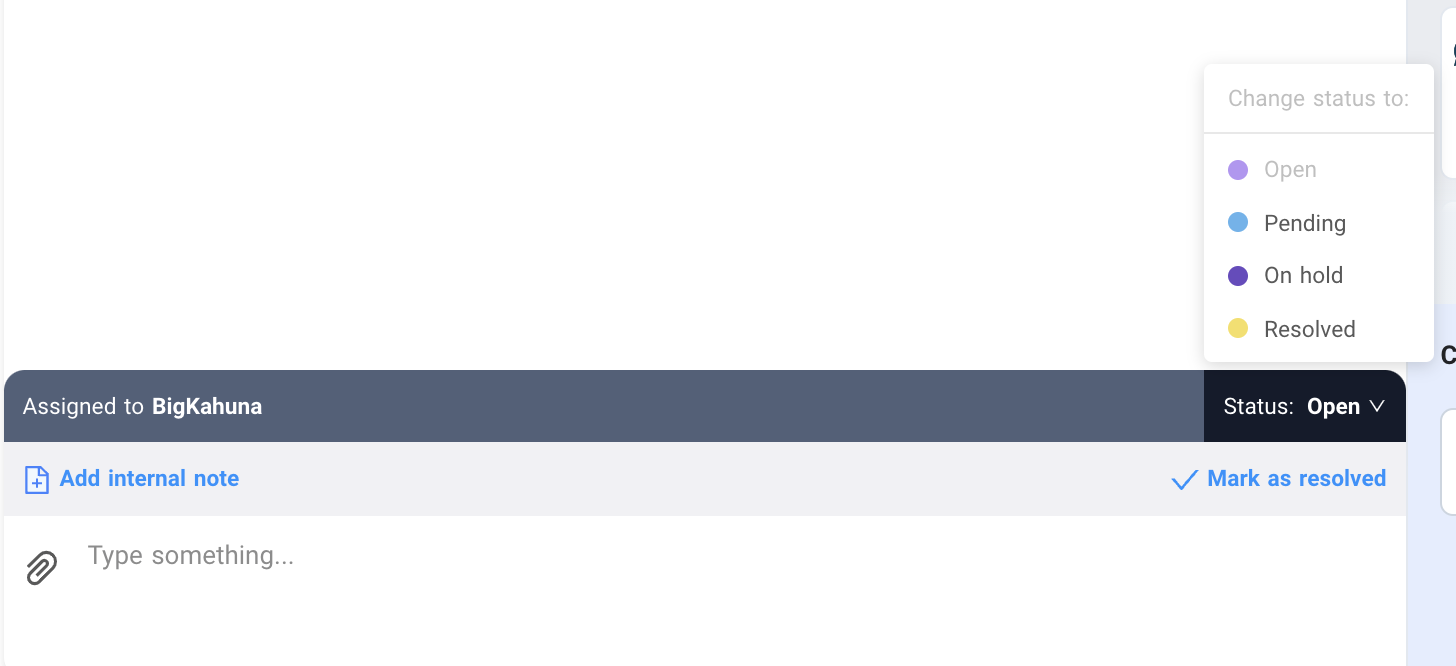
    An agent marks a ticket as ON HOLD

    (A) In the case where the agent is waiting for internal information, he can continue chatting with customers once information is obtained.

    (B) In the case the agent is unable to resolve the issue, he has to notify the manager and the manager will manually reassign the ticket directly to another agent. This will mark the ticket as OPEN once assigned.

    (C ) Alternatively once an agent replies to the ticket it should automatically be set to OPEN.

    An agent marks a ticket as PENDING

    (A) A period of time (default set to 1 hour, but configurable by managers) lapsed starting from the time of the agent's last message. This leads to the ticket automatically marked as CLOSED.

    (B) Customer replies within the defined period and ticket status changes to OPEN.

    Closed tickets

    All closed tickets will be added automatically to the agent’s Closed conversations page

    1600

    Adding notes

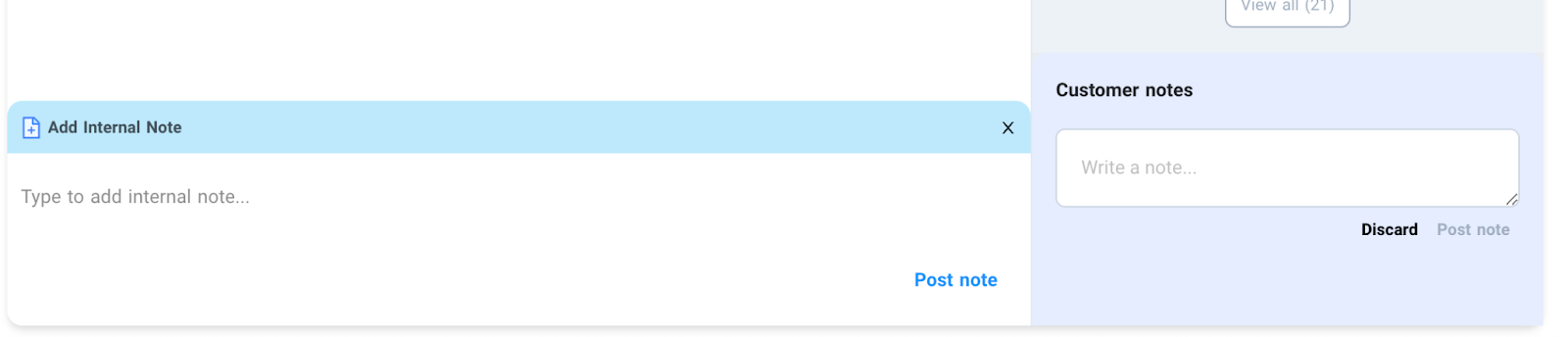
    There are two types of notes that you can add during a conversation, these notes can only be read by agents regardless of their role. Notes are useful where the next agent can review previous issues regarding the ticket or the customer. It will help resolve tickets faster.

    Internal notes - these are notes that can be generated by the system or notes that other agents might add during their call. These notes are useful whenever a ticket is assigned to another agent.

    Customer notes - these are notes that can be added by agents during the call where they can add more information about the customer. These are useful when a customer engages with other agents either from the same ticket or a new one.

    1600


    Source: https://developer.8x8.com/connect/docs/ticket-management · 8x8 CPaaS Developer Docs. Synced for support deflection.

  • My Conversations

    My Conversations

    Understanding ticket statuses

    There are six standard statuses that can be applied to a ticket. The ticket status can be assigned manually by an agent/manager OR automatically by the system:

    Status Description Manual/Auto
    New - The original status of all new tickets created in the system, no action has been taken by agents.- Not visible or editable to agents. Administrations and supervisors are able to view all 'New' tickets in 'All' tickets.- New tickets are not yet assigned to any agents. Auto
    Open - Any ticket, which have been assigned, re-opened or currently assigned Auto
    Pending - A ticket that have been opened but pending for customer reply Manual
    On Hold - Agent is unsure about the ticket or waiting for information internally Manual
    Resolved - An agent marks a ticket at his own discretion; anytime he/she feels the customer query has been answered Manual
    Closed Automatically assigned by the system upon the following triggers:
    - Completion of designated holding time by tickets marked as Resolved
    - Completion of designated holding time by tickets marked as Pending
    Auto

    Ticket Queue Logic

    Ticket Management


    Source: https://developer.8x8.com/connect/docs/my-conversations · 8x8 CPaaS Developer Docs. Synced for support deflection.

  • User Roles & Permissions

    User Roles & Permissions

    Moobidesk provides role-based access control with two distinct user types, each with specific capabilities and access levels.

    Role Overview

    Role Primary Function Access Level
    Agent Handle customer conversations Limited - Own chats only
    Supervisor Monitor team performance Extended - Team visibility

    Agent

    Agents are frontline users who handle customer interactions across all supported channels.

    Capabilities

    • View and respond to assigned conversations
    • Access customer contact information and history
    • Use canned messages and templates
    • Apply conversation tags and labels
    • Transfer conversations to other agents or queues
    • Set availability status (Available, Busy, Away, Offline)

    Limitations

    • Cannot view other agents' conversations
    • Cannot access system configuration
    • Cannot generate system-wide reports

    Supervisor

    Supervisors oversee agent teams and ensure service quality.

    Capabilities

    • All Agent capabilities
    • View all conversations in assigned queues
    • Monitor real-time agent status and performance
    • Reassign conversations between agents
    • View team-level statistics and metrics
    • Access skill set assignments

    Limitations

    • Cannot modify system settings
    • Cannot manage user accounts
    • Limited report customization

    Permission Matrix

    Feature Agent Supervisor
    Handle conversations ✓ ✓
    View team conversations - ✓
    Real-time statistics Limited ✓
    Generate reports - Limited

    Best Practices

    • Assign the minimum role required for each user's responsibilities
    • Regularly review user access and remove inactive accounts
    • Use Supervisor role for quality assurance teams

    Source: https://developer.8x8.com/connect/docs/moobidesk/user-roles · 8x8 CPaaS Developer Docs. Synced for support deflection.

  • Settings & Configuration

    Settings & Configuration

    The Settings module provides system-wide configuration for administrators to customize Moobidesk for their organization's needs.

    Skill Sets

    Defining Skills

    Create skill categories for intelligent routing:

    1. Navigate to Settings → Skills → Add Skill
    2. Enter skill name (e.g., "Spanish Language", "Technical Support", "VIP Handling")
    3. Add description for internal reference
    4. Save skill

    Assigning Skills to Agents

    1. Select agent in User Management
    2. Navigate to Skills tab
    3. Add skills with proficiency levels:
      • 1: Beginner
      • 2: Basic
      • 3: Intermediate
      • 4: Advanced
      • 5: Expert

    Routing Logic: Higher proficiency agents receive priority for skill-based queues

    Auxiliary (Aux) Codes

    Creating Aux Codes

    Define reasons for agent unavailability:

    1. Navigate to Settings → Aux Codes → Add Code

    2. Configure code:

      • Code Name: "Break", "Lunch", "Training", "Technical Issue"
      • Status: Away or Busy
      • Paid/Unpaid: For payroll integration
      • Color: Visual identifier in dashboards
    3. Save code

    Common Aux Codes

    Code Status Use Case
    Break Away Scheduled 15-minute breaks
    Lunch Away Meal breaks
    Training Away Learning activities
    Meeting Away Team or client meetings
    Technical Issue Away System problems
    Wrap-up Busy Post-conversation documentation
    Admin Busy Administrative tasks

    Canned Messages

    Canned Messages Settings

    Creating Templates

    Build pre-written message library:

    1. Navigate to Settings → Canned Messages → Add Message

    2. Configure template:

      • Title: Internal reference name
      • Category: Group similar messages (Greetings, FAQs, Closings)
      • Shortcut: Quick trigger (e.g., /greeting, /refund)
      • Message: Template content with variables
      • Channels: WhatsApp, Email, Facebook, or All
    3. Save template

    Variable Substitution

    Use placeholders for personalization:

    • {{first_name}}: Contact first name
    • {{last_name}}: Contact last name
    • {{email}}: Contact email
    • {{phone}}: Contact phone number
    • {{agent_name}}: Current agent name
    • {{agent_email}}: Current agent email
    • {{queue_name}}: Current queue
    • Custom attributes: {{custom_field_name}}

    Example:

    Hi {{first_name}}, I'm {{agent_name}} from the {{queue_name}} team.
    How can I help you today?

    Categories

    Organize templates by purpose:

    • Greetings: Welcome messages
    • Information: Product details, policies
    • Troubleshooting: Step-by-step instructions
    • Apologies: Service recovery
    • Closings: End conversation messages

    Conversation Tags

    Creating Tags

    Categorize conversations for reporting:

    1. Navigate to Settings → Tags → Add Tag
    2. Enter tag name (e.g., "Billing Issue", "Product Question", "Complaint")
    3. Select color for visual identification
    4. Save tag

    Tag Categories

    Issue Types:

    • Billing Issue
    • Technical Problem
    • Account Question
    • Product Inquiry

    Resolution Types:

    • Resolved - First Contact
    • Escalated
    • Follow-up Required
    • Cannot Resolve

    Customer Types:

    • VIP Customer
    • New Customer
    • Returning Customer
    • At-Risk Customer

    Use in Reports: Filter and segment conversation analytics by tags

    Conversation Labels

    Creating Labels

    Workflow management markers:

    1. Navigate to Settings → Labels → Add Label

    2. Configure label:

      • Name: "Follow-up Required", "Escalated", "Bug Report"
      • Color: Visual indicator
      • Auto-Apply Rules: Automatically label based on conditions (optional)
    3. Save label

    Label Automation

    Configure automatic labeling:

    • Keyword Triggers: Label if message contains "refund", "cancel", "broken"
    • SLA Breach: Auto-label when SLA exceeded
    • Transfer Count: Label after 2+ transfers
    • Customer Sentiment: Label based on negative keywords

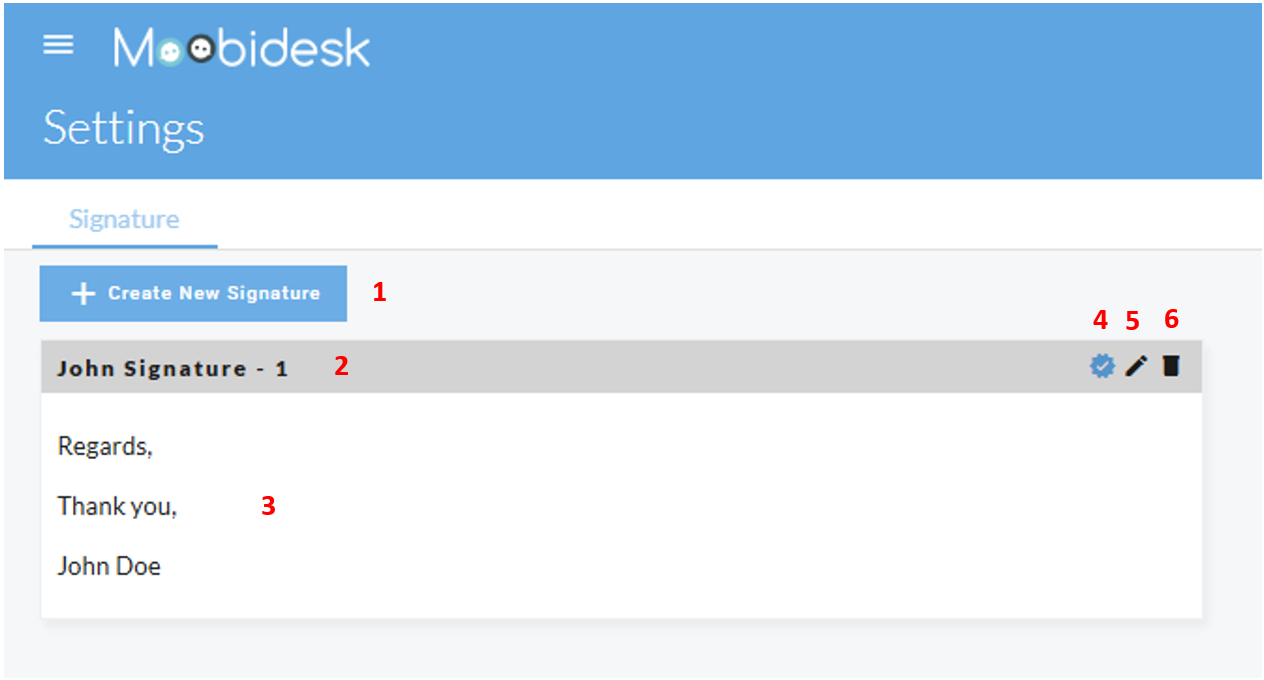
    Email Signatures

    Creating Signatures

    Configure agent email signatures:

    1. Navigate to Settings → Signatures → Add Signature

    2. Enter signature content (supports HTML):

      Best regards,
      {{agent_name}}
      {{queue_name}} Team
      Email: {{agent_email}}
      Phone: +1-800-XXX-XXXX
    3. Assign to users or queues

    4. Save signature

    Variables: Same as canned messages

    Default Signatures

    • Set default signature for all agents
    • Override with queue-specific signatures
    • Agent-specific signatures take highest priority

    Data & Privacy

    Data Retention

    Configure data storage policies:

    1. Navigate to Settings → Data & Privacy → Retention

    2. Set retention periods:

      • Conversations: 90 days, 1 year, 3 years, Indefinitely
      • Attachments: Same as conversations or separate
      • Logs: 30 days, 90 days, 1 year
    3. Configure auto-deletion for expired data

    GDPR Compliance

    Tools for privacy regulation adherence:

    Data Export: Generate complete contact data export on request Right to Deletion: Permanently delete contact and all associated data Audit Logs: Track all data access and modifications

    Backup & Restore

    Automated Backups

    System automatically backs up:

    • All conversations and messages
    • Contact database
    • System configuration
    • Frequency: Daily (retained for 30 days)

    Manual Backup

    Create on-demand backup before major changes:

    1. Navigate to Settings → Backup
    2. Click "Create Backup"
    3. Download backup file
    4. Store securely offline

    Restore

    Restore from backup:

    1. Navigate to Settings → Restore
    2. Select backup date
    3. Choose restore scope (Full system, Contacts only, Conversations only)
    4. Confirm restore (overwrites current data)

    Best Practices

    Initial Setup Checklist

    • Create user accounts for all agents
    • Configure queues aligned to business functions
    • Set up skill sets for specialized routing
    • Create canned message library
    • Define aux codes
    • Configure business hours and SLA targets
    • Test channel integrations

    Ongoing Maintenance

    • Review and update canned messages monthly
    • Audit user access quarterly
    • Optimize queue routing based on performance data
    • Keep skill assignments current as agents develop
    • Archive inactive users promptly
    • Back up configuration before major changes

    Source: https://developer.8x8.com/connect/docs/moobidesk/settings · 8x8 CPaaS Developer Docs. Synced for support deflection.

  • Reports & Statistics

    Reports & Statistics

    Moobidesk provides comprehensive analytics across conversations, agent performance, queue efficiency, and customer satisfaction.

    Historical Reports

    Dashboard Overview

    Statistics Dashboard

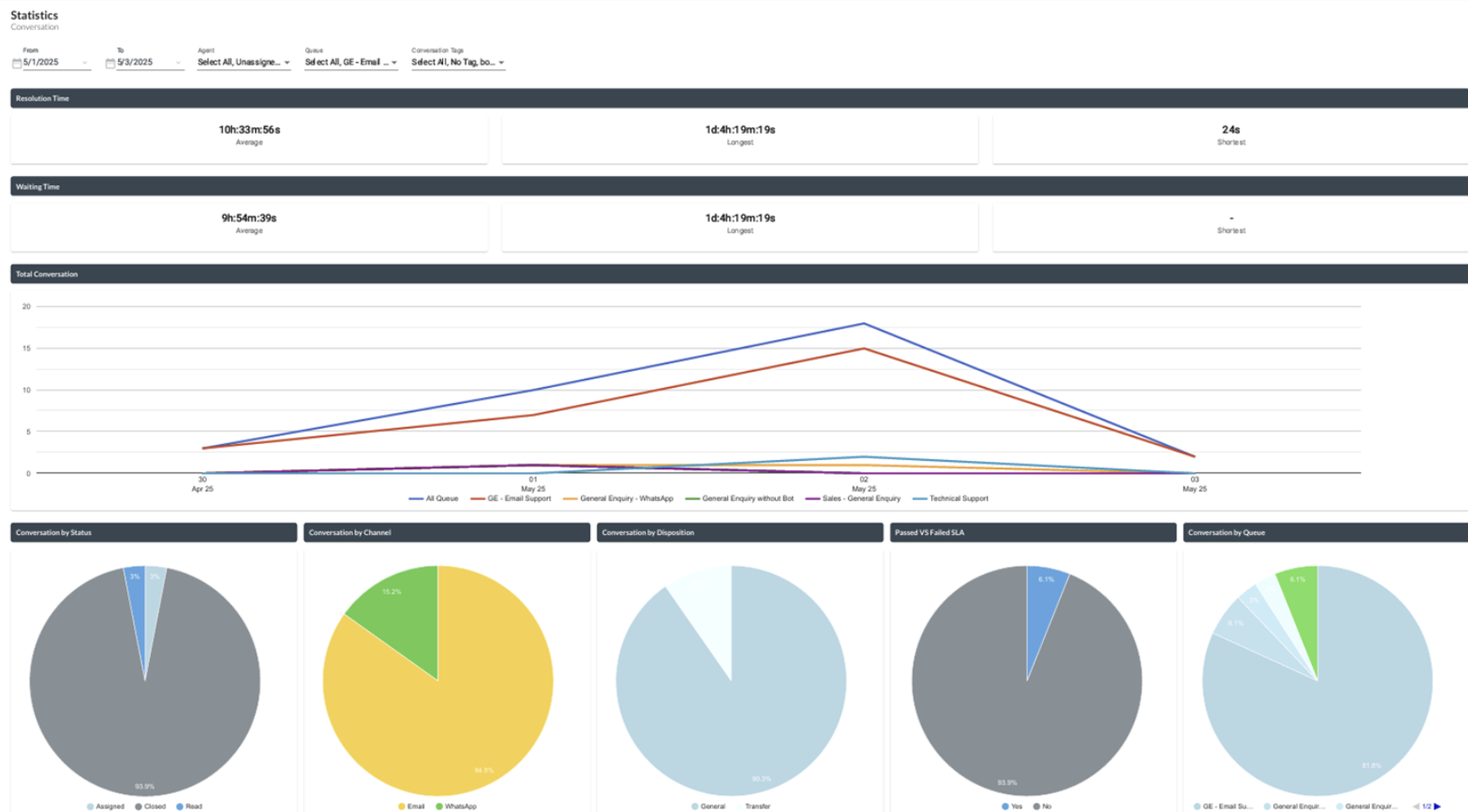
    The Statistics module provides a visual summary of conversation activity and performance based on selected filters such as date range, agent, queue, and conversation tags.

    Statistic Filtering:

    • Date Range
    • Agent
    • Queue
    • Conversation Tag

    Time metrics:

    The dashboard displays key time-based performance metrics:

    • Resolution Time: Time taken to complete a conversation (Average, Longest, Shortest)
    • Waiting Time: Time taken before a conversation is handled (Average, Longest, Shortest)

    Conversation Trends:

    • Total Conversation: Displays conversation volume over time in a trend chart
    • Allows comparison across queues

    Conversation Breakdown:

    Statistics include visual breakdowns of conversations by:

    • Status (e.g., Assigned, Closed, Read)
    • Channel (e.g., Email, WhatsApp)
    • Disposition (e.g., General, Transfer)
    • Queue
    • SLA Result (Passed vs Failed)

    Conversation Report

    Provides insight into:

    • Total conversations within the selected period
    • SLA compliance
    • Assignment and resolution timing

    Transcript Report

    Displays total inbound and outbound message volume within the selected period.

    Agent Report

    Provides agent-level performance metrics, including:

    • Total conversations assigned
    • Response time
    • Resolution performance

    Agent Auxcode Report

    Provides a log of agent status (Auxcode) activity within a selected period.

    Data Export

    Export Format

    • CSV: Raw data format for spreadsheet or external processing

    Export Process

    To export report data:

    1. Navigate to the desired report (e.g., Conversation Report, Transcript Report, Agent Report, Agent Auxcode Report)
    2. Select the required filters (e.g., date range)
    3. Click Download
    4. A download link will be sent to your email once the export is ready

    Analytics Best Practices

    Monitoring Frequency

    Daily: Agent performance, queue status, SLA compliance Weekly: Conversation volume trends, CSAT trends, broadcast performance Monthly: Strategic metrics, capacity planning, process improvements

    Key Performance Indicators (KPIs)

    Efficiency:

    • Average handle time: Target <8 minutes
    • First response time: Target <30 seconds
    • SLA compliance: Target >95%

    Quality:

    • CSAT score: Target >4.5/5
    • Abandon rate: Target <5%
    • Transfer rate: Target <10%

    Productivity:

    • Conversations per agent per hour: Target 6-8
    • Concurrent conversations: Target 3-5
    • Utilization rate: Target 70-85%

    Actionable Insights

    Use reports to drive improvements:

    • High transfer rates: Provide additional agent training
    • Long handle times: Review conversation efficiency, update canned messages
    • Low CSAT in specific queue: Investigate root cause, adjust staffing
    • High abandon rates: Add agents during peak hours
    • SLA breaches by time of day: Adjust shift schedules

    Data-Driven Decisions

    Leverage analytics for:

    • Capacity Planning: Forecast staffing needs based on trends
    • Training Needs: Identify skill gaps from performance data
    • Process Optimization: Find bottlenecks in conversation flow
    • Customer Experience: Improve based on CSAT feedback themes

    Source: https://developer.8x8.com/connect/docs/moobidesk/reports · 8x8 CPaaS Developer Docs. Synced for support deflection.

  • Conversations

    Conversations

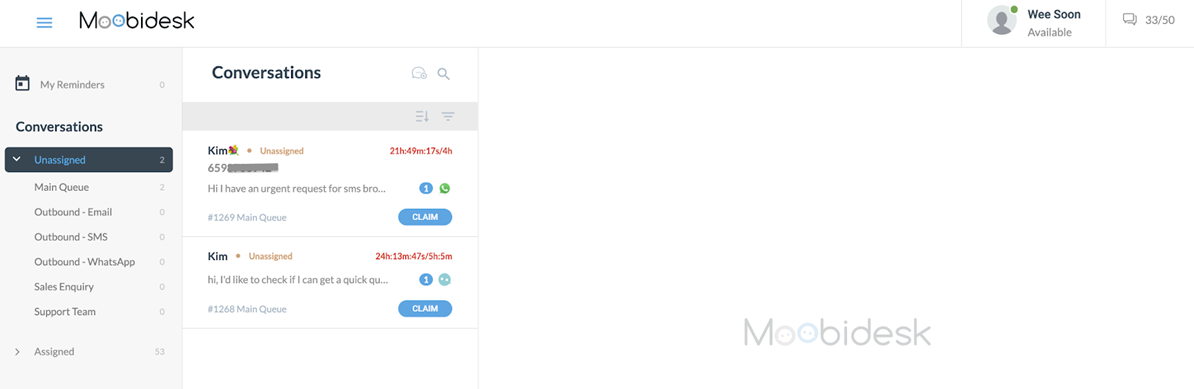
    The Conversations (Chats) module is the core workspace where agents engage with customers across WhatsApp, Email, and Facebook Messenger.

    Conversation Interface

    Layout

    Conversation Interface

    The conversation workspace consists of three panels:

    Left Panel - Conversation List:

    • Active conversations assigned to agent
    • Queued conversations awaiting assignment
    • Filter by channel, status, or tag
    • Search by contact name or content

    Center Panel - Message Thread:

    • Full conversation history
    • Real-time message exchange
    • Rich media support (images, videos, documents)
    • Typing indicators
    • Read receipts (WhatsApp)

    Right Panel - Contact Details:

    • Customer profile information
    • Custom attributes
    • Conversation tags and labels
    • Internal notes
    • Interaction history

    Conversation States

    State Description Agent Action
    Unassigned (Open) New conversations that have not been assigned to any agent Claim (Pick-Me) or auto-assigned by system (Round-Robin)
    Assigned Conversations assigned to an agent View and manage the conversation
    Read Conversation has been viewed by the agent Prepare and respond to the customer
    Responded Agent has replied to the customer Continue conversation or wait for customer reply
    Closed Conversation has been completed and closed No further action required

    Managing Conversations

    Accepting Conversations

    From Queue:

    1. View available conversations in queue panel
    2. Click conversation to review details
    3. Click "Accept" to assign to yourself
    4. Conversation moves to your active list

    Auto-Assignment:

    • System automatically routes based on queue rules
    • Notification alert when new conversation assigned
    • Appears immediately in active conversation list

    Responding to Messages

    Text Messages

    1. Type response in message input field
    2. Press Enter or click Send
    3. Message delivered via customer's channel (WhatsApp, Email, Facebook)

    Rich Media

    Sending Images/Documents:

    1. Click attachment icon
    2. Select file from computer
    3. Add caption (optional)
    4. Send - file uploaded and delivered

    Supported File Types:

    • Images: JPG, PNG, GIF (max 5MB)
    • Documents: PDF, DOC, XLS (max 10MB)
    • Videos: MP4 (max 16MB) - WhatsApp only

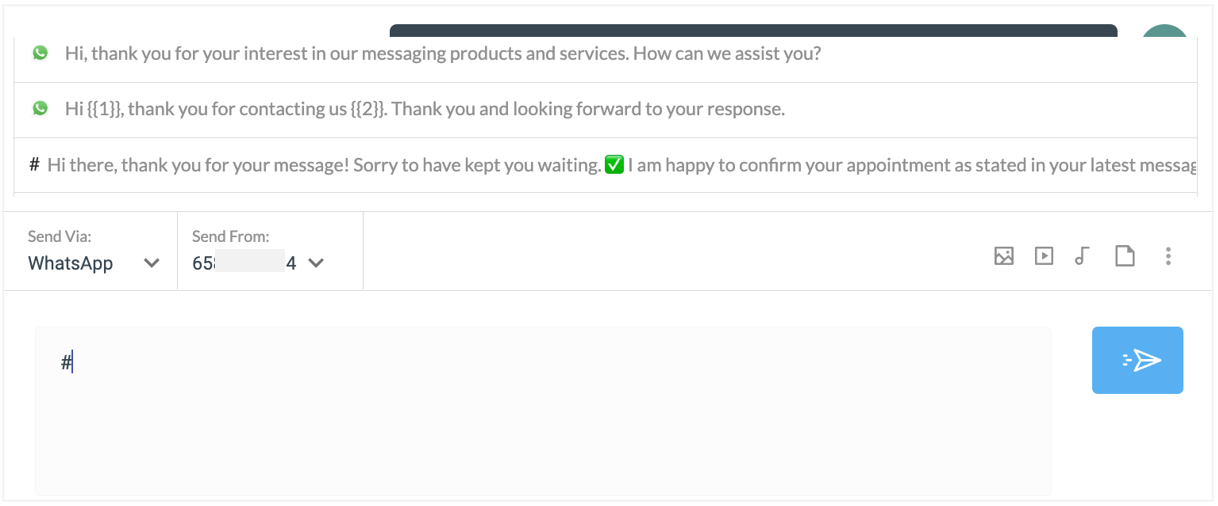
    Canned Messages

    Canned Messages

    Use pre-written templates for common responses:

    1. Click canned message icon (or type #)
    2. Search by keyword or browse categories
    3. Select template
    4. Auto-populates with contact variables: {{first_name}}, {{email}}, etc.
    5. Edit if needed and send

    Example Canned Message:

    Hi {{first_name}}, thanks for contacting us! I'm {{agent_name}}
    and I'll be happy to help you today.

    Transferring Conversations

    Transfer to Agent

    1. Click transfer icon
    2. View available agents with current capacity
    3. Select destination agent
    4. Add transfer notes: "Customer needs Spanish support"
    5. Confirm - conversation immediately moves to recipient agent

    Transfer to Queue

    1. Click "Transfer to Queue"
    2. Select destination queue
    3. Conversation re-enters routing logic
    4. Next available agent in that queue receives it

    Internal Notes

    Add context for other agents without sending to customer:

    1. Click notes icon in right panel
    2. Type internal comment: "Customer called earlier, promised callback"
    3. Save note
    4. Appears in conversation history with "Internal Note" label
    5. Visible to all agents, never sent to customer

    Tagging Conversations

    Categorize for reporting and analysis:

    1. Click tag icon
    2. Select from predefined tags: "Billing Issue", "Product Question", "Complaint"
    3. Create custom tags as needed
    4. Apply multiple tags per conversation
    5. Tags appear in reports and searchable

    Conversation Labels

    Use labels for workflow management:

    • Follow-up Required: Needs future action
    • Escalated: Requires manager attention
    • Bug Report: Technical issue identified
    • Feature Request: Customer suggestion

    Applying Labels:

    1. Right-click conversation in list
    2. Select "Add Label"
    3. Choose label
    4. Labeled conversations highlighted in list

    Resolving Conversations

    Marking as Resolved

    When customer issue is complete:

    1. Click "Resolve" button
    2. Add resolution notes (optional): "Refund processed"
    3. Confirm closure
    4. Conversation moves to resolved state
    5. Customer can re-open by sending new message

    Auto-Resolution

    System automatically resolves conversations:

    • 24 hours of customer inactivity (configurable)
    • Agent explicitly closes conversation
    • Customer sends "resolved" or "thanks" (if configured)

    Re-opening Resolved Conversations

    If customer replies to resolved conversation:

    • System creates new conversation linked to previous
    • Maintains full history
    • Re-enters queue routing

    Multi-Channel Considerations

    WhatsApp

    • 24-Hour Window: After customer message, business has 24 hours to respond freely
    • Template Messages: Outside 24-hour window, must use pre-approved templates
    • Read Receipts: Blue checkmarks indicate customer has read message
    • Media: Full support for images, videos, documents, audio

    Email

    • Subject Line: Displayed in conversation list
    • Threading: All replies grouped under original email
    • CC/BCC: Not supported - direct communication only
    • Attachments: Full support for all document types

    Facebook Messenger

    • Response Time: 24-hour response window for promotional content
    • Standard Messaging: No time limit for customer service responses
    • Rich Features: Quick replies, buttons, carousels supported
    • Media: Images and documents supported

    Search & Filters

    Quick Search

    Search across all conversations by:

    • Contact name
    • Phone or email
    • Message content
    • Conversation ID

    Best Practices

    Response Time

    • Acknowledge new conversations within 30 seconds
    • Set expectations: "Let me look into this, I'll have an answer in 5 minutes"
    • Use auto-responders during off-hours

    Message Quality

    • Use customer's name for personalization
    • Keep messages concise and scannable
    • Use canned messages for consistency
    • Proofread before sending

    Conversation Management

    • Tag all conversations for accurate reporting
    • Add internal notes for continuity
    • Transfer promptly when you can't resolve
    • Resolve conversations only when fully complete

    Workload Management

    • Accept conversations within your capacity
    • Use "Busy" status when at max capacity
    • Take breaks to prevent burnout
    • Communicate delays to customers proactively

    Source: https://developer.8x8.com/connect/docs/moobidesk/conversations · 8x8 CPaaS Developer Docs. Synced for support deflection.

  • Messaging Apps Analytics

    Messaging Apps Analytics

    This section will cover the analytics for Messaging Apps which will feature a dashboard, reports and logs covering all Messaging Apps usage.

    Dashboard

    The Dashboard shows at a glance the current performance of your Messaging Apps. All charts in the Dashboard can be filtered by:

    • Subaccount: Filter by the 8x8 Subaccount used.
    • Messaging Apps Channel: Filter by the Messaging Channel (WhatsApp, Viber, etc.).
    • Date Range: Filter by a date range such as today, last 7 days, last 14 days, last 30 days.

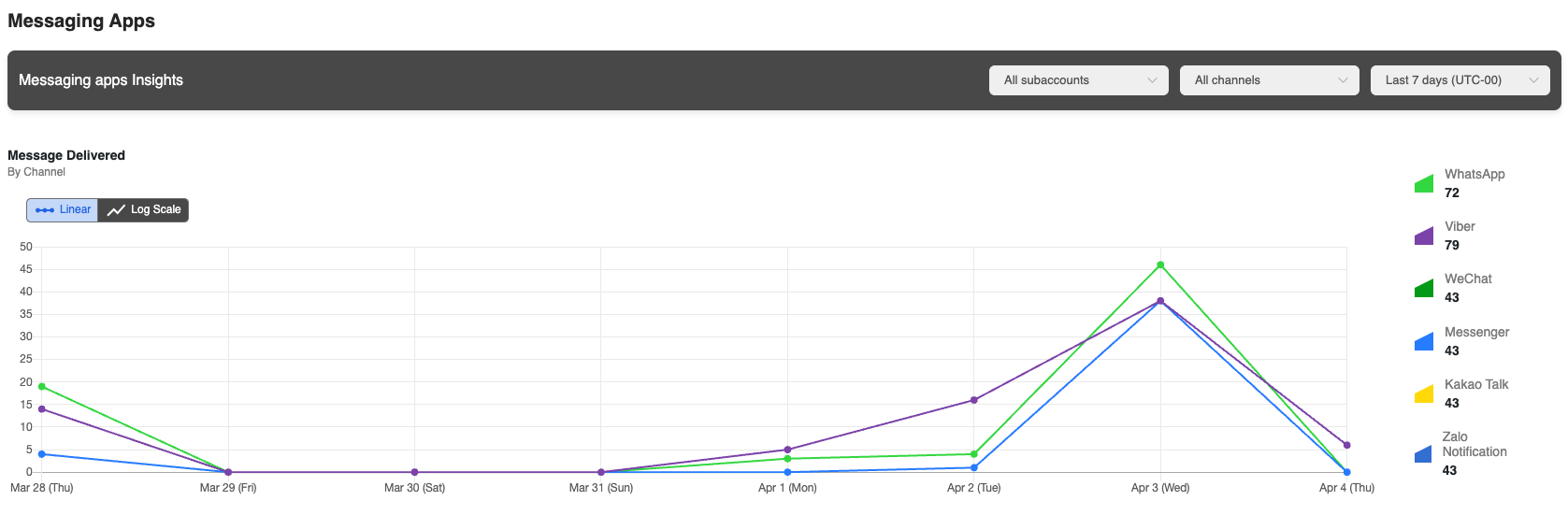
    Message Delivered

    This chart will show how many messages were delivered during the time range. This features a per day breakdown of the traffic on each day.

    image

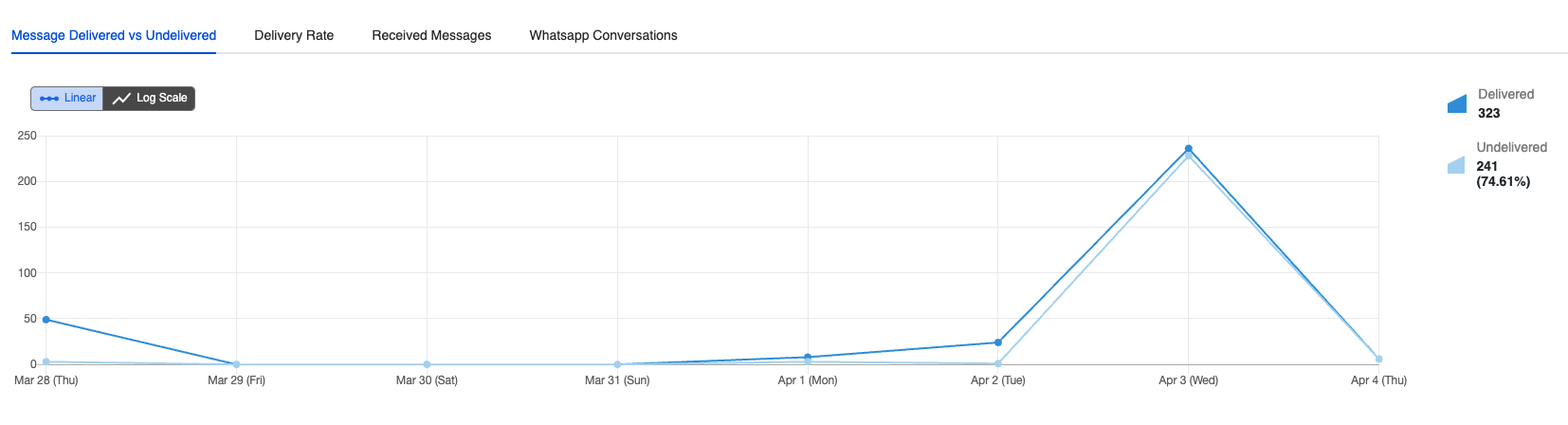
    Message Delivered vs Undelivered

    This chart shows how many messages were delivered versus undelivered on each day. Useful in identifying spikes in traffic that were related to undelivered messages.

    image

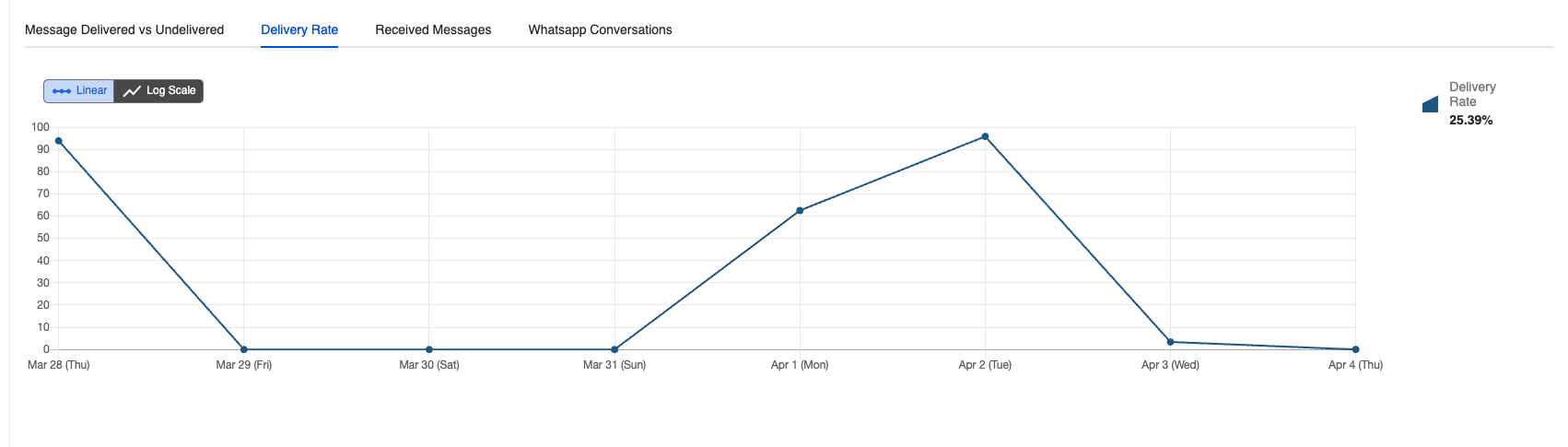
    Delivery Rate

    This chart shows how the messages that have a "delivered" status on each day.

    image

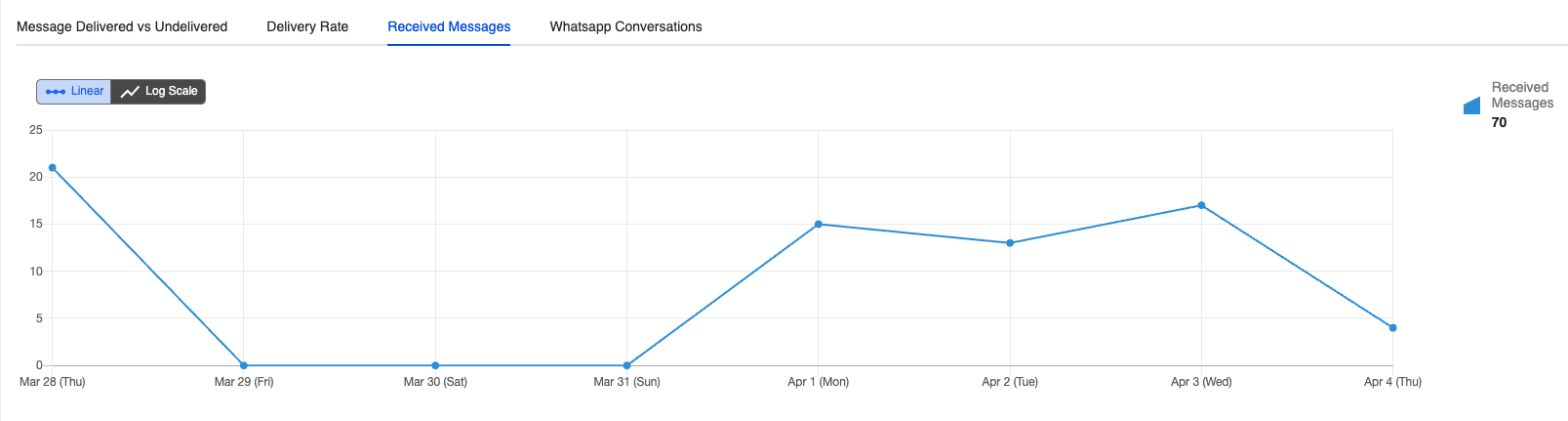
    Received Messages

    Shows the incoming messages that were received across all channels.

    image

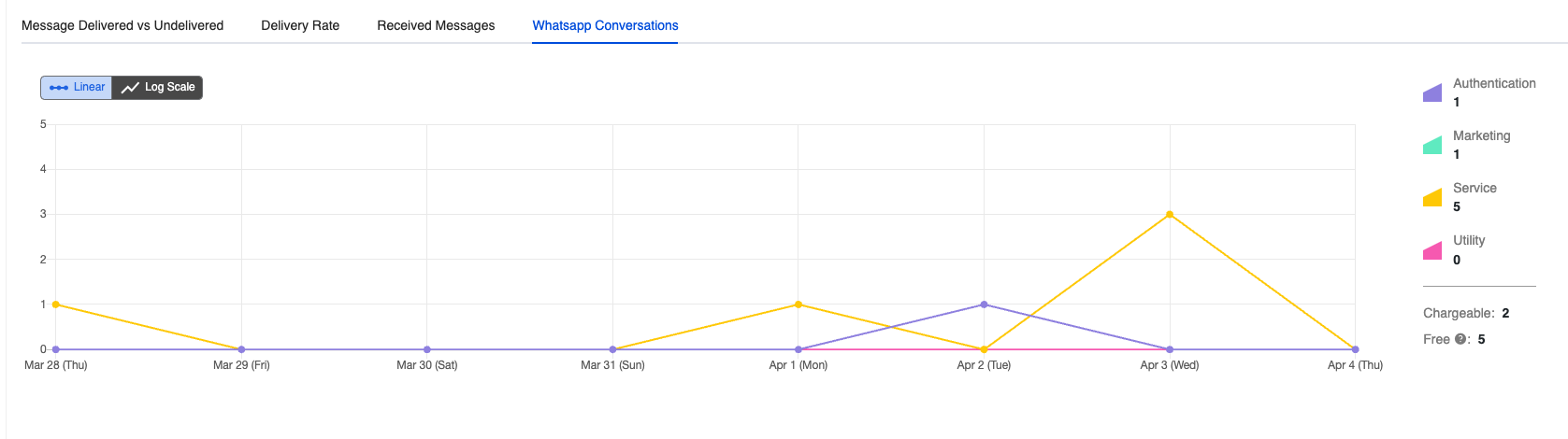
    WhatsApp Conversations

    Shows the type of messages that were sent across WhatsApp including:

    • Authentication (2FA OTPs)
    • Utility (Account Updates, Information)
    • Service (User-Initiated)
    • Marketing (Special Offers, Sales, etc.)

    image

    Reports

    The Reports page for Messaging Apps will show a further breakdown as compared to the dashboard and allow you to further filter the data. You will also be able to export the information as csv file from the page to import the data into your own analytics systems.

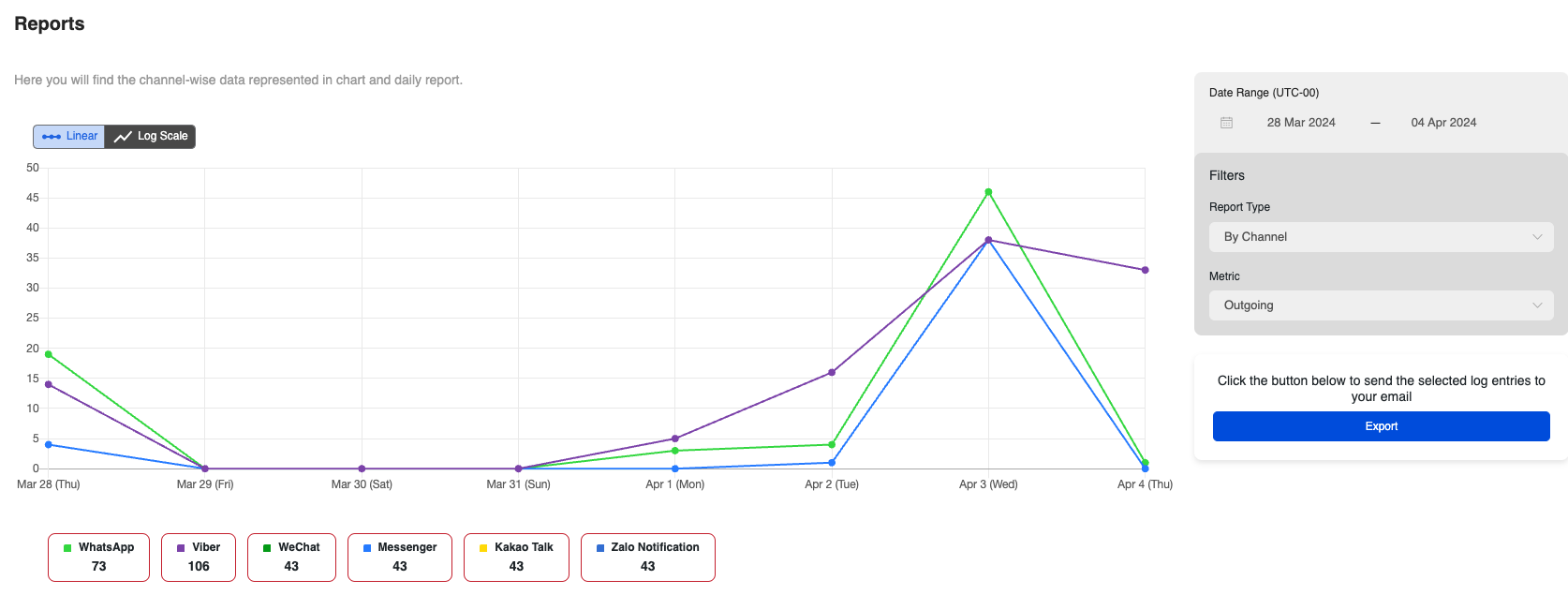
    Reports Chart

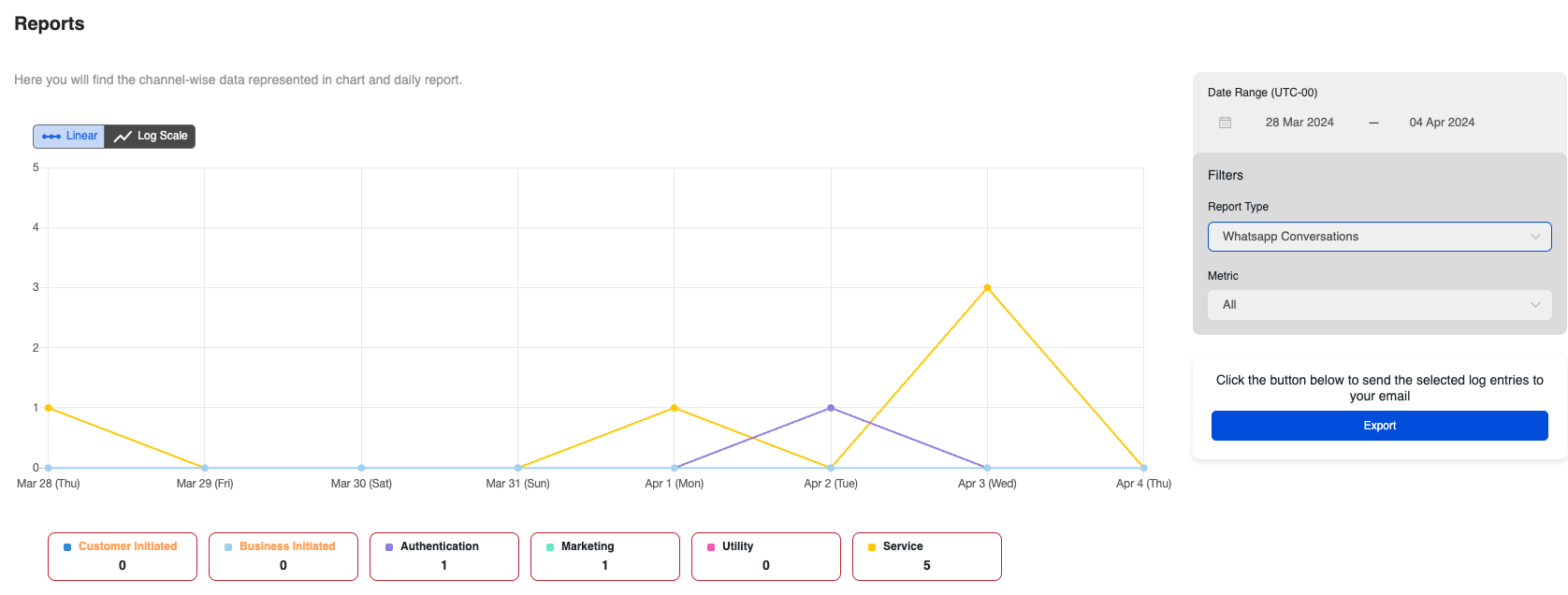
    This chart shows how many messages were sent across each channel, with the additional filters available:

    Report Type:

    • WhatsApp Conversations: Authentication, Utility, Service, Marketing
    • By Channel: Shows the individual channels (WhatsApp, Viber, LINE, etc.)

    The following sections will show how the report page differs based on the Report Type.

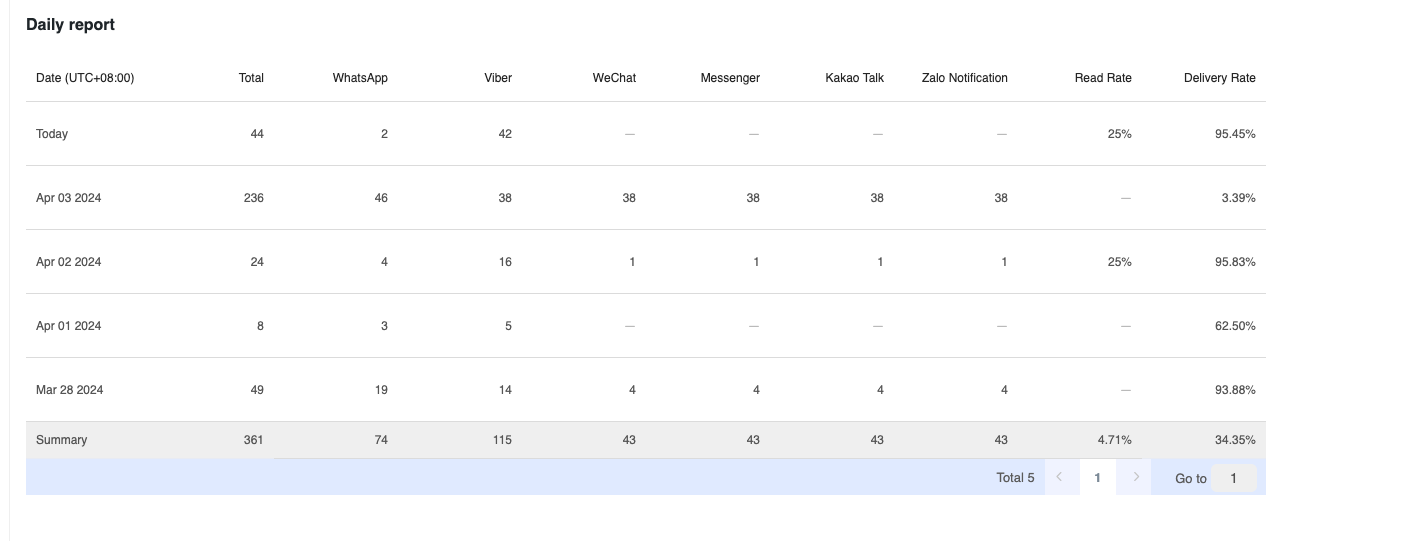
    By Channel

    This report will show traffic by the type of channel (WhatsApp, Viber, LINE, etc.) that is being used. If you are using multiple channels this will allow you to filter out the volume of each channel.

    image

    Daily Report:

    This section shows the type of messages per channel type and date. The available information is:

    • Date: The date the messages were sent/received.
    • Total: Total messages across all channels
    • Messaging Apps (Viber, WeChat, Messenger, Kakao Talk, Zalo Notification): Each column represents the number sent across the respective messaging app.
    • Read Rate: The percentage of messages with a read receipt on each platform
    • Delivery Rate: The percentage of messages with a delivery receipt on each platform.

    image

    WhatsApp Conversations

    The WhatsApp Conversations Report will show the type of conversations you are having on WhatsApp.

    image

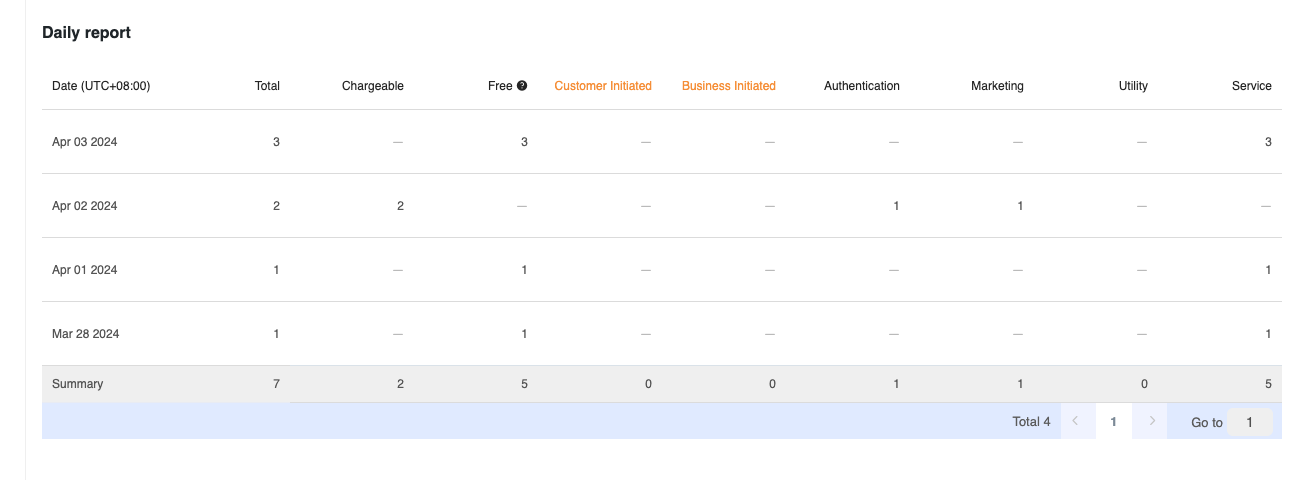
    Daily Report:

    This gives insights into the following information for WhatsApp messages.

    • Total: This is the total messages sent.
    • Chargeable: The conversations that are chargeable
    • Free: This applies to the messages WhatsApp gives 1000 free Service conversations each month. They are refreshed at the beginning of each month. Please note that a free tier applies only to Service conversations.
    • Customer Initiated: Messages that are sent from the customer at the beginning of a 24-hour window.
    • Business Initiated Messages: Messages that are sent from the business at the beginning of a 24-hour window.
    • Message Category: As covered earlier, this is the official message categories from WhatsApp
      • Authentication (2FA OTPs)
      • Utility (Account Updates, Information)
      • Service (User-Initiated)
      • Marketing (Special Offers, Sales, etc.)

    image

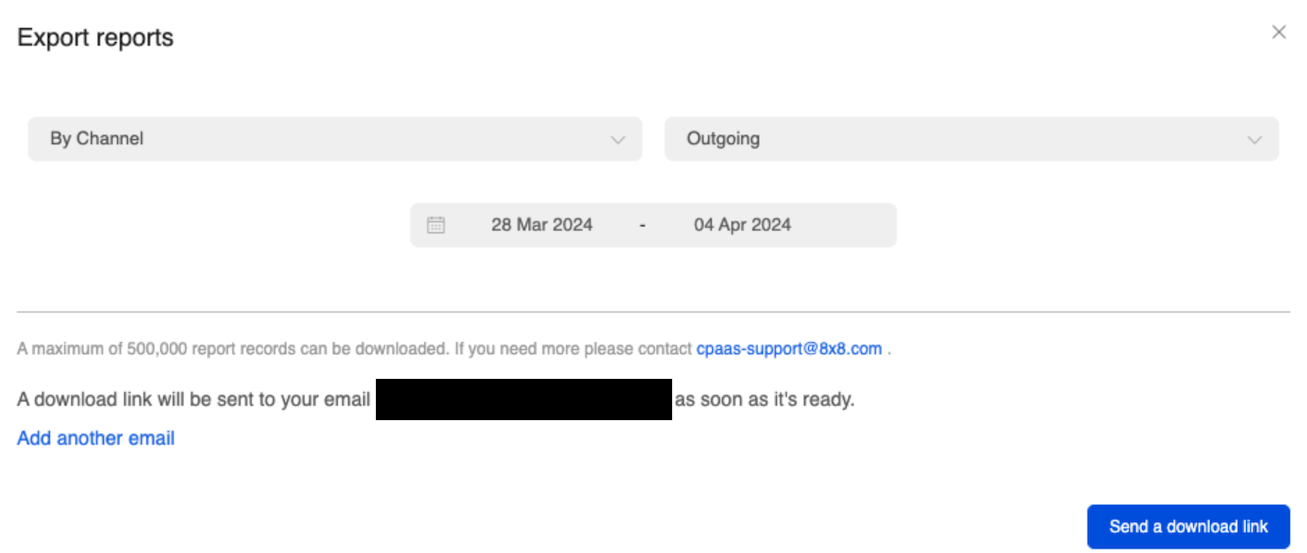
    Export

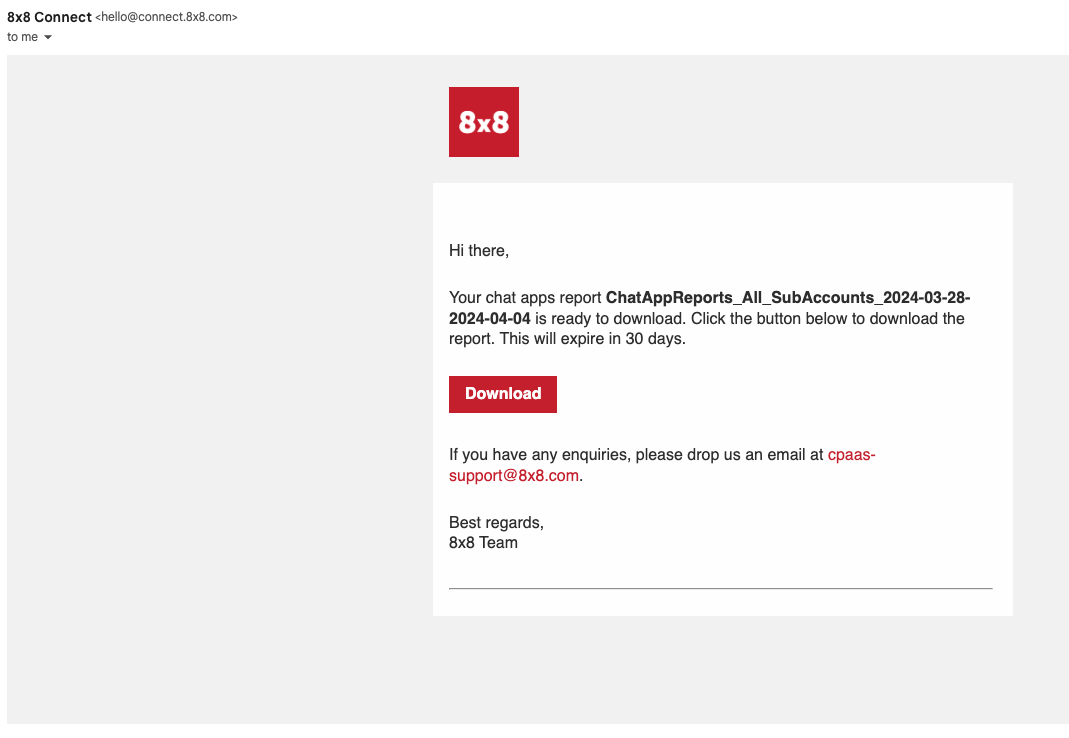
    The export feature gives the ability to export the information as a CSV file, then send the file as a link to your email.

    image

    By default the report is sent to the logged in connect user, however you can specify additional emails.

    image

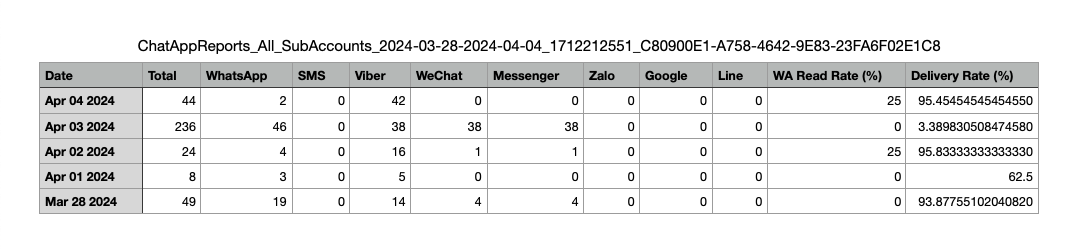
    The resulting file will be a CSV file with the following format.

    image

    Logs

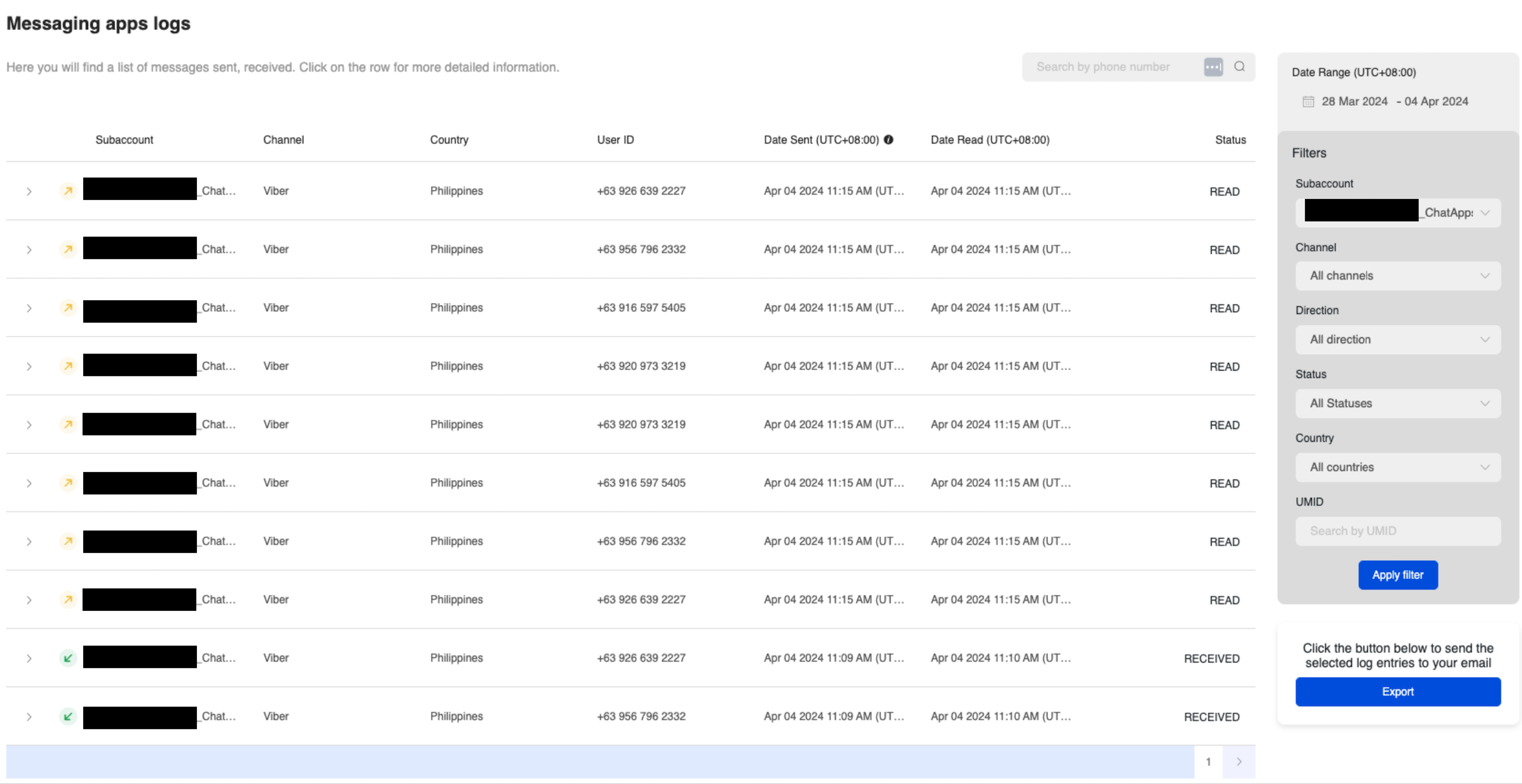
    The messaging logs section will allow you to see information about individual messages. By default this will cover all of the messages across all channels, however you can use the following filters to specify messages.

    • Subaccount: The 8x8 subaccount attached to the messages.
    • Channel: Which Messaging Apps channel (Viber, WhatsApp, LINE, etc.) is used to send/receive the message.
    • Direction: Incoming or Outgoing Message
    • Status: Current Status of the Message

      • Delivered: This means the message has been "delivered to the handset". If the status is not available from the operators, this means that 8x8 has received the confirmation from the carrier that the message has been "delivered to the carrier".
      • Read: This means the message has been read by the recipient (supported by certain Chat Apps channels only)
      • Received: The message has been received by our platform and it is currently being processed before being sent to the carrier.
      • Rejected: The message has not been accepted by our platform. This can be due to some errors such as incorrect mobile numbers or insufficient credit. You will not be charged for rejected messages.
      • Sent: The message has been sent to the operator and 8x8 has not received an acknowledgment yet from the operator.
      • Undelivered: We have received confirmation that the message was not delivered. This can be due to various reasons such as:
        • Mobile handset is unavailable (e.g. mobile is switched off or on roaming mode)
        • Filtered out by the operator
    • Country: The destination country of the message.
    • UMID: Filter by a specific Unique Message ID.

    image

    Export

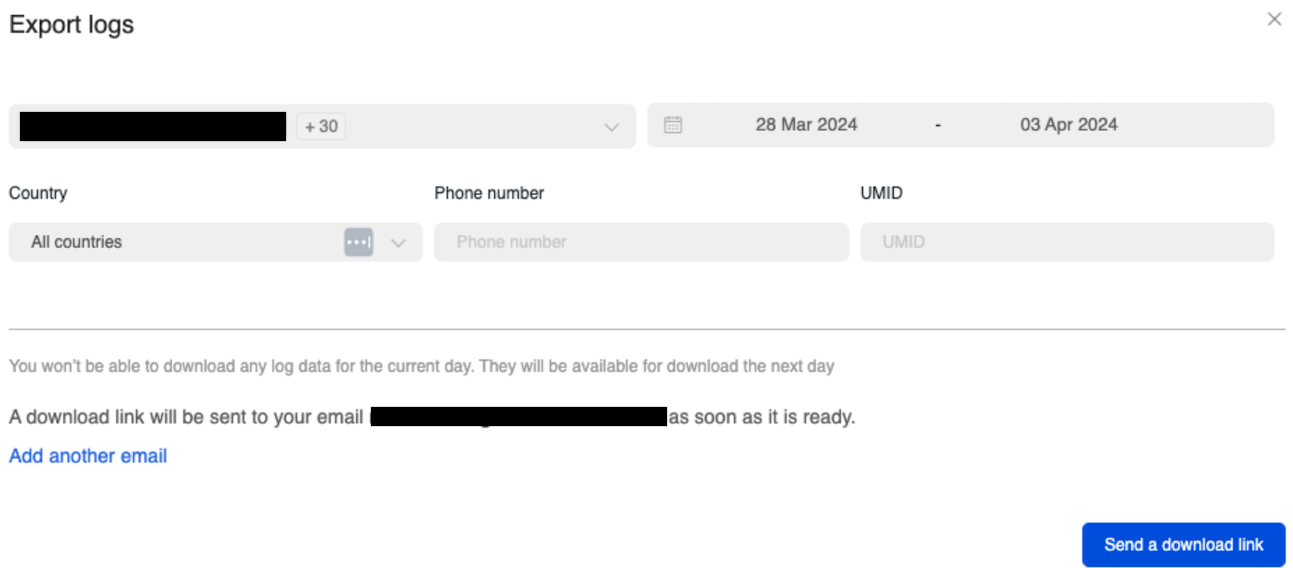
    Similar to the reports section, the messaging logs can be sent to an email address as a CSV file.

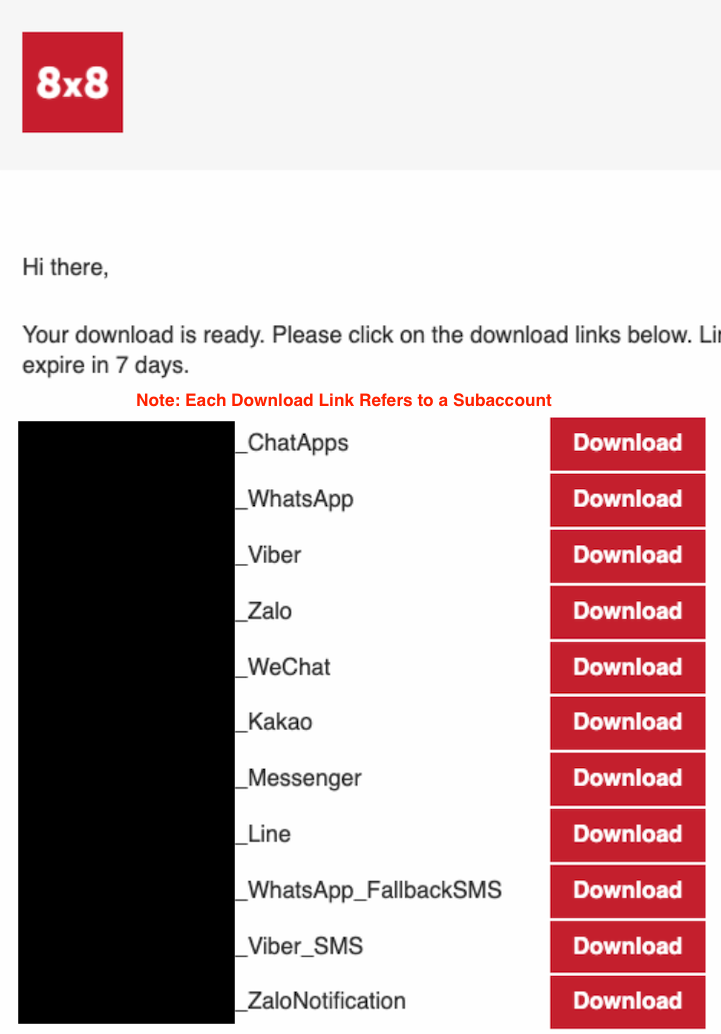
    image

    The email will contain logs for each of the subAccounts that are associated with this account.

    image

    Below is an example of a exported for WhatsApp and the information that is available.

    WhatsApp Export Columns 1/2

    WhatsApp Export Columns 2/2


    Source: https://developer.8x8.com/connect/docs/messaging-apps · 8x8 CPaaS Developer Docs. Synced for support deflection.

  • Drafts Tab

    Drafts Tab

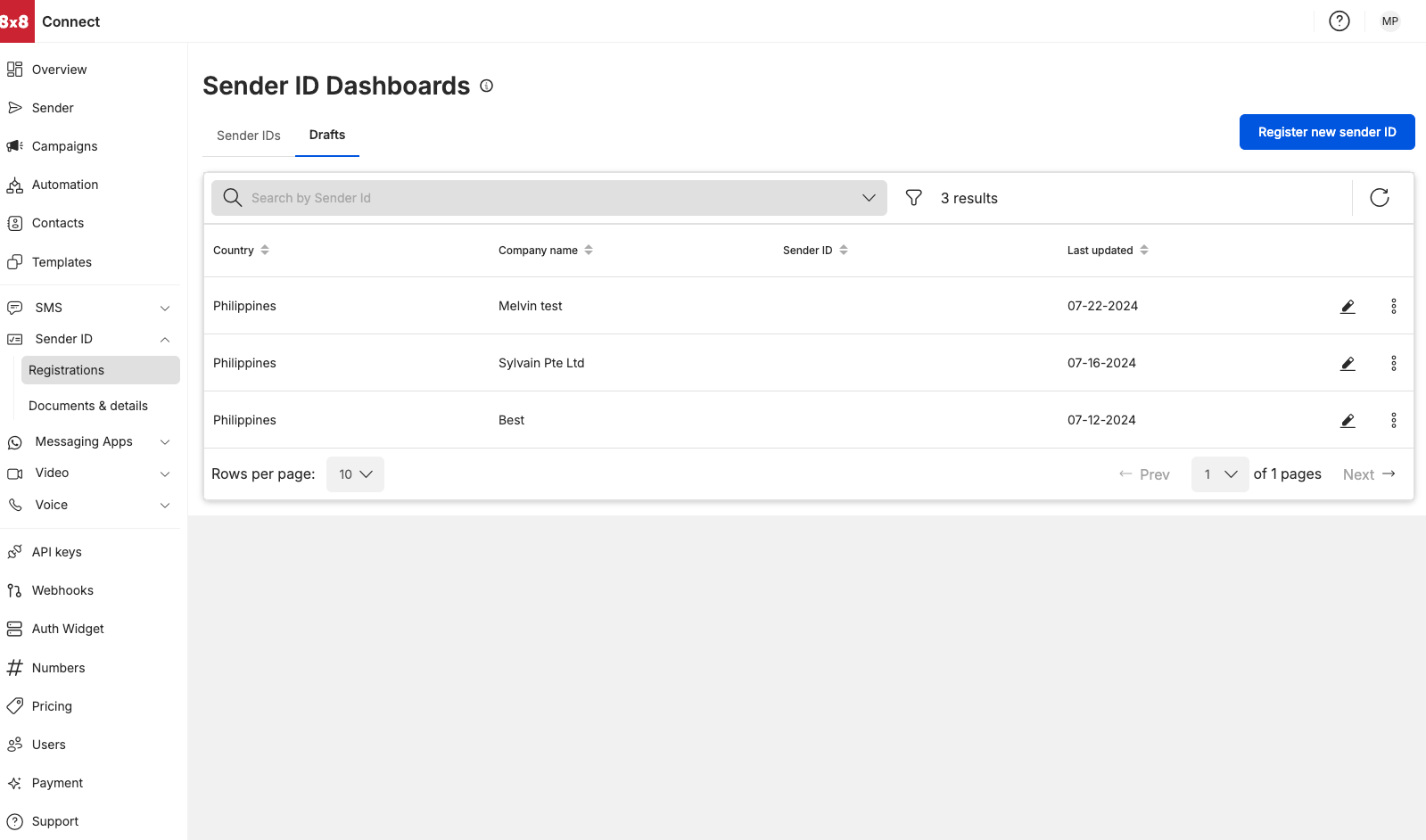
    Sender ID Drafts Dashboard

    • Allows user to view the drafts (unsubmitted sender ID registrations that were saved as drafts)
    • View drafts sorted by company, country and on last updated date (default view is by the latest updated draft)
    • Clicking on the edit button allows user to access the unsubmitted registrations (higlighted in the red box)

    Sorting filters

    • Country (sort in ascending order [a-z] or in descending order [z-a] of the destination name)
    • Sender ID (sort in ascending order [a-z] or in descending order [z-a] of the Sender ID name)
    • Company name (sort in ascending order [a-z] or in descending order [z-a] of the company name)
    • Last Updated Date sort in ascending order [earliest date - latest date] or in descending order [latest date - earlier date]

    image


    Source: https://developer.8x8.com/connect/docs/drafts · 8x8 CPaaS Developer Docs. Synced for support deflection.

  • Documents & Details Dashboard

    Documents & Details Dashboard

    Accessing Documents & Details Dashboard

    • Select Documents & details under the Sender ID module on your left hand side menu
    • Alternatively you can access the Documents& Details Dashboard via URL: https://connect.8x8.com/messaging/sender-id/documents-details?tab=sender-id-documents-details
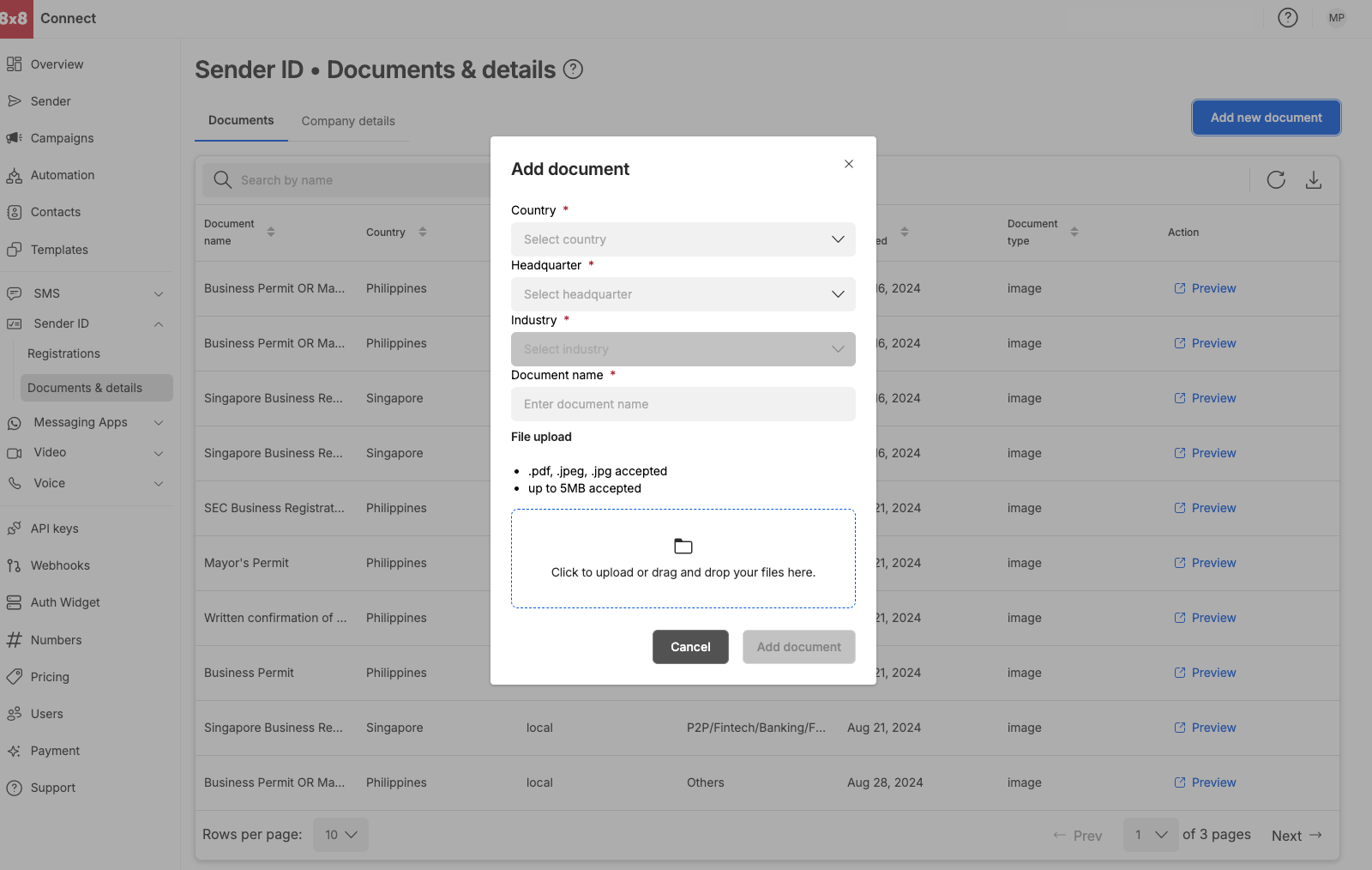
    • Add Documents for a particular country and headquarter before hand so that your documents are updated.

    Preview Documents that have been uploaded

    • Download the current page into a CSV

    Documents can be added ahead of time

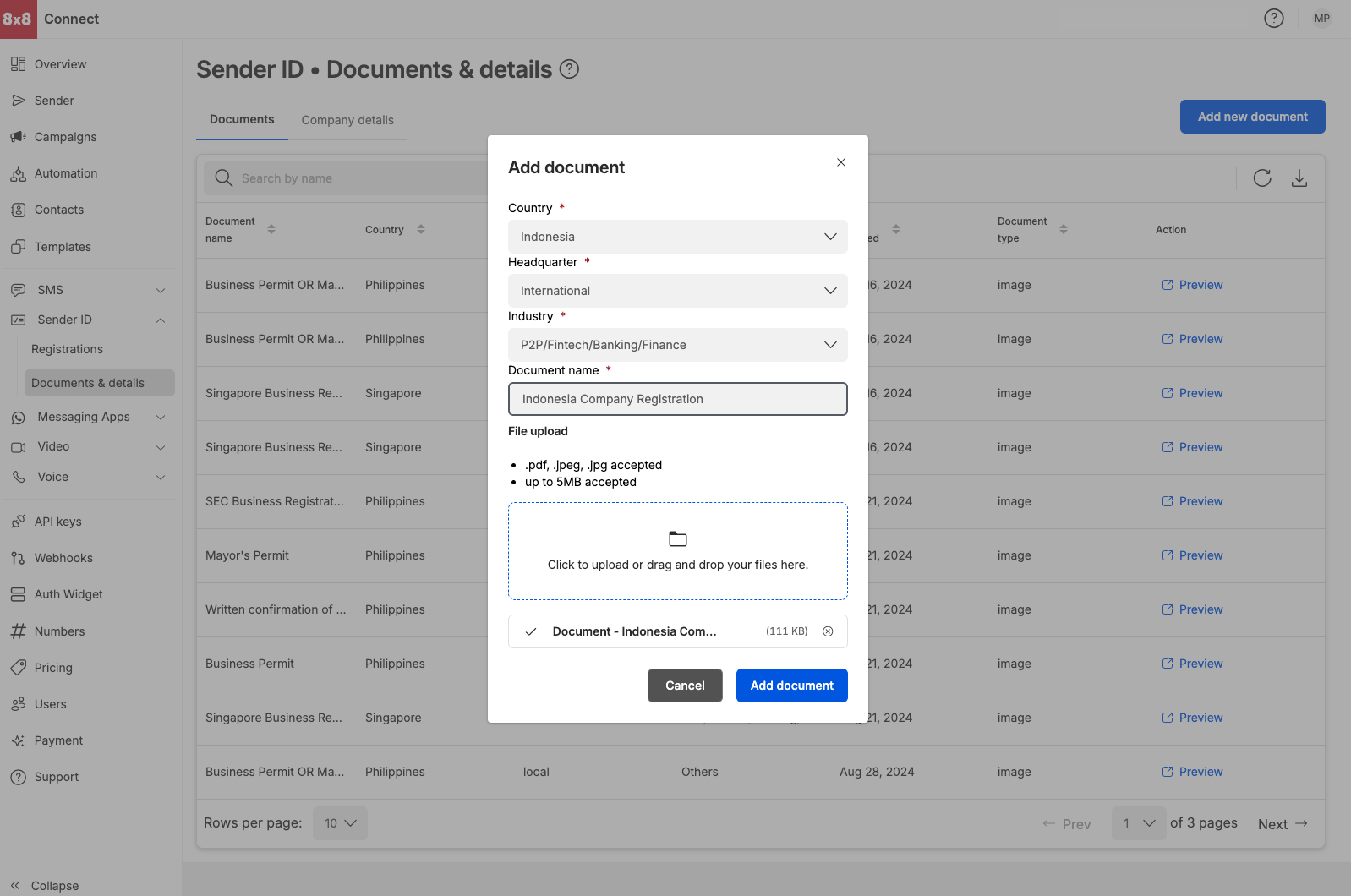
    • Country (Indonesia*, Philippines, Singapore and Thailand)
    • Headquarter (Local or International)
    • Industry (where applicable)
    • Provide a document name

    File type and limits

    • Accepted file types are .pdf, .jpg and .jpeg
    • up to 5MB per file

    Document Details Document Details - Indonesia


    Source: https://developer.8x8.com/connect/docs/documents-details-dashboard · 8x8 CPaaS Developer Docs. Synced for support deflection.

  • Adding Documents

    Adding Documents

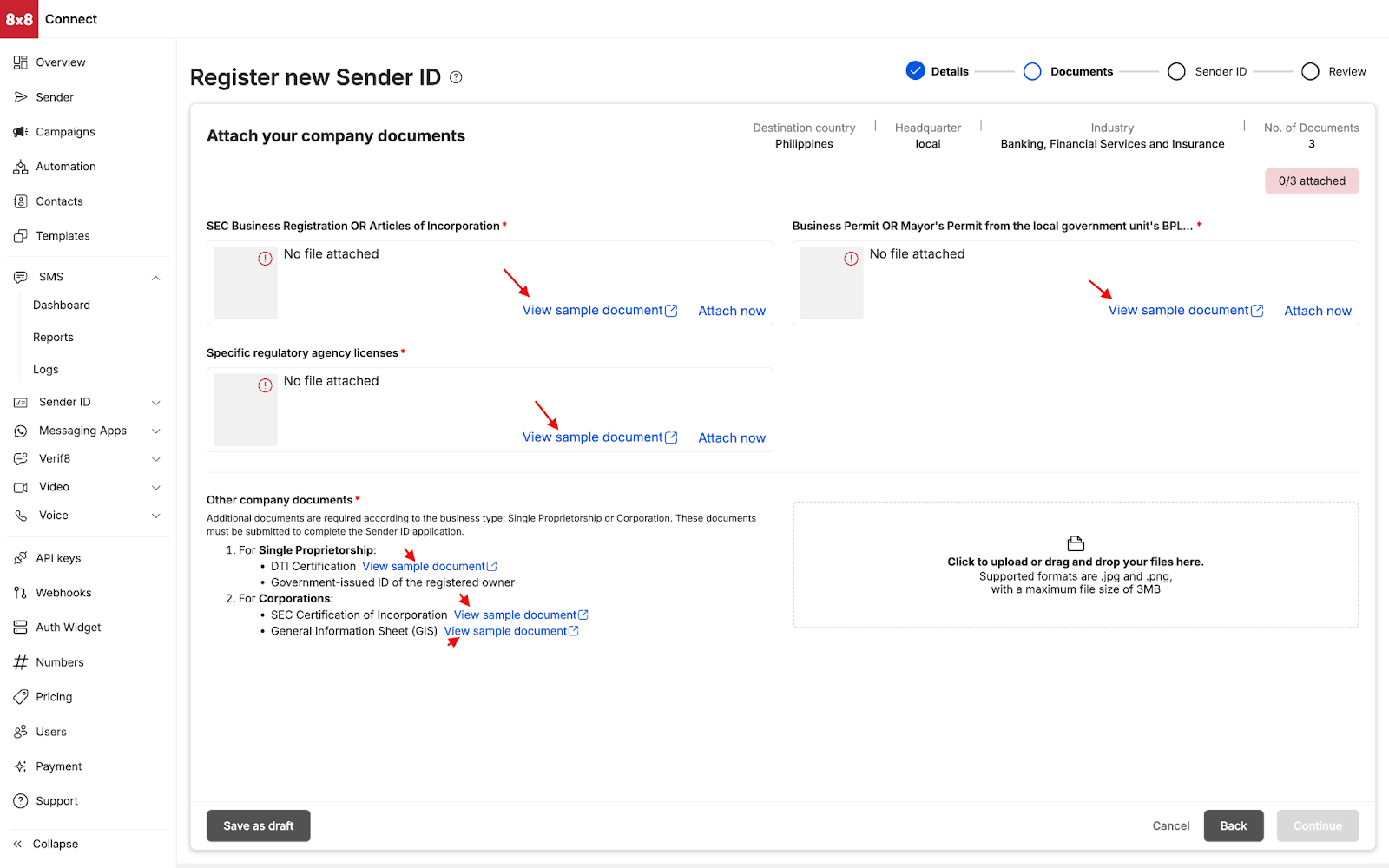
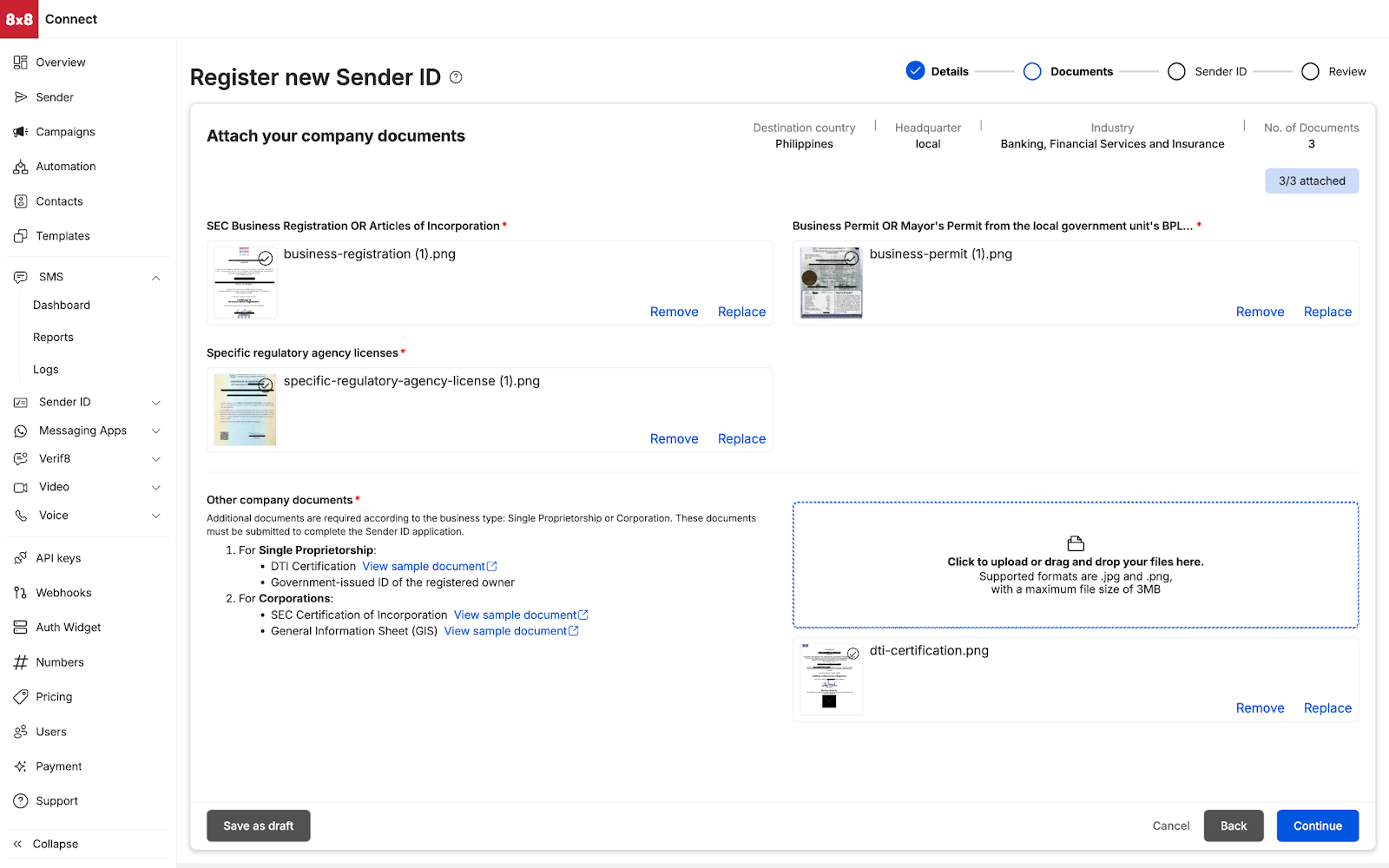
    Attach Company Documents

    • Company documents can be attached ahead of time as covered in the Documents Tab section
    • Each document is provided with a sample document for reference

    image image


    Source: https://developer.8x8.com/connect/docs/documents · 8x8 CPaaS Developer Docs. Synced for support deflection.

  • Dashboard

    Dashboard

    The dashboard page can only be accessed by agents with administrator or supervisor roles. The dashboard has three(3) sections

    Real time

    This section gives you live information about your Conversations and agents, the data can be updated by using the refresh icon

    1391

    In queue - the current number of tickets that are waiting to get assigned to any available agents

    Assigned - total number of tickets that are currently assigned to any agents

    Opened - total number of tickets that currently have the status Open

    Agents - total number of available agents that are currently online

    2048

    Time period

    This is the section where an admin or supervisor can view the stats within a selected period of date and specific agent. By default, it shows all of the agents’ stats. Users can select a specific agent to view his/her stats.

    1624

    Stats includes

    Created - total number of tickets created

    Resolved - total number of resolved tickets

    Closed - total number of closed tickets

    On-hold - total number of tickets that were put on hold

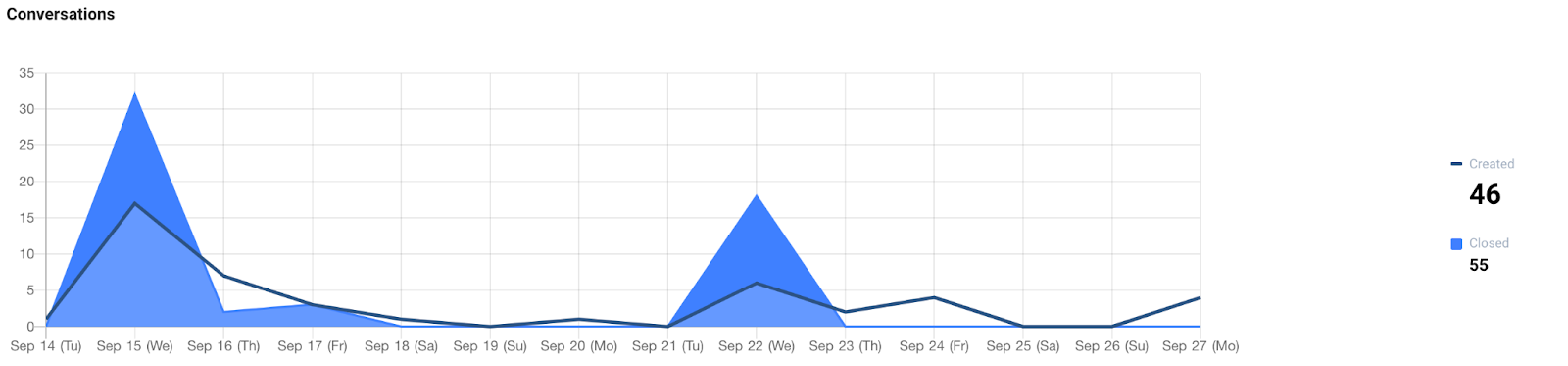
    If you have more tickets closed than created during a period, it means that you are clearing backlogs (closing tickets created before the period). If you have more created than closed tickets, then your backlog (tickets not closed) is growing during the period.

    1624

    Conversations graph

    The graph will depend on the selected date period and specific agent you’ve selected from the section above (Time period). The graph only shows Created vs Closed tickets.

    1600


    What’s Next

    My Conversations


    Source: https://developer.8x8.com/connect/docs/dashboard · 8x8 CPaaS Developer Docs. Synced for support deflection.

  • Company Details Tab

    Company Details Tab

    Accessing Company Details Tab

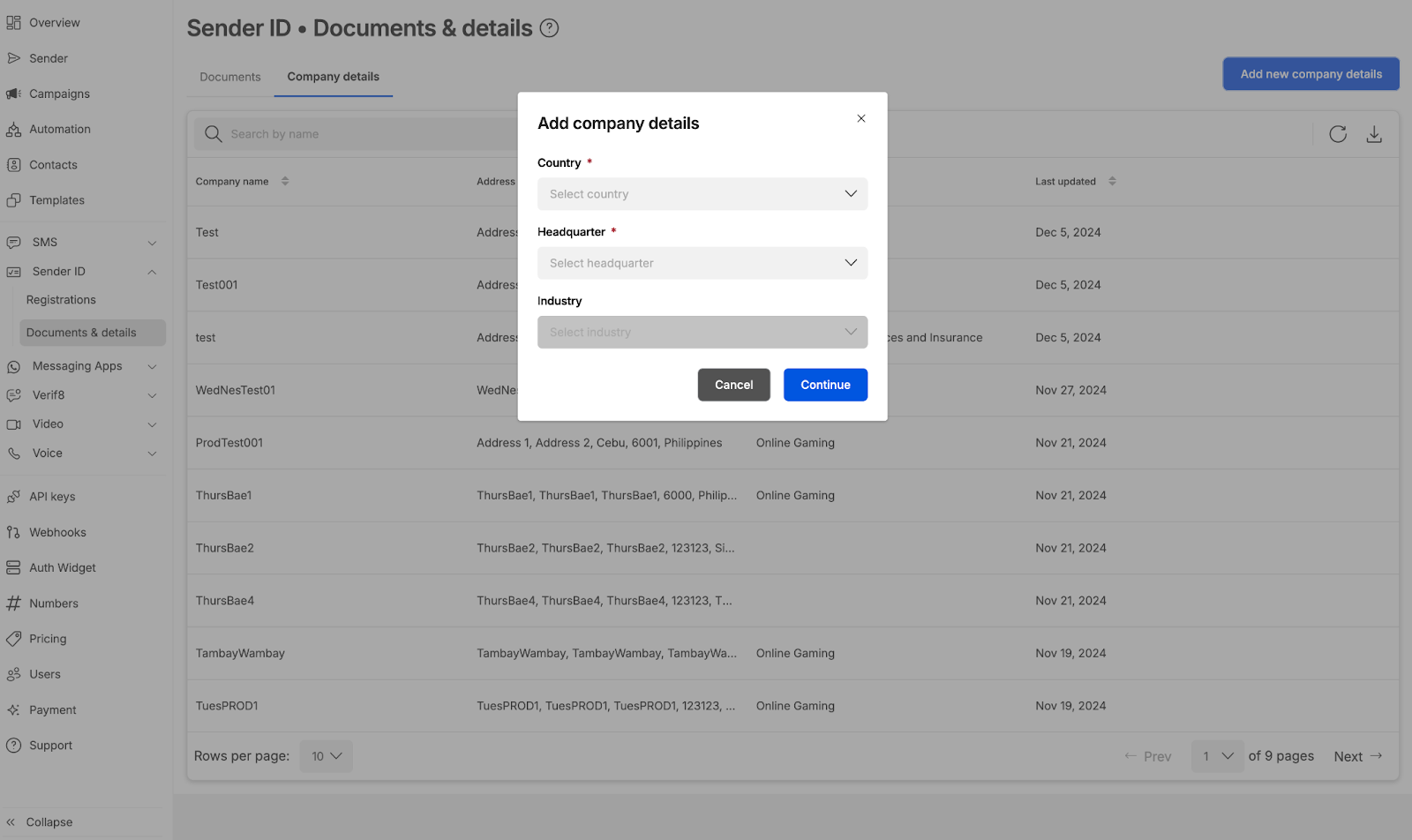
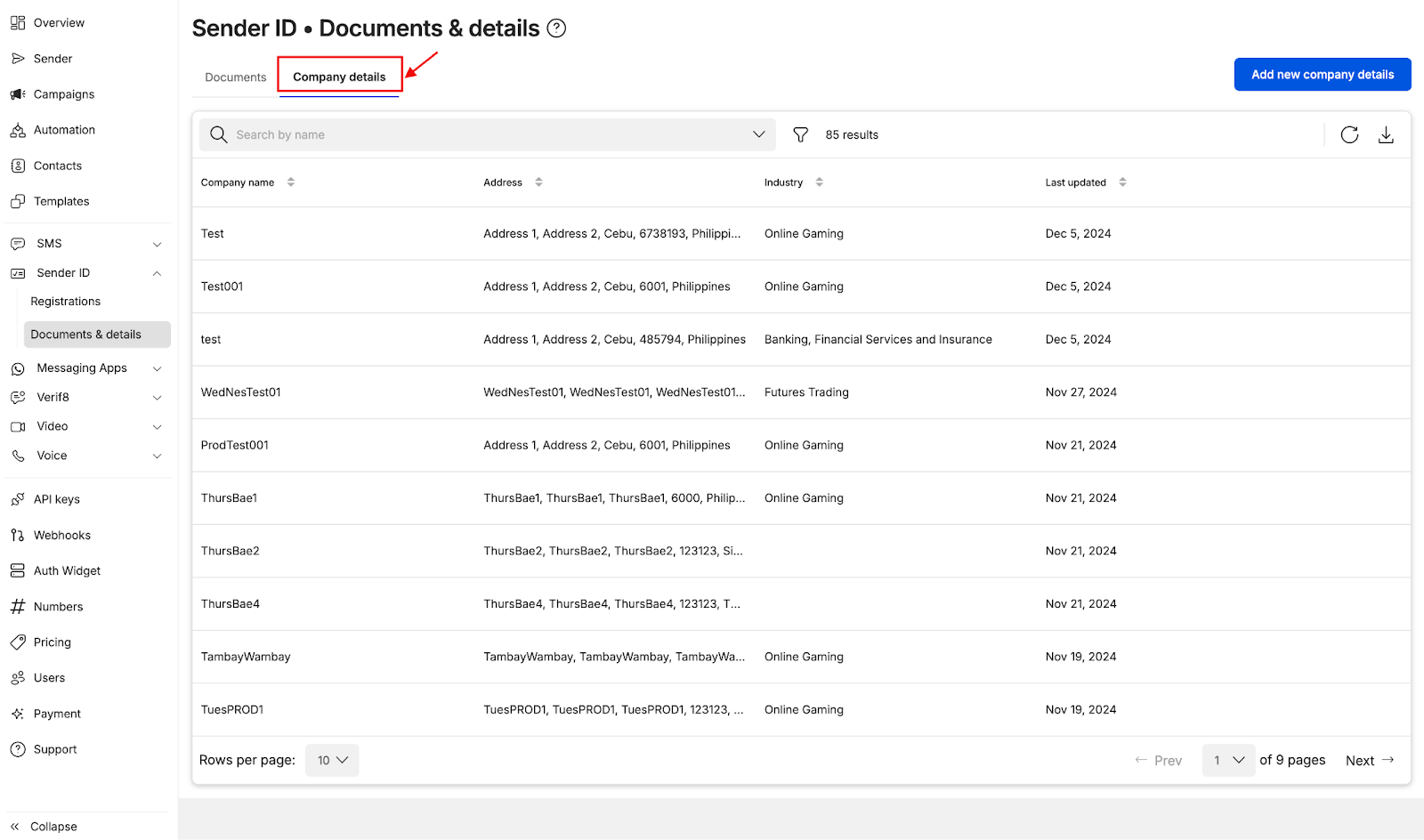
    • Add company details ahead of time by selecting Company details on the Documents & details module
    • Alternatively, you can access the Company details module via URL: https://connect.8x8.com/messaging/sender-id/documents-details?tab=sender-id-company-details

    image Adding Company Details

    • Select Destination country name (Currently Indonesia, Philippines, Singapore and Thailand are offered)
    • Select the Headquarters (this depends if your company has a local entity in the country). For some countries, headquarters is not a required field
    • For selected countries, Industry is a required field (this depends on the industry of your company)

    image

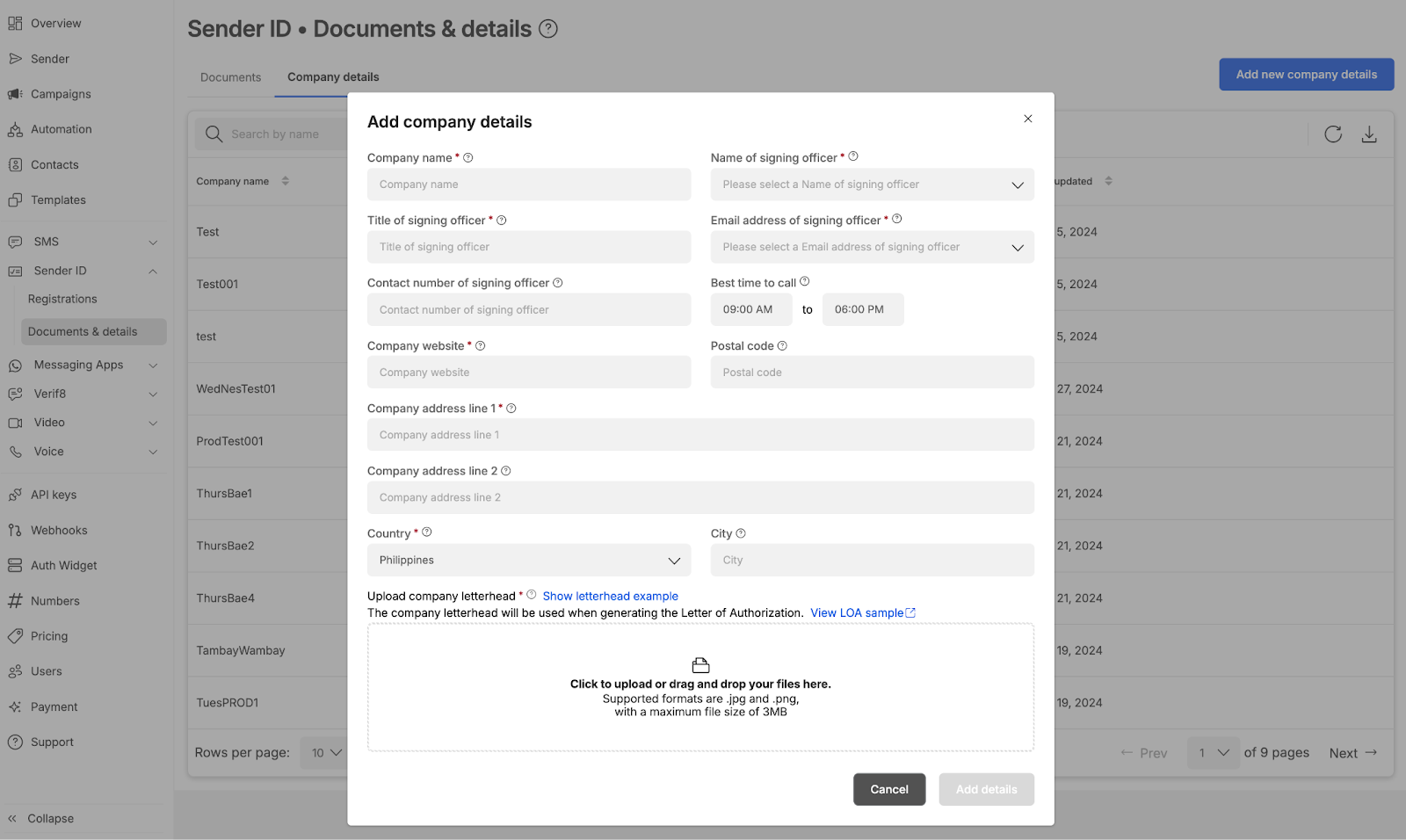
    • Fill up relevant details
    • Click Save details when done
    • It is mandatory to include the company letter hand (sample of a letterhead is shown and is also reflected on how letter head is used in LOA generation)

    image


    Source: https://developer.8x8.com/connect/docs/company-details-tab · 8x8 CPaaS Developer Docs. Synced for support deflection.

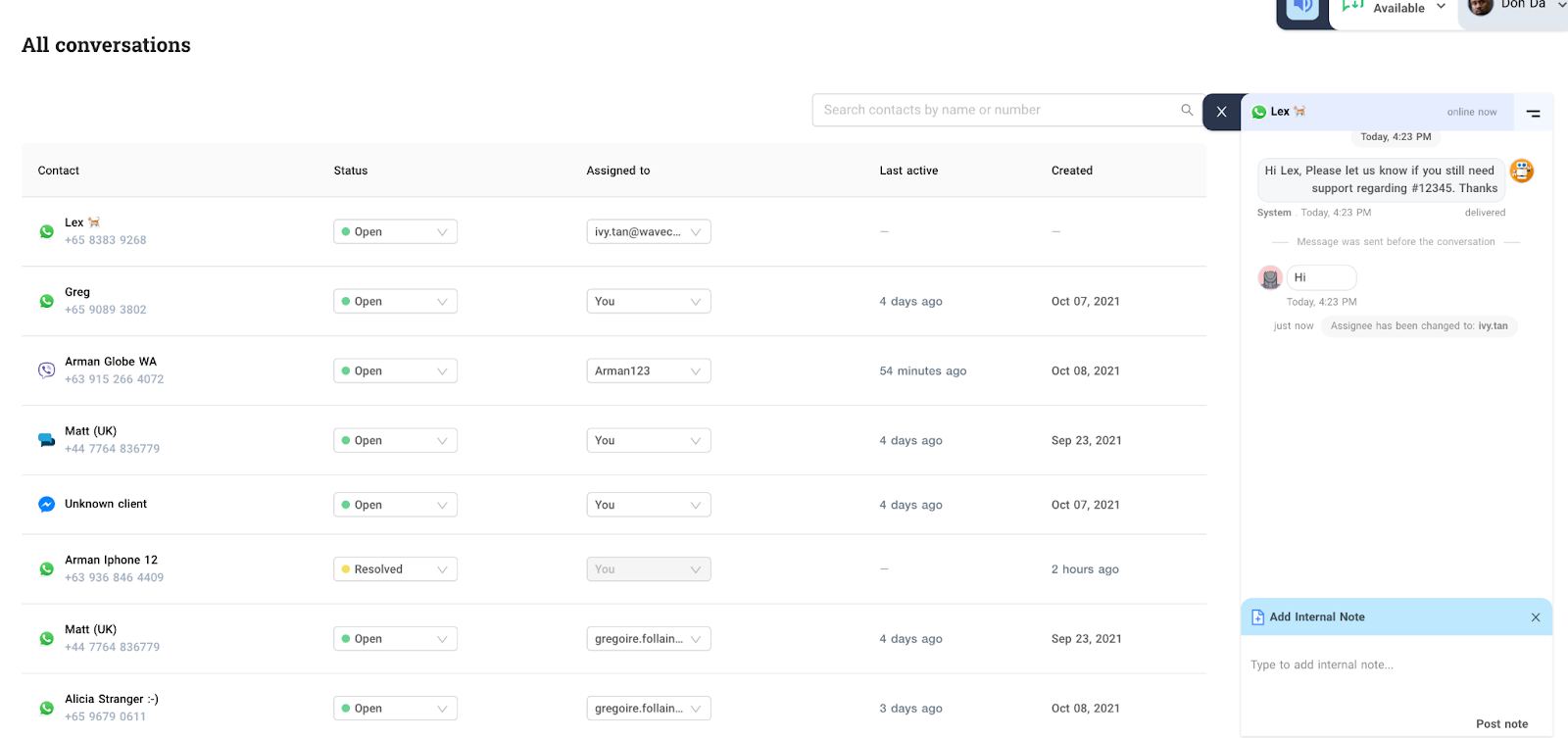
  • All Conversations

    All Conversations

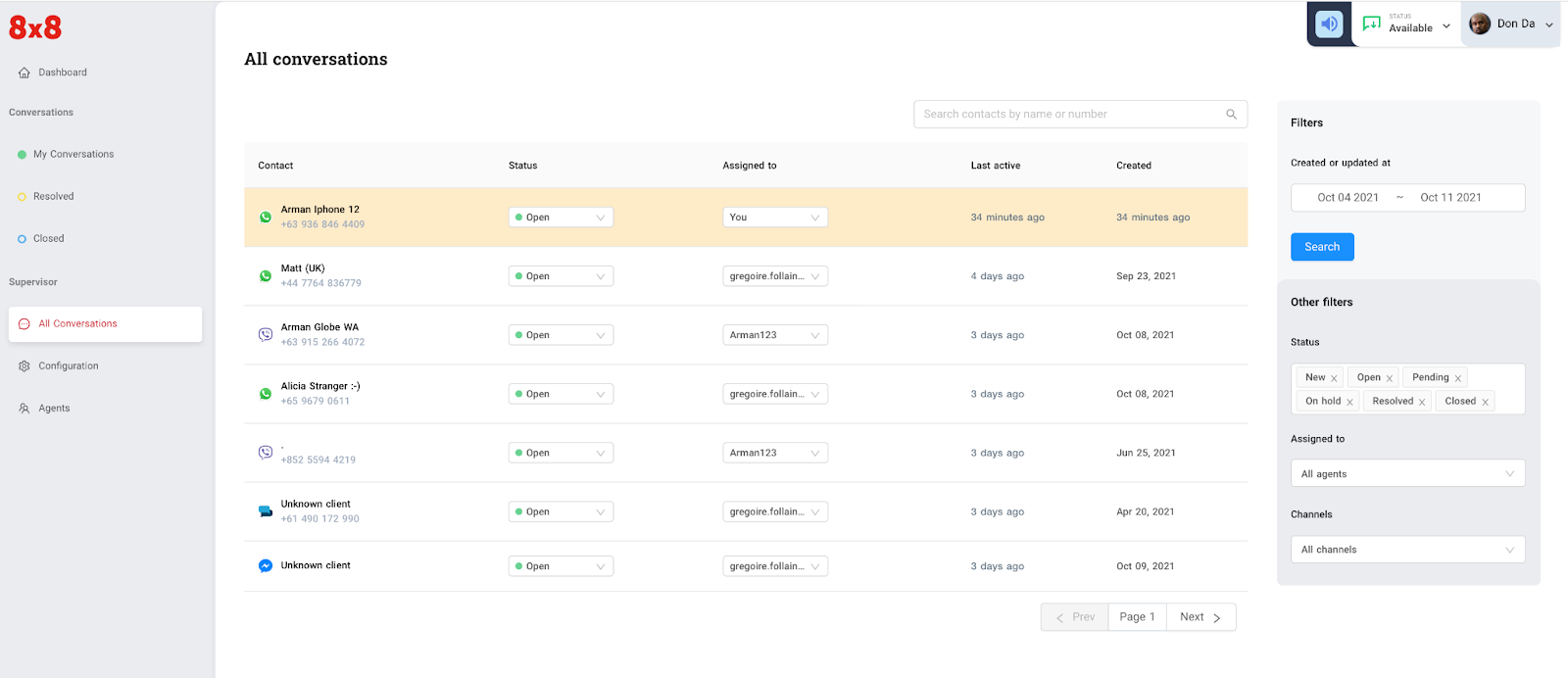
    Agents with supervisor or administrator privileges have access to the “All Conversations” page. This page gives you a full view and information of the tickets such as :

    • Customer’s name, phone number or channel ID
    • Ticket status
    • Agent assigned to a particular ticket
    • Date the ticket was last updated
    • Date the ticket was created

    1600

    Search and filtering

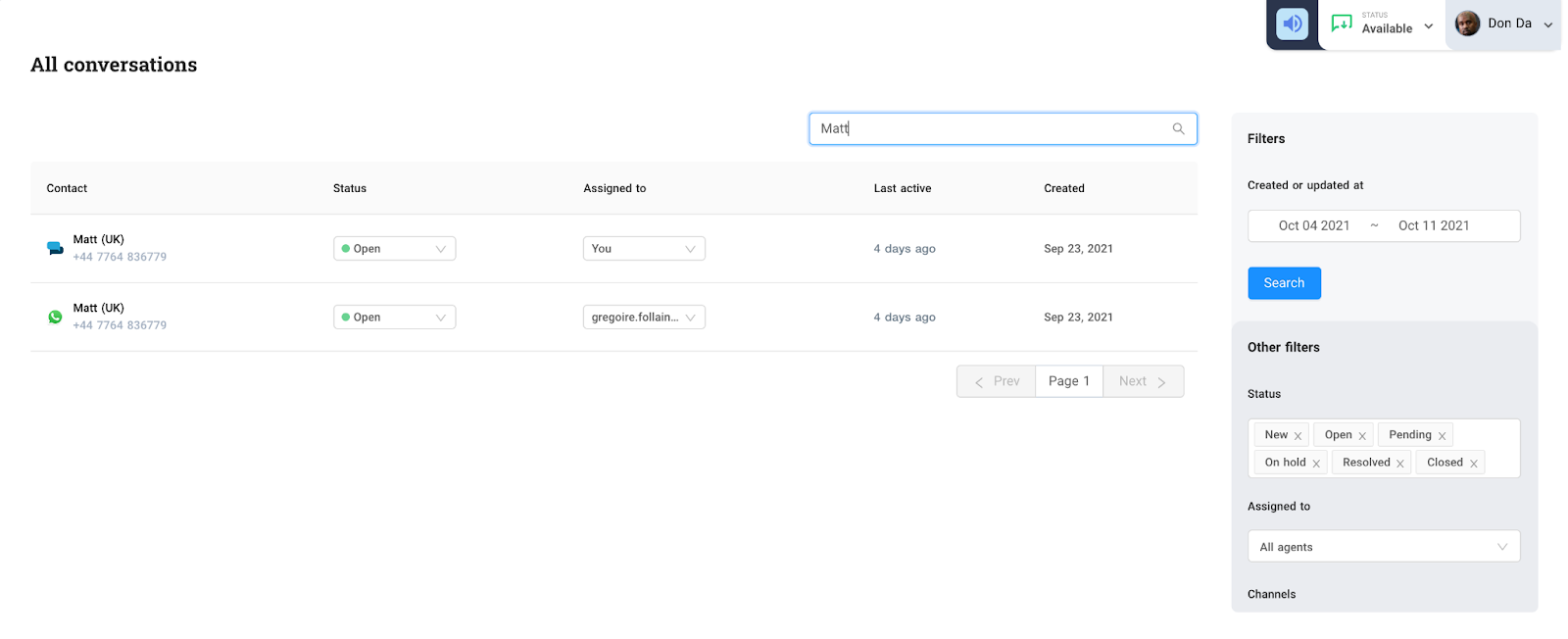
    Under the “All Conversations” page, an admin or supervisor can search or filter the tickets he wants to view. Search is limited to searching the name or mobile number of the customer

    1600

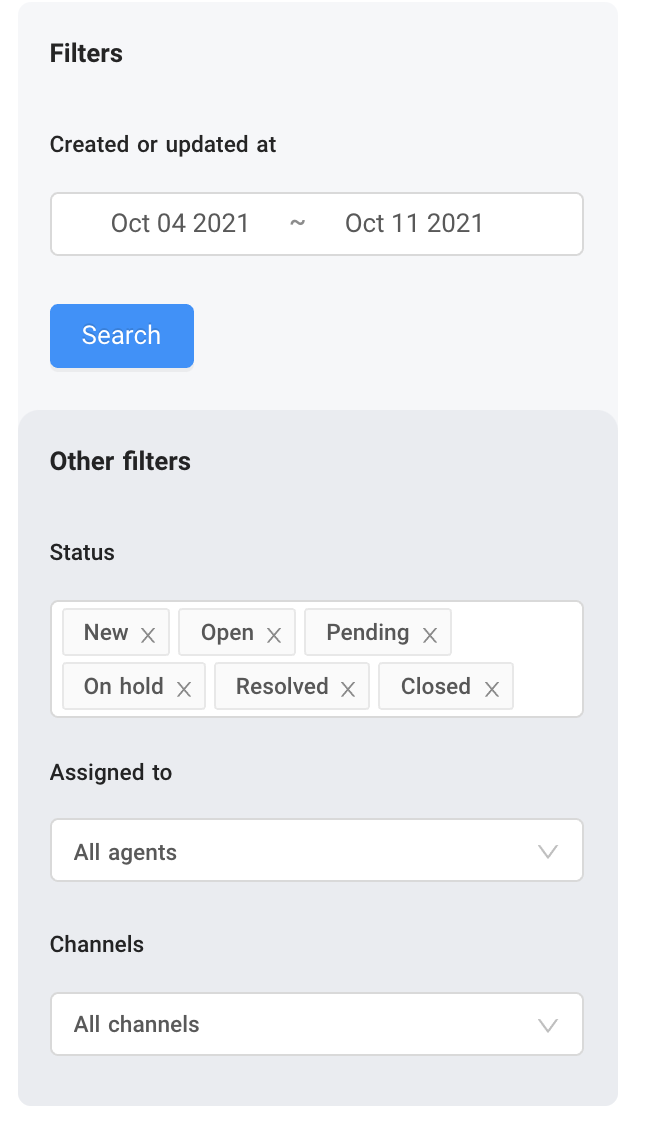
    Filtering on the other hand allows you to filter the ticket by

    • Date tickets were updated or created
    • Status

    • Agent assigned to the ticket
    • Channel

    648

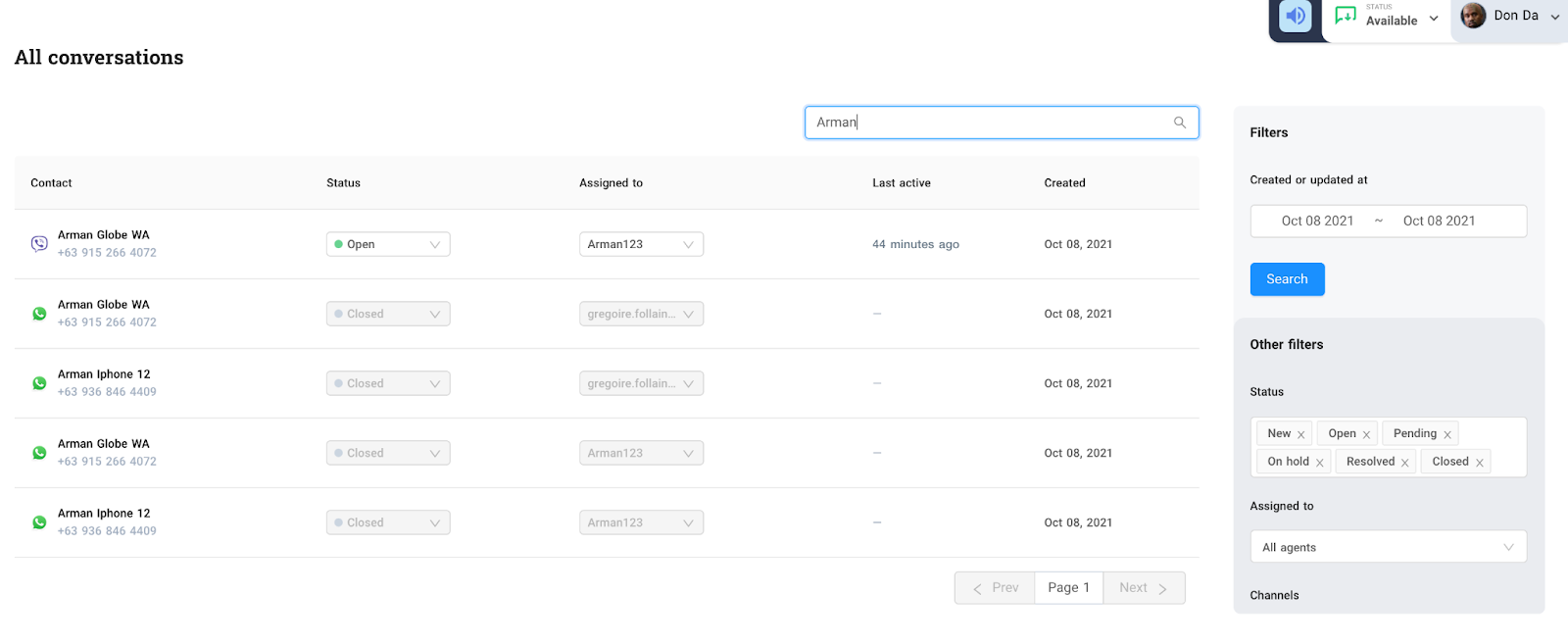
    You can combine both search and filtering. Let’s say you want to search for a customer named Arman on Oct 8, 2021 where the tickets might have been created or updated. (refer to screen-capture below)

    1600

    Agents and administrators can view previous conversations(closed or resolved) or current conversations(open) on all the tickets. In addition, they can also add internal notes to any open tickets to send notes to other agents during the conversation with a customer 1600


    What’s Next* Configuration


    Source: https://developer.8x8.com/connect/docs/all-conversations · 8x8 CPaaS Developer Docs. Synced for support deflection.

  • Analytics

    Analytics

    8x8 Connect allows users to monitor their usage, metrics and access logs, throughout the product families:

    • SMS Analytics
    • Chat App Analytics
    • Video Interaction Analytics

    This following section and it's pages will explain the analytics pages in depth.

    📘 Voice Analytics

    The voice analytics section is currently under development, and the corresponding documentation page will be added once it is finalized.

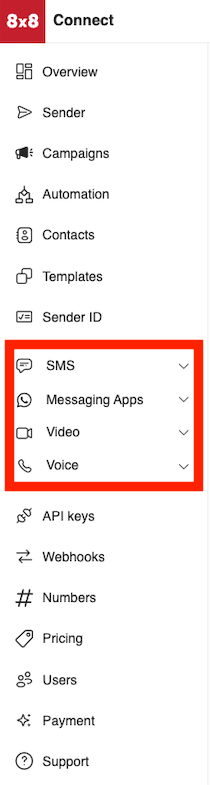
    Location of Analytics Sections

    These sections are located on the sidebar of connect under these tabs:

    image


    Source: https://developer.8x8.com/connect/docs/analytics · 8x8 CPaaS Developer Docs. Synced for support deflection.

  • Agent Management

    Agent Management

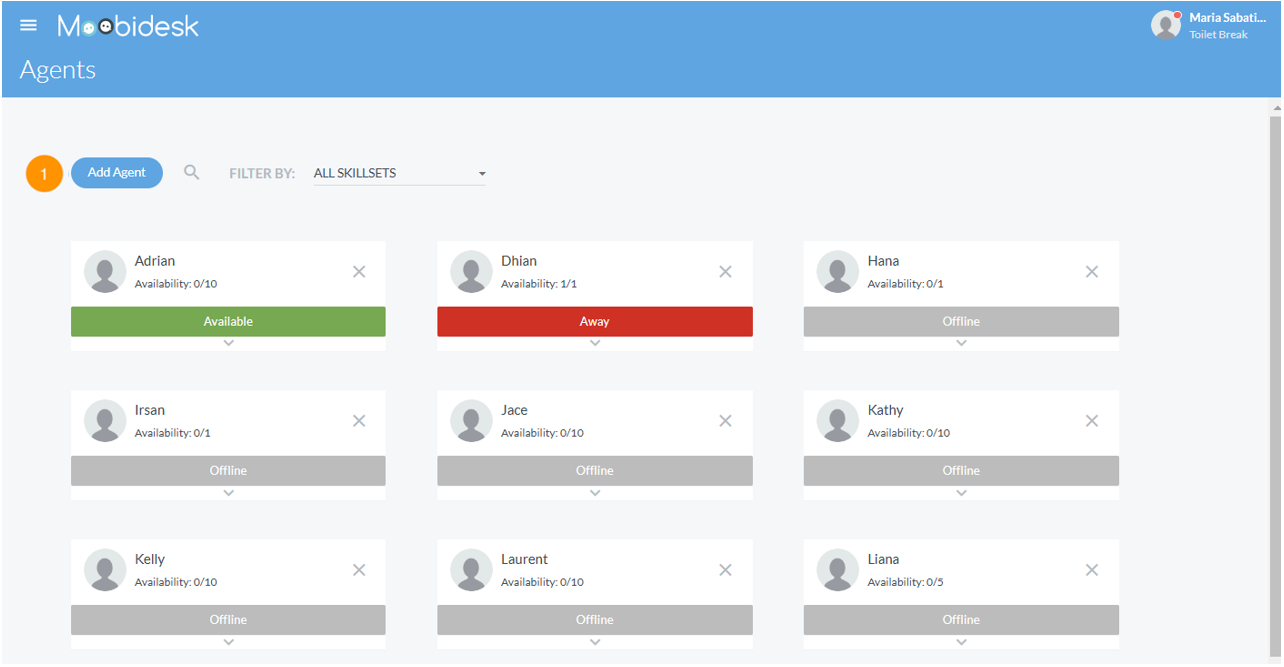
    The Agents module provides real-time visibility into agent availability, performance, and workload distribution.

    Agent Dashboard

    Agent List View

    Agent List

    The main agent view displays:

    • Name: Agent full name
    • Status: Available, Busy, Away, Offline
    • Active Chats: Number of current conversations
    • Max Capacity: Configured concurrent conversation limit
    • Skill Sets: Assigned expertise areas
    • Aux Code: Current auxiliary status reason

    Status Indicators
    Status Description Chat Assignment
    Available Ready to receive conversations Enabled
    Busy At capacity or in wrap-up Disabled
    Away Temporarily unavailable Disabled
    Offline Not logged in Disabled

    Agent Configuration

    Creating Agents

    Administrators can create agent accounts:

    1. Navigate to Agents → Add Agent
    2. Enter agent details (name, email, username)
    3. Assign role (Agent)
    4. Set max concurrent conversations (default: 5)
    5. Assign skill sets and proficiency levels
    6. Assign to queues
    7. Save configuration

    Agent Capacity

    Configure maximum concurrent conversations per agent:

    • Default: 5 conversations
    • Range: 1-20 conversations
    • Recommended: 3-5 for quality service
    • Adjust based on channel complexity and agent experience

    Skill Sets

    Overview

    Skill sets enable intelligent conversation routing based on agent expertise.

    Configuring Skills

    Administrators define skill categories:

    • Examples: Technical Support, Billing, Sales, Spanish Language, VIP Customer Care
    • Assign to agents with proficiency levels (1-5)
    • Higher proficiency agents receive priority routing

    Auxiliary (Aux) Codes

    Purpose

    Aux codes track time agents spend on non-conversation activities.

    Common Aux Codes

    Code Description Availability
    Break Scheduled break Away
    Lunch Meal break Away
    Training Learning activities Away
    Meeting Team or client meetings Away
    Technical Issue System problems Away
    Wrap-up Post-conversation documentation Busy

    Usage

    Agents select aux codes when changing status:

    1. Click status dropdown
    2. Select "Away" or "Busy"
    3. Choose applicable aux code
    4. System tracks time spent in each aux code for reporting

    Agent Actions

    Transferring Conversations

    Transfer to Agent:

    1. Open conversation
    2. Select "Transfer"
    3. Choose destination agent
    4. Add transfer notes (optional)
    5. Confirm transfer

    Transfer to Queue:

    1. Open conversation
    2. Select "Transfer to Queue"
    3. Choose destination queue
    4. Conversation re-enters routing logic

    Using Canned Messages

    1. In conversation window, click canned message icon
    2. Search or browse available templates
    3. Select message - auto-populates with contact variables
    4. Edit if needed and send

    Applying Tags & Labels

    Tag conversations for categorization:

    1. Open conversation
    2. Select tag icon
    3. Choose from predefined tags or create custom
    4. Apply multiple tags as needed
    5. Tags appear in conversation history and reports

    Performance Monitoring

    Real-Time Metrics

    Supervisors and Managers can view:

    • Current Status: Live agent availability
    • Active Conversations: Ongoing chats per agent
    • Average Response Time: Speed of agent replies
    • Conversations Handled: Total for current session

    Agent Reports

    Generate performance reports:

    • Conversation Volume: Total handled by time period
    • Response Time: First response and average response metrics
    • SLA Compliance: Percentage meeting service level targets
    • Aux Code Time: Breakdown of non-conversation time

    Best Practices

    • Set realistic agent capacity based on channel mix (chat vs email)
    • Use skill-based routing for specialized inquiries
    • Monitor aux code usage to identify process bottlenecks
    • Provide agents access to comprehensive canned message library
    • Review agent performance metrics weekly for coaching opportunities
    • Balance workload across team to prevent burnout

    Source: https://developer.8x8.com/connect/docs/moobidesk/agents · 8x8 CPaaS Developer Docs. Synced for support deflection.

  • Accessing and Viewing Your Customer List

    Accessing and Viewing Your Customer List

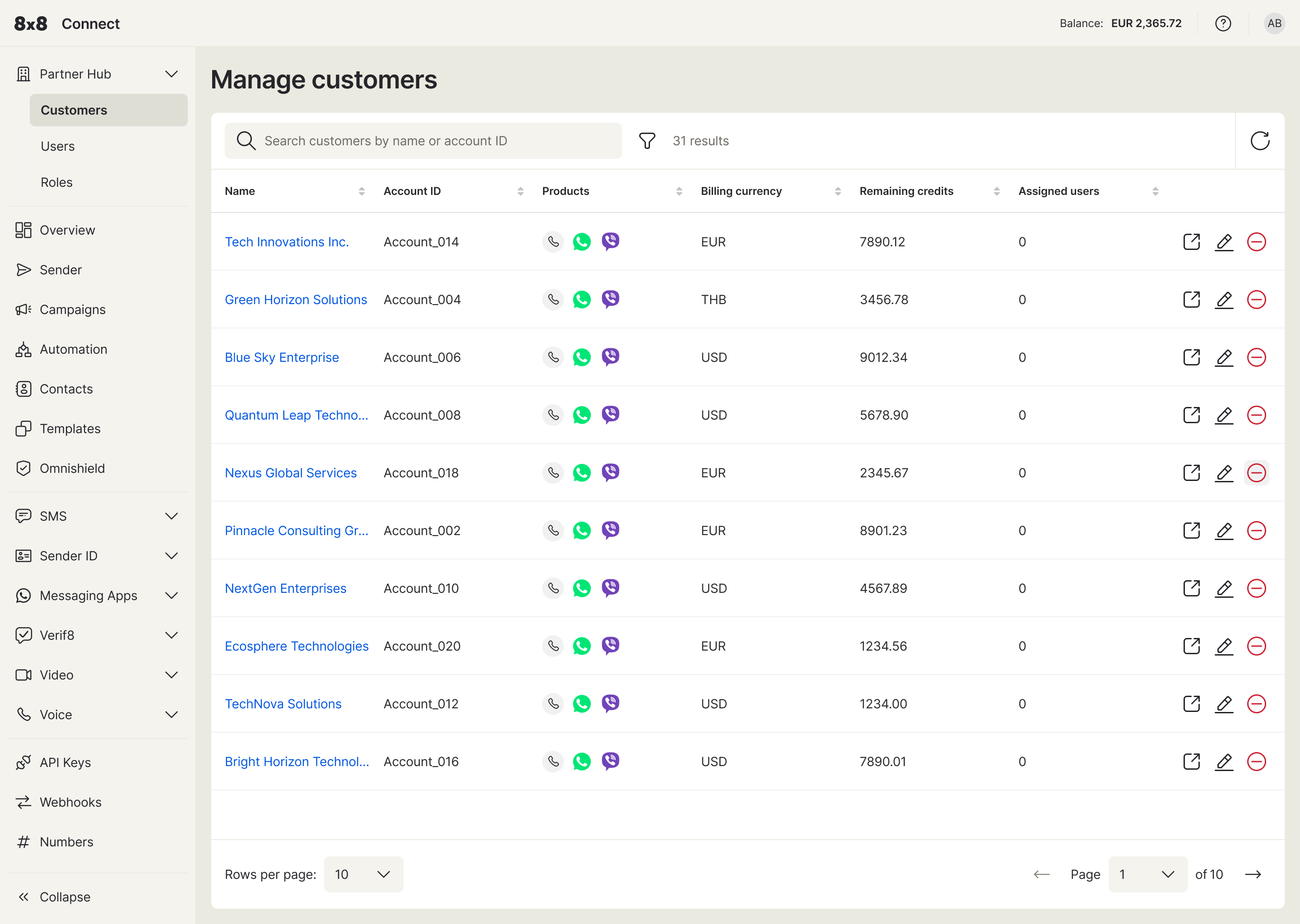
    The Partner Hub in 8x8 Connect is your centralised portal for monitoring your assigned end-customer (Customer) accounts. The interface is designed for view-only access, allowing you to track customer activity without the ability to make changes.

    1. Navigate to the Customer List: From the main navigation menu on the left, expand the Partner Hub section and click on Customers..

    2. The 'Manage customers' Page: This will take you to the "Manage customers" page. Here you will see a list of all customer accounts you have permission to view. This dashboard provides a comprehensive overview, including each customer's:

      • Customer Name and Account ID
      • Enabled Products (represented by icons)
      • Billing Currency
      • Remaining Credits
      • Assigned Users (from the partner organization)

    Manage customers

    1. Find a Specific Customer: Use the search bar at the top of the list to quickly find a specific account by their name or Account ID.

    2. View Customer Usage: To view a specific customer's detailed usage information, simply click on the customer's name in the list.


    Understanding the Customer Usage Dashboard

    After selecting a customer from the "Manage customers" list, you will be taken into their specific account view. The main content area will display an overview, and the navigation menu on the left will update to show the product modules available for that customer.

    view customer non admin role

    To view the detailed usage for a specific product, simply click on it in the left-hand menu:

    • SMS: View logs for all SMS activity.
    • Voice: View logs for voice calls.
    • Video: View logs for video sessions.
    • Messaging Apps: View logs for messages sent via apps like WhatsApp, Viber, etc.

    For each log, you can typically see data such as the Timestamp, Direction (inbound/outbound), Status (e.g., delivered, failed), Price, and masked To/From numbers.

    Important Information: Data Access and Privacy

    As a reminder, all data is presented with security and privacy as a top priority:

    • View-Only Access: You cannot perform any actions or make changes on behalf of the customer.
    • Data Masking for Privacy: By default, sensitive information is automatically masked when viewing usage logs. You will not see contact names, message content, or full phone numbers (MSISDN). For identification purposes, only the last 4 digits of a phone number will be visible.
    • Customer Pricing: The prices shown will reflect the specific pricing configured for that customer.

    Source: https://developer.8x8.com/connect/docs/accessing-and-viewing-your-customer-list · 8x8 CPaaS Developer Docs. Synced for support deflection.

8x8 Logo
  • 8x8 YouTube
  • 8x8 Facebook
  • 8x8 Twitter
  • 8x8 Blog
  • 8x8 LinkedIn
  • 8x8 Instagram

Company

  • About Us
  • Careers
  • Contact Us

Our Products

  • SMS
  • Chat Apps
  • Video Interaction
  • Voice
  • Pricing

Media

  • Customer Success Stories
  • News
  • Events
  • Blog

Resources

  • Documentation
  • Service Status
  • Ask for support
Privacy Policy | Terms of Use | Acceptable Use Policy
© 2025 8x8, Inc. All rights reserved.