Agent Management
The Agents module provides real-time visibility into agent availability, performance, and workload distribution.
Agent Dashboard
Agent List View
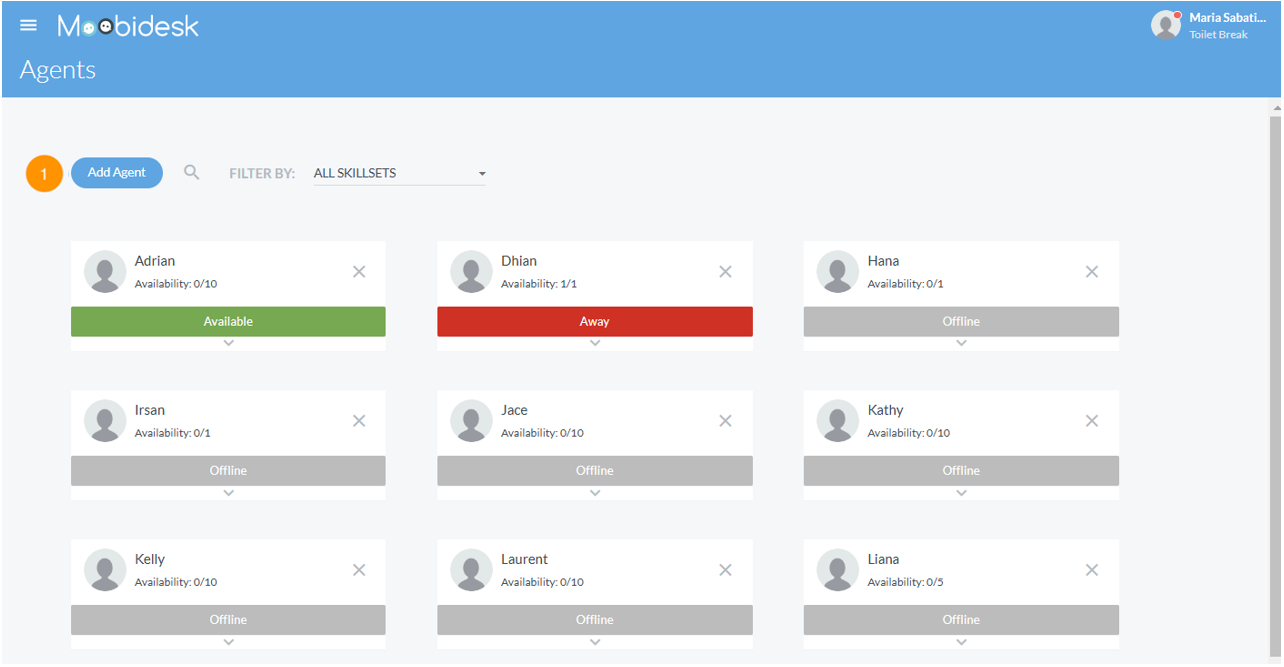
The main agent view displays:
- Name: Agent full name
- Status: Available, Busy, Away, Offline
- Active Chats: Number of current conversations
- Max Capacity: Configured concurrent conversation limit
- Skill Sets: Assigned expertise areas
- Aux Code: Current auxiliary status reason
Status Indicators
| Status | Description | Chat Assignment |
|---|---|---|
| Available | Ready to receive conversations | Enabled |
| Busy | At capacity or in wrap-up | Disabled |
| Away | Temporarily unavailable | Disabled |
| Offline | Not logged in | Disabled |
Agent Configuration
Creating Agents
Administrators can create agent accounts:
- Navigate to Agents → Add Agent
- Enter agent details (name, email, username)
- Assign role (Agent)
- Set max concurrent conversations (default: 5)
- Assign skill sets and proficiency levels
- Assign to queues
- Save configuration
Agent Capacity
Configure maximum concurrent conversations per agent:
- Default: 5 conversations
- Range: 1-20 conversations
- Recommended: 3-5 for quality service
- Adjust based on channel complexity and agent experience
Skill Sets
Overview
Skill sets enable intelligent conversation routing based on agent expertise.
Configuring Skills
Administrators define skill categories:
- Examples: Technical Support, Billing, Sales, Spanish Language, VIP Customer Care
- Assign to agents with proficiency levels (1-5)
- Higher proficiency agents receive priority routing
Auxiliary (Aux) Codes
Purpose
Aux codes track time agents spend on non-conversation activities.
Common Aux Codes
| Code | Description | Availability |
|---|---|---|
| Break | Scheduled break | Away |
| Lunch | Meal break | Away |
| Training | Learning activities | Away |
| Meeting | Team or client meetings | Away |
| Technical Issue | System problems | Away |
| Wrap-up | Post-conversation documentation | Busy |
Usage
Agents select aux codes when changing status:
- Click status dropdown
- Select "Away" or "Busy"
- Choose applicable aux code
- System tracks time spent in each aux code for reporting
Agent Actions
Transferring Conversations
Transfer to Agent:
- Open conversation
- Select "Transfer"
- Choose destination agent
- Add transfer notes (optional)
- Confirm transfer
Transfer to Queue:
- Open conversation
- Select "Transfer to Queue"
- Choose destination queue
- Conversation re-enters routing logic
Using Canned Messages
- In conversation window, click canned message icon
- Search or browse available templates
- Select message - auto-populates with contact variables
- Edit if needed and send
Applying Tags & Labels
Tag conversations for categorization:
- Open conversation
- Select tag icon
- Choose from predefined tags or create custom
- Apply multiple tags as needed
- Tags appear in conversation history and reports
Performance Monitoring
Real-Time Metrics
Supervisors and Managers can view:
- Current Status: Live agent availability
- Active Conversations: Ongoing chats per agent
- Average Response Time: Speed of agent replies
- Conversations Handled: Total for current session
Agent Reports
Generate performance reports:
- Conversation Volume: Total handled by time period
- Response Time: First response and average response metrics
- SLA Compliance: Percentage meeting service level targets
- Aux Code Time: Breakdown of non-conversation time
Best Practices
- Set realistic agent capacity based on channel mix (chat vs email)
- Use skill-based routing for specialized inquiries
- Monitor aux code usage to identify process bottlenecks
- Provide agents access to comprehensive canned message library
- Review agent performance metrics weekly for coaching opportunities
- Balance workload across team to prevent burnout
Source: https://developer.8x8.com/connect/docs/moobidesk/agents · 8x8 CPaaS Developer Docs. Synced for support deflection.

Please sign in to leave a comment.
0 Comments