See Details
Logo CPaaS Help Center Developer Premium Support Status
Sign in Contact Support
  1. 8x8 CPaaS Help Center
  2. 02 · Sender ID & Registration

02 · Sender ID & Registration

  • Batch create contacts

    Batch create contacts

    POST https://contacts.8x8.com/api/v1/accounts/:accountId/contacts/batches/createContacts

    Batch create contacts using file. The file can be either CSV or Excel. The CSV file can contain a header row (the mapping of the columns will be automatic in this case), or not. For files without a header, the fileColumns property should be specified for a columns mapping.

    Request

    Path Parameters

      accountId stringrequired

      Possible values: >= 32 characters and <= 36 characters, Value must match regular expression ^[0-9A-Fa-f]{8}[-]?(?:[0-9A-Fa-f]{4}[-]?){3}[0-9A-Fa-f]{12}$

      You must replace {accountId} with the accountid that you want to use.

    Body

      fileobjectrequired

      Binary content of the file.

      The file size is limited to 30 Mb.

      groupsstring

      Comma-separated list of group id (integer) to add contacts to.

      You can add contacts to 10 groups max.

      Example: 11566,88996
      fileHasHeaderboolean

      Set this property to true if provided file has a header row.

      The header row will be parsed automatically, you don't need to provide a list of columns in this case.

      Default value is true

      Default value: true
      fileColumnsstring

      Comma-separated list of columns.

      This field is mandatory is fileHasHeader is false

      Example: msisdn, firstName, lastName

    Accepted

    Schema

      fileNamestring

      Name of the uploaded file

      fileTypestring

      Type of the uploaded file

      Possible values: [csv, xls]

      fileLocationstring

      URL of the uploaded file

      idstring<uuid>

      Batch id. Use this value to request batch status.

      typeBatch type (string)

      The type of the batch job

      Possible values: [createContacts, deleteContacts, copyContacts, moveContacts, deleteGroups]

      statusBatch Status (string)

      The status of the batch job

      Possible values: [queued, inProgress, failed, completed, stopped, timeout]

      createdAtstring

      Created time

      Possible values: non-empty

    {
    "fileName":"string",
    "fileType":"csv",
    "fileLocation":"string",
    "id":"3fa85f64-5717-4562-b3fc-2c963f66afa6",
    "type":"createContacts",
    "status":"queued",
    "createdAt":"string"
    }

    Bad request error response

    Schema

      codeintegerrequired

      Error code

      messagestring

      Error description

      errorIdstring<uuid>required

      Unique id of error. You can use it as reference when sending enquiries to 8x8 support

      timestampstring<date-time>required

      Data and time of the error occurence

    {
    "code":1001,
    "message":"Provided subAccountId doesn't belongs to your account",
    "errorId":"91b106f0-c0da-4aba-a43a-7af9c5893a80",
    "timestamp":"2017-04-19T02:31:19.4297387+00:00"
    }
    {
    "code":1002,
    "message":"Invalid MSISDN format (not E.164 international number)",
    "errorId":"b4478860-b76c-e811-814e-022a35cc1c71",
    "timestamp":"2018-08-04T09:25:40.9235752+00:00"
    }

    Source: https://developer.8x8.com/connect/reference/batch-upload-contacts · 8x8 CPaaS Developer Docs. Synced for support deflection.

  • Submitted Sender ID Registrations

    Submitted Sender ID Registrations

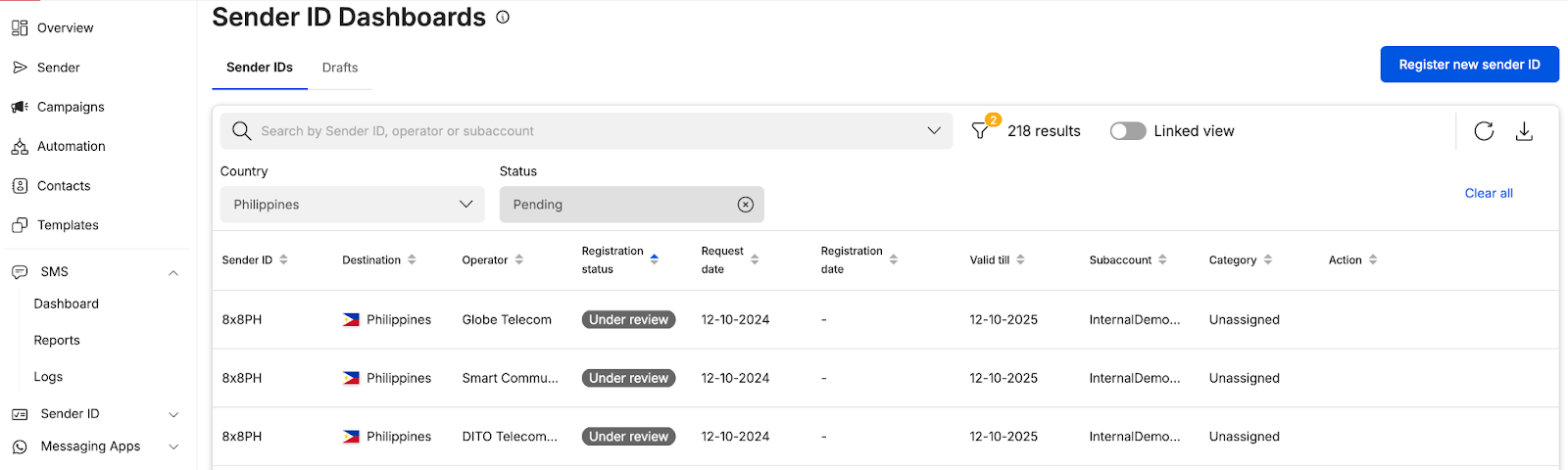
    Sender ID Registration Submission and Sender ID Dashboard

    • User will see the sender ID as under review which means that our back-end system is reviewing your Sender ID registration request and if required, manual checks may be carried out that may lengthen the review process

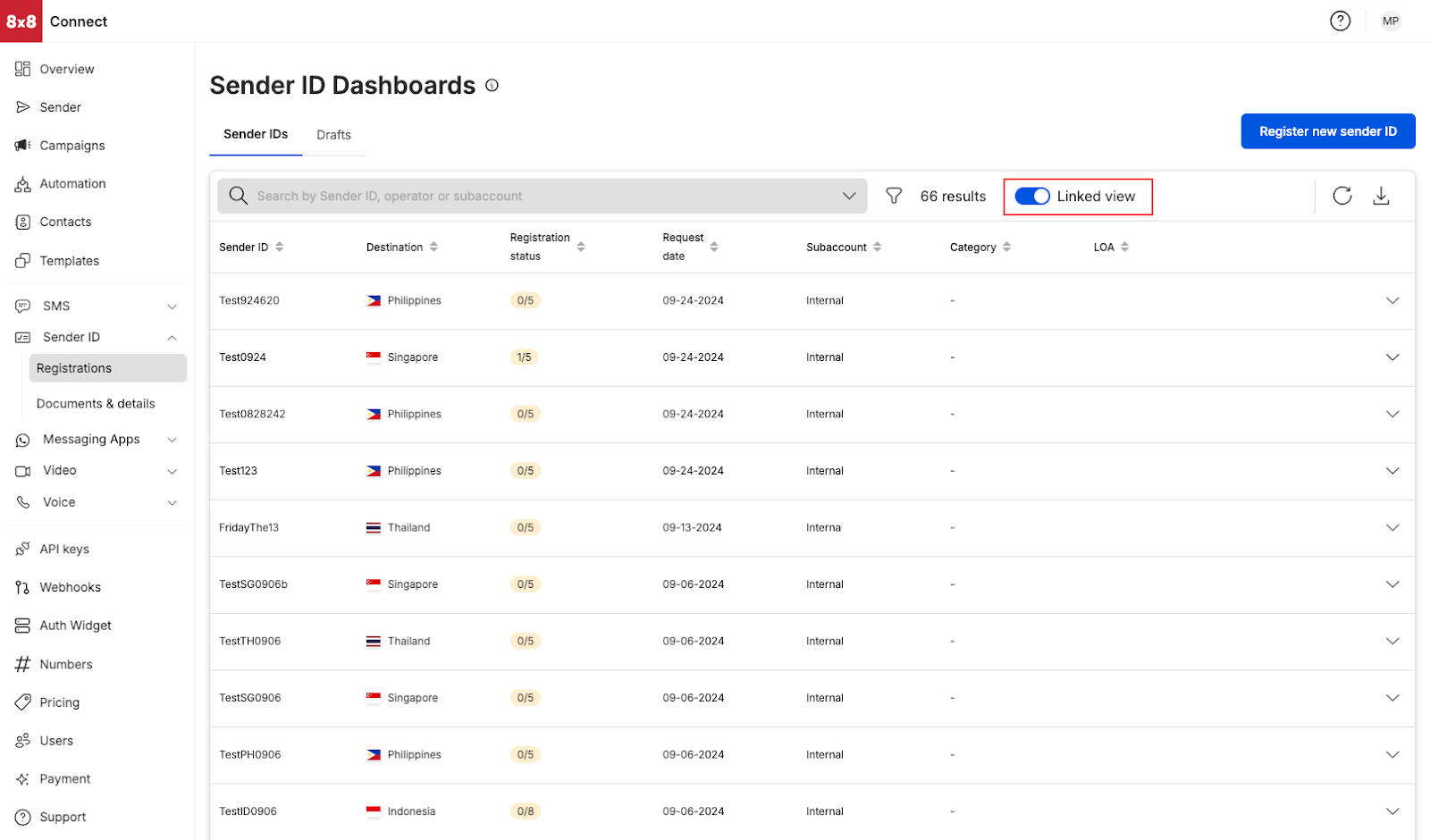
    Linked View of Submitted Sender ID RegistrationsLinked View of Submitted Sender ID Registrations

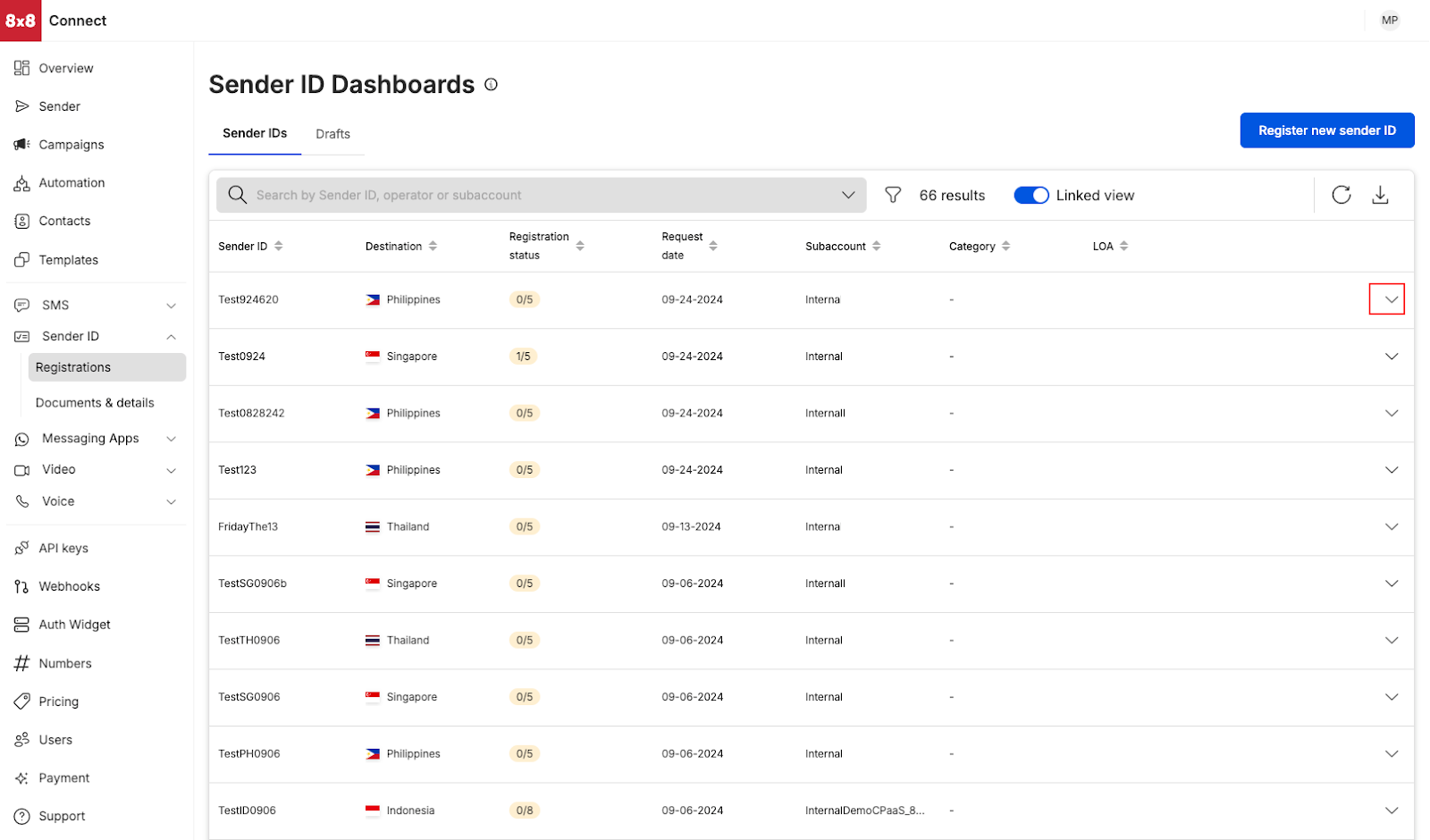
    Unlinked View of submitted Sender ID registrationsUnlinked View of submitted Sender ID registrations

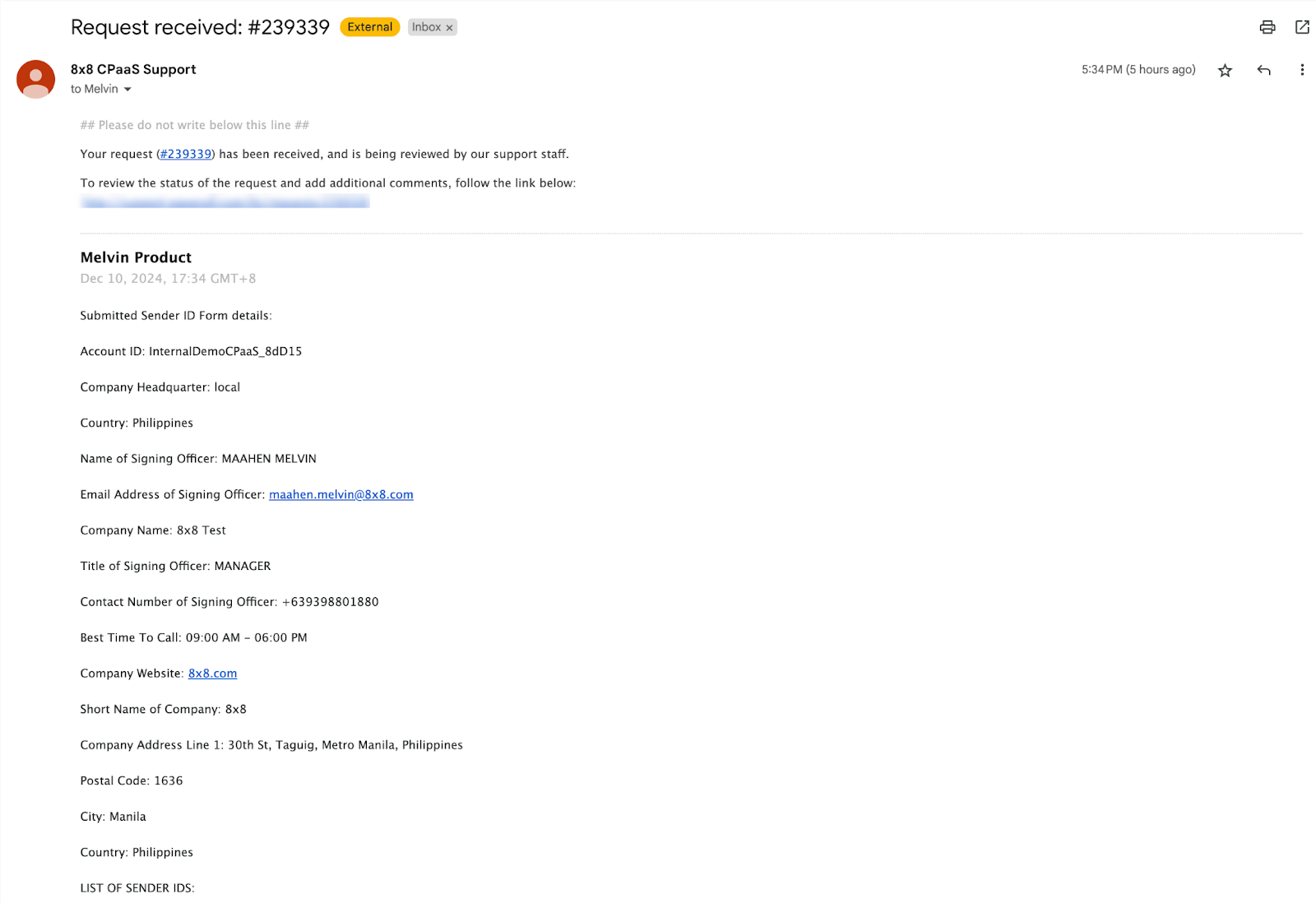
    Support Ticket

    • Email Notification that Sender ID registration has been submitted and a ticket will be assigned

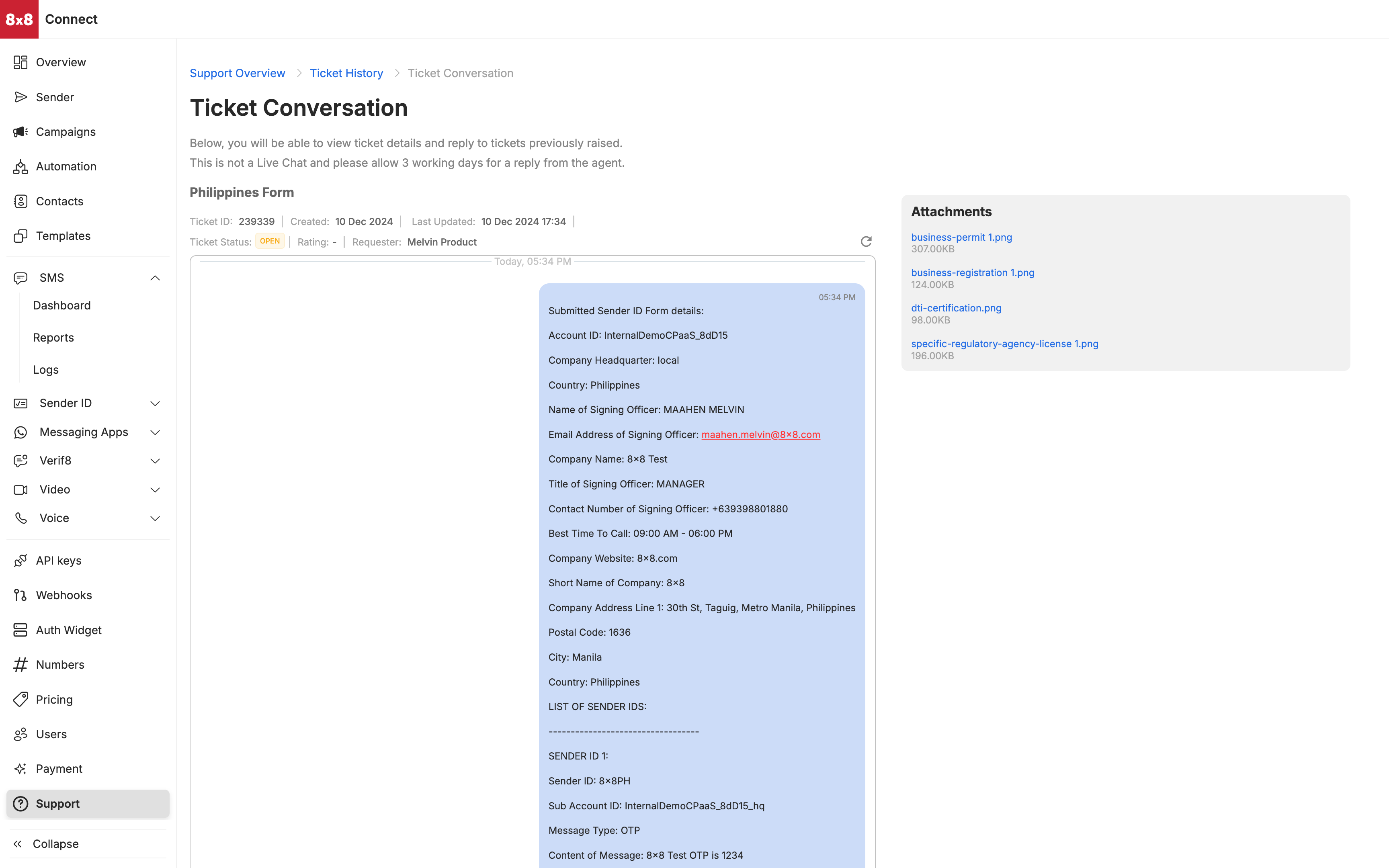
    image

    • Alternatively you can view the ticket via our support portal on 8x8 connect, https://connect.8x8.com/support/tickets

    image


    Source: https://developer.8x8.com/connect/docs/submitter-sender-id-registrations · 8x8 CPaaS Developer Docs. Synced for support deflection.

  • Signing LOA

    Signing LOA

    LOA Signing

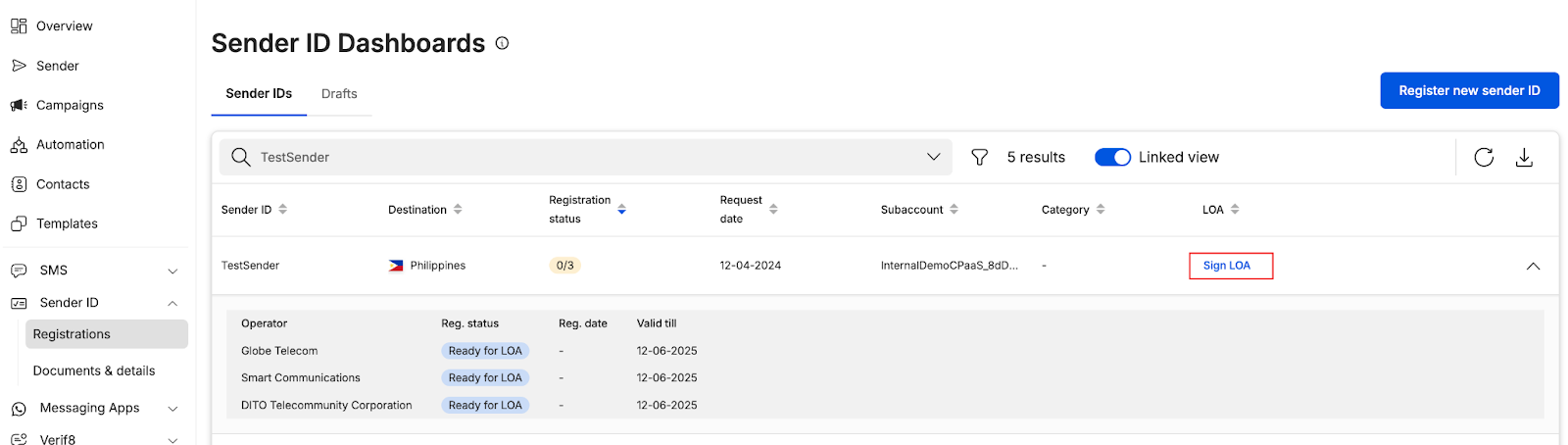
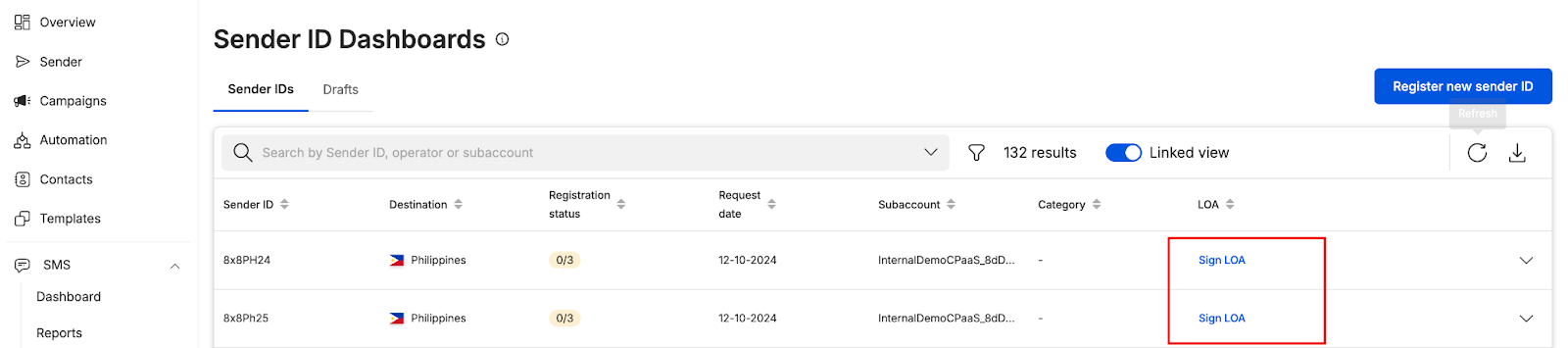
    • An email would be sent to your email address informing you that your ticket has been updated and that your LOA is ready for Signing
    • View your LOA submission that is ready for signing by accessing your Sender ID dashboard - https://connect.8x8.com/messaging/sender-id/registration
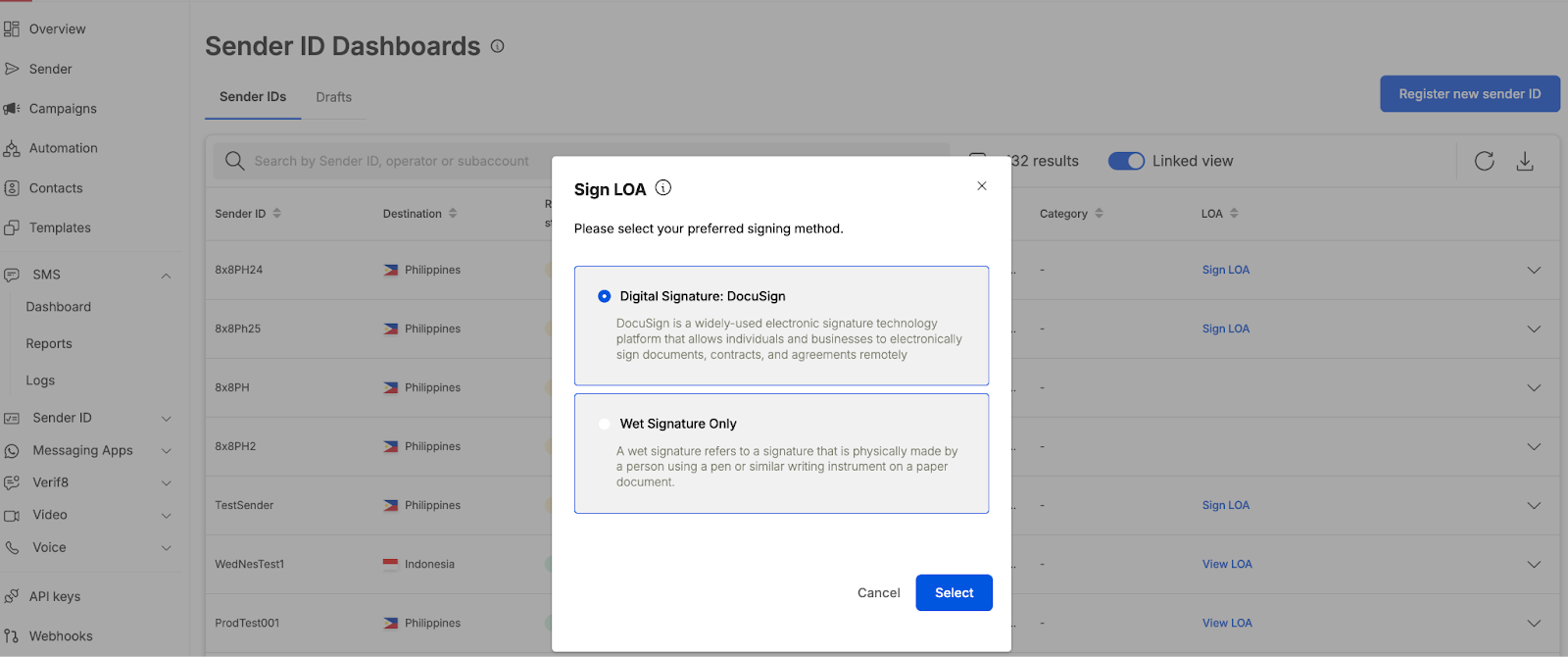
    • Click on Sign LOA to trigger the signing process

    image image

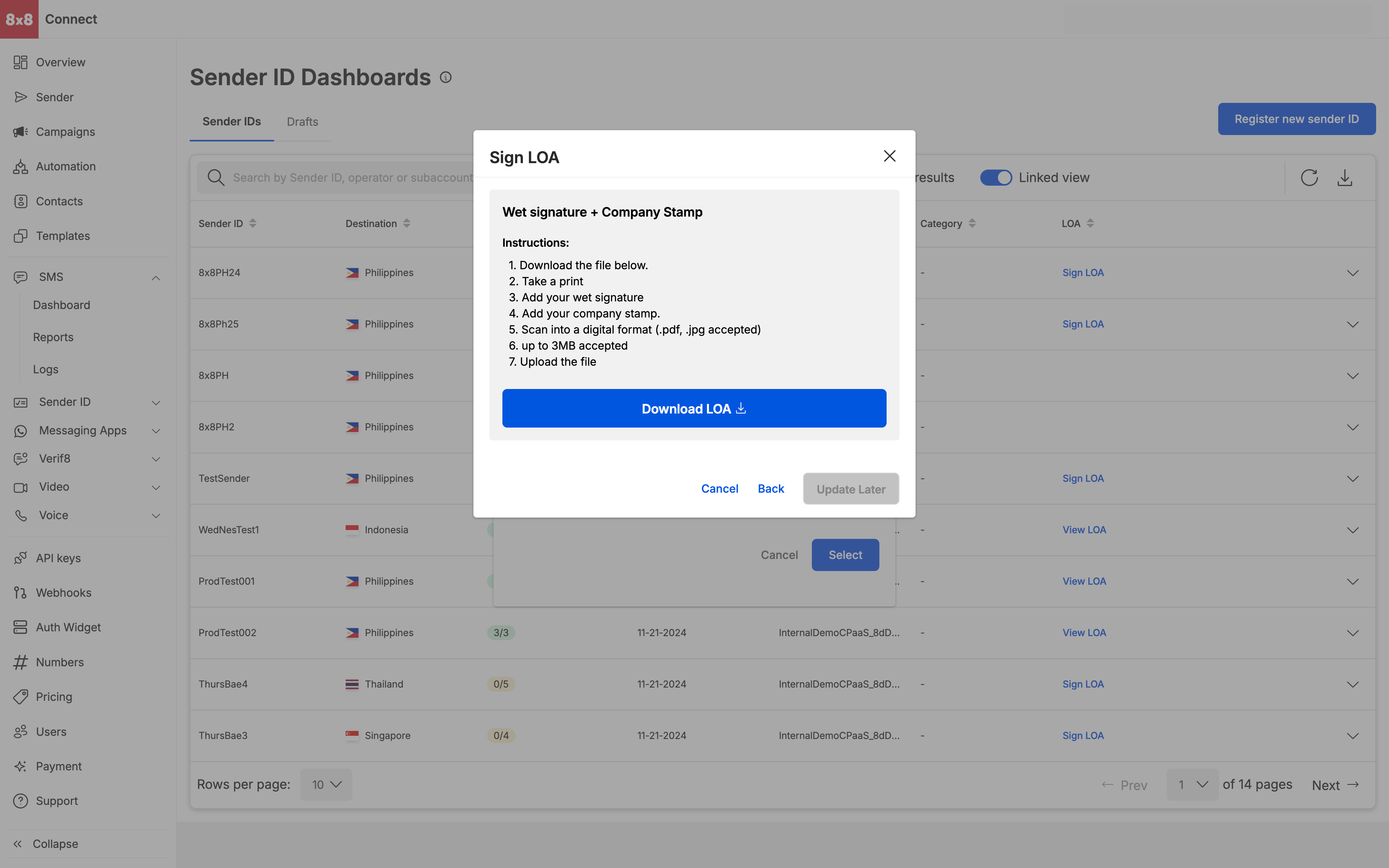
    • User has an option to sign via Docusign(where applicable) and Wet Signature (requires user to download the file, sign and upload it back

    image

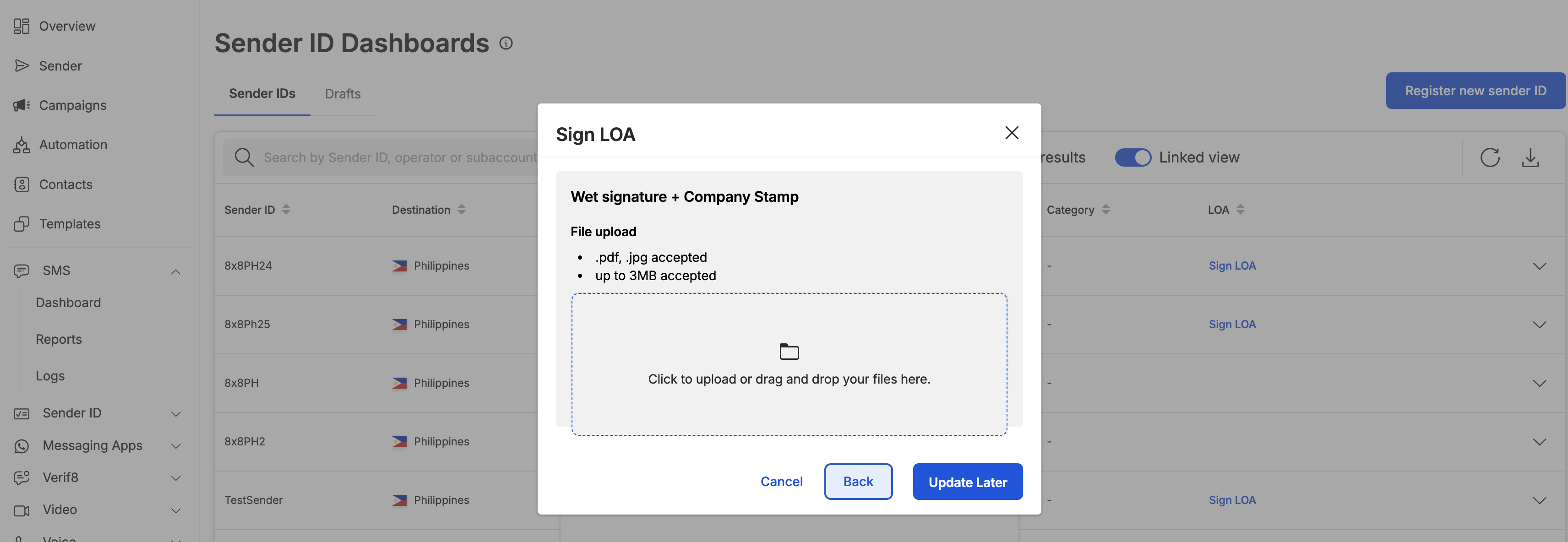
    • Wet Signature requires user to download and sign, an uploader will be seen once the user downloads the LOA

    image image


    Source: https://developer.8x8.com/connect/docs/signing-loa · 8x8 CPaaS Developer Docs. Synced for support deflection.

  • Dashboard View

    Dashboard View

    Linked View

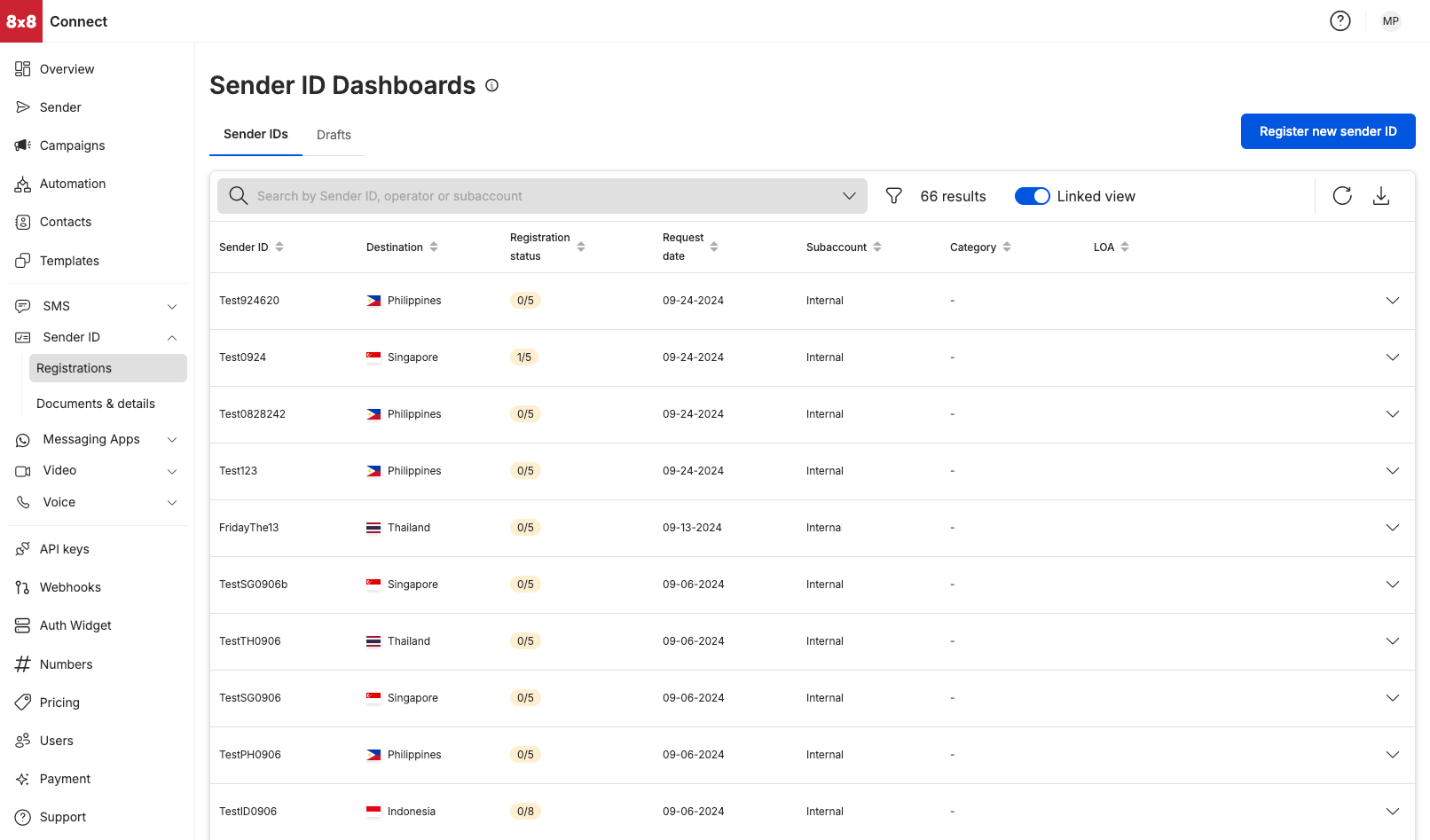
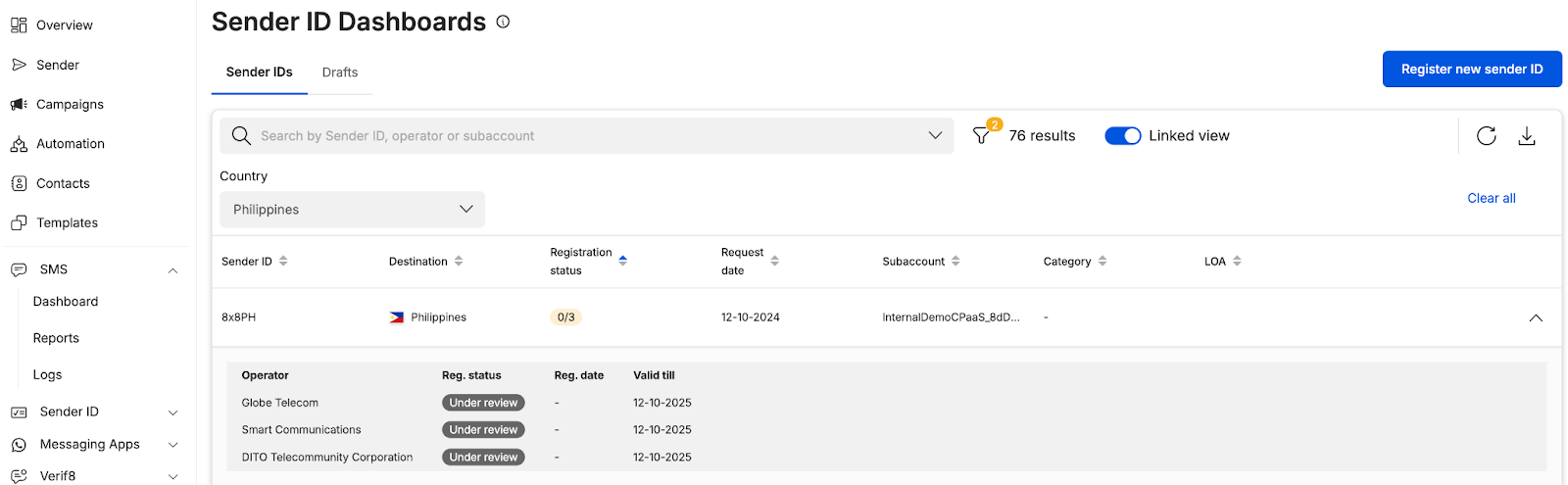
    By default, Sender ID Dashboard presents a “Linked View” where we display the Sender ID registration by country (destination country that the sender ID wanted to be registered towards)

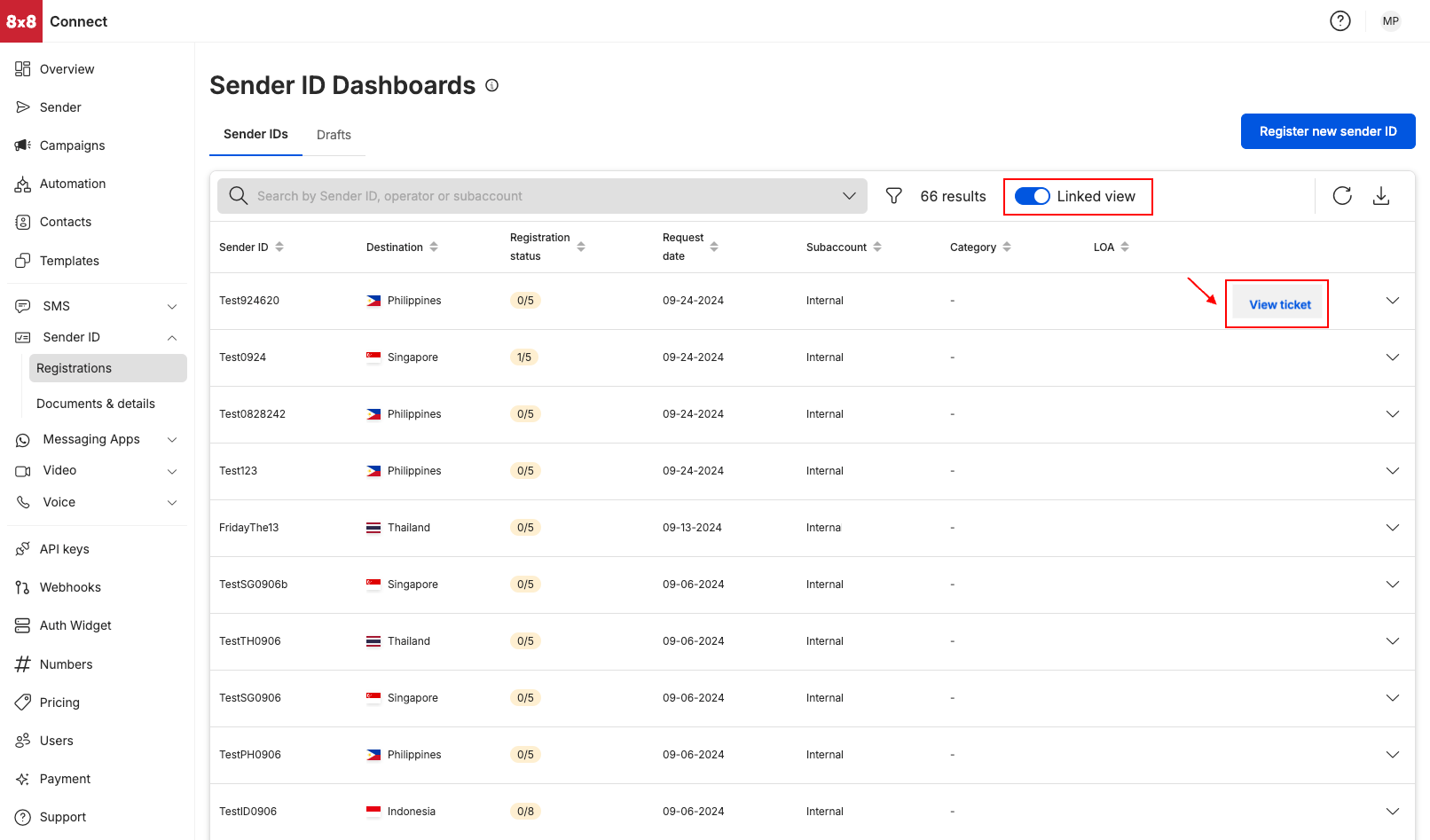
    image Ticket View

    Hovering over the column next to LOA would display “View ticket” which would allow accessing the support ticket that is associated with the particular Sender ID registration.

    View Ticket Expanded Link View

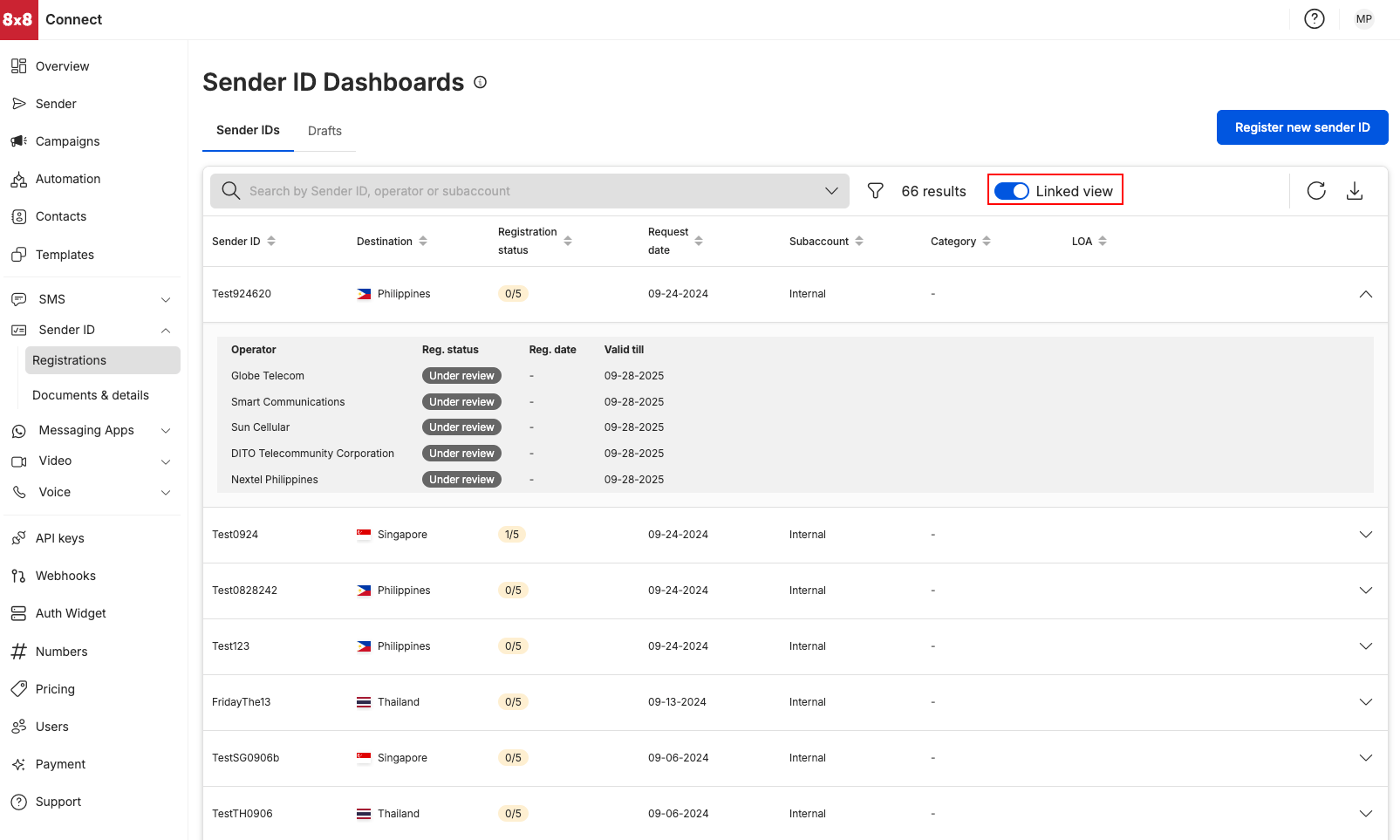
    Click on the arrow on the right side of the specific sender ID registration (as highlighted by the box in red). This allows user to track registration by mobile operator

    expanded view Shows the registration status by a country’s operator. Track registration at the operator level

    Expanded Link View


    Source: https://developer.8x8.com/connect/docs/sender-id-dashboard-view · 8x8 CPaaS Developer Docs. Synced for support deflection.

  • Sender ID Self Registration Module

    Sender ID Self Registration Module

    • Sender ID Self Registration Module allows user to register their Alphanumeric Sender ID which is critical for sending of SMS
    • First release of this Sender ID registration Service is open for Sender ID registration towards:
      • Indonesia (International entity*)
      • Philippines (Local and International business entity)
      • Singapore
      • Thailand
    • Submit your Sender ID registrations and generate your Letter of Agreement in an automated manner

    Watch the demo here for a walkthrough on the Sender ID Self Registration Module.


    *Entity refers to how Mobile operators classify a company. Most often companies that have a headquarters in the destination. However this is a high level guideline and is subject to change.


    Source: https://developer.8x8.com/connect/docs/sender-id-self-registration-module · 8x8 CPaaS Developer Docs. Synced for support deflection.

  • Sender ID Dashboard

    Sender ID Dashboard

    Finding your Sender ID Dashboard

    • Select Registrations under the Sender ID module on your left hand side menu
    • Alternatively, you can access the Sender ID Dashboard via URL: https://connect.8x8.com/messaging/sender-id

    Sender IDs Tab

    View Sender ID registration by:

    • Sender ID (name of sender ID that had been chosen to be registered)
    • Country (destination where the sender ID needed to be registered at)
    • Subaccount (the subaccount chosen for the Sender ID registration, this would most often be a subaccount that has the SMS product enabled)

    Sorting filters

    • Sender ID (sort in ascending order [a-z] or in descending order [z-a] of the Sender ID name)
    • Destination (sort in ascending order [a-z] or in descending order [z-a] of the destination name)
    • Registration Status (sort by the number of operators in the registration status)
    • Request Date sort in ascending order [earliest date - latest date] or in descending order [latest date - earlier date]
    • Category (sort in ascending order [a-z] or in descending order [z-a] of the category name)

    LOA (Sort by the registration status of the LOA)

    Sender ID Dashboard


    Source: https://developer.8x8.com/connect/docs/sender-id-dashboard · 8x8 CPaaS Developer Docs. Synced for support deflection.

  • Registration Module

    Registration Module

    Sender ID Registration

    • Select Registration under the Sender ID module on your left hand side menu
    • Alternatively you can access the Sender ID Dashboard via URL: https://connect.8x8.com/messaging/sender-id/registration
    • Sender ID registration is split into 4 major steps before a submission is made
      • Details - The user selects the country (currently 4 countries are offered - Indonesia, Philippines) and Headquarters (international or local). Users can select a company or add a company.
      • Documents—The user adds documents specific to the country and entity selected. If the user has added the company and documents via the Documents and Details module, the documents will be attached.
      • Sender ID details - The user can add the sender ID required (multiple Sender IDs are supported)
      • Review - The user can review the details before submitting the Sender ID registration.

    Source: https://developer.8x8.com/connect/docs/registration-module · 8x8 CPaaS Developer Docs. Synced for support deflection.

  • Agent Registration and Launch

    Agent Registration and Launch

    Launching an RCS agent requires coordination between your brand, 8x8, Google, and mobile carriers. This guide outlines the end-to-end process, from preparing your brand assets to securing carrier approval for your live agent.

    1. Preparation & Brand Profiling

    Before submitting your RCS Agent Request Form, gather the following assets. Missing or incorrect formats are the most common cause of verification delays.

    A. Brand Identity Assets

    These define how your agent appears in the customer's native messaging app on Android and iOS.

    Agent Name (Display Name): The verified name customers will see (e.g., "Your Brand Support").

    • Constraint: Maximum 40 characters.

    Brand Color: A HEX color code (e.g., #E91B0C) used for buttons and interactive elements.

    • Requirement: Must have a 4.5:1 contrast ratio against white text. Use a contrast checker to verify this.

    Logo: The avatar displayed next to your messages.

    • Dimensions: 224x224 px (Recommended).
    • File Size: Maximum 50 KB.
    • Format: JPG or PNG.
    • Note: This renders as a circle. Ensure your icon is centered with padding so edges aren't cut off.

    Hero Image: The banner displayed at the top of your agent's "Info & Options" page.

    • Dimensions: 1440x448 px (Aspect ratio 3.2:1).
    • File Size: Maximum 220 KB.
    • Format: JPG or PNG.
    • Note: Avoid transparent backgrounds; they may display poorly in Dark Mode.

    B. Legal & Compliance

    Public links are required to verify business legitimacy.

    • Privacy Policy URL: A valid, publicly accessible link.
    • Terms of Service URL: A valid, publicly accessible link.
    • Contact Information: A public email and phone number for end-user support.

    C. Use Case Definition

    Define your agent's primary function to ensure correct billing and approval.

    Use Case Types:

    • Transactional: Order receipts, boarding passes, payment alerts.
    • Promotional: Marketing offers, coupons, sales alerts.
    • OTP: One-time passwords.

    2. Integration & Internal Testing

    Once 8x8 creates your agent profile, you must test it on real devices before requesting a public launch.

    Supported Devices:

    • Android: Most devices running Android 5.0 or later.
    • iOS: Most iPhones running iOS 18 or higher.

    The "Handshake" Process (Whitelisting)

    RCS agents do not "just work" on any phone during the testing phase. You must strictly follow this sequence:

    1. Request Whitelisting: Provide the phone numbers of your test devices (in E.164 format, e.g., +14155552671) to your 8x8 account manager or support team to have them added to the authorized test list.

    2. Check for Invite: Once added, your device will receive a native system notification (not an SMS) asking: "Make [Agent Name] a tester?".

      • Action Required: You must tap "Accept" on this notification.
      • Troubleshooting: If you skip this step, API calls will fail with a 403 PERMISSION_DENIED or "User not reachable" error because the user has not consented to receive messages from an unverified agent.

    3. Carrier Approval & Launch Requirements

    Requirements vary by region. Select your target market below.

    Global (excluding US)

    Agents in most regions outside the US follow a streamlined path — no program brief and no carrier pre-approval are required. The STOP/HELP/START compliance rules still apply.

    Step Description Notes
    1. Submit Agent Request Submit to initiate agent creation. Unlocks a trial sandbox immediately so you can begin testing while approvals are processed. Submit Agent Request Form
    2. Brand Vetting Your brand is verified on the carrier side. Run in parallel with Step 1 to avoid delays. Typically 5–10 business days. Submit Brand Vetting Form
    3. Carrier Demo Video A screen recording demonstrating the full user journey. Must show: opt-in/welcome flow, at least one transactional message, a promotional message (if multi-purpose), and the STOP interaction.
    4. Testing & Launch Whitelist test device numbers and confirm RCS is enabled on test devices. 8x8 will guide you through this step.
    tip

    You can start testing immediately after submitting the Agent Request Form — no need to wait for carrier approval.

    United States

    For the US market, additional documentation and functionality proofs are required.

    A. Required Documentation

    You will need to submit the following to initiate the launch process:

    • Agent Request Form: To initiate setup.
    • RCS Program Brief: Detailed overview of campaign logic/goals.
    • Brand Vetting Form: For brand verification.
    • T-Mobile Pre-approval File: (USA Only) Specific requirement for the T-Mobile network.

    B. Functional Requirements

    Your agent must automatically respond to standard keywords with exact specific phrasing. Ensure your logic handles these commands before submission:

    START (Welcome Message)

    • Requirement: Must confirm opt-in, state message frequency, mention data rates, and provide instructions for Help/Stop.
    • Required Output: "Welcome! You are opted in. Msg freq varies. Msg&data rates may apply. Text HELP for help, STOP to cancel."

    HELP

    • Requirement: Must provide specific customer support contact information (phone or email).
    • Required Output: "For support, please call 1-866-879-8647."

    STOP

    • Requirement: Must confirm the opt-out and state that no further messages will be sent.
    • Required Output: "You have successfully unsubscribed. You will no longer receive messages from this agent. Reply START to resubscribe."

    C. Video Verification

    For approval on some carriers, you must provide a screen recording of your agent.

    Video Requirement: The video must demonstrate the full user journey:

    • Opt-In: How the user agrees to receive messages (e.g., web form, SMS keyword).
    • Content: The actual rich messages the user receives.
    • STOP Flow: The user sending "STOP" and receiving the compliant opt-out message defined above.

    4. Go-Live & Monitoring

    Once approved by carriers:

    • Activation: 8x8 will activate your agent for live traffic.
    • Monitoring: Regularly review delivery rates and ensure ongoing compliance with content standards.
    • Maintenance: If you change your use case (e.g., adding promotional messages to a transactional agent), you may need to re-submit for approval.
    Source: https://developer.8x8.com/connect/docs/rcs/registration · 8x8 CPaaS Developer Docs. Synced for support deflection.

  • Download Messaging Apps Logs

    Download Messaging Apps Logs

    Messaging Apps Reporting API allows you to retrieve your Messaging Apps activity with individual logs for each message sent/received for a given sub-account.

    Flow

    1. Start the reporting job execution and get the job identifier
    2. Request the job status using job identifier
    3. Download logs once the job is finished.

    👍

    Logs can be retrieved as far as 6 months in the past from the current date.


    Source: https://developer.8x8.com/connect/docs/download-chatapps-logs · 8x8 CPaaS Developer Docs. Synced for support deflection.

  • Adding Sender ID Details

    Adding Sender ID Details

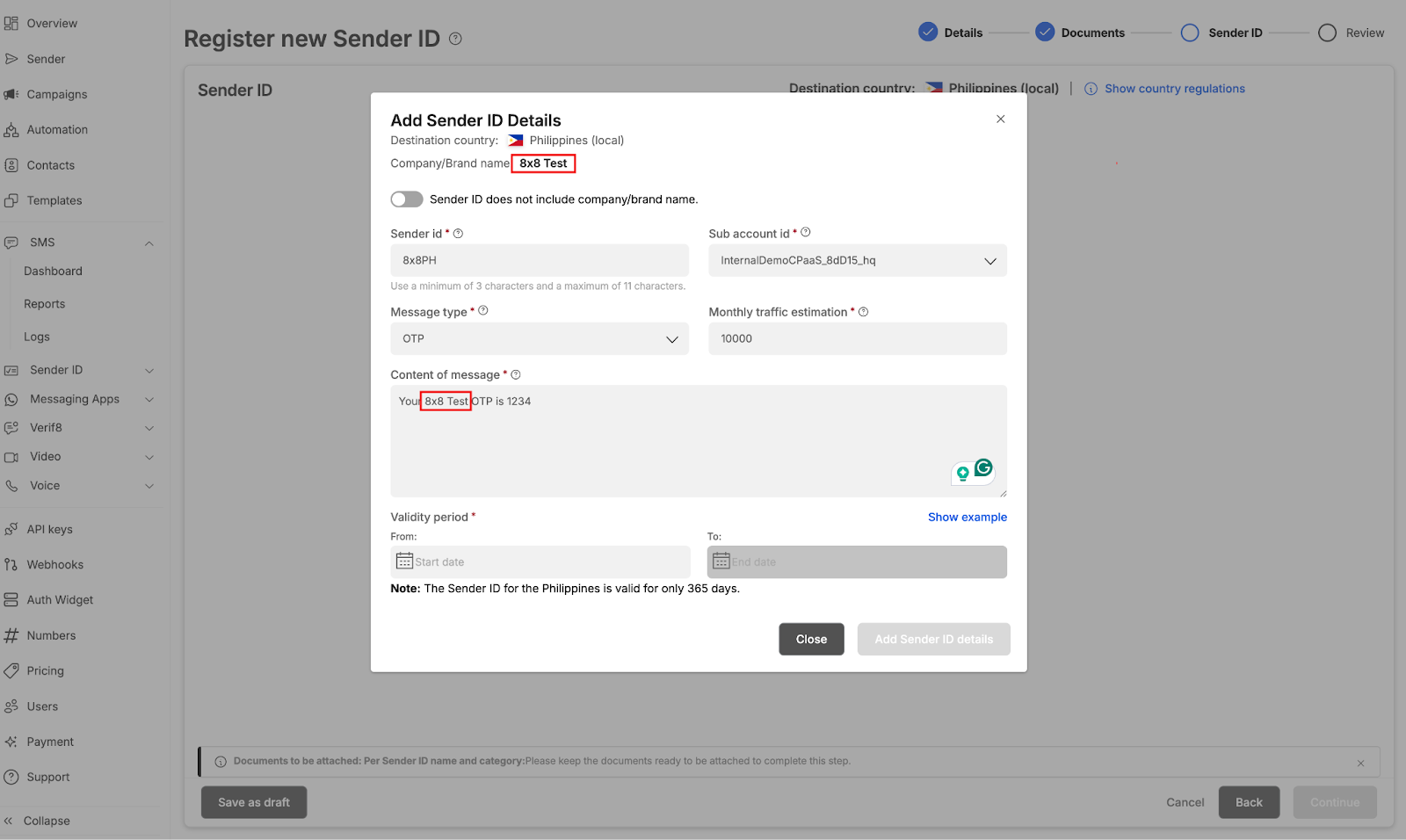
    Adding Sender ID details

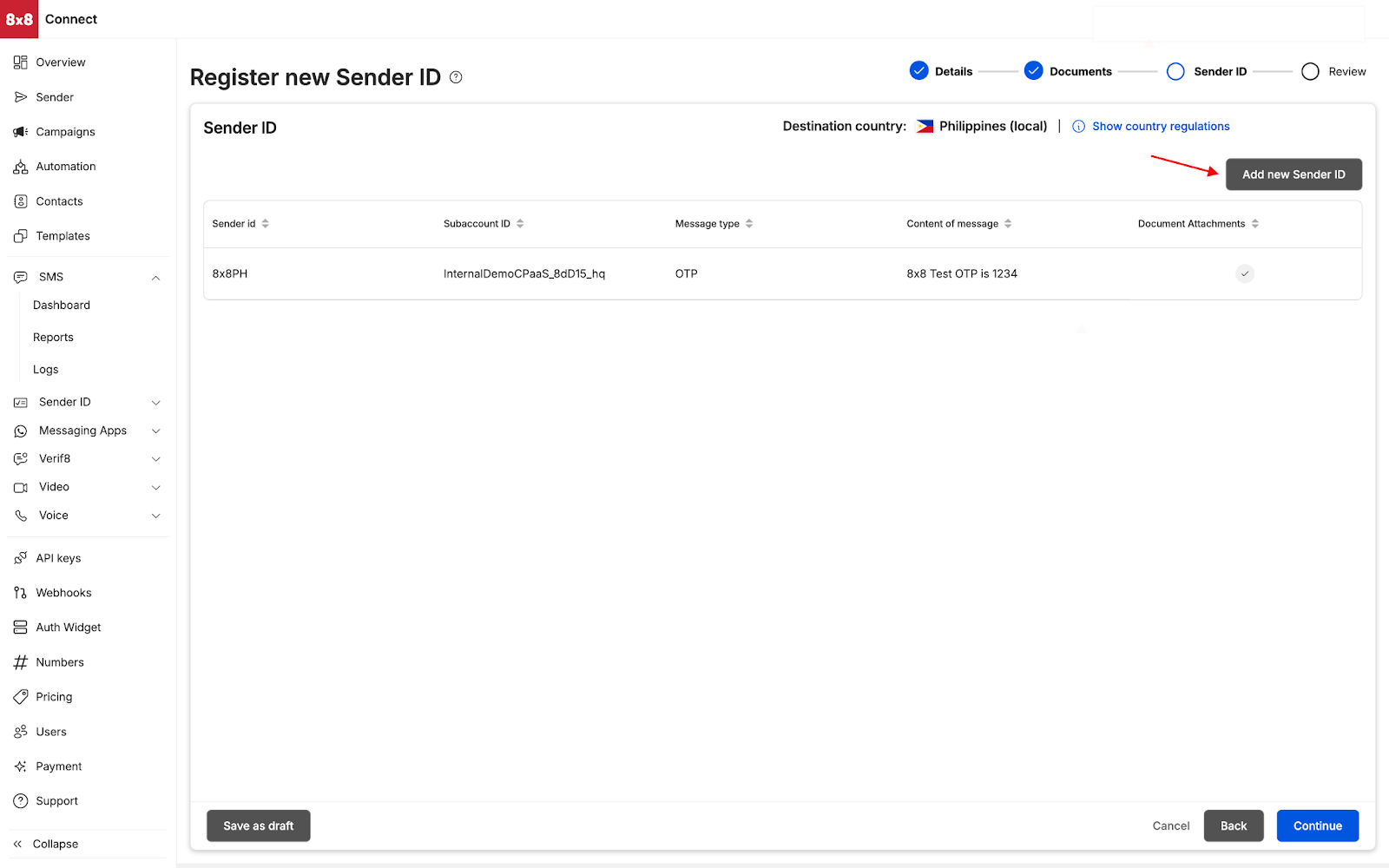
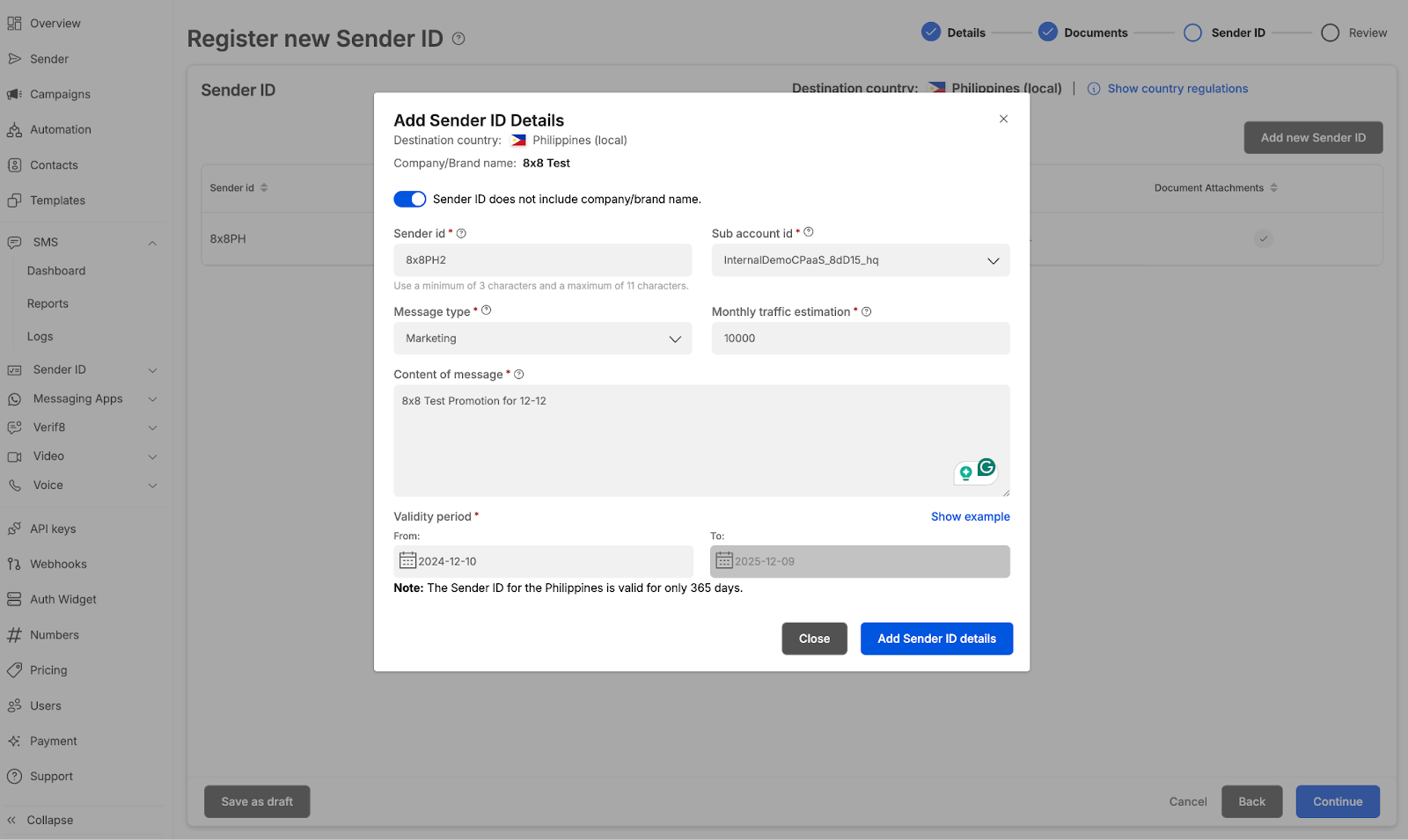
    • Adding of Sender ID details allows users to define the Sender ID name, the subaccount that they wish to register the Sender ID towards

    image

    • Our self service allows you to upload multiple sender IDs

    image image

    Sender ID and Brand Name alignment (only for selected countries)

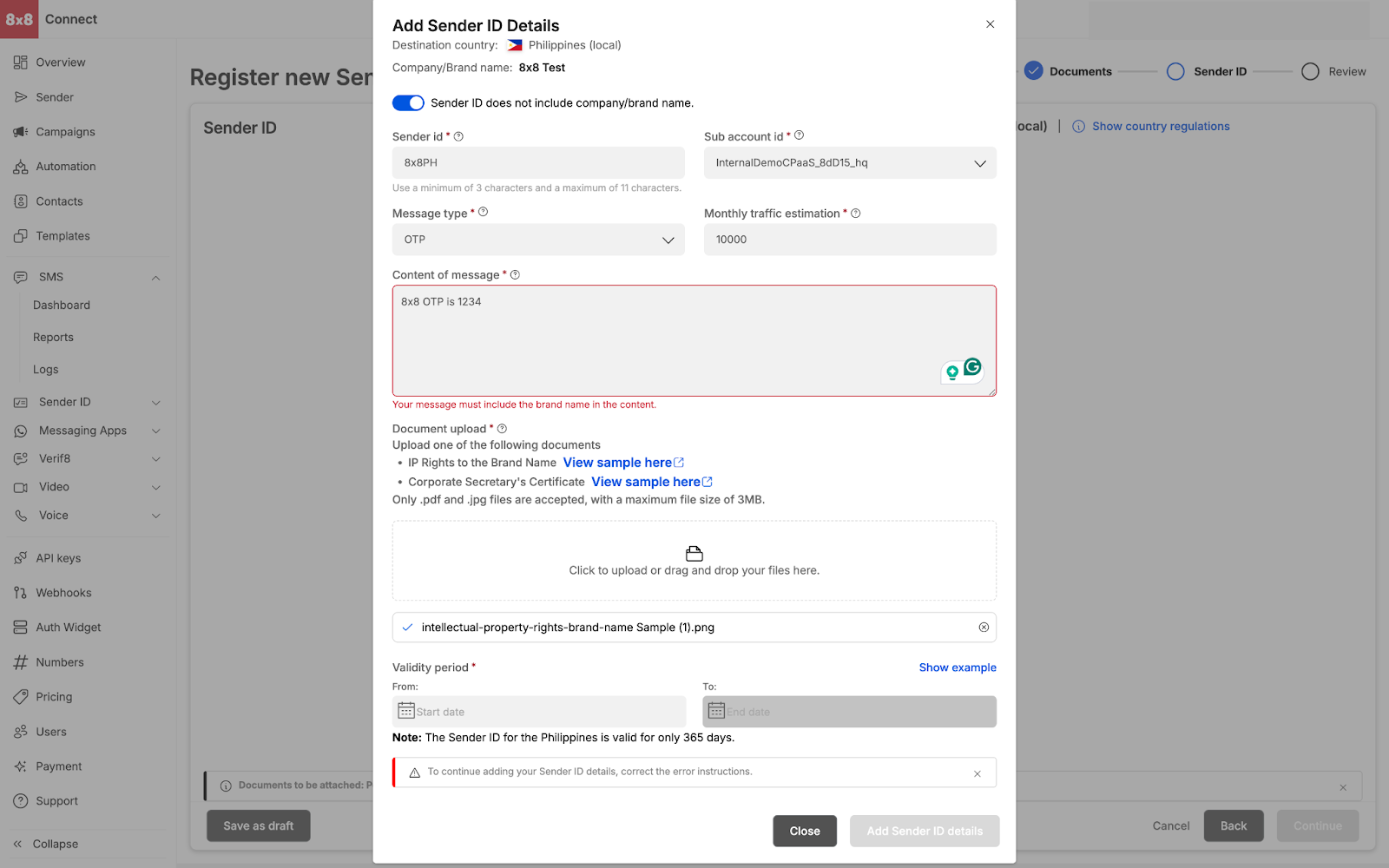
    • Adding of Sender ID details, users need to be mindful that for selected countries the brand name (company name) needs to be included in the message content (ie Philippines) and Sender ID needs to linked to the company name.

    image

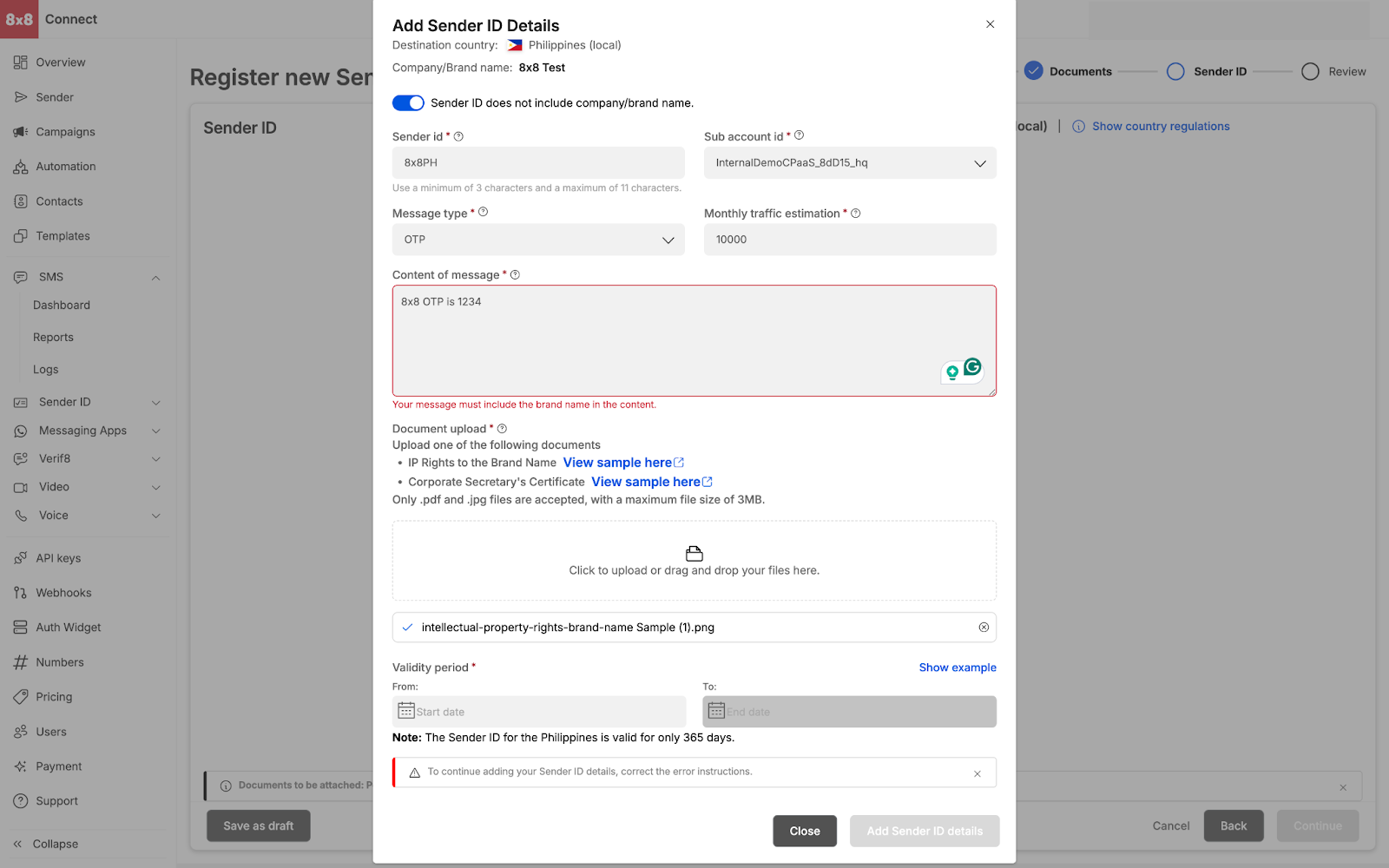
    • If brands are trying to register a SenderID that is not linked to their company/brand name

    then the user needs to toggle on the `Sender ID does not include company/brand name

    user needs to upload one of the following documents for the Philippines

    • IP rights to the Brand Name
    • Corporate Secretary’s Certificate

    image


    Source: https://developer.8x8.com/connect/docs/adding-sender-id-details · 8x8 CPaaS Developer Docs. Synced for support deflection.

8x8 Logo
  • 8x8 YouTube
  • 8x8 Facebook
  • 8x8 Twitter
  • 8x8 Blog
  • 8x8 LinkedIn
  • 8x8 Instagram

Company

  • About Us
  • Careers
  • Contact Us

Our Products

  • SMS
  • Chat Apps
  • Video Interaction
  • Voice
  • Pricing

Media

  • Customer Success Stories
  • News
  • Events
  • Blog

Resources

  • Documentation
  • Service Status
  • Ask for support
Privacy Policy | Terms of Use | Acceptable Use Policy
© 2025 8x8, Inc. All rights reserved.