See Details
Logo CPaaS Help Center Developer Premium Support Status
Sign in Contact Support
  1. 8x8 CPaaS Help Center
  2. Voice & Number Masking

Voice & Number Masking

  • Queue Management

    Queue Management

    The Queue module controls how incoming conversations are distributed to available agents based on routing rules, priority, and agent availability.

    Queue Overview

    Queue List View

    Queue Management

    Each queue contains the following configurations:

    • Queue Name: Unique identifier for the queue
    • Queue Type: Defines the queue's purpose and usage
    • Assigned Channels: Communication channels linked to the queue
    • Skillsets: Required agent capabilities for handling conversations
    • Assigned Agents: Agents allocated to handle conversations in the queue
    • Routing Priority: Determines how conversations are distributed among agents
    • SLA Settings: Defines response time targets for conversations

    Queue Types

    Type Purpose Routing Logic
    General Default queue for handling incoming conversations Conversations are routed to available agents within the queue
    Non-General Queue configured for specific channels, skillsets, or use cases Conversations are routed based on configured channels and skillset matching
    Outbound Used for agent-initiated conversations Conversations are initiated by agents and assigned directly

    Creating Queues

    Managers can create and configure queues to manage conversation routing:

    1. Navigate to Queues → Add Queue
    2. Enter queue details:
      • Queue Name: Unique identifier for the queue
      • Queue Type: Select the queue type (e.g., General, Non-General, Outbound)
      • Assigned Channels: Select communication channels for the queue (e.g., WhatsApp, Email)
      • Skillsets: Define required skillsets for agents handling this queue
    3. Configure queue settings:
      • Assigned Agents
      • Routing Priority: Define agent priority within the queue (used for distribution)
      • SLA Settings: Configure response time targets (Assigned, Read, Responded, Closed)
    4. Save configuration

    Routing Methods

    Round-Robin

    Distributes conversations sequentially to agents in rotation.

    Best For: Balanced workload distribution, general inquiries

    Pick-Me

    New conversations are placed in the Unassigned queue. Agents manually select and claim conversations from the queue.

    Best For: Flexible conversation handling, Teams that prefer manual assignment, Low to moderate conversation volume

    Priority Management

    Queue Priority

    Queues can be configured with agent priority levels to control how conversations are distributed.

    • Priority levels range from 1 (highest) to 5 (lowest)
    • Agents with higher priority receive conversations first
    • Agents with the same priority level receive conversations in a round-robin approach

    Assignment Logic

    • The system evaluates agents starting from Priority 1 to Priority 5
    • Only eligible agents are considered for assignment
    • If no eligible agents are available, the conversation remains Unassigned

    Agent Eligibility

    To receive a conversation, an agent must:

    • Be in Available status
    • Not exceed the maximum concurrent conversation limit

    SLA (Service Level Agreement)

    Configuring SLAs

    SLA defines the expected response time for handling conversations within a queue.

    The following SLA parameters can be configured:

    • Assigned: Time taken for a conversation to be assigned to an agent
    • Read: Time taken for the agent to read the conversation
    • Responded: Time taken for the agent to respond
    • Closed: Total time from assignment to closure

    The Closed SLA must be equal to or greater than the total of the other SLA durations.

    SLA Monitoring

    SLA performance is tracked within the conversation interface and reports.

    • SLA timers are displayed during conversation handling
    • Indicators show whether response time is within SLA limits
    • SLA data is available in reporting modules

    SLA Status

    SLA status is visually indicated using color indicators:

    • Green: Within SLA
    • Yellow: Approaching SLA limit
    • Red: SLA exceeded

    Agent Assignment

    Manual Assignment

    Supervisors can manually route conversations:

    1. View queue list
    2. Select waiting conversation
    3. Click "Assign to Agent"
    4. Choose specific agent
    5. Conversation immediately appears in agent's chat panel

    Bulk Assignment

    Assign multiple conversations simultaneously:

    1. Filter queue by criteria (channel, tag, time range)
    2. Select multiple conversations
    3. Choose "Bulk Assign"
    4. Select destination agents or queue
    5. Confirm assignment

    Queue Transfers

    Automatic Overflow

    Configure overflow routing:

    1. Set maximum wait time threshold (e.g., 180 seconds)
    2. Designate backup queue
    3. When threshold exceeded, conversation auto-transfers
    4. Transfer logged in conversation history

    Manual Queue Transfer

    Agents can transfer conversations between queues:

    1. Open conversation
    2. Select "Transfer to Queue"
    3. Choose destination queue
    4. Add transfer reason (optional)
    5. Conversation re-enters routing logic

    Best Practices

    Queue Design

    • Create queues aligned to business functions (Sales, Support, Billing)
    • Limit to 5-7 queues to avoid agent confusion
    • Use clear, descriptive queue names

    Routing Optimization

    • Set realistic SLA targets based on historical data
    • Use skill-based routing for 20% of inquiries (specialized cases)
    • Configure overflow for high-traffic periods

    Agent Allocation

    • Assign agents to 2-3 queues maximum
    • Balance experienced and new agents across queues
    • Adjust assignments based on real-time demand

    Monitoring

    • Review queue performance daily during ramp-up
    • Adjust routing rules based on SLA trends
    • Investigate frequent queue transfers for process improvements

    Source: https://developer.8x8.com/connect/docs/moobidesk/queue · 8x8 CPaaS Developer Docs. Synced for support deflection.

  • MakeCall

    MakeCall

    This function should be used to connect the first call with another party.

    The following is an example of the JSON response you would need to provide:

    {
    "clientActionId":"IVRCustomId1",
    |"callflow":[
    {
    "action":"makeCall",
    "params":{
    "source":"6512345678",
    "destination":"6587654321",
    }
    }
    |]
    }

    The action should contain the following parameters:

    Name Type Description
    action String makeCall – Action to Connect/Bridge call between two users
    destination String Number of the called party in E.164 format (The second user's number).
    source String Number of the calling party in E.164 format. This should be the Virtual Number allocated to your sub-account
    clientActionId String A custom property that you can use to mark individual actions

    Source: https://developer.8x8.com/connect/docs/makecall · 8x8 CPaaS Developer Docs. Synced for support deflection.

  • IVR - Introduction

    IVR - Introduction

    Overview

    8x8 IVR is built on our programmable voice capabilities. 8x8 Interactive Voice Response Service is an automated telephone system that combines pre-recorded messages or text-to-speech (TTS) technology with a dual-tone multi-frequency (DTMF) interface to provide real-time user interaction over the Public Switched Telephone Network.

    IVR can be used for interactive outbound call outreach and for handling inbound calls to improve the customer experience by providing a self-service method for customers.

    Actions (methods) that can be used in a predefined IVR flow:

    • Say – Plays synthesized speech into the current call using text-to-speech.
    • SayAndCapture – Plays a voice file (or TTS) into the call, then captures the caller’s DTMF input and reports it back via the Voice Call Action (VCA) webhook.
    • makeCall – Initiates an outgoing call to the desired destination. This function should be used to connect the first call with another party.
    • playFile – Downloads the sound/voice file provided and plays it back in the currently active call.
    • Hangup – Disconnects all active calls. This terminates the session and triggers the session summary webhook.

    Main Voice IVR features include:

    • Wide range of languages – use the Voice Profile API to retrieve the full range of voice profiles
    • User input support over DTMF
    • Voice Call Action webhook
    • Dedicated local numbers where applicable
    • Billing per successful call
    • Detailed reports and statistics

    IVR flow

    The diagram below shows a simple inbound IVR flow:

    IVR Diagram for Public Docsedited

    Related Guides

    Getting Started

    • Simple IVR Guide – Build your first IVR menu with step-by-step examples. Perfect for beginners who want to create basic phone menus with DTMF input.

    • Advanced IVR Guide – Learn advanced techniques like nested menus, database integration, and complex call routing logic.

    Technical References

    • Voice Call Action Webhook Guide – Understand how Voice Call Action (VCA) webhooks work across all 8x8 voice products (IVR, Number Masking, Voice Messaging). Learn about webhook payload structure and how to respond dynamically.

    • IVR Call Action Handling – Detailed documentation on handling VCA webhook callbacks specifically for IVR, including payload examples and response structures.

    Setup Guides

    • Webhook Setup Guide for IVR – Configure your webhook endpoints to receive IVR events.

    Prerequisites

    Before you get started, please contact your account manager to ensure that your account has access to this product and that the following points have been managed:

    • You will need a new sub-account ID to enable and set up 8x8’s IVR service.
    • To use our inbound IVR product, you require a Virtual Number that will be allocated to your sub-account by our 8x8 team.
    • You will need to set up and configure an endpoint where the Voice Call Action webhook will be sent. You can use the Webhooks APIs to set up your endpoints. Once that is completed you are ready to use our IVR product and begin building your call flows.

    Related Documentation

    • IVR Guides:

      • Simple IVR
      • Advanced IVR
      • IVR Call Action Handling
      • Webhook Setup Guide for IVR
    • Webhooks:

      • Session Summary (IVR) - Detailed payload reference
      • Voice Call Action Webhook Guide
      • Voice Session Summary Webhook
    • API Reference:

      • Send Callflow
      • Voice API Introduction

    Error Handling

    For error codes that may appear in the Voice Session Summary, see the Voice Error Codes reference. For API response status codes, see Voice Status Codes and Status Messages.

    Support Channels

    • Technical support: support@cpaas.8x8.com
    • Sales inquiries: Contact your account manager or visit cpaas.8x8.com/en/contact-us
    • Support Portal: https://support.cpaas.8x8.com/hc/en-us

    Source: https://developer.8x8.com/connect/docs/ivr-introduction · 8x8 CPaaS Developer Docs. Synced for support deflection.

  • iOS - Integrating the Voice SDK

    iOS - Integrating the Voice SDK

    The following sections describe installation and setup of the Voice SDK:

    • Requirements
    • Create an iOS project
    • Integrate the Voice SDK
    • Enable VoIP capabilities
    • Build and run
    • Push notification setup

    Requirements

    To use the Voice SDK you need:

    • Xcode (14.3.1 or later)
    • Swift (5.8.1 or later)
    • iOS (15.5 or later)
    • Supported architectures (arm64, x86_64)

    Create an iOS project

    To get started, create an iOS project using the following steps:

    1. Open Xcode and click Create a new Xcode project
    2. Select Single View App as the template and click Next
    3. Choose the folder where to store the project and click Create
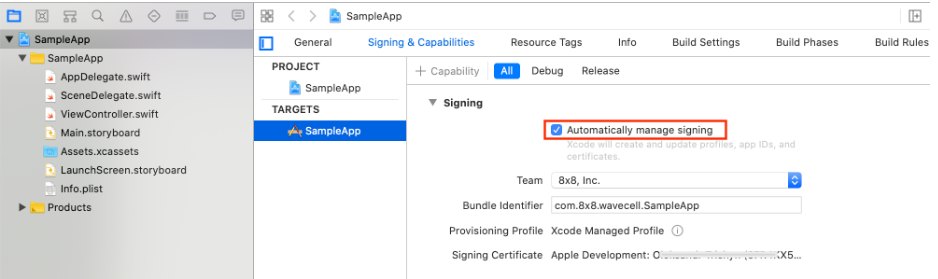
    4. Go to the TARGETS > Project Name > General > Signing menu and select Automatically manage signing
    5. Click Enable Automatic on the displayed pop-up window

    xcode code signing

    Integrate the Voice SDK

    To integrate the Voice SDK:

    1. Go to SDK Releases and download the latest version of the Voice SDK for iOS.
    2. Unzip the downloaded Voice SDK package.

    You should have the following contents from the extracted .zip file:

    sdk package contents

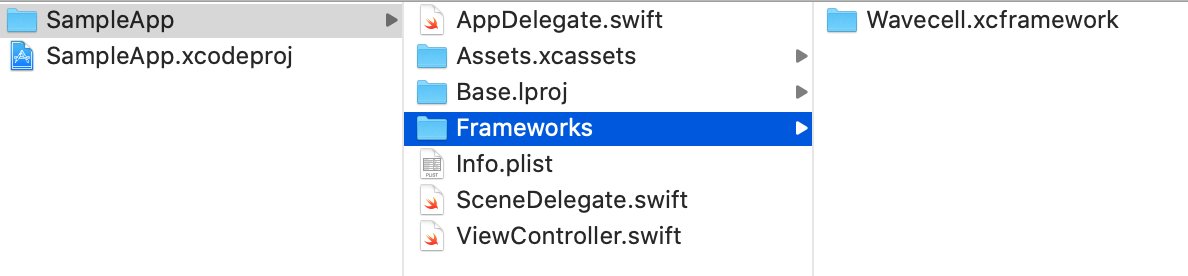
    1. Copy the Wavecell.xcframework bundle to the Frameworks folder as shown:

    copy framework to xcode project

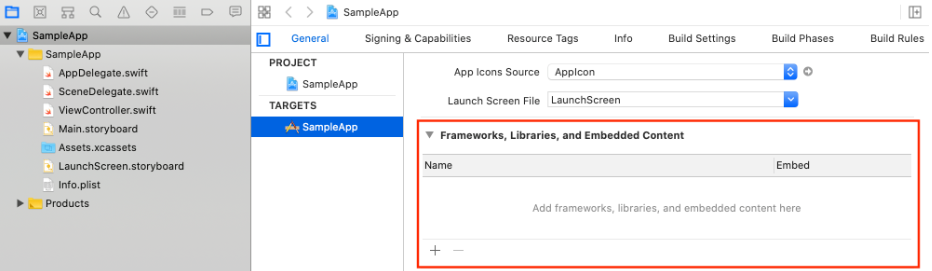
    1. Go to the menu at TARGETS > Project Name > General > Frameworks, Libraries, and Embedded Content:

    embedding framework sdk project

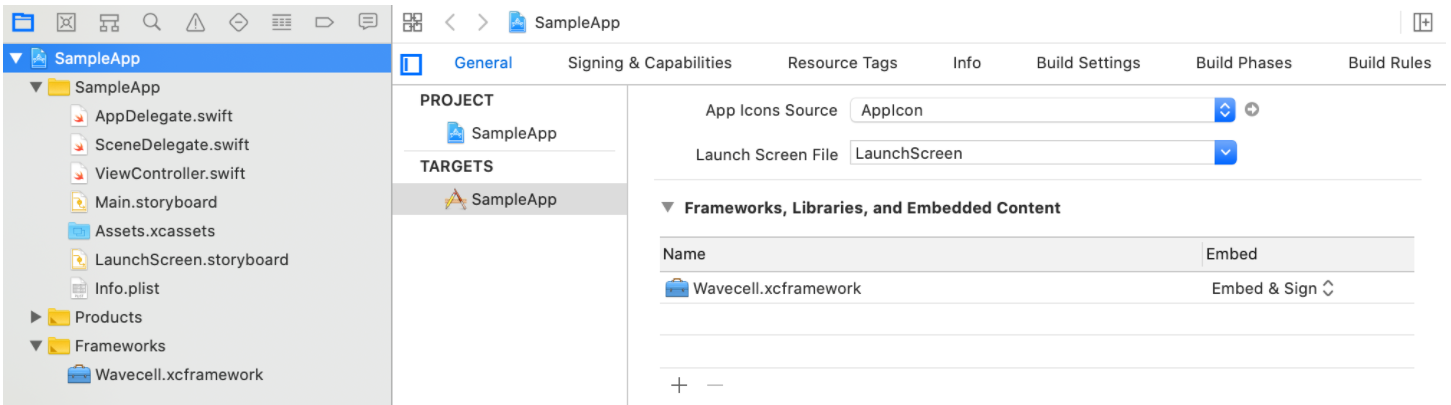
    1. Drag the Wavecell.xcframework bundle from the Frameworks folder into the Frameworks, Libraries, and Embedded Content section.

    embedded framework xcode project

    Enable VoIP capabilities

    To enable VoIP capabilities:

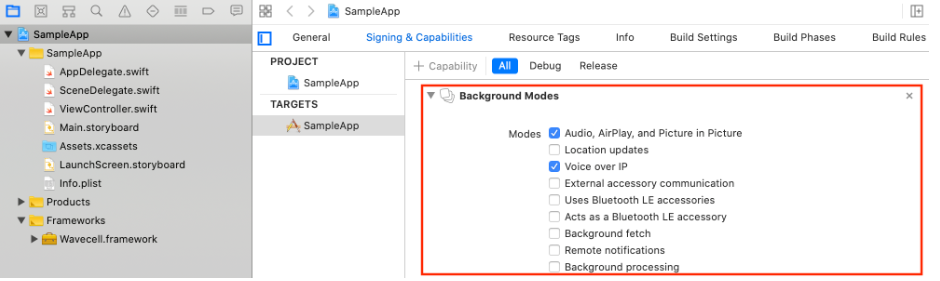
    1. Go to TARGETS > Project Name > Signing & Capabilities and then add Background Modes.

    xcode project capabilities background modes

    You can also enable Audio, AirPlay Voice over IP and other attributes while in this directory.
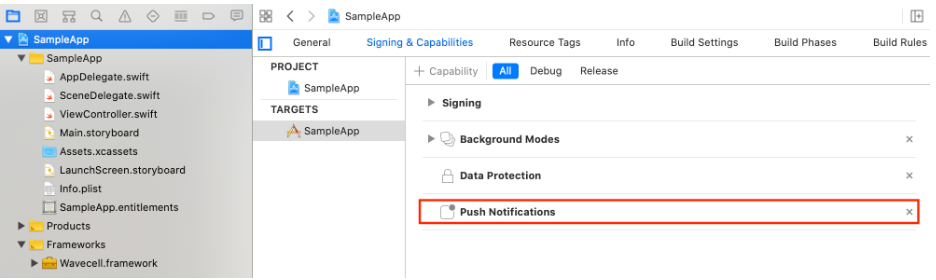
    1. Go to TARGETS > Project Name > Info and add your privacy description for push notification usage.

    xcode project capabilities push notifications

    Note: This step is only required for receiving incoming calls.
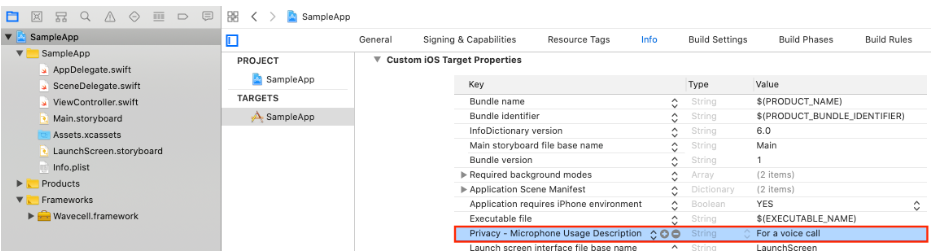
    1. Go to TARGETS > Project Name > Info and add your privacy description for microphone usage.

    microphone usage policy description

    The NSMicrophoneUsageDescription property describes the reason your app needs to access the phone microphone. When the system prompts the user to allow access, this string is displayed as part of the alert.

    Build and run

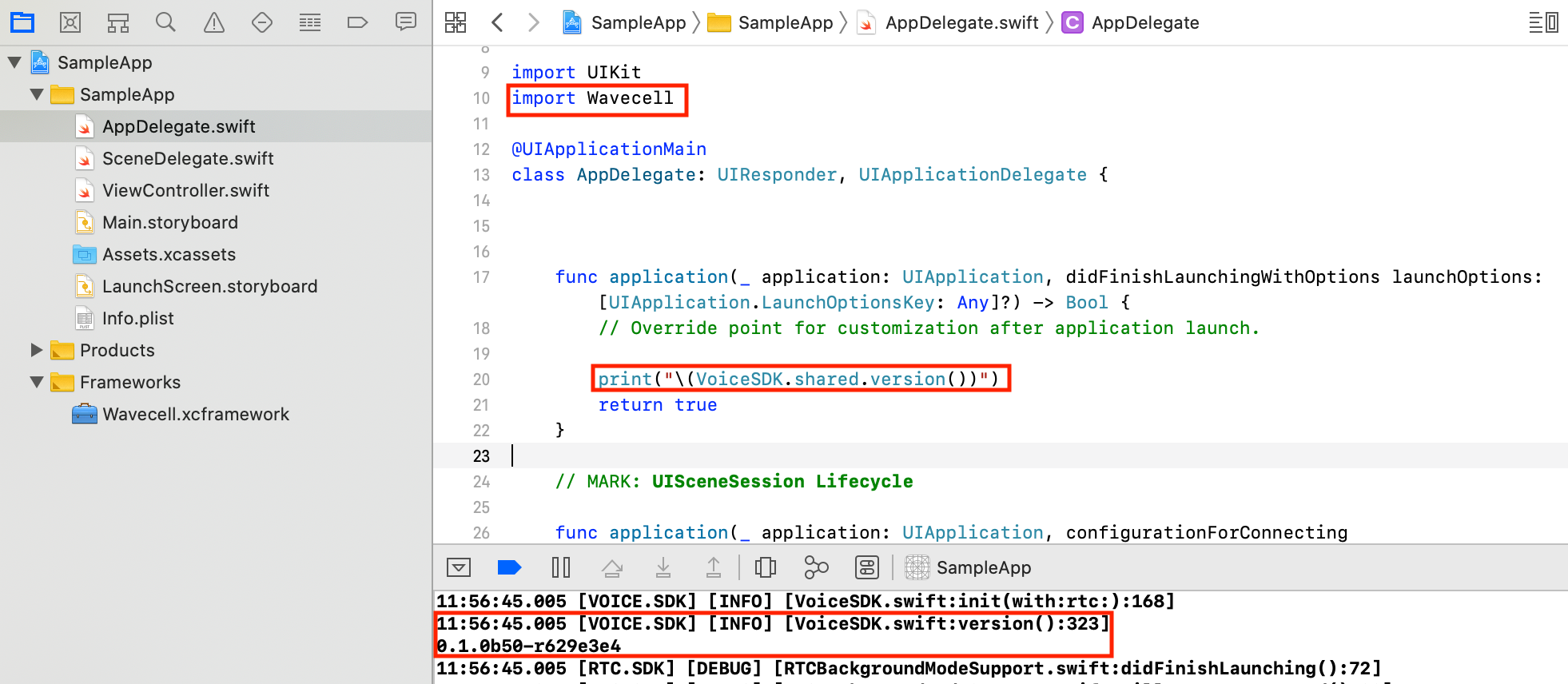
    After you have completed the previous integration tasks, you can verify if your app can invoke functions from the Wavecell.xcframework by doing the following:

    1. Modify AppDelegate.swift by adding the following lines:
    importWavecell
    print("\(VoiceSDK.shared.version())")
    1. Build (Cmd+B) and Run (Cmd+R) the app project
    2. If successful, your Xcode console displays the following type of message:
    0.1.0b50-r629e3e4

    wavecell sdk version from xcode project

    Push notification setup

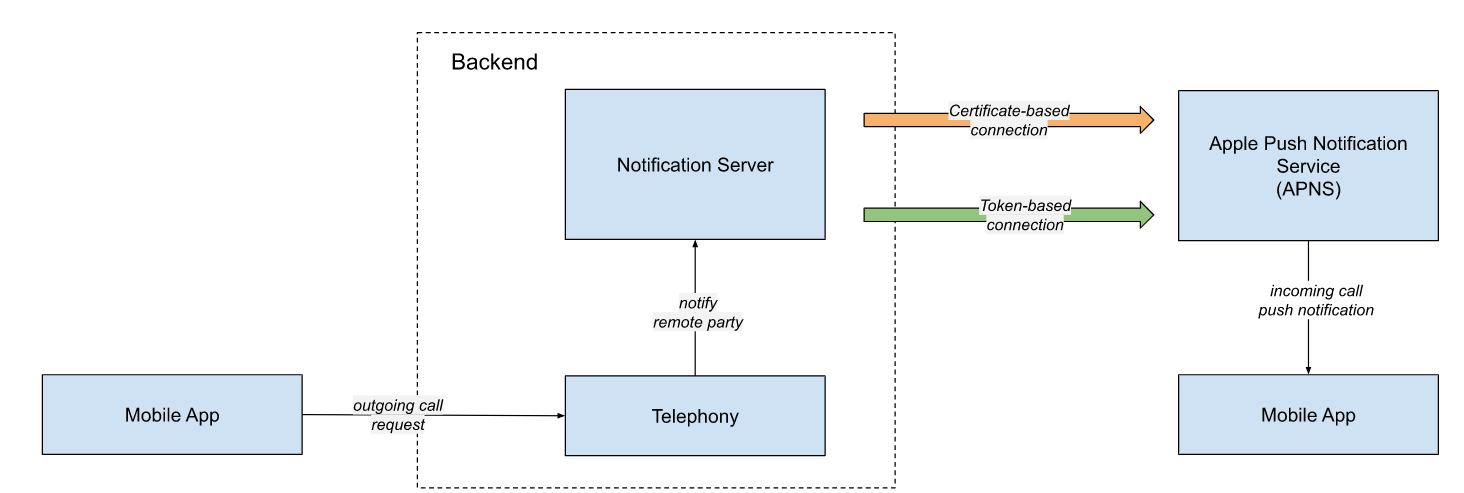
    The 8x8 backend solution includes the notification server. The notification server establishes secure connection with APNS in order to send push notifications to your application.

    There are two types of secure connections:

    • certificate-based
    • token-based

    The backend supports both types of secure connections.

    apn provider connection types

    Certificate-based

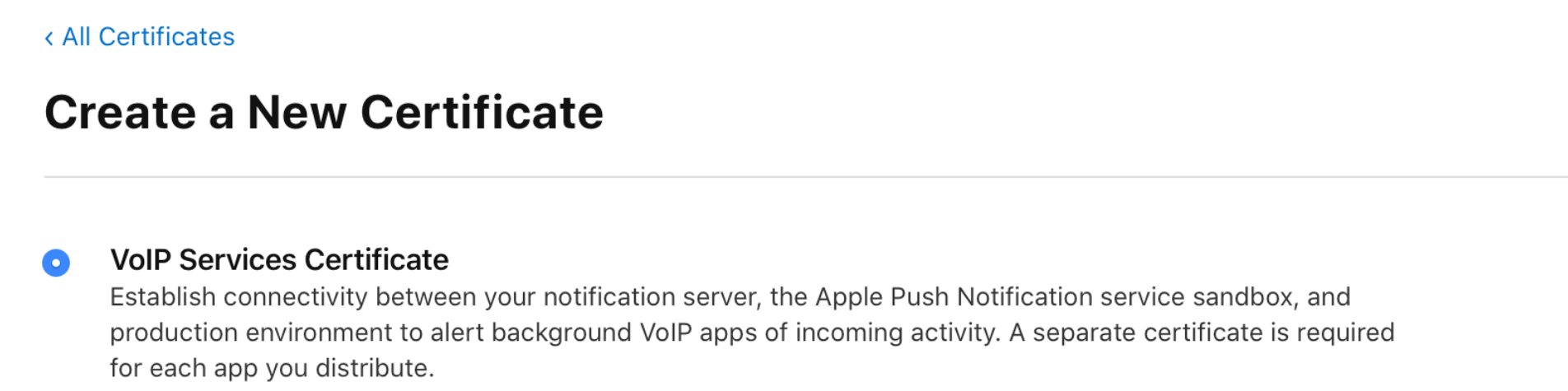
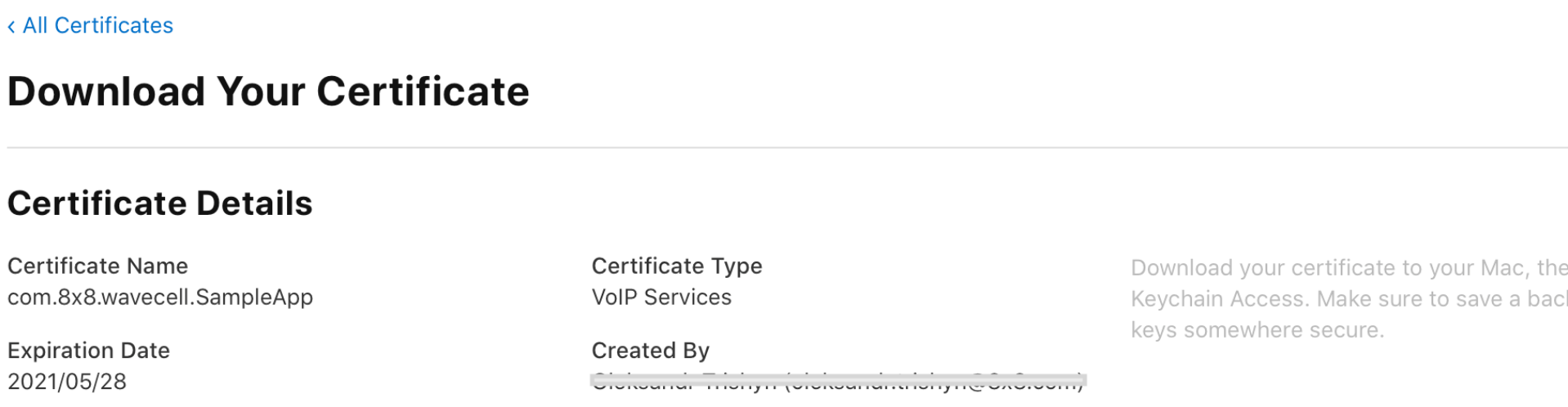
    For the certificate-based type of connection, generate VoIP Service Certificate

    with your Apple developer account:

    request voip services certificate

    1. When the certificate is ready, click Download and save it to your local drive (voip_services.cer file).

    download voip services certificate

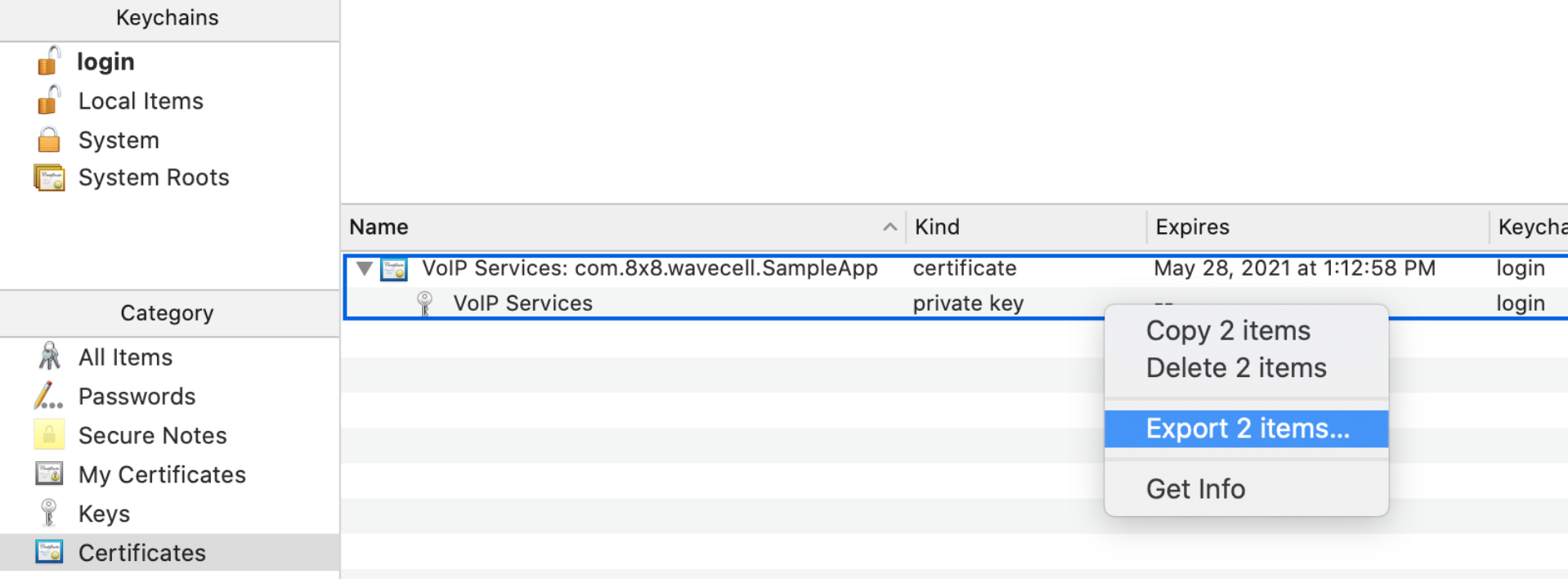
    1. Open the voip_services.cer file with the Keychain Access app on your computer.

    Select the login option if you are asked which keychain to add the certificate to. 3. In the Keychain Access app, select the Certificates option in the bottom section of the left sidebar.

    You will now need to find the certificate you have created. 4. Export your Certificate as a .p12 file.

    export voip services certificate

    1. Convert the .p12 file to a .pem file using the Terminal openssl command:
    openssl pkcs12 -in PATH_TO_YOUR_P12 -nokeys -out cert.pem -nodes
    openssl pkcs12 -in PATH_TO_YOUR_P12 -nocerts -out key.pem -nodes
    openssl rsa -in key.pem -out key.pem
    cat cert.pem key.pem > apns-voip-services.pem
    1. Register the Certificate (apns-voip-services.pem file) with your Wavecell developer account.

    Token-based

    For the token-base connection you will need to generate a key in your Apple developer

    account with Apple Push Notification Service enabled:

    1. Once the key is ready click Download and save it to your hard drive (AuthKey_<Key ID>.p8 file
    2. Register the Key ID and Key (.p8 file) in your Wavecell developer account.

    Source: https://developer.8x8.com/connect/docs/ios-integrating-the-sdk · 8x8 CPaaS Developer Docs. Synced for support deflection.

  • How to implement 8x8 Number Masking?

    How to implement 8x8 Number Masking?

    Introduction

    Although a simple phone conversation is hardly cutting-edge technology, it is nevertheless necessary for business-to-customer communication in today's world.

    Even more so today, because individuals keep the same phone number for extended periods of time, phone numbers are intrinsically tied to a user's identity. As a result, we're seeing a rise in the usage of phone numbers to authenticate a user's online identity.

    It has become a matter of great importance for most businesses to protect the customer's identity and privacy, especially if day-to-day business communication with their users is key to the company's success.

    Number Masking is ideal to help any company to achieve that goal of "Privacy in business communication". From our experience, Number Masking is especially effective for businesses that share customer's phone numbers with 3rd parties, which is common in the following industries:

    • Ride Sharing
    • Logistics / Delivery
    • E-commerce

    Overview Video

    In this section, we will see a few videos of number masking and how it can be used for certain use cases.

    Overview Video - Logistics / Delivery

    This video covers a common example of logistics/delivery where a business like a bank needs to deliver a card to their customer through a third-party courier. Number masking allows their third-party courier to contact customers to resolve last-mile delivery issues while maintaining the anonymity of the numbers.

    How to implement 8x8's Number Masking?

    As an example, let's take a look at the business case that is applicable for most ride-sharing businesses. When a business event takes place (read: the user has booked a ride) one Virtual Number is assigned for that booking. That Virtual Number is shown to both the rider and the driver, and if they want to engage in a phone call they can simply dial the Virtual number and get connected to the other user.

    Simplified Booking Record

    One Virtual Number can be associated with multiple business events (read: bookings). In the image above a simplified booking record is shown, that remains active for as long as the booking is not marked as completed. The Get My Virtual Numbers API provides a detailed overview of the Virtual Numbers available in your account.

    There are a few things to consider when assigning a Virtual Number to a booking. The most important thing is to avoid conflicts. Because the Virtual Number will be utilized as a search parameter to identify the second user, assigning the same Virtual Number to the same driver/user at the same time would result in a conflict. Another factor to consider is the volume of incoming calls. Spreading the incoming calls over multiple Virtual Numbers in the Number Pool is a good idea. We can avoid having one Virtual Number overloaded with incoming calls this way.

    When a rider or driver initiates a call to the Virtual Number (assigned to their booking) 8x8's platform will deliver a Call Action Request to the Ride Sharing company's endpoint. The Call Action Request from 8x8 is an HTTP POST request that contains all of the call data for the incoming call. The Create a new webhook API can be used to specify the endpoint to which the Voice Call Action webhook will be delivered. The Ride Sharing company's endpoint should respond to the Call Action Request with the "makeCall" Call Actions that contains the other user's phone number to establish the call between the rider and the driver.

    Once the Call Action is received, 8x8 will connect the second user, allowing the rider and the driver to communicate without having to share their real phone numbers.

    Here's a small web server solution that shows how the Ride Sharing company's business logic can be implemented:

    import os
    from flask import Flask, request, jsonify
    import requests
    my_secret = os.environ['Apikey']
    app = Flask(__name__, template_folder='templates', static_folder='static')
    # Index page
    @app.route('/')
    defhello():
    return"Number Masking Customer Endpoint"
    # Defining the customer endpoint where all the Call Handles
    # for each Number Masking request will be send to
    @app.route('/numbermasking', methods=['POST'])
    defrespond():
    request_data = request.get_json()
    # Get the Calling User's Phone Number from the 8x8 Call Handle
    Rider_Phone_Number = request_data['payload']['source']
    # Get the Called Virtual Number from the 8x8 Call Handle
    VLN = request_data['payload']['destination']
    db_API_URL ='http://numbermasking-ddcf.restdb.io/rest/numberMaskingDb?q={"User1":'
    URL = db_API_URL + Rider_Phone_Number[1:]+', '+'"VLN":'+ VLN[1:]+'}'
    # Query Database API to get booking record based on Calling User and VLN
    query_db = requests.get(URL, headers={'Apikey': my_secret})
    booking_record = query_db.json()
    Driver_Phone_Number ="+"+str(booking_record[0]['User2'])
    VLN ="+"+str(booking_record[0]['VLN'])
    # Define Call Handle Reply to 8x8's Platform
    Call_Action ={
    "callflow":[{
    "action":"makeCall",
    "params":{
    "source": VLN,
    "destination": Driver_Phone_Number
    }
    }]
    }
    # Send Call Handle Reply to 8x8 with the Driver's Phone Number
    # to connect the 2 users and enable business communication between them
    return jsonify(Call_Action)
    if __name__ =='__main__':
    # Run the Flask app
    app.run(host='0.0.0.0', debug=True, port=8080)

    Each time a call is initiated to a Virtual Number, 8x8 will send a Call Action Request that includes details about the calling user and the called Virtual Number. With that "phone numbers pair" it should be easy to uniquely calculate the third phone number (the phone number of the second user). In the web server example from above, we do that by querying our "simplified database" and getting the booking record that was created when the booking was confirmed.

    The only thing remaining is to define the CallAction that includes the Virtual Number set as "source" and the second user's phone number set as "destination" and send it inside the Call Handle reply. Once that is completed 8x8's platform will establish the call between the rider and the driver.

    If one of the users does not answer the call, their phone will show a missed call entry. The number shown in the Missed Calls list will be the assigned Virtual Number. If the user dials that number again, they will be connected to the second user using the same process as before. This way, 8x8 Number Masking ensures that the user's identity and privacy are protected in all cases.

    Full details about individual call statuses will be sent by 8x8's platform as Call Status and once the Number Masking session has been completed full session summary will be delivered as Session Summary


    Error Handling

    For a complete list of error codes and troubleshooting guidance, see the Number Masking Error Codes reference.


    Source: https://developer.8x8.com/connect/docs/how-number-masking-protects-customer-privacy · 8x8 CPaaS Developer Docs. Synced for support deflection.

  • Hangup

    Hangup

    This action should be used to hang up the incoming call.

    The following is an example of the JSON response you would need to provide:

    {
    "clientActionId":"NumberMaskingId1",
    "callflow":[
    {
    "action":"hangup"
    }
    ]
    }

    Note: The Hangup action is needed only if you do not want to complete any other action. This action is not necessary if the calling user hangs up the call.


    Source: https://developer.8x8.com/connect/docs/hangup · 8x8 CPaaS Developer Docs. Synced for support deflection.

  • Getting started with Number Masking

    Getting started with Number Masking

    The Number masking service enables your users to connect in a phone call while keeping their phone numbers private. By implementing 8x8's Number Masking service, you can track all conversation metadata in your system while maintaining your customers' privacy.

    The main advantages of number masking solutions are:

    • Customer privacy
    • In platform transactions
    • Cost efficiency

    This solution is ideal for the ridesharing, delivery or e-commerce industries where you want to connect your users without revealing any personal data. 8x8 Number Masking API allows you to configure a virtual or proxy number from your pool of numbers to receive call events, status callbacks and respond with your preferred call flow function.

    Prerequisites

    Before you get started, please contact your account manager to ensure that your account has access to this product and that the following points have been managed:

    • You will need a new voice subAccountId which has to be set up for 8x8's Number Masking service
    • To use our Number Masking API, you require a Virtual Number that will be allocated to your sub-account by the 8x8 team
    • You must set up and configure an endpoint where the call action handles will be sent (via the webhooks API - Voice Call Action). After that, you can use our Number Masking product to begin building your call flows.
    • If you need to restrict inbound traffic to your webhook endpoints, see Voice IP Addresses for the list of outbound IPs used by 8x8 Voice services.

    If you have not already done so, please visit the 8x8 website at https://connect.8x8.com to sign up for your account. Do take note that number masking requires an account manager for set up.

    Number Masking flow

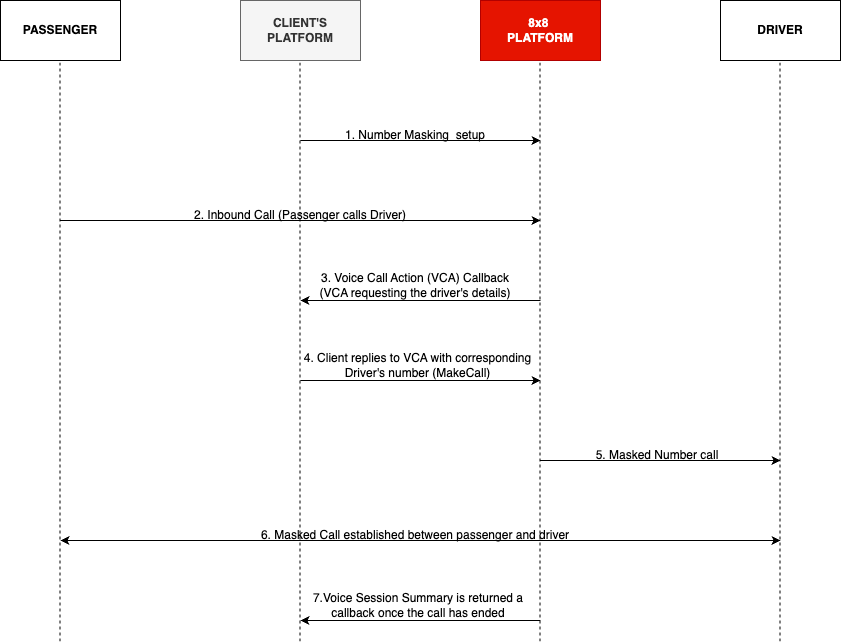
    On the diagram below a simple number masking call diagram is shown for a call between a Passenger and Driver.

    Number Masking


    Error Handling

    For a complete list of error codes and troubleshooting guidance, see the Number Masking Error Codes reference.

    Support Channels

    • Technical support: support@cpaas.8x8.com
    • Sales inquiries: Contact your account manager or visit cpaas.8x8.com/en/contact-us
    • Support Portal: https://support.cpaas.8x8.com/hc/en-us

    Source: https://developer.8x8.com/connect/docs/getting-started-with-number-masking · 8x8 CPaaS Developer Docs. Synced for support deflection.

  • Customer group based queueing

    Customer group based queueing

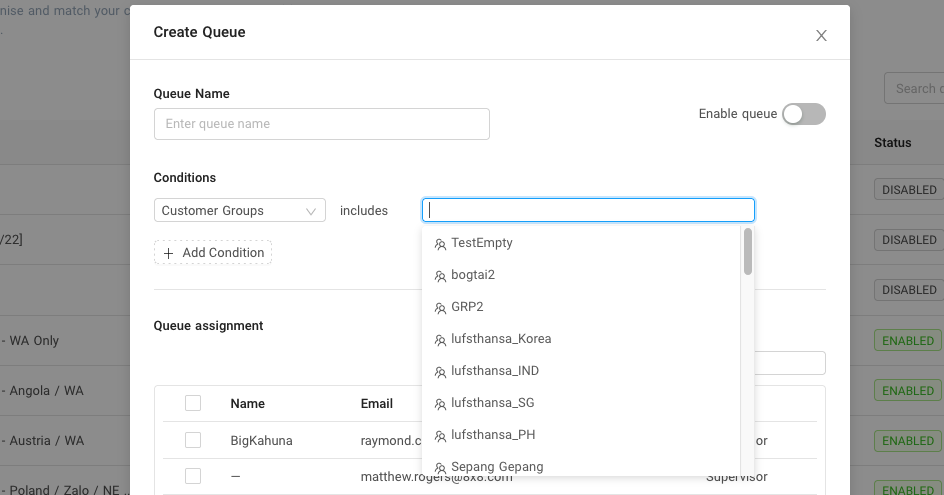
    Customer group-based queuing allows you to match agents with a group of customers. This condition uses Connect's contacts group management(Please see Contact Management for more information)

    944


    Source: https://developer.8x8.com/connect/docs/customer-group-based-queueing · 8x8 CPaaS Developer Docs. Synced for support deflection.

  • Country based queueing

    Country based queueing

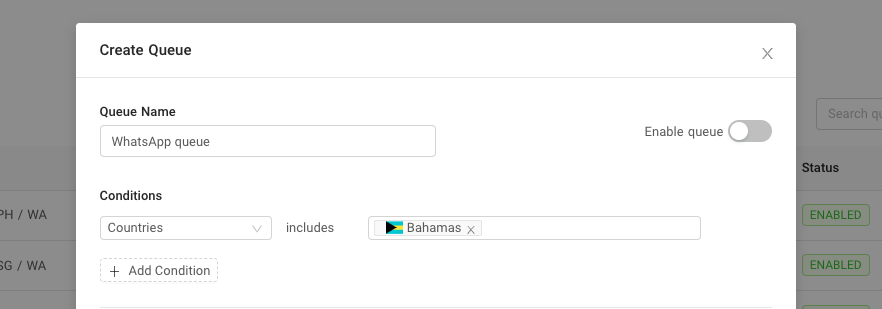
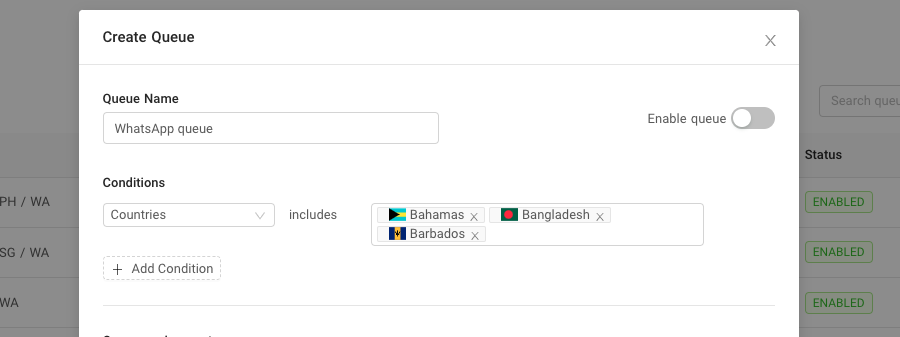
    Country-based queuing allows you to match agents with your customers in a specific country. It works by identifying the customer's mobile country code(MSISDN country code). WhatsApp and Viber are the two most popular Chat Apps channels that uses mobile number as user identification.

    A familiar use case for this condition is to group agents that can speak a group of your customer's local language. For example, to address issues from your customers coming from South Korea, you would add this queue using the Country condition where the country is equal to South Korea and select several agents that can speak Korean.

    882

    Queue with multiple countries

    900


    Source: https://developer.8x8.com/connect/docs/country-based-queueing · 8x8 CPaaS Developer Docs. Synced for support deflection.

  • Combining different queue conditions

    Combining different queue conditions

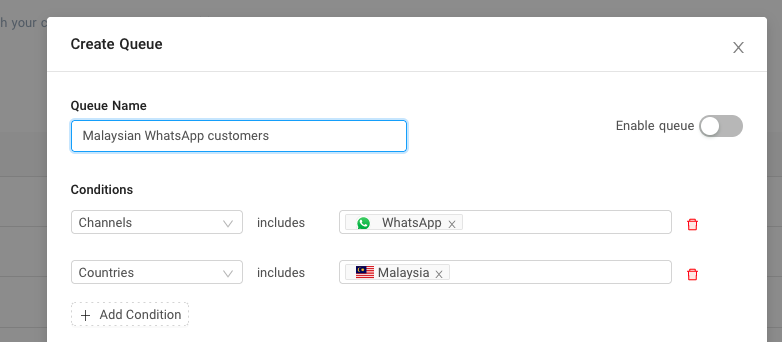
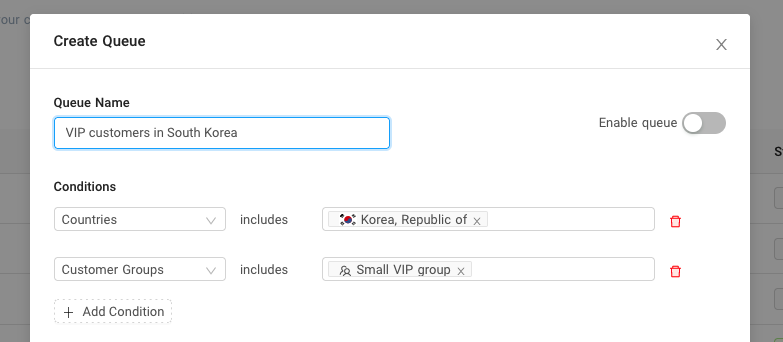
    You can create a queue using a combination of different conditions

    For example, you want a queue where your channel and country condition is specific to WhatsApp and Malaysia.

    782

    Another example might be a combination of Country and Customer group (South Korea, Small Vip Group).

    783

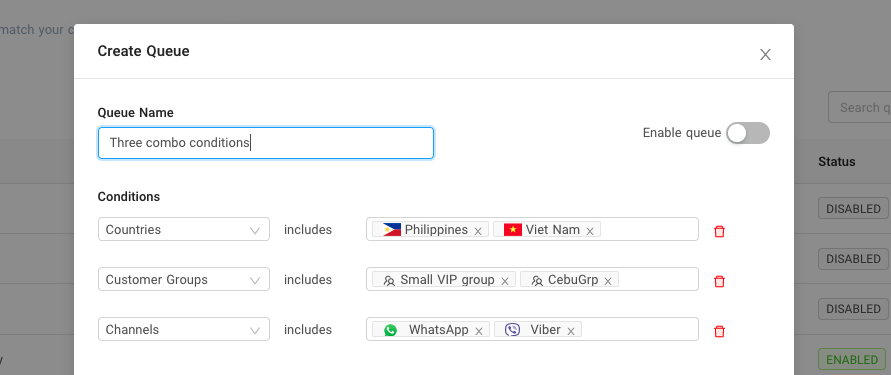
    You can also combine all three conditions like the example below where Countries include the Philippines and Vietnam. Customer groups include the Small VIP group and CebuGrp. Finally, Channel condition includes WhatsApp and Viber.

    891


    Source: https://developer.8x8.com/connect/docs/combining-different-queue-conditions · 8x8 CPaaS Developer Docs. Synced for support deflection.

  • Channel based queueing

    Channel based queueing

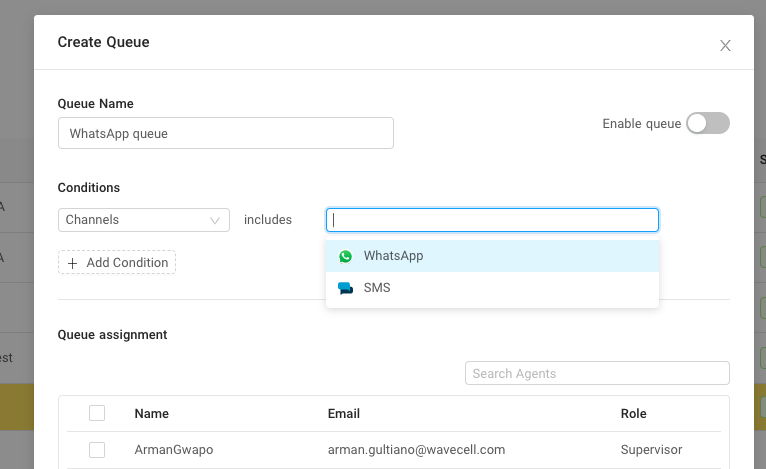
    Channel based queuing allows you to match agents with your customers to a specific channel(Viber, WhatsApp, WeChat etc...).

    • A familiar use case is grouping agents into specific channel(s) if you have different Chat Apps channels enabled under Converse. Agents can address some issues or inquiries faster because of channel specificity.

    766


    Source: https://developer.8x8.com/connect/docs/channel-based-queueing · 8x8 CPaaS Developer Docs. Synced for support deflection.

  • IVR Call Action Handling

    IVR Call Action Handling

    IVR Call Action Handling

    Responding to Call Action Request

    To start your call flow you need to reply to the call action request with an HTTP 200 response code including a Call Action in the HTTP response body. The supported Call Actions are:

    • makeCall - Initiates an outgoing call to the desired destination. This function should be used to connect the first call with another party.
    • say - Generates and plays a TTS to the calling user.
    • sayAndCapture - Plays a voice file in to the call and then captures users DTMF input and reports back the DTMF via Voice Call Action (VCA) webhook.
    • playFile - Downloads the sound/voice file provided and plays it back in the currently active call.
    • hangup - Disconnects all active calls. This will terminate the session, triggering the session summary webhook.

    makeCall

    This function should be used to connect the first call with another party.

    The following is an example of the JSON response you would need to provide:

    {
    "clientActionId":"ivr1_level2",
    "callflow":[
    {
    "action":"makeCall",
    "params":{
    "source":"6512345678",
    "destination":"6587654321",
    "callRecording":true//Optional. Use only if call recording has been set up.
    }
    }
    ]
    }

    The action should contain the following parameters:

    Name Type Description
    action String MakeCall – Action to Connect/Bridge call between two users
    destination String Number of the called party in E.164 format (The second user's number).
    source String Number of the calling party in E.164 format. This should be the Virtual Number allocated to your sub-account
    callRecording Boolean (Optional) Trigger to start recording the IVR session. Before using this option please reach out to your Account Manager since this option might include additional costs. Additionally please make sure that the Call Recording has been configured on your account. To configure call recording please take a look at Call Recordings

    say

    This action converts the given text in to a speech and plays it in the currently active call.

    The following is an example of the JSON response you would need to provide:

    {
    "clientActionId":"ivr1_level2",
    "callflow":[
    {
    "action":"say",
    "params":{
    "text":"Hello This is a test message",
    "voiceProfile":"en-US-ZiraRUS",
    "repetition":1,//optional(default is 1)
    "speed":1.0,//optional(default is 1)
    }
    }
    ]
    }

    The action should contain the following parameters:

    Name Type Description
    action String say – Text to speech function.
    text String The text to speech message that will be played on the call.
    voiceProfile String The voice profile of the spoken text, see in the table below the supported voice profiles. Please use Voice Profile API to retrieve voiceProfile
    repetition Integer Defines the number of times the text will be repeated during the call. Default repetition is 1. Max repetition is 3
    speed Float Controls the speed of the speech. Maximum speed is 2.0 and minimum speed is 0.5.

    SayAndCapture

    This action plays a text to speech file in to the call and then captures user's DTMF input and reports back the DTMF via Voice Call Action (VCA) webhook.

    The following is an example of the JSON response you would need to provide:

    {
    "clientActionId":"ivr1_level2",
    "callflow":[
    {
    "action":"sayAndCapture",
    "params":{
    "promptMessage":"Enter 1 if you would like to talk",//Mandatory
    "successMessage":"Thank you, have a nice day!",//Optional
    "failureMessage":"Invalid input received.",//Optional
    "voiceProfile":"en-US-BenjaminRUS",//Mandatory
    "speed":1.0,//Optional. Defaults to 1.0.
    "completeOnHash":true,//Optional. Defaults to true. If false, maxDigits must be provided and > 0 and < 26.
    "minDigits":2,//Optional. If provided, maxDigits is mandatory.
    "maxDigits":2,//Optional. Defaults to 25.
    "digitTimeout":10000,//Optional. If provided, overallTimeout is mandatory. Must be less than overallTimeout.
    "overallTimeout":10000,//Optional. Defaults to 30000.
    "noOfTries":3//Optional. Defaults to 3.
    }
    }
    ]
    }

    The action should contain the following parameters:

    Name Type Description
    action String SayAndCapture – Play a Text to speech voice file and prompting user to enter a DTMF.
    promptMessage String Text Input for the text-to-speech message.
    successMessage String Text-to-speech message that is played for successful digit capture.
    failureMessage String Text-to-speech message that is played in case of capture errors. Capture errors are either timeouts or the input digit count is out of the range.
    voiceProfile String The voice profile of the spoken text, see in the table below the supported voice profiles. Please use Voice Profile API to retrieve voiceProfile.
    speed Float Controls the speed of the speech. Maximum speed is 2.0 and minimum speed is 0.5.
    completeOnHash Boolean If completeOnHash is false, once the user entered digits reachers maxDigits , the action will end. If the completeOnHash is set to true, then any time user enters #, the entered digits will be validated and the action will end in either success or failure.
    minDigits Integer The minimum required digits entered to be a valid input.
    maxDigits Integer The maximum digits accepted.
    overallTimeout Integer The time allowed for the user to complete entering all digits in milliseconds.
    noOfTries Integer How many times the sayAndCapture will loop in case of failed inputs.

    playFile

    Downloads the sound/voice file provided and plays it back in the currently active call.

    File type requirements:

    • Supported file types are .wav and mp3.
    • API only accepts file that is smaller than 5MB.

    The following is an example of the JSON response you would need to provide:

    {
    "clientActionId":"ivr1_level2",
    "callflow":[
    {
    "action":"playFile",
    "params":{
    "fileUrl":"https://sample-videos.com/audio/mp3/wave.mp3",// mandatory
    "repetition":1//optional
    }
    }
    ]
    }

    The action should contain the following parameters:

    Name Type Description
    action String say – play a recorded file into a currently active call funtion
    fileUrl String The public link of the hosted voice file
    repetition Integer Defines the number of times the text will be repeated during the call. Default repetition is 1. Max repetition is 3

    📘Downloaded Voice files

    Downloaded voice files are cached for 1 hour for faster access, if used in consequent requests. If the file content is changed within 1 hour after the first request, make sure to change the file name for the changes to be reflected in the calls afterwards.

    hangup

    This action should be used to hang up the incoming call.

    The following is an example of the JSON response you would need to provide:

    {
    "clientActionId":"ivr1_level2",
    "callflow":[
    {
    "action":"hangup"
    }
    ]
    }

    Note: The Hangup action terminates the active call session.


    Related Guides

    • Session Summary (IVR) – Detailed webhook payload reference for IVR session summaries
    • Simple IVR – Build your first IVR menu with step-by-step examples
    • Advanced IVR – Learn advanced techniques like nested menus and complex call routing
    • Voice Call Action Webhook Guide – Understand how Voice Call Action (VCA) webhooks work

    Error Handling

    For error codes that may appear in the Voice Session Summary, see the Voice Error Codes reference. For API response status codes, see Voice Status Codes and Status Messages.


    Source: https://developer.8x8.com/connect/docs/call-action-handling-ivr · 8x8 CPaaS Developer Docs. Synced for support deflection.

  • Number Masking Call Action Handling

    Number Masking Call Action Handling

    Number Masking Call Action Handling

    This method provides insights about call details and will be sent to your "Voice Call Action" (VCA) endpoint. Your "Voice Call Action" (VCA) endpoint can be configured on the sub-account level with the Number Masking Webhooks.

    Call Action Request

    When receiving an incoming call to your virtual number 8x8 platform will POST a JSON object to your URL.

    The JSON object will contain the following values:

    Name Type Description
    namespace String 8x8 product channel definition
    eventType String Current call handle event type. CALL_ACTION
    description String Description of the current call handle event type
    payload object contains call information about the current number masking session
    eventId String Id unique to an event of the current number masking session [UUID]
    callId String Id unique to a call leg of the current number masking session [UUID]
    sessionId String Id unique to the current number masking session [UUID]
    subAccountId String unique id for your subaccount
    callStatus String Status of the current call leg. Values can be:
    CALL_RECEIVED (only for number masking)
    callDirection String Direction of the call leg. INBOUND (Inbound only for number masking)
    callType String For Number Masking the call type is always PSTN
    source String Source number of the call leg.
    destination String Destination number of the call leg.
    sourceFormat String Source format for number masking is always MSISDN
    sourceCountryCode String Country code of the source number
    destinationCountryCode String Country code of the destination number
    destinationRefId String Reference Id for the virtual number (this is from your Get My Virtual Number Endpoint
    callDuration Integer Call duration for the current call leg. For the number masking scenario, callDuration would be "0".
    sipCode Integer Final Sip status code for the call leg defined by RFC 3261
    Timestamp Timestamp Timestamp of the processed event

    Example of a JSON object sent to your handleURL:

    VCA - Call Action Request

    {
    "namespace":"VOICE",
    "eventType":"CALL_ACTION",
    "description":"Action request of a call",
    "payload":{
    "eventId":"eb0fc709-9693-11ea-454d-1705dde98182",
    "callId":"a1d6a5e3-efec-11e9-b999-7d370b5f90d1",
    "sessionId":"a1d6a5e2-efec-11e9-b999-efc71013a78f",
    "subAccountId":"your_subaccount_id",
    "callStatus":"CALL_RECEIVED",
    "callDirection":"INBOUND",
    "callType":"PSTN",
    "source":"+65123456789",
    "destination":"+65987654321",
    "sourceFormat":"MSISDN",
    "destinationFormat":"MSISDN",
    "sourceCountryCode":"SG",
    "destinationCountryCode":"SG",
    "destinationRefId":"vn-ref-1",
    "callDuration":0,
    "sipCode":200,
    "timestamp":"2019-10-16T08:12:01Z"
    }
    }

    Responding to Call Action Request

    To start your call flow you need to reply to the call action request with an HTTP 200 response code including a Call Action in the HTTP response body. The supported Call Actions are:

    • makeCall - Initiates an outgoing call to the desired destination. This function should be used to connect the first call with another party.
    • say - Generates and plays a TTS to the calling user.
    • hangup - Disconnects all active calls. This will terminate the session, triggering the session summary webhook.

    makeCall

    This function should be used to connect the first call with another party.

    The following is an example of the JSON response you would need to provide:

    {
    "clientActionId":"NumberMaskingId1",
    "callflow":[
    {
    "action":"makeCall",
    "params":{
    "source":"6512345678",
    "destination":"6587654321",
    "callRecording":true//Optional. Use only if call recording has been set up.
    }
    }
    ]
    }

    The action should contain the following parameters:

    Name Type Description
    action String MakeCall – Action to Connect/Bridge call between two users
    destination String Number of the called party in E.164 format (The second user's number).
    source String Number of the calling party in E.164 format. This should be the Virtual Number allocated to your sub-account
    callRecording Boolean (Optional) Trigger to start recording the Number Masking session. Before using this option please reach out to your Account Manager since this option might include additional costs. Additionally please make sure that the Call Recording has been configured on your account. To configure call recording please take a look at Call Recordings

    say

    This action should be used to play a text to speech message on the call.

    The following is an example of the JSON response you would need to provide:

    {
    "clientActionId":"NumberMaskingId1",
    "callflow":[
    {
    "action":"say",
    "params":{
    "text":"Hello This is a test message",
    "voiceProfile":"en-US-ZiraRUS",
    "repetition":1,//optional(default is 1)
    "speed":1.0,//optional(defailt is 1)
    }
    }
    ]
    }

    The above example would be used if you want the message

    The action should contain the following parameters:

    Name Type Description
    action String say – Text to speech function
    text String The text to speech message that will be played on the call
    voiceProfile String The voice profile of the spoken text, see in the table below the supported voice profiles. Please use Voice Profile API to retrieve voiceProfile
    repetition Integer Defines the number of times the text will be repeated during the call.
    speed Float Controls the speed of the speech

    playFile

    Downloads the sound/voice file provided and plays it back in the currently active call.

    File type requirements:

    • Supported file types are .wav and mp3.
    • API only accepts file that is smaller than 5MB.

    The following is an example of the JSON response you would need to provide:

    {
    "clientActionId":"ivr1_level2",
    "callflow":[
    {
    "action":"playFile",
    "params":{
    "fileUrl":"https://sample-videos.com/audio/mp3/wave.mp3",// mandatory
    "repetition":1//optional
    }
    }
    ]
    }

    The action should contain the following parameters:

    Name Type Description
    action String say – play a recorded file into a currently active call funtion
    fileUrl String The public link of the hosted voice file
    repetition Integer Defines the number of times the text will be repeated during the call. Default repetition is 1. Max repetition is 3

    📘Downloaded Voice files

    Downloaded voice files are cached for 1 hour for faster access, if used in consequent requests. If the file content is changed within 1 hour after the first request, make sure to change the file name for the changes to be reflected in the calls afterward

    hangup

    This action should be used to hang up the incoming call.

    The following is an example of the JSON response you would need to provide:

    {
    "clientActionId":"NumberMaskingId1",
    "callflow":[
    {
    "action":"hangup"
    }
    ]
    }

    Note: The Hangup action terminates the active call session.

    Commands Example

    On the following example it is demonstrated how multiple actions can be used in the same call action handle reply:

    {
    "clientActionId":"NumberMaskingId1",
    "callflow":[
    {
    "action":"say",
    "params":{
    "text":"Hello This is a test message",
    "voiceProfile":"en-US-ZiraRUS",
    "repetition":1,//optional(default is 1)
    "speed":1.0,//optional(defailt is 1)
    }
    },
    {
    "action":"hangup"
    }
    ]
    }

    Error Handling

    For a complete list of error codes and troubleshooting guidance, see the Number Masking Error Codes reference.


    Source: https://developer.8x8.com/connect/docs/call-action-handling · 8x8 CPaaS Developer Docs. Synced for support deflection.

  • Call Status (Number Masking)

    Call Status (Number Masking)

    This method provides insights about call details and will be sent to your "Voice Call Summary" (VCS) endpoint. Your "Voice Call Summary" (VCS) endpoint can be configured on the sub-account level with the Webhooks API.

    If you need to restrict inbound traffic to your webhook endpoints, see Voice IP Addresses for the list of outbound IPs used by 8x8 Voice services.

    When receiving status updates for ongoing calls, the 8x8 platform will POST a JSON object to your "Voice Call Summary" (VCS) endpoint.

    The JSON object will contain the following values:

    Name Type Description
    namespace String 8x8's overall product namespace. For Voice products the value will be "VOICE"
    eventType String Event type that generated this callback. For call status events the value will be "CALL_STATUS"
    description String Description of the event type that triggered the callback.
    eventId String Unique id that triggered the callback
    callId String Id unique to a one call leg of the number masking session [UUID]
    sessionId String Unique id that represents Number masking session [UUID]
    subAccountId String Id of the 8x8 SubAccount that the callback belongs to.
    callStatus String Status of the call leg that triggered the callback. Possible values:
    CALL_INITIATED
    CALL_RECEIVED
    CALL_CONNECTED
    CALL_DISCONNECTED
    CALL_UPDATED
    DTMF_RECEIVED
    callDirection String Direction of the call leg that triggered the callback. Values: INBOUND or OUTBOUND
    callType String Type of the call leg. Values: PSTN or VOIP (depending on call origin: telco operators or VoiceSDK users). For Number Masking, the value is always PSTN
    source String Source number associated with the call leg that triggered this callback
    destination String Destination number associated with the call leg that triggered this callback
    sourceFormat String Format of the source number. For NumberMasking the value will always be MSISDN.
    destinationFormat String Format of the destination number. For NumberMasking the value will always be MSISDN.
    sourceCountryCode String Country code of the source number (ISO 3166-1 alpha-2 format, e.g., "SG", "US")
    destinationCountryCode String Country code of the destination number (ISO 3166-1 alpha-2 format, e.g., "LK", "US")
    callDuration Integer Duration of the call leg (in seconds) that initiated the callback
    sipCode Integer Final Sip status code for the call leg(s) defined by RFC 3261
    timestamp String Timestamp of a call event

    Additional parameters could be included depending on individual destination or account requirements.

    Example of a JSON object sent to your handleURL:

    {
    "payload":{
    "eventId":"e2078079-eae8-11f0-ae64-a500004e488e",
    "callId":"e1ff6a14-eae8-11f0-baa6-c93abb37794a",
    "sessionId":"e1ff6a15-eae8-11f0-baa6-c147150ab00e",
    "subAccountId":"8x8_test",
    "callStatus":"CALL_RECEIVED",
    "callDirection":"INBOUND",
    "callType":"PSTN",
    "source":"+656833033",
    "destination":"+94778066434",
    "sourceFormat":"MSISDN",
    "destinationFormat":"MSISDN",
    "sourceCountryCode":"SG",
    "destinationCountryCode":"LK",
    "callDuration":0,
    "sipCode":200,
    "timestamp":"2026-01-06T10:17:19.375Z"
    },
    "namespace":"VOICE",
    "eventType":"CALL_STATUS",
    "description":"Status update of a call"
    }

    Response

    Your endpoint should respond with 200 OK status.


    Error Handling

    For a complete list of error codes and troubleshooting guidance, see the Number Masking Error Codes reference.


    Source: https://developer.8x8.com/connect/docs/call-status · 8x8 CPaaS Developer Docs. Synced for support deflection.

  • Number Masking Call Recordings

    Number Masking Call Recordings

    Number Masking Call Recordings

    Before you enable Call Recordings for Number Masking sessions it is required to set up the "Recordings Push Configuration" in order to define the endpoint to where the call recordings will be sent to. To set up the "Recordings Push Configuration" a POST request has to be sent to the following endpoint:

    POST https://voice.wavecell.com/api/v1/subaccounts/{{subAccountId}}/recording-push-config

    Where subAccountId is the id of your 8x8 subaccount. The following is an example of the request body you would need:

    {
    "protocol":"S3",
    "host":"ap-southeast-2",
    "port":13,
    "username":"myusername",
    "password":"mypassword",
    "path":"/my-recordings-path/"
    }

    The request should contain the following parameters:

    Name Type Description
    protocol String 8x8 supports two protocols to send the Call Recordings. AWS "S3" and SFTP.
    host String IP of the endpoint where the Call Recordings will be sent to. For SFTP use the public IP of your SFTP server. For "S3" you can use the AWS region where your S3 is hosted (i.e. ap-southeast-2).
    port Integer IP port for your endpoint
    username String The username for your endpoint where the Call Recordings will be sent to.
    password String The corresponding password for your Call Recordings endpoint.
    path String The remote directory to which you want the Call Recordings to be stored in.

    Once the request has been processed, you will receive the following response, that will include all the details you have set for your "Recordings Push Configuration":

    {
    "subAccountId":"yourSubAccountId",
    "protocol":"SFTP",
    "host":"172.30.2.61",
    "port":22,
    "username":"myusername",
    "passwordSet":true,
    "path":"/my-recordings-path/",
    "statusCode":0,
    "statusMessage":"ok"
    }

    Get Recordings information

    You can request the recording information for individual Number Masking sessions by sending a GET request to the following endpoint:

    GET https://voice.wavecell.com/api/v1/subaccounts/{{subAccountId}}/recordings/{{sessionId}}

    Where subAccountId is the id of your 8x8 subaccount and the sessionId is the Id of the Number Masking session that you want the recording information for. The following is an example of the request body you would need:

    {
    "recordings":[
    {
    "recordingId":"eef54fc2-065a-11ec-bce9-ed1000154345",
    "sessionId":"e35e3d0e-065a-11ec-b119-676cb2bc33ef",
    "subAccountId":"yourSubAccountId",
    "status":"CALLBACK_COMPLETED",
    "externalFileUrl":"https://yourRecordingsEndpoint.com/e35e3d0e-065a-11ec-b119-676cb2bc33ef/eef54fc2-065a-11ec-bce9-ed1000154345_2021-08-26T10%3A46%3A56.535Z.mp3",
    "startRecordingTime":"1969-12-31T23:59:59.999Z"
    }
    ],
    "statusCode":0,
    "statusMessage":"ok"
    }

    The response will contain the following parameters:

    Name Type Description
    recordingId String Unique Id for the requested Call Recording.
    sessionId String Unique Id that represents the requested Number masking session [UUID].
    subAccountId String Unique ID of your subaccount.
    status String Status of the requested call recording. Values can be:
    - PROCESSING ("Processing")
    - PROCESSING_FAILED ("Processing failed"),
    - UPLOAD_COMPLETED ("Recording upload completed")
    - UPLOAD_FAILED ("Recording upload failed"),
    - CALLBACK_COMPLETED ("Recording callback completed"),
    - CALLBACK_FAILED ("Recording callback Failed")
    - UNKNOWN ("Unknown Error")
    externalFileUrl String The location where the call recording has been stored.
    startRecordingTime Date&Time Timestamp when the call recording has been started.

    Voice Recording Uploaded Event

    An event is triggered each time a recording has been successfully uploaded to your file server (S3 or SFTP). This is an optional callback and it needs to be enabled on the account level. If you want to set up the callback endpoint, please take a look at Create a new webhook and the webhook type "VRU".

    If you need to restrict inbound traffic to your webhook endpoints, see Voice IP Addresses for the list of outbound IPs used by 8x8 Voice services.

    The following is an example of the callback that you would receive on your "VRU" callback endpoint:

    {
    "namespace":"VOICE",
    "eventType":"CALL_RECORDING_STATUS",
    "description":"Call recording status updated",
    "payload":{
    "sessionId":"e35e3d0e-065a-11ec-b119-676cb2bc33ef",
    "recordingId":"eef54fc2-065a-11ec-bce9-ed1000154345",
    "durationSeconds":25,
    "filePath":"yourRecordingsEndpoint/2021-08-21/e35e3d0e-065a-11ec-b119-676cb2bc33ef/eef54fc2-065a-11ec-bce9-ed1000154345_2021-08-20T16:51:01.703Z.mp3",
    "status":"UPLOAD_COMPLETED"
    }
    }

    Error Handling

    For a complete list of error codes and troubleshooting guidance, see the Number Masking Error Codes reference.


    Source: https://developer.8x8.com/connect/docs/call-recordings · 8x8 CPaaS Developer Docs. Synced for support deflection.

  • Voice SDK Overview

    Voice SDK Overview

    The 8x8 Voice SDK helps you build engaging and dependable voice calling experiences into your mobile app by enabling the ability to make and receive calls. The Voice SDK provides management of anonymous calls as well as private calls. The 8x8 Voice SDK is available for Android and iOS mobile platforms.

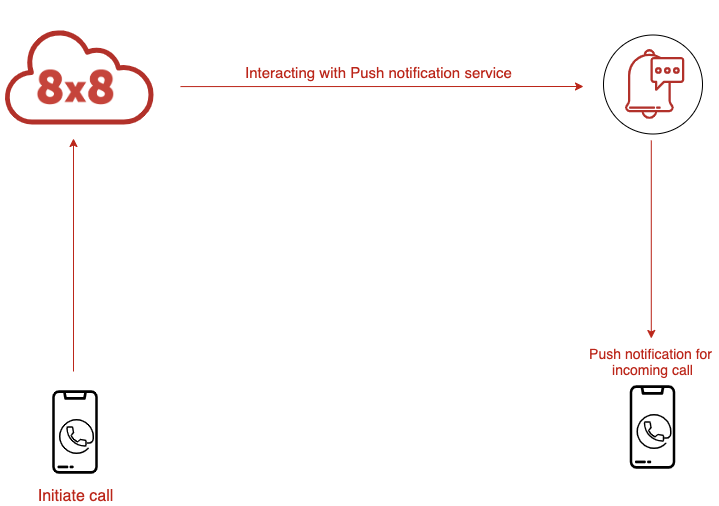
    incoming call notification

    The Voice SDK uses the 8x8 Voice Service, a cloud telephony switch which enables your app to receive incoming and set up outgoing phone calls and then bridge them both.

    The incoming call comes from a mobile application (over data). The outgoing call can be placed to another mobile application (over data) or to a phone number (via PSTN network). The 8x8 Voice Service mediates the call bridging, always keeping both parties connected via the same session. This design also enables adding additional features to this session such as call recording, analytics and AI.

    call bridging

    The Voice SDK can be used for customer service and support calls that are carried out in-app. Ridesharing and delivery platforms can create apps that facilitate calls between users and drivers while maintaining their privacy and anonymity. Gaming apps can create a user experience where players on a team communicate with each other while maintaining their privacy and anonymity.

    Getting Started

    Prerequisites

    Before integrating the Voice SDK, ensure you have:

    • 8x8 CPaaS account with Voice SDK access enabled
    • Mobile development environment (Android Studio or Xcode)
    • Push notification certificates (APNs for iOS, FCM for Android)
    • API credentials for authentication

    Account Setup

    To use the Voice SDK, you'll need to configure your account through the 8x8 Connect portal:

    1. Account ID – Your unique identifier for API requests
    2. Authentication – JWT token configuration for secure access
    3. Push Notifications – Register your mobile app certificates (APNs for iOS, FCM for Android)
    4. Webhooks (optional) – Configure endpoints for call events and status updates

    For account setup assistance, contact support@cpaas.8x8.com.

    Next Steps

    Choose your platform to get started:

    • Android: Android - Integrating the Voice SDK
    • iOS: iOS - Integrating the Voice SDK

    Support Channels

    • Technical support: support@cpaas.8x8.com
    • Sales inquiries: Contact your account manager or visit cpaas.8x8.com/en/contact-us
    • Support Portal: https://support.cpaas.8x8.com/hc/en-us

    Source: https://developer.8x8.com/connect/docs/architecture · 8x8 CPaaS Developer Docs. Synced for support deflection.

  • Android - Integrating the Voice SDK

    Android - Integrating the Voice SDK

    SDK Setup

    • Requirements
    • Setup the development environment
    • Add the Voice SDK as a dependency
    • Permissions

    Requirements

    To use the Voice SDK you need:

    • The latest version of Android Studio
    • Android SDK Version 26 or above
    • An Android device compatible with Google Play Services

    Setup the development environment

    Complete the following steps to setup your Android studio development environment:

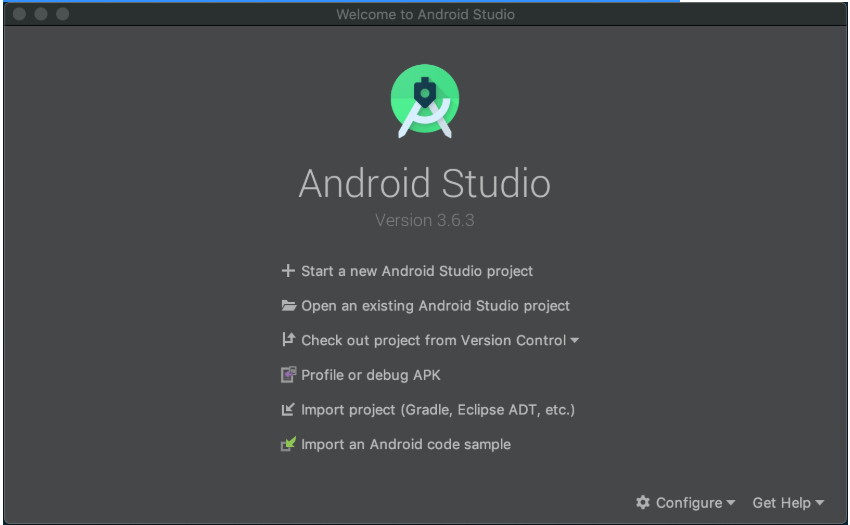
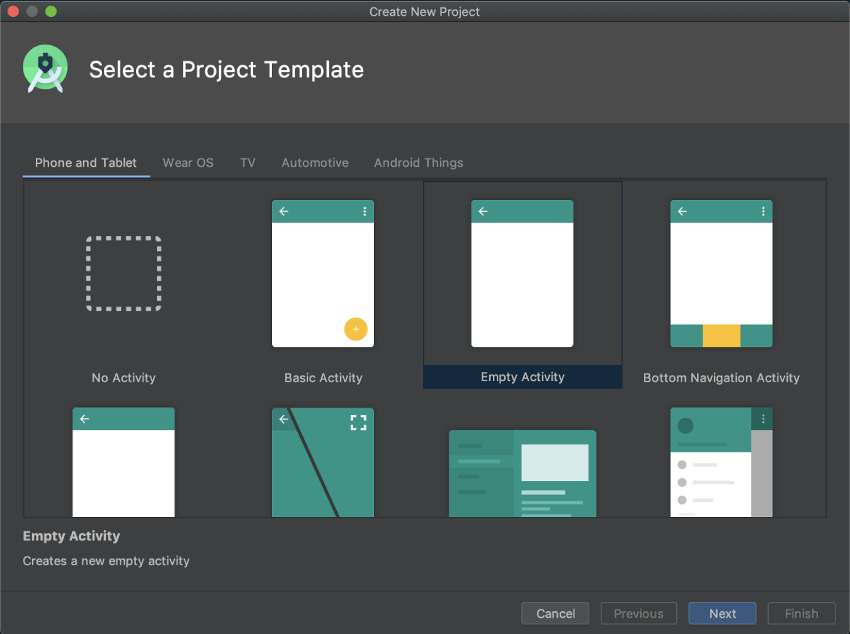
    1. Open Android Studio and click Start a new Android Studio project.

    850

    1. In the Select a Project Template window, select a template of your choice and click Next.

    850

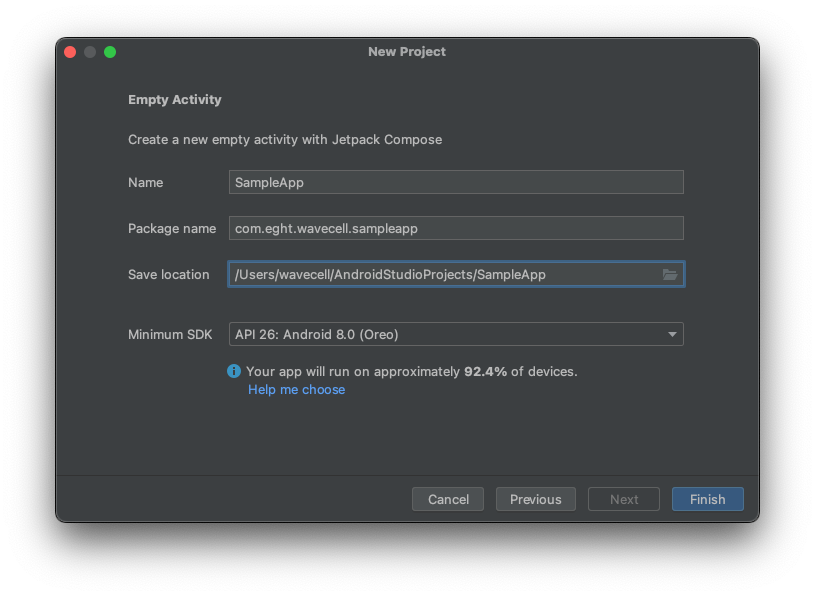
    1. In the Configure Your Project window:
    • Enter the name of your app and your Package name.
    • Enter the location of where your project will be saved
    • Select either Kotlin or Java as the language
    • Select API 26: Android 8.0 (Oreo) as the Minimum SDK and click Finish.

    850

    Note:: The Voice SDK APIs expose Kotlin coroutine APIs such as Flows and suspend functions.

    Add the Voice SDK as a dependency

    Confirm you have the latest dependency version:

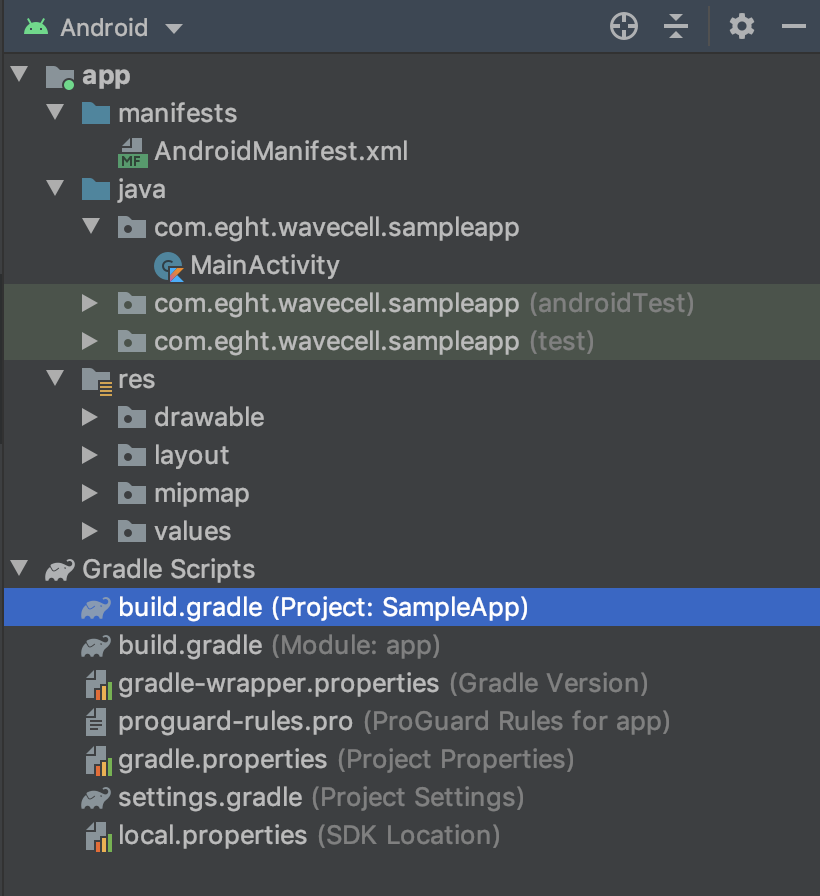
    1. Add the following to your top-level build.gradle file:

    820

    allprojects {
    repositories {
    ...
    maven {
    url "https://github.com/8x8Cloud/voice-sdk-android/raw/master/releases/"
    }
    }
    }
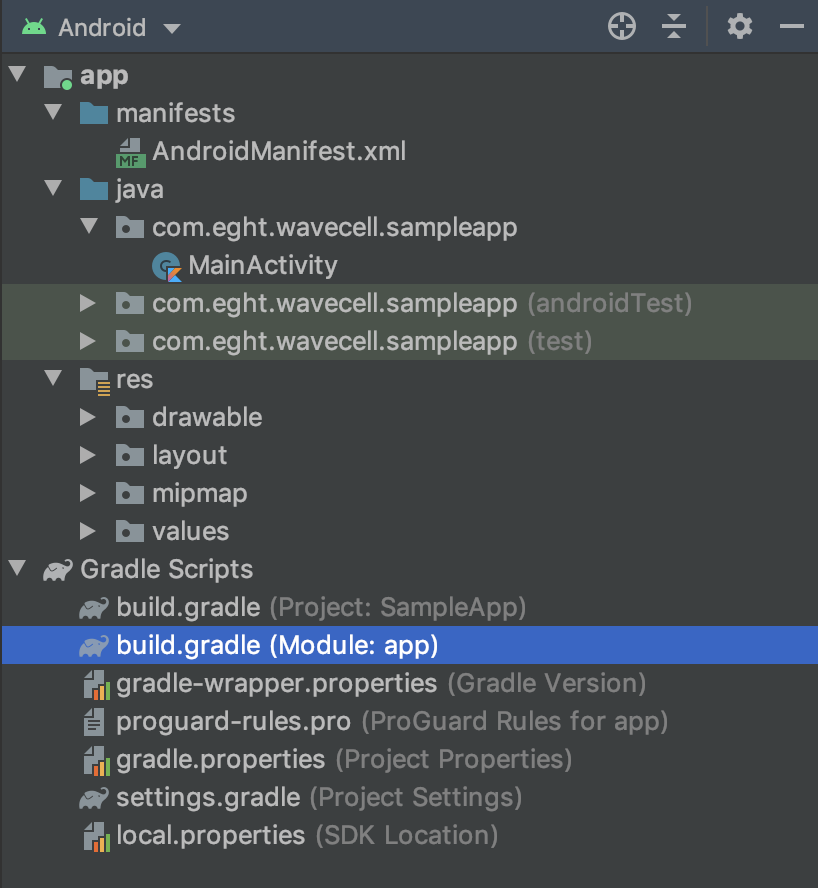
    1. Add the Wavecell dependency as well as sourceCompatibility in your app-level build.gradle file:

    818

    android {
    ...
    compileOptions {
    sourceCompatibility JavaVersion.VERSION_1_8
    targetCompatibility JavaVersion.VERSION_1_8
    }
    }
    dependencies {
    ...
    implementation "com.eght:wavecell-voice-sdk:[LATEST_VERSION]"
    }
    1. Click on File > Sync Project with Gradle Files.

    You can now use the Voice SDK in your application.

    Permissions

    Add the following uses-permission elements to your AndroidManifest:

    <manifest>
    ...
    <uses-permissionandroid:name="android.permission.ACCESS_NETWORK_STATE"/>
    <uses-permissionandroid:name="android.permission.ACCESS_WIFI_STATE"/>
    <uses-permissionandroid:name="android.permission.FOREGROUND_SERVICE"/>
    <uses-permissionandroid:name="android.permission.READ_PHONE_STATE"/>
    <uses-permissionandroid:name="android.permission.RECORD_AUDIO"/>
    </manifest>

    If your application is targeting API level 31+ also include the

    <uses-permissionandroid:name="android.permission.READ_PHONE_NUMBERS"/>

    Source: https://developer.8x8.com/connect/docs/android-integrating-the-sdk · 8x8 CPaaS Developer Docs. Synced for support deflection.

  • Advanced IVR Guide

    Advanced IVR Guide

    Advanced IVR (Reservation Example)

    This tutorial will cover a more advanced IVR use case with a multi-level IVR tree. It extends upon the principles in the Simple IVR page, but build upon then by taking into account the current IVR state when responding to the user.

    Initial setup should be completed as per the Webhook Setup Guide to configure a VSS and VCA Webhook before continuing with this guide.

    Demo Video of Advanced IVR

    This video will show a demo of how the Advanced IVR menu will work, including showing webhooks and the Initial API Call.

    Diagram of Advanced IVR Flow

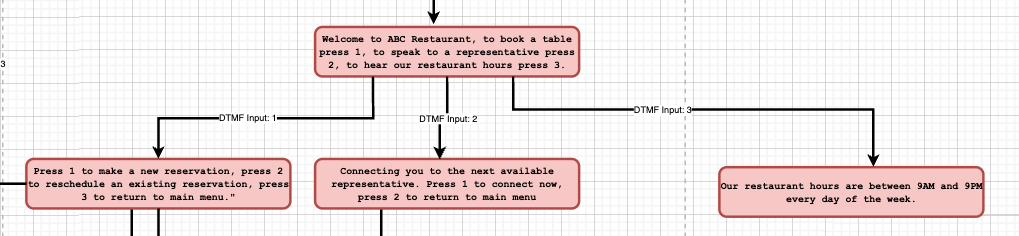
    Below is a diagram showing the complete IVR Tree that we will build. It has potentially 3 levels in this IVR Tree and the goal is to allow a caller into a restaurant to both manage their reservation (the most common task), connect to a member of the restaurant staff and hear a message of the restaurant hours.

    Note: What is not pictured is that any response that is not valid results in an error message and the call ending. This is done to simplify the diagram.
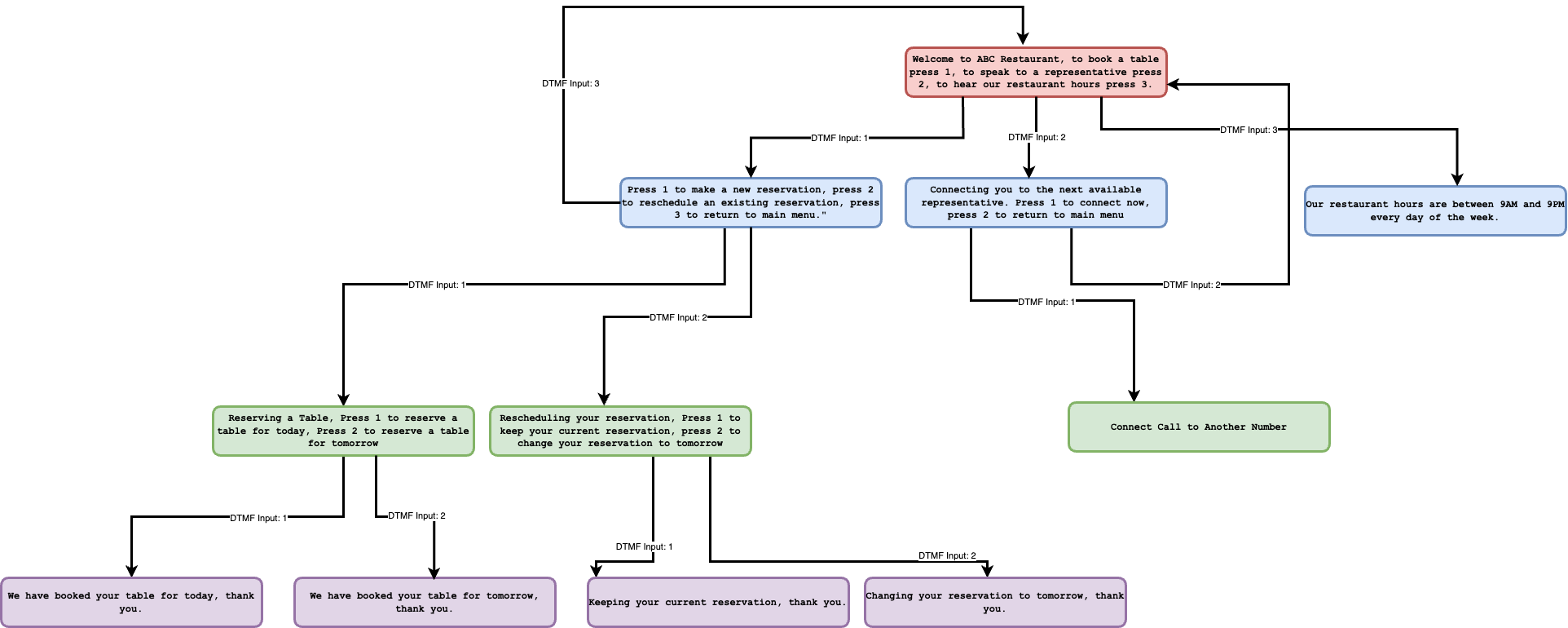
    Advanced IVR Flow Complete Diagram

    The colors correspond to the different levels of the IVR Tree which shows how many DTMF inputs a user will need to provide before reaching the corresponding menu item.

    Diagram of Webhooks and API Calls

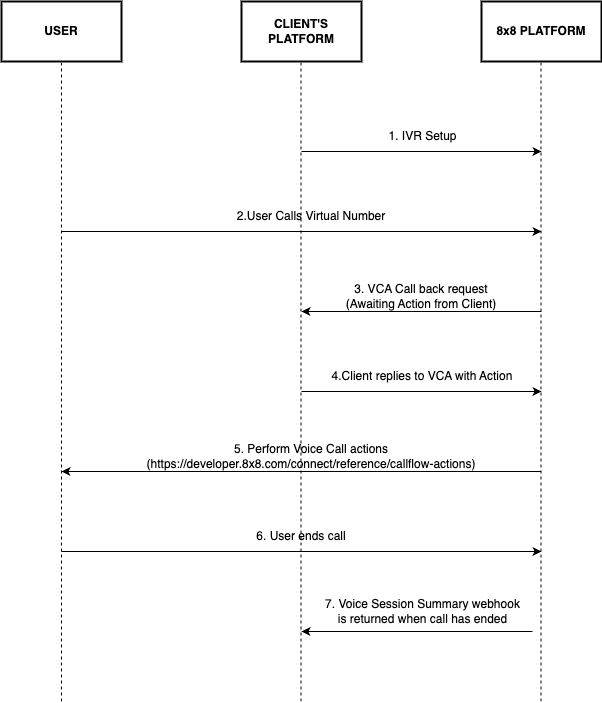
    The basic flow of Webhooks and API Calls will be similar to the Simple IVR tutorial, your server will have to respond to multiple VCA Webhooks as the user goes deeper into the IVR tree, so that Callflows API can play the correct IVR Tree menu back to the user.
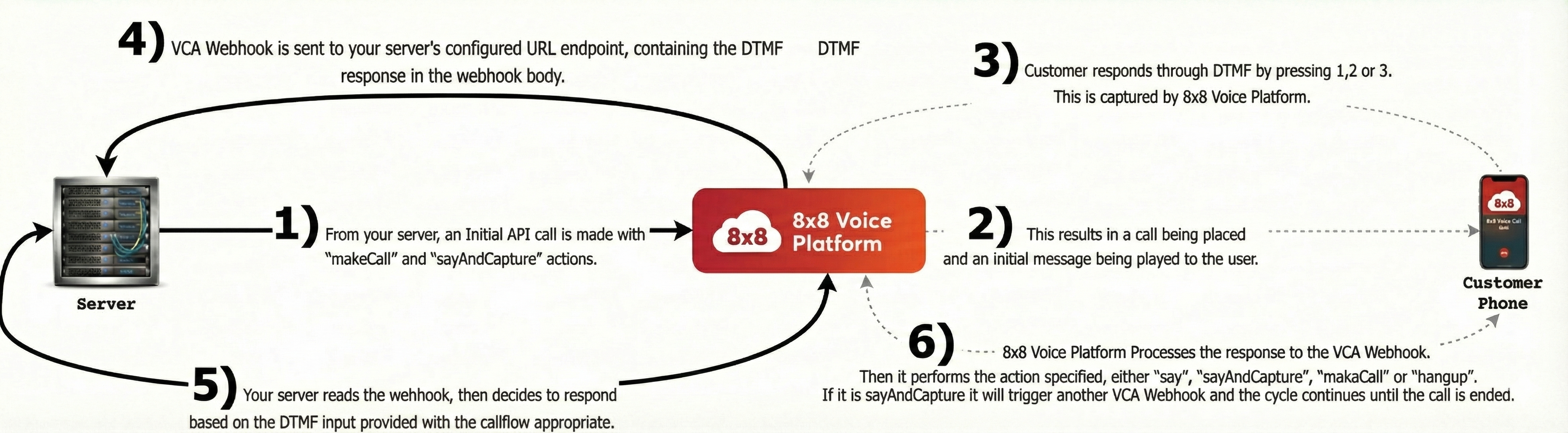
    Advanced IVR Webhooks and API Calls Flow

    IVR Callflows

    Initial API Call

    The initial API call to place the outbound call is here:

    /POST voice.8x8.com/api/v1/subaccounts/{sub-account-id}/callflows

    This is the request body to send with the API request. It will make an outbound call, play a message and then capture a DTMF input from a user.

    {
    "callflow":[
    {
    "action":"makeCall",
    "params":{
    "source":"{{Virtual Number}}",
    "destination":"{{Number to Call}}"
    }
    },
    {
    "action":"sayAndCapture",
    "params":{
    "promptMessage":"Welcome to ABC Restaurant, to book a table press 1, to speak to a representative press 2, to hear our restaurant hours press 3.",
    "voiceProfile":"en-US-BenjaminRUS",
    "speed":1,
    "minDigits":1,
    "maxDigits":1,
    "digitTimeout":10000,
    "overallTimeout":10000,
    "noOfTries":1
    }
    }
    ]
    }

    IVR Tree: Level 1

    IVR Tree: Main Menu

    When the user responds to the initial DTMF input, they have a choice between 3 options. The table below shows the three menus and messages that are played for a user for a given DTMF input.

    The code below the table shows the JSON that should be returned by your server to trigger the appropriate menu.

    DTMF Input Menu Message Played
    1 Reservations Press 1 to make a new reservation, press 2 to reschedule an existing reservation, press 3 to return to main menu.
    2 Connect Call Connecting you to the next available representative. Press 1 to connect now, press 2 to return to main menu
    3 Restaurant Hours Our restaurant hours are between 9AM and 9PM every day of the week.
    Other Invalid Invalid input, please call again.

    IVR Level 1 Main Menu

    Reservations

    {
    "clientActionId":"ivr-1-stage-1",
    "callflow":[
    {
    "action":"sayAndCapture",
    "params":{
    "promptMessage":"Press 1 to make a new reservation, press 2 to reschedule an existing reservation, press 3 to return to main menu.",
    "voiceProfile":"en-US-BenjaminRUS",
    "speed":1,
    "minDigits":1,
    "maxDigits":1,
    "digitTimeout":10000,
    "overallTimeout":10000,
    "noOfTries":2
    }
    }
    ]
    }

    Connect Call

    {
    "clientActionId":"connect_call",
    "callflow":[
    {
    "action":"makeCall",
    "params":{
    "source":{{Source Phone Number}},
    "destination":{{Destination Phone Number}}
    }
    }
    ]
    }

    Restaurant Hours and Hangup

    {
    "callflow":[
    {
    "action":"say",
    "params":{
    "text":"Our restaurant hours are between 9AM and 9PM every day of the week.",
    "voiceProfile":"en-US-BenjaminRUS",
    "speed":1
    }
    },
    {
    "action":"hangup"
    }
    ]
    }

    Invalid Input

    {
    "callflow":[
    {
    "action":"say",
    "params":{
    "text":"Invalid input, please call again.",
    "voiceProfile":"en-US-BenjaminRUS",
    "speed":1
    }
    },
    {
    "action":"hangup"
    }
    ]
    }

    ClientActionID Parameter

    Compared to the Simple IVR, notice the use of the clientActionID parameter in the callflows JSON. This parameter will also be passed by the VCA Webhook. This parameter is important to use in your server code to decide what IVR menu to play next for a user. It provides the context for where a user is in your IVR tree.

    IVR Tree: Level 2

    Webhook Received

    Once the initial call is made, the server will be sent a webhook with call status information:

    {
    "payload":{
    "eventId":"e2078079-eae8-11f0-ae64-a500004e488e",
    "callId":"e1ff6a14-eae8-11f0-baa6-c93abb37794a",
    "sessionId":"e1ff6a15-eae8-11f0-baa6-c147150ab00e",
    "subAccountId":"8x8_test",
    "callStatus":"CALL_RECEIVED",
    "callDirection":"INBOUND",
    "callType":"PSTN",
    "source":"+656833033",
    "destination":"+94778066434",
    "sourceFormat":"MSISDN",
    "destinationFormat":"MSISDN",
    "sourceCountryCode":"SG",
    "destinationCountryCode":"LK",
    "callDuration":0,
    "sipCode":200,
    "timestamp":"2026-01-06T10:17:19.375Z"
    },
    "namespace":"VOICE",
    "eventType":"CALL_STATUS",
    "description":"Status update of a call"
    }

    When the user responds with a DTMF input in the main menu, your server will receive a VCA webhook. The important values to consider are the clientActionId (reservations or connect_call) which helps determine the IVR tree position.

    IVR Tree: Reservations
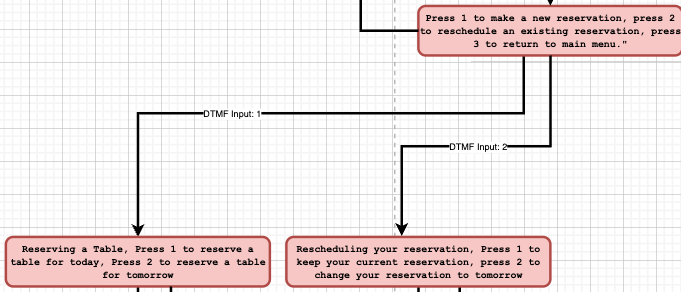
    IVR Level 2 Reservations Branch

    Note: DTMF Input 3 goes back to main menu

    The menu that was played for the user for reservations was:

    _Press 1 to make a new reservation, press 2 to reschedule an existing reservation, press 3 to return to main menu.

    _

    This table describes the menu and message played for the user depending on the DTMF input provided.

    DTMF Input Menu Message Played
    1 Book Table Reserving a Table, Press 1 to reserve a table for today, Press 2 to reserve a table for tomorrow
    2 Reschedule Table Rescheduling your reservation, Press 1 to keep your current reservation, press 2 to change your reservation to tomorrow
    3 Main Menu Welcome to ABC Restaurant, to book a table press 1, to speak to a representative press 2, to hear our restaurant hours press 3.
    Other Invalid Invalid input, please call again.

    In order to respond to the webhook with the appropriate menu for the given DTMF input, return the corresponding Callflows JSON below. You should only respond with one, choose the appropriate response based on the DTMF input.

    Book Table

    {
    "clientActionId":"book_table",
    "callflow":[
    {
    "action":"sayAndCapture",
    "params":{
    "promptMessage":"Reserving a Table, Press 1 to reserve a table for today, Press 2 to reserve a table for tomorrow.",
    "voiceProfile":"en-US-BenjaminRUS",
    "speed":1,
    "minDigits":1,
    "maxDigits":1,
    "digitTimeout":10000,
    "overallTimeout":10000,
    "noOfTries":2
    }
    }
    ]
    }

    Reschedule Table

    {
    "clientActionId":"reschedule_table",
    "callflow":[
    {
    "action":"sayAndCapture",
    "params":{
    "promptMessage":"Rescheduling your reservation, Press 1 to keep your current reservation, press 2 to change your reservation to tomorrow.",
    "voiceProfile":"en-US-BenjaminRUS",
    "speed":1,
    "minDigits":1,
    "maxDigits":1,
    "digitTimeout":10000,
    "overallTimeout":10000,
    "noOfTries":2
    }
    }
    ]
    }

    Main Menu

    {
    "clientActionId":"book_table",
    "callflow":[
    {
    "action":"sayAndCapture",
    "params":{
    "promptMessage":"Welcome to ABC Restaurant, to book a table press 1, to speak to a representative press 2, to hear our restaurant hours press 3.",
    "voiceProfile":"en-US-BenjaminRUS",
    "speed":1,
    "minDigits":1,
    "maxDigits":1,
    "digitTimeout":10000,
    "overallTimeout":10000,
    "noOfTries":2
    }
    }
    ]
    }

    Invalid Input

    {
    "callflow":[
    {
    "action":"say",
    "params":{
    "text":"Invalid input, please call again.",
    "voiceProfile":"en-US-BenjaminRUS",
    "speed":1
    }
    },
    {
    "action":"hangup"
    }
    ]
    }

    IVR Tree: Connect Call
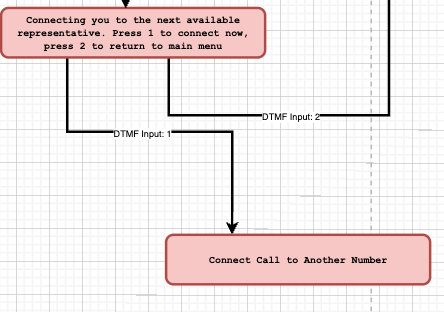
    IVR Level 2 Connect Call Branch

    Note: DTMF Input 2 Goes back to the main menu.

    The menu that will be played for the user for connect call is:

    Connecting you to the next available representative. Press 1 to connect now, press 2 to return to main menu

    This table describes the menu and message played for the user depending on the DTMF input provided.

    DTMF Input Menu Message Played
    1 Post Call N/A, user is connected directly to a number
    2 Main Menu Welcome to ABC Restaurant, to book a table press 1, to speak to a representative press 2, to hear our restaurant hours press 3.
    Other Invalid Invalid input, please call again.

    In order to respond to the webhook with the appropriate menu for the given DTMF input, use the corresponding Callflows JSON below.

    This callflow will immediately call the destination number and then connect the user on the current call to the destination number.

    Connect Call

    {
    "clientActionId":"post_call",
    "callflow":[
    {
    "action":"makeCall",
    "params":{
    "source":"{{Source Phone Number}}",
    "destination":"{{Destination Phone Number}}"
    }
    }
    ]
    }

    This callflow will return the user to the main menu where they can start over and make a new choice.

    {
    "clientActionId":"main_menu",
    "callflow":[
    {
    "action":"sayAndCapture",
    "params":{
    "promptMessage":"Welcome to ABC Restaurant, to book a table press 1, to speak to a representative press 2, to hear our restaurant hours press 3.",
    "voiceProfile":"en-US-BenjaminRUS",
    "speed":1,
    "minDigits":1,
    "maxDigits":1,
    "digitTimeout":10000,
    "overallTimeout":10000,
    "noOfTries":2
    }
    }
    ]
    }

    Invalid Input

    {
    "callflow":[
    {
    "action":"say",
    "params":{
    "text":"Invalid input, please call again.",
    "voiceProfile":"en-US-BenjaminRUS",
    "speed":1
    }
    },
    {
    "action":"hangup"
    }
    ]
    }

    IVR Tree: Restaurant Hours

    <img src={require('../../../images/voice/level-2-restaurant-hours.png').default} alt="IVR Level 2 Restaurant Hours" title="IVR Level 2 Restaurant Hours" width="60%" className="zoom-image" />

    This option will play a message for a user with restaurant hours:

    Our restaurant hours are between 9AM and 9PM every day of the week.

    Afterwards the call will hang up with the user without sending a VCA webhook. A VSS webhook will be sent at the conclusion of the call.

    IVR Tree: Level 3

    Webhook Received

    When the user responds to the Level 2 Menu with a DTMF Input, the server will receive a webhook with call status information:

    {
    "payload":{
    "eventId":"e2078079-eae8-11f0-ae64-a500004e488e",
    "callId":"e1ff6a14-eae8-11f0-baa6-c93abb37794a",
    "sessionId":"e1ff6a15-eae8-11f0-baa6-c147150ab00e",
    "subAccountId":"8x8_test",
    "callStatus":"CALL_RECEIVED",
    "callDirection":"INBOUND",
    "callType":"PSTN",
    "source":"+656833033",
    "destination":"+94778066434",
    "sourceFormat":"MSISDN",
    "destinationFormat":"MSISDN",
    "sourceCountryCode":"SG",
    "destinationCountryCode":"LK",
    "callDuration":0,
    "sipCode":200,
    "timestamp":"2026-01-06T10:17:19.375Z"
    },
    "namespace":"VOICE",
    "eventType":"CALL_STATUS",
    "description":"Status update of a call"
    }

    Your server will also receive VCA webhooks for DTMF input with the clientActionId value to determine the IVR tree position.

    IVR Tree: Book Table
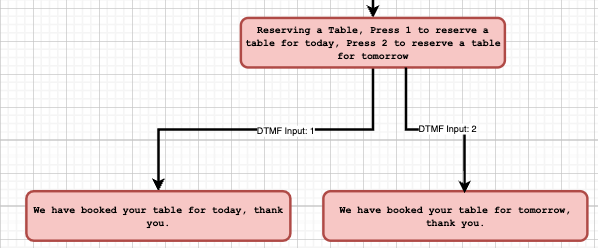
    IVR Level 3 Book Table

    This table shows the possible messages that will be played depending on the user's DTMF input. After the message is played the call will end.

    DTMF Input Message
    1 We have booked your table for today, thank you.
    2 We have booked your table for tomorrow, thank you.
    Other Invalid input, please call again.

    Here is the corresponding callflow that the server should respond with to trigger the IVR menu. The only value to change between the choices is the text which is played back to the user. Since this is a terminal message, all options should use Say+Hangup actions to end the call.

    {
    "callflow":[
    {
    "action":"say",
    "params":{
    "text":"{{Text to send the user}}",
    "voiceProfile":"en-US-BenjaminRUS",
    "speed":1
    }
    },
    {
    "action":"hangup"
    }
    ]
    }

    IVR Tree: Reschedule Reservation
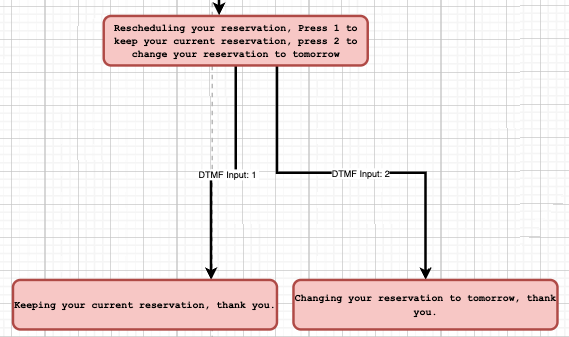
    IVR Level 3 Reschedule Reservation

    This table shows the possible messages that will be played depending on the user's DTMF input. After the message is played the call will end.

    DTMF Input Message
    1 Keeping your current reservation, thank you.
    2 Changing your reservation to tomorrow thank you.
    Other Invalid input, please call again.

    Here is the corresponding callflow that the server should respond with to trigger the IVR menu. The only value to change between the choices is the text which is played back to the user. Since this is a terminal message, all options should use Say+Hangup actions to end the call.

    {
    "callflow":[
    {
    "action":"say",
    "params":{
    "text":"{{Text to send the user}}",
    "voiceProfile":"en-US-BenjaminRUS",
    "speed":1
    }
    },
    {
    "action":"hangup"
    }
    ]
    }

    Voice Session Summary Webhook

    Upon termination of the session, the Voice Session Summary (VSS) will be returned via webhook. For detailed information about the IVR Session Summary payload, see Session Summary (IVR).

    Related Guides

    • Session Summary (IVR) – Detailed webhook payload reference for IVR session summaries
    • IVR Call Action Handling – Detailed documentation on handling VCA webhook callbacks for IVR, including payload examples and response structures
    • Send Callflow API – Complete API reference for the Callflows API used to initiate IVR sessions and control call flow

    Error Handling

    For error codes that may appear in the Voice Session Summary, see the Voice Error Codes reference. For API response status codes, see Voice Status Codes and Status Messages.

    Support Channels
    • Technical support: support@cpaas.8x8.com
    • Sales inquiries: Contact your account manager or visit cpaas.8x8.com/en/contact-us
    • Support Portal: https://support.cpaas.8x8.com/hc/en-us

    Source: https://developer.8x8.com/connect/docs/advanced-ivr · 8x8 CPaaS Developer Docs. Synced for support deflection.

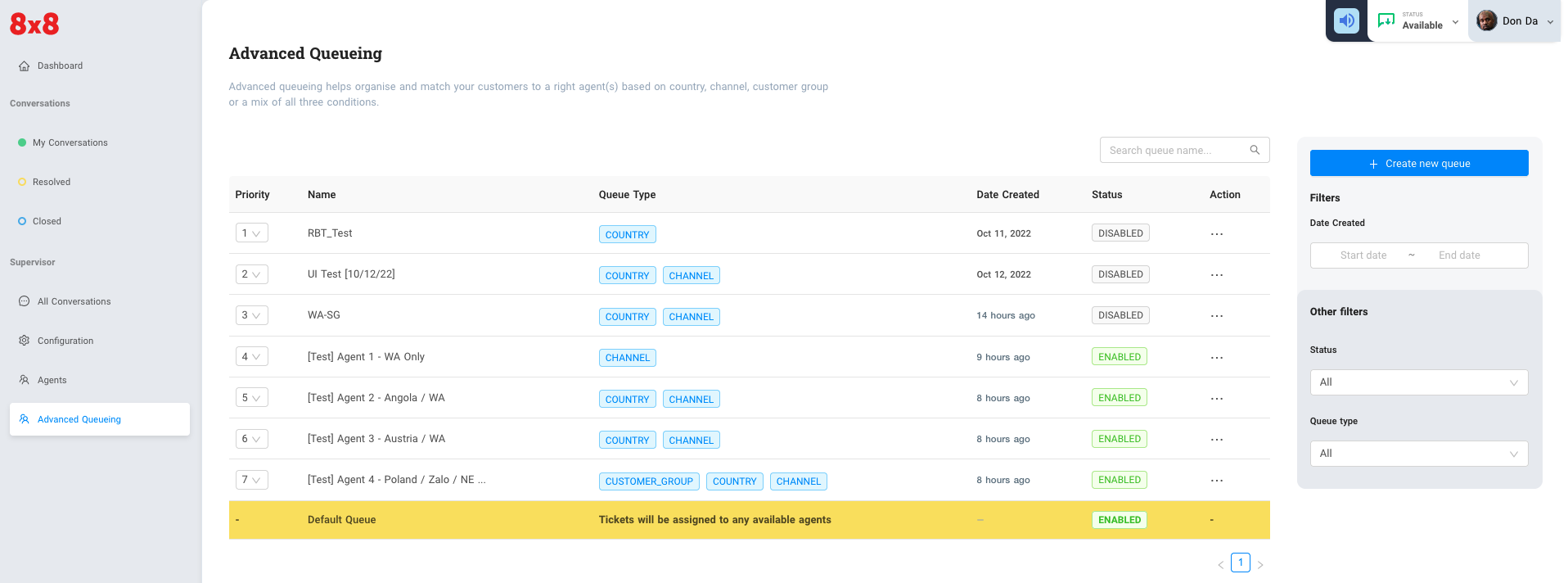
  • Advanced Queueing

    Advanced Queueing

    Advanced queuing helps to organize and match customers to the right agent based on country, channel, customer group, or a combination of the three(3).

    1916


    Source: https://developer.8x8.com/connect/docs/agent-queueing-advanced-queueing · 8x8 CPaaS Developer Docs. Synced for support deflection.

  • «
  • ‹
  • 1
  • 2
8x8 Logo
  • 8x8 YouTube
  • 8x8 Facebook
  • 8x8 Twitter
  • 8x8 Blog
  • 8x8 LinkedIn
  • 8x8 Instagram

Company

  • About Us
  • Careers
  • Contact Us

Our Products

  • SMS
  • Chat Apps
  • Video Interaction
  • Voice
  • Pricing

Media

  • Customer Success Stories
  • News
  • Events
  • Blog

Resources

  • Documentation
  • Service Status
  • Ask for support
Privacy Policy | Terms of Use | Acceptable Use Policy
© 2025 8x8, Inc. All rights reserved.