See Details
Logo CPaaS Help Center Developer Premium Support Status
Sign in Contact Support
  1. 8x8 CPaaS Help Center
  2. Voice & Number Masking

Voice & Number Masking

  • Voice API
    Version: 1.0

    Voice API

    Voice API documentation

    Authentication

    • 8x8 SMS API accepts an ApiKey Bearer Token authentication method.

    • You can generate tokens from your customer portal https://connect.8x8.com/

    • You need to include the following header in your requests: Authorization: Bearer {apiKey}

    Note: Replace the {apiKey} placeholder with the key generated from the customer portal.


    If you haven't created your account yet, please go to 8x8 website https://connect.8x8.com to sign up.

    Security Scheme Type:

    http

    HTTP Authorization Scheme:

    bearer

    Contact

    8x8 Inc: cpaas-support@8x8.com

    URL: https://cpaas.8x8.com

    Terms of Service

    https://cpaas.8x8.com/sg/terms-and-conditions/

    Source: https://developer.8x8.com/connect/reference/voice-api · 8x8 CPaaS Developer Docs. Synced for support deflection.

  • Number Masking API
    Version: v1

    Number Masking API

    Welcome to our Number Masking documentation!

    Overview

    The Number masking service enables your users to connect in a phone call, while keeping their phone numbers private. By implementing Wavecell's Number Masking service, you can track all conversation metadata in your system while maintaining your customers' privacy.

    The main advantages of number masking solutions are:

    • Customer privacy
    • In platform transactions
    • Cost efficiency

    This solution is ideal for the ridesharing, delivery or ecommerce industries where you want to connect your users without revealing any personal data. 8x8 Number Masking API allows you to configure a virtual or proxy number from your pool of numbers to receive call events, status call backs and respond with your preferred call flow function.

    Prerequisites

    Before you get started, please contact your account manager to ensure that your account has access to this product and that the following points have been managed:

    • You will need a new sub-account id to enable and set up 8x8's Number Masking service
    • In order to use our Number Masking API you require a Virtual Number that will be allocated to your sub-account by the 8x8 team
    • You will need to provide an endpoint where the call handles will be sent to Once this is done, you can use our Number Masking product and start building your call flow.

    If you haven't created your account yet, please go to the 8x8 website https://connect.8x8.com to sign up.

    Number Masking flow

    On the diagram below a simple number masking call diagram is shown:

    Flow

    Authentication

    • 8x8 SMS API accepts an ApiKey Bearer Token authentication method.

    • You can generate tokens from your customer portal https://connect.8x8.com/

    • You need to include the following header in your requests: Authorization: Bearer {apiKey}

    Note: Replace the {apiKey} placeholder with the key generated from the customer portal.


    If you haven't created your account yet, please go to 8x8 website https://connect.8x8.com to sign up.

    Security Scheme Type:

    http

    HTTP Authorization Scheme:

    bearer


    Source: https://developer.8x8.com/connect/reference/number-masking-api · 8x8 CPaaS Developer Docs. Synced for support deflection.

  • Send Callflow

    Send Callflow

    POST https://voice.8x8.com/api/v1/subaccounts/:subAccountId/callflows

    Note: For all API requests that include a source parameter, CLID whitelisting is mandatory. Please contact your account manager or email cpaas-support@8x8.com if you have a voice account with 8x8 CPaaS.

    Use Cases

    The Callflows API enables you to build sophisticated voice solutions:

    Interactive Voice Response (IVR)

    Create interactive menu systems with DTMF capture, conditional routing, and voice prompts.

    • Simple IVR Guide - Basic IVR implementation
    • Advanced IVR Guide - Complex IVR with conditional logic

    Voice Messaging

    Deliver automated voice messages using text-to-speech (TTS) or pre-recorded audio files.

    • Voice Messaging Guide

    Custom Call Scenarios

    Build tailored call flows by combining multiple actions (makeCall, say, playFile, sayAndCapture, hangup) to meet your specific business requirements.


    API Examples

    Example 1: IVR with DTMF Capture

    {
    "callflow":[
    {
    "action":"makeCall",
    "params":{
    "source":"+6588000000",
    "destination":"+6590000000"
    }
    },
    {
    "action":"sayAndCapture",
    "params":{
    "promptMessage":"Press 1 for Sales, Press 2 for Support",
    "voiceProfile":"en-US-Neural2-C",
    "minDigits":1,
    "maxDigits":1,
    "digitTimeout":5000,
    "completeOnHash":false
    }
    }
    ]
    }

    Example 2: Voice Message (Text-to-Speech)

    {
    "callflow":[
    {
    "action":"makeCall",
    "params":{
    "source":"+6588000000",
    "destination":"+6590000000"
    }
    },
    {
    "action":"say",
    "params":{
    "text":"Hello, this is a reminder about your appointment tomorrow at 2 PM.",
    "voiceProfile":"en-GB-Emma",
    "repetition":1,
    "speed":1
    }
    },
    {
    "action":"hangup"
    }
    ]
    }

    Example 3: Voice Message (Audio File)

    {
    "callflow":[
    {
    "action":"makeCall",
    "params":{
    "source":"+6588000000",
    "destination":"+6590000000"
    }
    },
    {
    "action":"playFile",
    "params":{
    "fileUrl":"https://example.com/audio/notification.mp3",
    "repetition":1
    }
    },
    {
    "action":"hangup"
    }
    ]
    }

    Request

    Path Parameters

      subAccountId stringrequired

      Possible values: >= 3 characters and <= 50 characters, Value must match regular expression ^[A-Za-z0-9\-._&]{3,50}$

      You must replace {subAccountId} with the subaccountid that you want to use. By default this is generated once you have completed the voice onboarding.

    Body

    • To send a Voice callflow Message using the 8x8 Voice Message API you need to POST a JSON object to the url defined above.
    • Additionally it is required to set either a language code or a voice profile in the request, to guarantee the correct pronunciation of the voice message.
    • The JSON object takes the following properties:
      anyOf
      validUntilstring

      Optional date time. format: YYYY-MM-DDTHH:MM:SS.SSSZ

      callflow object[]

    • Array [
    • anyOf
      actionstring

      makeCall enables you to create an outbound voice call to a specified destination with the caller id specified as source. Once the call is answered by the receiving party, the rest of the callflow actions will be executed in sequence. If two makeCall actions are used in the same callflow, the 2nd call will be bridged to the 1st call once answered. Currently, we do not support call conferencing, so the maximum allowed makeCall actions in a callflow is 2.

      Possible values: [makeCall]

      params object

      sourcestringrequired

      Originator phone number. For CLIDs that have been whitelisted and CLID overwrite is enabled for the subaccount, please set the CLID as "6588000000".

      Example: [+][country code][88000000]
      destinationstringrequired

      Destination phone number in E.164 international format.

      Example: +6590000000[+][country code][subscriber number including area code]
      actionstring

      Say enables you to convert the given text into a speech and play it in the currently active call.

      Possible values: [say]

      params object

      textstringrequired

      The message body content to be converted to voice. Maximum voice message length is 3000 characters

      Example: Hi, This is a test message from 8x8
      voiceProfilestringrequired

      Choose one of the available Voice profiles to define the voice, gender and accent for the message you are sending. To see all available speech profiles, please send an API request to https://developer.8x8.com/connect/reference/get-voice-profile-information endpoint to retrieve voice profiles that 8x8 supports

      Example: en-GB-Emma
      repetitioninteger

      The amount of times to repeat the voice message during the call. Accepted values are 1, 2 or 3. Default value is 1 for no repeat.

      Example: 1
      speedinteger

      Reproduction speed of speech in the resulting message. Accepted values range from 0.5 - 2, as a two digit number. The default value is 1.

      Example: 1
      actionstring

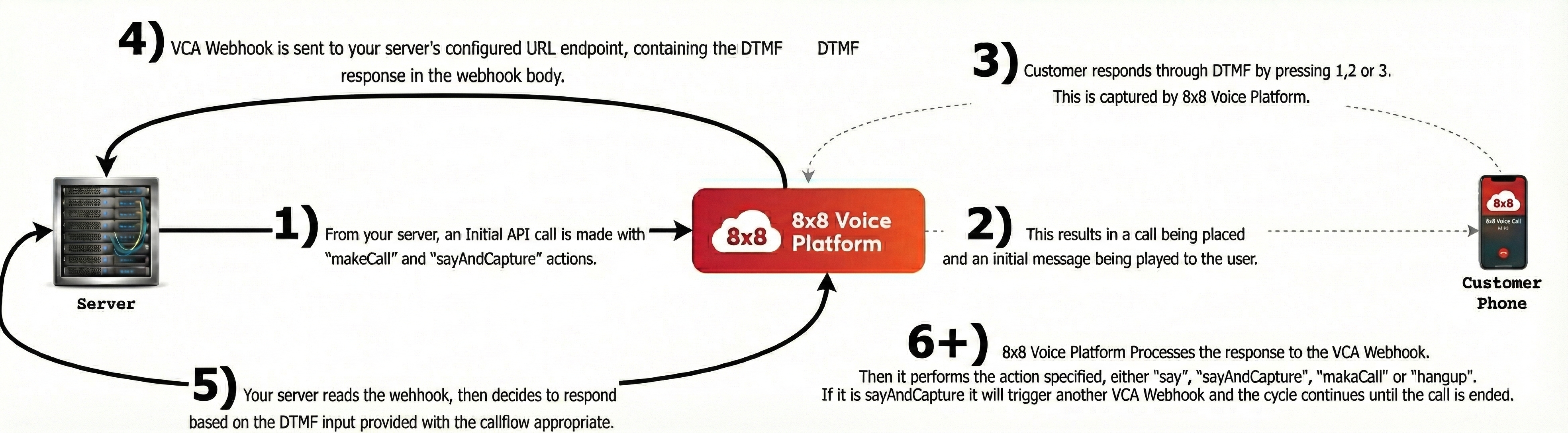
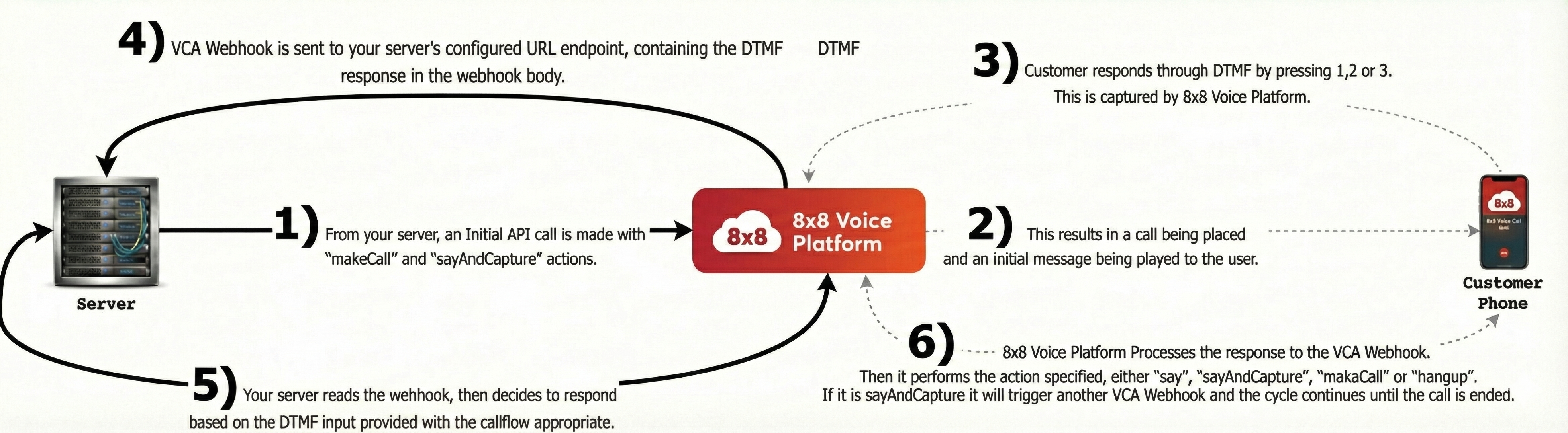
      sayAndCapture - Plays a voice file in to the call and then captures users DTMF input and reports back the DTMF via Voice Call Action (VCA) webhook. https://developer.8x8.com/connect/reference/voice-call-action-webhook

      Possible values: [sayAndCapture]

      params object

      promptMessagestring

      The message body content to be converted to voice. Maximum voice message length is 3000 characters

      voiceProfilestring

      Choose one of the available Voice profiles to define the voice, gender and accent for the message you are sending. To see all available speech profiles, please send an API request to https://developer.8x8.com/connect/reference/get-voice-profile-information endpoint to retrieve voice profiles that 8x8 supports

      Example: en-GB-Emma
      speedinteger

      Reproduction speed of speech in the resulting message. Accepted values range from 0.5 - 2, as a two digit number. The default value is 1.

      minDigitsintegernullable

      min no of digits to be pressed by user before call back is triggered

      Possible values: >= 1

      Default value: 1
      maxDigitsintegernullable

      max no of digits to be pressed by user before call back is triggered

      Possible values: >= 1

      Default value: 1
      digitTimeoutintegernullable

      max time for dtmf tones being captured

      Possible values: >= 1

      overallTimeoutintegernullable

      max call duration

      Possible values: >= 1

      Default value: 5000
      completeOnHashbooleannullable

      if the dtmf callback should be triggered on hash

      Default value: true
      noOfTriesintegernullable

      max no of times to play message if user doesn't provide input

      Possible values: >= 1

      Default value: 1
      successMessagestringnullable
      failureMessagestringnullable
      actionstring

      playFile enables you to send an audio recording to an end user.

      Possible values: [playFile]

      params object

      fileUrlstringrequired

      url of the audio to be played in the call

      • supported protocols - http, https
      • max file size - 5120 KB
      • supported media formats - mp3, wav
      repetitioninteger

      No of times to repeat the audio file content. Accepted values are 1, 2 or 3. Default is 1 (no repeat).

      actionstring

      Hangup - Disconnects all active calls. This will terminate the session, triggering the session summary webhook.

      Possible values: [hangup]

    • ]

    Should the request authenticate successfully and pass all validation, the response will contain an updated Voice Message Object. The following is an example response:

    Schema

      sessionIdstringrequired

      The unique id of the callflow session.

      sessionStatusstringrequired

      The status of the callflow session.

      callFlowRequestIdstringrequired

      The unique id of the callflow request.

      validUntilstring<date-time>

      The time until which the callflow session is valid.

      statusCodeintegerrequired

      The status code of the callflow session.

      statusMessagestringrequired

      The status message of the callflow session.

    {
    "sessionId":"03cc8cac-376b-11ef-a28b-0582ff0039d5",
    "sessionStatus":"CREATED",
    "callFlowRequestId":"03cc3e8b-376b-11ef-a28b-4dd5d900ecb3",
    "validUntil":"2024-07-01T05:50:23.550Z",
    "statusCode":1,
    "statusMessage":"Created"
    }
    {
    "sessionId":"03cc8cac-376b-11ef-a28b-0582ff0039d5",
    "sessionStatus":"CREATED",
    "callFlowRequestId":"03cc3e8b-376b-11ef-a28b-4dd5d900ecb3",
    "statusCode":1,
    "statusMessage":"Created"
    }

    Schema

      sessionStatusstringrequired

      The status of the callflow session.

      callFlowRequestIdstringrequired

      The unique id of the callflow request.

      statusCodeintegerrequired

      The status code of the callflow session.

      statusMessagestringrequired

      The status message of the callflow session.

    {
    "sessionStatus":"string",
    "callFlowRequestId":"string",
    "statusCode":0,
    "statusMessage":"string"
    }
    {
    "sessionStatus":"NOT_CREATED",
    "callFlowRequestId":"c6e6dee5-3846-11ef-9e95-b903e2ed7273",
    "statusCode":-1007,
    "statusMessage":"$.callflow[0].action should be one of: say,playFile,sayAndCapture"
    }

    Schema

      sessionStatusstringrequired

      The status of the callflow session.

      callFlowRequestIdstringrequired

      The unique id of the callflow request.

      statusCodeintegerrequired

      The status code of the callflow session.

      statusMessagestringrequired

      The status message of the callflow session.

    {
    "sessionStatus":"string",
    "callFlowRequestId":"string",
    "statusCode":0,
    "statusMessage":"string"
    }
    {
    "sessionStatus":"NOT_CREATED",
    "callFlowRequestId":"fd2fc658-3845-11ef-9e95-b903e2ed7273",
    "statusCode":401,
    "statusMessage":"Authentication header not found or token invalid"
    }

    Schema

      sessionStatusstringrequired

      The status of the callflow session.

      callFlowRequestIdstringrequired

      The unique id of the callflow request.

      statusCodeintegerrequired

      The status code of the callflow session.

      statusMessagestringrequired

      The status message of the callflow session.

    {
    "sessionStatus":"string",
    "callFlowRequestId":"string",
    "statusCode":0,
    "statusMessage":"string"
    }
    {
    "sessionStatus":"NOT_CREATED",
    "callFlowRequestId":"9e209996-3845-11ef-9e95-b903e2ed7273",
    "statusCode":404,
    "statusMessage":"SubAccount not found by Id : 8x8_Testing"
    }

    Schema

      sessionStatusstringrequired

      The status of the callflow session.

      callFlowRequestIdstringrequired

      The unique id of the callflow request.

      statusCodeintegerrequired

      The status code of the callflow session.

      statusMessagestringrequired

      The status message of the callflow session.

    {
    "sessionStatus":"string",
    "callFlowRequestId":"string",
    "statusCode":0,
    "statusMessage":"string"
    }
    {
    "sessionStatus":"NOT_CREATED",
    "callFlowRequestId":"767ca1b8-3846-11ef-9e95-b903e2ed7273",
    "statusCode":-1013,
    "statusMessage":"Invalid Callflow : First action should be a MakeCall action"
    }

    Schema

      sessionStatusstringrequired

      The status of the callflow session.

      callFlowRequestIdstringrequired

      The unique id of the callflow request.

      statusCodeintegerrequired

      The status code of the callflow session.

      statusMessagestringrequired

      The status message of the callflow session.

    {
    "sessionStatus":"string",
    "callFlowRequestId":"string",
    "statusCode":0,
    "statusMessage":"string"
    }
    {
    "sessionStatus":"NOT_CREATED",
    "callFlowRequestId":"767ca1b8-3846-11ef-9e95-b903e2ed7273",
    "statusCode":500,
    "statusMessage":"Internal server error"
    }

    Source: https://developer.8x8.com/connect/reference/ivr · 8x8 CPaaS Developer Docs. Synced for support deflection.

  • Get speech profiles for your account

    Get speech profiles for your account

    GET https://voice.8x8.com/api/v1/subaccounts/:subAccountId/speech-profiles

    Get speech profiles for your account

    Request

    Path Parameters

      subAccountId stringrequired

      Possible values: >= 3 characters and <= 50 characters, Value must match regular expression ^[A-Za-z0-9\-._&]{3,50}$

      You must replace {subAccountId} with the subaccountid that you want to use. By default this is generated once you have completed the voice onboarding.

    Request succeeded

    Schema

      speechProfiles object[]

    • Array [
    • speechProfileCodestring

      The unique code for the speech profile.

      localeCodestring

      The locale code for the speech profile.

      localeDescriptionstring

      The locale description for the speech profile.

      genderstring

      The gender of the voice profile.

    • ]
    • statusCodeinteger
      statusMessagestring
    {
    "speechProfiles":[
    {
    "speechProfileCode":"en-US-Standard-A",
    "localeCode":"en-US",
    "localeDescription":"EnglishUS",
    "gender":"F"
    },
    {
    "speechProfileCode":"da-DK-Naja",
    "localeCode":"da-DK",
    "localeDescription":"Danish",
    "gender":"F"
    }
    ]
    }

    API key not found or invalid

    Resource not accessible

    Resource not found

    Server error


    Source: https://developer.8x8.com/connect/reference/get-voice-profile-information · 8x8 CPaaS Developer Docs. Synced for support deflection.

  • Get recording status

    Get recording status

    GET https://voice.8x8.com/api/v1/subaccounts/:subAccountId/recordings/:sessionId

    Get recording status

    Request

    Path Parameters

      subAccountId stringrequired

      Possible values: >= 3 characters and <= 50 characters, Value must match regular expression ^[A-Za-z0-9\-._&]{3,50}$

      You must replace {subAccountId} with the subaccountid that you want to use. By default this is generated once you have completed the voice onboarding.

      sessionId stringrequired

      Possible values: Value must match regular expression ^[0-9A-Fa-f]{8}-[0-9A-Fa-f]{4}-[0-9A-Fa-f]{4}-[0-9A-Fa-f]{4}-[0-9A-Fa-f]{12}$

    Request succeeded

    Schema

      recordings object[]

    • Array [
    • recordingIdstring

      The recording id for the recording.

      sessionidstring

      The session id for the recording.

      subAccountIdstring

      The sub account id for the recording.

      statusstring

      The status for the recording.

      externalFileUrlstring

      The external file url for the recording.

      durationinteger

      The duration for the recording.

      startRecordingTimestring

      The start recording time for the recording.

    • ]
    • statusCodeinteger

      The status code for the recording push config.

      statusMessagestring

      The status message for the recording push config.

    {
    "subAccountId":"XXXX",
    "protocol":"ftp",
    "host":"ftp.sample.com",
    "port":21,
    "username":"username",
    "passwordSet":true,
    "path":"/path/to/folder",
    "statusCode":0,
    "statusMessage":"ok"
    }

    API key not found or invalid

    Resource not accessible

    Resource not found

    Server error


    Source: https://developer.8x8.com/connect/reference/get-recording-status-information · 8x8 CPaaS Developer Docs. Synced for support deflection.

  • Get recording push config for your account

    Get recording push config for your account

    GET https://voice.8x8.com/api/v1/subaccounts/:subAccountId/recording-push-config

    Get recording push config for your account

    Request

    Path Parameters

      subAccountId stringrequired

      Possible values: >= 3 characters and <= 50 characters, Value must match regular expression ^[A-Za-z0-9\-._&]{3,50}$

      You must replace {subAccountId} with the subaccountid that you want to use. By default this is generated once you have completed the voice onboarding.

    Request succeeded

    Schema

      subAccountIdstring

      The sub account id for the recording push config.

      protocolstring

      The protocol to be used for the recording push config.

      hoststring

      The host to be used for the recording push config.

      portinteger

      The port to be used for the recording push config.

      usernamestring

      The username to be used for the recording push config.

      passwordSetboolean

      The password to be used for the recording push config.

      pathstring

      The path to be used for the recording push config.

      statusCodeinteger

      The status code for the recording push config.

      statusMessagestring

      The status message for the recording push config.

    {
    "subAccountId":"XXXX",
    "protocol":"ftp",
    "host":"ftp.sample.com",
    "port":21,
    "username":"username",
    "passwordSet":true,
    "path":"/path/to/folder",
    "statusCode":0,
    "statusMessage":"ok"
    }

    API key not found or invalid

    Resource not accessible

    Resource not found

    Server error


    Source: https://developer.8x8.com/connect/reference/get-recording-push-config-information · 8x8 CPaaS Developer Docs. Synced for support deflection.

  • Get log export job result

    Get log export job result

    GET https://voice.wavecell.com/api/v1/subaccounts/:subAccountId/messages/exports/:jobId
    • Sending a GET request on this endpoint allows to check the status of an Voice Logs export job and to get a download link if its generation has succeeded.

    URL

    To define which Voice logs export you want to retrieve, you need to enter the Job ID generated by XXXXX in the path as well as the 8x8 subaccountid you used in the previous request. https://voice.wavecell.com/api/v1/subaccounts/{subAccountID}/messages/exports/{jobId}

    You must replace {jobID} and {subAccountId} in the URL above with the jobID and subaccountid from the start logs export job request

    Request

    Path Parameters

      subAccountId stringrequired

      Possible values: >= 3 characters and <= 50 characters, Value must match regular expression ^[A-Za-z0-9\-._&]{3,50}$

      You must replace {subAccountId} with the subaccountid that you want to use. By default this is generated once you have completed the voice onboarding.

      jobId stringrequired

      Export job identifier

    In case of successful request which comes with a 200 code, you will be presented with a status parameter value (string). Here are the possible cases and their meaning:

    • queued - request for report creation is waiting in the queue

    • running - report creation has started, but not finished yet

    • succeeded - report created and CSV file can be downloaded using the link in the data property

    • failed - the report creation failed

    • cancelled - the report job has been cancelled

    • empty - the report is empty

    • error - an internal server error occurred

    Once the platform will have successfully generated an logs export ("status":"succeeded"), the links to the files will be contained in an array value of the parameter called data.

    The files to the links have a default expiry date of 1 month from the moment the jobs succeeds and the files are made available for download. This expiration datetime is included in the response along with the data, as the value of a parameter called expires

    Logs files format

    The logs files generated are CSV files. The files contains the following columns of data about individual calls:

    • SessionId: Unique identifier for the session; tracks the lifecycle of the call session.
    • CallId: Unique identifier for the specific call; used for tracing and correlating logs or events.
    • AccountId: Identifier of the customer account. Account name where the subaccount(s) are from.
    • SubAccountId: Subaccount used to send/receive calls. Unique ID of account.
    • Direction: Indicates whether the call is inbound or outbound.
    • SourceCountryCode: The numeric country code of the call origin.
    • SourceCountry: The originating country name.
    • SourceOperator: The telecom operator handling the call origin.
    • SourceMCC: Mobile Country Code of the source.
    • SourceMNC: Mobile Network Code of the source, identifying the mobile network.
    • SourceEndpoint: The originating endpoint or phone number.
    • DestinationCountryCode: The numeric country code of the call destination number.
    • DestinationCountry: The destination country name.
    • DestinationOperator: The telecom operator handling the destination number.
    • DestinationMCC: Mobile Country Code for the destination number.
    • DestinationMNC: Mobile Network Code for the destination number.
    • DestinationEndpoint: The called endpoint or phone number.
    • InitiatedAt: Timestamp when the call was initiated (attempted).
    • ConnectedAt: Timestamp when the call was successfully connected.
    • DisconnectedAt: Timestamp when the call ended.
    • DurationInSec: Total call duration in seconds (from when the call is connected to when call is disconnected).
    • Product: Type of voice product.
    • BillingUnit: Unit of billing.
    • BillingIncrement: Billing increment (e.g. 1+1 means per second, 60+60 means per minute).
    • BillableDurationInSec: Duration billed after taking into account billing unit and billing increment.
    • UnitPrice: Price Per Billing Unit (e.g. Price Per minute).
    • UnitPriceCurrency: Currency used for pricing (e.g. USD, EUR).
    • TotalPriceOfCall: Total cost incurred for the call.
    • CallType: Type of call.
    • SipStatus: Final SIP Status code.
    • SessionStatus: Status of the session (e.g. COMPLETED, NO_ANSWER, BUSY, CANCELED, FAILED, ERROR).
    • CallStatus: Call status of the call leg. The values can be: COMPLETED, NO_ANSWER, BUSY, CANCELED, FAILED.
    • TTSLength: Length of text-to-speech used during the call (Only applicable if text to speech service is used).
    • MOS: Mean Opinion Score, a quality rating of the call voice (scale from 1 to 5). (Only applicable if the terminating telecom operator provides this score).
    • Content: JSON of the call flows submitted (Only applicable if a voice campaign was sent via connect.8x8.com).

    Schema

      statusstring

      Job status

      Possible values: [queued, running, succeeded, failed, cancelled, empty, error]

      datastring[]

      The value presented in the response only when the status is "succeeded".

      Array of links to download the report. Links are valid until the time defined by expires value.

      expiresstring

      The value presented in the response only when the status is "succeeded".

      Contains the UTC datetime after which the report won't be accessible anymore.

      Example: 2020-07-01T06:58:41.74Z
    {
    "status":"queued",
    "data":[
    "string"
    ],
    "expires":"2020-07-01T06:58:41.74Z"
    }
    {
    "status":"succeeded",
    "data":[
    "https://voice.wavecell.com/api/v1/subaccounts/your_subAccountId/messages/download/long-unique-token-here"
    ],
    "expires":"2020-10-25T06:58:41.74Z"
    }

    Schema

      errorIdstring<uuid>
      Example: 1aa1fc32-8e07-11ea-864e-1961d882f548
      statusCodestring
      Example: 1001
      statusMessagestring
      Example: Invalid JSON request body
      timestampstring
      Example: {}
    {
    "errorId":"1aa1fc32-8e07-11ea-864e-1961d882f548",
    "statusCode":"1001",
    "statusMessage":"Invalid JSON request body",
    "timestamp":{}
    }
    {
    "code":4018,
    "message":"Invalid jobId",
    "errorId":"aa400d4b-fffe-ea11-8277-00155d4ff7ed",
    "timestamp":"2020-09-25T07:18:22.78Z"
    }

    Source: https://developer.8x8.com/connect/reference/get-voice-log-export-job-result · 8x8 CPaaS Developer Docs. Synced for support deflection.

  • Get Call Permission Status

    Get Call Permission Status

    GET https://chatapps.8x8.com/api/v1/whatsapp/subaccounts/:subAccountId/channels/:channelId/callPermissions

    This endpoint is used to check the status of call permission for a specific destination on WhatsApp. It returns whether the business is allowed to initiate voice calls to the specified phone number.

    Request

    Path Parameters

      subAccountId stringrequired

      Sub-account identifier

      channelId stringrequired

      Channel identifier

    Query Parameters

      destination stringrequired

      Destination phone number to check call permission status (E.164 format)

      Example: +6500000000

    Success response

    Schema

      statusstring

      The current call permission status

      Possible values: [temporary, permanent, not_granted]

      Example: temporary

      actions object[]

      List of actions and their permissions

    • Array [
    • actionNamestring

      Name of the action

      Possible values: [send_call_permission_request, start_call]

      Example: send_call_permission_request
      canPerformActionboolean

      Whether the action can be performed

      Example: true

      limits object[]

      Rate limits for this action

    • Array [
    • timePeriodstring

      ISO 8601 duration format (e.g., PT24H for 24 hours, P7D for 7 days)

      Example: PT24H
      maxAllowedinteger

      Maximum number of actions allowed in the time period

      Example: 1
      currentUsageinteger

      Current usage count in the time period

      Example: 0
    • ]
    • ]
    • expirationTimestring<date-time>

      ISO 8601 timestamp indicating when the call permission expires

      Example: 2026-02-06T08:12:30.00Z
    {
    "status":"temporary",
    "actions":[
    {
    "actionName":"send_call_permission_request",
    "canPerformAction":true,
    "limits":[
    {
    "timePeriod":"PT24H",
    "maxAllowed":1,
    "currentUsage":0
    }
    ]
    }
    ],
    "expirationTime":"2026-02-06T08:12:30.00Z"
    }
    {
    "status":"temporary",
    "actions":[
    {
    "actionName":"send_call_permission_request",
    "canPerformAction":true,
    "limits":[
    {
    "timePeriod":"PT24H",
    "maxAllowed":1,
    "currentUsage":0
    },
    {
    "timePeriod":"P7D",
    "maxAllowed":2,
    "currentUsage":0
    }
    ]
    },
    {
    "actionName":"start_call",
    "canPerformAction":true,
    "limits":[
    {
    "timePeriod":"PT24H",
    "maxAllowed":100,
    "currentUsage":0
    }
    ]
    }
    ],
    "expirationTime":"2026-02-06T08:12:30.00Z"
    }

    Bad request error response

    Schema

      codeintegerrequired

      Error code

      messagestring

      Error description

      errorIdstring<uuid>required

      Unique id of error. You can use it as reference when sending enquiries to 8x8 support

      timestampstring<date-time>required

      Data and time of the error occurence

    {
    "code":1001,
    "message":"Provided subAccountId doesn't belongs to your account",
    "errorId":"91b106f0-c0da-4aba-a43a-7af9c5893a80",
    "timestamp":"2017-04-19T02:31:19.4297387+00:00"
    }
    {
    "code":1002,
    "message":"Invalid MSISDN format (not E.164 international number)",
    "errorId":"b4478860-b76c-e811-814e-022a35cc1c71",
    "timestamp":"2018-08-04T09:25:40.9235752+00:00"
    }

    Request was not authenticated response

    Schema

      codeintegerrequired

      Error code

      messagestring

      Error description

      errorIdstring<uuid>required

      Unique id of error. You can use it as reference when sending enquiries to 8x8 support

      timestampstring<date-time>required

      Data and time of the error occurence

    {
    "code":1001,
    "message":"Provided subAccountId doesn't belongs to your account",
    "errorId":"91b106f0-c0da-4aba-a43a-7af9c5893a80",
    "timestamp":"2017-04-19T02:31:19.4297387+00:00"
    }
    {
    "code":1200,
    "message":"Request was not authenticated properly",
    "errorId":"db9dced4-3534-4d86-9d18-6b448af0d621",
    "timestamp":"2018-08-02T09:42:38.8988997+00:00"
    }

    Internal server error

    Schema

      codeintegerrequired

      Error code

      messagestring

      Error description

      errorIdstring<uuid>required

      Unique id of error. You can use it as reference when sending enquiries to 8x8 support

      timestampstring<date-time>required

      Data and time of the error occurence

    {
    "code":1001,
    "message":"Provided subAccountId doesn't belongs to your account",
    "errorId":"91b106f0-c0da-4aba-a43a-7af9c5893a80",
    "timestamp":"2017-04-19T02:31:19.4297387+00:00"
    }
    {
    "code":2000,
    "message":"Internal server error",
    "errorId":"db9dced4-3534-4d86-9d18-6b448af0d621",
    "timestamp":"2018-07-02T09:42:38.8988997+00:00"
    }

    Source: https://developer.8x8.com/connect/reference/get-call-permission-status · 8x8 CPaaS Developer Docs. Synced for support deflection.

  • Delete recording push config

    Delete recording push config

    DELETE https://voice.8x8.com/api/v1/subaccounts/:subAccountId/recording-push-config

    Delete recording push config

    Request

    Path Parameters

      subAccountId stringrequired

      Possible values: >= 3 characters and <= 50 characters, Value must match regular expression ^[A-Za-z0-9\-._&]{3,50}$

      You must replace {subAccountId} with the subaccountid that you want to use. By default this is generated once you have completed the voice onboarding.

    Request succeeded

    Schema

      deleteboolean

      The recording push config has been deleted.

      subAccountIdstring

      The sub account id for the recording push config.

      protocolstring

      The protocol to be used for the recording push config.

      hoststring

      The host to be used for the recording push config.

      portinteger

      The port to be used for the recording push config.

      usernamestring

      The username to be used for the recording push config.

      passwordSetboolean

      The password to be used for the recording push config.

      pathstring

      The path to be used for the recording push config.

      statusCodeinteger

      The status code for the recording push config.

      statusMessagestring

      The status message for the recording push config.

    {
    "delete":true,
    "subAccountId":"XXXX",
    "protocol":"ftp",
    "host":"ftp.sample.com",
    "port":21,
    "username":"username",
    "passwordSet":true,
    "path":"/path/to/folder",
    "statusCode":0,
    "statusMessage":"ok"
    }

    API key not found or invalid

    Resource not accessible

    Resource not found

    Server error


    Source: https://developer.8x8.com/connect/reference/delete-recording-push-config · 8x8 CPaaS Developer Docs. Synced for support deflection.

  • Create a new recording push config

    Create a new recording push config

    POST https://voice.8x8.com/api/v1/subaccounts/:subAccountId/recording-push-config

    Create a new recording push config

    Request

    Path Parameters

      subAccountId stringrequired

      Possible values: >= 3 characters and <= 50 characters, Value must match regular expression ^[A-Za-z0-9\-._&]{3,50}$

      You must replace {subAccountId} with the subaccountid that you want to use. By default this is generated once you have completed the voice onboarding.

    Bodyrequired

    Create webhooks params

      protocolstring

      The protocol to be used for the recording push config.

      hoststring

      The host to be used for the recording push config.

      portinteger

      The port to be used for the recording push config.

      usernamestring

      The username to be used for the recording push config.

      passwordstring

      The password to be used for the recording push config.

      pathstring

      The path to be used for the recording push config.

    Request succeeded

    Schema

      deleteboolean

      The recording push config has been deleted.

      subAccountIdstring

      The sub account id for the recording push config.

      protocolstring

      The protocol to be used for the recording push config.

      hoststring

      The host to be used for the recording push config.

      portinteger

      The port to be used for the recording push config.

      usernamestring

      The username to be used for the recording push config.

      passwordSetboolean

      The password to be used for the recording push config.

      pathstring

      The path to be used for the recording push config.

      statusCodeinteger

      The status code for the recording push config.

      statusMessagestring

      The status message for the recording push config.

    {
    "delete":true,
    "subAccountId":"XXXX",
    "protocol":"ftp",
    "host":"ftp.sample.com",
    "port":21,
    "username":"username",
    "passwordSet":true,
    "path":"/path/to/folder",
    "statusCode":0,
    "statusMessage":"ok"
    }

    API key not found or invalid

    Resource not accessible

    Resource not found

    Invalid param

    Schema

      errorIdstring<uuid>
      Example: 1aa1fc32-8e07-11ea-864e-1961d882f548
      statusCodestring
      Example: 1001
      statusMessagestring
      Example: Invalid JSON request body
      timestampstring
      Example: {}
    {
    "errorId":"1aa1fc32-8e07-11ea-864e-1961d882f548",
    "statusCode":"1001",
    "statusMessage":"Invalid JSON request body",
    "timestamp":{}
    }

    Server error


    Source: https://developer.8x8.com/connect/reference/create-a-new-recording-push-config · 8x8 CPaaS Developer Docs. Synced for support deflection.

  • Call Logs

    Call Logs

    GET https://video-agent.8x8.com//api/v1/call-logs

    This API endpoint allows to retrieve information related to past calls. You need to use the Token API first to create an Authorization Token. You can to list the calls during a time period or with a specific Call_Reference or Phone_Number.

    Example 1:

    curl -X POST https://video-agent.8x8.com//api/v1/call-logs \
    -H "Content-Type: application/json" \
    -H x-token: YourAuthToken' \

    Example 2:

    curl -X POST
    https://video-agent.8x8.com/api/v1/call-logs?from=yyyy-mm-dd&to=yyyy-mm-dd&q=12345&cursor=5757 \
    -H "Content-Type: application/json" \
    -H x-token: YourAuthToken' \

    Request

    Query Parameters

      from date
      Default value: yyyy-mm-dd
      to date
      Default value: yyyy-mm-dd
      q string
      cursor string

    Header Parameters

      Content-Type stringrequired
      Default value: application/json
      x-token stringrequired
      Default value: {YourAuthToken}

    Schema

    {
    "prevCursor":"5775",
    "nextCursor":null,
    "list":[
    {
    "CallId":"5774",
    "UserB_MSISDN":"639215074178",
    "CreatedAt":"2019-02-05T07:19:28.850Z",
    "FinishedAt":"2019-02-05T07:24:50.170Z",
    "Duration":25,
    "Status":"E",
    "CountryISO2alpha":"PH",
    "Reference":"ffdsfsfsf",
    "Location":null
    },
    {
    "CallId":"5756",
    "UserB_MSISDN":"null,",
    "CreatedAt":"2019-02-04T04:00:26.250Z",
    "FinishedAt":null,
    "Duration":0,
    "Status":"C",
    "CountryISO2alpha":"“SG”",
    "Reference":"mdopyomn",
    "Location":null
    }
    ]
    }

    Source: https://developer.8x8.com/connect/reference/call-log · 8x8 CPaaS Developer Docs. Synced for support deflection.

  • Detail call

    Detail call

    GET https://video-agent.8x8.com//api/v1/calls/:id

    This API endpoint enables information retrieval related to a specific past call. You need to use the Token API first to create an Authorization Token. You can retrieve all information related to a specific call using the CallId.

    Request

    Path Parameters

      id stringrequired
      Default value: CallID

    Header Parameters

      Content-Type stringrequired
      Default value: application/json
      x-token stringrequired
      Default value: {YourAuthToken}

    Schema

    {
    "CreatedAt":"2019-01-05T07:27:25.190Z",
    "FinishedAt":"2019-01-05T07:28:36.060Z",
    "Duration":25,
    "Status":"C",
    "AgentRating":"5",
    "GuestRating":"5",
    "Location":{
    "lat":10.3179594,
    "long":123.907218
    },
    "Conversation":[
    {
    "origin":"agent",
    "timestamp":1552018590459,
    "data":"Hi There"
    },
    {
    "origin":"guest",
    "timestamp":1552018598185,
    "data":"Hello"
    },
    {
    "origin":"guest",
    "timestamp":1552018609975,
    "data":"/s3/uploads/snapshots/2019/2/8/1552458607812-snapshot.png"
    },
    {
    "origin":"guest",
    "timestamp":1552018620433,
    "data":"/s3/uploads/snapshots/2019/2/8/1552085618003-snapshot.png"
    }
    ]
    }

    Source: https://developer.8x8.com/connect/reference/call-detail · 8x8 CPaaS Developer Docs. Synced for support deflection.

  • User-initiated calling

    User-initiated calling

    What is User-initiated Calling?

    User-initiated calling allows customers to call your business directly from WhatsApp by tapping a call entry point (for example, the call icon shown in chat or a "Call" button).

    The customer always initiates the call, making this a low-friction way to escalate from messaging to voice when immediate assistance is needed.

    With 8x8 CPaaS, WhatsApp calls are delivered into your environment using SIP, so you can reuse your existing contact center, PBX, SBC, IVR, queues, and agent workflows.


    When to Use User-initiated Calling

    User-initiated calling is best suited for:

    • Customer support and issue escalation
    • Sales enquiries and consultations
    • Order, delivery, or account issues
    • Situations where messaging is insufficient or too slow

    Because the customer initiates the call, user-initiated calling is typically the simplest way to enable inbound WhatsApp voice.


    Geographic Availability

    User-initiated calling (UIC) has broader availability than business-initiated calling:

    Available in:

    • Most regions where the WhatsApp Cloud API is supported
    • Significantly more countries than business-initiated calling

    Blocked in sanctioned countries:

    • 🇨🇺 Cuba, 🇮🇷 Iran, 🇰🇵 North Korea, 🇸🇾 Syria
    • 🇺🇦 Ukraine (Crimea, Donetsk, Luhansk regions)

    Business phone number requirements:

    • Your business phone number must be registered in a Cloud API-supported country
    • Customers can call from any country where WhatsApp Cloud API is available
    • Internet connectivity (WiFi or mobile data) required for calls
    Advantage over Business-Initiated Calling

    User-initiated calling is available in USA, Canada, Turkey, Egypt, Vietnam, and Nigeria – countries where business-initiated calling is NOT supported. This makes UIC a valuable alternative for businesses serving customers in these regions.

    To verify current availability:

    • Check Meta's WhatsApp Cloud API documentation for latest updates
    • Consult with your 8x8 account manager for specific regional considerations

    How It Works (8x8 SIP Model)

    At a high level, the call is delivered to your environment like a standard inbound SIP call.

    Customer (WhatsApp)
    ⟷ WhatsApp Calling
    ⟷ 8x8 Voice Platform
    ⟷ SIP
    ⟷ Your Contact Center / PBX / Agents

    Step-by-step Call Flow

    1. Customer opens WhatsApp

      • The customer opens your business chat or profile.
      • They see one or more call entry points (depending on what is enabled for your WhatsApp Business number).
    2. Customer initiates the call

      • The customer taps the call entry point.
      • WhatsApp starts a VoIP call using the customer's data or Wi-Fi connection.
    3. 8x8 receives the inbound WhatsApp call

      • 8x8 anchors the calling integration as your WhatsApp Calling BSP.
      • 8x8 manages the WhatsApp calling connectivity and the handoff into your voice environment.
    4. 8x8 delivers the call via SIP

      • 8x8 delivers the call to your configured SIP endpoint (contact center / PBX / SBC).
      • From your perspective, this behaves like a standard inbound SIP call.
    5. Your system routes the call

      • Apply your existing routing logic:
        • IVR menus
        • Queues
        • Skills-based routing
        • Direct agent or extension routing
    6. Agent answers

      • Two-way audio is established:

        Customer (WhatsApp) ⟷ 8x8 ⟷ Agent (SIP)
    7. Call ends

      • Either party hangs up.
      • Call records and reporting are generated in your voice systems.

    Call Entry Points (What Customers See)

    User-initiated calling can be made available through one or more WhatsApp surfaces, depending on configuration:

    • Call icon in the WhatsApp chat header or business profile
    • Call button presented in WhatsApp experiences (for example, interactive messages)

    WhatsApp chat showing call icon and call entry points

    How Call Entry Points Are Enabled (8x8 BSP Model)

    As your BSP for WhatsApp Calling, 8x8 manages the Meta-side enablement, including:

    • Enabling calling for your WhatsApp Business number (where eligible)
    • Configuring calling entry points (call icon / call buttons)
    • Providing the required templates and configurations for call buttons (where applicable)

    If you have a specific customer journey in mind (for example, "Call us now" buttons inside a support flow), contact your 8x8 account team to confirm the recommended configuration.


    Availability and After-hours Handling

    You can manage availability in one (or a combination) of the following ways:

    Option 1: Entry-point control (via 8x8 / WhatsApp configuration)

    If you want to limit inbound calling to specific hours or conditions, 8x8 can help configure the appropriate call entry point behaviour.

    Option 2: SIP-side handling (common)

    Leave calling enabled and manage business hours in your voice environment:

    • Play a closed announcement
    • Route to voicemail
    • Route to a queue with limited staffing
    • Encourage customers to continue in chat

    This approach keeps call treatment logic in your existing voice stack.


    SIP Behaviour

    From your infrastructure's point of view:

    • Calls arrive as standard inbound SIP calls
    • Existing routing, recording, monitoring, and reporting apply
    • 8x8 provides SIP interconnect details (IPs/FQDNs, ports, security, and codec guidance) during onboarding

    What You Need (and Don't Need)

    To enable user-initiated WhatsApp calling with 8x8, you only need a SIP endpoint to receive calls. You do not need to build a direct Meta Cloud API calling integration—8x8 provides the BSP integration and calling setup.


    Best Practices

    • Align entry points with staffing — don't expose a call option you can't answer
    • Use clear after-hours messaging — announcement + chat fallback
    • Treat WhatsApp voice as a distinct channel — tag calls internally as "WhatsApp Voice"
    • Plan for spikes — incidents or outages can cause sudden inbound calling volume

    Next Steps

    • Business-initiated calling – Learn how to call customers with permission
    • Supported calling scenarios – Explore routing and integration options
    • IVR Introduction – Build interactive menus for WhatsApp calls

    Support Channels

    • Technical support: support@cpaas.8x8.com
    • Sales inquiries: Contact your account manager or visit cpaas.8x8.com/en/contact-us
    • Support Portal: https://support.cpaas.8x8.com/hc/en-us

    Source: https://developer.8x8.com/connect/docs/voice/whatsapp-business-calling/user-initiated · 8x8 CPaaS Developer Docs. Synced for support deflection.

  • Supported calling scenarios

    Supported calling scenarios

    This guide describes the common WhatsApp Business Calling scenarios you can implement with 8x8 CPaaS, using SIP delivery into your contact center / PBX / SBC.

    Important (VoIP-only): WhatsApp Business Calling is a VoIP service. Do not route calls to the public telephone network (PSTN). Keep the full path VoIP/SIP end-to-end.


    High-level architecture (8x8)

    WhatsApp voice calls are carried over Meta's calling infrastructure and delivered to your environment through 8x8 over SIP.

    High-level flow

    • Customer WhatsApp app ↔ Meta calling ↔ 8x8 ↔ SIP ↔ Your PBX / contact center / SBC

    8x8 acts as the bridge between WhatsApp calling and your SIP endpoint, so you can use your existing:

    • IVR / queues / routing
    • agents and softphones
    • reporting / QA processes (where supported)

    Availability and limitations

    User-initiated calling (Customer → Business)

    User-initiated calling is broadly available where WhatsApp Business Messaging is available, with exceptions for certain sanctioned countries/regions.

    Business-initiated calling (Business → Customer)

    Business-initiated calling availability can vary by provider and Meta enablement rules. Some providers document exclusions for specific business number country codes (for example: USA, Canada, Egypt, Nigeria, Türkiye, Vietnam).

    Always confirm availability for your business number country code and your deployment with your 8x8 account team.


    Entry points (how users start calls)

    Depending on your WhatsApp setup, users can typically call your business via one or more entry points:

    1. Call icon in the WhatsApp chat UI Users tap the call icon to start a call from an existing chat.

    2. Interactive message with a call button You send a message that includes a "Call" button to invite the customer to call.

    3. Message template with a call button Useful when you need to invite calling outside the standard messaging window (subject to Meta rules).

    8x8 focuses on voice delivery over SIP. Your WhatsApp messaging provider / Meta setup determines which call entry points you can present to end users.


    Scenario 1 — Customer support inbound calling (User-initiated)

    What it is Customers place a call from WhatsApp to reach your support team.

    Best for

    • Customer support hotlines
    • Pre-sales enquiries
    • Post-purchase assistance

    Typical routing

    • WhatsApp call → 8x8 → SIP → IVR (optional) → queue → agent

    Notes

    • Use your existing opening greeting, language selection, and queues.
    • Keep routing logic inside your contact center/PBX where possible.

    Scenario 2 — Callback to customer (Business-initiated)

    What it is Your business calls the customer via WhatsApp to continue an ongoing case (e.g., "we'll call you back").

    Best for

    • Support callbacks after troubleshooting in chat
    • Appointment confirmations that require voice
    • Delivery exception handling

    How it typically works

    1. Customer engages you on WhatsApp chat.
    2. You request calling permission (per Meta policy).
    3. You place the WhatsApp call and deliver it to your SIP endpoint (agent/queue).

    Notes

    • Permission/consent requirements are enforced by Meta.
    • Don't state a fixed permission window duration in docs unless you are sure it matches your current Meta enablement.

    Scenario 3 — Chat-to-call escalation (agent-assisted)

    What it is When a chat becomes complex, the agent offers a call (customer taps "Call" or you initiate after permission).

    Best for

    • Identity verification and complex support flows
    • High-value sales conversations
    • Sensitive cases where voice is faster than chat

    Typical routing

    • Agent triggers call escalation → WhatsApp call → 8x8 → SIP → target queue/agent

    Operational tips

    • Keep the call reason clear ("We'd like to call to help resolve X").
    • Ensure agent availability before prompting calling.

    Scenario 4 — IVR front door (SIP IVR / menu)

    What it is WhatsApp calls land into an IVR first (in your contact center/PBX), then route based on DTMF and business hours.

    Best for

    • Multi-department routing
    • After-hours handling
    • High inbound volumes

    Typical routing

    • WhatsApp → 8x8 → SIP → IVR → queue/agent

    Notes

    • This is SIP-side IVR. (It's not the same as 8x8 Callflow-based IVR.)

    Scenario 5 — Multi-site / geo-based routing

    What it is Route calls to different SIP destinations based on:

    • business hours
    • language
    • region/team

    Best for

    • Regional support teams
    • Follow-the-sun operations

    Typical routing

    • WhatsApp → 8x8 → SIP → (SBC/PBX rules) → site A / site B

    Scenario 6 — Recording and quality monitoring (where supported)

    What it is Record and monitor WhatsApp calls like other voice interactions.

    Best for

    • QA coaching
    • compliance and dispute handling
    • customer experience analytics

    Notes

    • Recording capabilities depend on your SIP/contact center configuration and feature enablement.
    • Confirm recording requirements (consent notices, storage, retention) with your legal/compliance policy.

    Pricing

    Pricing for WhatsApp Business Calling is not publicly published at this time.

    For commercial terms and enablement, contact Sales — see Support Channels.


    Next steps

    • WhatsApp Business Calling Overview
    • User-initiated calling
    • Business-initiated calling

    Support Channels

    • Technical support: support@cpaas.8x8.com
    • Sales inquiries: Contact your account manager or visit cpaas.8x8.com/en/contact-us
    • Support Portal: https://support.cpaas.8x8.com/hc/en-us

    Source: https://developer.8x8.com/connect/docs/voice/whatsapp-business-calling/scenarios · 8x8 CPaaS Developer Docs. Synced for support deflection.

  • Voice Session Summary (VSS) webhook

    Voice Session Summary (VSS) webhook

    The Voice Session Summary (VSS) webhook is sent after a voice session ends. It provides a single end-of-session record you can use for monitoring, reporting, retries, and reconciliation.

    VSS is configured per subaccount as a webhook of type VSS using the Webhooks API.

    When VSS is sent

    VSS is sent after the platform completes a session (success, no-answer, busy, failed, or error). If the session cannot be created or completed, the payload may include an errorDetails object and/or sessionStatus: "ERROR".

    Configure VSS (Webhooks API)

    You register VSS using the Webhooks API:

    • API reference: Create a new webhook
    • Setup walkthrough (IVR-focused, but the Webhooks API steps are the same): Webhook Setup Guide for IVR

    If you need to restrict inbound traffic to your webhook endpoints, see Voice IP Addresses for the list of outbound IPs used by 8x8 Voice services.

    Example: register a VSS webhook

    POST /api/v1/subaccounts/{subaccountId}/webhooks

    {
    "active":true,
    "type":"VSS",
    "url":"https://your-domain.com/voice/webhooks/vss"
    }

    Verify and manage VSS webhook (Webhooks API)

    Check current webhook configuration

    GET /api/v1/subaccounts/{subaccountId}/webhooks

    Use this to verify your VSS webhook URL is registered and enabled.

    API reference: Get webhooks information

    Delete VSS webhook

    DELETE /api/v1/subaccounts/{subaccountId}/webhooks/VSS

    Use this to remove the VSS configuration for the subaccount (for example, before re-registering with a new URL).

    API reference: Delete a specific type of webhook

    Choose the right payload schema

    VSS payloads have product-specific variants:

    • IVR session summary payload: Session Summary (IVR)
    • Voice Messaging session summary payload: Session Status
    • Number Masking session summary payload: Session Summary - Number Masking

    Error codes

    If you receive sessionStatus: "ERROR" or errorDetails, see:

    • Voice error codes (VSS): Voice Error Codes
    • API status codes: Voice Status Codes and Status Messages
    • Number Masking error codes: Number Masking error codes

    Support Channels

    • Technical support: support@cpaas.8x8.com
    • Sales inquiries: Contact your account manager or visit cpaas.8x8.com/en/contact-us
    • Support Portal: https://support.cpaas.8x8.com/hc/en-us

    Source: https://developer.8x8.com/connect/docs/voice/webhook-guides/voice-session-summary-webhook · 8x8 CPaaS Developer Docs. Synced for support deflection.

  • Voice IP addresses

    Voice IP addresses

    Overview

    If you need to restrict inbound traffic to your webhook endpoints, whitelist the following outbound IP addresses. These are the source IPs used by 8x8 Voice services when delivering webhook events to your configured endpoints.

    For messaging product IP addresses, see the main IP Address List page.

    Voice Products and Webhooks

    The following outbound IP addresses apply to webhook deliveries from all Voice products.

    Number Masking

    Number Masking delivers the following webhooks:

    • Voice Call Action webhook - Receives in-call events when the platform needs your application to decide the next step in the callflow, used for dynamic routing decisions
    • Voice Session Summary webhook - Receives end-of-session outcomes with call details, duration, participants, and error information after the call ends
    • Voice Call Status webhook - Receives real-time call status updates during active calls for monitoring call progress
    • Voice Recording Uploaded webhook - Receives notifications when call recordings are available for download
    • Virtual Number Updated webhook - Receives notifications about virtual number lifecycle events, health status changes, and configuration updates

    Learn more about Number Masking

    Voice Messaging

    Voice Messaging delivers the following webhooks:

    • Voice Session Summary webhook - Receives end-of-session outcomes including message delivery status, duration, and error information after the voice message completes

    Learn more about Voice Messaging

    Interactive Voice Response

    Interactive Voice Response delivers the following webhooks:

    • Voice Call Action webhook - Receives in-call events with DTMF input when the caller presses keys, requiring your application to return the next callflow steps for menu navigation
    • Voice Session Summary webhook - Receives end-of-session outcomes with call details, menu navigation history, captured DTMF input, and error information after the IVR session ends

    Learn more about Interactive Voice Response

    Programmable SIP

    Programmable SIP customers receive the following webhooks:

    • Voice Session Summary webhook - Receives end-of-session outcomes with call details, duration, participants, and error information after the call ends

    Contact your account manager for Programmable SIP documentation and setup information.

    IP Addresses to Whitelist

    Whitelist the following outbound IP addresses to allow webhook deliveries from 8x8 Voice services to your endpoints:

    Platform Region IP Addresses
    Asia Pacific (Singapore) 18.140.80.2, 52.220.253.234, 54.255.116.8, 52.74.232.241

    This list was updated on: January 1st, 2026.

    Related Pages

    • IP Address List - Complete IP address list including messaging products
    • Security - Security best practices and recommendations
    • Voice Overview - CPaaS Voice offerings overview

    Source: https://developer.8x8.com/connect/docs/voice/voice-ip-addresses · 8x8 CPaaS Developer Docs. Synced for support deflection.

  • Voice messaging guide

    Tutorial: Learn how to use the Callflow API for sending Voice Messages

    Introduction

    8x8 offers different API methods that allow you to send Voice Messages programmatically.

    In this guide, we focus on the simplest method: using the Voice Callflows API to:

    • Place an outbound call
    • Play a TTS (Text-To-Speech) message or an audio file
    • Hang up when playback is complete

    If you follow the steps in this tutorial, you will send a Voice Message directly from your command line using a simple curl command.

    In this tutorial, we are going to send a Voice Message to the mobile phone number +6512345678 registered on a Singapore network (+65) using curl.

    We are going to use:

    • Subaccount ID: acme_corp
    • Example caller ID (source): +6512341234

    Replace these values with your own in a real implementation.


    Prerequisites

    • Command-line interface compatible with curl
    • 8x8 CPaaS account with Voice enabled
    • apiKey (Bearer token)
    • 8x8 CPaaS Voice subaccountId
    • Destination phone number (E.164 format recommended, for example +65xxxxxxxx)
    • Voice Message content (TTS text or audio file URL)

    Callflow overview

    Below is a sample Voice Message call scenario. When the API call is made, the 8x8 Voice Platform:

    1. Places an outbound call to the MSISDN +6512345678
    2. Plays either a TTS message or an audio file
    3. Hangs up when the playback is done

    Description of the callflow

    1. An outbound call is made to a user by making an API request to the Callflows API.
    2. The customer picks up the call and hears the Voice Message.
    3. The call immediately hangs up as soon as the message is played.

    Diagram of the callflow

    Voice Messaging Callflow Diagram


    Callflow actions used in a Voice Messaging scenario

    A simple Voice Messaging callflow uses:

    • makeCall - initiates the outbound call
    • say or playFile - plays the voice message
    • hangup - terminates the call

    For complete action documentation, see Callflow Actions.

    The Callflows API endpoint is:

    POST https://voice.8x8.com/api/v1/subaccounts/{subaccountId}/callflows

    Sample Voice Messaging requests

    Sample Voice Messaging request (TTS)

    {
    "validUntil":"<utc_timestamp>",
    "callflow":[
    {
    "action":"makeCall",
    "params":{
    "source":"+6512341234",
    "destination":"+6512345678"
    }
    },
    {
    "action":"say",
    "params":{
    "text":"Hello, this is a test Voice Message.",
    "voiceProfile":"en-IE-EmilyNeural",
    "repetition":1,
    "speed":1
    }
    },
    {
    "action":"hangup"
    }
    ]
    }

    Sample Voice Messaging request (playFile)

    {
    "validUntil":"<utc_timestamp>",
    "callflow":[
    {
    "action":"makeCall",
    "params":{
    "source":"+6512341234",
    "destination":"+6512345678"
    }
    },
    {
    "action":"playFile",
    "params":{
    "fileUrl":"https://sample-videos.com/audio/mp3/wave.mp3",
    "repetition":2
    }
    },
    {
    "action":"hangup"
    }
    ]
    }

    Callflow actions

    makeCall

    • Creates an outbound voice call to the specified destination with the caller ID specified as source.
    • source and destination values must be valid MSISDNs in E.164 standard (the + prefix is accepted).
    • Once the call is answered by the receiving party, the rest of the callflow actions will be executed in sequence.
    • If two makeCall actions are used in the same callflow, the second call will be bridged to the first call once answered.
    • Call conferencing is not supported; the maximum allowed makeCall actions in a callflow is 2.
    • The subsequent actions in the callflow will be executed on the call(s) created by the makeCall action, so makeCall must be the first action in a callflow.
    • Allowed destinations to dial depend on the customer account’s coverage (contact your account manager for any changes).
    • For local outbound calls (source and destination in the same country), the source (caller ID) must be a registered MSISDN under the account.
    • For international outbound calls, regulatory rules may cause the call to be rejected if caller ID rules are not respected.
    {
    "action":"makeCall",
    "params":{
    "source":"+6512345678",
    "destination":"+6587654321"
    }
    }

    say

    • Converts the given text into speech and plays it in the currently active call.
    • voiceProfile defines the characteristics of the generated speech. A non-comprehensive list of supported voice profiles can be found here: Voice languages and profiles.
    • repetition controls how many times the speech is played back.
    • speed controls the speed of the speech.
    {
    "action":"say",
    "params":{
    "text":"Hello, this is a Voice Message.",
    "voiceProfile":"en-US-ZiraRUS",
    "repetition":1,
    "speed":1
    }
    }

    playFile

    • Downloads the sound/voice file given by fileUrl and plays it back in the currently active call.
    • Supported file types are wav and mp3.
    • Files larger than 5 MB are not accepted.
    • Downloaded voice files are cached for 1 hour for faster access in subsequent requests. If the file content changes within 1 hour, change the file name so the updated content is used.
    • repetition controls how many times the file is played (default is 1).
    {
    "action":"playFile",
    "params":{
    "fileUrl":"https://sample-videos.com/audio/mp3/wave.mp3",
    "repetition":1
    }
    }

    hangup

    • Disconnects the active call.
    • If there are two calls in the session, both will be disconnected.
    • This terminates the session and triggers the session summary webhook.
    {
    "action":"hangup"
    }

    Example: initial API call to place the outbound Voice Message

    This is the URL to send the API request to:

    POST https://voice.8x8.com/api/v1/subaccounts/{subaccountId}/callflows

    Complete TTS example

    {
    "validUntil":"2024-07-03T05:59:32.226Z",
    "callflow":[
    {
    "action":"makeCall",
    "params":{
    "source":"+6512341234",
    "destination":"+6512345678"
    }
    },
    {
    "action":"say",
    "params":{
    "text":"Hello, this is a test Voice Message.",
    "voiceProfile":"en-IE-EmilyNeural",
    "repetition":1,
    "speed":1
    }
    },
    {
    "action":"hangup"
    }
    ]
    }

    Complete playFile example

    {
    "validUntil":"2024-07-03T05:59:32.226Z",
    "callflow":[
    {
    "action":"makeCall",
    "params":{
    "source":"+6512341234",
    "destination":"+6512345678"
    }
    },
    {
    "action":"playFile",
    "params":{
    "fileUrl":"https://sample-videos.com/audio/mp3/wave.mp3",
    "repetition":2
    }
    },
    {
    "action":"hangup"
    }
    ]
    }

    curl example (TTS)

    Putting together URL, authentication, and data payload, the curl command looks like:

    curl -X "POST" "https://voice.8x8.com/api/v1/subaccounts/acme_corp/callflows" \
    -H "Authorization: Bearer 5DhZxZRILVPKjXuFWsd7QGZ**********31n19pYmg" \
    -H "Content-Type: application/json" \
    -d '{
    "validUntil": "2024-07-03T05:59:32.226Z",
    "callflow": [
    {
    "action": "makeCall",
    "params": {
    "source": "+6512341234",
    "destination": "+6512345678"
    }
    },
    {
    "action": "say",
    "params": {
    "text": "Hello, this is a test Voice Message.",
    "voiceProfile": "en-IE-EmilyNeural",
    "repetition": 1,
    "speed": 1
    }
    },
    {
    "action": "hangup"
    }
    ]
    }'

    API response

    Success

    {
    "sessionId":"d9874358-89ac-4c50-bbab-1eb634482a94",
    "sessionStatus":"CREATED",
    "callFlowRequestId":"89b545a5-0676-11ee-8100-d500c0d203fc",
    "statusCode":1,
    "statusMessage":"Created"
    }

    Failure

    {
    "sessionStatus":"NOT_CREATED",
    "callFlowRequestId":"0564e804-0a7e-11ee-9c83-6df9c048a122",
    "statusCode":-1002,
    "statusMessage":"Speech profile or language parameter invalid"
    }

    Session status

    sessionStatus indicates whether a call was successfully accepted and created on the 8x8 platform.

    • CREATED – Call is successfully created on the platform.
    • NOT_CREATED – Call is not successfully created on the platform. Use statusCode and statusMessage to understand why the call was not accepted.

    Status codes

    statusCode and statusMessage describe whether the callflow request was accepted and why.

    Common examples:

    • 1 – Created
    • Negative values – validation or callflow errors (invalid JSON, wrong action order, invalid MSISDN, and similar issues)

    For the complete list of statusCode values and their messages, see the Voice Status Codes and Status Messages reference.


    Session summary upon termination

    Upon termination of the session, a Voice Session Summary (VSS) is returned via webhook.

    If you need to restrict inbound traffic to your webhook endpoints, see Voice IP Addresses for the list of outbound IPs used by 8x8 Voice services.

    To learn more about the Voice Session Summary payload and fields, see the Session status documentation.


    Error Handling

    For error codes that may appear in the Voice Session Summary, see the Voice Error Codes reference. For API response status codes, see Voice Status Codes and Status Messages.

    Support Channels

    • Technical support: support@cpaas.8x8.com
    • Sales inquiries: Contact your account manager or visit cpaas.8x8.com/en/contact-us
    • Support Portal: https://support.cpaas.8x8.com/hc/en-us

    Source: https://developer.8x8.com/connect/docs/voice-messaging-guide · 8x8 CPaaS Developer Docs. Synced for support deflection.

  • CPaaS Voice SIP Response Codes

    CPaaS Voice SIP Response Codes

    Overview

    SIP (Session Initiation Protocol) response codes are standardized three-digit codes defined in RFC 3261 that indicate the outcome of call setup attempts. These codes appear in Voice Call Action (VCA) and Voice Call Status (VCS) webhooks as sipCode and help diagnose call failures, network issues, and endpoint behavior.

    Note: CDRs (Call Detail Records) are a separate feature available to SIP trunk customers and when a support ticket is created with 8x8 CPaaS Support. For CPaaS Voice products (Voice Messaging, IVR, Number Masking, Programmable SIP), call outcomes are available via Voice Session Summary webhooks and the Reporting API, while SIP response codes are exposed via Voice Call Action and Voice Call Status webhooks.

    SIP Response Code Categories

    1xx - Provisional Responses

    Indicates the request has been received and is being processed.

    Code Reason Phrase Description
    100 Trying Request received, processing continues
    180 Ringing Destination is being alerted (phone is ringing)
    181 Call Is Being Forwarded Call is being forwarded to another destination
    182 Queued Destination is temporarily unavailable, request queued
    183 Session Progress Conveys information about the progress of a call

    2xx - Success Responses

    Indicates the request was successful.

    Code Reason Phrase Description
    200 OK Request successful (call answered)
    202 Accepted Request accepted for processing, but processing not complete

    3xx - Redirection Responses

    Further action is needed to complete the request (typically forwarding scenarios).

    Code Reason Phrase Description
    300 Multiple Choices Multiple options available for the requested resource
    301 Moved Permanently User can no longer be found at the original address
    302 Moved Temporarily User temporarily moved to a different address
    305 Use Proxy Requested resource must be accessed through a proxy
    380 Alternative Service Call failed but alternative services are available

    4xx - Client Error Responses

    The request contains bad syntax or cannot be fulfilled by the server.

    Code Reason Phrase Description Common Cause
    400 Bad Request Malformed request syntax Malformed number or SIP headers
    401 Unauthorized Authentication required Invalid credentials
    402 Payment Required Reserved for future use (billing/prepaid scenarios) -
    403 Forbidden Server refuses to authorize the request Unauthorized Caller ID or restricted destination
    404 Not Found User does not exist at the domain specified Invalid phone number
    405 Method Not Allowed Request method not supported for the target -
    406 Not Acceptable Response doesn't match acceptable values in request headers -
    407 Proxy Authentication Required Client must authenticate with a proxy -
    408 Request Timeout Server did not receive a complete request in time Network issues or destination unreachable
    410 Gone User previously existed but is no longer available Number disconnected
    413 Request Entity Too Large Request body is larger than the server is willing to process -
    414 Request-URI Too Long Request-URI is longer than the server can interpret -
    415 Unsupported Media Type Message body format is not supported Codec incompatibility
    416 Unsupported URI Scheme Request-URI scheme is not recognized -
    420 Bad Extension Server did not understand a required protocol extension -
    421 Extension Required Server requires a specific extension not listed in request -
    423 Interval Too Brief Expiration time is too short -
    480 Temporarily Unavailable Callee's endpoint is currently unavailable Device offline or out of coverage
    481 Call/Transaction Does Not Exist Server received a request that doesn't match any dialog or transaction -
    482 Loop Detected Server detected a loop in the request routing -
    483 Too Many Hops Max-Forwards header reached zero -
    484 Address Incomplete Request-URI is incomplete -
    485 Ambiguous Request-URI is ambiguous -
    486 Busy Here Callee's endpoint is busy (user declined or DND enabled) Line in use
    487 Request Terminated Request cancelled before completion (caller hung up during ringing) Caller hung up before answer
    488 Not Acceptable Here Some aspect of the session description is not acceptable SDP/codec mismatch
    491 Request Pending Server has a pending request from the same dialog -
    493 Undecipherable Request contains an encrypted body that cannot be decrypted -

    5xx - Server Error Responses

    Indicates a server-side issue prevented call completion.

    Code Reason Phrase Description Common Cause
    500 Server Internal Error Unexpected server error Temporary system issue
    501 Not Implemented Server does not support the functionality required -
    502 Bad Gateway Invalid upstream response Carrier connectivity issue
    503 Service Unavailable Service temporarily unavailable System maintenance or capacity
    504 Server Timeout Upstream timeout Carrier response delay
    505 Version Not Supported SIP protocol version is not supported -
    513 Message Too Large Message length exceeds server capabilities -

    6xx - Global Failure Responses

    Indicates the call cannot be completed anywhere.

    Code Reason Phrase Description Common Cause
    600 Busy Everywhere All destinations busy No available endpoints
    603 Decline Call declined Recipient rejected the call
    604 Does Not Exist Anywhere Destination invalid globally Number does not exist
    606 Not Acceptable Call parameters rejected Incompatible session requirements

    Call Status in Voice Session Summary

    The Voice Session Summary (VSS) webhook provides call outcome information via the sessionStatus field (for the overall session) and the callStatus field (for individual call legs).

    Session Status Values (sessionStatus)

    Status Description
    COMPLETED Session was connected and completed successfully
    NO_ANSWER Call rang but was not answered
    BUSY Destination was busy
    CANCELED Call was cancelled before connection
    FAILED Call could not be completed
    ERROR An error occurred during the session

    Call Leg Status Values (callStatus)

    Status Description
    COMPLETED Call leg was connected and completed successfully
    NO_ANSWER Call leg rang but was not answered
    BUSY Destination was busy
    CANCELED Call leg was cancelled before connection
    FAILED Call leg could not be completed

    Note: The ERROR status only applies to sessionStatus and does not appear in callStatus for individual call legs.

    SIP Code in Webhooks

    The sipCode field is available in Voice Call Action (VCA) and Voice Call Status (VCS) webhooks. This field typically shows 200 for connected calls.

    For call outcome information, use the callStatus and sessionStatus fields from Voice Session Summary webhooks rather than sipCode.

    For detailed webhook payload structure, see:

    • Voice Session Summary (Voice Messaging)
    • Voice Session Summary (IVR)
    • Voice Session Summary (Number Masking)

    Best Practices

    Number Formatting

    • Use E.164 format for all phone numbers (e.g., +14155551234)
    • Include the + prefix and country code

    Caller ID (CLI)

    • Use a verified 8x8 virtual number as your Caller ID
    • Ensure CLI is authorized for the destination country

    Error Handling

    • Implement retry logic with exponential backoff for 5xx errors
    • Do not retry 4xx errors without correcting the request
    • Log SIP response codes for troubleshooting

    Codec Support

    8x8 CPaaS Voice supports the following codecs:

    • G.711 µ-law (PCMU)
    • G.711 A-law (PCMA)
    • G.722
    • Opus (coming soon)

    Troubleshooting

    Issue Possible SIP Codes Action
    Call not connecting 480, 408, 487 Check destination availability and number validity
    Call rejected immediately 403, 603 Verify caller ID, check if number is blocked
    Invalid number format 404, 484 Validate E.164 format, ensure country code is correct
    Network/routing issues 500, 502, 503, 504 Contact 8x8 CPaaS Support if persistent
    Call drops during ringing 487 Normal user behavior (caller hung up)

    References

    • Voice Session Summary webhook
    • Voice Error Codes
    • Voice Status Codes and Status Messages
    • RFC 3261 - SIP: Session Initiation Protocol

    Support Channels

    • Technical support: support@cpaas.8x8.com
    • Sales inquiries: Contact your account manager or visit cpaas.8x8.com/en/contact-us
    • Support Portal: https://support.cpaas.8x8.com/hc/en-us

    Source: https://developer.8x8.com/connect/docs/voice/sip-response-codes/sip-response-codes · 8x8 CPaaS Developer Docs. Synced for support deflection.

  • Webhook Setup Guide for IVR

    Webhook Setup Guide for IVR

    First you should have a URL endpoint configured in order to receive webhooks. Your endpoint will need to respond to the webhooks in order to trigger following actions in an IVR.

    If you need to restrict inbound traffic to your webhook endpoints, see Voice IP Addresses for the list of outbound IPs used by 8x8 Voice services.

    Then we will need to setup two webhooks, a VCA (Voice Call Action) Webhook and a VSS (Voice Session Summary) Webhook.

    VCA Webhook - Fired during a call after a single action is completed. By responding to the webhook, this gives you the ability to define what action to take next during the call by returning a callflow JSON object as the response to the webhook.

    VSS Webhook - Fired after a call is completed. This summarises the call and how a call ended in order to follow up further. For example if a call successfully ended, you can use the status to log in your system that a call was completed. If a call ended due to an error, you may want to log that in your system to retry the call.

    Video Guide

    This video guide corresponds to the information on this page but in video form. It should help to clarify how we expect the webhooks to be setup and also how the webhooks are expected to be used.

    VCA Webhook Setup

    This is the URL to send a POST request to in order to create a new VCA webhook.

    /POST https://voice.8x8.com/api/v1/subaccounts/{{subaccount_id}}/webhooks

    Below is the request body to send to this URL to create the VCA Webhook.

    {
    "active":true,
    "type":"VCA",
    "url":"https://{{Your URL Endpoint}}"
    }

    Please ensure to substitute the following variables above in the URL and the request body :

    Subaccount_id - This should refer to your 8x8 subaccount

    Your URL Endpoint - This should refer to your server's endpoint where 8x8 should send a request.

    VSS Webhook Setup

    This is the URL to send a POST request to in order to create a new VCA webhook.

    /POST https://voice.8x8.com/api/v1/subaccounts/{{subaccount_id}}/webhooks

    Below is the request body to send to this URL to create the VCA Webhook.

    {
    "active":true,
    "type":"VSS",
    "url":"https://{{Your URL Endpoint}}"
    }

    Please ensure to substitute the following variables above in the URL and the request body :

    Subaccount_id - This should refer to your 8x8 subaccount

    Your URL Endpoint - This should refer to your server's endpoint where 8x8 should send a request.

    Check Webhook Configuration

    In order to ensure your webhooks are setup properly, you can use the API endpoint below to get a list of your currently active webhooks.

    /GET https://voice.8x8.com/api/v1/subaccounts/{{subaccount_id}}/webhooks

    There is no request body required, the response should be similar to the text below.

    {
    "subAccountId":"InternalDemoCPaaS_8dD15_voice",
    "count":2,
    "webhooks":[
    {
    "type":"VSS",
    "url":"{{Your URL Endpoint}}",
    "enabled":true,
    "httpAuthHeaderAvailable":false
    },
    {
    "type":"VCA",
    "url":"{{Your URL Endpoint}",
    "enabled":true,
    "httpAuthHeaderAvailable":false
    }
    ],
    "statusCode":0,
    "statusMessage":"ok"
    }

    You should see two different webhooks configured, one of type VSS and one of type VCA. Note that you can configure the VSS and VCA URLs to be different if needed.

    Delete Webhook

    In order to delete a VCA webhook, you can send a DELETE request to the following URL.

    /DELETE https://voice.8x8.com/api/v1/subaccounts/{{subaccount_id}}/webhooks/VCA

    Similarly, in order to delete a VSS webhook, you can send a DELETE request to the following URL.

    /DELETE https://voice.8x8.com/api/v1/subaccounts/{{subaccount_id}}/webhooks/VSS


    Related Guides

    • Session Summary (IVR) – Detailed webhook payload reference for IVR session summaries
    • Voice Call Action Webhook Guide – Understand how Voice Call Action (VCA) webhooks work
    • IVR Call Action Handling – Detailed documentation on handling VCA webhook callbacks for IVR
    • Simple IVR – Build your first IVR menu with step-by-step examples
    • Advanced IVR – Learn advanced techniques like nested menus and complex call routing

    Source: https://developer.8x8.com/connect/docs/voice/ivr/webhook-setup-guide-for-ivr · 8x8 CPaaS Developer Docs. Synced for support deflection.

  • Session Summary (IVR)

    Session Summary (IVR)

    This webhook provides a comprehensive summary of an IVR session after it ends. The Voice Session Summary (VSS) is sent to your configured webhook endpoint and includes details about all call legs in the session, call quality metrics, and session outcomes.

    Your VSS endpoint can be configured at the sub-account level using the Voice Webhooks API.

    If you need to restrict inbound traffic to your webhook endpoints, see Voice IP Addresses for the list of outbound IPs used by 8x8 Voice services.

    When a voice session ends, the 8x8 platform will POST a JSON object to your VSS endpoint.

    Webhook Payload

    Root Level Fields

    Name Type Description
    namespace String 8x8's overall product namespace. For Voice products, the value is VOICE
    eventType String Event type that generated this callback. For session summary events, the value is SESSION_SUMMARY
    description String Description of the event type that triggered the callback
    version Integer Indicates the schema version of this webhook payload
    payload Object Contains the session summary details

    Payload Fields

    Name Type Description
    sessionId String Unique identifier representing the IVR session [UUID]
    subAccountId String Unique ID of the 8x8 SubAccount
    sessionStatus String Final status of the session. Possible values:
    COMPLETED
    BUSY
    NO_ANSWER
    FAILED
    CANCELED
    ERROR
    startTime String Start time of the IVR session (ISO 8601 format)
    endTime String End time of the IVR session (ISO 8601 format)
    lastAction String The last callflow action executed during the session (e.g., MAKE_CALL, HANGUP, SAY_AND_CAPTURE)
    callCount Integer Number of call legs bridged in the session
    clientRequestId String (Optional) A user-supplied identifier for this request. Echoed back in the webhook to allow correlation with the original request
    errorDetails Object (Optional) Contains error information when sessionStatus is ERROR. Includes errorMsg (String) and errorCode (Integer)
    details Object Contains information about individual call legs in the session

    Call Leg Fields (callA, callB, etc.)

    Each call leg in the details object contains:

    Name Type Description
    callId String Unique identifier of the call leg [UUID]
    callDirection String Direction of the call leg. Values: INBOUND or OUTBOUND
    callType String Type of the call leg. Values: PSTN or VOIP
    initiatedTimestamp String When the call leg was initiated (ISO 8601 format)
    connectedTimestamp String (Optional) When the call leg was connected/answered (ISO 8601 format)
    disconnectedTimestamp String When the call leg was disconnected (ISO 8601 format)
    source String Source number of the call leg
    destination String Destination number of the call leg
    sourceFormat String Format of the source number. Value: MSISDN
    destinationFormat String Format of the destination number. Value: MSISDN
    sourceCountryCode String Country code of the source number (ISO 3166-1 alpha-2 format, e.g., "SG", "US")
    destinationCountryCode String Country code of the destination number (ISO 3166-1 alpha-2 format, e.g., "SG", "US")
    sourceRefId String (Optional) For OUTBOUND calls, the reference ID of the virtual number used as caller ID
    destinationRefId String (Optional) For INBOUND calls, the reference ID of the virtual number that was called
    callStatus String Final status of the call leg. Possible values:
    COMPLETED
    BUSY
    NO_ANSWER
    FAILED
    CANCELED
    callDuration Integer Duration of the connected call in seconds
    callQuality Object (Optional) Call quality metrics for this leg

    Call Quality Metrics

    When available, each call leg may include quality metrics:

    Name Type Description
    mos Number Mean Opinion Score (MOS) - a measure of call quality ranging from 1.0 (poor) to 5.0 (excellent)
    packetLossRate Number Packet loss rate as a decimal (e.g., 0.01 = 1% packet loss)
    jitter Integer Jitter in milliseconds - variation in packet arrival times

    Example Scenarios

    Scenario 1: Inbound Call → DTMF → Bridge Call → Answered

    An inbound call is received, the caller navigates an IVR menu (DTMF), and is successfully bridged to a destination that answers.

    Session Status: COMPLETED Call Count: 2 (inbound leg + outbound bridged leg)

    {
    "payload":{
    "sessionId":"a089b40d-f059-11f0-8937-99c7872ee3c4",
    "subAccountId":"8x8_test",
    "sessionStatus":"COMPLETED",
    "startTime":"2026-01-13T08:26:58Z",
    "endTime":"2026-01-13T08:27:33Z",
    "lastAction":"MAKE_CALL",
    "callCount":2,
    "clientRequestId":"Request-Id-Client-Confirmation-1200",
    "details":{
    "callA":{
    "callId":"a08f331e-f059-11f0-816b-2daade7d6599",
    "callDirection":"OUTBOUND",
    "callType":"PSTN",
    "initiatedTimestamp":"2026-01-13T08:26:58Z",
    "connectedTimestamp":"2026-01-13T08:27:09Z",
    "disconnectedTimestamp":"2026-01-13T08:27:33Z",
    "source":"+6568332048",
    "destination":"+6591178965",
    "sourceFormat":"MSISDN",
    "destinationFormat":"MSISDN",
    "sourceCountryCode":"SG",
    "destinationCountryCode":"SG",
    "sourceRefId":"virtual-number-trunk-01",
    "callStatus":"COMPLETED",
    "callDuration":23,
    "callQuality":{
    "mos":4.5,
    "packetLossRate":0,
    "jitter":20
    }
    },
    "callB":{
    "callId":"aba1845a-f059-11f0-816b-2daade7d6599",
    "callDirection":"OUTBOUND",
    "callType":"PSTN",
    "initiatedTimestamp":"2026-01-13T08:27:17Z",
    "connectedTimestamp":"2026-01-13T08:27:26Z",
    "disconnectedTimestamp":"2026-01-13T08:27:33Z",
    "source":"+6568332048",
    "destination":"+6531589338",
    "sourceFormat":"MSISDN",
    "destinationFormat":"MSISDN",
    "sourceCountryCode":"SG",
    "destinationCountryCode":"SG",
    "sourceRefId":"virtual-number-trunk-01",
    "callStatus":"COMPLETED",
    "callDuration":6,
    "callQuality":{
    "mos":4.5,
    "packetLossRate":0,
    "jitter":20
    }
    }
    }
    },
    "namespace":"VOICE",
    "eventType":"SESSION_SUMMARY",
    "description":"Summary of a completed call session",
    "version":5
    }

    Scenario 2: Inbound Call → DTMF → Bridge Call → Busy

    An inbound call is received, the caller navigates an IVR menu, but the bridged destination is busy.

    Session Status: BUSY Call Count: 2 (inbound leg + attempted outbound leg)

    {
    "payload":{
    "sessionId":"ece96728-f059-11f0-baa6-c147150ab00e",
    "subAccountId":"8x8_test",
    "sessionStatus":"BUSY",
    "startTime":"2026-01-13T08:29:06Z",
    "endTime":"2026-01-13T08:29:43Z",
    "lastAction":"MAKE_CALL",
    "callCount":2,
    "details":{
    "callA":{
    "callId":"ece96727-f059-11f0-baa6-c93abb37794a",
    "callDirection":"INBOUND",
    "callType":"PSTN",
    "initiatedTimestamp":"2026-01-13T08:29:06Z",
    "connectedTimestamp":"2026-01-13T08:29:07Z",
    "disconnectedTimestamp":"2026-01-13T08:29:43Z",
    "source":"+6591178965",
    "destination":"+6568332048",
    "sourceFormat":"MSISDN",
    "destinationFormat":"MSISDN",
    "sourceCountryCode":"SG",
    "destinationCountryCode":"SG",
    "destinationRefId":"virtual-number-trunk-01",
    "callStatus":"COMPLETED",
    "callDuration":37,
    "callQuality":{
    "mos":4.5,
    "packetLossRate":0,
    "jitter":20
    }
    },
    "callB":{
    "callId":"faa4dfc1-f059-11f0-816b-2daade7d6599",
    "callDirection":"OUTBOUND",
    "callType":"PSTN",
    "initiatedTimestamp":"2026-01-13T08:29:29Z",
    "disconnectedTimestamp":"2026-01-13T08:29:43Z",
    "source":"+6568332048",
    "destination":"+6531589338",
    "sourceFormat":"MSISDN",
    "destinationFormat":"MSISDN",
    "sourceCountryCode":"SG",
    "destinationCountryCode":"SG",
    "sourceRefId":"virtual-number-trunk-01",
    "callStatus":"BUSY",
    "callDuration":0
    }
    }
    },
    "namespace":"VOICE",
    "eventType":"SESSION_SUMMARY",
    "description":"Summary of a completed call session",
    "version":5
    }

    Scenario 3: Inbound Call → DTMF → Hangup

    An inbound call is received, the caller navigates an IVR menu, but hangs up before being bridged.

    Session Status: COMPLETED Call Count: 1 (only the inbound leg)

    {
    "payload":{
    "sessionId":"4eec57d5-f05a-11f0-baa6-c147150ab00e",
    "subAccountId":"8x8_test",
    "sessionStatus":"COMPLETED",
    "startTime":"2026-01-13T08:31:51Z",
    "endTime":"2026-01-13T08:32:08Z",
    "lastAction":"HANGUP",
    "callCount":1,
    "details":{
    "callA":{
    "callId":"4eec57d4-f05a-11f0-baa6-c93abb37794a",
    "callDirection":"INBOUND",
    "callType":"PSTN",
    "initiatedTimestamp":"2026-01-13T08:31:51Z",
    "connectedTimestamp":"2026-01-13T08:31:52Z",
    "disconnectedTimestamp":"2026-01-13T08:32:08Z",
    "source":"+6591178965",
    "destination":"+6568332048",
    "sourceFormat":"MSISDN",
    "destinationFormat":"MSISDN",
    "sourceCountryCode":"SG",
    "destinationCountryCode":"SG",
    "destinationRefId":"virtual-number-trunk-01",
    "callStatus":"COMPLETED",
    "callDuration":16,
    "callQuality":{
    "mos":4.5,
    "packetLossRate":0,
    "jitter":20
    }
    }
    }
    },
    "namespace":"VOICE",
    "eventType":"SESSION_SUMMARY",
    "description":"Summary of a completed call session",
    "version":5
    }

    Response

    Your endpoint should respond with an HTTP 200 OK status to acknowledge receipt of the webhook.


    Understanding Call Quality Metrics

    The callQuality object provides real-time network quality metrics for each call leg:

    • MOS (Mean Opinion Score):

      • 4.3-5.0: Excellent
      • 4.0-4.3: Good
      • 3.6-4.0: Fair
      • 3.1-3.6: Poor
      • 1.0-3.1: Bad
    • Packet Loss Rate: Lower is better. Values above 1-2% may affect call quality.

    • Jitter: Lower is better. Values above 30ms may cause noticeable audio issues.


    Error Details and Error Codes

    These error codes may appear in the errorDetails object when sessionStatus is "ERROR". For complete error code documentation, see Voice Error Codes.

    Error Code Message
    -2001 An internal error has occurred
    -2002 An internal connectivity error has occurred
    -2003 The call flow provided is invalid
    -2004 No coverage available for requested area
    -2005 Unable to synthesize text to speech
    -2006 Unable to download file for playback
    -2007 The validity period of the call flow request has expired
    -2008 The provided source MSISDN or caller ID is not whitelisted
    -2009 The scenario parameters provided is invalid
    -2010 The trunk capacity has been exceeded
    -9999 An unknown error has occurred

    Related Documentation

    • IVR Guides:

      • IVR Introduction
      • Simple IVR
      • Advanced IVR
      • IVR Call Action Handling
    • Webhook Configuration:

      • Webhooks Overview
      • Voice Session Summary Webhook
      • Create a New Webhook (API)
    • API Reference:

      • Send Callflow
      • Voice API Introduction
    • Error Handling:

      • Voice Status Codes
      • Voice Error Codes

    Support Channels

    • Technical support: support@cpaas.8x8.com
    • Sales inquiries: Contact your account manager or visit cpaas.8x8.com/en/contact-us
    • Support Portal: https://support.cpaas.8x8.com/hc/en-us

    Source: https://developer.8x8.com/connect/docs/voice/ivr/session-summary · 8x8 CPaaS Developer Docs. Synced for support deflection.

  • Voice Call Action Webhook Guide

    Voice Call Action Webhook Guide

    Voice Call Action Webhook Guide

    The Voice Call Action (VCA) webhook is a callback mechanism that allows your application to receive real-time events during an active voice session and respond with dynamic callflow instructions.

    Overview

    VCA webhooks are used across multiple 8x8 Voice products:

    Product Use Case
    IVR Receive DTMF input from callers and respond with next menu or action
    Number Masking Handle call events and control call routing between masked parties
    Voice Messaging Track call progression and handle custom logic

    Your VCA endpoint can be configured at the sub-account level using the Webhooks API.

    If you need to restrict inbound traffic to your webhook endpoints, see Voice IP Addresses for the list of outbound IPs used by 8x8 Voice services.

    How It Works

    1. Call event occurs – A caller presses a digit (DTMF), a call connects, or another action completes
    2. 8x8 sends webhook – The platform POSTs a JSON payload to your configured VCA endpoint
    3. Your server responds – Return a callflow JSON to instruct 8x8 what to do next (play audio, bridge call, hang up, etc.)

    VCA Webhook Flow Diagram

    VCA Webhook Flow

    📘 Product-Specific Guides

    For detailed implementation guides specific to each product:

    • IVR Call Action Handling
    • Number Masking Call Action Handling

    Call Action Request (IVR)

    8x8 platform will POST a JSON object to your URL.

    Sample of Call Action Event

    {
    "namespace":"VOICE",
    "eventType":"CALL_ACTION",
    "description":"Action request of a call",
    "payload":{
    "eventId":"77e6a667-133a-11ef-9dd4-e911cc6fc82f",
    "callId":"627e25f1-133a-11ef-b08c-e33c09483244",
    "sessionId":"a4fad4b3-b388-12ee-b217-2fb8260fcf59",
    "subAccountId":"account_x",
    "callStatus":"ACTION_COMPLETED",
    "callDirection":"OUTBOUND",
    "callType":"PSTN",
    "source":"+6568888888",
    "destination":"+6598888888",
    "sourceFormat":"MSISDN",
    "destinationFormat":"MSISDN",
    "sourceCountryCode":"SG",
    "destinationCountryCode":"SG",
    "sourceRefId":"SOME-VN-REF-ID",
    "destinationRefId":"ANOTHER-VN-REF-ID",
    "callDuration":0,
    "eventData":{
    "dtmf":"1",//Nullable
    },
    "sipCode":200,
    "timestamp":"2024-05-16T04:12:11.217Z"
    "clientActionId":"ivr1_level1"
    }
    }

    The JSON object will contain the following values:

    Name Type Description
    namespace String 8x8's overall product namespace. For Voice products the value will be "VOICE"
    eventType String Event type that generated this callback. For call action events the value will be "CALL_ACTION"
    description String Description of the event type that triggered the callback.
    eventId String Unique id that triggered the callback
    callId String Id unique to a one call leg of the number masking session [UUID]
    sessionId String Unique id that represents Number masking session [UUID]
    subAccountId String Id of the 8x8 SubAccount that the callback belongs to.
    callStatus String Status of the call leg that triggered the callback. Values can be:
    "ACTION_COMPLETED"
    "CALL_RECEIVED" (applicable to Inbound IVR and Number Masking)
    callDirection String Direction of the call leg that triggered the callback. Values can be "INBOUND" or "OUTBOUND"
    callType String Type of the call leg. Values can be "PSTN" (telco operators) or "VOIP"(app to app calling users) users), depending on where the call was initiated from.
    source String Source number associated with the call leg that triggered this callback
    sourceFormat String Format of the source number. For NumberMasking the value will always be "MSISDN"
    destinationFormat String Format of the destination number. For NumberMasking the value will always be "MSISDN"
    sourceCountryCode String Country code of the source number
    destinationCountryCode String Country code of the destination number
    sourceRefId String For OUTBOUND call legs, this property shows the referenceId of the Virtual Number that has been called. For INBOUND calls the value is null
    destinationRefId String For INBOUND call legs, this property shows the referenceId of the Virtual Number that is used as callerId. For OUTBOUND calls the value is null
    callDuration String Duration of the call leg (in seconds) that initiated the callback
    dtmf String DTMF captured if SayAndCapture action is requested. Will be null if nothing is captured.
    sipCode Integer Final Sip status code for the call leg(s) defined by RFC 3261
    timestamp String Timestamp of a call event
    clientActionId String clientActionId that was provided in the previous VCA callback.

    🚧 ClientActionId

    clientActionId is only supported in Voice Call Action Webhook

    clientActionId in Voice Call Action Response

    {
    "clientActionId":"ivr1_level2",// Optional. Only supported in Call Action Webhook.
    "callflow":[
    {
    "action":"makeCall",
    "params":{
    "source":"+65123456789",
    "destination":"+6543212345",
    "callRecording":true
    }
    }
    ]
    }

    Support Channels

    • Technical support: support@cpaas.8x8.com
    • Sales inquiries: Contact your account manager or visit cpaas.8x8.com/en/contact-us
    • Support Portal: https://support.cpaas.8x8.com/hc/en-us


    Source: https://developer.8x8.com/connect/docs/voice-call-action-webhook · 8x8 CPaaS Developer Docs. Synced for support deflection.

  • CPaaS Voice offerings

    CPaaS Voice offerings

    The 8x8 CPaaS Voice offering provides building blocks to deliver voice experiences such as WhatsApp Business Calling, IVR, Voice Messaging, and Number Masking (call bridging)—with optional webhooks, recordings, and reporting for production use.

    This page is a guides-first overview. Each section links you to the relevant guides and (where helpful) the matching API reference pages.


    What you can build

    WhatsApp Business Calling

    Make and receive voice calls directly within WhatsApp conversations for customer support, sales follow-ups, and appointment confirmations.

    What it enables:

    • User-initiated calling — customers tap to call your business
    • Business-initiated calling — your agents can proactively call customers
    • Seamless experience — no dialer switching, calls stay in WhatsApp

    Guide:

    • WhatsApp Business Calling Overview

    Interactive Voice Response (IVR)

    Create dynamic phone menus with voice prompts and keypad input (DTMF). Route callers based on their selections and integrate with your backend systems.

    What it enables:

    • Multi-level menus with voice prompts
    • Capture caller input via DTMF using sayAndCapture
    • Route calls based on business logic
    • Integrate with CRM and ticketing systems via webhooks

    Guides:

    • IVR – Introduction
    • Simple IVR – Quick start
    • Advanced IVR

    Common supporting guides:

    • Webhooks for interactive flows: Voice Call Action webhook guide
    • Errors: Voice Error Codes (VSS), Voice Status Codes (API)

    Voice Messaging

    Send automated voice messages using text-to-speech or pre-recorded audio—commonly used for reminders, delivery notifications, and alerts.

    What it enables:

    • TTS with configurable voices and languages
    • Playback of hosted audio files (MP3/WAV via HTTP/HTTPS)
    • Simple one-way message flows (call → play → hang up)
    • Delivery/completion outcomes via session status

    Guides:

    • Voice Messaging – Guide

    Common supporting guides:

    • Session outcomes: Session Status (Voice Session Summary)
    • Errors: Voice Error Codes (VSS), Voice Status Codes (API)

    Number Masking (call bridging)

    Protect caller privacy by masking phone numbers during calls. Typically implemented by bridging two call legs and controlling session behavior.

    What it enables:

    • Anonymous calling between two parties
    • Dynamic number assignment and session-based privacy controls
    • Optional call recording and monitoring (if enabled)
    • Webhook-driven call routing decisions

    Guides:

    • Getting started with Number Masking
    • How Number Masking Protects Privacy

    Common supporting guides:

    • Errors: Number Masking error codes

    Voice SDK

    Embed voice calling into your mobile applications with native iOS and Android SDKs.

    Guides:

    • Voice SDK Overview
    • Android – Integrating the SDK
    • iOS – Integrating the SDK

    Webhooks and session outcomes (for production apps)

    Interactive experiences (IVR, number masking routing, dynamic call logic) typically require webhooks.

    Voice Call Action webhook (VCA)

    Use this guide when your backend needs to make decisions during a call—most commonly to process DTMF input from IVR menus and return the next step.

    • Voice Call Action webhook guide

    Voice Session Summary (VSS webhook)

    Use these guides when you need reliable end-of-call outcomes for analytics, retries, reporting, and reconciliation delivered via the Voice Session Summary webhook.

    Session summary webhook payloads vary by product:

    • Voice Session Summary (VSS) webhook - Overview
    • Session Summary (IVR) - IVR-specific payload
    • Session Status (Voice Messaging) - Voice Messaging-specific payload
    • Session Summary (Number Masking) - Number Masking-specific payload

    Error codes and status codes (debugging)

    Use these guides to troubleshoot callflows and runtime outcomes.

    Voice error codes and status codes:

    • Voice Error Codes - Errors reported in Voice Session Summary (VSS) webhook
    • Voice Status Codes and Status Messages - API response codes from callflow submission

    Number Masking-specific:

    • Number Masking error codes

    Useful API reference pages (optional)

    Most readers can stay within guides. If you are implementing or validating requests, these reference pages are the authoritative source for endpoints and schemas:

    • Callflows: Send Callflow
    • Webhook configuration: Create a new webhook, Get webhook information
    • Voice profiles (TTS voices): Get voice profile information
    • Virtual numbers: Get My Virtual Numbers, Check Virtual Number
    • Recording: Create a new recording push config, Get recording status
    • Reporting: Start voice log export job

    Support Channels

    • Technical support: support@cpaas.8x8.com
    • Sales inquiries: Contact your account manager or visit cpaas.8x8.com/en/contact-us
    • Support Portal: https://support.cpaas.8x8.com/hc/en-us

    Source: https://developer.8x8.com/connect/docs/voice/cpaas-voice-offerings · 8x8 CPaaS Developer Docs. Synced for support deflection.

  • Session Summary (Voice Messaging)

    Session Summary (Voice Messaging)

    This webhook provides a comprehensive summary of a Voice Messaging session after it ends. The Voice Session Summary (VSS) is sent to your configured webhook endpoint and includes details about all call legs in the session, call quality metrics, and session outcomes.

    Your VSS endpoint can be configured at the sub-account level using the Voice Webhooks API.

    If you need to restrict inbound traffic to your webhook endpoints, see Voice IP Addresses for the list of outbound IPs used by 8x8 Voice services.

    When a voice session ends, the 8x8 platform will POST a JSON object to your VSS endpoint.

    Webhook Payload

    Root Level Fields

    Name Type Description
    namespace String 8x8's overall product namespace. For Voice products, the value is VOICE
    eventType String Event type that generated this callback. For session summary events, the value is SESSION_SUMMARY
    description String Description of the event type that triggered the callback
    payload Object Contains the session summary details

    Payload Fields

    Name Type Description
    sessionId String Unique identifier representing the Voice Messaging session [UUID]
    subAccountId String Unique ID of the 8x8 SubAccount
    sessionStatus String Final status of the session. Possible values:
    COMPLETED
    NO_ANSWER
    BUSY
    CANCELED
    FAILED
    ERROR

    For Opt Out Scenario:
    - COMPLETED_UNSUBSCRIBED (user opt out)
    - COMPLETED_UNSUB_ERROR (error encountered during blacklist process)
    - UNSUBSCRIBED_CONTACT (user is already in the blacklist group)
    startTime String Start time of the Voice Messaging session (ISO 8601 format)
    endTime String End time of the Voice Messaging session (ISO 8601 format)
    lastAction String The last callflow action executed during the session (e.g., MAKE_CALL, SAY, PLAY_FILE)
    callCount Integer Number of call legs bridged in the session
    errorDetails Object (Optional) Contains error information when sessionStatus is ERROR. Includes errorMsg (String) and errorCode (Integer)
    details Object Contains information about individual call legs in the session

    Call Leg Fields (callA, callB, etc.)

    Each call leg in the details object contains:

    Name Type Description
    callId String Unique identifier of the call leg [UUID]
    callDirection String Direction of the call leg. Values: INBOUND or OUTBOUND
    callType String Type of the call leg. For Voice Messaging, the value is always PSTN
    initiatedTimestamp String When the call leg was initiated (ISO 8601 format)
    connectedTimestamp String (Optional) When the call leg was connected/answered (ISO 8601 format)
    disconnectedTimestamp String When the call leg was disconnected (ISO 8601 format)
    source String Source number of the call leg
    destination String Destination number of the call leg
    sourceFormat String Format of the source number. For Voice Messaging, the value is always MSISDN
    destinationFormat String Format of the destination number. For Voice Messaging, the value is always MSISDN
    sourceCountryCode String Country code of the source number (ISO 3166-1 alpha-2 format, e.g., "US", "SG")
    destinationCountryCode String Country code of the destination number (ISO 3166-1 alpha-2 format, e.g., "SG", "US")
    sourceRefId String For OUTBOUND calls, the reference ID of the virtual number used as caller ID. For INBOUND calls, the value is null
    callStatus String Final status of the call leg. Possible values:
    COMPLETED
    NO_ANSWER
    BUSY
    CANCELED
    FAILED
    ERROR
    callDuration Integer Duration of the connected call in seconds
    callQuality Object (Optional) Call quality metrics for this leg

    Call Quality Metrics

    When available, each call leg may include quality metrics:

    Name Type Description
    mos Number Mean Opinion Score (MOS) - a measure of call quality ranging from 1.0 (poor) to 5.0 (excellent)
    packetLossRate Number Packet loss rate as a decimal (e.g., 0.01 = 1% packet loss)
    jitter Integer Jitter in milliseconds - variation in packet arrival times

    Example Payloads

    Session Summary (Success)

    {
    "payload":{
    "sessionId":"1f048a84-ea6d-11ee-911b-078f7290bf52",
    "subAccountId":"8x8_test",
    "sessionStatus":"COMPLETED",
    "startTime":"2024-03-25T06:01:30Z",
    "endTime":"2024-03-25T06:01:50Z",
    "lastAction":"MAKE_CALL",
    "callCount":1,
    "details":{
    "CallA":{
    "callId":"1f048a83-ea6d-11ee-911b-e9023a97c284",
    "callDirection":"OUTBOUND",
    "callType":"PSTN",
    "initiatedTimestamp":"2024-03-25T06:01:28Z",
    "connectedTimestamp":"2024-03-25T06:01:37Z",
    "disconnectedTimestamp":"2024-03-25T06:01:50Z",
    "source":"+12314377870",
    "destination":"+6568332048",
    "sourceFormat":"MSISDN",
    "destinationFormat":"MSISDN",
    "sourceCountryCode":"US",
    "destinationCountryCode":"SG",
    "SourceRefId":"null",
    "callStatus":"COMPLETED",
    "callDuration":13,
    "callQuality":{
    "mos":4.5,
    "packetLossRate":0,
    "jitter":20
    }
    }
    }
    },
    "namespace":"VOICE",
    "eventType":"SESSION_SUMMARY",
    "description":"Summary of a completed call session"
    }

    Session Summary (Failure)

    {
    "payload":{
    "sessionId":"47f19e66-2163-11ee-8ccd-27b543a164ea",
    "subAccountId":"8x8_test",
    "sessionStatus":"ERROR",
    "startTime":"2024-07-13T09:54:38Z",
    "endTime":"2024-07-13T09:54:38Z",
    "lastAction":"MAKE_CALL",
    "callCount":1,
    "errorDetails":{
    "errorMsg":"No coverage available for requested area",
    "errorCode":-2004
    },
    "details":{
    "callA":{
    "callId":"4809bb03-2163-11ee-8f06-8da8b5ddeca4",
    "callDirection":"OUTBOUND",
    "callType":"PSTN",
    "initiatedTimestamp":"2023-07-13T09:54:38Z",
    "disconnectedTimestamp":"2023-07-13T09:54:38Z",
    "source":"+6568332048",
    "destination":"+6591178965",
    "sourceFormat":"MSISDN",
    "destinationFormat":"MSISDN",
    "sourceCountryCode":"SG",
    "destinationCountryCode":"SG",
    "sourceRefId":"PSTN1",
    "callStatus":"ERROR",
    "callDuration":0
    }
    }
    },
    "namespace":"VOICE",
    "eventType":"SESSION_SUMMARY",
    "description":"Summary of a completed call session"
    }

    Response

    Your endpoint should respond with an HTTP 200 OK status to acknowledge receipt of the webhook.


    Understanding Call Quality Metrics

    The callQuality object provides real-time network quality metrics for each call leg:

    • MOS (Mean Opinion Score):

      • 4.3-5.0: Excellent
      • 4.0-4.3: Good
      • 3.6-4.0: Fair
      • 3.1-3.6: Poor
      • 1.0-3.1: Bad
    • Packet Loss Rate: Lower is better. Values above 1-2% may affect call quality.

    • Jitter: Lower is better. Values above 30ms may cause noticeable audio issues.


    Error Details and Error Codes

    These error codes may appear in the errorDetails object when sessionStatus is "ERROR". For complete error code documentation, see Voice Error Codes.

    Error Code Message
    -2001 An internal error has occurred
    -2002 An internal connectivity error has occurred
    -2003 The call flow provided is invalid
    -2004 No coverage available for requested area
    -2005 Unable to synthesize text to speech
    -2006 Unable to download file for playback
    -2007 The validity period of the call flow request has expired
    -2008 The provided source MSISDN or caller ID is not whitelisted
    -2009 The scenario parameters provided is invalid
    -2010 The trunk capacity has been exceeded
    -9999 An unknown error has occurred

    Related Documentation

    • Voice Messaging Guides:

      • Voice Messaging – Guide
    • Webhook Configuration:

      • Webhooks Overview
      • Voice Session Summary Webhook
      • Create a New Webhook (API)
    • API Reference:

      • Send Callflow
      • Voice API Introduction
    • Error Handling:

      • Voice Status Codes
      • Voice Error Codes

    Support Channels

    • Technical support: support@cpaas.8x8.com
    • Sales inquiries: Contact your account manager or visit cpaas.8x8.com/en/contact-us
    • Support Portal: https://support.cpaas.8x8.com/hc/en-us

    Source: https://developer.8x8.com/connect/docs/vm-session-status · 8x8 CPaaS Developer Docs. Synced for support deflection.

  • Voice API – Introduction

    Voice API – Introduction

    The 8x8 Voice API lets you programmatically make and control calls using JSON callflows.

    A single callflow model powers multiple voice products and patterns, including:

    • Voice Messaging (TTS and pre-recorded audio playback) — Voice Messaging – Guide
    • IVR (DTMF menus via sayAndCapture) — IVR – Introduction
    • Outbound reminders, collections, and callbacks — built using callflows + webhooks (start with Send Callflow)
    • Number masking (call bridging) — two-leg call bridging patterns (start with Getting started with Number Masking)
    • Voice apps integrated with your backend via webhooks — Voice Call Action webhook guide

    Start here (recommended reading order)

    If you're new to Voice:

    1. Understand callflows + actions (this page + reference)
      • Callflow Actions
    2. Send your first callflow
      • Send Callflow
    3. Add interactivity / logic
      • Voice Call Action webhook guide
    4. Learn your use case end-to-end
      • IVR: IVR – Introduction → Simple IVR
      • Voice Messaging: Voice Messaging – Guide
      • Number Masking: Getting started with Number Masking

    The core endpoint: Send Callflow

    All voice experiences start by sending a callflow to a subaccount:

    POST /api/v1/subaccounts/{subaccountId}/callflows

    What it does

    • Starts a voice session and executes the callflow actions in order.
    • The first action must be makeCall (this originates the first call leg and creates the session).
    • Returns an immediate response indicating if the request was accepted.

    API Response (immediate)

    The Send Callflow API returns an immediate response with:

    • sessionStatus: CREATED (request accepted) or NOT_CREATED (request rejected)
    • sessionId: Unique identifier for the session (if created)
    • statusCode: Numeric code indicating the result
    • statusMessage: Human-readable message explaining the status

    Example success response:

    {
    "sessionId":"d9874358-89ac-4c50-bbab-1eb634482a94",
    "sessionStatus":"CREATED",
    "statusCode":1,
    "statusMessage":"Created"
    }

    Example failure response:

    {
    "sessionStatus":"NOT_CREATED",
    "statusCode":-1002,
    "statusMessage":"Speech profile or language parameter invalid"
    }

    Note: This immediate response tells you if your request was accepted, not the final call outcome. For end-of-session results (answered, busy, failed, etc.), use the Voice Session Summary webhook.

    Understanding Session Status

    The sessionStatus field tracks a voice session through its lifecycle:

    1. Initial status (API response):

      • CREATED - Request accepted, session initiated
      • NOT_CREATED - Request rejected, check statusCode and statusMessage for reason
    2. Final status (in VSS webhook after session ends):

      • COMPLETED - Call answered and completed successfully
      • FAILED - Call failed (busy, no answer, invalid number, etc.)
      • CANCELLED - Session cancelled before completion

    Where to track session status:

    • Immediate status: Check API response sessionStatus (tells you if request was accepted)
    • Progress status: Use VCS (Voice Call Status) webhook for real-time updates (optional)
    • Final status: Use VSS (Voice Session Summary) webhook for authoritative end-of-session outcome

    Example flow:

    1. POST /api/v1/subaccounts/{id}/callflows
    → Response: {"sessionStatus": "CREATED", "sessionId": "abc123"}
    2. Call in progress...
    → VCS webhook: {"status": "RINGING"} (optional, if configured)
    → VCS webhook: {"status": "ANSWERED"} (optional, if configured)
    3. Call ends
    → VSS webhook: {"sessionStatus": "COMPLETED", "sessionId": "abc123"}

    Related documentation:

    • Session Status (Voice Messaging) - Voice Messaging session status details
    • Session Summary (IVR) - IVR session outcomes
    • Session Summary (Number Masking) - Number Masking session details

    API reference

    • Voice Messaging entry: Send Callflow
    • IVR entry: Send Callflow (IVR)

    Guides that use this endpoint

    • Voice Messaging – Guide
    • IVR – Introduction
    • Simple IVR
    • Advanced IVR

    Note: Number Masking does NOT use the Send Callflow API. Number Masking sessions start with inbound calls to virtual numbers, and your backend responds to VCA webhooks with callflow JSON to bridge the call.

    Note: Any API request that uses a source (caller ID / CLID) requires CLID whitelisting. See the note on the Send Callflow reference page. If you need CLID enablement, follow the standard support path listed in the API reference.


    Callflows: what they are

    A callflow is an ordered list of actions executed by the voice platform.

    Common action families include:

    • makeCall: originate a call leg (starts the session)
    • say: play TTS into the call
    • playFile: play an audio file (MP3/WAV hosted on HTTP/HTTPS URL)
    • sayAndCapture: play a prompt and capture DTMF input (IVR)
    • hangup: terminate the call/session

    API reference

    • Callflow Actions — authoritative action list + parameters.

    Guides

    • Voice Messaging – Guide
    • Simple IVR
    • Advanced IVR

    Error codes (how to debug fast)

    Voice errors typically show up in two places:

    1. Synchronous API errors when sending a callflow (invalid schema, invalid parameters, authorization issues).
    2. Asynchronous runtime outcomes (no answer, busy, routing/provider failures) delivered via callbacks/session outcomes.

    Use the error guides by product:

    • IVR & Voice Messaging error codes IVR and Voice Messaging error codes

    • Number Masking error codes Number Masking error codes

    How to use these effectively

    • Start from your request and response: Send Callflow
    • Correlate with callbacks and final outcome:
      • For interactive flows: Voice Call Action webhook guide
      • For end-of-session outcomes: Voice Session Summary

    Webhooks: how voice apps become dynamic

    Webhooks allow the platform to call your backend to deliver events such as:

    • DTMF results from sayAndCapture (IVR selections)
    • call progress / call status events (when configured)
    • end-of-session summaries (final outcomes)
    • virtual number lifecycle events (number provisioning, configuration changes)
    • recording availability / recording status notifications (when enabled)

    Start here:

    • Voice Call Action webhook guide
    • Webhooks Overview

    Webhook types you'll use (and what each one is for)

    Webhook type is chosen when you configure the webhook destination for your subaccount.

    VCA — Voice Call Action (interactive control point)

    Use it for

    • IVR menus and any scenario where your backend must decide "what's next" during a live call.

    Typical triggers

    • sayAndCapture completes and delivers DTMF digits.
    • Other in-call action decision points depending on your flow.

    What you do

    • Parse the payload (DTMF/event data).
    • Respond with the next callflow step (continue menu, branch, bridge, or hang up).

    Links:

    • Guide: Voice Call Action webhook guide
    • Reference: Call Action Handling (IVR)
    • Setup: Webhook Setup Guide for IVR
    • Example: Simple IVR

    VSS — Voice Session Summary (authoritative final outcome)

    Use it for

    • Reliable end-of-session record for analytics, reconciliation, retries, and customer reporting.

    What you do

    • Treat this as the final outcome signal.
    • Persist results keyed by sessionId.
    • Correlate outcomes with the relevant error code guides.

    Links:

    • Guide: Voice Session Summary
    • Payload Reference: Session Summary (Voice Messaging)
    • Payload Reference: Session Summary (IVR)

    VCS — Voice Call Status (progress telemetry)

    Use it for

    • Near-real-time progress updates (ringing/answered/disconnected), especially for UI status or live monitoring.

    What you do

    • Log as timeline telemetry (idempotent, best-effort, do not assume ordering).
    • Do not use as the final source of truth (use session summary for final outcomes).

    Link:

    • Reference: Call Status (Number Masking)

    VNU — Virtual Number Updated (number lifecycle events)

    Use it for

    • Track lifecycle events for virtual numbers assigned to your subaccount (number provisioning, configuration changes, deactivation).

    What you do

    • Update your internal number inventory when virtual numbers are added, modified, or removed.
    • Sync number availability for inbound routing, masking pools, or customer assignments.

    Link:

    • Guide: Virtual Number Updated Event

    VRU — Recording notifications (recording status / availability)

    Use it for

    • Recording workflows where you need a callback when recording assets are available or upload completes.

    What you do

    • Update your systems when recording status changes.
    • Optionally query recording status endpoints for verification.

    Links:

    • Reference: Create a new recording push config
    • Reference: Get recording status information

    Webhook configuration endpoints (API Reference)

    All voice webhooks are configured per subaccount:

    • List existing webhooks GET /api/v1/subaccounts/{subaccountId}/webhooks → Get webhook information

    • Create a webhook (choose type: VCA/VSS/VCS/VNU/VRU) POST /api/v1/subaccounts/{subaccountId}/webhooks → Create a new webhook

    • Delete a webhook by type DELETE /api/v1/subaccounts/{subaccountId}/webhooks/{webhookType} → Delete a specific type of webhook


    Production building blocks (APIs you'll likely use next)

    Once you can send callflows and handle webhooks, these APIs help you productionize: provisioning numbers, choosing voices, enabling recordings, and exporting logs for reconciliation.

    Virtual Number Management API (number inventory / assigned numbers)

    What it's for

    • List and validate virtual numbers assigned to a subaccount (useful for inbound flows, DID ownership checks, masking pools, and operational monitoring).

    When you need it

    • Your solution requires a virtual number (e.g., inbound IVR, inbound masking callback numbers, or managing a pool per customer/subaccount).
    • You want to validate whether a number belongs to a given subaccount before using it in callflows.

    API reference

    • List numbers:
      • Get My Virtual Numbers
    • Validate/check a specific number:
      • Check Virtual Number

    Related guides

    • Getting started with Number Masking
    • Virtual Number Updated Event
    • Errors: Number Masking error codes

    Voice Profile API (TTS voices / language profiles)

    What it's for

    • Retrieve the available voice profiles (voices/languages) for your subaccount. This helps you standardize which voice is used for TTS (say) across environments and markets.

    When you need it

    • You are using say (TTS) and want a predictable voice selection strategy per market/subaccount.
    • You need to list supported voices in your UI or configuration portal.

    API reference

    • Get voice profile information

    Related guides

    • Voice Messaging – Guide
    • Errors: IVR and Voice Messaging error codes

    Recording API (recording configuration + recording status)

    What it's for

    • Configure recording delivery/notification and query recording status for a session.

    When you need it

    • Compliance / QA requires call recordings.
    • You want a callback when recording artifacts are ready.
    • You need to retrieve/verify recording status after call completion.

    API reference

    • Recording push configuration:
      • Get recording push config
      • Create a new recording push config
      • Delete recording push config
    • Recording status:
      • Get recording status information

    Related guides

    • Webhooks / callback handling: Voice Call Action webhook guide
    • Recording details: Number Masking Call Recordings

    Reporting API (voice log exports)

    What it's for

    • Export voice logs for analytics, reconciliation, and operational reporting (job-based export).

    When you need it

    • Finance reconciliation, supplier verification, customer reporting dashboards.
    • You need a bulk export of historical activity beyond per-session webhooks.

    API reference

    • Start an export job:
      • Start voice log export job
    • Retrieve the export result:
      • Get voice log export job result
    • Cancel an export job:
      • Cancel voice log export job

    Related guides

    • Errors:
      • IVR and Voice Messaging error codes
      • Number Masking error codes

    Quick-start paths (Guides)

    Pick your use case:

    IVR

    • IVR – Introduction
    • Simple IVR
    • Advanced IVR
    • Webhooks: Voice Call Action webhook guide
    • Errors: IVR and Voice Messaging error codes

    Voice Messaging

    • Voice Messaging – Guide
    • Session outcomes: Voice Session Summary
    • Errors: IVR and Voice Messaging error codes

    Number masking (call bridging)

    • Getting started with Number Masking
    • How Number Masking Protects Customer Privacy
    • Number Masking Call Action Handling
    • Session Summary - Number Masking
    • Errors: Number Masking error codes

    Useful API reference pages (optional)

    Security and networking:

    • Voice IP Addresses - Outbound IP addresses for webhook deliveries (for firewall/allowlist configuration)

    Troubleshooting and monitoring:

    • Voice Status Codes - API response codes from callflow submission
    • Voice Error Codes - Session errors reported in VSS webhooks
    • Number Masking Error Codes - Number Masking-specific session errors

    Where to go next

    • Build and validate a callflow: Send Callflow
    • Build an IVR menu: IVR – Introduction + Call Action Handling (IVR)
    • Configure webhooks: Create a new webhook
    • Debug faster with error guides:
      • IVR and Voice Messaging error codes
      • Number Masking error codes
    • Productionize with numbers, profiles, recordings, and exports:
      • Get My Virtual Numbers
      • Get voice profile information
      • Create a new recording push config
      • Start voice log export job

    Source: https://developer.8x8.com/connect/docs/voice/api-introduction · 8x8 CPaaS Developer Docs. Synced for support deflection.

  • Using the iOS Voice SDK

    Using the iOS Voice SDK

    • Overview
    • Lifecycle
    • Configuration
      • User account
      • CallKit
    • Authentication
    • Callbacks
      • Log message
      • Contact resolution
      • Audio session
    • Activation
    • Deactivation
    • Call
      • Place an outgoing call
      • Receive an incoming call
      • Call observer protocols
      • Mute a call
      • Put a call on hold
      • Hang up a call
    • Push notifications

    Overview

    The VoiceSDK facade object is the starting point for all communications between the client and the Voice SDK.

    Lifecycle

    The Voice SDK is designed to fit the concept of account based applications where the application has login (auto-login) and logout actions.

    The SDK client initializes the Voice SDK once and then may have multiple activation/deactivation cycles following user login or logout.

    mobile wavecell sdk lifecycle sequence diagram external

    Configuration

    To configure the Voice SDK you assign the user account configuration (Configuration) as follows:

    let sdk =VoiceSDK.shared
    // …
    sdk.configuration =Configuration(...)

    The configuration can be updated at any time after SDK initialization.

    structConfiguration:Hashable{
    var accountId:String
    var userId:String
    // …
    var displayName:String
    var phoneNumber:String?
    // …
    var callKit:CallKitOptions
    }

    User account

    The accountId and userId can only be changed when the SDK is in the .inactive state.

    CallKit

    The SDK has a built-in integration with the CallKit framework.

    The SDK client can use CallKitOptions to customize the CallKit configuration.

    structCallKitOptions:Hashable{
    var localizedName:String
    // …
    var ringtoneSound:String?
    // …
    var iconFileName:String?
    }

    The callKit property can only be changed when there are no active calls.

    Authentication

    The SDK client passes the jwtToken to the SDK by setting (updating) the authenticationContext property of VoiceSDK object as follows:

    sdk.authenticationContext.jwtToken = jwtToken
    sdk.authenticationContext.callback ={[weakself] token in
    // token refresh is requested
    self?.refreshToken()
    }

    Callbacks

    You can modify certain aspects of SDK functionality by setting the following callbacks:

    • Log message
    • Contact resolution
    • Audio session

    Log message

    If the logMessageCallback is set, the Voice SDK stops to print messages to the console and passes them to the client:

    VoiceSDK.logMessageCallback ={ module, message, level, context in
    // print log message to the console
    }

    The log message logMessageCallback can be set before Voice SDK initialization.

    Contact resolution

    If the contactResolverCallback is set, the Voice SDK uses this callback to request the contact (caller) details when the incoming call notification (push) arrives on a device.

    The Voice SDK uses the displayName property value (from contact details) as the caller name on an incoming call screen.

    structContactInfo:Contact{
    var contactId:String
    var displayName:String?
    var avatarUrl:String?
    var phoneNumber:String?
    // …
    }
    …
    VoiceSDK.contactResolverCallback ={ context, completion in
    // …
    let contact =ContactInfo(contactId: context.callerId,
    displayName: context.callerName,
    avatarUrl:nil, phoneNumber:nil)
    completion?(contact)
    }

    The SDK client adopts the Contact protocol and returns the adjusted information in a completion handler.

    Audio session

    The Voice SDK requests client to configure an Audio Session via audioSessionConfigurationCallback.

    VoiceSDK.audioSessionConfigurationCallback ={ session in
    do{
    let mode:AVAudioSession.Mode=.voiceChat
    try session.setCategory(.playAndRecord, mode: mode, options:[.allowBluetooth])
    try session.overrideOutputAudioPort(.none)
    try session.setPreferredIOBufferDuration(0.01)
    }catchlet error {
    //…
    }
    }

    The Voice SDK has audioSessionActivated property which indicates if Audio Session is activated (or deactivated) by CallKit.

    var audioSessionActivated:CurrentValueSubject<Bool,Never>{get}

    Activation

    To activate the VoiceSDK, the client invokes the activate function:

    funcactivate(completion:@escaping(_ result:Result<Void,ErrorType>)->Void)
    sdk.activate { result in
    switch result {
    case.success:
    //…
    case.failure:
    //…
    }
    }

    Upon a .success notification, the VoiceSDK object transitions to the .active state.

    Otherwise, it comes back to the .inactive state.

    enumState{
    case inactive, activating, active, deactivating
    }
    //…
    sdk.state

    The client can adopt the VoiceSDKObserverProtocol protocol and receive notifications on the VoiceSDK object state change:

    funcaddObserver(_ observer:AnyObject)
    sdk.addObserver(client)
    //…
    funchandleStateChanged(_ state:VoiceSDK.State){
    // …
    }

    Deactivation

    To deactivate the VoiceSDK client, invoke the deactivate function:

    funcdeactivate(completion:@escaping(_ result:Result<Void,ErrorType>)->Void)
    sdk.deactivate { result in
    switch result {
    case.success:
    //…
    case.failure:
    //…
    }
    }

    Upon successful completion, the VoiceSDK object transitions to an .inactive state.

    Call features

    • Place an outgoing call
    • Receive an incoming call
    • Call observer protocol
    • Mute a call
    • Put a call on hold
    • Hang up a call

    Place an outgoing call

    When an outgoing call is placed the following function is used:

    funcplaceCall(callType:CallType, to callee:Contact,
    completion:@escaping(Result<VoiceCall,ErrorType>)->Void)
    //…
    let completionBlock:(Result<VoiceCall,ErrorType>)->Void={ result in
    switch result {
    case.success(let call):
    // present UI
    default:break
    }
    completion(result)
    }
    let parameters =OutgoingCallParameters(callType:.voip, callee: callee)
    sdk.placeCall(with: parameters, completion: completionBlock)
    //…

    Receive an incoming call

    When you configure the SDK for incoming calls, the client adopts the CallSetObserverProtocol protocol and registers the observer with the VoiceSDK object:

    classMyVoiceSDKClient:CallSetObserverProtocol{
    //…
    funchandleCallAdded(_ call:VoiceCall){
    if call.direction ==.inbound {
    // present UI
    }
    }
    //…
    }
    let client =MyVoiceSDKClient(...)
    //…
    sdk.addObserver(client)

    Call observer protocols

    The VoiceCall object is observable.

    The SDK client can subscribe for changes by adopting the following protocols:

    • VoiceCallStateObserverProtocol
    • VoiceCallConnectionQualityObserverProtocol
    • VoiceCallMutedStateObserverProtocol

    and registering as an observer with the VoiceCall object:

    //…
    call.addObserver(client)
    //…

    Mute a call

    The VoiceCall object has the muted property which enables call muting as follows:

    protocolVoiceCall:class{
    //…
    var muted:CallMutedState{getset}
    //…
    }

    You can mute (or unmute) the call by assigning the corresponding value to the property:

    call.muted =.on // .off

    Put a call on hold

    Use the following hold function for call holding:

    protocolVoiceCall:class{
    //…
    funchold(_ completion:((CallActionCompletionStatus)->Void)?)
    funcresume(_ completion:((CallActionCompletionStatus)->Void)?)
    //…
    }
    call.hold { status in
    switch status {
    //
    case.done:
    //
    case.canceled:
    //
    case.failed:
    }
    }

    The execution of the hold (resume) operation implicitly triggers the call state change.

    Hang up a call

    Use the hangup function to end the call:

    protocolVoiceCall:class{
    //…
    funchangup(_ completion:((CallActionCompletionStatus)->Void)?)
    //…
    }
    call.hangup { status in
    switch status {
    case.done:
    //
    case.canceled:
    //
    case.failed:
    }
    }

    On completion the call transitions to the disconnected state.

    Additionally, the Voice SDK removes the call from the calls list.

    Push Notifications

    The Voice SDK handles PushKit notifications internally.

    However, for debugging purpose, the SDK exposes the pushToken property as part of the VoiceSDK object.

    Additionally, the client can monitor the push notification payload or observe the token change by using the PushNotificationObserverProtocol protocol.


    Source: https://developer.8x8.com/connect/docs/using-the-ios-sdk · 8x8 CPaaS Developer Docs. Synced for support deflection.

  • Using the Android Voice SDK

    Using the Android Voice SDK

    Using the SDK

    • Initialize the SDK
    • Register Voice User
    • SDK state
    • Request runtime permissions
    • Place a call
    • Mid-call features
    • Call updates
    • Receive a Call
    • Update contact information
    • Audio control
    • Update push token and phone number
    • Unregister Voice User
    • Proguard Rules
    • Shared Preferences

    Initialize the SDK

    To initialize the Voice SDK add the following in the onCreate function of your Activities and Services classes that need to use the Voice SDK APIs.

    class MyService:LifecycleService(){
    ...
    val voice by lazy { Voice.getInstance()}
    overridefunonCreate(){
    super.onCreate()
    voice.init(application)
    ...
    }
    ...
    }

    Collect log information from the SDK

    lifecycleScope.launch{
    voice.loggedData.collect{ voiceLog ->
    // Process received log
    }
    }

    The Voice SDK sends log information to the application.

    Note: References to Voice in this document pertain to the voice object.

    Register and Activate a Voice User

    In order for the Voice SDK to function correctly, you need to add Voice user information to make and receive calls. Use the following for user data:

    val userConfiguration = userConfiguration {
    accountId ="YOUR_ACCOUNT_ID"
    userId ="YOUR_USER_ID"
    msisdn ="YOUR_DEVICE_NUMBER"
    jwtToken ="YOUR_JWT_TOKEN"
    displayName ="YOUR_NAME"
    deviceId ="UNIQUE_DEVICE_IDENTIFIER"
    }

    Note:

    *msisdn is optional.

    *The deviceId is the device unique identifier, preferably FirebaseInstanceId. Please refer to Work with instance IDs and GUIDs for recommendations on how to provide a good unique identifier.

    The Voice SDK also requires application information in the setup. Use the following for application data:

    val sessionConfiguration = sessionConfiguration {
    applicationId =BuildConfig.APPLICATION_ID
    baseUrl ="VOICE_BASE_URL"
    pushToken ="YOUR_PUSH_TOKEN"
    }

    Note: The Voice URL is provided by the console when you request access to the Voice SDK.

    Once you have the configurations ready, use them to activate the Voice SDK. For example:

    configuration {
    userConfiguration = userConfig
    sessionConfiguration = sessionConfig
    }
    try{
    voice.activate(configuration)
    saveUserDataToPreference(userConfiguration)
    }catch(e: RegistrationException){
    // Log the error
    }

    Upon activation, the application is ready to make and receive calls.

    To check if the user is registered and activated, use

    voice.isActivated()

    Note: Use the result of this function to determine whether or not the user requires activation.

    SDK state

    The Voice SDK allows you to get updates about sdk state. You can collect it using the following StateFlow object:

    lifecycleScope.launch{
    voice.state.collect{ state ->
    // Handle the state
    }
    }

    Request runtime permissions

    The Voice SDK requires access to READ_PHONE_STATE and RECORD_AUDIO permissions in order to successfully place and receive calls. Apps targeting API level 31 or above will additionally require READ_PHONE_NUMBERS permission. Voice SDK will not ask for runtime permissions and it is the responsibility of the app to do so.

    Place a call

    In order to place a call, the Voice SDK requires the callee contact information. Use the VoiceContact object from the Voice SDK to create the callee information.

    Once the contact object is ready you can place a call using the following:

    when(val voiceCallResult = voice.placeCall(contact)){
    is VoiceCallResult.Success ->{/* handle the call */}
    is VoiceCallResult.Failure ->{/* handle the error */}
    }

    Note: When the necessary Permissions are not provided, placing a call will fail with a PermissionNotGranted exception.

    Mid-call features

    The Voice SDK provides APIs to interact with an active VoiceCall. These actions are:

    • accept()
    • reject()
    • endAndAccept()
    • hangup()
    • mute()
    • unmute()
    • hold()
    • resume()

    You can also query the state of incoming calls such as isIncoming, isPeerOnHold, isMuted, and callStartTime.

    The Voice SDK allows a user to have a second incoming call while a call is in progress. Updates are available via voice.voiceCallState, which has the type of SharedFlow\<VoiceCallState\>. The developer should collect its values on the lifecycle scope.

    Call updates

    In order to receive call updates use voice.voiceCallState which delivers a VoiceCallState object:

    voice.voiceCallState.collect{ voiceCallState ->
    when(voiceCallState){
    is VoiceCallState.Added ->{
    // Call recently added
    }
    is VoiceCallState.Failed ->{
    // Call that failed with an exception.
    }
    is VoiceCallState.HoldUpdated ->{
    // Call that has been moved on hold because of accepting another incoming call.
    }
    is VoiceCallState.Removed ->{
    // Call failed or finished.
    }
    is VoiceCallState.Updated ->{
    // Call that's recently updated.
    }
    }
    }

    Receive a call

    The application needs to receive push notifications via FCM. If you are not using FCM on your project refer to this Firebase topic.

    The application receives a push notification via the FirebaseMessagingService object as an indication of an incoming call. Once the application receives the push notification, it needs to check if the notification is intended for Voice SDK.

    val isVoiceNotification = voice.isVoiceNotification(data)

    If the notification is for an incoming call, it is passed along with its context to the Voice SDK. To process an incoming call the Voice SDK starts a Foreground Service. When utilizing the Voice SDK you need to provide the Notification object to the Voice SDK to start the Foreground Service.

    If you wish to present a view as soon as the incoming call is connected, use:

    voice.callActions.collect{  callAction ->
    when(callAction){
    CallAction.PRESENT_INCOMING_CALL ->{
    // Show UI to present the incoming call to the user
    }
    CallAction.MUTE_INCOMING_CALL ->{
    // Call the API to mute the ringing
    }
    }
    }

    Note: Start the collection before the receiveCall in order to present your notification or view.

    Once the notification is ready, use the following:

    when(val callResult = voice.receiveCall(data, notification)){
    is VoiceCallResult.Failure ->{
    // Handle the error
    }
    is VoiceCallResult.Success ->{
    // Handle the success
    }
    }

    Update contact information

    For any active call, you can update the contact information by using the following:

    val contact =VoiceContact("CONTACT_ID","CONTACT_NAME","CONTACT_AVATAR_URL","CONTACT_PHONE_NUMBER")
    voice.updateContact(call.uuid, contact)

    Audio control

    The Voice SDK allows you to switch your audio output during a call by using the following:

    voice.setVoiceAudioOption(audioOption)

    In order to receive audio updates collect callAudioOptionUpdates passes on VoiceCallAudioOption:

    lifecycleScope.launch{
    voice.callAudioOptionUpdates.collect{ voiceCallAudioOption ->
    // Handle audio option
    }
    }

    The SDK allows you to easily toggle between audio options. It follows the following:

    VoiceCallAudioOption.EARPIECE to VoiceCallAudioOption.SPEAKER,

    VoiceCallAudioOption.SPEAKER to VoiceCallAudioOption.EARPIECE,

    VoiceCallAudioOption.BLUETOOTH to VoiceCallAudioOption.EARPIECE

    To toggle between audio options use:

    voice.toggleAudioOption()

    Note: audioOption is of the type VoiceCallAudioOption which consists of the values of BLUETOOTH, SPEAKER, and EARPIECE.

    Update push notification token and phone number

    After registration the push token and phone number that are provided during activation can be reconfigured.

    To update the push token, add the following to the class which extends FirebaseMessagingService:

    overridefunonNewToken(token: String){
    super.onNewToken(token)
    ...
    when(val result = voice.updatePushToken(token)){
    is ResultWrapper.Success ->{/* Handle success */}
    is ResultWrapper.Error ->{/* Handle error */}
    }
    }

    To update the phone number, use the following:

    when(val result = voice.updatePhoneNumber(phoneNumber)){
    is ResultWrapper.Success ->{/* Handle success */}
    is ResultWrapper.Error ->{/* Handle error */}
    }

    Unregister and Deactivate Voice User

    To deactivate or unregister a user, use the following method:

    lifecycleScope.launch{
    voice.deactivate()
    }

    Proguard Rules

    If minifyEnabled is set to true in your application:

    • Add the following in your proguard-rules.pro file:
    #noinspection ShrinkerUnresolvedReference
    -keep class com.eght.voice.sdk.**{*;}
    -keep class com.eght.sip.**{*;}
    -keep class com.eght.call.**{*;}
    • If the compiler complains about META-INF/* file collision after adding the proguard rules, you must add the following to your app-level build.gradle:
    android {
    ...
    packagingOptions {
    pickFirst '**'
    }
    }

    Shared Preferences

    In order to persist data, it is recommended that the Voice SDK is excluded from allowBackup. If your application does not have any backup rules in place, follow the steps below.

    Android 11 (API level 30) and lower

    • Create an xml file under the xml resource directory. We'll call it backup_rules.xml:
    <?xml version="1.0" encoding="utf-8"?>
    \<full-backup-content\>
    <excludedomain="sharedpref"path="voice-sdk-preferences.xml"/>
    <excludedomain="sharedpref"path="rtcData.xml"/>
    </full-backup-content>
    • Add the following attribute to your AndroidManifest.xml:
    \<application
    android:fullBackupContent="@xml/backup_rules"
    ...\>
    ...
    </application>

    Android 12 (API level 31) and higher

    • Create an xml file under the xml resource directory. We'll call it data_extraction_rules.xml:
    <?xml version="1.0" encoding="utf-8"?>
    \<data-extraction-rules\>
    \<cloud-backup\>
    ...
    <excludedomain="sharedpref"path="voice-sdk-preferences.xml"/>
    <excludedomain="sharedpref"path="rtcData.xml"/>
    ...
    </cloud-backup>
    \<device-transfer\>
    ...
    <excludedomain="sharedpref"path="voice-sdk-preferences.xml"/>
    <excludedomain="sharedpref"path="rtcData.xml"/>
    ...
    </device-transfer>
    </data-extraction-rules>
    • Add the following attribute to your AndroidManifest.xml:
    \<application
    android:dataExtractionRules="@xml/data_extraction_rules"
    ...\>
    ...
    </application>

    Note: The approaches must be combined for devices that are targeting API 31+ but have the minimum SDK set to a lower value.

    Note: If you have android:allowBackup="false", you do not need to add this file nor add the fullBackupContent and/or dataExtractionRules attribute(s).

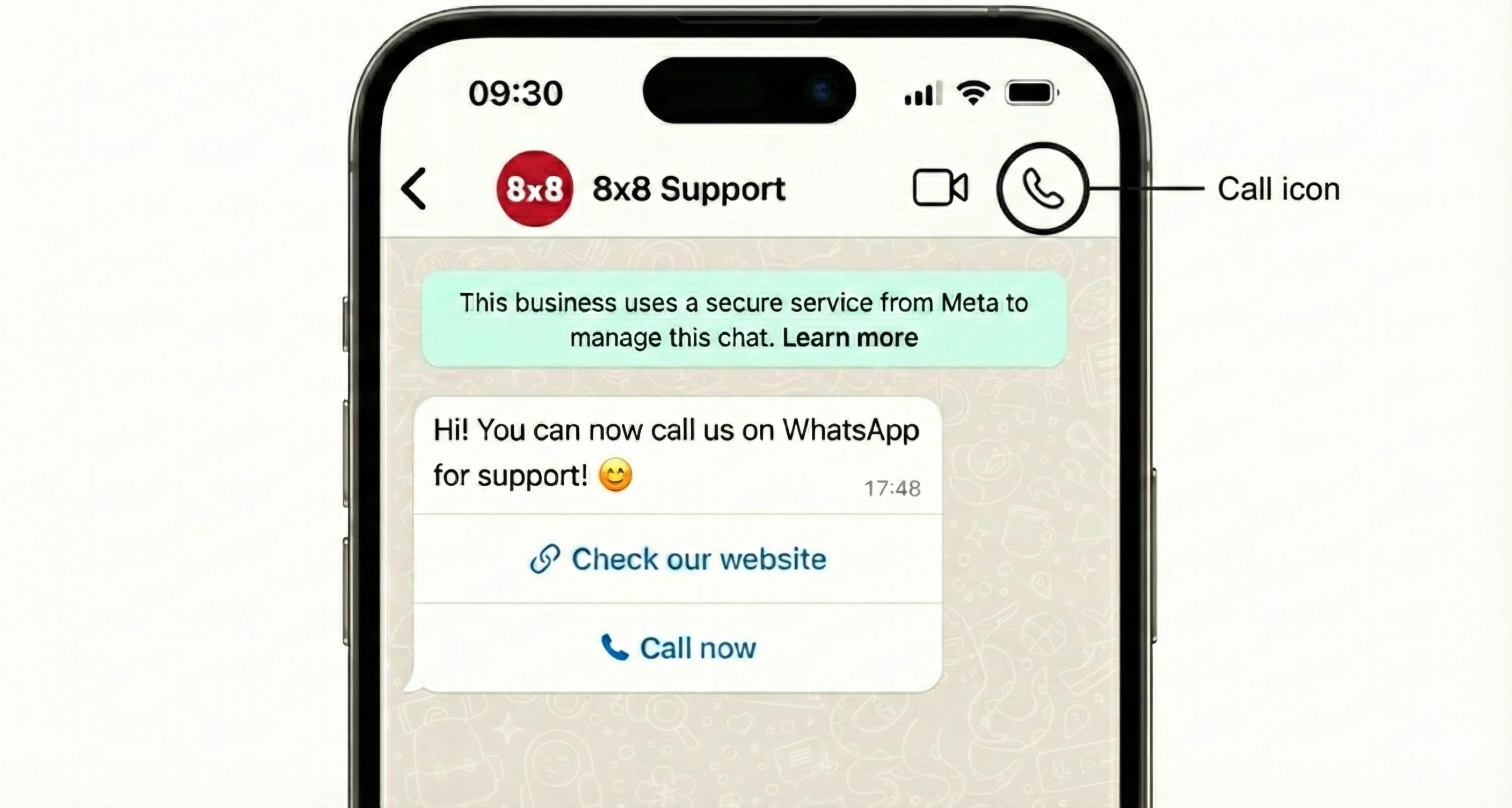
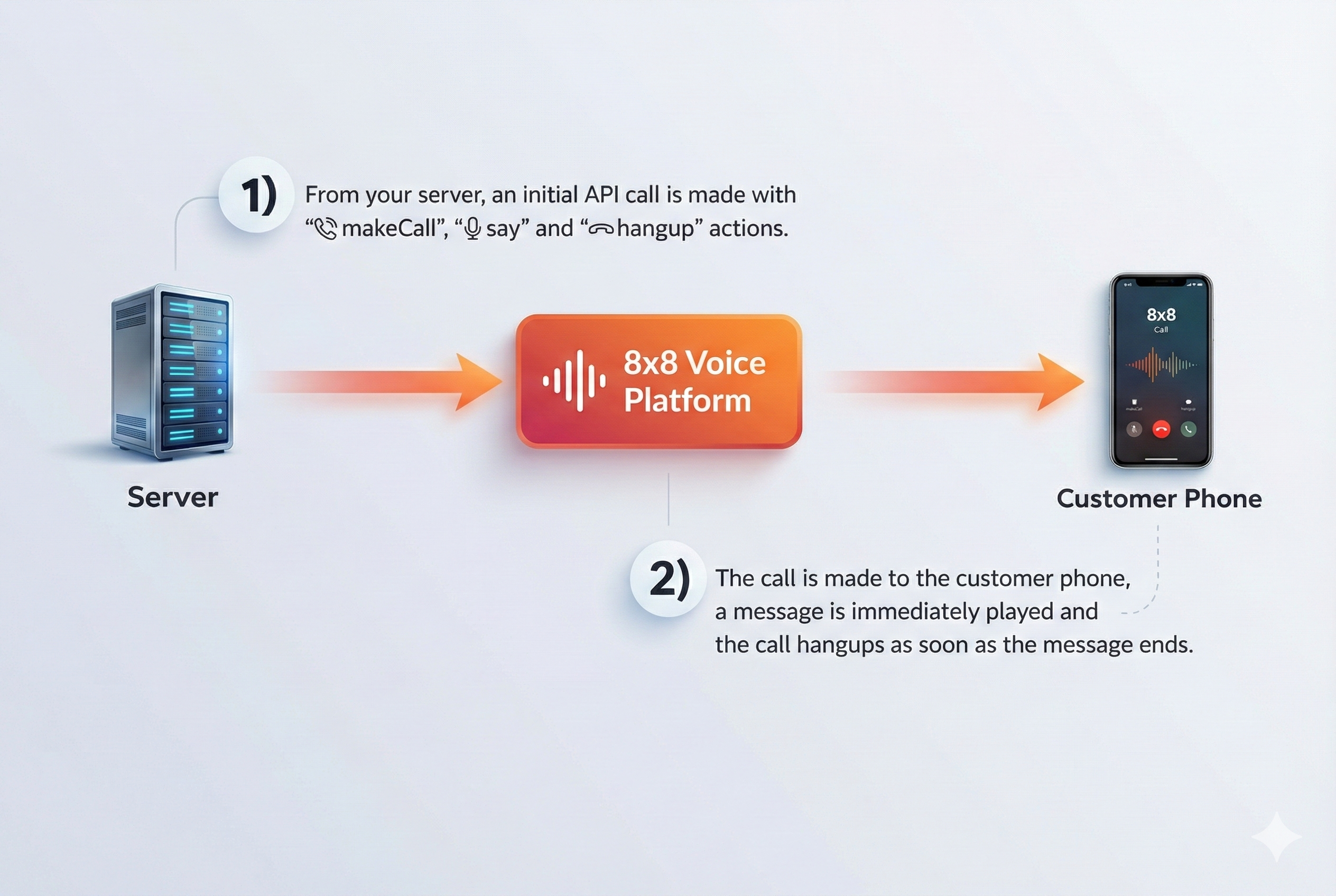
    Source: https://developer.8x8.com/connect/docs/using-the-sdk · 8x8 CPaaS Developer Docs. Synced for support deflection.

  • Ticket Queue Logic

    Ticket Queue Logic

    All “NEW” tickets will be allocated according to the following logic

    • FIFO (first-in-first-out) - the ticket that has the longest waiting time (oldest message date-time stamp) will be first allocated to an agent.
    • Allocation to agents according to (a) their online availability and (b) their number of open tickets - a NEW ticket will only be allocated to an agent if they are online and if their number of open tickets is less than or equal to the number of tickets set per agent.

    Admins are able to manually assign more than the Max ticket per agent, if they want to.

    All “OPEN” (tickets that were re-opened by customers) will be allocated according to the following logic

    • Reopened tickets will be pushed to the front of the waiting queue so that it will get assigned to the next available agent.
    • To reiterate, reopened tickets are prioritised over new tickets.
    • If an agent logs out for more than 15 minutes, his open tickets will go back to the queue.

    Source: https://developer.8x8.com/connect/docs/ticket-queue-logic · 8x8 CPaaS Developer Docs. Synced for support deflection.

  • Simple IVR Guide

    Simple IVR Guide

    Simple IVR

    Below is a sample of a simple IVR call scenario. The Callflow below demonstrates an example scenario where a callback is placed to a customer seeking technical support. Then in the same call the user has the ability to either contact a member of technical support, end the call or repeat the main menu.

    Demo Video

    This video will show a demo of how the Advanced IVR menu will work, including showing webhooks and the Initial API Call.

    Diagram of Simple IVR Flow

    Below is a description of the IVR Tree that we will be building with this call scenario. There are 3 possible paths and only 1 level in this simple IVR Tree.

    Simple IVR Flow Diagram

    Webhooks and API Calls in Simple IVR Flow

    Below is a diagram of how the webhooks and API Calls from your server will work with the 8x8 Voice Platform to create this IVR.

    Simple IVR Flow with Webhooks and API Calls

    Example of initial API call to place outbound call

    This is the URL to send the initial API request to.

    POST voice.8x8.com/api/v1/subaccounts/{sub-account-id}/callflows

    This is the request body to send the API request to as well. Note, you will need to replace the source with a 8x8 virtual number in your account and destination with a destination phone number to call.

    Sample of Simple IVR Request

    {
    "callflow":[
    {
    "action":"makeCall",
    "params":{
    "source":"6561115777",
    "destination":"6512345678"
    }
    },
    {
    "action":"sayAndCapture",
    "params":{
    "promptMessage":"Dear customer, Thank you for contacting Xyz technical support recently. If you have resolved your issue already, press one. Or press two to speak to an agent.",
    "voiceProfile":"en-US-BenjaminRUS",
    "repetition":1,
    "speed":1,
    "minDigits":1,
    "maxDigits":1,
    "digitTimeout":10000,
    "overallTimeout":10000,
    "completeOnHash":false,
    "noOfTries":2,
    "successMessage":null,
    "failureMessage":"Invalid input, please try again"
    }
    }
    ]
    }

    Example Response Body for an Callflows API request

    Below are examples of successful and failure responses to the API request above. Depending on the error the status message may change.

    Success

    {
    "sessionId":"d9874358-89ac-4c50-bbab-1eb634482a94",
    "sessionStatus":"CREATED",
    "callFlowRequestId":"89b545a5-0676-11ee-8100-d500c0d203fc",
    "statusCode":1,
    "statusMessage":"Created"
    }

    Failure

    {
    "sessionStatus":"NOT_CREATED",
    "callFlowRequestId":"0564e804-0a7e-11ee-9c83-6df9c048a122",
    "statusCode":-1002,
    "statusMessage":"Speech profile or language parameter invalid"
    }

    Explaining Session Status in Callflows Response Body

    Session status indicates if a call is successfully accepted & created or not created on the 8x8 platform. 8x8 returns two status:

    • CREATED- call is successfully created on the platform.
    • NOT CREATED- call is not successfully created on the platform and 8x8 returns statusCode and statusMessage to understand why the call was not accepted on the platform

    Status Code and Status Message

    Status Code Message
    1 Created
    -1001 Invalid JSON request body
    -1002 Speech profile or language parameter invalid
    -1003 Valid maxDigits required when minDigits provided
    -1005 Valid overallTimeout is required when digitTimeout provided
    -1007 $.callflow[0].action should be one of: [Call action names]
    Eg: $.callflow[0].action should be one of: say,playFile,sayAndCapture
    -1008 Valid maxDigits is required when completeOnHash is false
    -1009 Invalid call flow entry provided. [Additional error details here].
    Eg: Invalid call flow entry provided. $.callflow[0].params.text: is missing but it is required
    -9999 An unknown error has occurred

    Webhook Example

    Once the initial call is made, the server will be sent a webhook with call status information:

    {
    "payload":{
    "eventId":"e2078079-eae8-11f0-ae64-a500004e488e",
    "callId":"e1ff6a14-eae8-11f0-baa6-c93abb37794a",
    "sessionId":"e1ff6a15-eae8-11f0-baa6-c147150ab00e",
    "subAccountId":"8x8_test",
    "callStatus":"CALL_RECEIVED",
    "callDirection":"INBOUND",
    "callType":"PSTN",
    "source":"+656833033",
    "destination":"+94778066434",
    "sourceFormat":"MSISDN",
    "destinationFormat":"MSISDN",
    "sourceCountryCode":"SG",
    "destinationCountryCode":"LK",
    "callDuration":0,
    "sipCode":200,
    "timestamp":"2026-01-06T10:17:19.375Z"
    },
    "namespace":"VOICE",
    "eventType":"CALL_STATUS",
    "description":"Status update of a call"
    }

    When the user responds with a DTMF input, your server will receive a VCA webhook and can reply with a callflow response. Below are examples of Callflow responses that trigger corresponding actions.

    DTMF Input 1 - Hangup

    Responding with the callflow below will immediately end the call.

    Digit 1

    {
    "callflow":[
    {
    "action":"hangup"
    }
    ]
    }

    DTMF Input 2 - Connect Call

    Responding with this callflow will connect the existing call to a different number.

    Digit 2

    {
    "callflow":[
    {
    "action":"makeCall",
    "params":{
    "source":"6512345678",
    "destination":"6561115777"
    }
    }
    ]
    }

    DTMF Input Other - Repeat Menu

    Responding with this callflow will repeat the main menu.

    Any Other Digit

    {
    "callflow":[
    {
    "action":"sayAndCapture",
    "params":{
    "promptMessage":"Sorry, we did not understand your response. If you have resolved your issue already, press one. Or press two to speak to an agent.",
    "voiceProfile":"en-US-BenjaminRUS",
    "repetition":1,
    "speed":1,
    "minDigits":1,
    "maxDigits":1,
    "digitTimeout":10000,
    "overallTimeout":10000,
    "completeOnHash":false,
    "noOfTries":2,
    "successMessage":null,
    "failureMessage":"Invalid input, please try again"
    }
    }
    ]
    }

    Voice Session Summary Webhook

    Upon termination of the session, the Voice Session Summary (VSS) will be returned via webhook. For detailed information about the IVR Session Summary payload, see Session Summary (IVR).

    Related Guides

    • Session Summary (IVR) – Detailed webhook payload reference for IVR session summaries
    • IVR Call Action Handling – Detailed documentation on handling VCA webhook callbacks for IVR, including payload examples and response structures
    • Send Callflow API – Complete API reference for the Callflows API used to initiate IVR sessions and control call flow

    Error Handling

    For error codes that may appear in the Voice Session Summary, see the Voice Error Codes reference. For API response status codes, see Voice Status Codes and Status Messages.

    Support Channels

    • Technical support: support@cpaas.8x8.com
    • Sales inquiries: Contact your account manager or visit cpaas.8x8.com/en/contact-us
    • Support Portal: https://support.cpaas.8x8.com/hc/en-us

    Source: https://developer.8x8.com/connect/docs/simple-ivr · 8x8 CPaaS Developer Docs. Synced for support deflection.

  • Session Summary (Number Masking)

    Session Summary (Number Masking)

    This method allows you to review the "Voice Session Summary" status and individual call legs.

    Your "Voice Session Summary" (VSS) endpoint can be configured on the sub-account level using the Voice Call Action Webhooks

    If you need to restrict inbound traffic to your webhook endpoints, see Voice IP Addresses for the list of outbound IPs used by 8x8 Voice services.

    This can be used alongside or instead of the Call Status, to simplify your monitoring.

    Request

    When the session has ended, 8x8 platform will POST a JSON object to your URL.

    The JSON object will contain the following values:

    Name Type Description
    namespace String 8x8's overall product namespace. For Voice products, the value will be "VOICE"
    eventType String Event type that generated this callback. For session summary events the value will be "SESSION_SUMMARY"
    description String Description of the event type that triggered the callback.
    sessionId String Unique id that represents Number masking session [UUID]
    subAccountId String Unique ID of account
    sessionStatus String “sessionStatus” values of the two call legs. Possible values for “sessionStatus” are:
    COMPLETED, NO_ANSWER, BUSY, CANCELED, FAILED, ERROR
    startTime String Start time of call masking session
    endTime String Start time of call masking session
    lastAction String Shows the last executed command during the session (makeCall or say)
    callCount Integer Shows how many call legs have been bridged for the given session
    details Object JSON object containing information about all call legs in the session
    callId String Unique identifier of call leg
    callDirection String Indicates the direction of the call leg (INBOUND or OUTBOUND)
    callType String Type of the call leg. Values can be "PSTN" or "VOIP", depending on where the call was initiated from (telco operators or VoiceSDK users). For NumberMasking the value will always be PSTN.
    initiatedTimestamp String Initiated time of call leg
    connectedTimestamp String Time when the call leg is connected
    disconnectedTimestamp String Time when the call leg is disconnected
    source String Source number (CallerID) set for the call leg
    sourceFormat String The value for Number Masking will always be "MSISDN"
    destination String Destination number set for the call leg
    destinationFormat String The value for Number Masking will always be "MSISDN"
    sourceCountryCode String Country code for the Source Number
    destinationCountryCode String Country code for the Destination Number
    sourceRefId String For OUTBOUND call legs, this property shows the referenceId of the Virtual Number that has been called. For INBOUND calls the value is null
    destinationRefId String For INBOUND call legs, this property shows the referenceId of the Virtual Number that is used as callerId. For OUTBOUND calls the value is null
    callStatus String Call status of the call leg. The values can be:
    COMPLETED, NO_ANSWER, BUSY, CANCELED, FAILED
    callDuration Integer Call duration of the call leg.
    errorDetails Object JSON object containing information about all call leg errors in the session
    errorMsg String The error details of the call leg
    errorCode String Error code specified in the Error object
    callQuality Object JSON object containing information about all call leg call quality indicators in the session
    mos Float Mean Opinion Score (MOS) is a numerical measure of the human-judged overall quality of the call leg
    packetLossRate Float The packet loss rate reflects the reliability of a communication network path.
    jitter Integer Jitter reflects any time delay in sending data packets over your call connection.

    Example of a JSON object sent to your "Voice Session Summary" endpoint:

    Success 
    {
    "payload":{
    "sessionId":"1f048a84-ea6d-11ee-911b-078f7290bf52",
    "subAccountId":"8x8_test",
    "sessionStatus":"COMPLETED",
    "startTime":"2024-03-25T06:01:30Z",
    "endTime":"2024-03-25T06:01:50Z",
    "lastAction":"MAKE_CALL",
    "callCount":2,
    "details":{
    "callB":{
    "callId":"1fbdef11-ea6d-11ee-9e30-e53b76c602ef",
    "callDirection":"OUTBOUND",
    "callType":"PSTN",
    "initiatedTimestamp":"2024-03-25T06:01:30Z",
    "connectedTimestamp":"2024-03-25T06:01:37Z",
    "disconnectedTimestamp":"2024-03-25T06:01:50Z",
    "source":"+6568332048",
    "destination":"+6591178965",
    "sourceFormat":"MSISDN",
    "destinationFormat":"MSISDN",
    "sourceCountryCode":"SG",
    "destinationCountryCode":"SG",
    "sourceRefId":"PSTN1",
    "callStatus":"COMPLETED",
    "callDuration":13,
    "callQuality":{
    "mos":4.5,
    "packetLossRate":0,
    "jitter":19
    }
    },
    "callA":{
    "callId":"1f048a83-ea6d-11ee-911b-e9023a97c284",
    "callDirection":"INBOUND",
    "callType":"PSTN",
    "initiatedTimestamp":"2024-03-25T06:01:28Z",
    "connectedTimestamp":"2024-03-25T06:01:37Z",
    "disconnectedTimestamp":"2024-03-25T06:01:50Z",
    "source":"+12314377870",
    "destination":"+6568332048",
    "sourceFormat":"MSISDN",
    "destinationFormat":"MSISDN",
    "sourceCountryCode":"US",
    "destinationCountryCode":"SG",
    "destinationRefId":"PSTN1",
    "callStatus":"COMPLETED",
    "callDuration":13,
    "callQuality":{
    "mos":4.5,
    "packetLossRate":0,
    "jitter":20
    }
    }
    }
    },
    "namespace":"VOICE",
    "eventType":"SESSION_SUMMARY",
    "description":"Summary of a completed call session"
    }
    Failure
    {
    "payload":{
    "sessionId":"47f19e66-2163-11ee-8ccd-27b543a164ea",
    "subAccountId":"wavecell_voice",
    "sessionStatus":"ERROR",
    "startTime":"2023-07-13T09:54:38Z",
    "endTime":"2023-07-13T09:54:38Z",
    "lastAction":"PLAY_TTS",
    "callCount":1,
    "errorDetails":{
    "errorMsg":"No coverage available for requested area",
    "errorCode":-2004
    },
    "details":{
    "callA":{
    "callId":"4809bb03-2163-11ee-8f06-8da8b5ddeca4",
    "callDirection":"OUTBOUND",
    "callType":"PSTN",
    "initiatedTimestamp":"2023-07-13T09:54:38Z",
    "disconnectedTimestamp":"2023-07-13T09:54:38Z",
    "source":"+6568332048",
    "destination":"+6591178965",
    "sourceFormat":"MSISDN",
    "destinationFormat":"MSISDN",
    "sourceCountryCode":"SG",
    "destinationCountryCode":"SG",
    "sourceRefId":"PSTN1",
    "callStatus":"ERROR",
    "callDuration":0
    }
    }
    },
    "namespace":"VOICE",
    "eventType":"SESSION_SUMMARY",
    "description":"Summary of a completed call session"
    }

    Session statuses

    Here is the list of all possible session statuses:

    CallA Status CallB Status Status Comment
    COMPLETED COMPLETED COMPLETED Successfully established call between two call parties
    COMPLETED NO ANSWER NO ANSWER The called party did not answer the call
    COMPLETED BUSY BUSY The called party’s phone was busy
    COMPLETED FAILED FAILED The outbound call towards the called party’s phone number failed. Possible reasons include the number is switched off or not reachable, invalid phone number, connection error, etc.
    CANCELED CANCELED CANCELED The calling party disconnected the call before a “Status” for the outbound call leg was received. This can occur if a user disconnects before ringing is completed or as soon as the caller hears an operator tone suggesting the phone number is invalid / switched off.
    COMPLETED NULL COMPLETED It indicates that the call flow did not have an outbound call leg. This can happen when the called phone number has been answered by a TTS prompt.
    ERROR NULL ERROR It indicates that the inbound leg had an error while processing the call. This can happen when the Voice Call Action webhook fails or when there is no call coverage to the target country. Additional error details are provided when this happens.
    COMPLETED ERROR ERROR It indicates that the outbound leg had an error while processing the call. Additional error details are provided when this happens.

    Response

    Your endpoint should respond with 200 OK status


    Error Details and Error Code

    These error codes may appear in the errorDetails object when sessionStatus is "ERROR".

    Error Code Message
    -2001 An internal error has occurred
    -2002 An internal connectivity error has occurred
    -2003 The call flow provided is invalid
    -2004 No coverage available for requested area
    -2005 Unable to synthesize text to speech
    -2006 Unable to download file for playback
    -2007 The validity period of the call flow request has expired
    -2008 The provided source MSISDN or caller ID is not whitelisted
    -2009 The scenario parameters provided is invalid
    -2010 The trunk capacity has been exceeded
    -9999 An unknown error has occurred

    Error Handling

    For a complete list of error codes and troubleshooting guidance, see the Number Masking Error Codes reference.


    Source: https://developer.8x8.com/connect/docs/session-summary-number-masking · 8x8 CPaaS Developer Docs. Synced for support deflection.

  • Okta - Bring Your Own Telephony (BYOT) via Voice

    Okta - Bring Your Own Telephony (BYOT) via Voice

    Overview

    This guide demonstrates how to implement voice-based One-Time Password (OTP) delivery for Okta authentication using 8x8's Voice API. This integration allows you to create a custom telephony provider that delivers OTPs via voice calls instead of SMS.

    The integration works by creating a webhook service that receives OTP delivery requests from Okta's Inline Hook and uses 8x8's Voice API to deliver the OTP via a voice call to the user's phone number.

    Integration Flow

    Detailed Flow:

    1. User initiates login with multi-factor authentication enabled
    2. Okta triggers the Inline Hook with user details and OTP
    3. Your webhook service receives the request and extracts phone number and OTP
    4. Service calls 8x8 Voice API to initiate a voice call with the OTP message
    5. User receives voice call with spoken OTP and completes authentication

    Prerequisites

    Before you begin, ensure you have:

    • Okta Account with admin access to configure Inline Hooks
    • 8x8 Account with access to Voice API credentials
    • JavaScript/Node.js knowledge for backend development
    • Public HTTPS endpoint for receiving Okta webhooks (consider using ngrok for development)

    Requirements

    • Node.js
    • npm package manager

    Implementation

    Step 1: Backend Code Setup

    Create a new Node.js project and install dependencies:

    mkdir okta-voice-otp
    cd okta-voice-otp
    npm init -y
    npm install express dotenv

    Step 2: Environment Configuration

    Create a .env file with your configuration:

    # Server Configuration
    PORT=3000
    OKTA_SECRET=your_okta_webhook_secret_here
    # 8x8 Voice API Configuration
    EIGHTYEIGHTX_SUBACCOUNT_ID=your_subaccount_id
    EIGHTYEIGHTX_API_KEY=your_api_key
    EIGHTYEIGHTX_SOURCE_NUMBER=+1234567890
    # Voice Configuration
    VOICE_PROFILE=en-US-Jenny
    OTP_REPETITIONS=2

    Step 3: Main Server Implementation

    Create server.js:

    const express =require('express');
    const https =require('https');
    const dotenv =require('dotenv');
    dotenv.config();
    const app =express();
    constPORT= process.env.PORT||3000;
    // Middleware
    app.use(express.json());
    // Health check endpoint
    app.get('/health',(req, res)=>{
    res.status(200).json({status:'OK',timestamp:newDate().toISOString()});
    });
    /**
    * Sends an OTP to a user via an 8x8 voice call.
    * @param{string}phoneNumber - The recipient's phone number in E.164 format
    * @param{string}otpCode - The one-time password to be delivered
    * @returns{Promise<Object>} Response from 8x8 API
    */
    asyncfunctionsendVoiceOTP(phoneNumber, otpCode){
    const subaccountId = process.env.EIGHTYEIGHTX_SUBACCOUNT_ID;
    const apiKey = process.env.EIGHTYEIGHTX_API_KEY;
    const sourceNumber = process.env.EIGHTYEIGHTX_SOURCE_NUMBER;
    const voiceProfile = process.env.VOICE_PROFILE||'en-US-Jenny';
    const repetitions =parseInt(process.env.OTP_REPETITIONS)||2;
    const payload =JSON.stringify({
    callflow:[
    {
    action:'makeCall',
    params:{
    source: sourceNumber,
    destination: phoneNumber
    }
    },
    {
    action:'say',
    params:{
    text:`Your verification code is ${otpCode.split('').join(', ')}. I repeat, your verification code is ${otpCode.split('').join(', ')}.`,
    voiceProfile: voiceProfile,
    repetition: repetitions
    }
    },
    {
    action:'hangup'
    }
    ]
    });
    const options ={
    hostname:'voice.wavecell.com',
    port:443,
    path:`/api/v1/subaccounts/${subaccountId}/callflows`,
    method:'POST',
    headers:{
    'Content-Type':'application/json',
    'Authorization':`Bearer ${apiKey}`,
    'Content-Length':Buffer.byteLength(payload)
    }
    };
    returnnewPromise((resolve, reject)=>{
    const req = https.request(options,(res)=>{
    let data ='';
    res.on('data',(chunk)=>{
    data += chunk;
    });
    res.on('end',()=>{
    try{
    const response =JSON.parse(data);
    if(res.statusCode>=200&& res.statusCode<300){
    console.log('[8x8 Service] Voice call initiated successfully:', response);
    resolve(response);
    }else{
    console.error('[8x8 Service] API error:', response);
    reject(newError(`8x8 API error: ${response.message||'Unknown error'}`));
    }
    }catch(error){
    console.error('[8x8 Service] Failed to parse response:', error);
    reject(error);
    }
    });
    });
    req.on('error',(error)=>{
    console.error('[8x8 Service] Request error:', error);
    reject(error);
    });
    req.write(payload);
    req.end();
    });
    }
    /**
    * Validates the incoming Okta webhook request
    * @param{Object}req - Express request object
    * @returns{boolean} True if request is valid
    */
    functionvalidateOktaRequest(req){
    // For production, implement proper Okta webhook signature validation if needed
    const oktaSecret = process.env.OKTA_SECRET;
    const authHeader = req.headers.authorization;
    // If auth header is provided, validate it
    if(authHeader && oktaSecret){
    return authHeader ===`Bearer ${oktaSecret}`;
    }
    // Allow requests without auth headers for simplicity
    // In production, consider implementing webhook signature validation
    returntrue;
    }
    // Okta Voice OTP webhook endpoint
    app.post('/okta-voice-otp',async(req, res)=>{
    try{
    console.log('[Server] Received Okta webhook request');
    // Validate request
    if(!validateOktaRequest(req)){
    console.warn('[Server] Unauthorized request received');
    return res.status(401).json({error:'Unauthorized'});
    }
    // Extract data from Okta payload
    const{ data }= req.body;
    if(!data ||!data.userProfile||!data.messageProfile){
    console.error('[Server] Invalid Okta payload structure');
    return res.status(400).json({error:'Invalid payload structure'});
    }
    const phoneNumber = data.messageProfile.phoneNumber|| data.userProfile.mobilePhone;
    const otpCode = data.messageProfile.otpCode;
    if(!phoneNumber ||!otpCode){
    console.error('[Server] Missing phone number or OTP code');
    return res.status(400).json({error:'Missing required fields'});
    }
    console.log(`[Server] Processing OTP delivery for ${phoneNumber.replace(/\d(?=\d{4})/g,'*')}`);
    // Respond to Okta immediately
    res.status(200).json({
    commands:[{
    type:'com.okta.telephony.action',
    value:[{
    status:'SUCCESSFUL',
    provider:'8x8-voice'
    }]
    }]
    });
    // Handle voice call asynchronously
    try{
    awaitsendVoiceOTP(phoneNumber, otpCode);
    console.log('[Server] Voice OTP delivery initiated successfully');
    }catch(error){
    console.error('[Server] Failed to send voice OTP:', error.message);
    // Note: We already responded to Okta, so this is logged for monitoring
    }
    }catch(error){
    console.error('[Server] Webhook processing error:', error);
    res.status(500).json({error:'Internal server error'});
    }
    });
    // Global error handler
    app.use((error, req, res, next)=>{
    console.error('[Server] Unhandled error:', error);
    res.status(500).json({error:'Internal server error'});
    });
    // Start server
    app.listen(PORT,()=>{
    console.log(`[Server] Voice OTP service running on port ${PORT}`);
    console.log(`[Server] Webhook endpoint: http://localhost:${PORT}/okta-voice-otp`);
    });
    module.exports= app;

    Step 4: Package Configuration

    Update your package.json:

    {
    "name":"okta-voice-otp",
    "version":"1.0.0",
    "description":"Okta BYOT with 8x8 Voice API for OTP delivery",
    "main":"server.js",
    "scripts":{
    "start":"node server.js",
    "dev":"node server.js"
    },
    "keywords":["okta","8x8","voice","otp","byot"],
    "author":"Your Name",
    "license":"MIT",
    "dependencies":{
    "express":"^4.18.0",
    "dotenv":"^16.0.0"
    }
    }

    Configuration

    Step 5: Okta Inline Hook Setup

    1. Access Okta Admin Console

      • Log into your Okta organization as an administrator
      • Navigate to Workflow > Inline Hooks
    2. Create New Inline Hook

      • Click Add Inline Hook
      • Select Telephony as the hook type

    image


    1. In the Create Inline Hook page, fill in the following values.

      Field Description Example Value
      Name Can be any value. We use "8x8 - Voice Authentication" 8x8 - Voice Authentication
      URL Should be set to the URL of your backend server that you send the code. https://example.com/endpoint
      Authentication Field Will be sent as part of the request header. Authentication Field is for your backend to authenticate the webhook from Okta. It can be any value

      Refer to Okta's page on authentication and Inline Hooks for reference.
      Authentication
      Authentication Secret (Used with Authentication Field) Will be sent as part of the request header. This should be the value your backend uses to authenticate secretvalue

      After entering the values, click Save.

    2. Configure Hook Settings

      • Set the hook to trigger on authentication events
      • Enable the hook for your organization

    Step 6: Authentication Policy Configuration

    1. Create Authentication Policy

      • Navigate to Security > Authentication > Authentication Policies
      • Create a new policy or edit existing one
    2. Configure MFA Rules

      • Add a rule that requires phone verification
      • Set the telephony provider to use your custom hook
      • Configure when voice calls should be used (fallback, primary, etc.)
    3. Assign Policy

      • Assign the policy to relevant applications and user groups

    Testing the Integration

    Step 7: Test the Implementation

    1. Start Your Service

      npm start
    2. Expose Your Local Service (for development)

      # Using ngrok
      ngrok http 3000
    3. Update Okta Hook URL with your ngrok URL

    4. Test Authentication Flow

      • Attempt to sign in to an application with MFA enabled
      • Verify that voice call is initiated
      • Complete authentication with received OTP

    Request/Response Examples

    Okta Webhook Request Example

    {
    "eventId":"rZxqX4QGT1KIwr8KSh3C6A",
    "eventTime":"2025-09-29T09:05:04.000Z",
    "eventType":"com.okta.telephony.provider",
    "eventTypeVersion":"1.0",
    "contentType":"application/json",
    "cloudEventVersion":"0.1",
    "source":"https://integrator-xxxxxx.okta.com/api/v1/inlineHooks/calhawlks9zOkRrau0h7",
    "requestType":"com.okta.user.telephony.mfa-verification",
    "data":{
    "context":{
    "request":{
    "id":"8d9c47117943da0585412539965xxxx",
    "method":"POST",
    "url":{
    "value":"/api/internal/v1/inlineHooks/com.okta.telephony.provider/generatePreview"
    },
    "ipAddress":"42.61.17.54"
    }
    },
    "userProfile":{
    "firstName":"Harris",
    "lastName":"Doe",
    "login":"harris@example.com",
    "userId":"00uvw9bdliXTkH8qR697"
    },
    "messageProfile":{
    "msgTemplate":"Your code is 11111",
    "phoneNumber":"9876543210",
    "otpExpires":"2025-09-29T09:09:59.759Z",
    "deliveryChannel":"Voice",
    "otpCode":"11111",
    "locale":"en"
    }
    }
    }

    Your Service Response Example

    {
    "error":null,
    "commands":[
    {
    "type":"com.okta.telephony.action",
    "value":[
    {
    "status":"SUCCESSFUL",
    "provider":"8x8-voice",
    "transactionId":null,
    "transactionMetadata":null
    }
    ]
    }
    ],
    "debugContext":{}
    }

    Using the Inline Hook

    Now that the Inline Hook has been added, in order to require it for signing into your Okta organization.

    Add Authenticator

    Ensure that in the Security - Authenticators page that Phone is added as an Authenticator option.

    image

    If it is not already on the list then click Add Authenticator to add it.

    Create new Authentication Policy Rule

    Click Add Rule on the Security - Authentication Policies page.

    image

    In the Edit Rule page, the only change we will make is for AND Authentication methods where we should include the Phone - Voice method along with any other methods we wish to offer the user authenticating into Okta.

    image

    Add to Application

    After creating the Policy, add it to one of your Applications.

    image

    image

    Signing In

    When attempting to login to the application that you have configured above, you should receive the following screen prompting you to register for Phone Verification.

    The code should be sent to your phone via a phone call, follow the prompts to finish logging into application.

    Security Considerations

    • Webhook Validation: Implement proper signature validation for production use
    • Environment Variables: Never hardcode credentials in your source code
    • HTTPS: Always use HTTPS for webhook endpoints in production
    • Rate Limiting: Implement rate limiting to prevent abuse
    • Logging: Log events for monitoring but avoid logging sensitive data

    Troubleshooting

    Common Issues

    1. Voice call not initiated

      • Verify 8x8 API credentials and subaccount ID
      • Check phone number format (E.164)
      • Review API response for error messages
    2. Okta webhook not received

      • Confirm webhook URL is accessible from internet
      • Verify SSL certificate is valid
      • Check Okta hook configuration and authentication
    3. Authentication failures

      • Validate webhook secret configuration
      • Review request headers and authentication method

    Monitoring and Logs

    Monitor your service logs for:

    • Incoming Okta webhook requests
    • 8x8 API responses
    • Error conditions and failed calls
    • Performance metrics

    Conclusion

    You've successfully implemented voice-based OTP delivery for Okta using 8x8's Voice API. This integration provides an alternative to SMS for users who prefer or require voice-based authentication methods.


    Source: https://developer.8x8.com/connect/docs/okta-bring-your-own-telephony-byot-via-voice-otp · 8x8 CPaaS Developer Docs. Synced for support deflection.

  • 1
  • 2
  • ›
  • »
8x8 Logo
  • 8x8 YouTube
  • 8x8 Facebook
  • 8x8 Twitter
  • 8x8 Blog
  • 8x8 LinkedIn
  • 8x8 Instagram

Company

  • About Us
  • Careers
  • Contact Us

Our Products

  • SMS
  • Chat Apps
  • Video Interaction
  • Voice
  • Pricing

Media

  • Customer Success Stories
  • News
  • Events
  • Blog

Resources

  • Documentation
  • Service Status
  • Ask for support
Privacy Policy | Terms of Use | Acceptable Use Policy
© 2025 8x8, Inc. All rights reserved.