See Details
Logo CPaaS Help Center Developer Premium Support Status
Sign in Contact Support
  1. 8x8 CPaaS Help Center
  2. 04 · Chat Apps (WhatsApp, Viber…)

04 · Chat Apps (WhatsApp, Viber…)

  • WhatsApp Template Components Reference

    WhatsApp Template Components Reference

    This technical reference provides detailed specifications for all WhatsApp template components, including constraints, formatting rules, and API payload structures. Use this guide when building or debugging template creation requests.

    HEADER Component

    An optional component for adding a title or rich media to your template. Maximum of one header per template.

    Header Types

    Type Description & Constraints API Payload for Template Creation

    TEXT

    Optional, max 1 per template.

    Length: Max 60 characters.

    Parameters: Supports exactly 1 parameter (e.g., {{1}}).

    Use Case: Personalized subject lines or titles.

    {
    "type":"HEADER",
    "format":"TEXT",
    "text":"Your order {{1}} has shipped!",
    "examples":["12345"]
    }

    IMAGE

    Optional. Requires uploading media to 8x8 first.

    Formats: image/jpeg, image/png.

    Size: Max 5MB (Meta limit).

    Dimensions: Recommended 800 x 418 px (ratio 1.91:1).

    Use Case: Product images, promotional banners, receipts.

    {
    "type":"HEADER",
    "format":"IMAGE",
    "examples":[
    "https://chatapps.8x8.com/files/YOUR_FILE.png"
    ]
    }

    VIDEO

    Optional. Requires uploading media to 8x8 first.

    Format: video/mp4, video/3gpp.

    Size: Max 16MB (Meta limit).

    Duration: Recommended < 60 seconds.

    Use Case: Product demos, tutorials, announcements.

    {
    "type":"HEADER",
    "format":"VIDEO",
    "examples":[
    "https://chatapps.8x8.com/files/YOUR_FILE.mp4"
    ]
    }

    DOCUMENT

    Optional. Requires uploading media to 8x8 first.

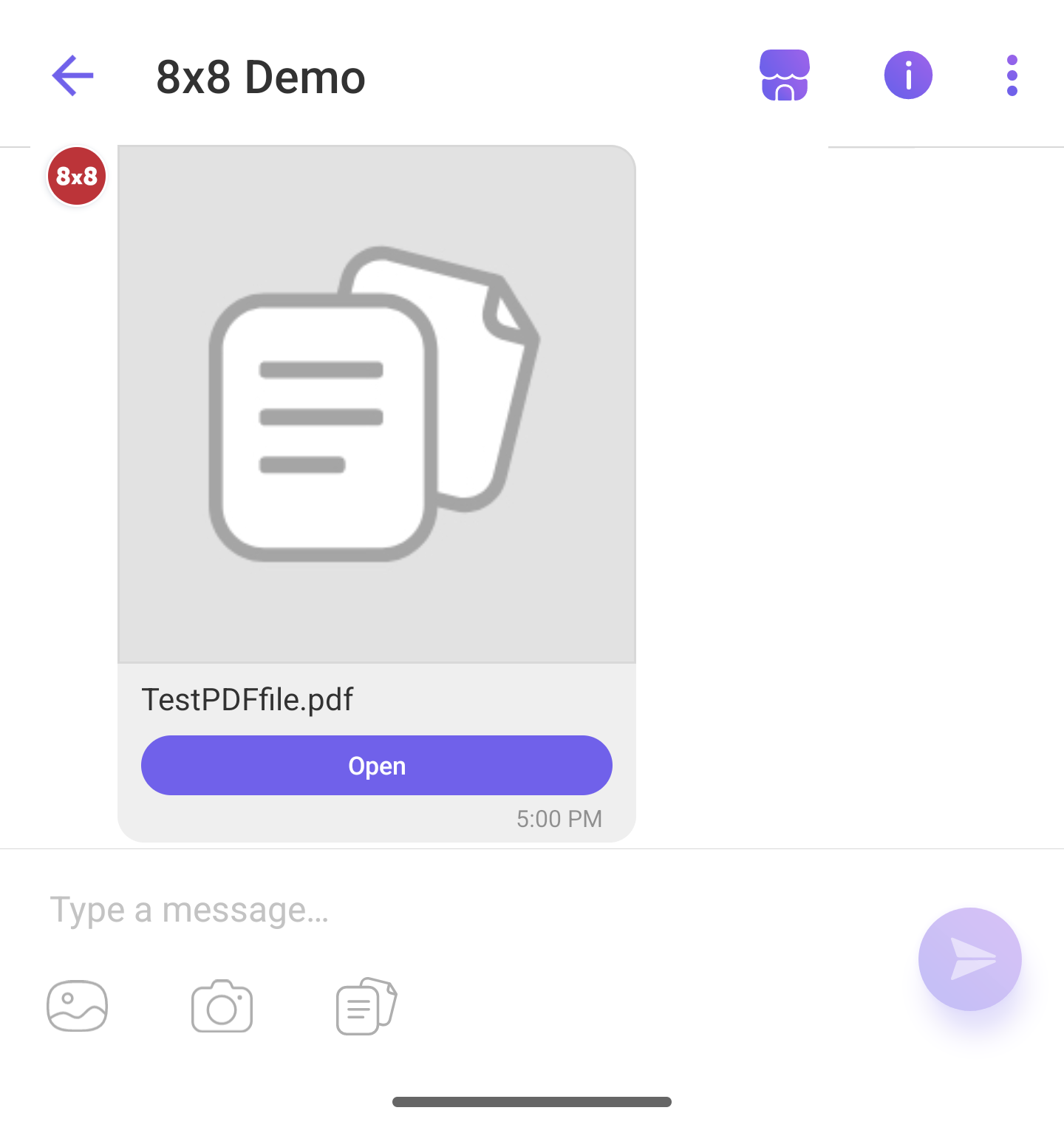
    Format: application/pdf (most common), also supports DOC, DOCX, XLS, XLSX, PPT, PPTX.

    Size: Max 100MB (Meta limit).

    Use Case: Invoices, receipts, contracts, statements.

    {
    "type":"HEADER",
    "format":"DOCUMENT",
    "examples":[
    "https://chatapps.8x8.com/files/YOUR_FILE.pdf"
    ]
    }

    LOCATION

    Optional. Allowed for UTILITY or MARKETING templates only.

    Format: Static map pin with coordinates.

    Note: Location data (latitude, longitude, name, address) is provided when sending the message, not at creation.

    Use Case: Store locations, delivery tracking, appointment addresses.

    {
    "type":"HEADER",
    "format":"LOCATION"
    }

    Media URL Requirement

    For IMAGE, VIDEO, and DOCUMENT headers, you need to provide a media URL in the examples array when creating the template. You have two options:

    1. Upload to 8x8: Use the Upload Media API to obtain a permanent URL
    2. Self-host: Provide your own publicly accessible HTTPS URL

    8x8 Upload Endpoint:

    POST https://chatapps.8x8.com/api/v1/subaccounts/{subAccountId}/files

    See Also:

    • File & Media Management - Complete guide for both upload and self-hosting options

    BODY Component

    The main text content of your template. This is the only required component and the only component that supports multiple parameters.

    Specifications

    Property Requirement Details

    Required

    Yes

    Every template must have exactly one BODY component

    Max Length

    1024 characters

    Including variables (e.g., {{1}}, {{2}})

    Parameters

    limited

    Use {{1}}, {{2}}, etc. for dynamic content

    Formatting

    Markdown-style formatting supported

    Supported formatting:

    • Italic: _text_
    • Bold: *text*
    • Strikethrough: ~text~
    • Monospace: ```text```
    • Inline code: `text`
    • Bulleted list: * text or - text
    • Numbered list: 1. text
    • Quote: > text

    Important: When using in JSON payloads, proper escaping is required. Use \n for line breaks and escape special characters according to JSON standards.

    Emojis

    Allowed

    Count toward character limit (typically 2-4 chars each)

    API Payload Example

    {
    "type":"BODY",
    "text":"Hi {{1}}, your order {{2}} is confirmed and will arrive by {{3}}.",
    "examples":["Maria","ABC-123","Dec 15"]
    }

    Best Practices

    • Keep it concise: Users read on mobile devices
    • Use parameters wisely: Only parameterize data that changes (names, dates, IDs)
    • Static text first: Start with static text for Meta review clarity
    • No parameters at edges: Don't start or end with {{1}}

    FOOTER Component

    An optional component for adding small print, legal text, or brand attribution.

    Specifications

    Property Requirement Details

    Required

    No

    Optional, max 1 per template

    Max Length

    60 characters

    Strictly enforced by Meta

    Parameters

    Not supported

    Footer must be static text only

    Formatting

    Plain text

    No Markdown, HTML, or emojis recommended

    API Payload Example

    {
    "type":"FOOTER",
    "text":"Not you? Contact support."
    }

    Common Use Cases

    • Unsubscribe instructions: "Reply STOP to opt out"
    • Legal disclaimers: "Terms apply"
    • Brand attribution: "Powered by YourCompany"
    • Support contact: "Need help? Reply to this message"

    BUTTONS Component

    An optional component to add interactive buttons. Buttons enable users to take action with a single tap.

    Button Types & Specifications

    Button Type Description & Constraints API Payload Example

    Quick Reply

    Sends a predefined text string back to your business when tapped.

    Limit: Up to 10 per template.

    Text Length: Max 25 characters.

    Response: User tap sends button text to your webhook.

    Use Case: Menu options, confirmation (Yes/No), feedback.

    {
    "type":"quick_reply",
    "text":"Main Menu"
    }

    URL / Call to Action

    Opens a web browser to the specified URL.

    Limit: Up to 2 URL buttons per template.

    Text Length: Max 25 characters.

    URL Length: Max 2000 characters.

    Parameters: Supports 1 variable at end of URL (e.g., .../track/{{1}}).

    Use Case: Track order, view invoice, book appointment.

    {
    "type":"URL",
    "text":"Track Order",
    "url":"https://myapp.com/track/{{1}}",
    "examples":["12345"]
    }

    Phone Number

    Initiates a phone call to the specified number when tapped.

    Limit: Max 1 per template.

    Text Length: Max 25 characters.

    Number Format: Max 20 characters, alphanumeric.

    Country Code: Required (2-letter ISO code).

    Use Case: Call support, emergency contact, sales inquiry.

    {
    "type":"PHONE_NUMBER",
    "text":"Call Support",
    "phoneNumber":"62211521",
    "country":"SG"
    }

    OTP Copy Code

    Copies an OTP code to clipboard for one-tap autofill.

    Category: AUTHENTICATION templates only.

    Limit: Max 1 per template.

    Text: Fixed as "Copy Code" (not customizable).

    Autofill: Integrates with iOS/Android autofill.

    Use Case: Login verification, password reset, 2FA.

    {
    "type":"OTP",
    "otp_type":"COPY_CODE"
    }

    Copy Offer Code

    Copies a promotional code to clipboard for easy redemption.

    Category: MARKETING templates only.

    Limit: Max 1 per template.

    Text: Fixed as "Copy offer code" (not customizable).

    Code Length: 4-15 characters.

    Use Case: Discount codes, promo campaigns, loyalty rewards.

    {
    "type":"COPY_CODE",
    "examples":["250FF"]
    }

    Flow Button

    Opens a WhatsApp Flow when tapped, allowing structured data collection via guided forms.

    Limit: Max 1 Flow button per template.

    Text Length: Max 25 characters.

    Flow ID: Required. Must be a published Flow (obtained from Flow Configuration API).

    Flow Action: Optional. Defaults to "navigate". Can be "navigate" or "data_exchange".

    Navigate Screen: Optional. Specifies the screen ID to open (from Flow JSON). Required if you want to start at a specific screen.

    Use Case: Appointment booking, lead qualification, feedback surveys, onboarding forms.

    See: WhatsApp Flows for complete Flow implementation guide.

    {
    "type":"FLOW",
    "text":"Book Appointment",
    "flowId":"1234567890123456"
    }

    Button Combination Rules

    Total Button Limit: Maximum of 10 buttons across all types combined.

    Mixing Button Types:

    • Quick Reply buttons can be mixed with URL/Phone buttons
    • Copy Offer Code buttons can be mixed with other CTA buttons (URL/Phone/Quick Reply)
    • Flow buttons can be mixed with other CTA buttons (URL/Phone/Quick Reply)
    • When mixing, buttons of the same type must be consecutive (e.g., all URL buttons together, then all Quick Reply buttons together, or vice versa - do not intermix)
    • OTP Copy Code buttons cannot be mixed with any other button types (must be used alone)

    Valid Examples:

    • ✅ [URL, URL, Quick Reply, Quick Reply]
    • ✅ [Quick Reply, Quick Reply, URL, URL]
    • ✅ [PHONE_NUMBER, URL, Quick Reply, Quick Reply]
    • ✅ [Quick Reply, Quick Reply, Quick Reply, PHONE_NUMBER, URL]
    • ✅ [COPY_CODE, URL, Quick Reply] - Copy Offer Code can mix with other CTA buttons
    • ✅ [FLOW, Quick Reply, Quick Reply] - Flow button can mix with Quick Reply buttons
    • ✅ [FLOW, URL] - Flow button can mix with URL buttons
    • ✅ [OTP] - OTP Copy Code buttons must be used alone
    • ❌ [URL, Quick Reply, URL, Quick Reply] - Invalid (intermixed)
    • ❌ [OTP, Quick Reply] - Invalid (OTP Copy Code cannot mix with other types)
    • ❌ [OTP, URL] - Invalid (OTP Copy Code cannot mix with other types)
    • ❌ [OTP, FLOW] - Invalid (OTP Copy Code cannot mix with other types)

    Desktop Display Limitations:

    • Templates with 4+ buttons may not render properly on WhatsApp Desktop
    • Mixed button types (URL + Quick Reply) may prompt "View on phone"
    • Test templates on both mobile and desktop before launching campaigns

    Button Array Structure

    Buttons are defined within a BUTTONS component:

    {
    "type":"BUTTONS",
    "buttons":[
    {
    "type":"URL",
    "text":"Track Order",
    "url":"https://myapp.com/track/{{1}}",
    "examples":["12345"]
    },
    {
    "type":"FLOW",
    "text":"Book Appointment",
    "flowId":"1234567890123456"
    },
    {
    "type":"quick_reply",
    "text":"Contact Support"
    },
    {
    "type":"quick_reply",
    "text":"Main Menu"
    }
    ]
    }

    CAROUSEL Component

    A special template type for MARKETING category that displays a horizontally scrollable list of up to 10 "cards." Each card can have its own image/video, text, and buttons.

    Carousel Specifications

    Property Requirement Details

    Category

    MARKETING only

    Cannot be used for UTILITY or AUTHENTICATION

    Card Count

    1-10 cards

    Minimum 1 card, maximum 10 cards

    Card Structure

    Header + Body + Buttons

    Each card has its own components array

    Card Component Requirements

    Each card within the carousel must contain:

    1. HEADER (Required)

      • Must be IMAGE or VIDEO format
      • Same size/format constraints as standard headers (IMAGE: max 5MB, VIDEO: max 16MB)
      • Each card can have a different image/video
    2. BODY (Required)

      • Max Length: 160 characters (shorter than standard templates)
      • Supports parameters: {{1}}, {{2}}, etc.
      • Each card can have different body text
    3. BUTTONS (Required)

      • Each card must have at least 1 button
      • Max 2 buttons per card
      • Button types allowed: URL (with dynamic parameter), Quick Reply
      • All cards must have the same button configuration (same number and types)

    Carousel API Payload Structure

    {
    "language":"en_US",
    "name":"product_carousel_demo",
    "category":"MARKETING",
    "components":[
    {
    "type":"body",
    "text":"Hi {{1}}, check out our featured products! Special offer: {{2}}% off.",
    "examples":["Alex","25"]
    },
    {
    "type":"carousel",
    "cards":[
    {
    "components":[
    {
    "type":"header",
    "format":"image",
    "examples":["https://chatapps.8x8.com/files/product1.jpg"]
    },
    {
    "type":"body",
    "text":"Product A - Now {{1}}",
    "examples":["$49.99"]
    },
    {
    "type":"buttons",
    "buttons":[
    {
    "type":"url",
    "text":"Buy Now",
    "url":"https://mystore.com/product/{{1}}",
    "examples":["product-a"]
    },
    {
    "type":"quick_reply",
    "text":"Add to Cart"
    }
    ]
    }
    ]
    },
    {
    "components":[
    {
    "type":"header",
    "format":"image",
    "examples":["https://chatapps.8x8.com/files/product2.jpg"]
    },
    {
    "type":"body",
    "text":"Product B - Limited {{1}}",
    "examples":["Stock"]
    },
    {
    "type":"buttons",
    "buttons":[
    {
    "type":"url",
    "text":"Buy Now",
    "url":"https://mystore.com/product/{{1}}",
    "examples":["product-b"]
    },
    {
    "type":"quick_reply",
    "text":"Add to Cart"
    }
    ]
    }
    ]
    }
    ]
    }
    ]
    }

    Carousel Best Practices

    • Consistent Design: Use similar image dimensions and styling across all cards
    • Clear Value: Each card should showcase a distinct product/offer
    • Actionable Buttons: Every card needs clear CTAs
    • Test on Mobile: Carousels are mobile-optimized; test scrolling behavior
    • Limit Parameters: Too many variables make templates hard to maintain

    Parameter Formatting Rules

    WhatsApp templates support two parameter types: positional and named.

    Positional Parameters (Recommended)

    Format: {{1}}, {{2}}, {{3}}, etc.

    Rules:

    • Parameters must be sequential: {{1}}, {{2}}, {{3}} (no skipping)
    • Order matters when sending: parameters are matched by position
    • Can be used in: BODY (unlimited), HEADER text (max 1), URL buttons (max 1 at end)

    Example:

    {
    "type":"BODY",
    "text":"Hi {{1}}, order {{2}} ships on {{3}}",
    "examples":["John","ORD-123","Dec 10"]
    }

    When sending, provide parameters in order:

    {
    "type":"body",
    "parameters":[
    {"type":"text","text":"John"},
    {"type":"text","text":"ORD-123"},
    {"type":"text","text":"Dec 10"}
    ]
    }

    Named Parameters

    Format: {{first_name}}, {{order_number}}, {{delivery_date}}, etc.

    Rules:

    • Allows providing parameters out of order when sending
    • More readable for templates with many variables
    • Still requires sequential numbering in some Meta systems

    Example:

    {
    "type":"BODY",
    "text":"Hi {{customer_name}}, order {{order_id}} ships on {{ship_date}}"
    }

    Parameter Constraints

    General Rules:

    • No parameters at start/end: Don't begin or end body text with a parameter
    • Examples required: Every parameter must have a sample value in examples array
    • Character limits apply: Parameter examples count toward component character limits
    • No special characters: Don't use #, $, % in parameter values

    Component-Specific Limits:

    • BODY: Unlimited parameters
    • HEADER (text): Max 1 parameter
    • URL buttons: Max 1 parameter (must be at end of URL)
    • FOOTER: No parameters allowed

    Parameter Examples Requirement

    When creating a template, you must provide sample values for every parameter:

    {
    "type":"BODY",
    "text":"Hi {{1}}, your {{2}} order arrives {{3}}.",
    "examples":["Maria","Premium","tomorrow"]
    }

    Meta uses these examples to:

    • Validate template format and category
    • Preview how the template will appear
    • Test parameter substitution logic

    Template Limits & Quotas

    Per-WABA Limits

    Limit Type Unverified Business Verified Business

    Total Templates

    250 templates

    6,000 templates

    Creation Rate

    100 per hour

    100 per hour

    Languages

    Unlimited

    Unlimited

    Component Limits

    Component Max Count Max Length Parameters

    HEADER

    1

    60 chars (text only)

    1 (text only)

    BODY

    1 (required)

    1024 chars

    Unlimited

    FOOTER

    1

    60 chars

    None

    BUTTONS

    10 total

    25 chars per button

    1 (URL only)

    CAROUSEL

    10 cards

    160 chars per card body

    Per card

    Related Resources

    For Creating Templates:

    • WhatsApp over 8x8 API - API endpoint and authentication
    • Template Message API Library - Complete Create & Send payload examples
    • Message Types & Templates - High-level concepts and portal guide

    For Sending Templates:

    • WhatsApp over 8x8 API - Send endpoint overview
    • Template Message API Library - Send payload examples for all types

    For Template Compliance:

    • Governance, Security & Compliance - Meta's template policies
    • Operations, Monitoring & Troubleshooting - Template rejection reasons and fixes

    Source: https://developer.8x8.com/connect/docs/whatsapp/template-components-reference · 8x8 CPaaS Developer Docs. Synced for support deflection.
  • Getting Started with WhatsApp

    Getting Started with WhatsApp

    This guide provides the step-by-step process for activating your WhatsApp Business Platform account and connecting it to the 8x8 Connect portal. The "portal-first" approach uses 8x8's embedded signup flow, which is the fastest way to get started.

    8x8 Account Structure & Interaction Methods

    This is how 8x8 organizes your service and how you interact with it:

    • 8x8 Account: Your main customer account.

    • Subaccount: Logical groupings within your Account (e.g., by department, use-case, target country, etc). API calls require a subAccountId.

    • Channel: Configured within a Subaccount, a Channel represents a specific communication service you've enabled (e.g., WhatsApp, SMS, Viber). For WhatsApp, this channel connects to your WhatsApp Business Phone Number to establish your sender identity.

    Prerequisites & Checklist

    Before you begin the setup process, ensure you have the following:

    • An 8x8 Connect Account: You must have an active 8x8 Connect account with the 8x8 Messaging Apps product enabled.

    • A Meta Business Portfolio: You will need a Meta Business Portfolio (formerly Business Manager) to own your WhatsApp Business Account (WABA). If you don't have one, the setup process will guide you in creating one.

    • A New Phone Number: You need a phone number that is not currently associated with any WhatsApp account (neither the consumer app nor another business account). This number will be dedicated to your business profile.

    • Access to the Phone Number: You must be able to receive a one-time passcode (OTP) via SMS or a voice call to the phone number you are registering.

    • Admin Access: You must have administrator-level access to both your 8x8 Connect account and your Meta Business Portfolio.

    Connect Meta & 8x8 (Embedded Signup)

    The 8x8 WhatsApp Business Platform utilizes Meta's Embedded Signup flow. This is a secure, Meta-hosted process launched from within the 8x8 Connect portal that allows a user to create and link all necessary Meta assets to their 8x8 account.

    How it Works

    The embedded signup process simplifies onboarding by guiding the user through all required steps in a single, linear flow, eliminating the need for manual configuration in the Meta Business Platform.

    Onboarding Flow

    1. Log in to 8x8 Connect: Authenticate into the 8x8 Connect portal.

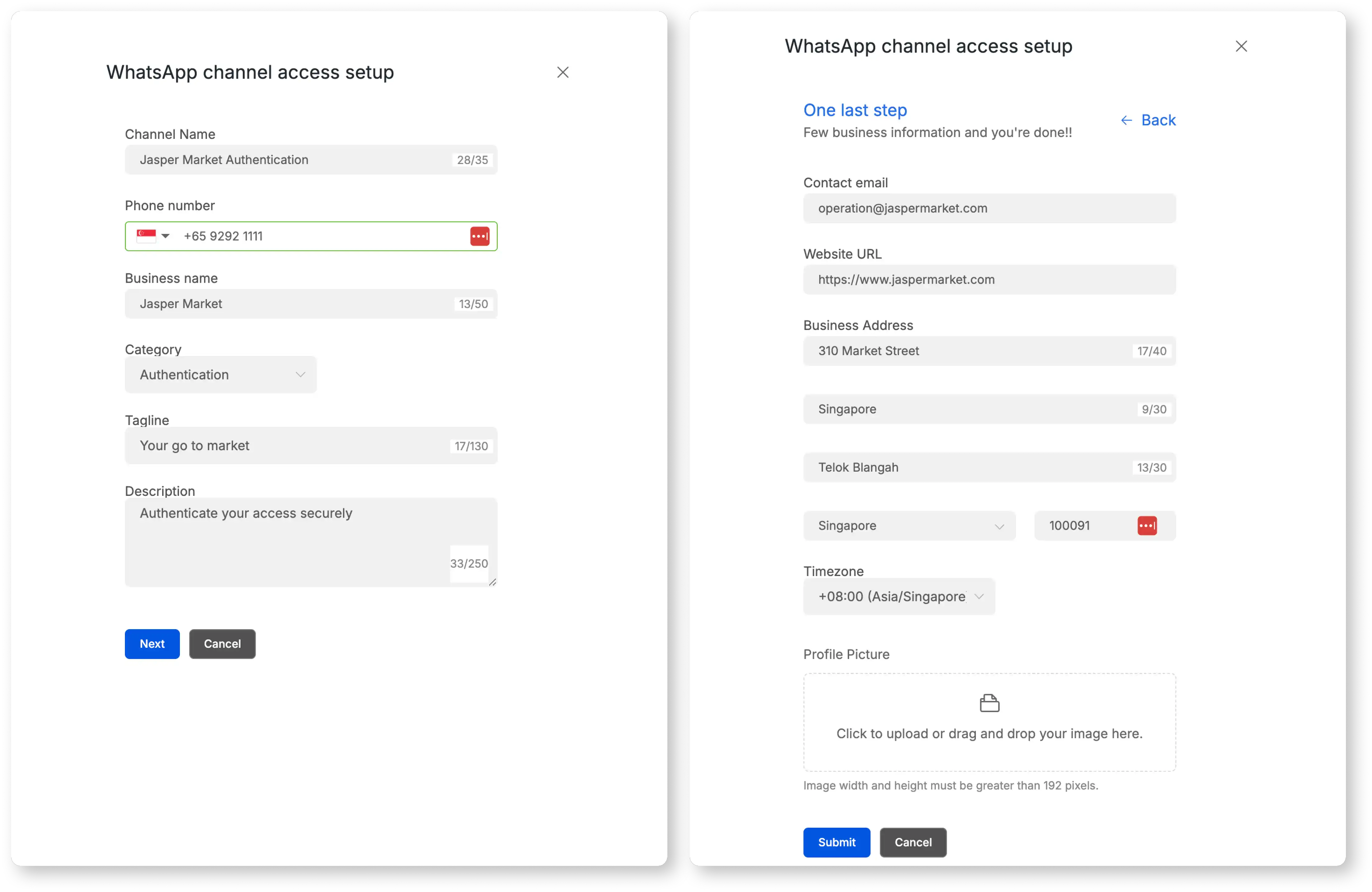
    2. Initiate Onboarding: Navigate to the channel provisioning section (e.g., "Messaging Apps" > "Channels") and select to add a WhatsApp channel. WhatsApp First Step

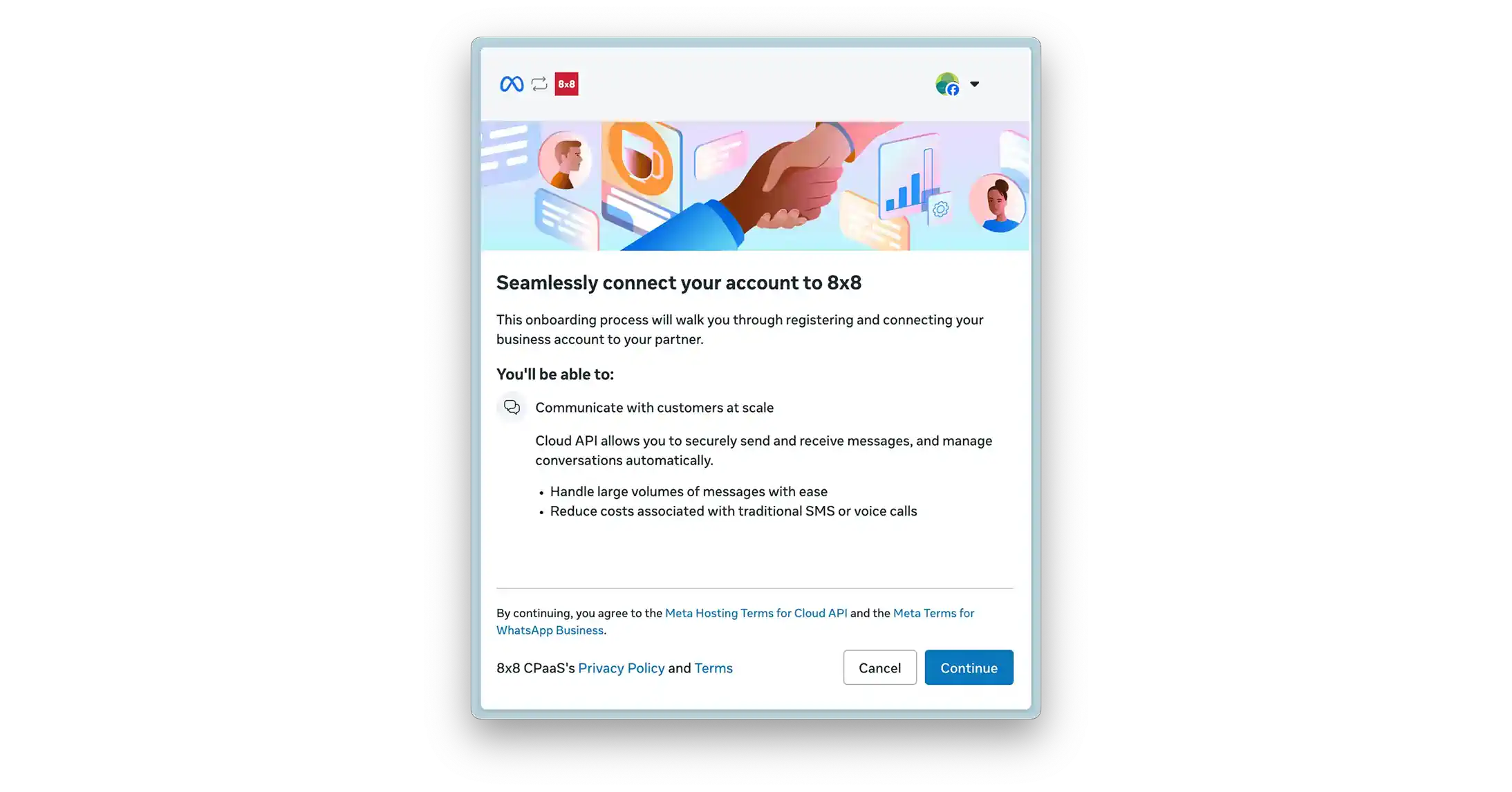
    3. Launch Embedded Signup: The system will launch a Meta-hosted wizard. A pop-up window managed by Meta will open.

    WhatsApp Channel Onboarding

    1. Authenticate with Meta: Log in using Meta credentials for an account with administrative access to the desired Meta Business Account. WhatsApp Embedded Signup

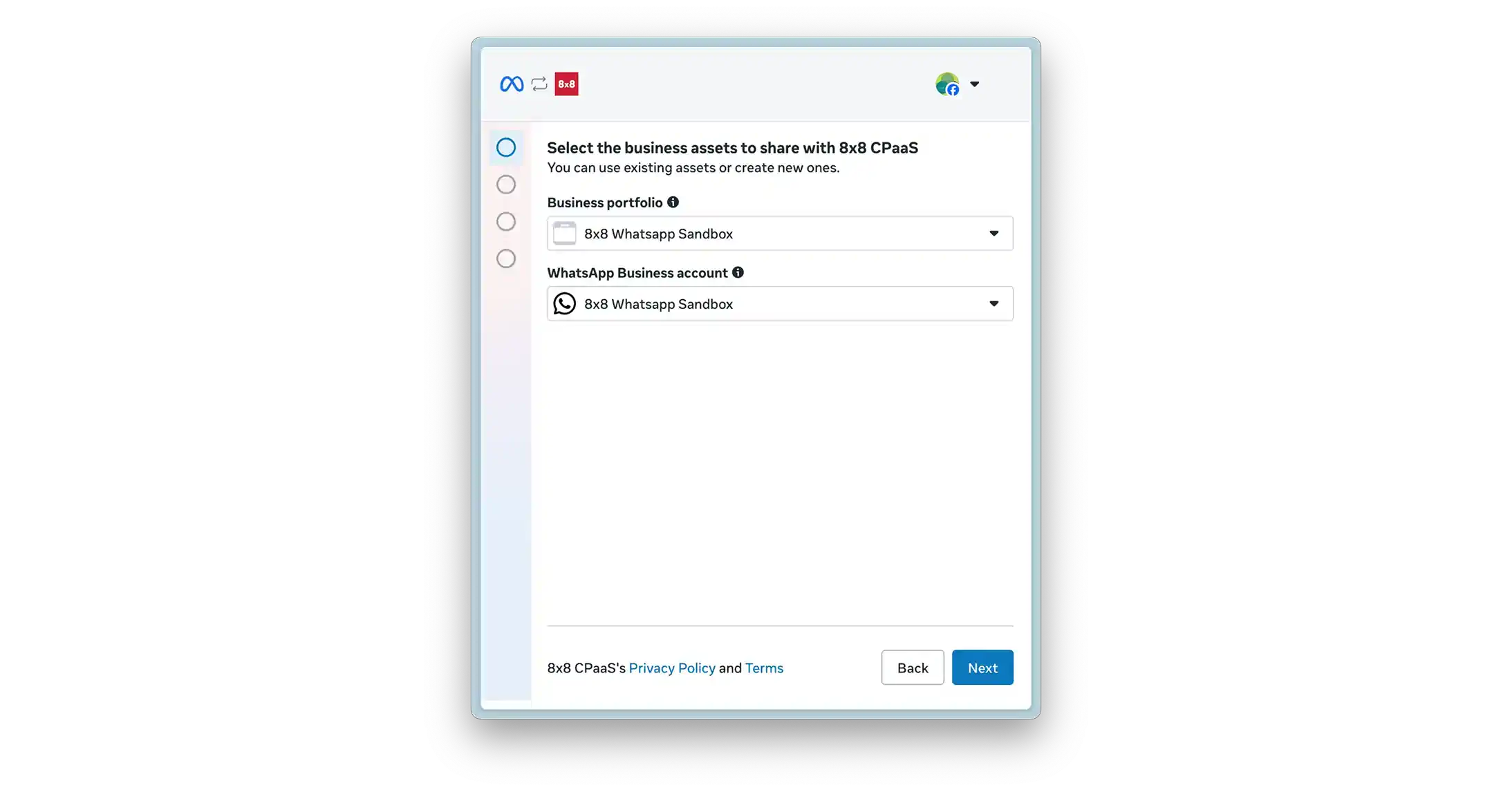
    2. Select/Create Assets: The flow will provide options to:

      • Create a new Meta Business Account or select an existing one.

      • Create a new WhatsApp Business Account (WABA) or select an existing one.

      • Create a new WhatsApp Business Profile or select an existing one.

    WhatsApp Embedded Signup - Select Business Asset WhatsApp Embedded Signup - Create WABA

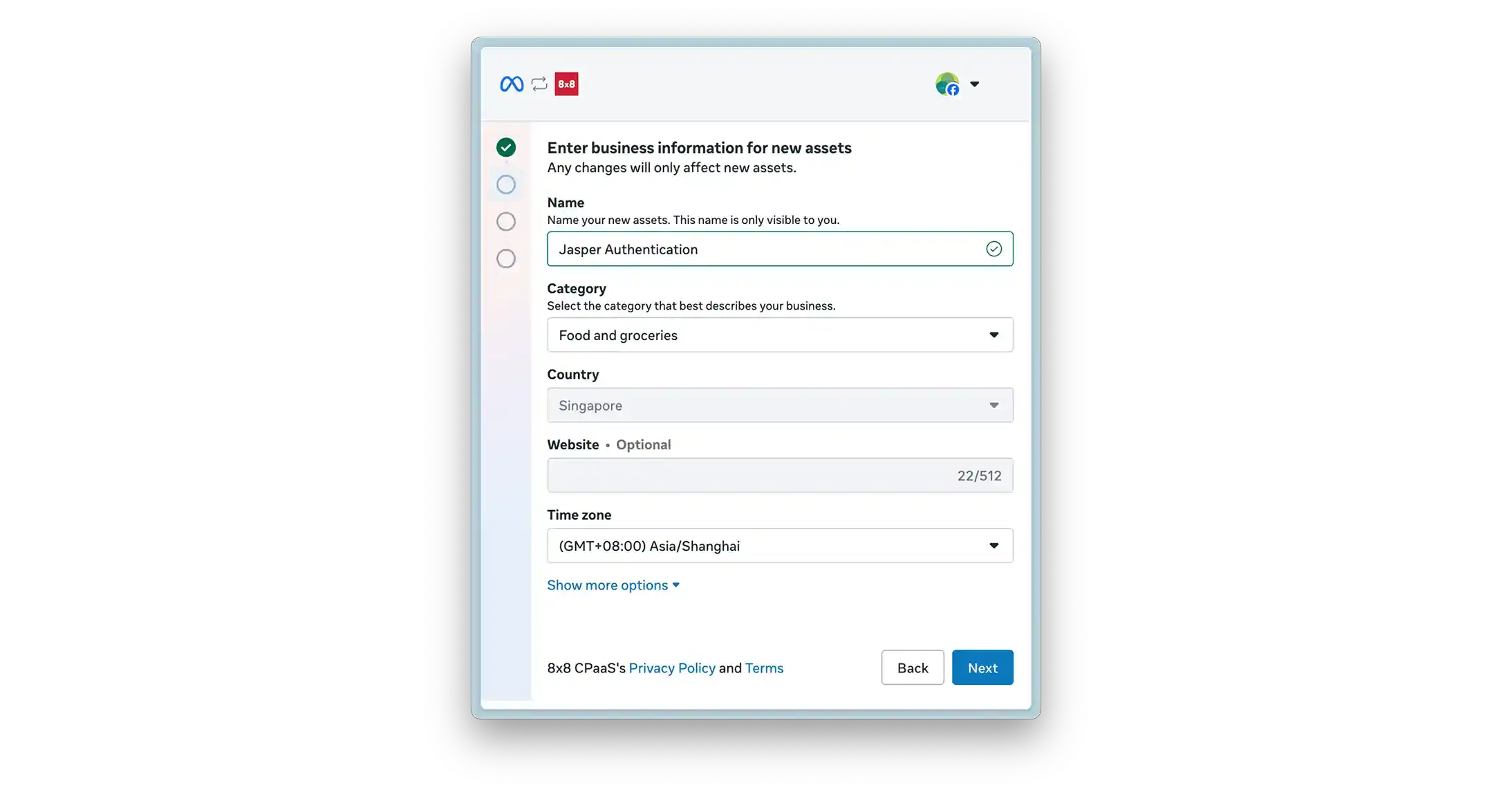
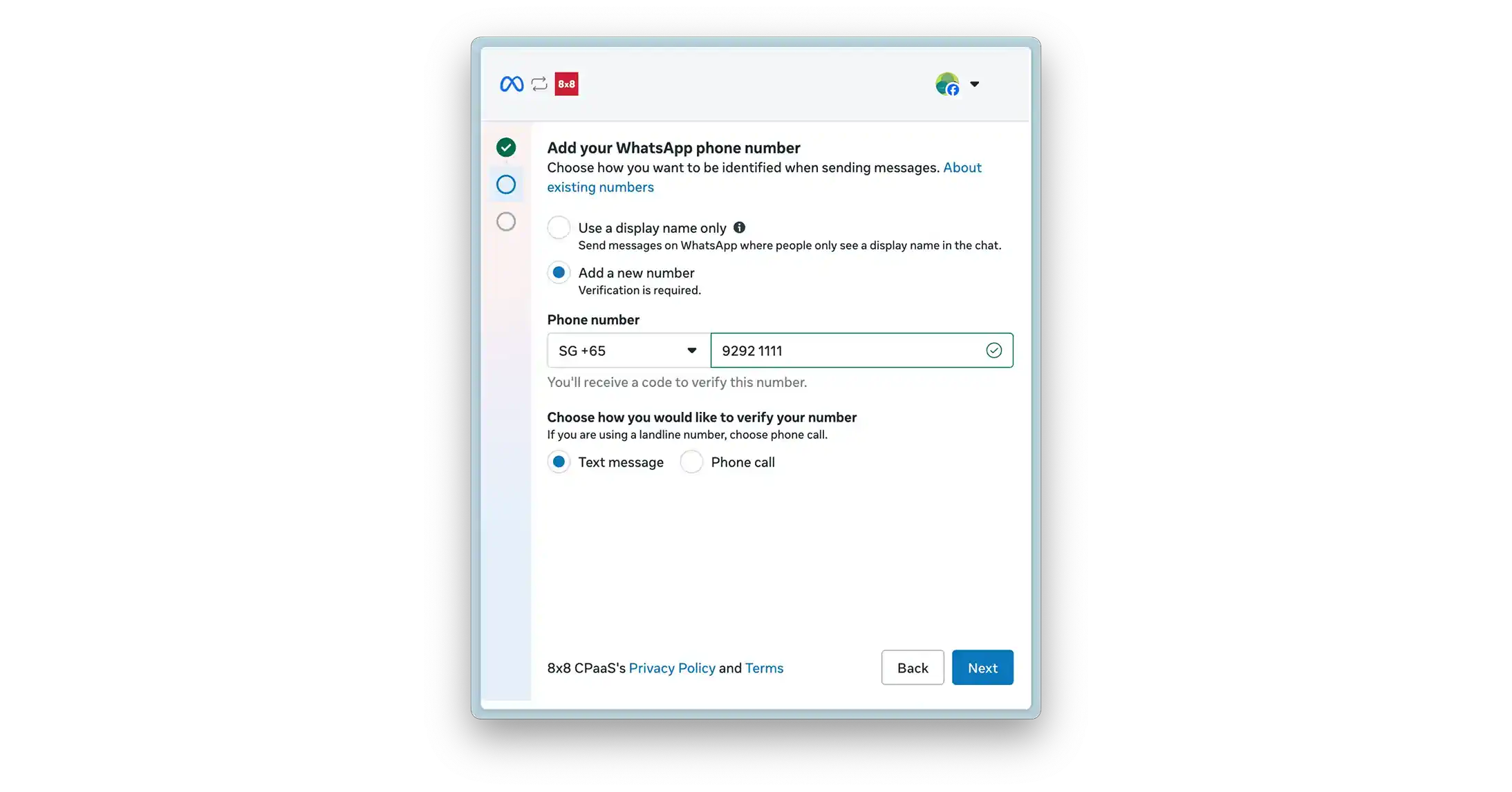
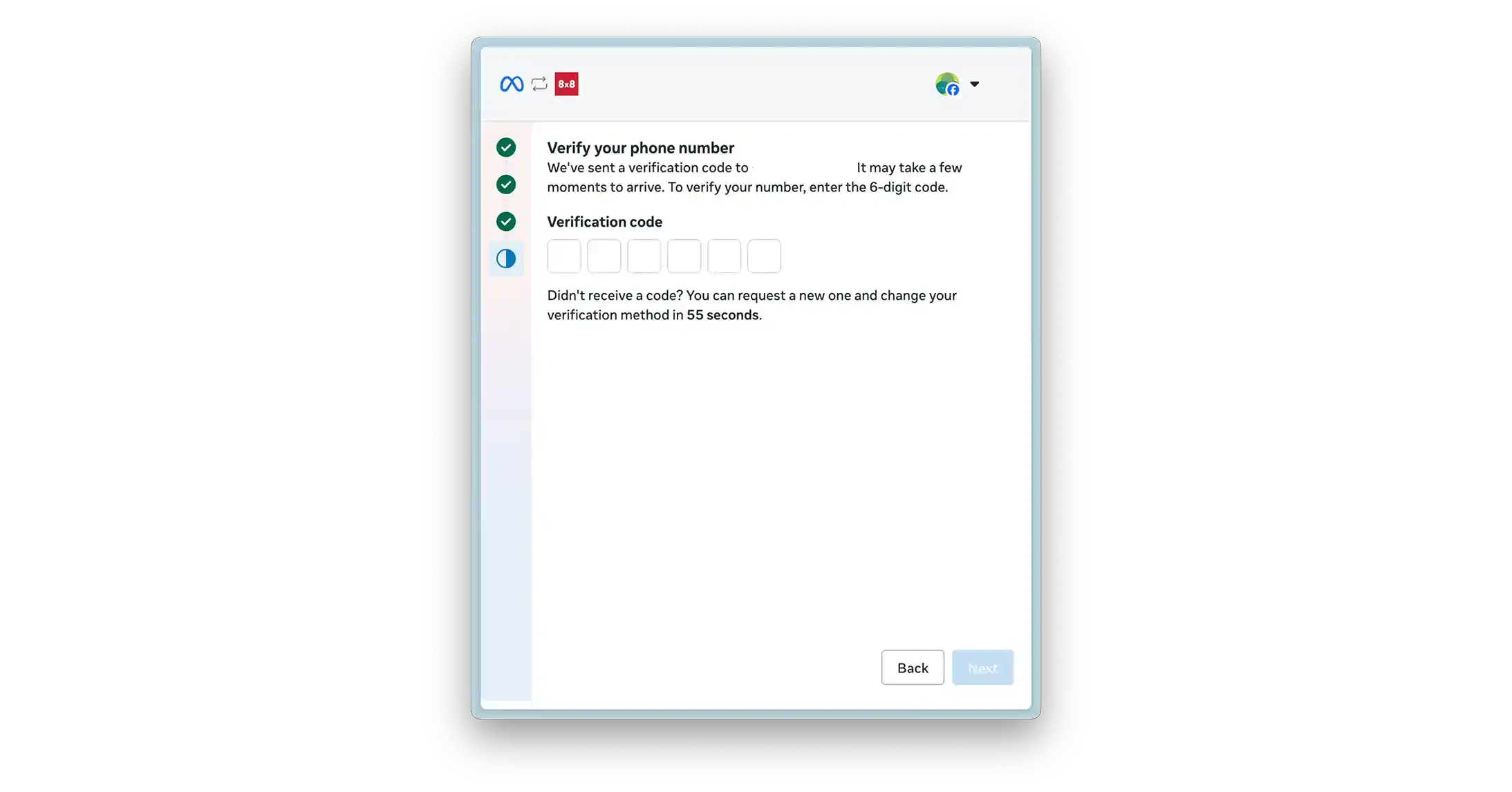
    1. Add & Verify Phone Number:

      • Provide the phone number to be associated with the WhatsApp channel.
      • Select a verification method (SMS or Voice Call).
      • Enter the 6-digit verification code received on that number. WhatsApp Embedded Signup - Add Phone Number WhatsApp Embedded Signup - Verify Phone Number
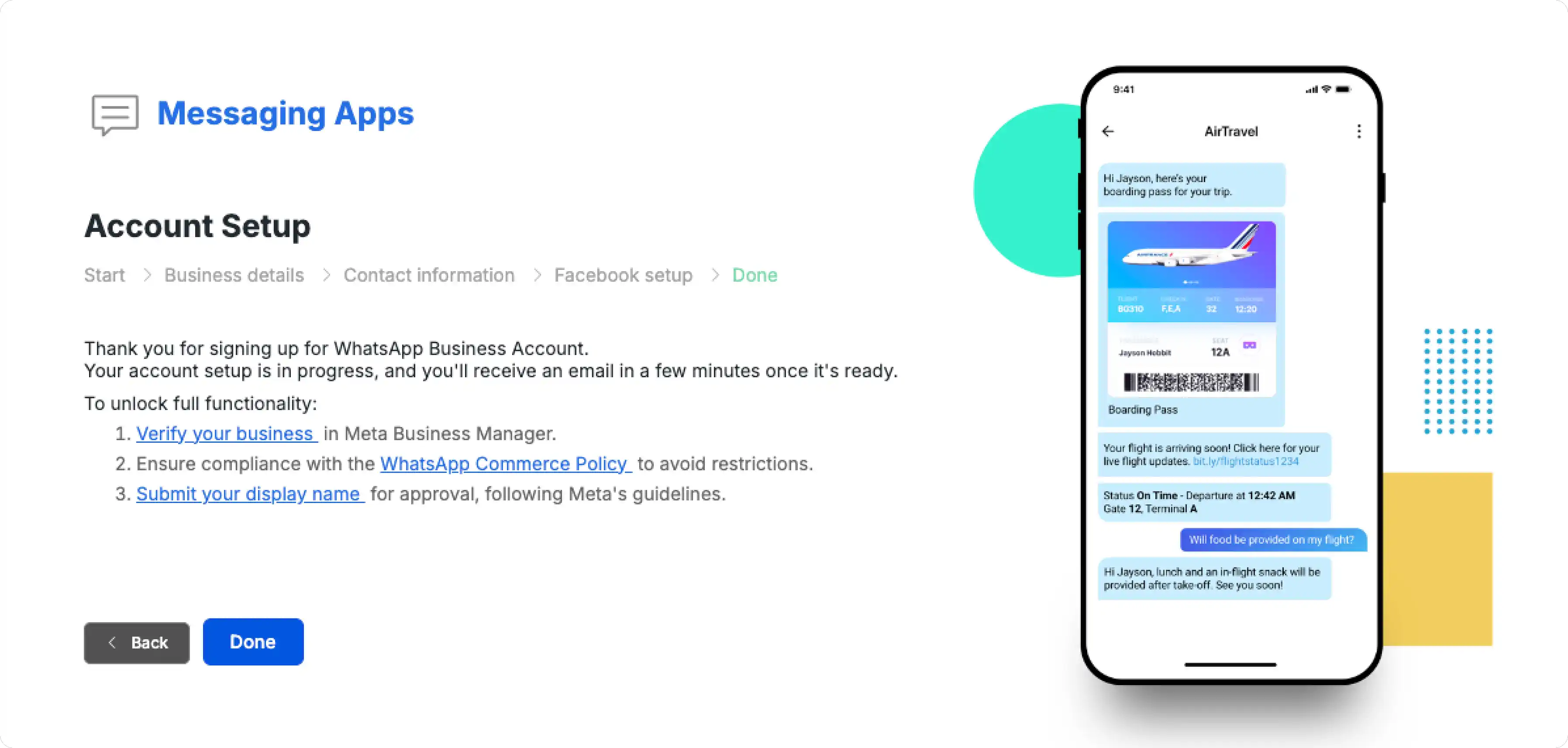
    2. Complete Flow: Upon successful verification, the Meta-hosted window will close. The flow will return the user to the 8x8 Connect portal, and the necessary identifiers will be automatically provisioned for the new channel. This new, active channel is now visible in your 8x8 Connect portal, as described in the next step.

    WhatsApp Final Step

    Business Verification & Raising Limits

    Meta's business verification confirms your company's legitimacy and is required to access certain platform features. WhatsApp uses this same verification to scale your messaging limits and build trust.

    For more information, see About business verification.

    Why Verification is Required

    • Scale Messaging: Verification is the first step to move beyond the initial 250-user limit. Verified businesses can engage up to 2,000 unique customers per 24 hours and subsequently scale to 10,000, 100,000, or unlimited, based on sending volume and quality.

    • Build Trust: Your verified business display name becomes visible to customers in the WhatsApp client.

    • Add More Numbers: Verified businesses can register multiple phone numbers under their WABA; unverified businesses are limited.

    • Apply for OBA: Verification is a prerequisite before you can request an Official Business Account (green checkmark).

    How the Verification Process Works

    You must complete this process in your Meta Business Portfolio's Security Centre.

    1. Start Verification: Go to the Security Centre in your Meta Business Portfolio and start the process.

    2. Enter Business Details: Provide your business's legal name, address, phone number, and website. These details must exactly match your official legal documents.

    3. Confirm Records or Upload Documents:

      • Meta will first try to find a match in its official records.

      • If no match is found, you will be asked to upload documents.

    4. Confirm Your Connection: You must prove you are associated with the business via one of these methods:

      • Email

      • Phone Call

      • SMS

      • WhatsApp Message

      • Domain Verification (uploading an HTML file to your website)

    5. Wait for Review: Meta's review can take up to 14 working days.

    Required Documentation (If Requested)

    You may be asked to provide proof of your legal entity and your address/phone number.

    • Accepted for Legal Entity: Business license, Certificate of Formation/Incorporation, Business Tax or VAT registration certificate.

    • Accepted for Address/Phone: Utility bill, Bank statement, or any of the legal entity documents listed above if they show your address/phone.

    • Not Accepted: Invoices, purchase orders, tax returns, website printouts, or marketing materials.

    Providing false or misleading information can lead to denial. After verification, certain portfolio details (like legal name and country) become locked.

    Confirm and Locate Your New Channel

    After completing the Embedded Signup flow (step 3.2), your verified phone number is now an active 'Channel' in the 8x8 Connect portal. This channel is the 'sender' you will use for all portal-based activities and is the entity linked to your subAccountId for API calls.

    1. In the 8x8 Connect portal, navigate to Messaging Apps > Channels.

    2. You will see your newly connected WhatsApp phone number (e.g., +15551234567) listed.

    3. Select this channel to view its details. Note the Channel ID and the Subaccount it is associated with. You will need the Subaccount ID for API calls.

    4. This channel is now available to be selected in the Campaigns tool, 8x8 Converse, and the Automation Builder.

    Send Your First Message from the Portal

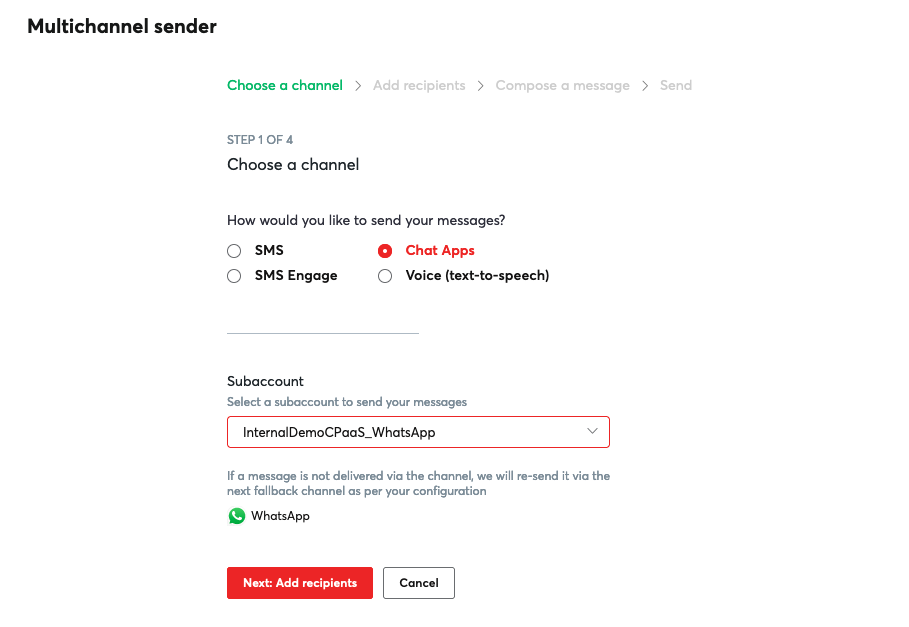
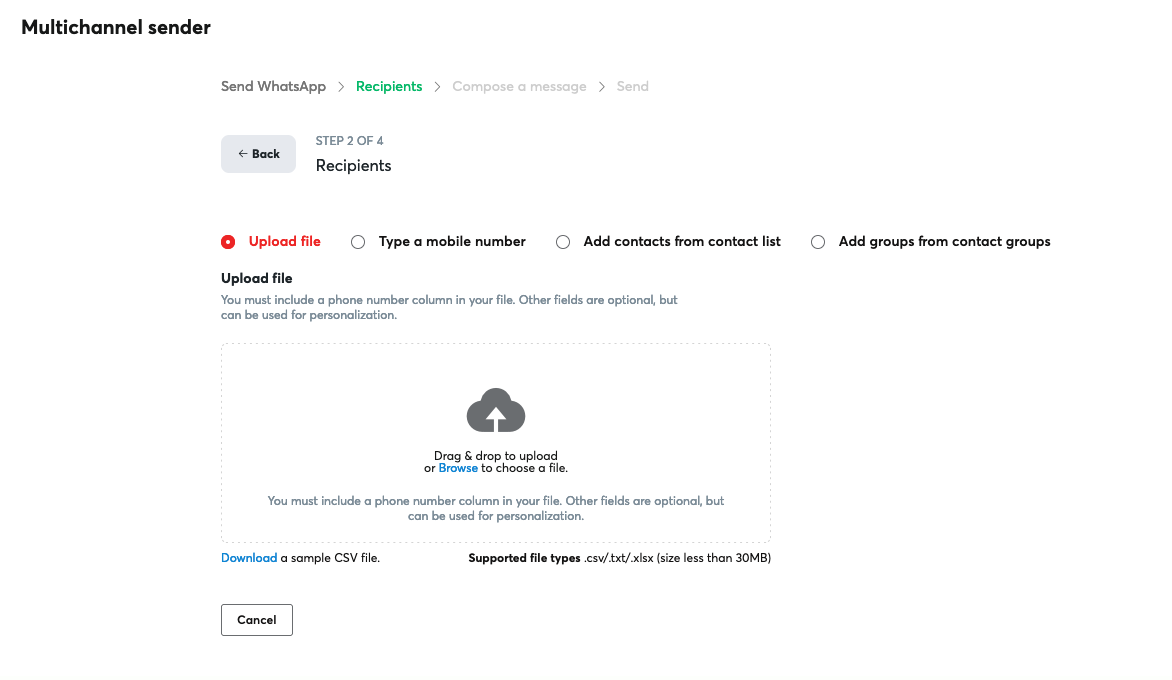
    The easiest way to send your first message is by using the Campaigns tool (formerly Multi-Channel Sender, or MCS).

    1. Navigate to Campaigns from the main portal menu.

    2. Click "Create a new campaign" and select "Messaging Apps".

    3. Select the Subaccount that contains your WhatsApp channel, and then choose your WhatsApp Channel (phone number) from the "From" dropdown.

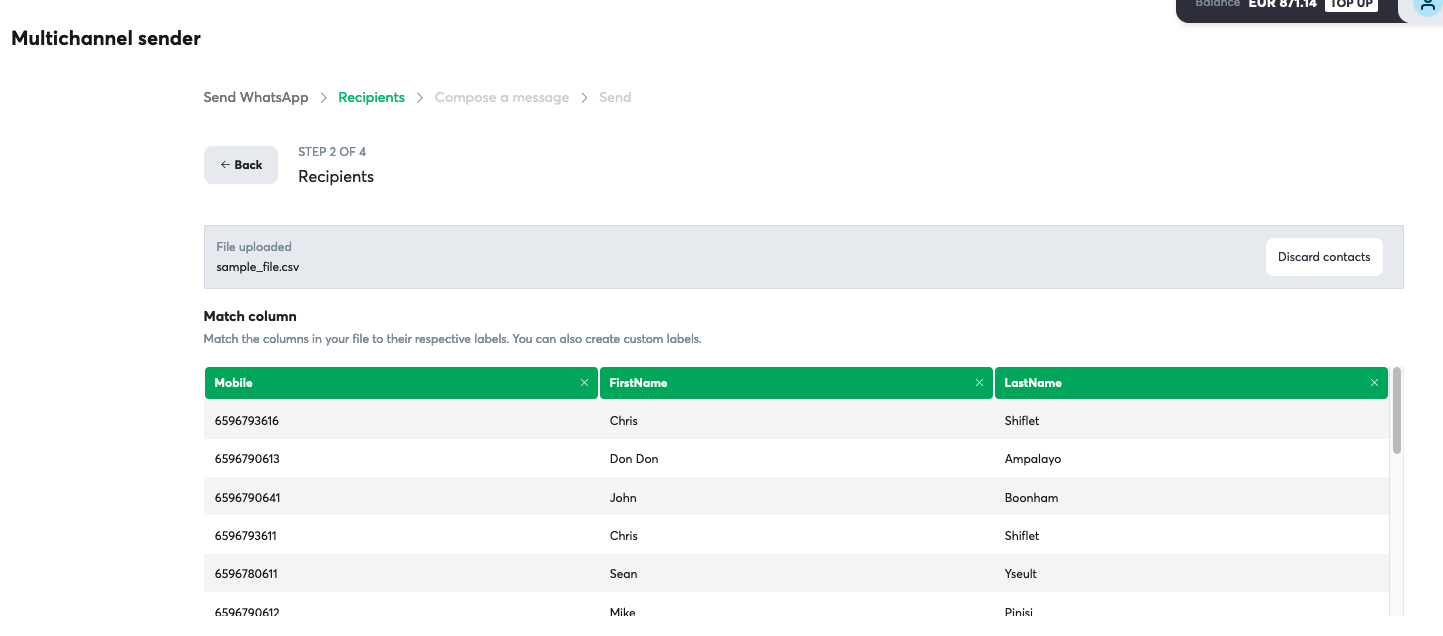
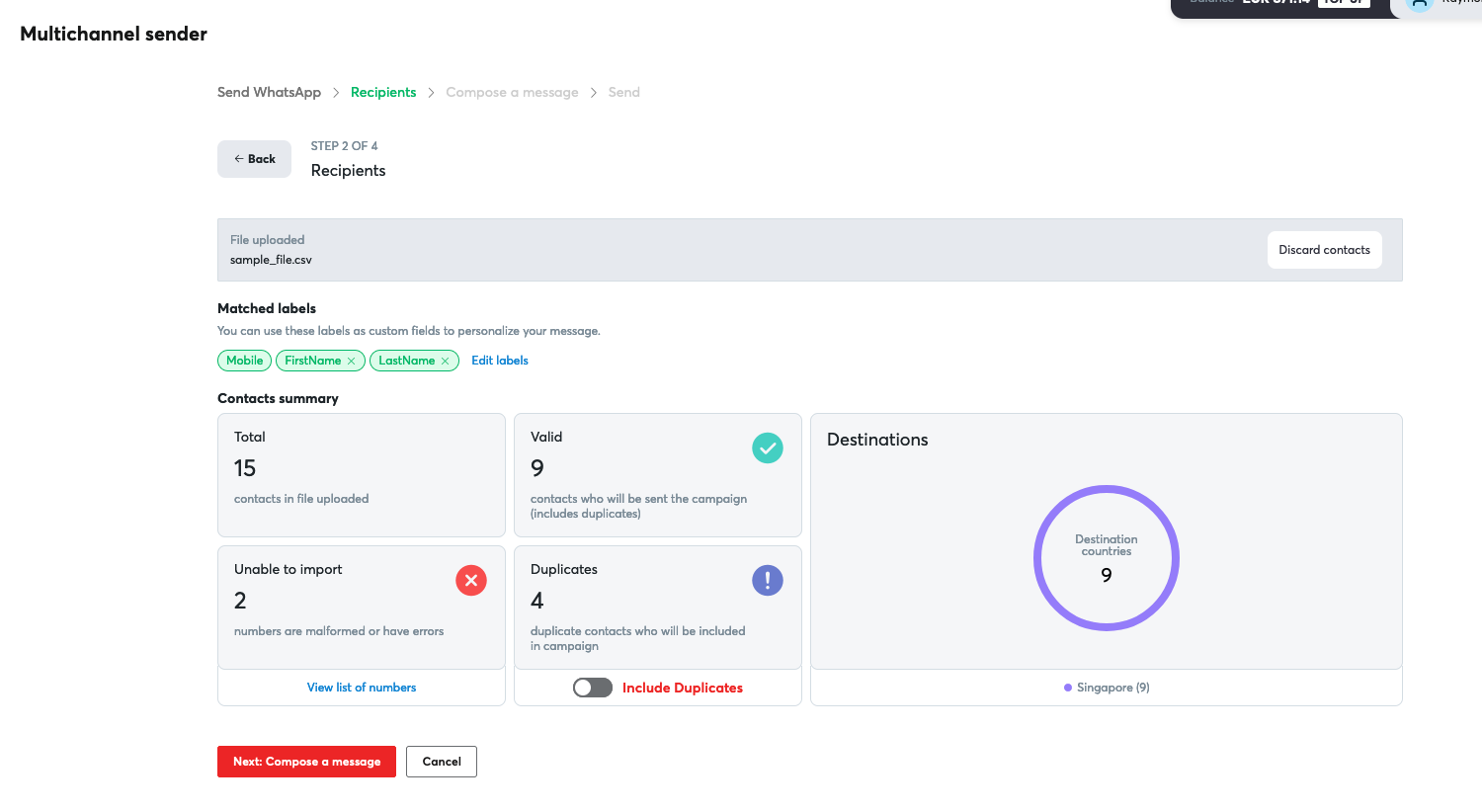
    4. Add a recipient's phone number in the "Add recipients" section (e.g., by typing the number).

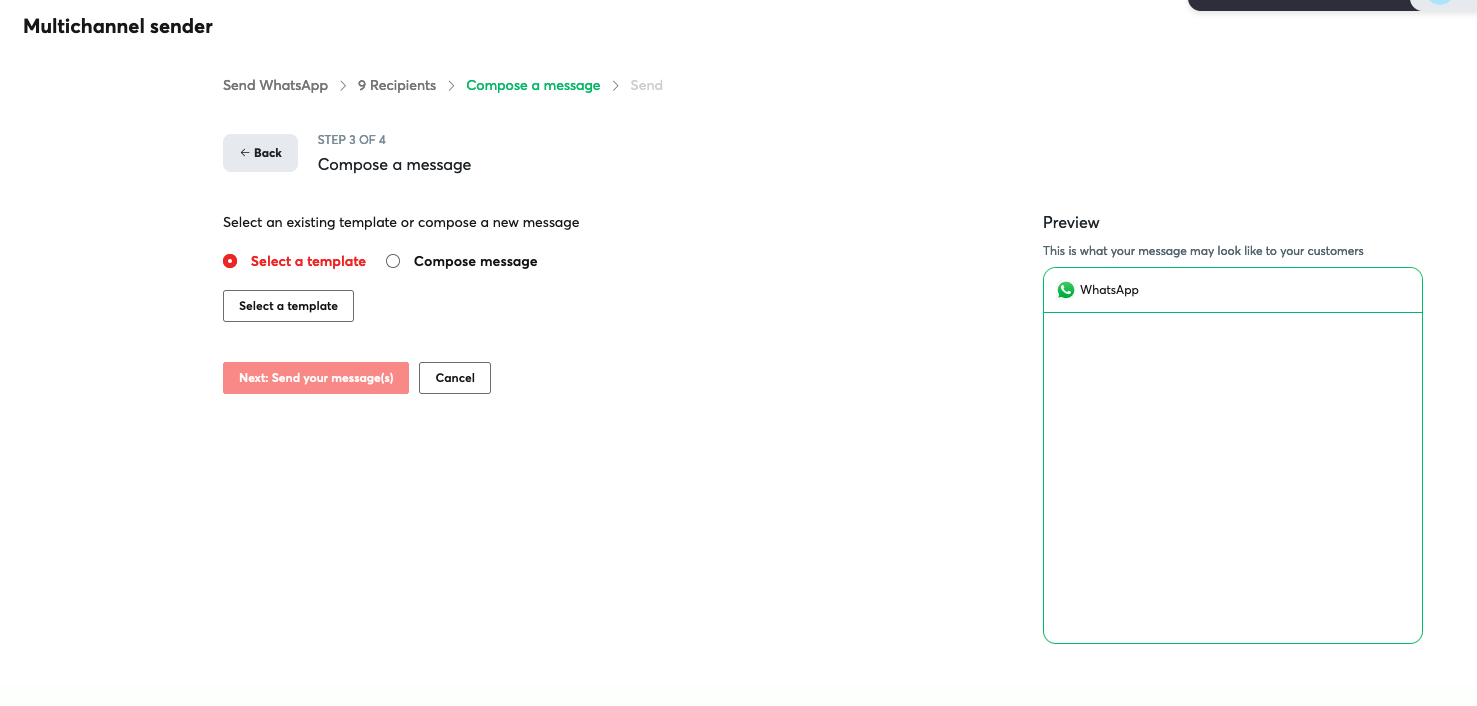
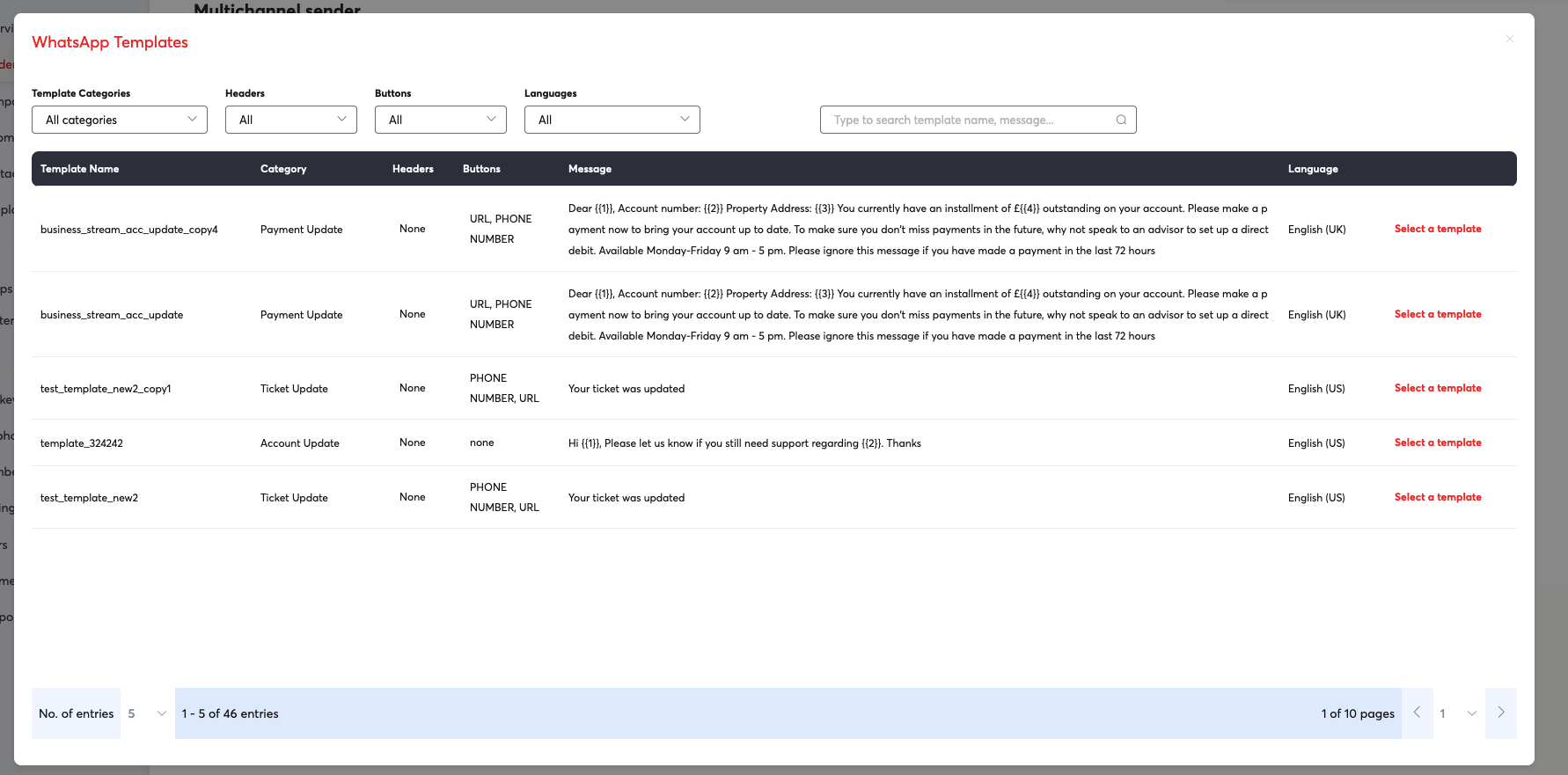
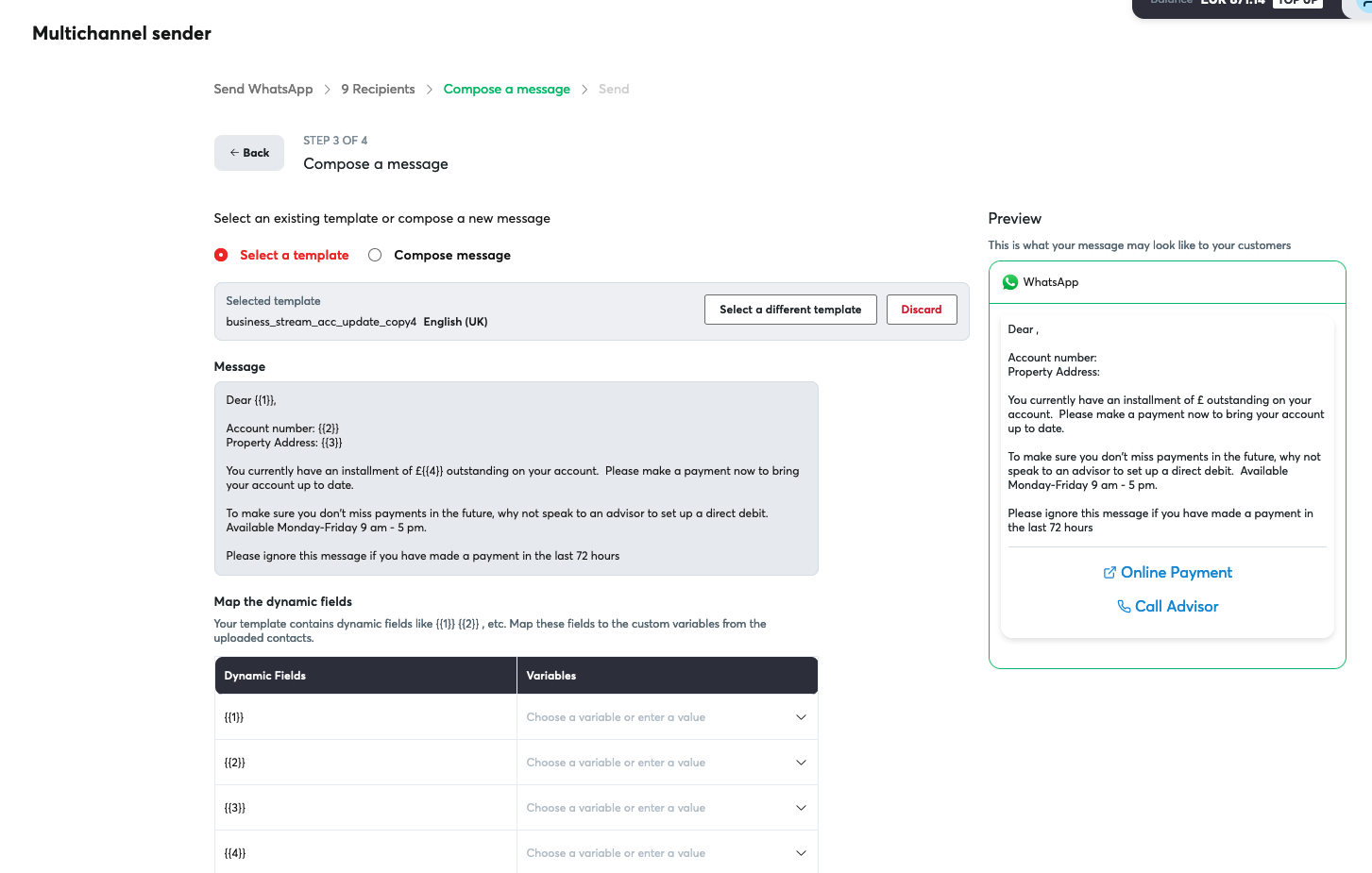
    5. In the "Compose a message" section, you must select an approved Message Template.

      • You cannot send a freeform text message to initiate a conversation.

      • Select a pre-approved template (e.g., a "Utility" template like hello_world).

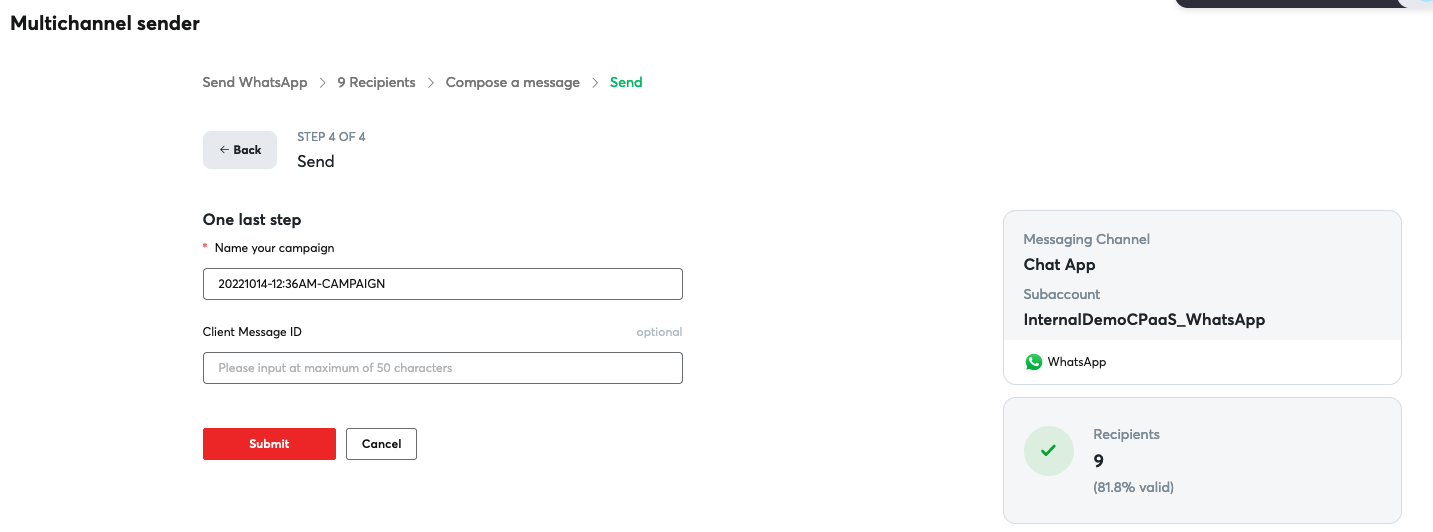
    6. Click "Send your message(s)" to review and dispatch the message.

    7. Test the 24-hour window: Once the recipient receives the message, have them reply. You can now use the Campaigns tool again to send them a freeform (non-template) text message, as the customer service window is now open.


    Next Steps

    Now that you've set up your WhatsApp channel and sent your first message, explore these resources to build on your foundation:

    For Business Users:

    • Message Types & Templates - Learn how to create and manage custom templates for your campaigns
    • WhatsApp in 8x8 Connect - Discover how to use Campaigns, Converse, and Automation Builder
    • Scenarios & Tutorials - Follow step-by-step guides for common use cases

    For Developers:

    • WhatsApp over 8x8 API - Start building with the API to automate messaging
    • Template Message API Library - Explore template message examples with complete JSON payloads
    • Interactive Message API Library - Learn how to send rich interactive messages

    Important Concepts:

    • Concepts & Fundamentals - Understand the 24-hour window, quality ratings, and messaging limits
    • Governance, Security & Compliance - Review opt-in requirements and Meta's template policies

    Source: https://developer.8x8.com/connect/docs/whatsapp/getting-started · 8x8 CPaaS Developer Docs. Synced for support deflection.
  • WhatsApp Templates Management

    WhatsApp Templates Management

    This page will cover the options available within 8x8 Connect to manage your WhatsApp templates.

    Video Guide

    This is a quick video guide that goes over the WhatsApp Template Page.

    Viewing Templates

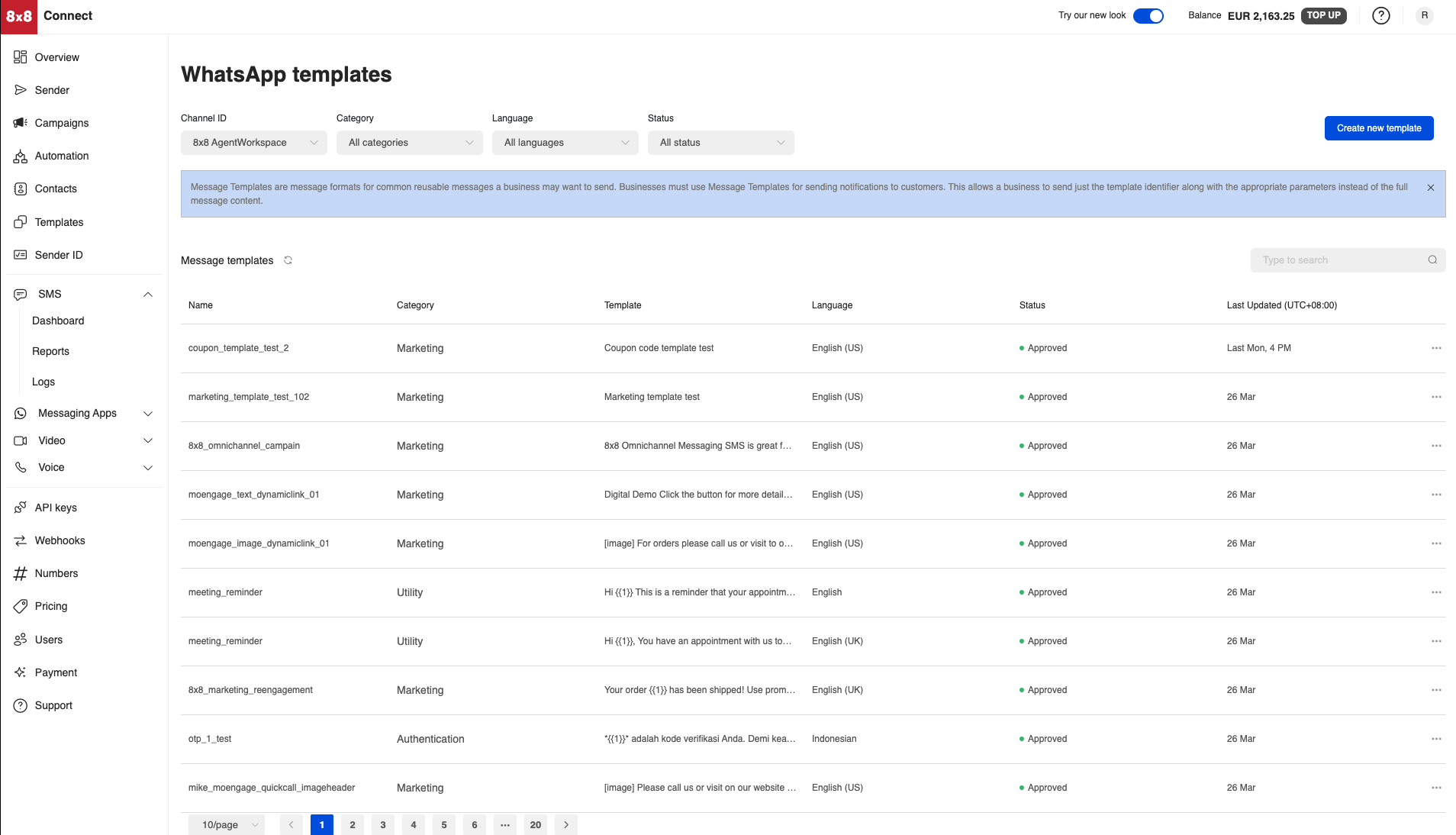
    To view your existing WhatsApp Templates, you can navigate to the following page in 8x8 Connect which is under Messaging Apps > WhatsApp Templates

    image

    The page has the ability to filter by the following options:

    Column Description
    Channel ID Refers to the WhatsApp Sender that the template is associated with
    Category Refers to the WhatsApp Conversation Category which can be Authentication, Marketing or Utility
    Language The language of the template
    Status The status of the template which can be a number of status depending on if WhatsApp has approved the template, rejected the template or approved the template

    When focusing on the Message Templates themselves, they will contain the following information:

    Column Description
    Name The name of the WhatsApp Template that can be used to identify it further in logs
    Category Refers to the WhatsApp Conversation Category which can be Authentication, Marketing or Utility
    Template The text of the template, can include parameter placeholders (i.e. {{1}}) that represent where you can substitute dynamic content into the text
    Language The language of the template
    Status The status of the template which can be a number of status depending on if WhatsApp has approved the template, rejected the template or approved the template
    Last Updated When the template was last modified.

    Creating Templates

    WhatsApp Templates can be created using the Create new template button in the WhatsApp templates page above. The button will generate this pop up which will ask you to fill in details about the type of WhatsApp template that you would like to submit to WhatsApp for approval.

    📘WhatsApp ultimately approves these templates and will reject any templates that violate their policies. Please see WhatsApp's Business Messaging Policy page for details.

    image

    The fields that are available are:

    Field Description
    Name of the Template The name that will be used to identify the template
    Category The conversation category the template falls under. Either Authentication, Marketing or Utility.
    Language The language of the template
    Channel ID Refers to the WhatsApp Sender ID that is associated with the template.
    Add Security Disclaimer Adds a short disclaimer to the end of the message stating:
    "For your security, do not share this code."
    Add Expiry Warning (For Authentication Only) Adds a notice to the message stating when the message expires, typically for OTP codes:
    "This code expires in X minutes"
    The number of minutes can be controlled in the same interface.
    Header Message Header which can be appended before the body of the message.
    Body The body of the message.
    By default the message is sent as is with the content provided. For example if the body is "Hello Customer" then the message will be sent exactly as written.
    For dynamic content, you can use bracketed numbers such as {{1}} {{2}} to represent dynamic content that can be substituted into the message template. This is useful when using the message template as a part of an API call so that you can dynamically substitute.
    For example you may have a template such as "Hello {{1}}, Your code is {{2}}" where in your API call you can provide "Chris" for {{1}} and "100" for {{2}} so the final message will be "Hello Chris, Your code is 100".
    Footer Small text appended to the bottom of a message.
    Buttons Used in certain types of message to specify two message types:
    - Call to Action
    - Quick Reply
    - OTP

    Once you submit the message for approval, you can use the existing template page to check on it's status and whether it is approved an able to be used with your WhatsApp Sender ID through 8x8.

    Deleting Templates

    Templates can be deleted via the delete option that pops up when mousing over the row of an individual template.

    image

    Editing Templates

    It is not possible to edit WhatsApp Templates. You can create new templates to submit for approval from WhatsApp and use those instead.

    Managing Templates via API

    WhatsApp Templates can be Added, Deleted and Retrieved via an API. Please see the links for details.


    Source: https://developer.8x8.com/connect/docs/whatsapp-templates-management · 8x8 CPaaS Developer Docs. Synced for support deflection.
  • WhatsApp Template Change Webhook

    WhatsApp Template Change Webhook

    WhatsApp Template Change Webhook are notifications sent to you to inform about any updates or modifications to your WhatsApp template.

    📘

    In case you're looking for delivery notifications for Chat Apps message, please refer to Delivery receipts for outbound Chat Apps

    Requirements

    To receive WhatsApp template change webhook, you need:

    • An account configured to use Chat Apps product.
    • A webhook to indicate to us which URL 8x8 platform should send Chat Apps Business Management Updates to.

    📘

    You can configure your callback using Webhooks Configuration API

    Retry logic

    In case of connection error/timeout or HTTP response code 4XX or 5XX, there will be multiple retry attempts with progressive intervals: 1, 10, 30, 90 sec.

    Webhook format

    Request body description

    Parameter name Parameter type Description
    eventId string Unique event identifier.
    timestamp string Timestamp of event in ISO 8601 format.
    provider string Provider of this event. Equal to WhatsApp.
    businessAccountId string Business account identifier associated with provider.
    accountId string AccountId which the event is associated with.
    eventType string Webhook type.
    Possible values are template_category_update, template_status_update, template_quality_update, template_correct_category_detection.
    eventDetails object Event related information, see below.

    eventDetails object description

    Parameter name Parameter type Description
    templateId long WhatsApp Template ID.
    templateName string WhatsApp Template Name.
    templateLanguage string WhatsApp Template Language.
    meta object Specific information related to the event, see below.

    meta object description

    Parameter name Parameter type Description Applicable for eventType
    previousCategory string Previous category for template. template_category_update
    newCategory string New category for template. template_category_update
    previousQualityScore string Previous quality score for template.
    Possible values: GREEN, YELLOW, RED, UNKNOWN.
    template_quality_update
    newQualityScore string New quality score for template. template_quality_update
    status string New template status.
    Possible values: APPROVED, REJECTED, FLAGGED, PAUSED, PENDING_DELETION.
    template_status_update
    reason string Template rejection reason.
    Possible values: ABUSIVE_CONTENT, INCORRECT_CATEGORY, INVALID_FORMAT, SCAM, NONE.NONE is also the default, set when template is approved.
    template_status_update
    disableInfo object Provided when template is scheduled to be disabled. Contains disableDate. template_status_update
    otherInfo object Provided for pause or unpause event. Contains two properties title and description.

    - title to indicate the event. Possible values: FIRST_PAUSE, SECOND_PAUSE, RATE_LIMITING_PAUSE, UNPAUSE, DISABLED.
    - description to describe why the template was paused or unpaused.
    template_status_update
    category string The category the template was sent under (e.g. UTILITY). template_correct_category_detection
    correctCategory string The category Meta detected the message should have been (e.g. MARKETING, AUTHENTICATION). template_correct_category_detection

    Sample template update webhook

    {
    "eventId":"0f88f5c4-fae7-4dcf-8ff2-b2990133edea",
    "timestamp":"2025-01-01T00:00:00.00Z",
    "provider":"WhatsApp",
    "businessAccountId":<BusinessAccountId>,
    "accountId":<AccountId>,
    "eventType":"template_category_update",
    "eventDetails":
    {
    "templateId":<TEMPLATE_ID>,
    "templateName":<TEMPLATE_NAME>,
    "templateLanguage":<TEMPLATE_LANGUAGE>,
    "meta":
    {
    "previousCategory":"UTILITY",
    "newCategory":"MARKETING"
    }
    }
    }
    {
    "eventId":"0f88f5c4-fae7-4dcf-8ff2-b2990133edea",
    "timestamp":"2025-01-01T00:00:00.00Z",
    "provider":"WhatsApp",
    "businessAccountId":<BusinessAccountId>,
    "accountId":<AccountId>,
    "eventType":"template_quality_update",
    "eventDetails":
    {
    "templateId":<TEMPLATE_ID>,
    "templateName":<TEMPLATE_NAME>,
    "templateLanguage":<TEMPLATE_LANGUAGE>,
    "meta":
    {
    "previousQualityScore":"UNKNOWN",
    "newQualityScore":"GREEN"
    }
    }
    }
    {
    "eventId":"0f88f5c4-fae7-4dcf-8ff2-b2990133edea",
    "timestamp":"2025-01-01T00:00:00.00Z",
    "provider":"WhatsApp",
    "businessAccountId":<BusinessAccountId>,
    "accountId":<AccountId>,
    "eventType":"template_status_update",
    "eventDetails":
    {
    "templateId":<TEMPLATE_ID>,
    "templateName":<TEMPLATE_NAME>,
    "templateLanguage":<TEMPLATE_LANGUAGE>,
    "meta":
    {
    "status":"APPROVED",
    "reason":"NONE"
    }
    }
    }
    {
    "eventId":"0f88f5c4-fae7-4dcf-8ff2-b2990133edea",
    "timestamp":"2025-01-01T00:00:00.00Z",
    "provider":"WhatsApp",
    "businessAccountId":<BusinessAccountId>,
    "accountId":<AccountId>,
    "eventType":"template_status_update",
    "eventDetails":
    {
    "templateId":<TEMPLATE_ID>,
    "templateName":<TEMPLATE_NAME>,
    "templateLanguage":<TEMPLATE_LANGUAGE>,
    "meta":
    {
    "status":"REJECTED",
    "reason":"INCORRECT_CATEGORY"
    }
    }
    }
    {
    "eventId":"0f88f5c4-fae7-4dcf-8ff2-b2990133edea",
    "timestamp":"2025-01-01T00:00:00.00Z",
    "provider":"WhatsApp",
    "businessAccountId":<BusinessAccountId>,
    "accountId":<AccountId>,
    "eventType":"template_status_update",
    "eventDetails":
    {
    "templateId":<TEMPLATE_ID>,
    "templateName":<TEMPLATE_NAME>,
    "templateLanguage":<TEMPLATE_LANGUAGE>,
    "meta":
    {
    "status":"FLAGGED",
    "disableInfo":{
    "disableDate":"DATE"
    }
    }
    }
    }
    {
    "eventId":"0f88f5c4-fae7-4dcf-8ff2-b2990133edea",
    "timestamp":"2025-01-01T00:00:00.00Z",
    "provider":"WhatsApp",
    "businessAccountId":<BusinessAccountId>,
    "accountId":<AccountId>,
    "eventType":"template_status_update",
    "eventDetails":
    {
    "templateId":<TEMPLATE_ID>,
    "templateName":<TEMPLATE_NAME>,
    "templateLanguage":<TEMPLATE_LANGUAGE>,
    "meta":
    {
    "status":"PAUSED",
    "reason":"NONE",
    "otherInfo":{
    "title":"FIRST_PAUSE",
    "description":"Pause description"
    }
    }
    }
    }

    📘

    template_correct_category_detection is a detection/advisory event only — the template's category is not changed. To clear the warning, re-categorize the template to match correctCategory.

    {
    "eventId":"0f88f5c4-fae7-4dcf-8ff2-b2990133edea",
    "timestamp":"2025-01-01T00:00:00.00Z",
    "provider":"WhatsApp",
    "businessAccountId":<BusinessAccountId>,
    "accountId":<AccountId>,
    "eventType":"template_correct_category_detection",
    "eventDetails":
    {
    "templateId":<TEMPLATE_ID>,
    "templateName":<TEMPLATE_NAME>,
    "templateLanguage":<TEMPLATE_LANGUAGE>,
    "meta":
    {
    "category":"UTILITY",
    "correctCategory":"MARKETING"
    }
    }
    }

    Source: https://developer.8x8.com/connect/docs/whatsapp-template-change-webhook · 8x8 CPaaS Developer Docs. Synced for support deflection.
  • WhatsApp Phone Number Quality Change Webhook

    WhatsApp Phone Number Quality Change Webhook

    WhatsApp Phone Number Change Webhook are notifications sent to you to inform about changes to your business phone number's messaging limit and throughput level.

    Requirements

    To receive WhatsApp phone number quality change webhook, you need:

    • An account configured to use Chat Apps product.
    • A webhook to indicate to us which URL 8x8 platform should send Chat Apps Business Management Updates to.

    📘

    You can configure your callback using Webhooks Configuration API

    Retry logic

    In case of connection error/timeout or HTTP response code 4XX or 5XX, there will be multiple retry attempts with progressive intervals: 1, 10, 30, 90 sec.

    Webhook format

    Request body description

    Parameter name Parameter type Description
    eventId string Unique event identifier.
    timestamp string Timestamp of event in ISO 8601 format.
    provider string Provider of this event. Equal to WhatsApp.
    businessAccountId string Business account identifier associated with provider. This value will represent the WhatsApp Business Account (WABA) Id.
    accountId string AccountId which the event is associated with.
    eventType string Type of event. Equal to phone_number_quality_update.
    eventDetails object Event related information, see below.

    eventDetails object description

    Parameter name Parameter type Description
    displayPhoneNumber string Business display phone number
    meta object Specific information related to the event, see below.

    meta object description

    Parameter name Parameter type Description
    event string Messaging limit change or throughput change event.
    Possible values areDOWNGRADE— Messaging limit has decreased.FLAGGED — Messaging quality will be decreased if the number continues to receive negative feedback.ONBOARDING — Phone number is still being registered.THROUGHPUT_UPGRADE — Throughput level has increased.UNFLAGGED — Business phone number is eligible to receive a messaging limit increase if it continues to receive positive feedback.UPGRADE — Messaging limit has increased.
    currentLimit string This field will be removed in February, 2026. Use maxDailyConversationsPerBusiness instead.
    Indicates current messaging limit or throughput level.
    Possible values areTIER_50 — Indicates a messaging limit of 50.TIER_250 — Indicates a messaging limit of 250.TIER_1K — Indicates a messaging limit of 1,000.TIER_10K — Indicates a messaging limit of 10,000.TIER_100K — Indicates a messaging limit of 100,000.TIER_NOT_SET — Indicates the business phone number has not been used to send a message yet.TIER_UNLIMITED — Indicates the business phone number has higher throughput.
    oldLimit string This parameter will be removed in February, 2026. Use maxDailyConversationsPerBusiness instead.
    Old limit and only included for messaging limit changes.
    maxDailyConversationsPerBusiness string Indicates a change to the owning business portfolio's messaging limit or throughput change.
    Possible values areTIER_50 — Indicates a messaging limit of 50.TIER_250 — Indicates a messaging limit of 250.TIER_2K — Indicates a messaging limit of 2,000.TIER_10K — Indicates a messaging limit of 10,000.TIER_100K — Indicates a messaging limit of 100,000.TIER_NOT_SET — Indicates the business phone number has not been used to send a message yet.TIER_UNLIMITED — Indicates the business phone number has higher throughput.

    Sample webhook

    {
    "eventId":"0f88f5c4-fae7-4dcf-8ff2-b2990133edea",
    "timestamp":"2025-01-01T00:00:00.00Z",
    "provider":"WhatsApp",
    "businessAccountId":<BusinessAccountId>,
    "accountId":<AccountId>,
    "eventType":"phone_number_quality_update",
    "eventDetails":{
    "displayPhoneNumber":"15550783881",
    "meta":{
    "event":"UPGRADE",
    "currentLimit":"TIER_10K",
    "oldLimit":"TIER_1K"
    }
    }
    }
    {
    "eventId":"0f88f5c4-fae7-4dcf-8ff2-b2990133edea",
    "timestamp":"2025-01-01T00:00:00.00Z",
    "provider":"WhatsApp",
    "businessAccountId":<BusinessAccountId>,
    "accountId":<AccountId>,
    "eventType":"phone_number_quality_update",
    "eventDetails":{
    "displayPhoneNumber":"15550783881",
    "meta":{
    "event":"THROUGHPUT_UPGRADE",
    "currentLimit":"TIER_UNLIMITED"
    }
    }
    }

    In February 2026, the deprecated fields will be removed and only maxDailyConversationsPerBusiness will be included.

    {
    "eventId":"0f88f5c4-fae7-4dcf-8ff2-b2990133edea",
    "timestamp":"2025-01-01T00:00:00.00Z",
    "provider":"WhatsApp",
    "businessAccountId":<BusinessAccountId>,
    "accountId":<AccountId>,
    "eventType":"phone_number_quality_update",
    "eventDetails":{
    "displayPhoneNumber":"15550783881",
    "meta":{
    "event":"ONBOARDING",
    "maxDailyConversationsPerBusiness":"TIER_10K"
    }
    }
    }
    {
    "eventId":"0f88f5c4-fae7-4dcf-8ff2-b2990133edea",
    "timestamp":"2025-01-01T00:00:00.00Z",
    "provider":"WhatsApp",
    "businessAccountId":<BusinessAccountId>,
    "accountId":<AccountId>,
    "eventType":"phone_number_quality_update",
    "eventDetails":{
    "displayPhoneNumber":"15550783881",
    "meta":{
    "event":"THROUGHPUT_UPGRADE",
    "maxDailyConversationsPerBusiness":"TIER_UNLIMITED"
    }
    }
    }

    Source: https://developer.8x8.com/connect/docs/whatsapp-phone-number-quality-change-webhook · 8x8 CPaaS Developer Docs. Synced for support deflection.
  • WhatsApp Account Update Webhook

    WhatsApp Account Update Webhook

    WhatsApp Account Update Webhooks are notifications sent to you to inform about updates and changes to your WhatsApp Business Account (WABA).

    Requirements

    To receive WhatsApp Account Update webhooks, you need:

    • An account configured to use Chat Apps product.
    • A webhook to indicate to us which URL 8x8 platform should send Chat Apps Business Management Updates to.

    📘

    You can configure your callback using Webhooks Configuration API

    Retry logic

    In case of connection error/timeout or HTTP response code 4XX or 5XX, there will be multiple retry attempts with progressive intervals: 1, 10, 30, 90 sec.

    Webhook format

    Request body description

    Parameter name Parameter type Description
    eventId string Unique event identifier.
    timestamp string Timestamp of event in ISO 8601 format.
    provider string Provider of this event. Equal to WhatsApp.
    businessAccountId string Business account identifier associated with provider. This value will represent the WhatsApp Business Account (WABA) Id.
    accountId string AccountId which the event is associated with.
    eventType string Type of event. Equal to account_update.
    eventDetails object Event related information, see below.

    eventDetails object description

    Parameter name Parameter type Description
    event string Specific account update event type.
    phoneNumber string Phone number associated with the account. Included for ACCOUNT_VIOLATION and ACCOUNT_RESTRICTION events.
    businessVerificationInfo object Only included for BUSINESS_VERIFICATION_STATUS_UPDATE event. Business verification status details, see below.
    violationInfo object Included for ACCOUNT_VIOLATION events and for ACCOUNT_RESTRICTION events related to Direct Send API category misuse. Account violation details, see below.
    restrictionInfo array Included for ACCOUNT_RESTRICTION events. Array of account restriction details, see below. Omitted for Direct Send warning and unban events.

    businessVerificationInfo object description

    Parameter name Parameter type Description
    businessId string The client's business identifier.
    verificationStatus string Verification status.
    rejectionReasons array Array of rejection reasons.

    violationInfo object description

    Parameter name Parameter type Description
    violationType string Type of violation. Possible values: LOW_BUSINESS_INITIATED_CALLING_QUALITY, LOW_USER_INITIATED_CALLING_QUALITY, USER_INITIATED_CALLS_LOW_PICKUP_RATE, DIRECT_SEND_UTILITY_CATEGORY_ABUSE_WARN, DIRECT_SEND_UTILITY_CATEGORY_ABUSE_STRIKE_1, DIRECT_SEND_UTILITY_CATEGORY_ABUSE_STRIKE_2, DIRECT_SEND_UTILITY_CATEGORY_ABUSE_OFFBOARD, DIRECT_SEND_UTILITY_CATEGORY_ABUSE_UNBAN.
    remediation string Remediation text describing how to address the violation. Not included for DIRECT_SEND_* violation types.

    restrictionInfo array item description

    Parameter name Parameter type Description
    restrictionType string Type of restriction. Possible values: RESTRICTED_BUSINESS_INITIATED_CALLING, RESTRICTED_USER_INITIATED_CALLING, RESTRICTED_USER_INITIATED_CALLING_CALL_BUTTON_HIDDEN, RESTRICTED_DIRECT_SEND_UTILITY_TEMPLATES.
    expiration string Timestamp when the restriction expires in ISO 8601 format.
    remediation string Remediation text describing how to address the restriction. Not included for RESTRICTED_DIRECT_SEND_UTILITY_TEMPLATES.

    Sample Webhooks

    Verification Failed

    {
    "eventId":"9ac6f2cb-abb7-43e6-b533-b3d7017846fd",
    "timestamp":"2026-01-19T13:50:20.00Z",
    "provider":"WhatsApp",
    "businessAccountId":"950523421983857",
    "accountId":"IntegrationTestCampaign",
    "eventType":"account_update",
    "eventDetails":{
    "event":"BUSINESS_VERIFICATION_STATUS_UPDATE",
    "businessVerificationInfo":{
    "businessId":"2729063412676005",
    "verificationStatus":"FAILED",
    "rejectionReasons":[
    "LEGAL_NAME_NOT_FOUND_IN_DOCUMENTS",
    "BUSINESS_NOT_ELIGIBLE"
    ]
    }
    }
    }

    Verification Approved

    {
    "eventId":"9ac6f2cb-abb7-43e6-b533-b3d7017846fd",
    "timestamp":"2026-01-19T13:50:20.00Z",
    "provider":"WhatsApp",
    "businessAccountId":"950523421983857",
    "accountId":"IntegrationTestCampaign",
    "eventType":"account_update",
    "eventDetails":{
    "event":"BUSINESS_VERIFICATION_STATUS_UPDATE",
    "businessVerificationInfo":{
    "businessId":"2729063412676005",
    "verificationStatus":"APPROVED",
    "rejectionReasons":[
    "NONE"
    ]
    }
    }
    }

    Account Violation

    {
    "eventId":"9ac6f2cb-abb7-43e6-b533-b3d7017846fd",
    "timestamp":"2026-01-19T13:50:20.00Z",
    "provider":"WhatsApp",
    "businessAccountId":"950523421983857",
    "accountId":"IntegrationTestCampaign",
    "eventType":"account_update",
    "eventDetails":{
    "event":"ACCOUNT_VIOLATION",
    "phoneNumber":"16505552771",
    "violationInfo":{
    "violationType":"USER_INITIATED_CALLS_LOW_PICKUP_RATE",
    "remediation":"Please identify and address the cause of user-initiated calls not being picked up and make sure the business is properly resourced to handle expected call volumes."
    }
    }
    }

    Account Restriction

    {
    "eventId":"9ac6f2cb-abb7-43e6-b533-b3d7017846fd",
    "timestamp":"2026-01-19T13:50:20.00Z",
    "provider":"WhatsApp",
    "businessAccountId":"950523421983857",
    "accountId":"IntegrationTestCampaign",
    "eventType":"account_update",
    "eventDetails":{
    "event":"ACCOUNT_RESTRICTION",
    "phoneNumber":"16505552771",
    "restrictionInfo":[
    {
    "restrictionType":"RESTRICTED_USER_INITIATED_CALLING",
    "expiration":"2022-01-10T20:54:17.00Z"
    }
    ]
    }
    }

    Direct Send API - Category Abuse Warning

    Sent when category misuse is detected on the Direct Send API. No restriction is applied yet.

    {
    "eventId":"9ac6f2cb-abb7-43e6-b533-b3d7017846fd",
    "timestamp":"2026-01-19T13:50:20.00Z",
    "provider":"WhatsApp",
    "businessAccountId":"950523421983857",
    "accountId":"IntegrationTestCampaign",
    "eventType":"account_update",
    "eventDetails":{
    "event":"ACCOUNT_RESTRICTION",
    "violationInfo":{
    "violationType":"DIRECT_SEND_UTILITY_CATEGORY_ABUSE_WARN"
    }
    }
    }

    Direct Send API - Category Abuse Strike

    Sent when a 7-day (STRIKE_1), 30-day (STRIKE_2), or permanent (OFFBOARD) Direct Send restriction is applied. The example below shows a 7-day restriction; substitute the violationType value for the other strike levels.

    {
    "eventId":"9ac6f2cb-abb7-43e6-b533-b3d7017846fd",
    "timestamp":"2026-01-19T13:50:20.00Z",
    "provider":"WhatsApp",
    "businessAccountId":"950523421983857",
    "accountId":"IntegrationTestCampaign",
    "eventType":"account_update",
    "eventDetails":{
    "event":"ACCOUNT_RESTRICTION",
    "violationInfo":{
    "violationType":"DIRECT_SEND_UTILITY_CATEGORY_ABUSE_STRIKE_1"
    },
    "restrictionInfo":[
    {
    "restrictionType":"RESTRICTED_DIRECT_SEND_UTILITY_TEMPLATES",
    "expiration":"2026-01-26T13:50:20.00Z"
    }
    ]
    }
    }

    Direct Send API - Unban

    Sent when a Direct Send restriction is lifted.

    {
    "eventId":"9ac6f2cb-abb7-43e6-b533-b3d7017846fd",
    "timestamp":"2026-01-19T13:50:20.00Z",
    "provider":"WhatsApp",
    "businessAccountId":"950523421983857",
    "accountId":"IntegrationTestCampaign",
    "eventType":"account_update",
    "eventDetails":{
    "event":"ACCOUNT_RESTRICTION",
    "violationInfo":{
    "violationType":"DIRECT_SEND_UTILITY_CATEGORY_ABUSE_UNBAN"
    }
    }
    }

    Reference

    For more information about WhatsApp Business Account webhooks and Partner-led Business Verification, see:

    • Meta's Account Update Webhook Reference
    • Partner-led Business Verification Documentation
    • Managing Webhooks

    Source: https://developer.8x8.com/connect/docs/whatsapp-account-update-webhook · 8x8 CPaaS Developer Docs. Synced for support deflection.
  • WhatsApp Business Calling Overview

    WhatsApp Business Calling Overview

    Introduction

    WhatsApp Business Calling allows businesses and customers to connect via voice calls directly within the WhatsApp app. This feature provides a seamless, familiar communication channel that customers already use daily, eliminating the need for them to switch apps or use traditional phone networks.

    WhatsApp Business Calling API Overview

    Watch this overview by Guilherme Gribeler, Partner Engineer at Meta, who introduces the WhatsApp Business Calling API. He covers requirements, initial setup, and dives deep into the two main use cases: User-Initiated Calling and Business-Initiated Calling.

    Additional Resource: WhatsApp Business Calling API Developer Documentation

    Key Benefits

    WhatsApp Business Calling offers significant advantages for both businesses and customers:

    For Customers

    • Seamless in-app experience – No need to switch to a phone dialer; calls happen directly in WhatsApp
    • No additional cost – Calls use data/WiFi, so customers don't incur phone charges
    • Familiar interface – Uses the WhatsApp app they already know and trust
    • End-to-end encrypted – Secure communication protected by WhatsApp's encryption
    • Wide availability – Available in most regions where WhatsApp Cloud API is supported (see geographic limitations below)

    For Businesses

    • Branded caller ID – Display your verified WhatsApp Business profile when calling
    • Higher answer rates – Customers more likely to answer calls from verified businesses
    • Reduced telephony costs – Lower cost compared to traditional PSTN calls
    • Integrated communication – Combine messaging and voice in a single customer journey
    • Rich context – Access to conversation history when calls are placed

    8x8 Implementation

    8x8 delivers WhatsApp Business Calling through SIP integration only, providing a bridge between WhatsApp's VoIP infrastructure and your existing voice systems.

    How it works

    Customer (WhatsApp) ⟷ Meta Cloud API ⟷ 8x8 Platform ⟷ SIP ⟷ Your Contact Center/PBX
    • WhatsApp voice leg terminates on 8x8 – The VoIP call from WhatsApp ends at the 8x8 platform
    • 8x8 bridges to your SIP infrastructure – 8x8 initiates a SIP call to your configured endpoint
    • Treat it like any inbound/outbound SIP call – Use your existing IVR, routing, queuing, and agent systems

    This architecture means you can leverage your existing contact center infrastructure, routing rules, and agent workflows without major changes.

    Call Types Supported

    WhatsApp Business Calling supports two types of calls:

    ✅ User-initiated (Customer-to-Business)

    Customers can call your business directly from your WhatsApp Business profile or an active conversation. This requires no special permission – customers can call during your advertised business hours.

    Use cases:

    • Customer support inquiries
    • Sales questions
    • Order status checks
    • General information requests

    Learn more about user-initiated calling →

    ✅ Business-initiated (Business-to-Customer)

    Your business can initiate calls to customers via WhatsApp, but only after the customer grants explicit permission through a WhatsApp template message.

    Use cases:

    • Appointment reminders with callback option
    • Delivery notifications with live agent connection
    • Sales follow-ups
    • Support callbacks for open tickets

    Learn more about business-initiated calling →

    High-Level Architecture

    The following diagram illustrates the call flow:

    Flow:

    1. Customer initiates or receives a call in WhatsApp
    2. Meta's Cloud API handles the WhatsApp VoIP leg
    3. 8x8 receives webhooks and media from Meta
    4. 8x8 initiates SIP call to your configured endpoint
    5. Your system routes the call (IVR, queue, agent)
    6. When answered, media is bridged end-to-end
    7. Call ends when either party hangs up

    Prerequisites

    Before implementing WhatsApp Business Calling with 8x8, ensure you have:

    WhatsApp Requirements

    • WhatsApp Business Platform account (Cloud API or via BSP)
    • Verified WhatsApp Business phone number enabled for calling
    • WhatsApp Business profile with complete information and verification

    8x8 Requirements

    • 8x8 Connect / CPaaS account with WhatsApp calling feature enabled
    • API credentials for authentication
    • Webhook endpoint to receive call events (optional, for advanced scenarios)

    Infrastructure Requirements

    • SIP endpoint – One of the following:
      • Contact center platform (e.g., Five9, Genesys, NICE inContact)
      • PBX / SBC (e.g., Cisco, Avaya, AudioCodes)
      • Cloud communications platform with SIP support
    • SIP trunk configuration – Ability to receive SIP calls from 8x8
    • Network access – Firewall rules to allow 8x8 SIP IPs

    Technical Knowledge

    • Familiarity with WhatsApp Business Cloud API concepts
    • Understanding of SIP protocol and call routing
    • Basic webhook handling (for receiving call events)

    Geographic Availability

    WhatsApp Business Calling availability varies by call type and region. Please review these restrictions before implementation:

    Business-Initiated Calls (BIC)

    NOT available in the following countries:

    • 🇺🇸 United States
    • 🇨🇦 Canada
    • 🇹🇷 Turkey
    • 🇪🇬 Egypt
    • 🇻🇳 Vietnam
    • 🇳🇬 Nigeria

    User-Initiated Calls (UIC)

    Available in most regions where the WhatsApp Cloud API is supported.

    Sanctioned Countries

    All WhatsApp Business Calling features are unavailable in:

    • 🇨🇺 Cuba
    • 🇮🇷 Iran
    • 🇰🇵 North Korea
    • 🇸🇾 Syria
    • 🇺🇦 Ukraine (Crimea, Donetsk, Luhansk regions)

    Business Phone Number Requirements

    • Your business phone number must have a country code from a supported country
    • Customer phone numbers can be from any country where Cloud API is available
    • Internet connectivity (WiFi or mobile data) required for all calls
    Note

    Geographic restrictions are determined by Meta's WhatsApp Business Platform policies and may change over time. Always verify current availability in Meta's official documentation.

    Getting Started

    To implement WhatsApp Business Calling:

    1. Review call types – Understand user-initiated and business-initiated calling
    2. Choose your scenario – Determine how you'll route calls (supported scenarios)
    3. Configure WhatsApp – Set up calling on Meta's WhatsApp Business Platform
    4. Configure 8x8 – Link your WhatsApp number and configure SIP delivery
    5. Configure your SIP endpoint – Set up inbound routing for WhatsApp calls
    6. Test end-to-end – Verify calls flow from WhatsApp to your agents

    Important Considerations

    Compliance and Privacy

    • Follow WhatsApp Business Terms and Platform Policies
    • Obtain proper consent for business-initiated calls
    • Respect customer opt-out requests immediately
    • Handle customer data according to GDPR, CCPA, and local regulations

    Quality and Performance

    • Ensure adequate network bandwidth for VoIP quality
    • Monitor call success rates and audio quality
    • Test from various network conditions (WiFi, 4G, 5G)
    • Have fallback options for failed calls

    Operational Best Practices

    • Staff agents during advertised calling hours
    • Set clear expectations in your WhatsApp Business profile
    • Provide voicemail or IVR options when agents unavailable
    • Track metrics: answer rate, AHT, customer satisfaction

    Next Steps

    Explore the detailed guides for each call type:

    • User-initiated calling – Learn how customers can call your business
    • Business-initiated calling – Learn how to call customers with permission
    • Supported calling scenarios – Explore different routing and integration options

    Additional Resources

    • Meta Documentation:
      • WhatsApp Cloud API – User-initiated calls
      • WhatsApp Cloud API – Call settings
      • WhatsApp Cloud API – Business-initiated calls
    • 8x8 Documentation:
      • Voice API Introduction
      • IVR Introduction
      • WhatsApp Business Hub

    Support Channels

    • Technical support: support@cpaas.8x8.com
    • Sales inquiries: Contact your account manager or visit cpaas.8x8.com/en/contact-us
    • Support Portal: https://support.cpaas.8x8.com/hc/en-us

    Source: https://developer.8x8.com/connect/docs/voice/whatsapp-business-calling/overview · 8x8 CPaaS Developer Docs. Synced for support deflection.
  • Business-initiated calling

    Business-initiated calling

    What is Business-initiated Calling?

    Business-initiated calling allows your business to initiate voice calls to customers via WhatsApp. Unlike user-initiated calls where the customer starts the conversation, business-initiated calls are outbound from your perspective – you're calling the customer through their WhatsApp app.

    Important: Meta's WhatsApp policies require that customers explicitly grant permission before your business can call them. This protects customers from unwanted calls and ensures compliance with WhatsApp's platform rules.

    Opt-in Requirement

    Meta's Call Permission Policy

    Before you can call a customer via WhatsApp, they must:

    1. Receive a permission request via WhatsApp template message
    2. Tap "Allow" to grant calling permission
    3. Have an active permission window (permissions can expire)

    This is different from messaging, where customers opt in by messaging you first. For calling, you must explicitly request permission even if you already have a messaging conversation.

    Permission Validity

    IMPORTANT: Call permissions are time-limited and must be carefully managed.

    Call permissions are valid for:

    • 24-hour window from the moment the customer grants permission (not from when you request it)
    • Permissions can be revoked by the customer at any time through WhatsApp settings
    • You must request permission again after the 24-hour period expires
    • One permission = one call opportunity - don't assume you can make multiple calls on the same permission

    Best practice: Request permission immediately before you intend to call (within minutes), not hours or days in advance. This ensures:

    • Permission hasn't expired when you actually call
    • Customer expects the call and is more likely to answer
    • Better compliance with Meta's policies

    Geographic Availability

    ⚠️ Important: Business-initiated calling has significant geographic restrictions set by Meta.

    Business-initiated calls (BIC) are NOT available in:

    • 🇺🇸 United States
    • 🇨🇦 Canada
    • 🇹🇷 Turkey
    • 🇪🇬 Egypt
    • 🇻🇳 Vietnam
    • 🇳🇬 Nigeria

    All calling features are blocked in sanctioned countries:

    • 🇨🇺 Cuba, 🇮🇷 Iran, 🇰🇵 North Korea, 🇸🇾 Syria
    • 🇺🇦 Ukraine (Crimea, Donetsk, Luhansk regions)

    Business phone number requirements:

    • Your business phone number must have a country code from a BIC-supported country
    • Customer phone numbers can be from any country where Cloud API is available
    • Internet connectivity (WiFi or mobile data) required for all calls

    Important considerations:

    • Voice quality depends on customer's network connection
    • Local telecommunications regulations may impose additional restrictions
    • Geographic restrictions are subject to change based on Meta's policies
    Critical

    If your business operates in or serves customers in USA, Canada, Turkey, Egypt, Vietnam, or Nigeria, you CANNOT use business-initiated calling. Consider user-initiated calling instead, which has broader availability.

    To verify current availability:

    • Check Meta's WhatsApp Cloud API documentation for latest updates
    • Consult with your 8x8 account manager for specific regional considerations

    How to Request Call Permission

    Step 1: Create Permission Request Template

    In Meta's WhatsApp Business Manager, create a template message specifically for requesting call permission. Templates must be approved by Meta before use.

    Template category: UTILITY or MARKETING (depending on use case)

    Template example 1: Generic call permission

    Name: call_permission_request
    Category: UTILITY
    Language: en_US
    Message:
    Hello {{1}},
    We'd like to call you via WhatsApp to discuss {{2}}. This will be a free call over data/WiFi.
    Would you like to allow us to call you?
    Buttons:
    - [Quick Reply] Allow calls
    - [Quick Reply] Not now

    Variables:

    • {{1}}: Customer's name
    • {{2}}: Call purpose (e.g., "your recent order", "your support ticket")

    Template example 2: Appointment reminder with callback

    Name: appointment_callback_request
    Category: UTILITY
    Language: en_US
    Message:
    Hi {{1}},
    Your appointment is scheduled for {{2}} at {{3}}.
    Would you like us to call you to confirm the details?
    Buttons:
    - [Quick Reply] Yes, call me
    - [Quick Reply] No, thanks

    Variables:

    • {{1}}: Customer's name
    • {{2}}: Date (e.g., "tomorrow", "January 15th")
    • {{3}}: Time (e.g., "2:00 PM")

    Template example 3: Support callback offer

    Name: support_callback_request
    Category: UTILITY
    Language: en_US
    Message:
    Hello {{1}},
    We see you have a question about {{2}}. Our support team can call you on WhatsApp to help.
    Would you like a callback?
    Buttons:
    - [Quick Reply] Yes, please call
    - [Quick Reply] No, I'll wait for chat

    Variables:

    • {{1}}: Customer's name
    • {{2}}: Issue description (e.g., "your recent order", "account setup")

    Template guidelines:

    • Keep messages concise and clear about why you want to call
    • Explicitly mention it's a WhatsApp call (free, over data/WiFi)
    • Provide context about what the call will cover
    • Always include clear "Allow" and "Decline" options
    • Use UTILITY category for transactional calls (appointments, support)
    • Use MARKETING category for promotional/sales calls (requires 24-hour messaging window)

    Step 2: Send Permission Request

    Use the WhatsApp Business API (Meta Cloud API) to send the template message to your customer. Include the customer's name and the specific purpose of the call in the template parameters.

    Step 3: Handle Customer Response

    When the customer receives the permission request, they'll see your message with buttons to grant or decline permission:

    WhatsApp permission request showing Allow calls and Not now buttons

    When the customer responds to the permission request, you'll receive a webhook from Meta's Cloud API. The webhook will indicate whether the customer:

    • Granted permission - They tapped "Allow calls"
    • Declined permission - They tapped "Not now" or ignored the request

    Store the permission status in your system with a timestamp and expiry time (typically 24 hours from when granted).

    How It Works

    Step-by-Step Call Flow

    1. Send permission request template

      • Your system sends WhatsApp template via Meta's API
      • Template asks customer for call permission
    2. Customer grants permission

      • Customer taps "Allow" button in WhatsApp
      • Meta sends webhook to your system with permission confirmation
    3. Your system triggers outbound call

      • Your backend makes API request to 8x8
      • Request includes customer's WhatsApp number and call parameters
    4. 8x8 signals Meta Cloud API

      • 8x8 initiates the call through Meta's Cloud API
      • Meta validates that customer has granted permission
    5. Customer's WhatsApp rings

      • Customer sees incoming call with your branded business name
      • Call uses VoIP (data/WiFi), not cellular network
    6. Customer answers

      • When customer picks up, call is established
      • Media path is created through Meta → 8x8 → Your SIP endpoint
    7. 8x8 bridges media to your SIP endpoint

      • 8x8 initiates SIP call to your configured contact center/PBX
      • Your system routes to agent or IVR
      • Agent/system answers, two-way audio flows
    8. Call proceeds normally

      • Agent speaks with customer
      • Call is recorded/logged as per your policies
      • Either party can hang up
    9. Call ends

      • CDRs generated on both 8x8 and your platform
      • Webhooks sent for call completion
      • Analytics updated

    Visual Call Flow

    Use Cases

    1. Appointment Reminders with Callback

    Scenario: Medical office wants to confirm appointments

    Flow:

    1. Send permission request 24 hours before appointment
    2. Customer grants permission
    3. Call customer 1 hour before appointment
    4. Automated message confirms appointment
    5. Option to speak with receptionist if needed

    Benefits:

    • Reduces no-shows
    • Provides personal touch
    • Allows for last-minute rescheduling

    2. Delivery Updates with Live Agent

    Scenario: Package delivery running late, customer needs update

    Flow:

    1. Detect delayed delivery in system
    2. Send permission request to customer
    3. Customer grants permission
    4. Call customer to explain delay
    5. Agent provides ETA and resolution

    Benefits:

    • Proactive communication
    • Reduces support ticket volume
    • Improves customer satisfaction

    3. Sales Follow-ups

    Scenario: Customer inquired about product, needs follow-up

    Flow:

    1. Customer chats with sales bot on WhatsApp
    2. Bot requests call permission for detailed discussion
    3. Customer grants permission
    4. Sales rep calls within 5 minutes
    5. Close sale or schedule demo

    Benefits:

    • Faster sales cycle
    • Higher conversion rates
    • Better lead qualification

    4. Support Callbacks

    Scenario: Customer has complex issue, chat isn't sufficient

    Flow:

    1. Customer struggling with chat-based support
    2. Agent requests permission to call
    3. Customer grants permission
    4. Agent calls to screen-share or troubleshoot
    5. Issue resolved faster

    Benefits:

    • Improved first-call resolution
    • Reduced handling time
    • Better customer experience

    Permission Management

    Tracking Opt-ins

    Your system should track customer call permissions in a database with the following information:

    • Customer phone number
    • Permission granted status (yes/no)
    • When permission was granted
    • When permission expires
    • Whether permission was revoked
    • Number of permission requests sent
    • Last request timestamp

    Key considerations:

    • Limit permission requests to avoid spamming customers (e.g., max 3 requests)
    • Store expiry timestamp when permission is granted (typically 24 hours)
    • Immediately revoke permission when customer opts out

    Permission Expiry

    Implement a scheduled job (run hourly) to automatically expire permissions that have passed their validity period. Mark expired permissions as inactive in your database.

    Permission Revocation

    Monitor your WhatsApp webhook for opt-out keywords (e.g., "stop calls", "no calls") and immediately:

    • Revoke the customer's call permission
    • Add them to a do-not-call list
    • Cancel any pending calls
    • Send confirmation that they've been removed from the call list

    Best Practices

    1. Only Call When Customer Expects It

    Good practices:

    • ✅ Request permission immediately before calling (within minutes)
    • ✅ State the specific purpose in permission request
    • ✅ Call within the time frame you promised
    • ✅ Limit to use cases where voice adds value over chat

    Bad practices:

    • ❌ Request permission for "future calls" without specific purpose
    • ❌ Call hours or days after permission granted
    • ❌ Use permission for different purposes than stated
    • ❌ Make multiple calls on same permission

    2. Respect Opt-out Requests Immediately

    When a customer opts out of calls:

    • Revoke their permission immediately
    • Add them to your do-not-call list
    • Cancel any pending calls scheduled for them
    • Log the opt-out event for compliance

    Response time:

    • Process opt-out within 1 minute
    • Cancel calls scheduled within next hour
    • Never call after opt-out (obvious but critical)

    3. Provide Value in Every Call

    Checklist before calling:

    • Is the information too complex for a message?
    • Does the customer need immediate assistance?
    • Will a voice conversation save time for both parties?
    • Do you have something actionable to discuss?

    Examples:

    ✅ Good: "Your package was delayed. Let's reschedule delivery for a time that works for you."

    ❌ Bad: "Just checking if you received our message about..."

    ✅ Good: "You have an appointment in 1 hour. Would you like directions or need to reschedule?"

    ❌ Bad: Generic "How was your experience?" calls

    4. Track and Optimize

    Metrics to monitor:

    Metric Target Insight
    Permission grant rate > 60% How well your request message resonates
    Call answer rate > 75% If customers want to talk after granting permission
    Call completion rate > 90% Technical quality and customer engagement
    Customer satisfaction > 4.0/5 Overall experience with business-initiated calls
    Opt-out rate < 5% If you're respecting customer preferences

    A/B testing ideas:

    • Different permission request templates
    • Timing between permission grant and call
    • Agent introduction scripts
    • Call purposes (transactional vs. promotional)

    5. Maintain Compliance

    Regulatory requirements:

    • Follow TCPA (US), GDPR (EU), and local telemarketing laws
    • Keep records of permissions for audit trail
    • Honor Do Not Call lists
    • Provide clear opt-out mechanisms

    Audit trail requirements:

    Maintain detailed logs of all permission-related events for each customer:

    • When permission was requested and for what purpose
    • When permission was granted or denied
    • Permission expiry timestamp
    • When calls were initiated and completed
    • Call duration and outcome
    • Any opt-out or revocation events

    Troubleshooting

    Common Issues

    Problem: Call fails with "permission denied"

    • Verify customer has granted permission in your database
    • Check permission hasn't expired (< 24 hours old)
    • Confirm customer hasn't revoked permission
    • Ensure you're using correct customer WhatsApp number

    Problem: Customer doesn't receive permission request

    • Verify template is approved by Meta
    • Check customer's WhatsApp number is correct and active
    • Ensure you have an active 24-hour messaging window
    • Review template message delivery status

    Problem: Low permission grant rate

    • Make the value proposition clear in permission request
    • State specific reason for call (not generic)
    • Send request at appropriate time (not late night)
    • Test different template wording

    Problem: High opt-out rate

    • Review if calls match stated purpose
    • Check call timing (not too frequent)
    • Ensure agents provide value in conversation
    • Survey customers who opt out for feedback

    Next Steps

    • User-initiated calling – Learn about inbound calls from customers
    • Supported calling scenarios – Explore routing and integration options
    • Voice API Introduction – Understand 8x8's voice capabilities

    Additional Resources

    • Meta – Business-initiated calls
    • Meta – WhatsApp Platform Policy
    • 8x8 Voice API Introduction
    • WhatsApp Business Terms

    Support Channels

    • Technical support: support@cpaas.8x8.com
    • Sales inquiries: Contact your account manager or visit cpaas.8x8.com/en/contact-us
    • Support Portal: https://support.cpaas.8x8.com/hc/en-us

    Source: https://developer.8x8.com/connect/docs/voice/whatsapp-business-calling/business-initiated · 8x8 CPaaS Developer Docs. Synced for support deflection.
  • Zalo Notification Service (ZNS)

    Zalo Notification Service (ZNS)

    ❗️

    Zalo Notification Service requires templates to be approved by the Zalo team.

    Contact cpaas-support@8x8.com or your account manager to submit new templates.

    👍Please see Messaging API for the full API reference.

    Sending a notification message

    If you want to send a notification text message with custom parameters via ZNS, your request payload should look like this:

    {
    "user":{
    "msisdn":"+84123456789"
    },
    "clientMessageId":"\<optionalClientMessageId\>",
    "type":"template",
    "content":{
    "template":{
    "name":"\<insertTemplateId\>",
    "language":"en",
    "components":[
    {
    "type":"body",
    "parameters":[
    {
    "type":"text",
    "text":"Ana",
    "name":"customer"
    },
    {
    "type":"text",
    "text":"ChatApps",
    "name":"product"
    },
    {
    "type":"text",
    "text":"24 August 2023",
    "name":"date"
    },
    {
    "type":"text",
    "text":"29012398",
    "name":"order"
    }
    ]
    }]
    }
    },
    "channels":[{"channel":"ZaloNotification"}]
    }

    The corresponding message the user will receive:

    Sample notification via ZNSSample notification via ZNS


    Sending an OTP message

    If you want to send an OTP message via ZNS, the request payload will look like the following:

    {
    "user":{
    "msisdn":"+84123456789"
    },
    "clientMessageId":"\<optionalClientMessageId\>",
    "type":"template",
    "content":{
    "template":{
    "name":"\<insertTemplateId\>",
    "language":"en",
    "components":[
    {
    "type":"body",
    "parameters":[
    {
    "type":"text",
    "name":"otp",
    "text":"23124"
    }
    ]
    }
    ]
    }
    },
    "channels":[
    {
    "channel":"ZaloNotification"
    }
    ]
    }

    The corresponding message the user will receive:

    Sample OTP via ZNSSample OTP via ZNS


    Optional: Adding SMS Fallback

    If you want to add a fallback to SMS, add the following fields to the "content" object in your existing JSON payload:

    {
    "fallbackText":"Đây là OTP của bạn: 23124. Đừng chia sẻ nó với bất cứ ai.",
    "sms":{
    "encoding":"AUTO",
    "source":"\<senderId\>"
    }
    }

    📘

    You may find out more about SenderID here


    Source: https://developer.8x8.com/connect/docs/usage-samples-zns · 8x8 CPaaS Developer Docs. Synced for support deflection.
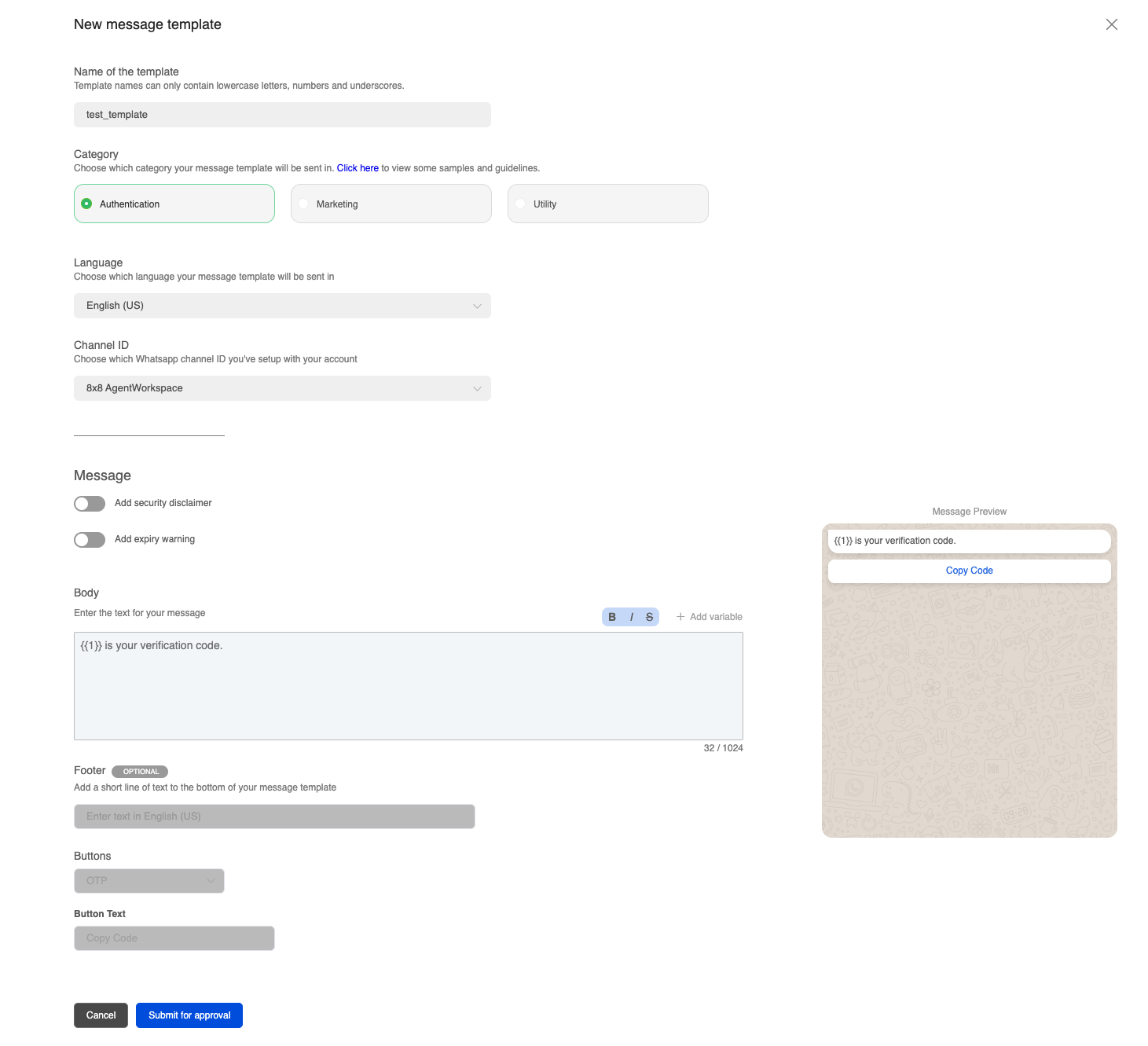
  • Usage samples

    Usage samples

    ❗️ Customer Service Window

    WhatsApp only allows freeform text messages to be sent once a customer service window has started. A customer service window starts when a user initiates a conversation or when a user replies to a pre-approved template sent by the business.

    This customer service window lasts 24 hours, and lasts 72 hours if the customer service window is initiated via a click-to-whatsapp ad.

    Outside of the customer service window, only pre-approved WhatsApp templates can be sent to users.

    👍 Please see Messaging API for the full API reference.

    Freeform messages

    Text message

    If you want to send a text message, your request will look like this:

    {
    "user":{
    "msisdn":"+65000000"
    },
    "type":"text",
    "content":{
    "text":"Thank you for your recent purchase from TechStore! If you have any questions or need support, reply 'HELP' to connect with our support team."
    }
    }

    The user will receive this corresponding message:

    image


    Text message with an image

    If you want to send an image with an optional text, your request will look like this:

    {
    "user":{
    "msisdn":"+6500000000"
    },
    "content":{
    "url":"https://www.example.com/image.jpg",
    "text":"Welcome to the world of 8x8 ChatApps APIs!\nCommunications for the customer obsessed."
    },
    "type":"Image"
    }

    The user will receive this corresponding message with the corresponding image from the URL that you specify.

    image


    Template Messages

    Template message with text only

    Depending on the use case and content, your template submitted can be categorised as a Marketing or Utility template.

    This template has a single parameter where you can specify the actual OTP code in your API call.

    {
    "user":{
    "msisdn":"+65000000"
    },
    "type":"template",
    "content":{
    "template":{
    "language":"en_GB",
    "name":"<Template Name>",
    "components":[
    {
    "type":"body",
    "parameters":[
    {
    "type":"text",
    "text":"#523534"
    }
    ]
    }
    ]
    }
    }
    }

    The user will receive this corresponding message:

    image


    Authentication template message

    {
    "user":{
    "msisdn":"+65000000"
    },
    "content":{
    "template":{
    "name":"<insertTemplateName>",
    "language":"en",
    "components":[
    {
    "type":"body",
    "parameters":[
    {
    "type":"text",
    "text":"12345"
    }
    ]
    },
    {
    "type":"Button",
    "subType":1,
    "index":0,
    "parameters":[
    {
    "type":"text",
    "text":"12345"
    }
    ]
    }
    ]
    }
    },
    "type":"template"
    }

    This will result in the following message being sent with the appropriate verification code filled in as a parameter from your API call.

    image

    In addition, you can also specify a fallback to SMS option which will automatically deliver the message to the user via SMS, if the message cannot be delivered via WhatsApp (such as if the user does not have WhatsApp). It is possible to specify a different body message to fit within the character limit of the SMS message. Please see the section below for details on SMS fallback.


    Template message with image

    This template has 1 image header and a predefined text body.

    {
    "user":{
    "msisdn":"+650000000"
    },
    "type":"template",
    "content":{
    "template":{
    "language":"en",
    "name":"<insertTemplateName>",
    "components":[
    {
    "type":"header",
    "parameters":[
    {
    "type":"image",
    "url":"www.example.com/image.jpg"
    }
    ]
    }
    ]
    }
    }
    }

    The user will receive this corresponding message. Note the text is decided in the template itself and you can have dynamic parameters in the text. The image URL itself is already dynamic.

    image


    Template message with Document

    This template message allows you to send a document. In this example below we use a PDF although any valid MIME-type document should be supported.

    {
    "user":{
    "msisdn":"+6500000000"
    },
    "type":"template",
    "content":{
    "template":{
    "language":"en",
    "name":"<insertTemplateName>",
    "components":[
    {
    "type":"header",
    "parameters":[
    {
    "type":"document",
    "url":"https://example.com/links/TestPDFfile.pdf"
    }
    ]
    }
    ]
    }
    }
    }

    The user will receive this corresponding message with a download link to the PDF document.

    📘 Note

    The text and buttons are part of the original template and are NOT defined in the request body above. They are optional and you can omit them from the template.

    Sending an Example PDF File


    Template message with Location

    This template is a location template and it allows you to specify a set of coordinates as well as a name for a location that will be sent to the recipient.

    {
    "user":{
    "msisdn":"+65000000"
    },
    "type":"template",
    "content":{
    "template":{
    "language":"en",
    "name":"<Insert Template Name>",
    "components":[
    {
    "type":"header",
    "parameters":[
    {
    "type":"location",
    "location":{
    "latitude":"38.8693",
    "longitude":"-77.0536",
    "name":"Metro Station",
    "address":"1 Connector Drive"
    }
    }
    ]
    }
    ]
    }
    }
    }

    The user will receive this corresponding message with a pin to indicate the user location which can open up a navigation app on their phone (such as Google Maps).

    image


    Template message with a dynamic call-to-action (CTA) button

    Below is an example of a Dynamic CTA Button Message with 2 CTA buttons. Please note the number of buttons may change depending on the template you use.

    {
    "user":{
    "msisdn":"+65000000"
    },
    "content":{
    "template":{
    "name":"<Template Name>",
    "language":"en_US",
    "components":[
    {
    "type":"body",
    "parameters":[
    {
    "type":"text",
    "text":"12345"
    }
    ]
    },
    {
    "type":"header",
    "parameters":[
    {
    "type":"image",
    "url":"https://fastly.picsum.photos/id/173/200/300.jpg?hmac=9Ed5HxHOL3tFCOiW6UHx6a3hVksxDWc7L7p_WzN9N9Q"
    }
    ]
    },
    {
    "type":"button",
    "index":0,
    "subType":"url",
    "parameters":[
    {
    "type":"text",
    "text":"samplecta"
    }
    ]
    }
    ]
    }
    },
    "type":"template"
    }

    The corresponding message will appear as below where the text parameters specified above will be passed to the "Check Out" and "Call Us" Buttons

    image


    Template message with Coupon Code

    Below is an example of a Coupon Code Template Message with 1 copy code button. You can use copy code button in conjunction to other marketing related templates, for example CTA button and Coupon Code button.

    {
    "user":{
    "msisdn":"+65000000"
    },
    "type":"template",
    "content":{
    "template":{
    "language":"en_US",
    "name":"<Template_name>",
    "components":[
    {
    "type":"button",
    "index":"0",
    "subType":"copyCode",
    "parameters":[
    {
    "type":"couponCode",
    "couponCode":"25OFF"
    }
    ]
    }
    ]
    }
    }
    }

    Interactive messages

    Interactive message with reply buttons

    These types of messages do not require to be submitted for template approval, similar to freeform messages. They can be sent in an ongoing conversation via our Automation Builder or any third-party workflow/chatbot builder.

    This message type can support up to 3 reply buttons:

    {
    "user":{
    "msisdn":"+65000000"
    },
    "type":"interactive",
    "content":{
    "interactive":{
    "action":{
    "buttons":[
    {
    "type":"reply",
    "reply":{
    "title":"contact-us",
    "id":"option-1"
    }
    },
    {
    "type":"reply",
    "reply":{
    "title":"faq",
    "id":"option-2"
    }
    },
    {
    "type":"reply",
    "reply":{
    "title":"office",
    "id":"option-3"
    }
    }
    ]
    },
    "body":{
    "text":"Welcome to 8x8 Inc. How may we help?"
    },
    "footer":{
    "text":"This is an official message from 8x8."
    },
    "header":{
    "type":"text",
    "text":"8x8 Inc."
    },
    "type":"button"
    }
    }
    }

    The user will receive this corresponding message.

    image If the user clicks on each button, it will send the corresponding reply.

    image


    Interactive message with a list of menu options

    {
    "user":{
    "msisdn":"+65000000"
    },
    "type":"interactive",
    "content":{
    "interactive":{
    "action":{
    "button":"Book Slot",
    "sections":[
    {
    "rows":[
    {
    "id":"slot-1",
    "title":"Monday, Oct 9",
    "description":"9:00 AM - 10:00 AM"
    },
    {
    "id":"slot-2",
    "title":"Monday, Oct 9",
    "description":"11:00 AM - 12:00 PM"
    }
    ],
    "title":"Oct 9, 2024"
    },
    {
    "rows":[
    {
    "id":"slot-3",
    "title":"Tuesday, Oct 10",
    "description":"2:00 PM - 3:00 PM"
    },
    {
    "id":"slot-4",
    "title":"Tuesday, Oct 10",
    "description":"4:00 PM - 5:00 PM"
    }
    ],
    "title":"Oct 10, 2024"
    }
    ]
    },
    "body":{
    "text":"Looking for personalized assistance? Our Customer Success team has the following slots available. Tap to select a time."
    },
    "footer":{
    "text":"For urgent inquiries, email user@example.com"
    },
    "header":{
    "type":"text",
    "text":"Customer Success personalized sessions"
    },
    "type":"list"
    }
    }
    }

    This will send the corresponding message.

    image If the customer selects the "Book Slot" option then they will be presented with the options for

    image After clicking "Send" then the user will send the corresponding reply.

    image


    WhatsApp Commerce

    👍 Pre-requisite: You should have a catalog created and connected to your WhatsApp Business Account (WABA)

    Interactive message with a single product item from a business catalog

    This type of message will feature a single item from a business catalog, it will pull information from the catalog to generate the message.

    ❗️ Customer Service Window

    WhatsApp only allows catalog messages to be sent once a customer service window has started. A customer service window starts when a user initiates a conversation or when a user replies to a pre-approved template sent by the business.

    This customer service window lasts 24 hours, and lasts 72 hours if the customer service window is initiated via a click-to-whatsapp ad.

    Outside of the customer service window, only pre-approved WhatsApp templates can be sent to users.

    {
    "user":{
    "msisdn":"+65000000"
    },
    "type":"interactive",
    "content":{
    "interactive":{
    "action":{
    "catalog_id":"<YourCatalogId>",
    "product_retailer_id":"<YourProductRetailerId>"
    },
    "body":{
    "text":"8x8 Shirt"
    },
    "footer":{
    "text":"Experience the power of communication with this 8x8 Shirt!"
    },
    "type":"product"
    }
    }
    }

    📘 Business Catalog Values

    The value for which is your Catalog ID and which is your Business ID can be found from your Catalog in the Meta Commerce Manager.

    Here is what the corresponding message will look like to the customer receiving the message:

    image

    Customer Flow

    Once the customer clicks View, they will be taken to a page containing the following information pulled from the business catalog.

    • Item Description
    • Item Price
    • Item URL (as provided in the catalog)

    There is also an option to message the business for any questions or clarifications.

    image

    Additionally, the customer can choose to Add to Cart, which will add the item to a shopping cart.

    image

    Once the item is added you can view the cart which will take you to the Place order screen.

    image

    Selecting Place Order will send a message to the business with the cart items, so that the business can process the order.

    image

    At this point, WhatsApp leaves it to the business to define the next steps for this order, such as requesting address information for delivery or collecting payment information. It is possible for example to use webhooks or Automation Builder to listen for a cart message for a customer and then reply accordingly.

    Finally, the View sent cart option will allow the customer to confirm what items were purchased in the order.

    image


    Interactive message with a list of product items from a business catalog

    This option can send multiple product items from a business catalog to a customer. This may be useful if there is a collection of items (ex. pants, shirts, hats) that the business is looking to send to a customer.

    ❗️ Customer Service Window

    WhatsaApp only allows catalog messages to be sent once a customer service window has started. A customer service window starts when a user initiates a conversation or when a user replies to a pre-approved template sent by the business.

    This customer service window lasts 24 hours, and lasts 72 hours if the customer service window is initiated via a click-to-whatsapp ad.

    Outside of the customer service window, only pre-approved WhatsApp templates can be sent to users.

    {
    "user":{
    "msisdn":"+65000000"
    },
    "type":"interactive",
    "content":{
    "interactive":{
    "action":{
    "catalog_id":"<YourCatalogId>",
    "product_retailer_id":"<YourProductRetailerId>",
    "sections":[
    {
    "product_items":[
    {
    "product_retailer_id":"<id>"
    },
    {
    "product_retailer_id":"<id>"
    }
    ],
    "title":"Section title"
    }
    ]
    },
    "body":{
    "text":"8x8 Limited Edition Items"
    },
    "footer":{
    "text":"This collection contains only the finest from 8x8. "
    },
    "header":{
    "type":"text",
    "text":"8x8 Collection"
    },
    "type":"product_list"
    }
    }
    }

    📘 Business Catalog Values

    The value for which is your Catalog ID and which is your Business ID can be found from your Catalog in the Meta Commerce Manager. The second set of 's can be found from each individual item in the catalog as their Content ID.

    Here is what the corresponding catalog message will look like.

    image

    Customer Flow

    After the customer clicks on View Items, it will appear as follows:

    image

    The customer can click on an individual item to bring up the single-item page

    image

    After selecting Add to Cart, the catalog message will now reflect items added to the cart and their amounts.

    image

    View Cart will give the option of seeing the items in the cart and then allowing the customer to Place Order.

    image

    After the customer selects Place order, this will send a message to the business containing information about the cart.

    image

    At this point, WhatsApp leaves it to the business to define the next steps for this order, such as requesting address information for delivery or collecting payment information. It is possible for example to use webhooks or Automation Builder to listen for a cart message for a customer and then reply accordingly.

    View sent cart would let the customer confirm the items sent in the cart.

    image

    Optional: Adding SMS Fallback

    If you want to add a fallback to SMS, add the following fields to the "content" object in your existing JSON payload. The fallbackText will be used instead of the WhatsApp Template Body.

    {
    "fallbackText":"This is the text that will be sent in the SMS instead of the WhatsApp Template.",
    "sms":{
    "encoding":"AUTO",
    "source":"<senderId>"
    }
    }

    📘 Note

    You may find out more about SenderID here

    Send Message in Batch

    Besides using the Messaging Apps API to send messages individually, you can also send multiple messages with a single API call by defining a messages array as in the examples below.

    Batch WhatsApp template message with Documents

    Below is an example of a batch of messages that are using a WhatsApp Template to send documents to different users.

    {
    "includeMessagesInResponse":true,
    "messages":[
    {
    "user":{
    "msisdn":"+6511111111"
    },
    "type":"template",
    "content":{
    "template":{
    "language":"en",
    "name":"<insertTemplateName>",
    "components":[
    {
    "type":"header",
    "parameters":[
    {
    "type":"document",
    "url":"https://example.com/links/TestPDFfile.pdf"
    }
    ]
    }
    ]
    }
    }
    },
    {
    "user":{
    "msisdn":"+6522222222"
    },
    "type":"template",
    "content":{
    "template":{
    "language":"en",
    "name":"<insertTemplateName>",
    "components":[
    {
    "type":"header",
    "parameters":[
    {
    "type":"document",
    "url":"https://example.com/links/TestJSFile.js"
    }
    ]
    }
    ]
    }
    }
    }
    ]
    }

    📘 Different Files / Messages

    Note that we are sending two different whatsapp messages with different files attached. These messages are being sent to two different recipients.

    The first recipient (+6511111111) will see this message as a PDF file was defined in their message object.

    image

    The second recipient (+6522222222) will see a different message as a different file was defined in their message object.

    image

    This example shows the flexibility of the messages array in that you can customize the message that you send for each recipient.


    Source: https://developer.8x8.com/connect/docs/usage-samples-whatsapp · 8x8 CPaaS Developer Docs. Synced for support deflection.

  • Viber

    Viber

    👍 Please see Messaging API for the full API reference.

    Sending a Text Message

    Text only

    {
    "user":{
    "msisdn":"+6500000"
    },
    "type":"text",
    "content":{
    "text":"Here is your booking reference: ABC1234. For more information, visit https://8x8.com/1234!"
    }
    }

    The corresponding message the user will receive:

    Viber text message including URLViber text messages can include URL


    Sending a Rich Media Message

    Image only

    {
    "user":{
    "msisdn":"+6500000"
    },
    "type":"image",
    "content":{
    "url":"https://www.redbrick.sg/wp-content/uploads/2020/04/coleen-rivas-OZ2rS2zCjNo-unsplash-1125x1500.jpg"
    }
    }

    The corresponding message the user will receive:

    Viber Rich Media: Image only messageViber Rich Media: Image only message


    Text + Image

    {
    "user":{
    "msisdn":"+650000000"
    },
    "type":"image",
    "content":{
    "url":"https://www.redbrick.sg/wp-content/uploads/2020/04/coleen-rivas-OZ2rS2zCjNo-unsplash-1125x1500.jpg",
    "text":"This is the text accompanying the image"
    }
    }

    The corresponding message the user will receive:

    Viber Rich Media: Text and ImageViber Rich Media: Text and Image


    Text + Image + Button

    {
    "user":{
    "msisdn":"+65000000"
    },
    "type":"buttons",
    "content":{
    "text":"🎉 Successful Purchase! 🎉\n\nHello Ana,\n\nThank you for purchasing your Singapore OCBC Skyway ticket! Your ticket is now confirmed and ready for use.\n\n📅 Date: October 15, 2023\n\n⏰ Time: 3:00 PM - 4:00 PM\n\n🎫 Ticket ID: SKY98723\n\nTo view your e-ticket, click the button below.",
    "url":"https://www.redbrick.sg/wp-content/uploads/2020/04/coleen-rivas-OZ2rS2zCjNo-unsplash-1125x1500.jpg",
    "button":{
    "caption":"View E-ticket",
    "action":"https://ocbcskyway.com/e-ticket/SKY1234"
    }
    }
    }

    The corresponding message the user will receive:

    Viber Rich Media: Text + Image + ButtonViber Rich Media: Text + Image + Button


    Video only

    Refer to Supported Content Types for more info on supported file formats and size limits.

    Sample Request
    {
    "user":{
    "msisdn":"+6500000"
    },
    "type":"video",
    "content":{
    "url":"https://samplelib.com/lib/preview/mp4/sample-5s.mp4",
    "video":{
    "filesize":"2700",
    "duration":"5",
    "thumbnail":"https://sample-videos.com/img/Sample-jpg-image-50kb.jpg"
    }
    }
    }

    The corresponding message the user will receive:

    Viber Rich Media: Video-only messageViber Rich Media: Video-only message


    Text + Video

    Refer to Supported Content Types for more info on supported file formats and size limits.

    {
    "user":{
    "msisdn":"+6500000"
    },
    "type":"video",
    "content":{
    "text":"this is accompanying text for the video",
    "video":{
    "filesize":"2700",
    "duration":"5",
    "thumbnail":"https://sample-videos.com/img/Sample-jpg-image-50kb.jpg"
    },
    "url":"https://samplelib.com/lib/preview/mp4/sample-5s.mp4"
    }
    }

    The corresponding message the user will receive:

    Viber Rich Media: Text + VideoViber Rich Media: Text + Video


    Text + Video + Button

    {
    "user":{
    "msisdn":"+6500000000"
    },
    "type":"video",
    "content":{
    "text":"This is the accompanying text for the video",
    "video":{
    "filesize":"2700",
    "duration":"5",
    "thumbnail":"https://sample-videos.com/img/Sample-jpg-image-50kb.jpg"
    },
    "url":"https://samplelib.com/lib/preview/mp4/sample-5s.mp4",
    "button":{
    "caption":"Get Directions to Store",
    "action":"https://maps.google.com/?q=Your+Store+Location"
    }
    }
    }

    The corresponding message the user will receive:

    Viber Rich Media: Text + Video + ImageViber Rich Media: Text + Video + Image


    File only

    Refer to Supported Content Types for more info on supported file formats and size limits.

    Sample Request
    {
    "user":{
    "msisdn":"+6500000"
    },
    "type":"file",
    "content":{
    "url":"https://www.clickdimensions.com/links/TestPDFfile.pdf"
    }
    }

    The corresponding message the user will receive:

    FileViber Rich Media: File-only message


    Text + Button

    {
    "user":{
    "msisdn":"+6500000"
    },
    "type":"buttons",
    "content":{
    "text":"Hello Jessie,\n\nYour order #420007 has been processed and is now ready for pickup at our MBS store. \n\nFor your convenience, the store is open from 9am to 9pm. We look forward to seeing you!\n\nBest,\nThe Snackbar Team",
    "button":{
    "caption":"Get Directions to Store",
    "action":"https://maps.google.com/?q=Your+Store+Location"
    }
    }
    }

    The corresponding message the user will receive:

    Viber Rich Media: text and call-to-action buttonViber Rich Media: text and call-to-action button


    Text + Image (deprecated)

    {
    "user":{
    "msisdn":"+650000"
    },
    "type":"buttons",
    "content":{
    "text":"Hello Mr Jobs,\n\nDon't miss our upcoming summer sale! Starting next Monday, enjoy up to 20% off on selected apple-based products.\n\nBest,\nThe Grocerio Team",
    "url":"https://www.abc.net.au/reslib/201408/r1320712_18276029.jpg",
    "button":{
    "caption":"",
    "action":""
    }
    }
    }

    📘 Button Object

    The button attribute is required but it will not show up in the message if the caption and action fields are blank.

    This implementation has been updated. Please refer to Text+Image for latest API request format

    🚧 Deprecated

    This API request format has been updated. Please refer to Text+Image for the latest latest API request format

    The corresponding message the user will receive:

    Viber Rich Media message: Text and ImageViber Rich Media message: Text and Image

    Optional: Adding SMS Fallback

    If you want to add a fallback to SMS, add the following fields to the "content" object in your existing JSON payload:

    {
    "fallbackText":"Đây là OTP của bạn: 23124. Đừng chia sẻ nó với bất cứ ai.",
    "sms":{
    "encoding":"AUTO",
    "source":"<senderId>"
    }
    }

    📘

    You may find out more about SenderID here


    Source: https://developer.8x8.com/connect/docs/usage-samples-viber · 8x8 CPaaS Developer Docs. Synced for support deflection.
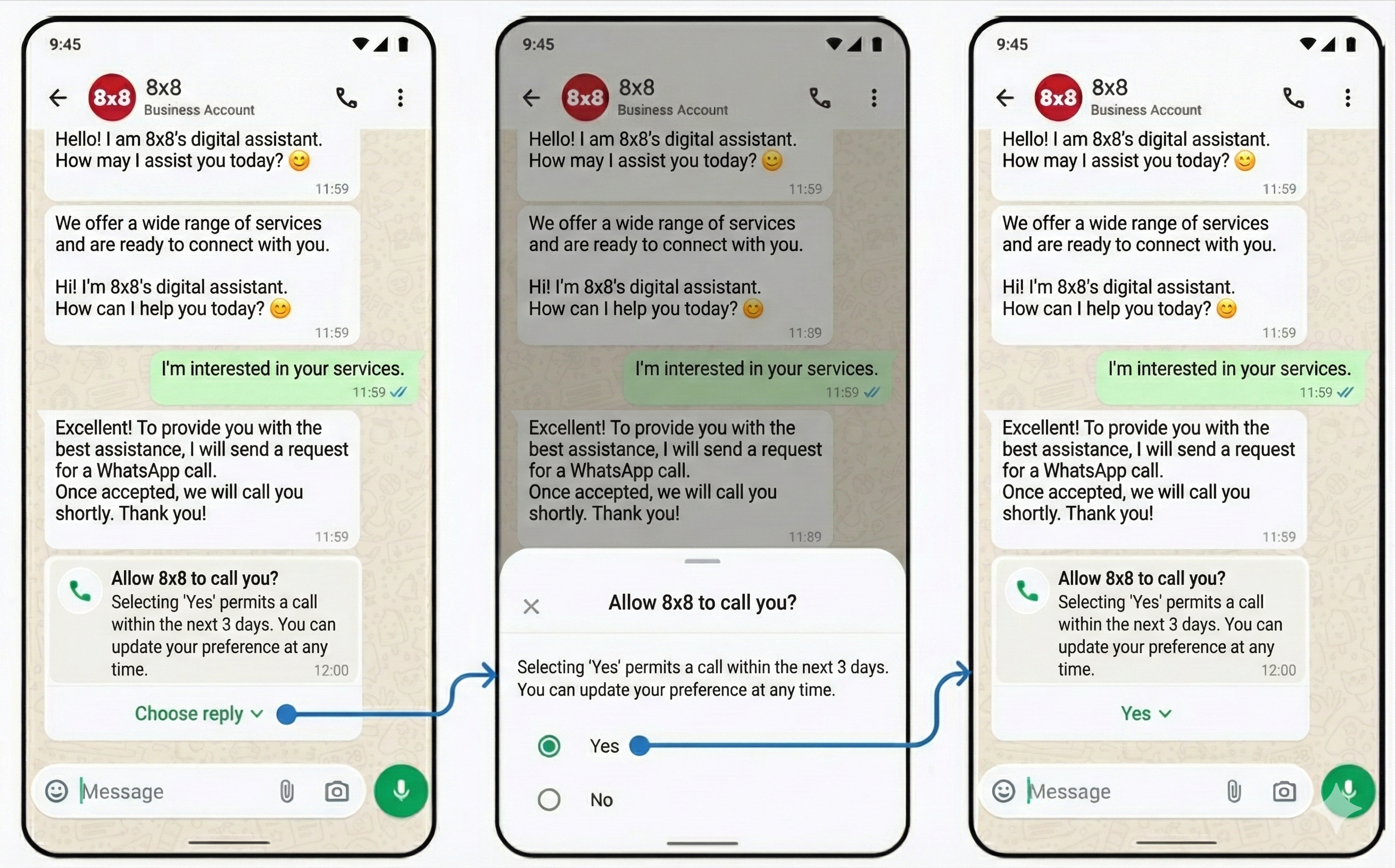
  • LINE Official Notification

    LINE Official Notification

    🚧 LINE Official Notification requires your templates to be approved by LINE team before they can be sent. Reach out to cpaas-support@8x8.com if you wish to submit new templates

    👍 LON uses a different endpoint compared to other Channels. Refer to LON Send API for the full API reference.

    Sending an Event reminder notification

    This sample API request shows the full capability of LON message, with all the components included. Based on your preferred template you can modify or remove the label and contents of these messages.

    {
    "user":{
    "msisdn":"+60000000"
    },
    "smsFallback":{
    "text":"Event reminder",
    "source":"<SENDER ID>",
    "encoding":"auto"
    },
    "content":{
    "title":"Event reminder",
    "company":"LINE",
    "icon":"calendarCheck",
    "emphasis":{
    "label":"Event name",
    "Content":"LINE Conference 2023"
    },
    "list":[
    {"label":"Date:","content":"Tue 26/09/2023"},
    {"label":"Time:","content":"09:00 - 16:00"},
    {"label":"Venue","content":"LINE Office, 17th Fl."},
    {"label":"Seat:","content":"A-07"}
    ],
    "explanation":"We would like to remind you about your reservation for tomorrow event. The registration open at 09:00. See you soon.",
    "actions":[
    {"title":"View agenda","url":"https://gdconf.com/conference"},
    {"title":"See direction","url":"https://www.google.com/maps"}
    ]
    }
    }

    The corresponding LON message received by the customer would look like:

    Sample LON message with all components included

    Sample LON message with all components included


    Source: https://developer.8x8.com/connect/docs/usage-samples-line-official-notification · 8x8 CPaaS Developer Docs. Synced for support deflection.
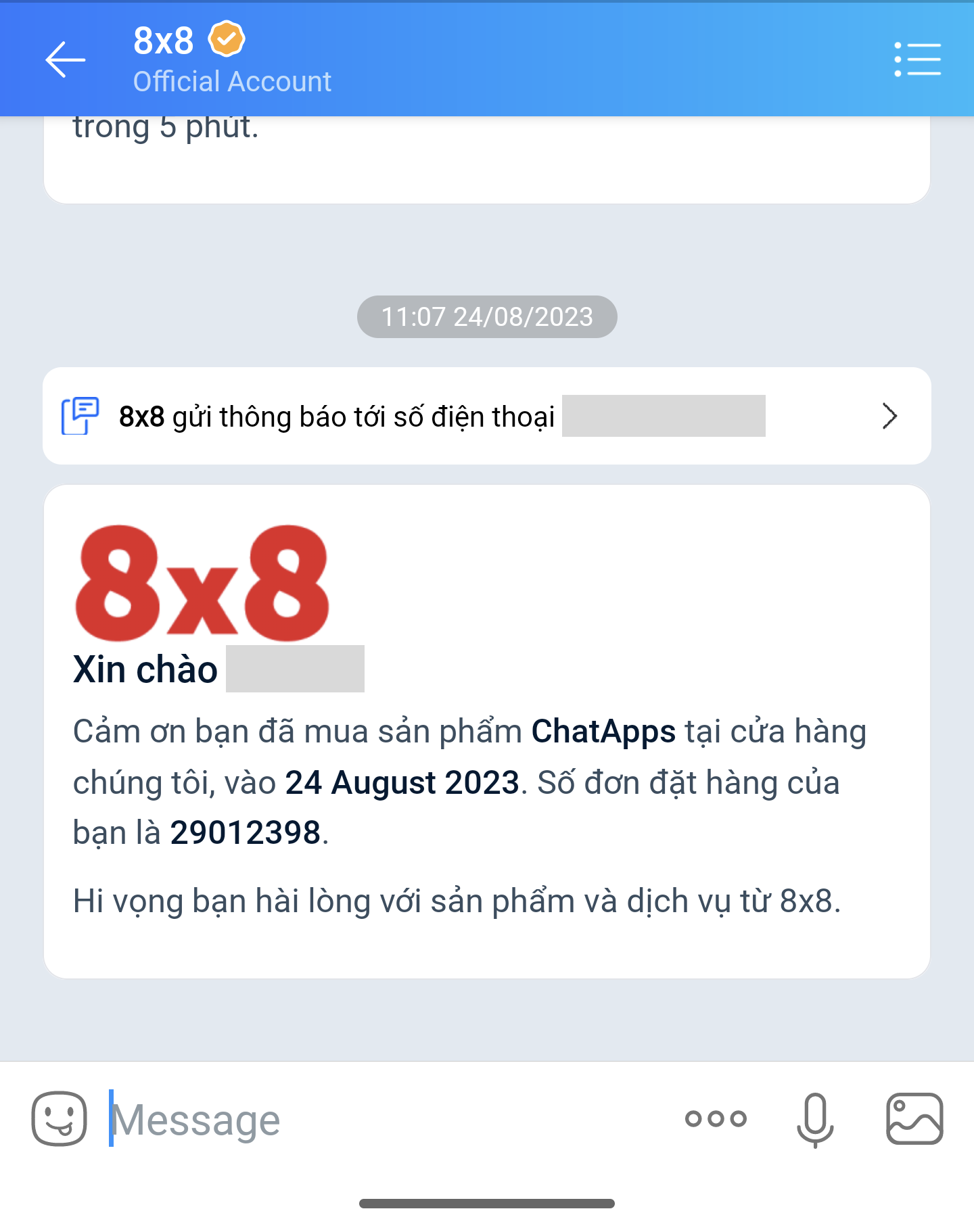
  • Line

    Line

    👍 Please see Messaging API for the full API reference.

    Getting Started

    To start sending and receiving messages on LINE, you need a LINE Official Account with the Messaging API enabled.

    Prerequisites

    • An 8x8 Connect account with Messaging Apps enabled. Sign up here if you haven't already.
    • A LINE Official Account — create one at the LINE Official Account Manager.
    • Access to the LINE Developers Console at developers.line.biz.

    Channel Setup

    1. In the LINE Official Account Manager, go to Settings > Messaging API and enable it.
    2. In the LINE Developers Console, navigate to your Messaging API Channel and retrieve your:
      • Channel ID — a unique identifier for your LINE channel
      • Channel Secret — a secret key used to generate access tokens
    3. Provide the Channel ID and Channel Secret to 8x8 — contact your account manager or cpaas-support@8x8.com to configure the LINE channel on your sub-account.

    Webhook Configuration

    To receive inbound messages from LINE users:

    1. In the LINE Developers Console, go to your Messaging API Channel
    2. Under Webhook settings, set the Webhook URL to the URL provided by 8x8
    3. Enable Use webhook

    📘 Contact cpaas-support@8x8.com to obtain the correct webhook URL for your account.


    Sending a Text Message

    {
    "user":{
    "lineUserId":"Ua12b345678c1de0fg1a1234567891011"
    },
    "type":"Text",
    "content":{
    "text":"Hello from 8x8 Messaging API"
    }
    }

    Sending an Image Message

    {
    "user":{
    "lineUserId":"Ua12b345678c1de0fg1a1234567891011"
    },
    "type":"Image",
    "content":{
    "url":"https://samplelib.com/png/sample-boat-400x300.png",
    "image":{
    "thumbnail":"https://samplelib.com/jpeg/sample-clouds-400x300.jpg"
    }
    }
    }
    Field Description
    content.url URL of the full-size image
    content.image.thumbnail URL of the thumbnail preview image

    Sending a Video Message

    {
    "user":{
    "lineUserId":"Ua12b345678c1de0fg1a1234567891011"
    },
    "type":"Video",
    "content":{
    "url":"https://samplelib.com/mp4/sample-5s.mp4",
    "video":{
    "thumbnail":"https://samplelib.com/png/sample-boat-400x300.png"
    }
    }
    }
    Field Description
    content.url URL of the video file
    content.video.thumbnail URL of the thumbnail preview image

    Sending an Audio Message

    {
    "user":{
    "lineUserId":"Ua12b345678c1de0fg1a1234567891011"
    },
    "type":"Audio",
    "content":{
    "url":"https://samplelib.com/mp3/sample-speech-5m.mp3",
    "audio":{
    "duration":300
    }
    }
    }
    Field Description
    content.url URL of the audio file
    content.audio.duration Duration of the audio in seconds (required)

    Sending a Location Message

    {
    "user":{
    "lineUserId":"Ua12b345678c1de0fg1a1234567891011"
    },
    "type":"Location",
    "content":{
    "location":{
    "latitude":1.285651,
    "longitude":103.847564,
    "name":"8x8 Office Singapore",
    "address":"One George Street, Singapore 049145"
    }
    }
    }
    Field Description
    content.location.latitude Latitude of the location
    content.location.longitude Longitude of the location
    content.location.name Name or title of the location
    content.location.address Street address of the location

    Receiving Inbound Messages

    When a LINE user sends a message to your LINE Official Account, 8x8 forwards it to your configured webhook URL.

    📘 You can configure your callback using the Webhook Configuration API.

    Inbound Webhook Format

    Field Type Description
    eventType string Always inboundMessage for inbound messages
    channel string Always line for Line messages
    user.channelUserId string The LINE user ID of the sender
    umid uuid Unique message ID for the inbound message
    subAccountId string ID of the sub-account receiving the message
    timestamp string UTC date and time in ISO 8601 format
    type string Message type: Text, Image, Video, Audio, File, or Location
    content object Message content (varies by type)
    version integer Webhook format version
    recipient.recipientId string ID of the LINE channel that received the message

    Inbound Text Message

    {
    "eventType":"inboundMessage",
    "channel":"line",
    "user":{
    "channelUserId":"Ua12b345678c1de0fg1a1234567891011"
    },
    "umid":"9e09ac86-bd74-5465-851d-1eb5a5fdbb9a",
    "subAccountId":"yourSubAccountId",
    "timestamp":"2026-06-18T05:15:30.00Z",
    "type":"Text",
    "content":{
    "text":"Hello from LINE"
    },
    "version":1,
    "recipient":{
    "recipientId":"7ee31a3f-9ed7-49f6-800f-a697e687553f"
    }
    }

    Inbound Image Message

    {
    "eventType":"inboundMessage",
    "channel":"line",
    "user":{
    "channelUserId":"Ua12b345678c1de0fg1a1234567891011"
    },
    "umid":"a1b2c3d4-e5f6-7890-abcd-ef1234567890",
    "subAccountId":"yourSubAccountId",
    "timestamp":"2026-06-18T05:16:10.00Z",
    "type":"Image",
    "content":{
    "url":"https://s3.ap-southeast-1.amazonaws.com/wavecell.chatapps/20260618/18289/a1b2c3d4-e5f6-7890-abcd-ef1234567890.jpg?X-Amz-Expires=86400&..."
    },
    "version":1,
    "recipient":{
    "recipientId":"7ee31a3f-9ed7-49f6-800f-a697e687553f"
    }
    }

    📘 Media URLs (image, video, audio, file) are pre-signed S3 URLs that expire after 24 hours.

    Inbound Video Message

    {
    "eventType":"inboundMessage",
    "channel":"line",
    "user":{
    "channelUserId":"Ua12b345678c1de0fg1a1234567891011"
    },
    "umid":"e7dc3fb1-d2e5-404c-927c-b46d0056fa6e",
    "subAccountId":"yourSubAccountId",
    "timestamp":"2026-06-18T05:16:40.63Z",
    "type":"Video",
    "content":{
    "url":"https://s3.ap-southeast-1.amazonaws.com/wavecell.chatapps/20260618/18289/e7dc3fb1-d2e5-404c-927c-b46d0056fa6e.mp4?X-Amz-Expires=86400&..."
    },
    "version":1,
    "recipient":{
    "recipientId":"7ee31a3f-9ed7-49f6-800f-a697e687553f"
    }
    }

    Inbound Audio Message

    {
    "eventType":"inboundMessage",
    "channel":"line",
    "user":{
    "channelUserId":"Ua12b345678c1de0fg1a1234567891011"
    },
    "umid":"b2c3d4e5-f6a7-8901-bcde-f12345678901",
    "subAccountId":"yourSubAccountId",
    "timestamp":"2026-06-18T05:17:10.00Z",
    "type":"Audio",
    "content":{
    "url":"https://s3.ap-southeast-1.amazonaws.com/wavecell.chatapps/20260618/18289/b2c3d4e5-f6a7-8901-bcde-f12345678901.m4a?X-Amz-Expires=86400&..."
    },
    "version":1,
    "recipient":{
    "recipientId":"7ee31a3f-9ed7-49f6-800f-a697e687553f"
    }
    }

    Inbound File Message

    {
    "eventType":"inboundMessage",
    "channel":"line",
    "user":{
    "channelUserId":"Ua12b345678c1de0fg1a1234567891011"
    },
    "umid":"c3d4e5f6-a7b8-9012-cdef-123456789012",
    "subAccountId":"yourSubAccountId",
    "timestamp":"2026-06-18T05:17:30.00Z",
    "type":"File",
    "content":{
    "url":"https://s3.ap-southeast-1.amazonaws.com/wavecell.chatapps/20260618/18289/c3d4e5f6-a7b8-9012-cdef-123456789012.jpg?X-Amz-Expires=86400&..."
    },
    "version":1,
    "recipient":{
    "recipientId":"7ee31a3f-9ed7-49f6-800f-a697e687553f"
    }
    }

    Inbound Location Message

    {
    "eventType":"inboundMessage",
    "channel":"line",
    "user":{
    "channelUserId":"Ua12b345678c1de0fg1a1234567891011"
    },
    "umid":"46d27247-ecda-4bdd-8b17-b46d00575299",
    "subAccountId":"yourSubAccountId",
    "timestamp":"2026-06-18T05:17:55.35Z",
    "type":"Location",
    "content":{
    "location":{
    "longitude":103.846375,
    "latitude":1.289563,
    "name":"Clarke Quay Riverside",
    "address":"Clarke Quay, 179019"
    }
    },
    "version":1,
    "recipient":{
    "recipientId":"7ee31a3f-9ed7-49f6-800f-a697e687553f"
    }
    }

    Source: https://developer.8x8.com/connect/docs/usage-samples-line · 8x8 CPaaS Developer Docs. Synced for support deflection.

  • Tutorial: Customer Survey via WhatsApp

    Tutorial: Customer Survey via WhatsApp

    Introduction

    In this tutorial, you'll learn how to create a WhatsApp chatbot that prompts users with survey questions and sends their responses to Google Sheets. This process can also be adapted for other survey tools like Qualtrics or SurveyMonkey.

    The default tutorial includes three questions, but you can customize it with your own questions and modify the workflow as needed. Use this tutorial as a foundation to develop your own tailored customer surveys.

    Prerequisites

    Ensure you have:

    • An 8x8 account
    • A WhatsApp Business API account with 8x8
    • Access to Google Sheets and its API
      • You can also choose to substitute another sheet or survey tool.
    • Pipedream Account
      • You can also choose to substitute a similar API connector tool like Zapier, Make or even your own API server.

    Video Demo

    This is a accompanying video meant to show the WhatsApp Customer Survey as a demo.

    Step 1: Setup the Automation Builder Workflow

    You can find an example Automation Workflow workflow below, which you can use to import into the Automation Builder UI in Connect.

    While we will not explain the different components of the tutorial here, if you need a refresher please see our section on Automation Builder Steps and Triggers.

    tutorial_wa_survey.json

    {
    "definition":{
    "id":"65b79d9a-cc6c-4f04-834f-0afee555ba01",
    "name":"Tutorial G Sheets Survey",
    "version":4,
    "steps":[
    {
    "stepType":"ChatAppsMessage",
    "id":"send_ca",
    "do":[],
    "nextStepId":"waitforreply_9395",
    "inputs":{
    "subAccountId":"<Replace with your Subaccount>",
    "user":{
    "msisdn":"{{data.mobileNumber}}"
    },
    "type":"text",
    "content":{
    "text":"Welcome to the 8x8 Customer Satisfication Survey. You will be asked 3 questions regarding our 8x8 Products.\n\nQuestion 1: What 8x8 Products do you Use?"
    }
    },
    "outputs":{
    "mobileNumber":"variable 0",
    "customerName":"variable 1"
    },
    "selectNextStep":{}
    },
    {
    "stepType":"WaitForReply",
    "id":"waitforreply_9395",
    "do":[],
    "nextStepId":null,
    "inputs":{
    "from":"{{data.mobileNumber}}",
    "channel":"whatsapp",
    "timeout":"0.00:00:10"
    },
    "outputs":{
    "waitforreply_9395_step_text":"{{step.reply.payload.content.text}}"
    },
    "selectNextStep":{
    "chatappsmessage_1242":"{{ step.reply != null }}",
    "chatappsmessage_5691":"{{ step.reply == null }}"
    }
    },
    {
    "stepType":"ChatAppsMessage",
    "id":"chatappsmessage_1242",
    "do":[],
    "nextStepId":"waitforreply_9504",
    "inputs":{
    "subAccountId":"<Replace with your Subaccount>",
    "type":"text",
    "content":{
    "text":"Question 2: How would you rate your overall experience from a scale of 10 to 1? \n\n10 being the best experience and 1 being the worst experience."
    },
    "user":{
    "msisdn":"{{data.mobileNumber}}"
    }
    },
    "outputs":{},
    "selectNextStep":{}
    },
    {
    "stepType":"ChatAppsMessage",
    "id":"chatappsmessage_5691",
    "do":[],
    "nextStepId":null,
    "inputs":{
    "subAccountId":"<Replace with your Subaccount>",
    "type":"text",
    "content":{
    "text":"No responses in allotted time, ending the survey. Your responses have not been recorded."
    },
    "user":{
    "msisdn":"{{data.mobileNumber}}"
    }
    },
    "outputs":{},
    "selectNextStep":{}
    },
    {
    "stepType":"WaitForReply",
    "id":"waitforreply_9504",
    "do":[],
    "nextStepId":null,
    "inputs":{
    "from":"{{data.mobileNumber}}",
    "channel":"whatsapp",
    "timeout":"0.00:00:10"
    },
    "outputs":{
    "waitforreply_9504_step_text":"{{step.reply.payload.content.text}}"
    },
    "selectNextStep":{
    "chatappsmessage_3769":"{{ step.reply != null }}",
    "chatappsmessage_7411":"{{ step.reply == null }}"
    }
    },
    {
    "stepType":"ChatAppsMessage",
    "id":"chatappsmessage_3769",
    "do":[],
    "nextStepId":"waitforreply_9823",
    "inputs":{
    "subAccountId":"<Replace with your Subaccount>",
    "type":"text",
    "content":{
    "text":"Question 3: What are the major issues that you faced with 8x8 Products?"
    },
    "user":{
    "msisdn":"{{data.mobileNumber}}"
    }
    },
    "outputs":{},
    "selectNextStep":{}
    },
    {
    "stepType":"ChatAppsMessage",
    "id":"chatappsmessage_7411",
    "do":[],
    "nextStepId":null,
    "inputs":{
    "subAccountId":"<Replace with your Subaccount>",
    "type":"text",
    "content":{
    "text":"No responses in allotted time, ending the survey. Your responses have not been recorded."
    },
    "user":{
    "msisdn":"{{data.mobileNumber}}"
    }
    },
    "outputs":{},
    "selectNextStep":{}
    },
    {
    "stepType":"WaitForReply",
    "id":"waitforreply_9823",
    "do":[],
    "nextStepId":null,
    "inputs":{
    "from":"{{data.mobileNumber}}",
    "channel":"whatsapp",
    "timeout":"0.00:00:10"
    },
    "outputs":{
    "waitforreply_9823_step_text":"{{step.reply.payload.content.text}}"
    },
    "selectNextStep":{
    "chatappsmessage_0901":"{{ step.reply != null }}",
    "chatappsmessage_4456":"{{ step.reply == null }}"
    }
    },
    {
    "stepType":"ChatAppsMessage",
    "id":"chatappsmessage_0901",
    "do":[],
    "nextStepId":"httprequest_4536",
    "inputs":{
    "subAccountId":"<Replace with your Subaccount>",
    "type":"text",
    "content":{
    "text":"Thank you for your responses to our survey! Your responses are being recorded."
    },
    "user":{
    "msisdn":"{{data.mobileNumber}}"
    }
    },
    "outputs":{},
    "selectNextStep":{}
    },
    {
    "stepType":"ChatAppsMessage",
    "id":"chatappsmessage_4456",
    "do":[],
    "nextStepId":null,
    "inputs":{
    "subAccountId":"<Replace with your Subaccount>",
    "type":"text",
    "content":{
    "text":"No responses in allotted time, ending the survey. Your responses have not been recorded."
    },
    "user":{
    "msisdn":"{{data.mobileNumber}}"
    }
    },
    "outputs":{},
    "selectNextStep":{}
    },
    {
    "stepType":"HttpRequest",
    "id":"httprequest_4536",
    "do":[],
    "nextStepId":null,
    "inputs":{
    "method":"POST",
    "url":"https://eo3yuu49vzo9m6.m.pipedream.net",
    "headers":{},
    "parameters":{},
    "body":{},
    "timeoutSeconds":30
    },
    "outputs":{},
    "selectNextStep":{}
    }
    ]
    },
    "subAccountId":"<Replace with your Subaccount>",
    "trigger":"http_request",
    "status":"enabled"
    }

    Once the workflow is imported, it should appear within Automation Builder similar to the one below.

    image It is comprised of Messaging Apps, Branches, Wait for Replies and a single HTTP Request Step. If you choose to modify the flow you may also need to modify the request body to Pipedream at the end depending on the questions that you ask.
    Step 2: Setup Google Sheet

    Setup a Google Sheet with the following columns on your Google Account which we will use later within Pipedream to populate.

    image

    Here is an example table that you can be copy/pasted to your Google Sheet.

    Mobile Number Response 1:
    What 8x8 Products do you Use?
    Response 2: How would you rate your overall experience from a scale of 10 to 1? Response 3: What are the major issues that you faced with 8x8 Products?

    Step 3: Setup Pipedream

    Setup a new workflow with an HTTP Trigger followed by a Google Sheets: Add Single Row Step

    image

    The HTTP Trigger should have these following configurations:

    image

    Within the HTTP Trigger, go to Generate Test Event and use the following JSON as the Test Event's input. This will allow us to correctly populate the values for the following Google Sheet step.

    image

    {
    "response1":"WhatsApp, SMS",
    "response2":"10",
    "response3":"No Issues!",
    "mobileNumber":"+6599999999"
    }

    The Google Sheets Step should have the following configuration.

    image

    Within Pipedream, you should be able to see the HTTP responses sent by Automation Builder which may be useful in case any debugging is required.

    image

    Step 4: Send WhatsApp Message

    After setting up the above, you should be able to send a the WhatsApp Trigger message to your WhatsApp Account and complete the survey as follows.

    image

    This should result in a row being added to your Google Sheet with the response.

    image

    Conclusion

    While we use Google Sheets in this tutorial, the same idea can be extended to a dedicated Customer Survey software like Qualtrics, SurveyMonkey, Alchemer, etc. Similarly while we used Pipedream for this tutorial, another tool that offers similar HTTP Trigger and Google Sheet Integration capabilities can also be used in it's place.

    Expanded Explanation

    • Increased Response Rate: Reduces friction, making it easier for users to participate.
    • Higher Engagement Levels: Uses interactive features to keep respondents interested.
    • Enhanced Reach and Accessibility: Broadens audience reach due to WhatsApp's popularity.
    • Reduced Technical Issues: Minimizes problems like slow loading and compatibility issues.

    We encourage to take this tutorial as a template and try it out with your own systems to craft a survey using automation builder.


    Source: https://developer.8x8.com/connect/docs/tutorial-whatsapp-survey · 8x8 CPaaS Developer Docs. Synced for support deflection.

  • Tutorial: Building a WhatsApp + Google Calendar Chat Bot

    Tutorial: Building a WhatsApp + Google Calendar Chat Bot

    This tutorial will show you how to build a WhatsApp + Google Calendar chat bot using 8x8 Automation Builder. The resulting chat bot will allow customers to send a message to a WhatsApp Business Account tied to your 8x8 subaccount and schedule an appointment on Google Calendar.

    The concepts in this guide are useful as a stepping stone to understand how Automation Builder can be used with other systems that expose APIs to create richer experiences with the 8x8 Chat Apps API.

    Overview

    There are two components to this project:

    1. Automation Builder workflow which will be built on the Connect Dashboard. The workflow takes care of orchestrating responses through WhatsApp.
    2. Backend Server we have provided example server code in Python for the Scheduling service described in this diagram. The Backend Server API allows us to connect to the Google Calendar API and also run some scheduling logic based on the responses.

    image

    Demo Video

    Please see a demo video of the WhatsApp Chatbot below.

    Automation Builder Workflow Steps

    Here is a visual overview of the complete automation builder workflow, we will cover each step in depth in the following section of the tutorial.

    1. Customer messages WhatsApp Business Account which triggers the workflow.
    2. Chat Apps Message Sends Main Menu to Customer
    3. Wait for Customer Reply
    4. Check for customer response and branch based on that.
    5. Respond according to user's chosen option

    a. Prompt user for Email Address

    b. Send Goodbye message if flow is cancelled. 6. Wait for user reply to email address, in order to save as an output variable for use later in workflow. 7. Send API request to our Backend API to check for available Calendar Timeslots. 8. Share Available Timeslots through WhatsApp as a list. 9. Wait for customer to choose available timeslot from list. 10. Branch based on user's chosen timeslot 11. a/b/c. Send API request to book timeslot based on user's chosen timeslot.

    d. Send Cancellation Message through WhatsApp. 12. a/b/c. Send Confirmation message based on user's chosen timeslot.

    image

    image

    image

    Workflow Steps In-Depth

    1) Chat Apps Trigger

    This trigger is responsible for kicking off the workflow, by default it will be triggered when any inbound chat apps message is received on the WABA tied to the subaccount you select below.

    image

    image

    Field Value
    Trigger Inbound Chat Apps
    Please select a new subaccount Select the subaccount with the WABA you would like to send from.

    2) Chat Apps Message Step - Main Menu

    This Chat Apps Message Step introduces the main menu that will start off with a simple welcome message and then display a menu with 2 options for the customer to select from.

    image

    image

    Field Value
    Step Name This is autofilled, the step name can optionally be changed for easier readability.Note: For the sake of brevity, we will ignore the Step Name field for subsequent steps in this tutorial as the recommendation is the same for all steps.
    Please select a new subaccount Select the subaccount with the WABA you would like to send from.
    Destination {{data.payload.user.channelUserId}}Note: This allows us to reply to the user who sent the WhatsApp message, which is what we want in a chatbot scenario.
    Select an existing template or compose a new message Welcome to 8x8's WhatsApp - Google Calendar Demo. This demo will schedule a Google Calendar event with one of our specialists through WhatsApp.
    Please choose from the following options:
    1. Schedule a 1 hour meeting
    2. Exit

    3) Wait for Reply Step - Reply to Main Menu

    This step waits for a customer to reply to the main menu option list, their reply will be used in the following branch step.

    image image

    As configured this waits 5 minutes for a customer to reply to the main menu option message in the previous step, however you can change the timeout as desired.

    Field Value
    From {{data.payload.user.channelUserId}}
    Please select a channel WhatsApp
    Timeout 5 minutes

    4) Branch Step

    In this step, we branch off two separate paths depending on the response from the WA user.

    image

    image

    Field Value
    Please select a condition Check if a value contains a string
    Value to Check {{data.waitforreply_XXXX_step_text}}
    Note: Replace XXXX with the number identifier for your previous waitforreply step, this will be auto generated by the system and will be different for your specific workflow.
    Keywords to Compare 1, 2

    5a) Chat Apps Message - Enter Email Address

    In this Chat Apps message step we will send a very simple prompt to ask the user to input their email address.

    image

    image

    Field Value
    Destination {{data.payload.user.channelUserId}}
    Select an existing template or compose a new message Check Compose Message
    Message Please enter your email addres

    5b) Chat Apps Message - Cancellation Message

    This step is if the user chooses not to schedule a meeting in the main menu. In that case a cancellation message will be played for the user.

    image

    image

    Field Value
    Please select a new subaccount Select the subaccount with the WABA you would like to send from.
    Destination {{data.payload.user.channelUserId}}
    Message Goodbye!

    6) Wait for Reply - Email Address

    In the wait for reply step, we will wait for the customer to enter their email address. We give them 1 minute to respond but you can change this value as needed.

    image

    Field Value
    From {{data.payload.user.channelUserId}}
    Please select a channel WhatsApp
    Timeout 1 Minute

    7) HTTP Request Step - Check for available time slots

    This is the first of our HTTP Request Steps that will be hitting our /retrieve_meetings endpoint that is part of our API. This endpoint will return possible meeting timeslots which can then be presented to the user in the subsequent Chat Apps Message Step.

    image

    Field Value
    URL This should be your server's publically accessible URL
    Header content-type: application/json
    Request Body {}

    The outputs of this step is how we save the values from the API response body to be presented to the user. The values match the response body JSON that we will specify in our code.

    image

    Field Value
    meetings {{step.responseBody.date_options}}
    timeslot1_start {{step.responseBody.timeslot1_start}}
    timeslot1_end {{step.responseBody.timeslot1_end}}
    timeslot2_start {{step.responseBody.timeslot2_start}}
    timeslot2_end {{step.responseBody.timeslot2_end}}
    timeslot3_start {{step.responseBody.timeslot3_start}}
    customer_email {{data.waitforreply_9196_step_text}}

    8) Chat Apps Message Step - Meeting Timeslots

    image

    Field Value
    Please select a new subaccount Select the subaccount with the WABA you would like to send from.
    Destination {{data.payload.user.channelUserId}}
    Select an existing template or compose a new message Compose Message
    Message {{'Here are the available timeslots. Please enter the number for the option you would like to book. \n'+ data.meetings + '\nOption 4: Exit Scheduling'}}
    A bit of an explanation for the message field, the entire message is wrapped in curly brackets since we are using the output data.meetings as part of the string. This is combined with the rest of the string in order to produce a message which looks like this:
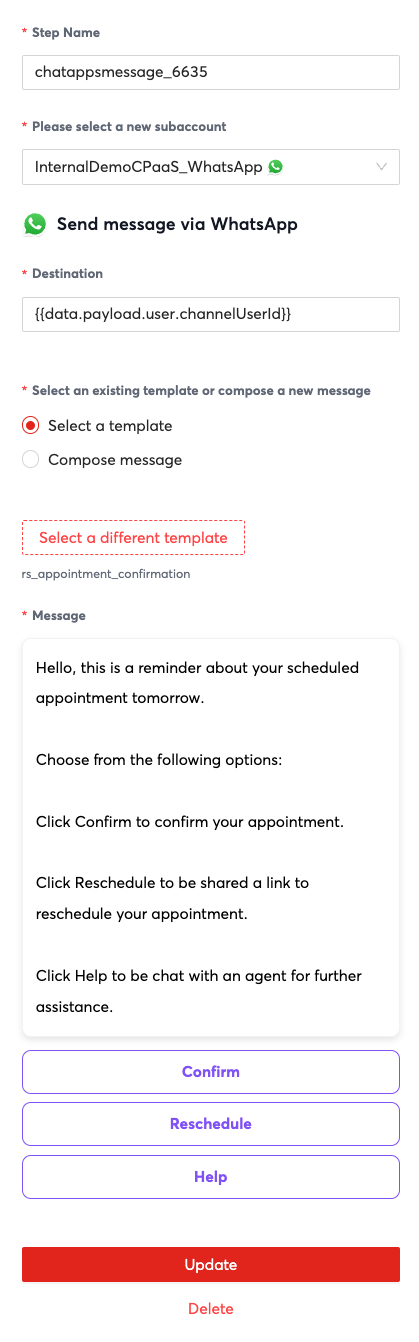
    image

    9) Wait For Reply Step - Customer Chooses Timeslot

    This step will wait for a customer to choose from the options presented above.

    image

    Field Value
    From {{data.payload.user.channelUserId}}
    Please select a Channel WhatsApp
    Timeout 1 Minute

    10) Branch Step - Branch based on Chosen Timeslot

    This step will branch based on the customer's input from the previous step. The following steps are HTTP Request steps that will decide what meeting timeslot is booked.

    image

    image

    Field Value
    Please select a condition Check if a value contains a string
    Value to Check {{data.waitforreply_XXXX_step_text}}
    Keyword(s) to compare 1,2,3,4

    11a,b,c) HTTP Request Step - Reserve Calendar Timeslot Based on the User's Input

    These three HTTP Request Steps will be tied to the customer's input in the previous step.

    image

    The only difference between these fields will be the numbers used for the timeslot, so the backend server knows what the user chose. For example, we will use {{data.timeslot1_start}} for timeslot 1's start time and then {{data.timeslot2_start}} for timeslot 1's start time.

    image

    Field Value
    URL Your Backend Server's URL
    Request Body {
    "start": "{{data.timeslotX_start}}",
    "end": "{{data.timeslotX_end}}",
    "customer_email": "{{data.waitforreply_9196_step_text}}"
    }Note: Replace timeslotX with the timeslot option, such as timeslot1, timeslot2, timeslot3.
    Timeout 20 Seconds

    image

    For the output you can save the start_time and end_time for the following confirmation message. The values will be specify to JSON response body of the backend API code that we provide.

    Field Value
    start_time {{step.responseBody.start.dateTime}}
    end_time {{step.responseBody.end.dateTime}}

    11d) Chat Message Step - Cancellation message

    This step is if the user chooses not to schedule a meeting in the main menu, in that case a cancellation message is played.

    image

    image

    Field Value
    Please select a new subaccount Select the subaccount with the WABA you would like to send from.
    Destination {{data.payload.user.channelUserId}}
    Message Goodbye!

    12a,b,c) Chat Apps Message - Calendar Invite Confirmation Message

    This step sends a simple confirmation message through WhatsApp and ends the workflow. If a user sends another message after this workflow ends, then it will trigger a fresh workflow instances from the beginning.

    image

    image

    Field Value
    Please select a new subaccount Select the subaccount with the WABA you would like to send from.
    Destination {{data.payload.user.channelUserId}}
    Message Goodbye!

    Automation Builder - Example JSON

    If you would like to skip building the steps manually above, we have provided an example JSON file to get you started which you can import into Automation Builder. Note that you will have to modify values in the steps according to your specific backend system and also your 8x8 subaccount.

    Automation Builder JSON

    {
    "definition":{
    "id":"d2f47259-75ff-45bd-950e-97a5dee631e4",
    "name":"RS WhatsApp GCal Demo",
    "version":25,
    "steps":[
    {
    "stepType":"Branch",
    "id":"branch_6057",
    "do":[],
    "nextStepId":null,
    "inputs":{},
    "outputs":{},
    "selectNextStep":{
    "chatappsmessage_5822":"{{stringContains(data.payload.content.text, 'RSGoogleCalendarDemo', true)}}"
    }
    },
    {
    "stepType":"ChatAppsMessage",
    "id":"chatappsmessage_5822",
    "do":[],
    "nextStepId":"waitforreply_8622",
    "inputs":{
    "subAccountId":"InternalDemoCPaaS_ChatApps",
    "type":"text",
    "content":{
    "text":"Welcome to 8x8's WhatsApp - Google Calendar Demo. This demo will schedule a Google Calendar event with one of our specialists through WhatsApp.\n\nPlease choose from the following options:\n1) Schedule a 1 hour meeting\n2) Exit"
    },
    "user":{
    "msisdn":"{{data.payload.user.channelUserId}}"
    }
    },
    "outputs":{},
    "selectNextStep":{}
    },
    {
    "stepType":"WaitForReply",
    "id":"waitforreply_8622",
    "do":[],
    "nextStepId":null,
    "inputs":{
    "from":"{{data.payload.user.channelUserId}}",
    "channel":"whatsapp",
    "timeout":"0.00:01:00"
    },
    "outputs":{
    "waitforreply_8622_step_text":"{{step.reply.payload.content.text}}"
    },
    "selectNextStep":{
    "branch_8338":"{{ step.reply != null }}",
    "chatappsmessage_6652":"{{ step.reply == null }}"
    }
    },
    {
    "stepType":"Branch",
    "id":"branch_8338",
    "do":[],
    "nextStepId":null,
    "inputs":{},
    "outputs":{},
    "selectNextStep":{
    "chatappsmessage_0501":"{{stringContains(data.waitforreply_8622_step_text, '1', true)}}",
    "chatappsmessage_9836":"{{stringContains(data.waitforreply_8622_step_text, '2', true)}}"
    }
    },
    {
    "stepType":"ChatAppsMessage",
    "id":"chatappsmessage_6652",
    "do":[],
    "nextStepId":null,
    "inputs":{
    "subAccountId":"InternalDemoCPaaS_ChatApps",
    "type":"text",
    "content":{
    "text":"No Reply Detected within the allotted time, please try again."
    },
    "user":{
    "msisdn":"{{data.payload.user.channelUserId}}"
    }
    },
    "outputs":{},
    "selectNextStep":{}
    },
    {
    "stepType":"ChatAppsMessage",
    "id":"chatappsmessage_9836",
    "do":[],
    "nextStepId":null,
    "inputs":{
    "subAccountId":"InternalDemoCPaaS_ChatApps",
    "type":"text",
    "content":{
    "text":"Goodbye!"
    },
    "user":{
    "msisdn":"{{data.payload.user.channelUserId}}"
    }
    },
    "outputs":{},
    "selectNextStep":{}
    },
    {
    "stepType":"ChatAppsMessage",
    "id":"chatappsmessage_0501",
    "do":[],
    "nextStepId":"waitforreply_9196",
    "inputs":{
    "subAccountId":"InternalDemoCPaaS_ChatApps",
    "type":"text",
    "content":{
    "text":"Please enter your email address:"
    },
    "user":{
    "msisdn":"{{data.payload.user.channelUserId}}"
    }
    },
    "outputs":{},
    "selectNextStep":{}
    },
    {
    "stepType":"WaitForReply",
    "id":"waitforreply_9196",
    "do":[],
    "nextStepId":null,
    "inputs":{
    "from":"{{data.payload.user.channelUserId}}",
    "channel":"whatsapp",
    "timeout":"0.00:01:00"
    },
    "outputs":{
    "waitforreply_9196_step_text":"{{step.reply.payload.content.text}}"
    },
    "selectNextStep":{
    "httprequest_0590":"{{ step.reply != null }}"
    }
    },
    {
    "stepType":"HttpRequest",
    "id":"httprequest_0590",
    "do":[],
    "nextStepId":"chatappsmessage_7792",
    "inputs":{
    "method":"GET",
    "url":"https://rsunga.ngrok.io/retrieve_meetings",
    "headers":{
    "content-Type":"application/json"
    },
    "parameters":{},
    "body":{},
    "timeoutSeconds":20
    },
    "outputs":{
    "meetings":"{{step.responseBody.date_options}}",
    "timeslot1_start":"{{step.responseBody.timeslot1_start}}",
    "timeslot1_end":"{{step.responseBody.timeslot1_end}}",
    "timeslot2_start":"{{step.responseBody.timeslot2_start}}",
    "timeslot2_end":"{{step.responseBody.timeslot2_end}}",
    "timeslot3_start":"{{step.responseBody.timeslot3_start}}",
    "timeslot3_end":"{{step.responseBody.timeslot3_end}}",
    "customer_email":"{{data.waitforreply_9196_step_text}}"
    },
    "selectNextStep":{}
    },
    {
    "stepType":"ChatAppsMessage",
    "id":"chatappsmessage_7792",
    "do":[],
    "nextStepId":"waitforreply_3750",
    "inputs":{
    "subAccountId":"InternalDemoCPaaS_ChatApps",
    "type":"text",
    "content":{
    "text":"{{'Here are the available timeslots. Please enter the number for the option you would like to book. \\n'+ data.meetings + '\\nOption 4: Exit Scheduling'}}"
    },
    "user":{
    "msisdn":"{{data.payload.user.channelUserId}}"
    }
    },
    "outputs":{},
    "selectNextStep":{}
    },
    {
    "stepType":"WaitForReply",
    "id":"waitforreply_3750",
    "do":[],
    "nextStepId":null,
    "inputs":{
    "from":"{{data.payload.user.channelUserId}}",
    "channel":"whatsapp",
    "timeout":"0.00:01:00"
    },
    "outputs":{
    "waitforreply_3750_step_text":"{{step.reply.payload.content.text}}"
    },
    "selectNextStep":{
    "branch_3014":"{{ step.reply != null }}"
    }
    },
    {
    "stepType":"Branch",
    "id":"branch_3014",
    "do":[],
    "nextStepId":null,
    "inputs":{},
    "outputs":{},
    "selectNextStep":{
    "httprequest_1190":"{{stringContains(data.waitforreply_3750_step_text, '1', true)}}",
    "httprequest_7087":"{{stringContains(data.waitforreply_3750_step_text, '2', true)}}",
    "httprequest_4260":"{{stringContains(data.waitforreply_3750_step_text, '3', true)}}",
    "chatappsmessage_4941":"{{stringContains(data.waitforreply_3750_step_text, '4', true)}}"
    }
    },
    {
    "stepType":"ChatAppsMessage",
    "id":"chatappsmessage_4941",
    "do":[],
    "nextStepId":null,
    "inputs":{
    "subAccountId":"InternalDemoCPaaS_ChatApps",
    "type":"text",
    "content":{
    "text":"Goodbye!"
    },
    "user":{
    "msisdn":"{{data.payload.user.channelUserId}}"
    }
    },
    "outputs":{},
    "selectNextStep":{}
    },
    {
    "stepType":"HttpRequest",
    "id":"httprequest_4260",
    "do":[],
    "nextStepId":"chatappsmessage_1276",
    "inputs":{
    "headers":{
    "content-Type":"application/json"
    },
    "method":"POST",
    "url":"https://rsunga.ngrok.io/create_meeting",
    "parameters":{},
    "body":{
    "start":"{{data.timeslot3_start}}",
    "end":"{{data.timeslot3_end}}",
    "customer_email":"{{data.waitforreply_9196_step_text}}"
    },
    "timeoutSeconds":20
    },
    "outputs":{
    "start_time":"{{step.responseBody.start.dateTime}}",
    "end_time":"{{step.responseBody.end.dateTime}}"
    },
    "selectNextStep":{}
    },
    {
    "stepType":"HttpRequest",
    "id":"httprequest_7087",
    "do":[],
    "nextStepId":"chatappsmessage_1074",
    "inputs":{
    "headers":{
    "content-Type":"application/json"
    },
    "method":"POST",
    "url":"https://rsunga.ngrok.io/create_meeting",
    "parameters":{},
    "body":{
    "start":"{{data.timeslot2_start}}",
    "end":"{{data.timeslot2_end}}",
    "customer_email":"{{data.waitforreply_9196_step_text}}"
    },
    "timeoutSeconds":20
    },
    "outputs":{
    "start_time":"{{step.responseBody.start.dateTime}}",
    "end_time":"{{step.responseBody.end.dateTime}}"
    },
    "selectNextStep":{}
    },
    {
    "stepType":"HttpRequest",
    "id":"httprequest_1190",
    "do":[],
    "nextStepId":"chatappsmessage_4345",
    "inputs":{
    "method":"POST",
    "url":"https://rsunga.ngrok.io/create_meeting",
    "headers":{
    "content-Type":"application/json"
    },
    "parameters":{},
    "body":{
    "start":"{{data.timeslot1_start}}",
    "end":"{{data.timeslot1_end}}",
    "customer_email":"{{data.waitforreply_9196_step_text}}"
    },
    "timeoutSeconds":20
    },
    "outputs":{
    "start_time":"{{step.responseBody.start.dateTime}}",
    "end_time":"{{step.responseBody.end.dateTime}}"
    },
    "selectNextStep":{}
    },
    {
    "stepType":"ChatAppsMessage",
    "id":"chatappsmessage_1276",
    "do":[],
    "nextStepId":null,
    "inputs":{
    "subAccountId":"InternalDemoCPaaS_ChatApps",
    "type":"text",
    "content":{
    "text":"Your meeting has been booked, please check your email for further details."
    },
    "user":{
    "msisdn":"{{data.payload.user.channelUserId}}"
    }
    },
    "outputs":{},
    "selectNextStep":{}
    },
    {
    "stepType":"ChatAppsMessage",
    "id":"chatappsmessage_1074",
    "do":[],
    "nextStepId":null,
    "inputs":{
    "subAccountId":"InternalDemoCPaaS_ChatApps",
    "type":"text",
    "content":{
    "text":"Your meeting has been booked, please check your email for further details."
    },
    "user":{
    "msisdn":"{{data.payload.user.channelUserId}}"
    }
    },
    "outputs":{},
    "selectNextStep":{}
    },
    {
    "stepType":"ChatAppsMessage",
    "id":"chatappsmessage_4345",
    "do":[],
    "nextStepId":null,
    "inputs":{
    "subAccountId":"InternalDemoCPaaS_ChatApps",
    "type":"text",
    "content":{
    "text":"Your meeting has been booked, please check your email for further details.\n"
    },
    "user":{
    "msisdn":"{{data.payload.user.channelUserId}}"
    }
    },
    "outputs":{},
    "selectNextStep":{}
    }
    ]
    },
    "subAccountId":"InternalDemoCPaaS_ChatApps",
    "trigger":"inbound_chat_apps",
    "status":"disabled"
    }

    Backend Server - Example Code

    Please see the following repository for the sample backend code. This includes instructions on how to run the server locally.

    You will need to expose it to the public internet so that Automation Builder can call the API. While this is assumed knowledge and beyond the scope of the tutorial, we used a service from <ngrok.com> to expose the server running locally for demonstration purposes.

    Code Explanation - API

    from flask import Flask, request
    from google_calendar_create_event import create_event
    from google_calendar_retrieve_events import retrieve_events
    app = Flask(__name__)
    @app.route("/create_meeting", methods=['POST'])
    defcreate_meeting():
    # Retrieve JSON data from the request body
    request_data = request.get_json()
    # Extract the "start" and "end" parameters from the JSON data
    start = request_data.get('start')
    end = request_data.get('end')
    customer_email = request_data.get('customer_email')
    return create_event(start, end, customer_email)
    @app.route("/retrieve_meetings")
    defretrieve_meetings():
    return retrieve_events()
    if __name__ =='__main__':
    app.run(debug=True, port=5003)

    This is the API code, it exposes two endpoints:

    • The /create_meeting endpoint which will gather information about which meeting timeslot to book.
    • The /retrieve_meetings endpoint which will return available timeslots from a user's google calendar.

    In this example, we hardcode the Google Calendar that we want to book meetings to in our config file. Also note, that this tutorial assumes that you have access rights to the Google Calendar API for that user.

    Code Explanation - Retrieve Events

    This code is responsible for retrieving events from your chosen Google Calendar user's calendar in order to find out which timeslots are free. These are returned in lines 135-144 as a human readable text to be printed by Automation Builder in Step 8) in the tutorial.

    Please note it requires the use of credentials for the Google Calendar API in line 80. Google has a quickstart on getting started with the Google Calendar API which we used as the basis for this backend code. Please read through their quick start in order to generate the credentials.json which will be used as the google_api_creds.json below.

    Also please note, the code uses the Singapore timezone by default in line 93 which should be changed according to your google calendar user's timezone.

    Retrieve Events

    from __future__ import print_function
    import datetime
    import os.path
    import json
    from google.auth.transport.requests import Request
    from google.oauth2.credentials import Credentials
    from google_auth_oauthlib.flow import InstalledAppFlow
    from googleapiclient.discovery import build
    from googleapiclient.errors import HttpError
    # If modifying these scopes, delete the file token.json.
    SCOPES =['https://www.googleapis.com/auth/calendar']
    # Function to format a datetime object as a human-readable string
    defformat_datetime(dt):
    return dt.strftime('%A, %d %B %Y %H:%M')
    # Function to check if a date is a weekday (Monday to Friday)
    defis_weekday(date):
    return date.weekday()<5# Monday to Friday are 0 to 4
    # Function to format time slots
    defformat_time_slot(slot, option_number):
    start_time = datetime.fromisoformat(slot["start"])
    end_time = datetime.fromisoformat(slot["end"])
    formatted_option =f"Option {option_number}) {start_time.strftime('%B %d, %I%p')} - {end_time.strftime('%I%p')}"
    return formatted_option
    defget_next_weekday(now_singapore):
    # Check if it's a weekday and within the 9 AM to 6 PM time range
    if is_weekday(now_singapore)and now_singapore.hour <9:
    # If today is a weekday and within the specified time range, use the current time
    start_singapore = now_singapore.replace(hour=9, minute=0, second=0, microsecond=0)
    elif is_weekday(now_singapore)and now_singapore.hour >=18:
    # Determine the number of days to add to get to the next weekday
    if now_singapore.weekday()in[0,1,2,3]:
    next_weekday = now_singapore + datetime.timedelta(days=1)
    else:
    next_weekday = now_singapore + datetime.timedelta(days=3)
    # Set the start and end times for the next weekday
    start_singapore = next_weekday.replace(hour=9, minute=0, second=0, microsecond=0)
    elif is_weekday(now_singapore)and9<= now_singapore.hour <18:
    #Pick the next timeslot at least an hour away
    next_weekday = now_singapore + datetime.timedelta(hours=1)#This needs to be one hour or the logic for retrieve events will break
    start_singapore = next_weekday.replace(minute=0, second=0, microsecond=0)
    else:
    if now_singapore.weekday()==5:
    next_weekday = now_singapore + datetime.timedelta(days=2)
    else:
    next_weekday = now_singapore + datetime.timedelta(days=1)
    start_singapore = next_weekday.replace(hour=9, minute=0, second=0, microsecond=0)
    return start_singapore
    defis_valid_timeslot(timeslot):
    if is_weekday(timeslot)and9<= timeslot.hour <18:
    returnTrue
    else:
    returnFalse
    defretrieve_events():
    """Shows basic usage of the Google Calendar API.
    Prints the start and name of the next 10 events on the user's calendar.
    """
    creds =None
    # The file token.json stores the user's access and refresh tokens, and is
    # created automatically when the authorization flow completes for the first
    # time.
    if os.path.exists('token.json'):
    creds = Credentials.from_authorized_user_file('token.json', SCOPES)
    # If there are no (valid) credentials available, let the user log in.
    ifnot creds ornot creds.valid:
    if creds and creds.expired and creds.refresh_token:
    creds.refresh(Request())
    else:
    flow = InstalledAppFlow.from_client_secrets_file(
    'google_api_creds.json', SCOPES)
    creds = flow.run_local_server(port=0)
    # Save the credentials for the next run
    withopen('token.json','w')as token:
    token.write(creds.to_json())
    try:
    # Build Google calendar Service
    service = build('calendar','v3', credentials=creds)
    # Get current time in Singapore timezone
    singapore_timezone = datetime.timezone(datetime.timedelta(hours=8))# UTC+8
    now_singapore = datetime.datetime.now(singapore_timezone)
    # Get Start of next Weekday
    start_singapore = get_next_weekday(now_singapore)
    # Create a list to store available time slots
    available_time_slots =[]
    # Create a list to store human-readable date options
    date_options =[]
    # Iterate through the time slots until there are at least 3.
    current_time = start_singapore
    option_number =1
    iterator =1
    print("current time = "+str(current_time))
    whilelen(available_time_slots)<3:
    print(iterator)
    iterator+=1
    # Check if the current time slot is available
    events_result = service.events().list(calendarId='primary', timeMin=current_time.isoformat(),
    timeMax=(current_time + datetime.timedelta(hours=1)).isoformat(),
    maxResults=1, singleEvents=True, orderBy='startTime').execute()
    events = events_result.get('items',[])
    # If no event is scheduled, the slot is available
    ifnot events and is_valid_timeslot(current_time):
    slot_start = current_time
    slot_end = current_time + datetime.timedelta(hours=1)
    # Add the human-readable date option
    date_options.append(f"Option {option_number}: {format_datetime(slot_start)} - {format_datetime(slot_end)}")
    available_time_slots.append({'start': slot_start.isoformat(),'end': slot_end.isoformat()})
    option_number+=1
    current_time = get_next_weekday(current_time)
    # Convert the list of date options to a human-readable string
    date_options_str ="\n".join(date_options)
    # Return the available_time_slots JSON and the human-readable date options as a tuple
    result ={
    "date_options": date_options_str,
    "timeslot1_start": available_time_slots[0]['start'],
    "timeslot1_end": available_time_slots[0]['end'],
    "timeslot2_start": available_time_slots[1]['start'],
    "timeslot2_end": available_time_slots[1]['end'],
    "timeslot3_start": available_time_slots[2]['start'],
    "timeslot3_end": available_time_slots[2]['end']
    }
    return result
    except HttpError as error:
    print('An error occurred: %s'% error)
    if __name__ =='__main__':
    retrieve_events()

    Code Explanation - Create Event

    This code is responsible for creating events once the customer has decided which event to book. The API endpoint is called in Step 7) of the automation builder workflow.

    Please note it requires the use of credentials for the Google Calendar API as mentioned in the section above.

    Create Event

    # Refer to the Python quickstart on how to setup the environment:
    # https://developers.google.com/calendar/quickstart/python
    # Change the scope to 'https://www.googleapis.com/auth/calendar' and delete any
    # stored credentials.
    from __future__ import print_function
    from flask import jsonify
    import datetime
    import os.path
    import config
    from google.auth.transport.requests import Request
    from google.oauth2.credentials import Credentials
    from google_auth_oauthlib.flow import InstalledAppFlow
    from googleapiclient.discovery import build
    from googleapiclient.errors import HttpError
    # If modifying these scopes, delete the file token.json.
    SCOPES =['https://www.googleapis.com/auth/calendar']
    defgenerate_request_id(customer_email):
    # Generate a unique requestId based on current date, time, and guest email
    current_time = datetime.datetime.now().strftime("%Y%m%d%H%M%S")
    request_id =f'{current_time}_{customer_email}'
    return request_id
    defcreate_event(timeslot_start, timeslot_end, customer_email):
    """Shows basic usage of the Google Calendar API.
    Prints the start and name of the next 10 events on the user's calendar.
    """
    creds =None
    # The file token.json stores the user's access and refresh tokens, and is
    # created automatically when the authorization flow completes for the first
    # time.
    if os.path.exists('token.json'):
    creds = Credentials.from_authorized_user_file('token.json', SCOPES)
    # If there are no (valid) credentials available, let the user log in.
    ifnot creds ornot creds.valid:
    if creds and creds.expired and creds.refresh_token:
    creds.refresh(Request())
    else:
    flow = InstalledAppFlow.from_client_secrets_file(
    'google_api_creds.json', SCOPES)
    creds = flow.run_local_server(port=0)
    # Save the credentials for the next run
    withopen('token.json','w')as token:
    token.write(creds.to_json())
    try:
    service = build('calendar','v3', credentials=creds)
    request_id = generate_request_id(customer_email)
    event ={
    'summary':'8x8 Customer Meeting',
    'description':'A chance to speak to a 8x8 support team expert.',
    'start':{
    'dateTime': timeslot_start,
    'timeZone':'Asia/Singapore',
    },
    'end':{
    'dateTime': timeslot_end,
    'timeZone':'Asia/Singapore',
    },
    'reminders':{
    'useDefault':False,
    'overrides':[
    {'method':'email','minutes':24*60},
    {'method':'popup','minutes':10},
    ],
    },
    'attendees':[
    {'email': config.GOOGLE_ACCOUNT},
    {'email': customer_email},
    ],
    'conferenceData':{
    'conferenceSolution':{
    'key':{
    "type":"addOn"
    },
    'name':'8x8'
    },
    'entryPoints':[
    {
    'entryPointType':'video',
    'uri':'https://8x8.vc/8x8/'+request_id,# Replace with your custom conference link
    'label':'https://8x8.vc/8x8/'+request_id,
    }
    ]
    }
    }
    event_details = service.events().insert(calendarId='primary', body=event, conferenceDataVersion=1,sendUpdates="all").execute()
    return jsonify(event_details)
    except HttpError as error:
    print(str(error))
    return jsonify({'error':str(error)}),400
    if __name__ =='__main__':
    create_event()

    Google Calendar Organizational Use

    Use for an organization is beyond the scope of this tutorial. If you are trying to book to a Google Calendar for a user managed by an organization, then you may need to ask your IT team's admin for access to a service account with account-wide delegation access.


    Source: https://developer.8x8.com/connect/docs/tutorial-building-a-whatsapp-google-calendar-chat-bot · 8x8 CPaaS Developer Docs. Synced for support deflection.

  • Tutorial: Building a SMS + ChatApps Reservation Menu

    Tutorial: Building a SMS + ChatApps Reservation Menu

    Overview

    This tutorial will show how to build a simple reservation menu with the Automation Builder UI. This simulates many common actions that a customer would want to have access to over a support channel.

    The steps in the tutorial is tailored for our Chat Apps API and it is using WhatsApp as the channel in the tutorial However most of the steps will be the same for SMS or other Chat Apps channels. The differences will be in the ChatApps Trigger and the Chat Apps Message Step where they should be set to the appropriate Chat Apps Channel (or replaced with the SMS Step / SMS Trigger) and relevant message template.

    Workflow Definition Steps and Explanation

    1. ChatApps Trigger: When an inbound ChatApps message is received to a number tied to this subaccount a workflow instance is called. This particular flow is for a WhatsApp Message.
    2. Chat Apps Message Step: A WhatsApp message is sent back to the original sender.
    3. Wait For Reply Step: Wait up to 5 Minutes for a response.
    4. Branch Step: If a response is received, redirect it based on if the user responds with a message containing either:

    5a. Branch Step Option: Confirm for confirmation of a reservation.

    • 6a. Chat Apps Message Step: Send Confirmation Message.
    • 7a. HTTP Step: Send HTTP Request to third-party API to alert of confirmation.

    5b. **Branch Step Option:**Reschedule for rescheduling a reservation.

    • 6b. Chat App Message Step: Send a message containing a URL to schedule the appointment.

    5c. **Branch Step Option:**Help for requesting for help with a reservation.

    • 6c. Send to Converse: Redirect the conversation to Converse where a live agent can take over the conversation.

    4b. Chat App Message Step: Send a reply message if there is no response received from the original message sender and end the workflow instance.

    image

    Workflow Steps In-Depth

    1. ChatApps Trigger

    image

    image

    The ChatApps trigger here is set to Chat Apps where you should have a subaccount with an already configured ChatApps channel. You should reach out to your respective account manager to complete the setup for your Chat Apps channel if you do not already have a functioning Chat Apps subaccount.

    2. ChatApps Message Step

    image

    image

    In the Chat Apps Message Step, the destination property can be set to {{data.payload.user.channelUserId}} which refers to the original sender which you can use the subsequent Chat Apps Steps as well.

    For the Select a existing template or compose a new message property, if you have an existing WhatsApp template you can select it. If there is no existing template, in WhatsApp's case you can apply for a WhatsApp template through the ChatApps section of your 8x8 Connect Dashboard. The template will then be available for selection once Meta approves it within the Chat App Message Step interface. In this case we have a call to action type of message template with 3 possible selections but you can also use other template types.

    The Message property will either be automatically filled in if you chose to use a template, if you do not wish to use a template, you can simply enter a freeform message body and it will be sent to the user. For the purposes of this tutorial it is fine to use a free form message body which can be copied below.

    Hello, this is a reminder about your scheduled appointment tomorrow.

    Choose from the following options:

    Click Confirm to confirm your appointment.

    Click Reschedule to be shared a link to reschedule your appointment.

    Click Help to be chat with an agent for further assistance.

    3. Wait for Reply Step

    image image

    In the Wait for Reply Step, the Channel property should be set to the channel you expect to receive a message in. In the example we are using WhatsApp.

    The From property can be set to {{data.payload.user.channelUserId}} which will refer to the original sender.

    Timeout can be set to an appropriate value for your use case.

    4. Branch Step (and 5a-c for Branch options)

    image

    image

    In the Branch Step, for Please select a condition property, set it to "Check if a value contains a string".

    The Value to check property can be set to {{data.waitforreply_9959_step_text}}. Note that the Step name for waitforreply_9959_step_text may change in your workflow definition and should be set to the Step Name in your workflow invocation.

    For the keyword(s) to compare property, add "Confirm", "Reschedule" and "Help" to add three options to the branch.

    4b. Chat Apps Message

    image

    image

    In the Chat Apps Message Step, set "Please select a new subaccount" to your subaccount that should already be configured for the Chat Apps channel that you would like to use.

    Destination can be set to {{data.payload.user.channelUserId}} to reply to the original sender as in previous Chat App Message steps.

    Message can be set to a free form message with the following text by selecting "Compose Message"

    No Response within the allowed time, goodbye.

    6a. ChatApps Message Step (Confirm)

    image

    image

    In the Chat Apps Message Step, set "Please select a new subaccount" to your subaccount that should already be configured for the Chat Apps channel that you would like to use.

    Destination can be set to {{data.payload.user.channelUserId}} to reply to the original sender as in previous Chat App Message steps.

    Message can be set to a free form message with the following text by selecting "Compose Message"

    Thank you for confirming, our system has been updated.

    6b. ChatApps Message Step (Reschedule)

    image

    image

    In the Chat Apps Message Step, set "Please select a new subaccount" to your subaccount that should already be configured for the Chat Apps channel that you would like to use.

    Destination can be set to {{data.payload.user.channelUserId}} to reply to the original sender as in previous Chat App Message steps.

    Message can be set to a free form message with the following text by selecting "Compose Message"

    Please visit https://example.com to reschedule your appointment.

    6c. Send to Converse

    image

    The Send to Converse step will send the conversation to Converse for a live agent to take over. Converse should be configured for your account prior to using this option.

    7c. HTTP Request

    image

    image

    Set the URL Property to the Endpoint that you would like to send a HTTP request to. Also modify it's method to the appropriate choice for your endpoint. In the example I use a free endpoint from <beeceptor.com>to do mock API testing and see requests come in.

    The Header and Query properties can also be modified as needed. I set 1 property in the header to be content-type with the value as application/json.

    If required you can also change the Request Body property, I set the value as below but it is not necessary.

    {
    "data":"payload"
    }

    Timeout property can be set to any appropriate value, I would recommend above 20 seconds to ensure the server has appropriate time to respond.

    Testing the Workflow

    In order to test the workflow, simply send a WhatsApp message to the WhatsApp account tied to your subaccount. In the example you can send any message to start

    image

    Tutorial JSON

    Automation Builder UI features a function to import workflow definitions for easy versioning and sharing. If you would like to import the example for this tutorial, save the text below as a file such as tutorial_automation_builder.json and import it from the Automation Builder UI.

    {
    "definition":{
    "id":"3ca6c9ce-603e-4015-9aab-29047b327e7f",
    "name":"RS 3 Options Test",
    "version":2,
    "steps":[
    {
    "stepType":"ChatAppsMessage",
    "id":"chatappsmessage_6635",
    "do":[],
    "nextStepId":"waitforreply_9959",
    "inputs":{
    "subAccountId":"InternalDemoCPaaS_WhatsApp",
    "type":"template",
    "content":{
    "template":{
    "name":"rs_appointment_confirmation",
    "components":[
    {
    "type":"button",
    "parameters":[
    {
    "type":"payload",
    "payload":"Confirm-Button-Payload",
    "text":"Confirm"
    }
    ],
    "index":0,
    "subType":"QuickReply"
    },
    {
    "type":"button",
    "parameters":[
    {
    "type":"payload",
    "payload":"Reschedule-Button-Payload",
    "text":"Reschedule"
    }
    ],
    "index":1,
    "subType":"QuickReply"
    },
    {
    "type":"button",
    "parameters":[
    {
    "type":"payload",
    "payload":"Help-Button-Payload",
    "text":"Help"
    }
    ],
    "index":2,
    "subType":"QuickReply"
    }
    ],
    "language":"en_US"
    }
    },
    "user":{
    "msisdn":"{{data.payload.user.channelUserId}}"
    }
    },
    "outputs":{},
    "selectNextStep":{}
    },
    {
    "stepType":"WaitForReply",
    "id":"waitforreply_9959",
    "do":[],
    "nextStepId":null,
    "inputs":{
    "from":"{{data.payload.user.channelUserId}}",
    "channel":"whatsapp",
    "timeout":"0.00:05:00"
    },
    "outputs":{
    "waitforreply_9959_step_text":"{{step.reply.payload.content.text}}"
    },
    "selectNextStep":{
    "branch_7003":"{{ step.reply != null }}",
    "chatappsmessage_7447":"{{ step.reply == null }}"
    }
    },
    {
    "stepType":"Branch",
    "id":"branch_7003",
    "do":[],
    "nextStepId":null,
    "inputs":{},
    "outputs":{},
    "selectNextStep":{
    "chatappsmessage_2979":"{{stringContains(data.waitforreply_9959_step_text, 'Confirm', true)}}",
    "chatappsmessage_5197":"{{stringContains(data.waitforreply_9959_step_text, 'Reschedule', true)}}",
    "sendtoconverse_6641":"{{stringContains(data.waitforreply_9959_step_text, 'Help', true)}}"
    }
    },
    {
    "stepType":"ChatAppsMessage",
    "id":"chatappsmessage_7447",
    "do":[],
    "nextStepId":null,
    "inputs":{
    "subAccountId":"InternalDemoCPaaS_ChatApps",
    "type":"text",
    "content":{
    "text":"No response within the allowed time, goodbye."
    },
    "user":{
    "msisdn":"{{data.payload.user.channelUserId}}"
    }
    },
    "outputs":{},
    "selectNextStep":{}
    },
    {
    "stepType":"SendToConverse",
    "id":"sendtoconverse_6641",
    "do":[],
    "nextStepId":null,
    "inputs":{
    "payload":"{{data.payload}}"
    },
    "outputs":{
    "sendtoconverse_6641_ticketId":"{{step.ticketId}}"
    },
    "selectNextStep":{}
    },
    {
    "stepType":"ChatAppsMessage",
    "id":"chatappsmessage_5197",
    "do":[],
    "nextStepId":null,
    "inputs":{
    "subAccountId":"InternalDemoCPaaS_ChatApps",
    "type":"text",
    "content":{
    "text":"Please visit https://example.com to reschedule your appointment."
    },
    "user":{
    "msisdn":"{{data.payload.user.channelUserId}}"
    }
    },
    "outputs":{},
    "selectNextStep":{}
    },
    {
    "stepType":"ChatAppsMessage",
    "id":"chatappsmessage_2979",
    "do":[],
    "nextStepId":"httprequest_3392",
    "inputs":{
    "subAccountId":"InternalDemoCPaaS_ChatApps",
    "type":"text",
    "content":{
    "text":"Thank you for confirming, our system has been updated."
    },
    "user":{
    "msisdn":"{{data.payload.user.channelUserId}}"
    }
    },
    "outputs":{},
    "selectNextStep":{}
    },
    {
    "stepType":"HttpRequest",
    "id":"httprequest_3392",
    "do":[],
    "nextStepId":null,
    "inputs":{
    "headers":{
    "content-Type":"application/json"
    },
    "method":"POST",
    "url":"https://rs8x8-voice-testing.free.beeceptor.com",
    "parameters":{},
    "body":{
    "data":"payload"
    },
    "timeoutSeconds":19
    },
    "outputs":{},
    "selectNextStep":{}
    }
    ]
    },
    "subAccountId":"InternalDemoCPaaS_ChatApps",
    "trigger":"inbound_chat_apps",
    "status":"disabled"
    }

    Source: https://developer.8x8.com/connect/docs/tutorial-automation-builder-sms-chatapps-reservation-menu · 8x8 CPaaS Developer Docs. Synced for support deflection.

  • Tutorial: Opt Out Keyword (Messaging Apps / WhatsApp)

    Tutorial: Opt Out Keyword (Messaging Apps / WhatsApp)

    Overview

    This tutorial will show you how to use Automation Builder to build an opt-out flow for WhatsApp using our Messaging Apps API.

    Limitations

    Contacts API operates at the Account-level

    The Contacts API is designed to function at the Account-level and does NOT support operation at the Subaccount level. Contacts added to blacklist groups will be blacklisted across the entire Account, affecting all Subaccounts hence it is not recommended for use cases where you may need to manage separate opt out lists per subaccount. If you need opt-out management at the Subaccount level, you'll have to handle it separately using a third-party system. Please see this related tutorial for ideas on how to integrate with third-party systems.

    Contacts API blacklist syncs hourly

    The Contacts API's blacklist sync occurs hourly. Consequently, customers added to a blacklist group may continue to receive messages until the sync process updates our system.

    Tutorial Steps

    8x8 has already pre-built an Automation Builder template which allows you to add a keyword which will allow customers to opt out of further communications. We will use this template as the basis of the tutorial.

    There is setup work we need to do which is covered in the tutorial such as creating the opt-out group via Contacts and obtaining the opt-out group's ID via the Contact API.

    Create Opt-Out Group

    Visit the Contacts page in Connect where we will create a new group. Once on this page below, click into "Contact Groups" and hit the red Create Group button.

    image

    We should be seeing the screen below, you can fill in any values for the Group Name and Description, but ensure that "Blacklisted" is checked since this controls whether the user is sent messages after being added to the group.

    image

    Get Opt Out group ID

    Once the group is created, we will need to find the Group ID. The Group ID can be obtained via the Contacts API. You can use the group name to search for it. Please see the documentation for the "Search for Groups" endpoint for further information.

    The URL for the request should be similar to this format with account name and full or partial group name substituted with your values.

    https://contacts.8x8.com/api/v1/accounts/<Account Name>/groups?name=<full or partial group name>

    image

    image

    The response body will contain a JSON object, the first item in the array should contain your new group, note down the id which in this case is 11344 but may be different. Note down what your group id is for subsequent steps.

    Pre-Built Template

    First go to the Automation Builder page and select the blue button for "Create Custom Workflow"

    image

    Opt-Out Template

    From the pop up in the next page, select "Opt-Out"

    image

    Building the Workflow

    In the next page the workflow should be pre-populated with steps, click on the "Trigger" step which is the first step in the flow. Select the subaccount which has the Messaging Apps (Previously known as Chat Apps) number or account that you wish to associate with this opt-out flow. Once it is selected click "Update" to save it to the step.

    image

    Deciding the Keyword

    The keyword is controlled by the "Branch" Step in red, you can modify this if you wish to change the condition to trigger the opt out.

    image

    📘 Note: The default workflow will try to detect the presence of "STOP" in every message and it is case sensitive.

    Once the keyword for opt-out is decided the next step will show the HTTP Request to add a Contact to the blacklisted contact group.

    Add Contact to Contact Group

    Once that is done, you can move on to modifying the HTTP Request itself.

    image

    The values should mostly be in place, however you will need to replace the request body with the version below which has the Group ID that you saved earlier substituted.

    Field Value
    Step Name Any Value
    URL POST https://contacts.8x8.com/api/v1/accounts/contacts
    Header - Content Type application/json
    Header - Authorisation Bearer
    Request Body {
    "groups": [
    {
    "id":
    }
    ],
    "addresses": {
    "msisdn": "{{data.payload.recipient.channelId}}"
    }
    }

    Note as usual your API key can be obtained from the API Keys section of the Connect Dashboard.

    Opt Out Message

    For Opt Out Messaging, the default message only mentions SMS, however the contact blacklist works across SMS and Messaging Apps (formerly Chat Apps) so you can replace the message with the channels that you use to communicate with the customer.

    image

    After saving these changes, the opt out flow can be enabled by enabling the button at the top left and saving. It will activate immediately and any message that contains the keyword will result in a user being added to the opt-out group.

    image

    Testing

    Once the automation workflow is in place, you can test it by sending the opt-out keyword via the channel of your choice. The number you send to should be tied to the subaccount in the workflow, it will not apply across all subaccounts.

    image

    Your customer should see the message and then afterwards no messages can be sent to the user via our platform.

    Removing from Group

    In order to remove a customer from a blacklist, you can either manually remove them by visiting the Contact Groups page by visiting their contact details and change their groups.

    image

    Another option is you can use the API to remove a contactfrom a group.

    In either case after removing the contact from the Opt-Out group, you can shortly begin sending messages to them again.


    Source: https://developer.8x8.com/connect/docs/tutorial-add-an-opt-out-keyword-whatsapp · 8x8 CPaaS Developer Docs. Synced for support deflection.

  • Templates

    Templates

    This section will cover how to manage templates within the 8x8 Connect Dashboard. There are primarily two types of templates:

    • SMS Templates: This covers SMS templates which can be used within the Multichannel Sender features in 8x8 Connect.
    • Messaging Apps Templates: This covers WhatsApp Templates on the Dashboard for now, although other Messaging Apps channels may be added in the future.

    Please see the corresponding pages in this section for further information on each type of template.


    Source: https://developer.8x8.com/connect/docs/templates · 8x8 CPaaS Developer Docs. Synced for support deflection.

  • Supported Messaging Apps Content Types

    Supported Messaging Apps Content Types

    This page describes the supported messaging apps content types, along with their character limits

    Supported Content Types by Channel

    Channel Channel type value Text Template Image Video Button File Location Interactive Messages Rich Card Rich Card Carousel
    SMS sms ✅ ❌ ❌ ❌ ❌ ❌ ❌ ❌ ❌ ❌
    WhatsApp whatsapp ✅ ✅ ✅ ✅ ✅ ✅ ✅ ✅ ✅ ✅
    Viber viber ✅ ✅ ✅ ✅ ✅ ✅ ❌ ❌ ❌ ❌
    Zalo Notification Service ZaloNotification ✅ ✅ ✅ ❌ ✅ ❌ ❌ ❌ ❌ ❌
    LINE Official Notification LineNotification ✅ ✅ ❌ ❌ ✅ ❌ ❌ ❌ ❌ ❌
    Line Official Account line ✅ ❌ ✅ ✅ ❌ ❌ ✅ ❌ ❌ ❌
    RCS RCS ✅ ❌ ✅ ✅ ✅ ✅ ✅ ✅ ❌ ❌

    Whatsapp

    • Whatsapp requires templates to be approved before they can be sent as a business-initiated message. However, for replies to customer-initiated conversations, templates are not mandatory and freeform text is supported.
    • Supported File formats are:
    File Type File Formats Max File Size
    Document .pdf, .doc, .docx, .xls, .xlsx, .ppt, .pptx, .txt 100 MB
    Image .jpeg, .png 5 MB
    Gif .gif 4 MB
    Audio .aac, .m4a, .amr, .mp3, .ogg, .opus 16 MB
    Video .mp4, .3gp 16 MB

    Character Limit

    Component Character Limit
    Text Message 4,096
    Interactive Message Button Title 20
    Interactive Message List Button 20
    Interactive Message List Row Title 24
    Interactive Message List Row Description 72
    Interactive Message List Section Title 24
    Template Header (text type) 60
    Template Body (with other components) 1,024
    Footer (various message types, for example opt-out instructions) 60
    Media Message Image Caption 1,024
    Flows Message CTA 20

    RCS Business Messaging

    Supported File formats are:

    Category Extensions / MIME types Notes
    Images .jpeg / .jpg (image/jpeg), .png (image/png), .gif (image/gif) Supported in rich cards & media messages
    Video .h263 (video/h263), .m4v (video/m4v), .mp4 (video/mp4, video/mpeg4), .mpeg (video/mpeg), .webm (video/webm) Supported in rich cards & media messages
    Audio .aac (audio/aac), .mp3 (audio/mp3, audio/mpeg, audio/mpg), .mp4 (audio/mp4, audio/mp4-latm), .3gp (audio/3gpp), .ogx / .ogg (application/ogg, audio/ogg) Media messages only
    Documents .pdf (application/pdf) Media messages (not rich cards)
    File size cap Up to 100 MB per attachment

    Limits

    Message element / field Limit
    Plain text message 3 072 characters
    Rich-card title 200 characters
    Rich-card description 2 000 characters
    Suggested-reply text 25 characters
    Suggested-action text 25 characters
    Suggestion chips per message Up to 11 chips (4 in-card + 7 extra)
    Carousel cards per message Up to 10 cards
    Text caption with media 2 000 characters
    Postback data (per suggestion) 2 048 characters
    Rich-card payload size 250 KB

    Viber

    • Viber templates are only available in Russia, Ukraine, and Belarus.
    • Supported File formats are:
    File Type File Formats Max File Size
    Image .png, .jpg, .gif 1 MB
    Video .mp4 (recommended), .3gp 200 MB
    PDF .pdf, .xps, .pdax, .eps 200 MB
    Documents .doc, .docx, .rtf, .dot, .dotx, .odt ,odf, .fodt, .txt, .info 200 MB
    Spreadsheet .xls, .xlsx, .ods, .fods, .csv, .xlsm, .xltx 200 MB

    Character Limit

    Component Character Limit
    Text Body 1,000
    Button Label 30

    Zalo Notification Service

    • Zalo Notification Service (ZNS) is strictly for one-way messaging and requires templates to be approved before they can be sent.
    • ZNS template's character limit is 400 characters

    Line

    • Line corresponds to a LINE Official Account with the Messaging API enabled.
    • Supports bidirectional messaging (send and receive).
    • Supported outbound content types: Text, Image, Video, Audio, Location.
    • Supported inbound content types: Text, Image, Video, Audio, File, Location.

    LINE Official Notification

    • LINE Official Notification (LON) is strictly for one-way messaging and requires templates to be approved before they can be sent.
    • LON template's character limit is 500 characters

    Source: https://developer.8x8.com/connect/docs/supported-chat-apps-content-type · 8x8 CPaaS Developer Docs. Synced for support deflection.

  • Sending WhatsApp messages using MCS

    Sending WhatsApp messages using MCS

    Sending a WhatsApp message

    Here are the steps

    (For this tutorial we will highlight the method for uploading a file since it is the most popular way to send messages)

    1. Select "WhatsApp" as your channel and select your subaccount.

    (This tutorial assumes you already have WhatsApp configured under your account. If you don't have one please talk to your account manager or send a request to cpaas-support@8x8.com)

    image

    1. Click "Add recipients and you will be redirected to Recipients page to enter your destination number(s).

    There are four(4) ways you can do this.

    a. Upload a file

    b. Type a mobile number

    c. Add contacts from your contact list

    d. Add group from your contact groups

    image

    1. You can upload a file by clicking the "Drag & drop to upload" icon or simply drag and drop your file. Use a .csv, .txt, or .xlsx file to upload your contacts in our default format (you may refer to the sample file provided and we recommend that you use a .csv file format).
    2. After you upload your contacts, you may manually amend the column labels. The default fields you can select from are Mobile, FirstName, LastName, and ClientmessageId. Alternatively, you can also add a custom field by typing the name and pressing enter. You can then select the field you just created.

    image

    1. Click "Process contacts" to review your contacts. Here, you'll be able to check all the fields you selected, country destinations, total valid numbers, or duplicates (if any). You can choose to "include duplicates" if you wish for selected contacts to receive the same message more than once.

    image

    1. Click "Compose a message". For WhatsApp, it is recommended that you use an approved WhatsApp template from your WhatsApp template list. (Please click here for WhatsApp templating).

    image

    image

    1. Some WhatsApp templates require you to fill in some parameters as shown below.

    image

    1. Once everything is ready to go, click "Send your message" and the last step will be to name your campaign which is also optional.

    image

    1. Just click "Submit" and you are done! Congratulations, you just sent your first WhatsApp message.

    Source: https://developer.8x8.com/connect/docs/sending-chat-apps-using-mcs · 8x8 CPaaS Developer Docs. Synced for support deflection.

  • MoEngage - WhatsApp Integration

    MoEngage - WhatsApp Integration

    MoEngage allows you to launch, measure, and automate campaigns on WhatsApp, harmonizing all of your marketing channels. With the help of MoEngage, you can bring customer data from different systems, devices, and channels into a single profile. Then, deliver timely and relevant campaigns that meet your customers in the right places and right ways along their customer journey.

    With 8x8 cloud communication platform, businesses and developers alike can incorporate WhatsApp functionality into one of their communications channels.

    Demo Video

    Please see the companion video guide below to see a demonstration on how to setup MoEngage to send WhatsApp messages.

    Sample use cases

    • Promotional OffersYou can send coupons, discounts or sale alerts to customers via WhatsApp using MoEngage's segmentation and messaging tools.
    • Order UpdatesKeep customers informed by sending WhatsApp notifications when an order is shipped, out for delivery, delivered and other status changes.
    • RemindersRemind customers about upcoming appointments, events, or flight bookings via WhatsApp reminder messages sent through MoEngage.
    • Alerts and NotificationsUse MoEngage to send timely WhatsApp alerts about new products, service changes, maintenance notices, and other important notifications.

    Product Scope

    • MoEngage

    What you'll need

    • Paid 8x8 Connect account with Whatsapp channel configured
    • Paid MoEngage subscription

    Setup

    The setup guide consists of 2 steps:

    1. Sender configuration(once-off)
    2. Delivery tracking configuration (once-off)
    3. Whatsapp template configuration (to be done every time you have a new Whatsapp template)

    Sender Configuration

    To configure a Sender from 8x8 on the MoEngage Dashboard, go to Settings->WhatsApp->Sender Configuration. Choose 8x8 from the left list menu and click on + Sender, and configure details.

    Whatsapp Sender Configuration on MoEngageWhatsapp Sender Configuration on MoEngage
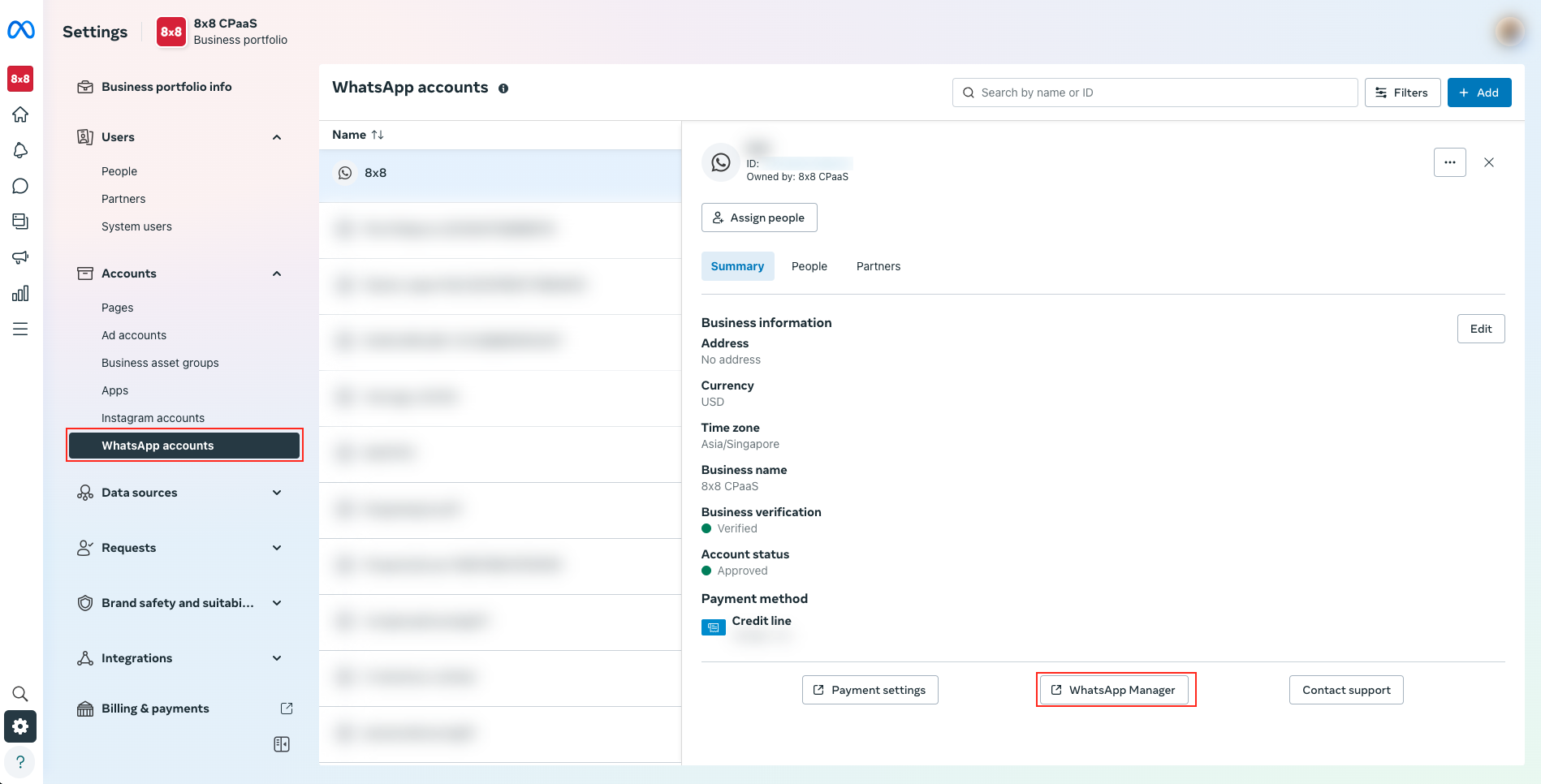
    1. Sender Name (Mandatory): The Sender Name is a name you want to provide to the Sender profile so that you can recognize this easily while using it to create a campaign inside MoEngage. The Sender Name should be between 5-50 characters.
    2. WhatsApp business number (Mandatory): It is the phone number registered with WhatsApp Business Platform via 8x8, using which you want to send out WhatsApp Messages to your users. On 8x8 Connect, you can find your Whatsapp business numbers on the Left Menu -> Chat Apps -> Channels.
    3. API URL (Mandatory): Log in to the 8x8 Connect portal. From the left menu, go to "API keys" section. Under instructions, click on the subaccount of your choice to copy it. Then, replace "Your_Chosen_Subaccount" with the copied subaccount in the URL below

    https://chatapps.8x8.com/api/v1/subaccounts/Your_Chosen_Subaccount/partners/moengage/wa

    1. Authorization (Mandatory): From the same "API keys" page, scroll down and you can select an existing API key or create an API key specifically for MoEngage integration.

    Delivery Tracking

    To track the delivery of your WhatsApp Messages inside MoEngage, you would need to copy MoEngage Delivery Tracking URL and share it with our support team for us to configure it for you. You should be able to see the URL as shown below:

    image

    Configuring Whatsapp templates

    As of October 2023, MoEngage does not retrieve your Whatsapp templates automatically. You will need to set up the approved Whatsapp templates verbatim in MoEngage.

    1. Log in to the 8x8 Connect portal.
    2. Navigate to Chat Apps -> Whatsapp Templates.
    3. Click on the template that you'd like to use on MoEngage to preview the contents of the template. If you don't have any already, you will need to create them.
    4. Follow this MoEngage guide on how to copy the Whatsapp template from 8x8 Connect to MoEngage.
    5. Repeat steps 3 and 4 for other approved Whatsapp templates you'd like to use on MoEngage.

    Source: https://developer.8x8.com/connect/docs/moengage-whatsapp · 8x8 CPaaS Developer Docs. Synced for support deflection.

  • Supported Messaging Apps

    Supported Messaging Apps

    Supported channels and message statuses

    Channel Channel type value Accepted Sent Delivered Read
    SMS sms ✅ ✅ ✅ ❌
    WhatsApp whatsapp ✅ ✅ ✅ ✅
    Viber viber ✅ ✅ ✅ ✅
    Zalo Notification Service ZaloNotification ✅ ✅ ✅ ❌
    LINE Official Notification LineNotification ✅ ✅ ✅ ❌
    Line Official Account line ✅ ✅ ❌ ❌
    RCS RCS ✅ ✅ ✅ ✅

    Supported channels and directions

    Channel Channel type value Inbound Message Outbound Message
    SMS sms ✅ ✅
    WhatsApp whatsapp ✅ ✅
    Viber viber ✅ ✅
    Zalo Notification Service ZaloNotification ❌ ✅
    LINE Official Notification LineNotification ❌ ✅
    Line Official Account line ✅ ✅
    RCS RCS ✅ ✅

    Source: https://developer.8x8.com/connect/docs/list-of-supported-chatapps-channels · 8x8 CPaaS Developer Docs. Synced for support deflection.

  • Inbound Messaging Apps message

    Inbound Messaging Apps message

    Inbound Messages are messages sent to you by users, on one of the channels you linked with your 8x8 account. Once this happens, 8x8 sends you this message to your webhook.

    Requirements

    To use 8x8 inbound Messaging Apps capabilities, you need:

    • An account configured to use Messaging Apps product.
    • A webhook to indicate to us which URL 8x8 platform should forward the inbound messages addressed to you.

    📘

    You can configure your callback using Webhook Configuration API

    Inbound message flow example

    1. A user sends a message to your WhatsApp or Viber number
    2. 8x8 Platform receives the message on your behalf
    3. 8x8 Platform programmatically transmits the message to the callback URL configured for your webhook including all the information linked to the message.

    Retry logic

    In case of connection error/timeout or HTTP response code 4XX or 5XX, there will be multiple retry attempts with progressive intervals: 1, 10, 30, 90 sec.

    Webhook format

    Request body description

    Parameter name Parameter type Description
    namespace string A generic namespace for incoming webhook.
    Equal to ChatApps for inbound Messaging Apps message.
    eventType string Webhook type.
    Equals to inbound_message_received for inbound Messaging Apps message.
    description string Human-readable description of the incoming event
    payload object Inbound message information, see below.

    Payload object description

    Parameter name Parameter type Description
    umid uuid Unique message ID for the inbound message
    subAccountId string Id of the sub-account which owns the virtual number.
    timestamp string UTC date and time when the message was received expressed in ISO 8601 format.
    user object Information about the user the message is associated with.
    recipient object Recipient information, see below
    type string Inbound message type. Possible values:
    - None
    - Text
    - Audio
    - Video
    - Image
    - Location
    - File
    - Carousel
    - List
    - Buttons
    - Template
    - Interactive
    content object Message content
    replyToUmid uuid Optional context data, if this inbound message is referring to a previous inbound message (ex, quoted messages on WhatsApp).

    User information object description

    Parameter name Parameter type Description
    msisdn string Phone number expressed in E.164 international format.
    channelUserId string Id of the user in the channel
    name string User's name in the channel. For example, username of the WhatsApp user

    Recipient information object description

    Parameter name Parameter Type Description
    channel string Channel type, please see List of supported Messaging Apps channels for details.
    channelId string Channel user identifier.

    Content information object description

    Parameter name Parameter type Description
    text string Message text (for payload with type = Text)
    url string The URL of the media attachment (rich content) if any
    payload string Content payload (for interactive messages)
    location object Location object (for payload with type = Location)
    interactive object Interactive object (for payload with type = Interactive)

    Location information object description

    Parameter name Parameter type Description
    latitude decimal Latitude
    longitude decimal Longitude

    Interactive information object description

    Parameter name Parameter type Description
    type string Type of the message. Possible values:
    - button_reply
    - list_reply
    - nfmReply
    - callPermissionReply
    button_reply object Button reply object. Sent when a customer clicks a button.
    list_reply object List reply object. Sent when a customer selects an item from a list.
    nfmReply object Flow reply object. Sent when a customer completes or submits a WhatsApp Flow. Contains flow response data in responseJson.
    callPermissionReply object Call permission reply object. Sent when a customer responds to a call permission request on WhatsApp. Contains the user's permission decision and related metadata.

    Button reply information object description

    Parameter name Parameter type Description
    id string Unique ID of a button.
    title string Title of a button.

    List reply information object description

    Parameter name Parameter type Description
    id string Unique ID of the selected list item
    title string Title of the selected list item.
    description string Description of the selected row.

    NFM reply information object description

    Parameter name Parameter type Description
    responseJson string The raw JSON string returned from the completed Flow, containing the user's submitted data (e.g., flow token, field values).

    Call permission reply information object description

    Parameter name Parameter type Description
    response string The user's response to the call permission request. Possible values:
    - accept - User granted call permission
    - reject - User denied call permission
    isPermanent boolean Indicates whether the permission is permanent. false for temporary permissions (7 days), true for permanent permissions.
    expirationTimestamp string UTC date and time when the temporary call permission expires, expressed in ISO 8601 format. Only present when isPermanent is false.
    responseSource string The source of the permission. Always user_action - indicates the user explicitly approved or rejected the permission. Note: Automatic permissions (e.g., when a WhatsApp user initiates the call) do not trigger this webhook.

    ❗️

    If the request you receive has a different structure from described in this document, please contact our support to activate the latest format for your account.

    Sample Messaging Apps inbound message

    {
    "namespace":"ChatApps",
    "eventType":"inbound_message_received",
    "description":"ChatApps inbound message",
    "payload":{
    "umid":"9e09ac86-bd74-5465-851d-1eb5a5fdbb9a",
    "subAccountId":"SubAccount-1",
    "timestamp":"2016-01-01T14:34:56.017Z",
    "user":{
    "msisdn":"+12025550023",
    "channelUserId":"12025550023"
    },
    "recipient":{
    "channel":"whatsapp",
    "channelId":"269a57f4-3522-eb11-8278-00155d9f27ac"
    },
    "type":"Text",
    "content":{
    "text":"Test message"
    },
    "replyToUmid":"777a57f4-bd74-eb11-851d-00155d9fer55"
    }
    }

    Sample Messaging Apps inbound message (Flow Response)

    {
    "namespace":"ChatApps",
    "eventType":"inbound_message_received",
    "description":"ChatApps inbound message",
    "payload":{
    "umid":"2b1e044d-6fce-4a11-8962-b39900a755c1",
    "subAccountId":"SubAccount-1",
    "timestamp":"2018-03-19T22:51:55.00Z",
    "user":{
    "msisdn":"+12025550023",
    "channelUserId":"12025550023"
    },
    "recipient":{
    "channel":"whatsapp",
    "channelId":"4b2ba2df-deb0-4c29-8ba5-a266672daf49"
    },
    "type":"Interactive",
    "content":{
    "interactive":{
    "type":"nfmReply",
    "nfmReply":{
    "responseJson":"{\"flow_token\": \"<FLOW_TOKEN>\", \"optional_param1\": \"<value1>\", \"optional_param2\": \"<value2>\"}"
    }
    }
    }
    }
    }

    Sample Messaging Apps inbound message (Call Permission Reply)

    {
    "namespace":"ChatApps",
    "eventType":"inbound_message_received",
    "description":"ChatApps inbound message",
    "payload":{
    "umid":"2b1e044d-6fce-4a11-8962-b39900a755c1",
    "subAccountId":"SubAccount-1",
    "timestamp":"2026-01-22T22:51:55.00Z",
    "user":{
    "msisdn":"+12025550023",
    "channelUserId":"12025550023"
    },
    "recipient":{
    "channel":"whatsapp",
    "channelId":"4b2ba2df-deb0-4c29-8ba5-a266672daf49"
    },
    "type":"Interactive",
    "content":{
    "interactive":{
    "type":"callPermissionReply",
    "callPermissionReply":{
    "response":"accept",
    "isPermanent":false,
    "expirationTimestamp":"2026-01-23T06:51:55.00Z",
    "responseSource":"user_action"
    }
    }
    }
    }
    }

    Source: https://developer.8x8.com/connect/docs/inbound-chatapps-message · 8x8 CPaaS Developer Docs. Synced for support deflection.

  • WhatsApp Template Validity Period (TTL)

    WhatsApp Template Validity Period (TTL)

    Configuring Validity Period for WhatsApp Templates

    WhatsApp allows you to define a specific validity period or delivery window, also known Time-To-Live (TTL), for Utility and Authentication message templates. This determines how long WhatsApp will attempt to deliver the message to the recipient's device.

    Setting an appropriate validity period is crucial for:

    • Time-sensitive messages: Ensuring One-Time Passwords (OTPs), notifications or critical alerts aren't delivered after they become irrelevant.
    • Coordinating fallback strategies: Triggering alternative channels (like SMS, email, or voice) only after the WhatsApp message validity period has expired, preventing duplicate messages.

    This guide shows you how to configure the validity period for your templates within the Meta Business Suite.


    👍

    Refer to Messaging Apps fallback management guide to ensure your message delivery orchestration align with the WhatsApp template validity period, preventing duplicated messages

    TTL Defaults, Ranges, and Compatibility

    The ability to customize Time-To-Live (TTL), the specific ranges allowed, and the default behavior depend on the template type and potentially the API being used:

    Feature Authentication Utility Marketing
    Default TTL 10 minutes 30 days 30 days
    Compatibility Cloud API + On-Premise API Cloud API only Marketing Messages (MM) Lite API
    Customizable Range 30 seconds to 15 minutes 30 seconds to 12 hours 12 hours to 30 days

    Note: This guide focuses primarily on configuring TTL for Utility and Authentication templates, where customization is most impactful for time-sensitive delivery and fallback orchestration.


    Prerequisites

    • Access to Meta Business Suite with appropriate permissions for your WhatsApp Business Account.
    • An existing, approved Utility or Authentication WhatsApp template created via the 8x8 platform (API or Connect Portal).

    Configuring the Template Validity

    1. Log in to Meta Business Suite.
    2. Navigate to WhatsApp accounts from the left-hand menu and select the relevant WhatsApp account.

    image 3. Click the WhatsApp Manager button, usually located on the right side of the screen. 4. In the WhatsApp Manager interface, select Message templates from the left-hand navigation panel.
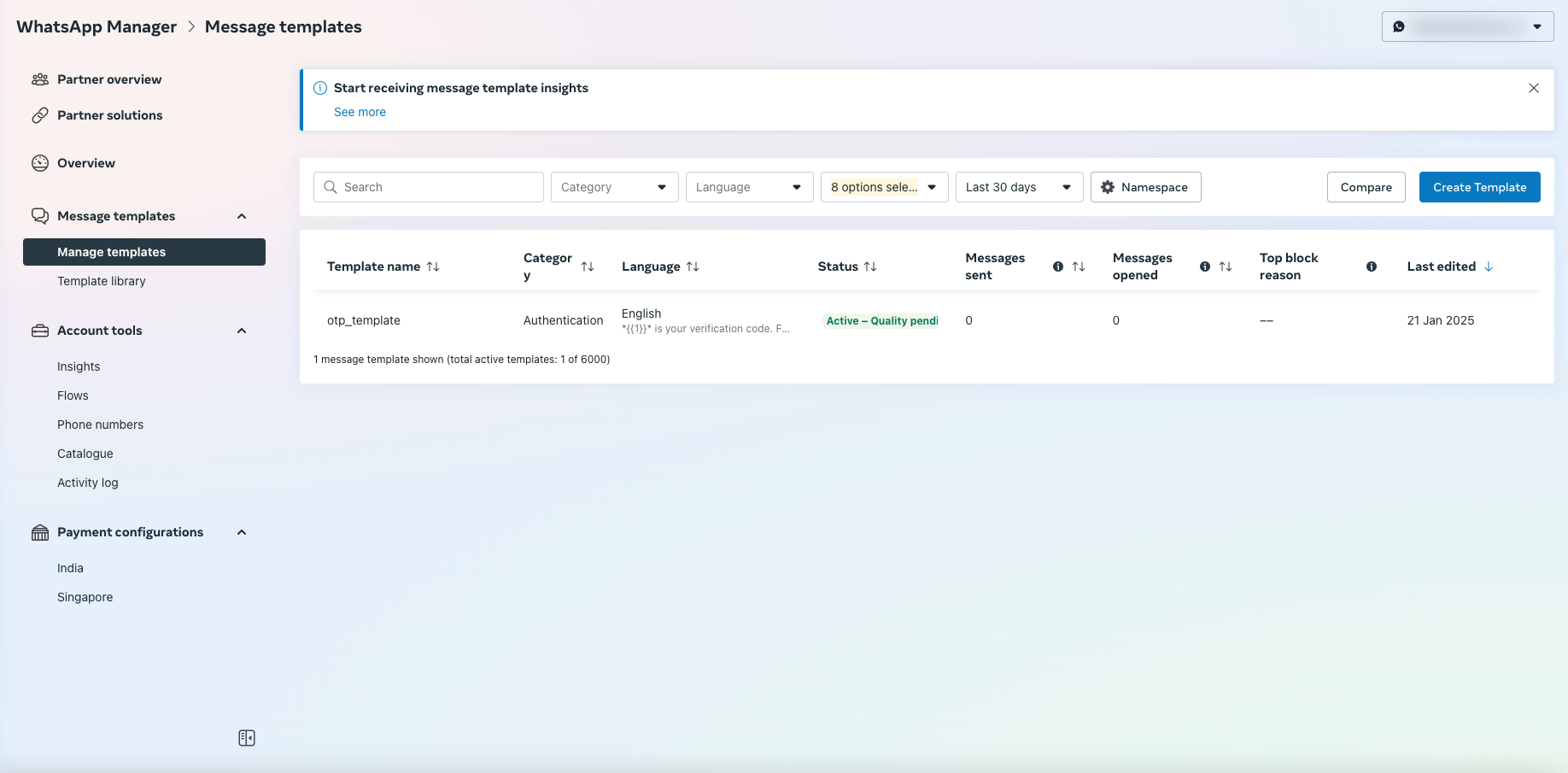
    image 5. Locate the specific Utility or Authentication template you wish to configure. Click on the template name or an associated 'Edit' button.
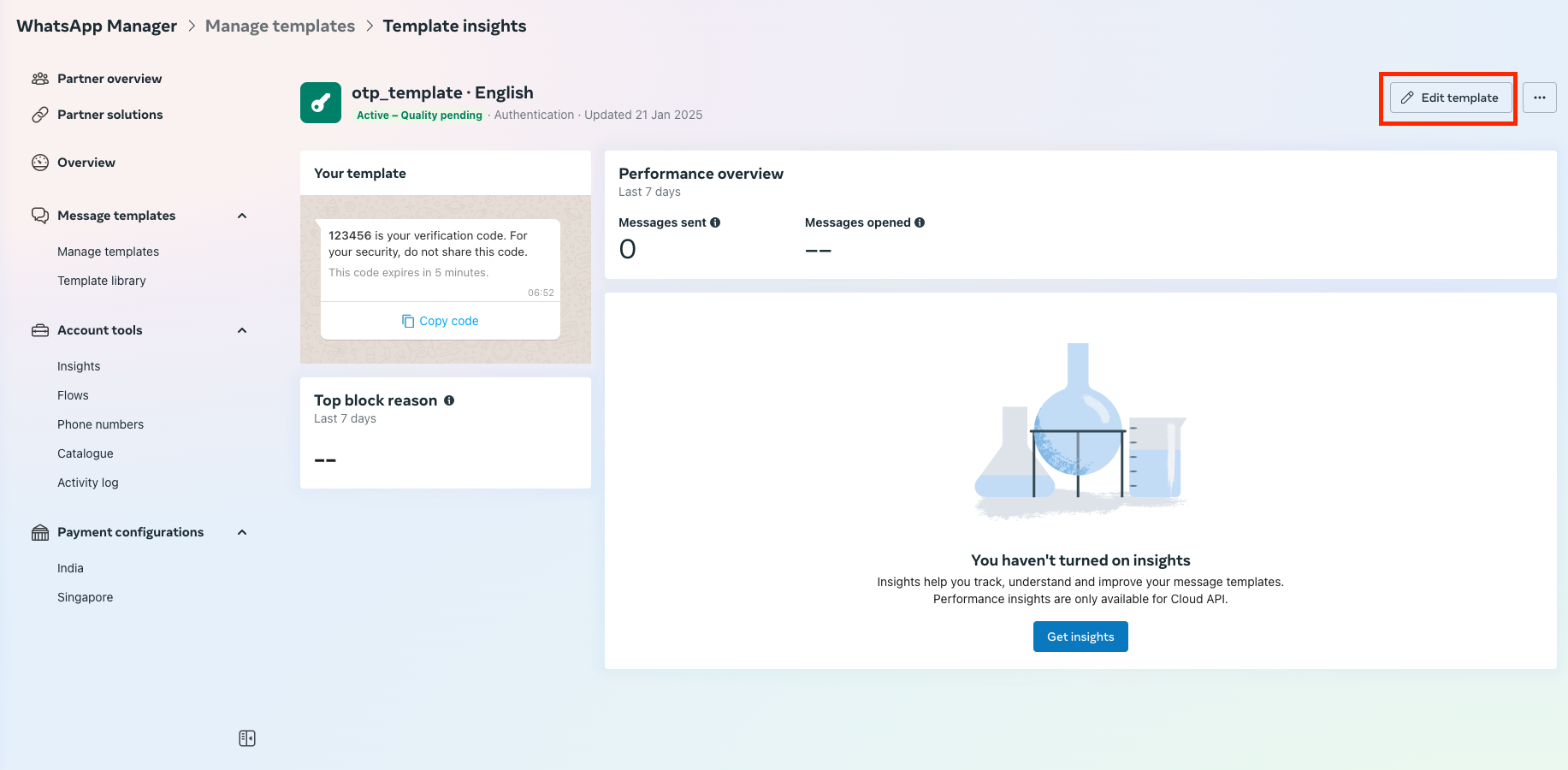
    image 6. On the template editing screen, scroll towards the bottom to find the Message validity period 7. Adjust the value in the input field to your desired TTL. You can typically specify the duration in seconds, minutes, hours, or days.
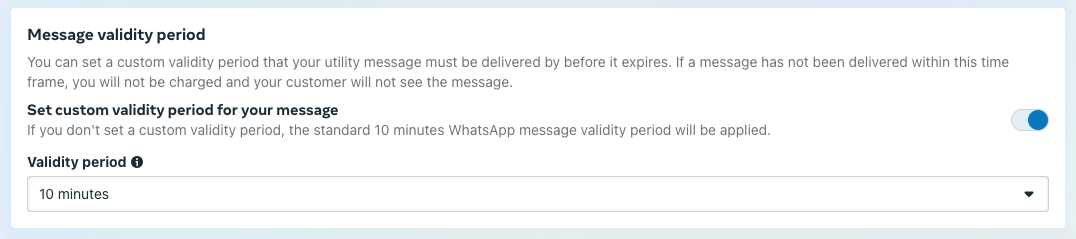
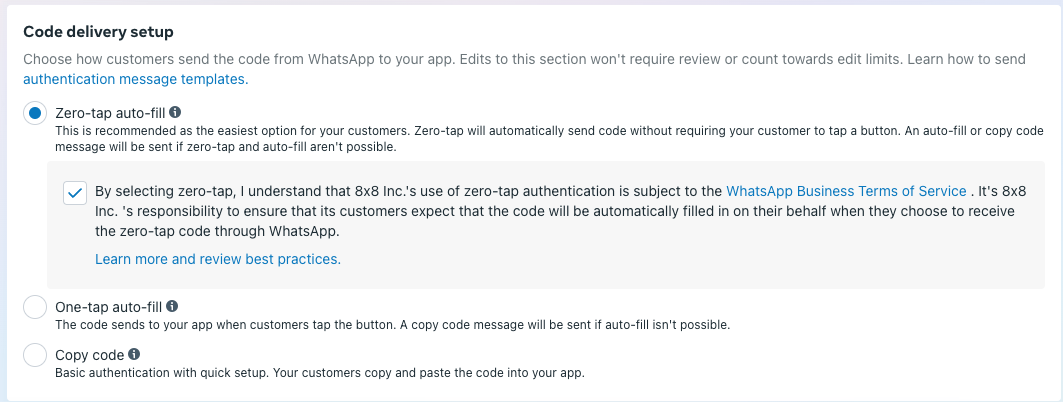
    image

    Tip: Consider the nature of your message. OTPs often require a short TTL (e.g., 5-15 minutes), while appointment reminders might allow for a longer TTL (e.g., several hours before you fall back to making a phone call).

    1. After setting the desired validity period, ensure you save your changes by clicking Submit.

    Important Considerations

    • Manage Fallbacks & User Preferences: For the best user experience and to manage expectations, consider allowing users to select their preferred communication channel (e.g., WhatsApp, SMS, Email) during signup or within profile settings. If you do implement automated fallback channels, ensure your logic triggers them only after the specified validity period has passed (and no delivery status webhook received) to avoid sending duplicate messages across channels.
    • Default TTL: If not explicitly set, WhatsApp applies the default validity period listed in the table above.

    By carefully configuring the TTL for your Utility and Authentication templates, you gain finer control over message delivery timelines and can better orchestrate multi-channel communication strategies.


    Source: https://developer.8x8.com/connect/docs/guide-whatsapp-template-validity-period-ttl · 8x8 CPaaS Developer Docs. Synced for support deflection.

  • Zero-tap and One-tap WhatsApp Authentication Template

    Zero-tap and One-tap WhatsApp Authentication Template

    WhatsApp Zero-tap and One-tap Authentication Templates

    WhatsApp authentication templates can be configured to provide a more seamless authentication experience on Android devices through Zero-tap (automatic code insertion) or One-tap (user confirms code insertion) methods. This guide explains how to modify your existing Copy Code authentication templates to enable these features.

    If you're new to WhatsApp as an authentication method for your app, we recommend starting with the standard 'copy code' delivery method and evaluating its performance. Consider implementing Zero-tap/One-tap delivery after you've established your baseline authentication flow and identified opportunities to reduce drop-off rates.

    ⚠️ Important: Zero-tap and One-tap authentication methods only work on Android devices. Non-Android devices will automatically fall back to Copy Code button.

    Getting Started

    When to Use Zero-tap/One-tap

    Zero-tap and One-tap delivery methods are particularly beneficial when:

    • The majority of your users are on Android devices
    • Your authentication funnel shows significant drop-offs during the authentication code entry step
    • You want to reduce friction in critical user journeys like registration or purchases
    • User experience and conversion speed are key priorities

    Prerequisites

    • An approved WhatsApp authentication template, created via API or Connect Portal
    • Access to Meta Business Suite with appropriate permissions
    • Android app package name and signature hash information

    Before You Begin

    This guide covers template configuration in Meta Business Suite. However, to enable Zero-tap/One-tap functionality, you'll need to implement additional components in your Android app after completing this guide. Details about the implementation will be covered in the Next Steps section.


    Delivery Methods

    • Zero-tap: Code is automatically inserted without user interaction. Best for scenarios where users have explicitly agreed to automatic authentication.
    • One-tap: Users approve code insertion with a single tap. Provides additional security while maintaining convenience.
    • Copy Code: Users copy the code and paste it into the browser or application. Good for scenarios where most of your users are not on Android. This is the default method.

    Configuring Your Template

    1. Log in to Meta Business Suite
    2. From the left panel, select "WhatsApp accounts" and choose your WhatsApp account

    image 3. Click "WhatsApp Manager" on the right side of the screen 4. In WhatsApp Manager, select "Manage templates" from the left panel

    image 5. Locate and click on your approved authentication template that was created via 8x8 platform, then select "Edit template". If you don't see one, please follow the guide and ensure you meet all other pre-requisites mentioned at the beginning of this guide.

    image 6. Choose your preferred Code Delivery method:

    • Zero-tap autofill
    • One-tap autofill
    • Copy code (default)

    Note: For Zero-tap authentication, ensure compliance with Meta's best practices

    image 7. Enter your Android app information:

    • Package name
    • App signature hash

    image 8. Optional: Adjust the message validity period (time-to-live) at the bottom of the page. This ensures the WhatsApp message doesn't get sent beyond the validity period, which allows you to orchestrate alternative channels such as SMS OTP or Voice OTP
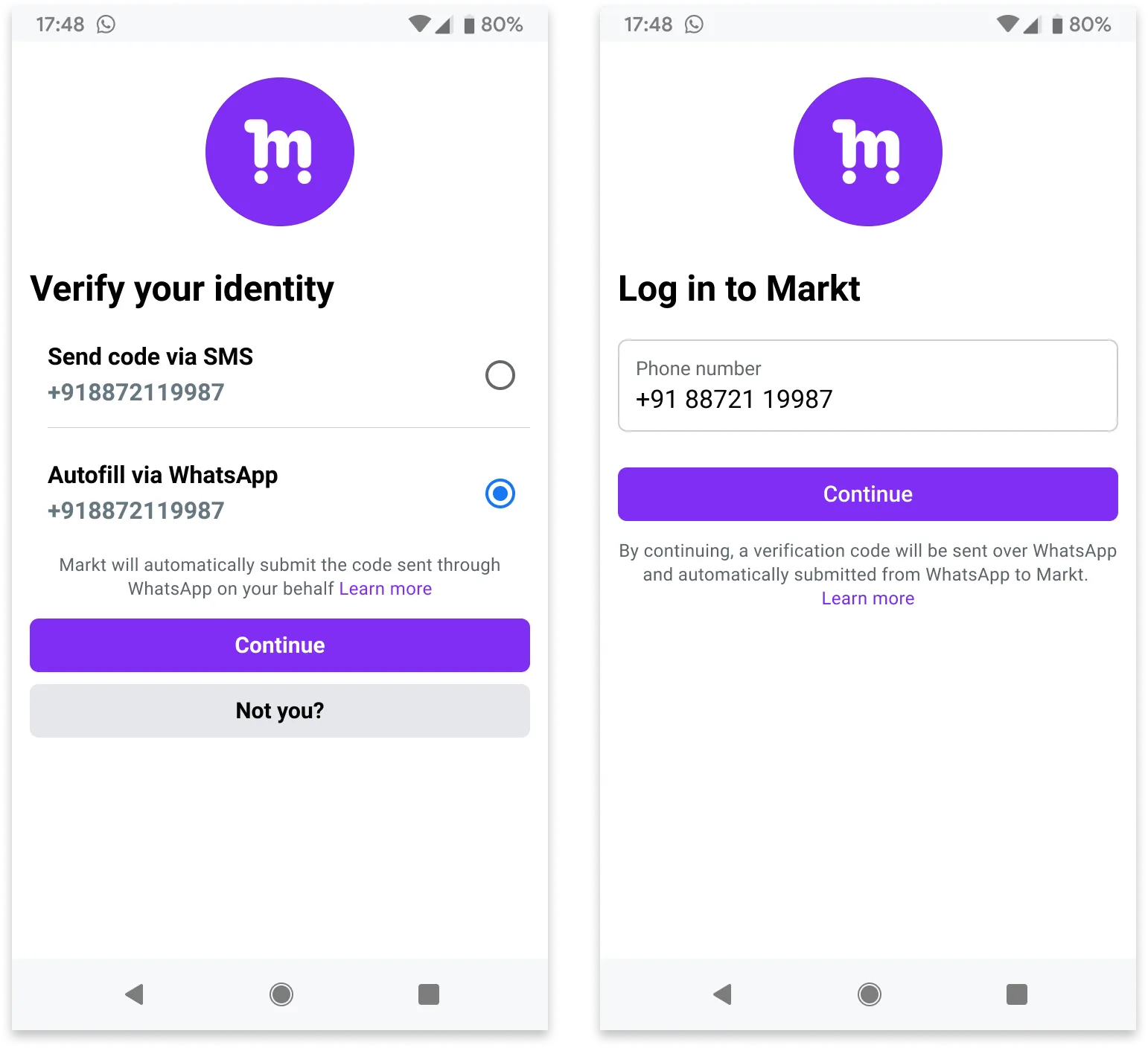
    image

    1. Click Submit to save your changes

    Implementation Guide

    The following sections contain technical details for Android app implementation and should be reviewed by your development team.

    Testing Your Template

    Before implementing in your own app, you can:

    • Use WhatsApp's official sample OTP app to validate your template configuration
    • Test with both Android and iOS devices

    Next Steps

    After validating your template configuration, you'll need to implement the required WhatsApp OTP handshake in your Android app. This security mechanism enables Zero-tap/One-tap functionality through either:

    1. WhatsApp's OTP Android SDK (Recommended)
    • Simpler implementation
    • Available through Maven Central
    • Handles most of the complexity for you
    1. Manual Implementation
    • Implement custom Android activities and intent filters
    • Handle the handshake process directly
    • More flexibility but requires more code

    📘 For technical implementation details and code examples for both approaches, refer to Meta's OTP handshake documentation.

    Troubleshooting

    • Verify package name and signature hash match between template configuration and your Android app
    • Ensure handshake is initiated before sending the authentication message (within 10 minutes)
    • Check that the user has WhatsApp installed and is logged in
    • Confirm your app has the proper activity defined to receive the authentication code

    Best Practices

    • Clearly inform users about automatic code insertion in your message
    • Allow users to choose their preferred authentication method

    See example below:

    image

    Using the Template

    You can send authentication messages using the same Authentication template payload regardless of the delivery method chosen. The delivery method will be automatically determined based on the user's device type.


    Source: https://developer.8x8.com/connect/docs/guide-whatsapp-one-tap-or-zero-tap-authentication · 8x8 CPaaS Developer Docs. Synced for support deflection.

  • WhatsApp Image Optimization

    WhatsApp Image Optimization

    When sending WhatsApp messages with media content, the speed and reliability of your image delivery directly impacts message success rates. This guide will help you optimize your images for WhatsApp campaigns and troubleshoot common performance issues.

    Image Requirements

    File Specifications

    • Maximum file size: 5 MB, ( below 1 MB recommended)
    • Supported formats: JPEG, PNG (recommended)
    • Recommended dimensions: 1200x630 pixels

    Performance Benchmarks

    Server Response Expectations

    • Ideal response time: below 2 seconds
    • Recommended server latency: Consistently under 2 seconds

    Troubleshooting Methodology

    Diagnostic Tools

    1. Postman Testing

    Create GET request to image URL

    curl -v -X GET "YOUR_IMAGE_URL" 

    Example:

    curl -v -X GET "https://filesamples.com/samples/image/jpeg/sample_5184%C3%973456.jpeg"

    It took 5.62 seconds to fetch the image which is too long for APIs in generaIt took 5.62 seconds to fetch the image which should be optimized further.
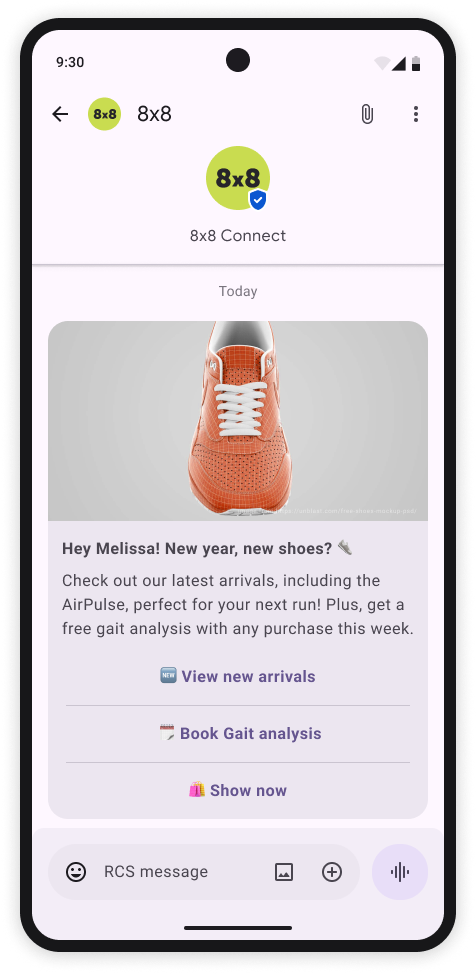
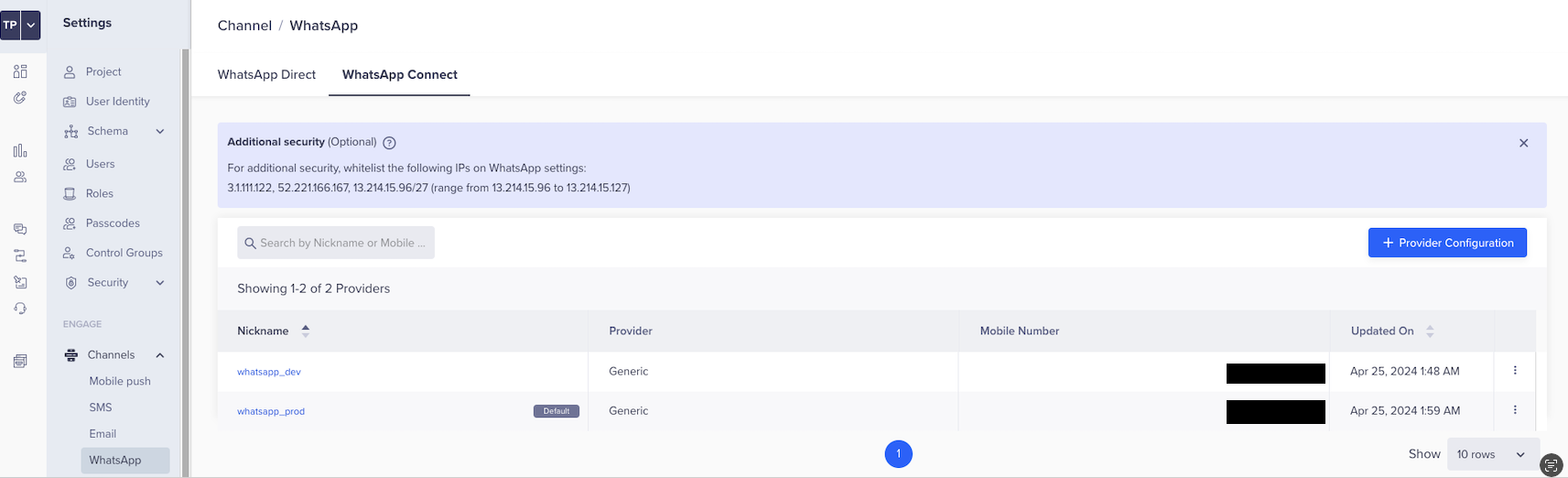
    After going through this guide, you should be able to repeat the test above and achieve < 1 second response time.


    Common Performance Bottlenecks

    Image-Related Issues

    • Oversized image files and/or dimensions
    • Non-optimized image compression
    • Slow hosting infrastructure
    • Geographical server distance or geo restriction

    Recommended Optimization Strategies

    1. Image Compression
    • Use tools like TinyPNG or Squoosh to reduce file size without compromising visual quality
    • More often than not, your graphic design tool might have a built-in functionality to compress images while preserving quality
    • Target < 500 KB for optimal performance
    1. Hosting Optimization
    • Implement Content Delivery Network (CDN)
    • Choose geographically distributed hosting if you're a multinational brand
    • Ensure global accessibility
    • Use high-performance cloud storage

    Debugging Checklist

    Quick Diagnostic Steps

    • Verify image URL accessibility
    • Check image file size
    • Test server response time
    • Validate image format compatibility
    • Confirm public accessibility without authentication


    Source: https://developer.8x8.com/connect/docs/guide-whatsapp-image-optimization · 8x8 CPaaS Developer Docs. Synced for support deflection.

  • RCS

    RCS

    RCS Business Messaging (RBM) is designed to enable rich, interactive communication between businesses and consumers—all within the default messaging app on their mobile devices.

    It's powered by Rich Communication Services (RCS), an industry protocol standardized by the GSMA (Global System for Mobile Communications Association) and adopted by mobile carriers and device manufacturers worldwide to modernise traditional SMS/MMS messaging.

    Key Features:

    • Branded messages with your business name, logo, and verified status.
    • Rich media support: Send high-quality images, videos, carousels, and file attachments.
    • Interactive messaging: Use buttons for calls, maps, website links, quick replies, and more.
    • Delivery and read receipts: Know when messages are delivered and seen.
    • SMS fallback: Automatically sends as SMS when RCS is unavailable on the device.

    Why It's Valuable for Businesses:

    • Drives higher engagement than traditional SMS with app-like experiences.
    • Builds trust and authenticity through verified branding.
    • Supports two-way conversations — ideal for updates, promotions, reminders, and customer support.

    image


    Key Terms:

    RCS Sender Agent - An RCS agent or RCS Sender Agent is a digital identity that represents a brand in a customer's Rich Communication Services (RCS) messaging experience. RCS agents use the RCS Business Messaging (RBM) API to communicate with users through messages, events, and requests.

    RCS - "RCS" means the Rich Communications Services message protocol that allows users to send texts, photos, videos, and more. RCS provides a richer message feature set than the legacy SMS/MMS message protocol.

    RBM - "RBM" means RCS Business Messaging, otherwise known as non-consumer RCS and provides a messaging protocol to allow businesses to engage and interact with customers using rich, interactive message features.

    Rich Media Messaging - "Rich Media Messaging" means non-consumer text messages that include images and videos.

    Basic Messaging - "Rich Messaging" means non-consumer text-only messages.


    Source: https://developer.8x8.com/connect/docs/rcs/overview · 8x8 CPaaS Developer Docs. Synced for support deflection.

  • Constructing WhatsApp Template Send Requests

    Constructing WhatsApp Template Send Requests

    Learn how to properly format and send WhatsApp template messages through the 8x8 API using both manual and automated approaches. This guide covers everything from basic template structure to advanced scripting for bulk template preparation.


    Overview

    WhatsApp Business templates are pre-approved message formats that allow businesses to initiate conversations with customers. This guide demonstrates two methods for sending these templates via the 8x8 API:

    Method Description Best For
    Manual Step-by-step process using curl and JSON payloads One-off messages, learning the API
    Automated Automated generation of ready-to-use cURL commands Multiple templates, production workflows

    Prerequisites

    • 8x8 API credentials (Account ID, Channel ID, Subaccount ID, API Key)
    • WhatsApp recipient phone number (E.164 format, e.g., +14155551212)
    • WhatsApp templates created and approved either via the Connect portal or API
    • curl installed
    • For automated method: Node.js (v16+), npm install dotenv axios

    Manual Method

    1. Fetch Templates

    Run the following command in a terminal

    curl -s -X GET "https://chatapps.8x8.com/api/v1/accounts/{your_account_id}/channels/{your_channel_id}/templates" \
    -H "Authorization: Bearer {{your_api_key}}" \
    -H "Accept: application/json" > templates.json

    2. Extract Template Details

    Open templates.json in a text editor. Note:

    • templateName as per the GET Templates response (or name) in the corresponding Send message we're trying to compose
    • language
    • components (for required parameters)

    3. Base API Request Structure

    Every WhatsApp template message request to the 8x8 API must include the following fields:

    {
    "user":{"msisdn":"{{recipientPhoneNumber}}"},
    "type":"template",
    "content":{
    "template":{
    "name":"your_template_name",
    "language":"template_language_code",
    "components":[/* see examples below */]
    }
    }
    }
    • user.msisdn: The recipient's phone number in E.164 format.
    • type: Always "template" for template messages.
    • content.template.name: The template name as shown in your templates list.
    • content.template.language: The language code (e.g., "en").
    • content.template.components: An array of components (see examples below).

    4. Compose the Message Payload

    Below are examples of the full payload for different template types. Replace the components array as needed.

    Simple Template (No Parameters)

    {
    "user":{"msisdn":"{{recipientPhoneNumber}}"},
    "type":"template",
    "content":{
    "template":{
    "name":"{{your_template_name}}",
    "language":"{{language_code}}",
    "components":[]
    }
    }
    }

    Media Template Example

    {
    "user":{"msisdn":"{{recipientPhoneNumber}}"},
    "type":"template",
    "content":{
    "template":{
    "name":"{{your_template_name}}",
    "language":"en",
    "components":[
    {
    "type":"header",
    "parameters":[
    {"type":"image","url":"{{header_image_url}}"}
    ]
    }
    ]
    }
    }
    }

    Body Parameters Example

    {
    "user":{"msisdn":"{{recipientPhoneNumber}}"},
    "type":"template",
    "content":{
    "template":{
    "name":"{{your_template_name}}",
    "language":"en",
    "components":[
    {
    "type":"body",
    "parameters":[
    {"type":"text","text":"{{body_text_1}}"}
    ]
    }
    ]
    }
    }
    }

    AUTHENTICATION Template Example

    {
    "user":{"msisdn":"{{recipientPhoneNumber}}"},
    "type":"template",
    "content":{
    "template":{
    "name":"{{your_template_name}}",
    "language":"en",
    "components":[
    {
    "type":"body",
    "parameters":[
    {"type":"text","text":"{{otpCode}}"}
    ]
    },
    {
    "type":"Button",
    "subType":"url",
    "index":0,
    "parameters":[
    {"type":"text","text":"{{otpCode}}"}
    ]
    }
    ]
    }
    }
    }

    5. Send the Message

    Save your payload to message.json and run the command below in the terminal

    SUBACCOUNT_ID="your_subaccount_id"
    API_TOKEN="your_api_token"
    curl -X POST "https://chatapps.8x8.com/api/v1/subaccounts/$SUBACCOUNT_ID/messages" \
    -H "Authorization: Bearer $API_TOKEN" \
    -H "Content-Type: application/json" \
    -d @message.json

    Automated Method

    1. Setup

    • Place generate-curl-scripts.js in your project directory.
    // @ts-check
    require('dotenv').config();
    const axios =require('axios');
    const fs =require('fs');
    const path =require('path');
    constAPI_BASE_URL= process.env.API_BASE_URL||'https://chatapps.8x8.com';
    constACCOUNT_ID= process.env.ACCOUNT_ID||'';
    constCHANNEL_ID= process.env.CHANNEL_ID||'';
    constSUBACCOUNT_ID= process.env.SUBACCOUNT_ID||'';
    constAPI_KEY= process.env.API_KEY||'';
    constOUTPUT_DIR='generated_curl_scripts';
    functiongetComponents(template){
    if(
    (template.type && template.type.toUpperCase()==='AUTHENTICATION')||
    (template.category && template.category.toUpperCase()==='AUTHENTICATION')
    ){
    return[
    {
    "type":"body",
    "parameters":[
    {
    "type":"text",
    "text":"{{otpCode}}"// Using placeholder for OTP
    }
    ]
    },
    {
    "type":"Button",
    "subType":"url",
    "index":0,
    "parameters":[
    {
    "type":"text",
    "text":"{{otpCode}}"// Using placeholder for OTP
    }
    ]
    }
    ];
    }
    // For other templates, generate descriptive placeholders based on structure
    const components =[];
    if(template.components){
    template.components.forEach(component =>{
    const componentType = component.type.toUpperCase();
    if(componentType ==='HEADER'){
    const format = component.format?.toUpperCase();
    if(format ==='TEXT'&& component.text){
    const placeholders =findPlaceholders(component.text);
    if(placeholders.length >0){
    components.push({
    type:"header",
    parameters: placeholders.map(num =>({ type:"text", text:`{{header_text_${num}}}`}))
    });
    }
    }elseif(['IMAGE','VIDEO','DOCUMENT'].includes(format)){
    components.push({
    type:"header",
    parameters:[{ type: format.toLowerCase(), url:`{{header_${format.toLowerCase()}_url}}`}]
    });
    }elseif(format ==='LOCATION'){
    components.push({
    type:"header",
    location:{ latitude:"{{header_loc_lat}}", longitude:"{{header_loc_lon}}", name:"{{header_loc_name}}", address:"{{header_loc_addr}}"}
    });
    }
    }elseif(componentType ==='BODY'&& component.text){
    const placeholders =findPlaceholders(component.text);
    if(placeholders.length >0){
    components.push({
    type:"body",
    parameters: placeholders.map(num =>({ type:"text", text:`{{body_text_${num}}}`}))
    });
    }
    }elseif(componentType ==='BUTTONS'&& component.buttons){
    component.buttons.forEach((button, buttonIndex)=>{
    if(button.type.toUpperCase()==='URL'&& button.url){
    const placeholders =findPlaceholders(button.url);
    if(placeholders.length >0){
    components.push({
    type:"button",
    subType:"url",
    index: buttonIndex,
    parameters: placeholders.map(num =>({ type:"text", text:`{{button_${buttonIndex}_url_param_${num}}}`}))
    });
    }
    }
    });
    }
    });
    }
    return components;
    }
    // Extracts {{n}} placeholders from a string (copied from static/script.js)
    functionfindPlaceholders(text){
    if(!text)return[];
    const regex =/{{(\d+)}}/g;
    const placeholders =newSet();
    let match;
    while((match = regex.exec(text))!==null){
    placeholders.add(parseInt(match[1],10));
    }
    returnArray.from(placeholders).sort((a, b)=> a - b);
    }
    asyncfunctionfetchTemplates(){
    const url =`${API_BASE_URL}/api/v1/accounts/${ACCOUNT_ID}/channels/${CHANNEL_ID}/templates`;
    const headers ={ Authorization:`Bearer ${API_KEY}`};
    const{ data }=await axios.get(url,{ headers });
    return data.templates ||[];
    }
    functiongenerateCurlCommand(template){
    const payload ={
    user:{ msisdn:'{{recipientPhoneNumber}}'},// Use placeholder here
    type:'template',
    content:{
    template:{
    name: template.templateName || template.name,
    language: template.language ||'en',
    components:getComponents(template)
    }
    }
    };
    const jsonString =JSON.stringify(payload,null,2);
    const escapedJsonString = jsonString.replace(/'/g,"'\\''");
    const curlCommand =`curl -X POST \\
    '${API_BASE_URL}/api/v1/subaccounts/${SUBACCOUNT_ID}/messages' \\
    -H 'Authorization: Bearer {{apiKey}}' \\
    -H 'Content-Type: application/json' \\
    -d '${escapedJsonString}'`;
    return curlCommand;
    }
    (async()=>{
    try{
    if(!fs.existsSync(OUTPUT_DIR)){
    fs.mkdirSync(OUTPUT_DIR);
    }
    const templates =awaitfetchTemplates();
    if(templates.length ===0){
    console.log('No templates found.');
    return;
    }
    console.log(`Generating cURL scripts for ${templates.length} templates in ./${OUTPUT_DIR}/`);
    for(const template of templates){
    const templateName = template.templateName || template.name;
    const language = template.language ||'en';
    const filename =`${templateName}_${language}.sh`;
    const filepath = path.join(OUTPUT_DIR, filename);
    const curlCommand =generateCurlCommand(template);
    const scriptContent =`#!/bin/bash
    # cURL command for template: ${templateName} (${language})
    # Category: ${template.category ||'N/A'}
    # Replace {{apiKey}} with your actual 8x8 API Key
    # Replace placeholder values in the -d payload as needed, including {{recipientPhoneNumber}}
    ${curlCommand}
    `;
    fs.writeFileSync(filepath, scriptContent);
    fs.chmodSync(filepath,'755');// Make the script executable
    }
    console.log('cURL scripts generated successfully.');
    }catch(err){
    console.error('Failed to generate cURL scripts:', err.message);
    }
    })();
    • Install dependencies:
    npm install dotenv axios
    • Create a .env file:
    API_BASE_URL=https://chatapps.8x8.com # replace with endpoint associated with your DC region https://developer.8x8.com/connect/docs/platform-deployment-regions#api-endpoints-and-platform-region
    ACCOUNT_ID=your_account_id
    CHANNEL_ID=your_channel_id
    SUBACCOUNT_ID=your_subaccount_id
    API_KEY=your_api_key

    2. Generate cURL Scripts

    node generate-curl-scripts
    • This creates a generated_curl_scripts directory with .sh files for each template.

    3. Use the Generated Scripts

    • Edit the .sh file:
      • Replace {{apiKey}} with your API Key.
      • Replace placeholders (e.g., {{recipientPhoneNumber}}, {{otpCode}}) with real values.
    • Run the script:
    ./your_template_en.sh

    Tips & Best Practices

    • Always replace placeholders with real values before sending.
    • Test with a non-production recipient first.
    • Review API responses or delivery receipts for errors. You can also check the Logs and take action from there.
    • From time to time, Meta might not deliver messages to maintain a healthy ecosystem (Error Code: 131049 and similar), so you can try sending it to a secondary non-production recipient or try again later

    Source: https://developer.8x8.com/connect/docs/guide-creating-whatsapp-template-request · 8x8 CPaaS Developer Docs. Synced for support deflection.

  • Clevertap - WhatsApp Integration

    Clevertap - WhatsApp Integration

    Overview

    Clevertap is a Mobile Marketing Platform with app marketing automation helping app marketers to retain user engagement.

    CleverTap supports WhatsApp Business API integration.

    Some use cases

    • Send a WhatsApp message containing marketing offers from an event being tracked.
    • Send a WhatsApp message to customers triggered from the mobile or web app.

    Product scope

    • Clevertap

    What you'll need

    • 8x8 Account
    • WhatsApp Business Account (WABA) with 8x8
    • Clevertap (paid or trial)

    Setup

    Setup WhatsApp Connect Provider

    In the CleverTap Dashboard, navigate to Settings > Engage > Channels > WhatsApp > WhatsApp Connect Tab

    image

    Click on the Provider Configuration button to set up a new provider. In the Setup Tab, enter the following values:

    Field Value
    Provider Other (Generic)
    Nickname Any Value
    Delivery Report Callback URL Leave as Default, Copy value to send to 8x8
    Inbound Message Callback URL Leave as Default, Copy value to send to 8x8
    Request Type POST
    HTTP End Point https://chatapps.8x8.com/api/v1/subaccounts/{{subaccountid}}/partners/clevertap/wa

    After entering the values, ensure that you copy the value for the Delivery Report Callback URL and the Inbound Message Callback URL and send an email to cpaas-support@8x8.com with a request to enable the Clevertap integration for WhatsApp for your 8x8 account.

    Provider Details

    Request Body and Headers

    After inputting the values above, click Send Test WhatsApp to test the integration by sending a WhatsApp message.

    Follow the directions in the dialog box to send the test WhatsApp message. This WhatsApp message should be sent to your test WhatsApp Number which can be your personal WhatsApp Account for example.

    image

    If the message is sent successfully, you should see the following dialog:

    image

    As well as a corresponding WhatsApp Message sent to your WhatsApp Account.

    image

    Using Campaigns

    To use this new WhatsApp Provider in campaigns, select WhatsApp as a Messaging Channel when you create a new campaign.

    image

    In the next screen you should see the new WhatsApp Provider available as an option

    image

    Afterwards you can proceed to send WhatsApp messages in the campaign. For further details on how to send a campaign, please refer to Clevertap's guide.

    Templates

    In order to send Template messages you will need to register your 8x8 WhatsApp Templates on Clevertap. Please see Clevertap's guide for further details on how to add templates for a Generic WhatsApp Provider.


    Source: https://developer.8x8.com/connect/docs/clevertap-whatsapp-integration · 8x8 CPaaS Developer Docs. Synced for support deflection.

  • Messaging Apps Fallback management

    Messaging Apps Fallback management

    The 8x8 Messaging API enables you to define a fallback sequence, orchestrating message delivery across multiple channels such as WhatsApp, Viber, and SMS.

    Fallback configurations can be set at the subaccount level (contact your account manager for assistance) or specified per message via the Messaging Apps Send API.

    🚧 Note

    Fallback sequences defined in the Send API override any existing subaccount-level settings.


    Configuring a Fallback Sequence

    To define a fallback sequence, include the channels array in your message payload. Each channel object can specify:

    • channel: The messaging channel (e.g., WhatsApp, Viber, SMS).
    • fallbackAfter (optional): Time in seconds to wait before triggering the next channel.
    • successStatus (optional): The message status considered as successful delivery (Accepted, Sent, Delivered, Read).

    Example:

    {
    "channels":[
    {"channel":"WhatsApp","fallbackAfter":60,"successStatus":"Read"},
    {"channel":"Viber","fallbackAfter":60,"successStatus":"Delivered"},
    {"channel":"SMS"}
    ],
    "user":{
    "msisdn":"+65000000"
    },
    "type":"text",
    "content":{
    "text":"Hello World!",
    "sms":{
    "encoding":"AUTO",
    "source":"SENDERID"
    }
    }
    }

    In this configuration:

    1. The message is first sent via WhatsApp. If not read within 60 seconds, it falls back to:
    2. Viber. If not delivered within 60 seconds, it finally falls back to:
    3. SMS.

    Message Status Reference

    The successStatus parameter determines which message status is considered a successful delivery, preventing fallback to the next channel. Possible values include:

    • Accepted: Message accepted by 8x8's platform.
    • Sent: Message sent to the operator; acknowledgment pending.
    • Delivered: Message delivered to the recipient.
    • Read: Message read by the recipient.

    For detailed status definitions, refer to the Message Status Reference.


    Conditional Fallback Based on Message Delivery

    To attempt delivery via WhatsApp and fallback to SMS only if the message is not delivered within a specific timeframe, configure as follows:

    {
    "channels":[
    {
    "channel":"WhatsApp",
    "fallbackAfter":60,
    "successStatus":"Delivered"
    },
    {
    "channel":"SMS"
    }
    ],
    "user":{
    "msisdn":"+65000000"
    },
    "type":"text",
    "content":{
    "text":"Hello World!",
    "sms":{
    "encoding":"AUTO",
    "source":"SENDERID"
    }
    }
    }

    In this setup:

    1. The message is sent via WhatsApp.
    2. If the message is not delivered within 60 seconds, it falls back to SMS.

    This configuration ensures that the fallback to SMS occurs only if the WhatsApp message isn't delivered within the specified timeframe.


    Single-Channel Messaging

    If you intend to send a message exclusively through a single channel without any fallback options, you can specify only that channel in the channels array.

    In such cases, the fallbackAfter and successStatus parameters are optional and typically unnecessary, as there are no subsequent channels to fallback to.

    Example:

    {
    "channels":[
    {"channel":"WhatsApp"}
    ],
    "user":{
    "msisdn":"+65000000"
    },
    "type":"text",
    "content":{
    "text":"Hello World!",
    "sms":{
    "encoding":"AUTO",
    "source":"SENDERID"
    }
    }
    }

    In this configuration, the message is sent solely via WhatsApp, with no fallback to other channels.


    Aligning Fallback Timing with WhatsApp Template TTL

    When using WhatsApp Utility or Authentication templates, it's crucial to configure the template's Time-To-Live (TTL) appropriately. Setting a TTL ensures that WhatsApp will attempt to deliver the message within a specified timeframe. To prevent delivering duplicate messages, ensure that your fallback duration (fallbackAfter) exceeds the template's TTL. This strategy allows WhatsApp to attempt delivery within its validity period before triggering fallback channels like SMS.

    For detailed guidance on configuring TTL, refer to the WhatsApp Template Validity Period (TTL) Guide.

    Example: Coordinating WhatsApp Template Validity with SMS Fallback Timing

    Consider a scenario where you send a delivery notification via a WhatsApp Utility template with a validity of 10 minutes (600 seconds). To prevent duplicate messages, set the fallbackAfter duration to exceed the WhatsApp template validity. For instance, setting fallbackAfter to 900 seconds ensures that the fallback to SMS occurs only after WhatsApp's delivery window has expired.

    Here's a simplified flow diagram illustrating this process:

    image

    In this flow:

    • Start: Initiate the process.

    • Send WhatsApp Utility Template: Dispatch the message via WhatsApp with a TTL of 10 minutes.

    • Delivered within TTL?: Check if the message was delivered within the TTL.

      • Yes: If delivered, end the process.
      • No: If not delivered, proceed to wait until TTL expires.
    • Wait until TTL expires: Hold until the TTL period concludes.

    • Trigger SMS Fallback: Send the message via SMS as a fallback.

    • End: Conclude the process.

    This setup ensures that the fallback to SMS occurs only after the WhatsApp message's validity period has expired


    ❗️ Important

    Ensure that your fallback settings align with the channels you intend to use and that all necessary configurations (e.g., sender IDs, templates) are properly set up for each channel.

    For a comprehensive list of supported messaging channels, refer to Supported Messaging Apps.


    Source: https://developer.8x8.com/connect/docs/chatapps-fallback-management · 8x8 CPaaS Developer Docs. Synced for support deflection.

  • «
  • ‹
  • 1
  • 2
8x8 Logo
  • 8x8 YouTube
  • 8x8 Facebook
  • 8x8 Twitter
  • 8x8 Blog
  • 8x8 LinkedIn
  • 8x8 Instagram

Company

  • About Us
  • Careers
  • Contact Us

Our Products

  • SMS
  • Chat Apps
  • Video Interaction
  • Voice
  • Pricing

Media

  • Customer Success Stories
  • News
  • Events
  • Blog

Resources

  • Documentation
  • Service Status
  • Ask for support
Privacy Policy | Terms of Use | Acceptable Use Policy
© 2025 8x8, Inc. All rights reserved.