See Details
Logo CPaaS Help Center Developer Premium Support Status
Sign in Contact Support
  1. 8x8 CPaaS Help Center
  2. 03 · SMS API & SMPP

03 · SMS API & SMPP

  • SMS Analytics

    SMS Analytics

    Dashboard

    The dashboard will contain the information about the SMS that you have sent using 8x8. Below is a view of the entire dashboard page, in the following sections we will break down each section's contents.
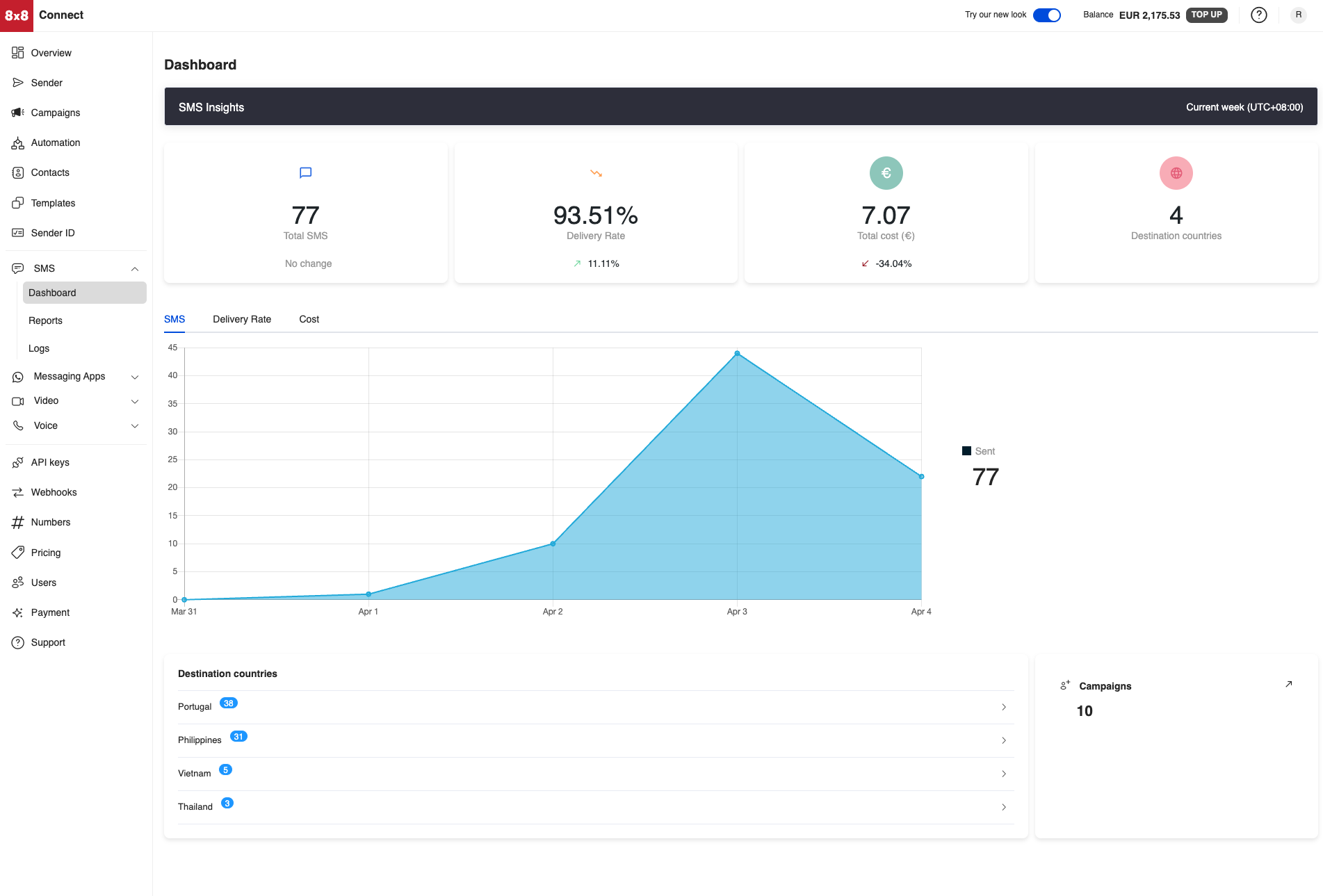
    image

    Statistics

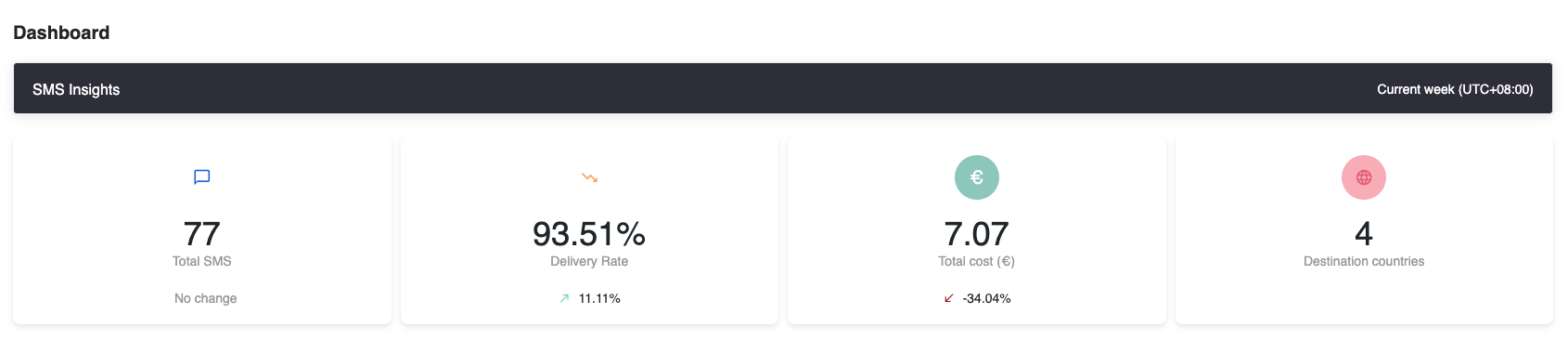
    The Dashboard for SMS will show you the following statistics over the given time period which is set to the current week.

    Column Description
    Total SMS The total amount of SMS sent in the given time period.
    Delivery Rate Percentage of SMS delivered in the given time period.
    Total Cost How much the SMS cost during this time period.
    Destination Countries The number of different countries the SMS messages were sent to.

    Below is a screenshot of the statistics section in the Dashboard.
    image

    Charts

    There will be the following 3 charts available:

    • SMS: Shows the amount of SMS sent across the given time period for each of the days
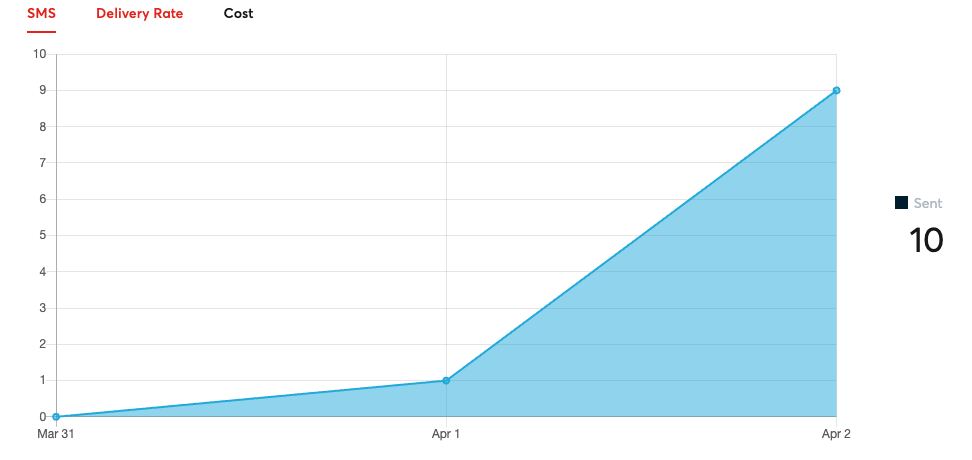
    image

    • Delivery Rate: Shows how the delivery rate changes across the given time period for each of the days
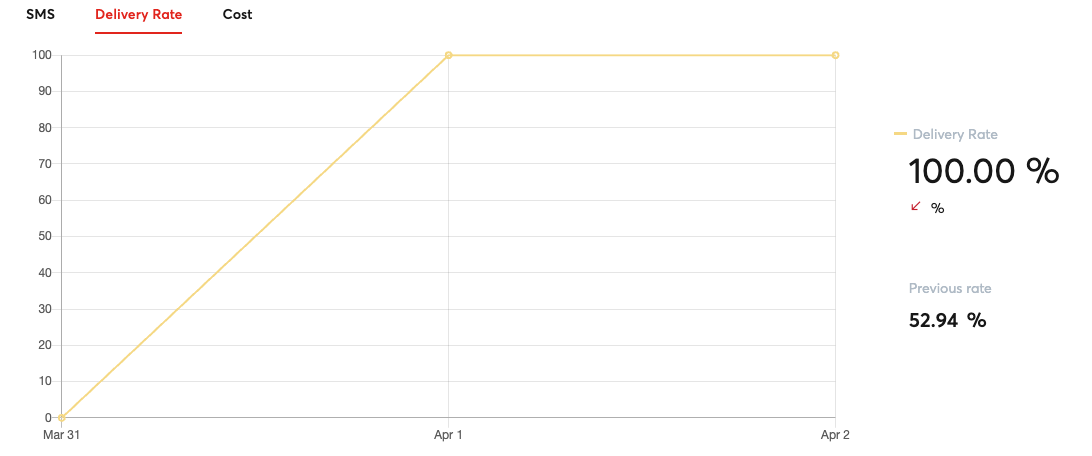
    image

    • Cost: Shows how the average cost of the SMS changes on a given day
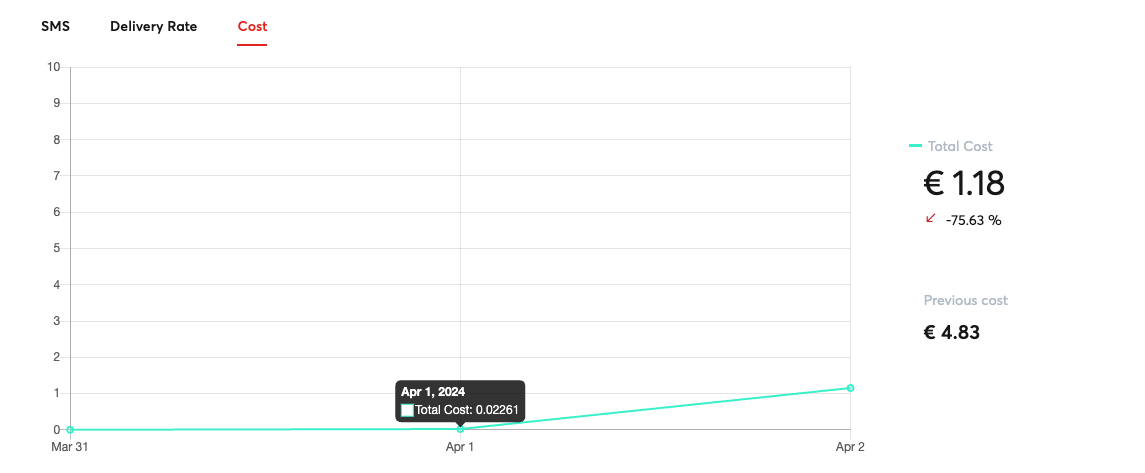
    image

    Destination Countries

    This section will break down the amount of SMS sent to each country as well as the SMS operator responsible for sending the message.
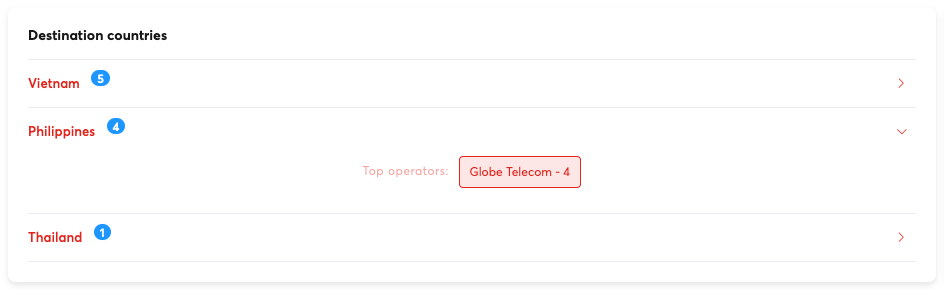
    image

    Campaigns

    This area will show the amount of SMS campaigns sent and a link to view the individual details of each campaign.

    image

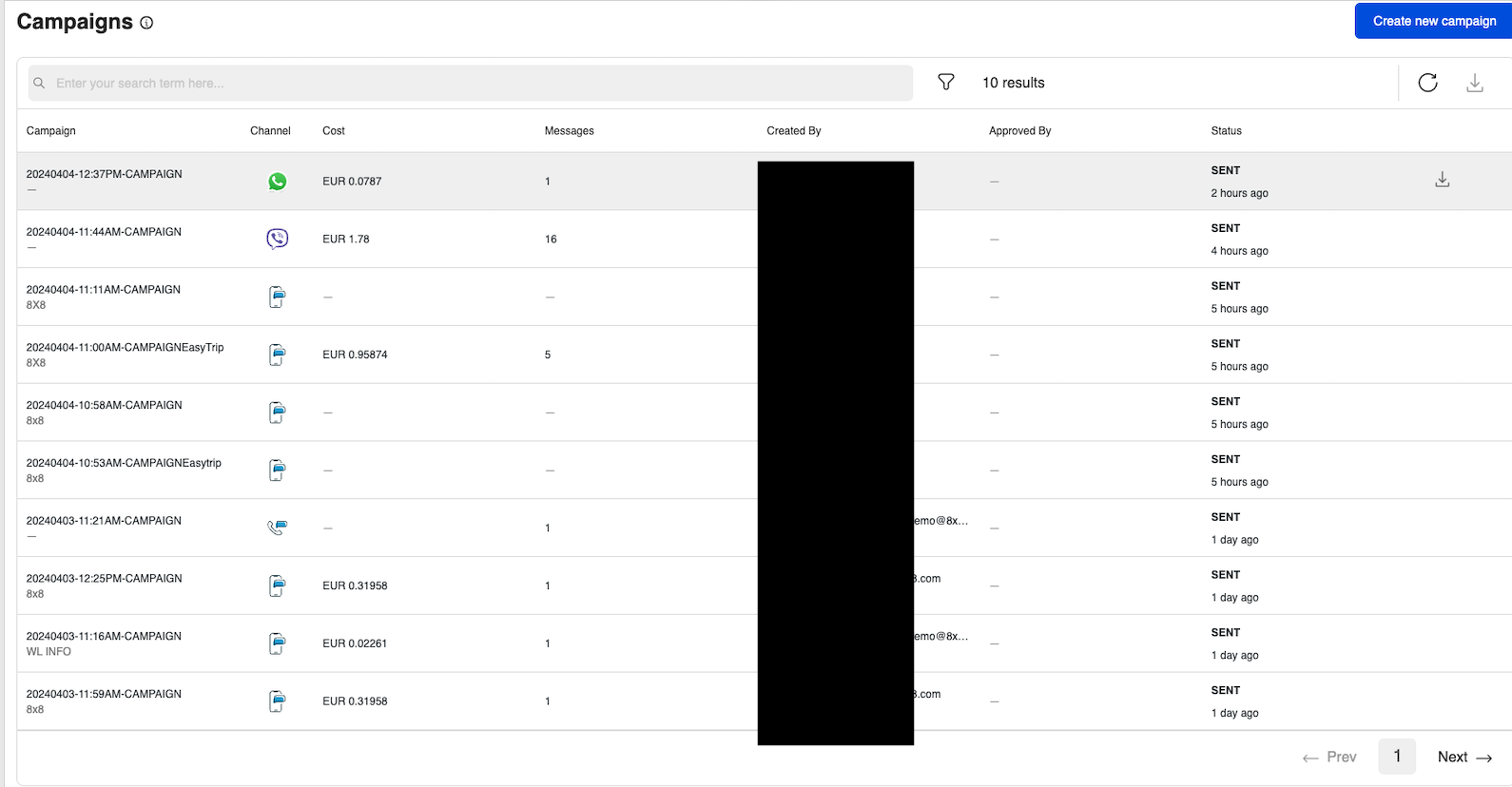
    Clicking on the campaigns link will take you to the Campaigns tab of the Dashboard which will contain information about individual campaigns sent.
    image

    Reports

    The Reports page for SMS will show a further breakdown as compared to the dashboard and allow you to further filter the data. You will also be able to export the information as CSV file from the page to import the data into your own analytics systems.

    Besides containing statistics for messages sent via the SMS API, it also contains information relevant for the Verification API, SMS Engage and Short URLs.

    SMS Messages

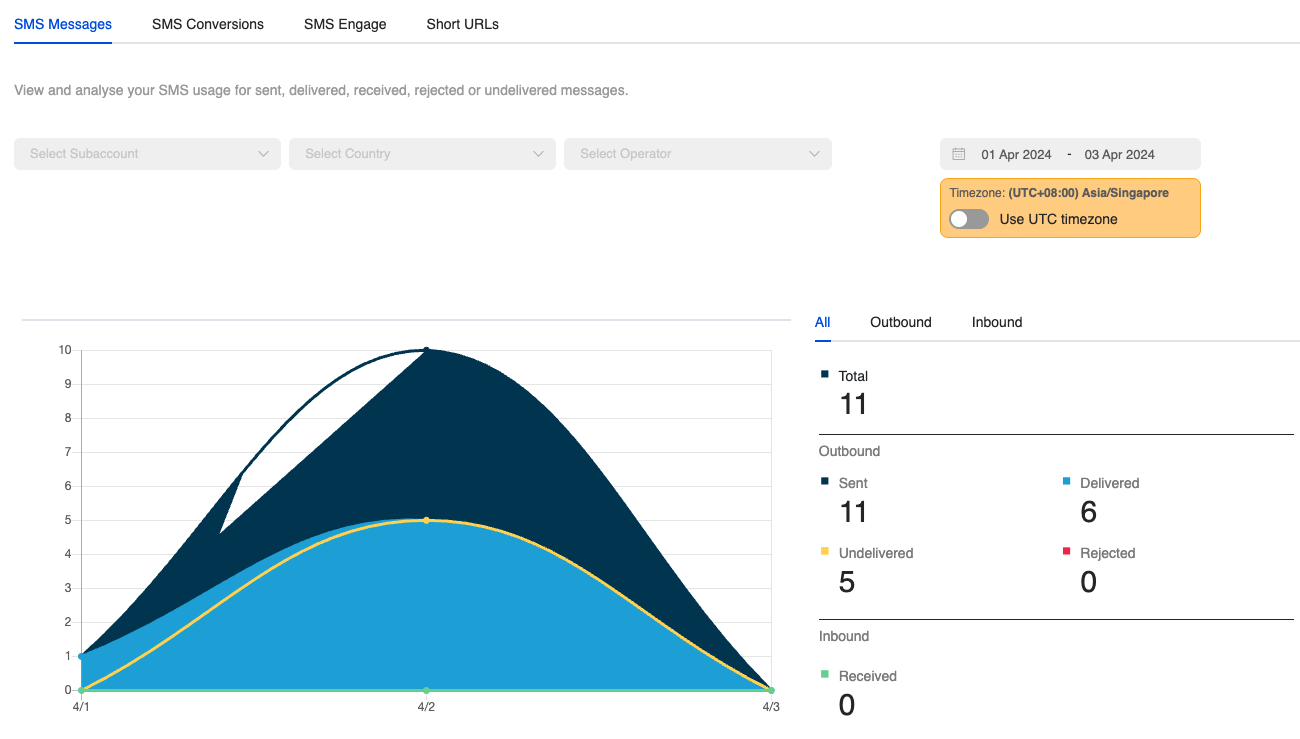
    The SMS Messages section will allow you to filter your SMS sent by the following options

    Column Description
    Subaccount Filter by the 8x8 Subaccount used
    Country Filter by the Country the SMS is delivered to.
    Operator Filter by the SMS Operator of the Handset that the SMS is delivered to
    Date Range Filter by the date range the SMS was sent.

    image

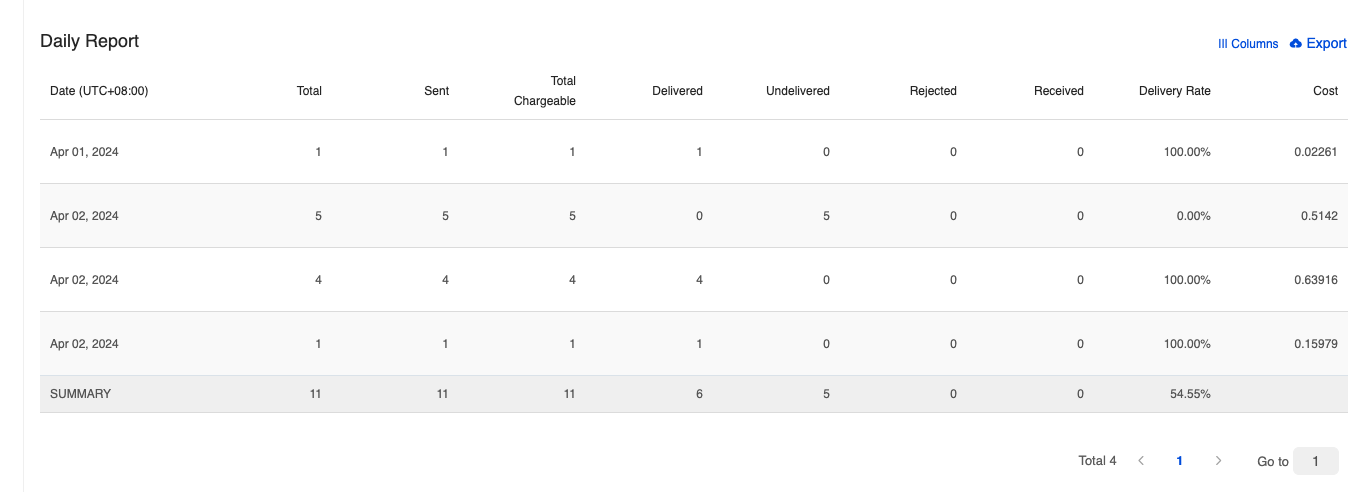
    Daily Report

    It will also feature a Daily Report Section where it will have the following stats about messages.
    image

    Here is a list of the columns in the Daily Report and their meaning.

    Column Description
    Total Total amount of messages sent/received in the time period.
    Sent Total amount of messages sent in the time period.
    Total Chargeable Total messages charged by 8x8 in the time period.
    Delivered This means the message has been "delivered to the handset". If the status is not available from the operators, this means that 8x8 has received the confirmation from the carrier that the message has been "delivered to the carrier".
    Undelivered We have received confirmation that the message was not delivered. This can be due to various reasons such as:
    1. Mobile handset is unavailable (e.g. mobile is switched off or on roaming mode)
    2. Filtered out by the operator
    Rejected The message has not been accepted by our platform. This can be due to some errors such as incorrect mobile numbers or insufficient credit. You will not be charged for rejected messages.
    Received The message has been received by our platform and it is currently being processed before being sent to the carrier.
    Delivery Rate Percentage of SMS messages with a status of delivered.
    Cost Cost of Each Message.

    Export

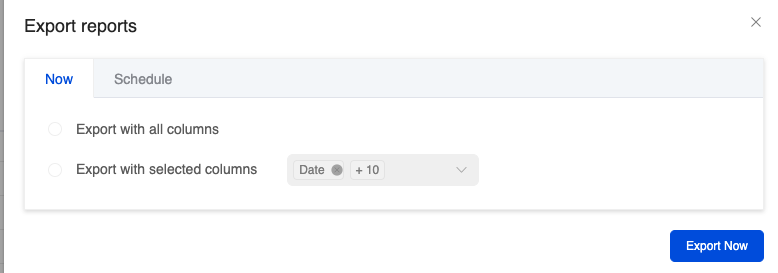
    You can choose to export the daily report immediately which will send a URL link to the specified email.
    image

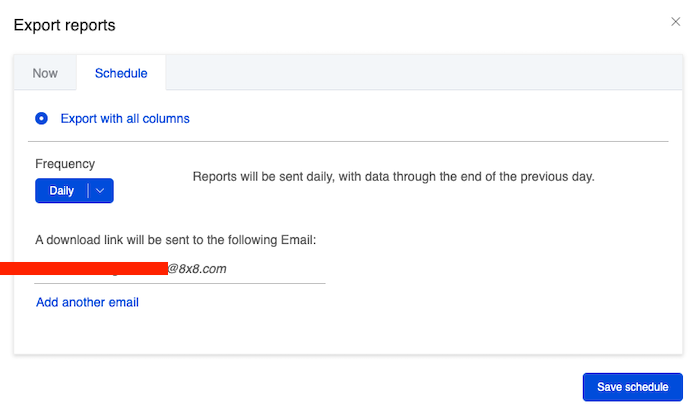
    There is also the option to schedule an export to be sent periodically to the specified email.
    image

    SMS Conversions

    This reports page allows you to see conversions relevant to the Verification API, specifically for SMS sent using the service.

    The main graph will show how many SMS have been sent using the service over time and what percentage have been successfully converted. This is useful for OTP use cases to track if there are any OTP conversion issues for example.
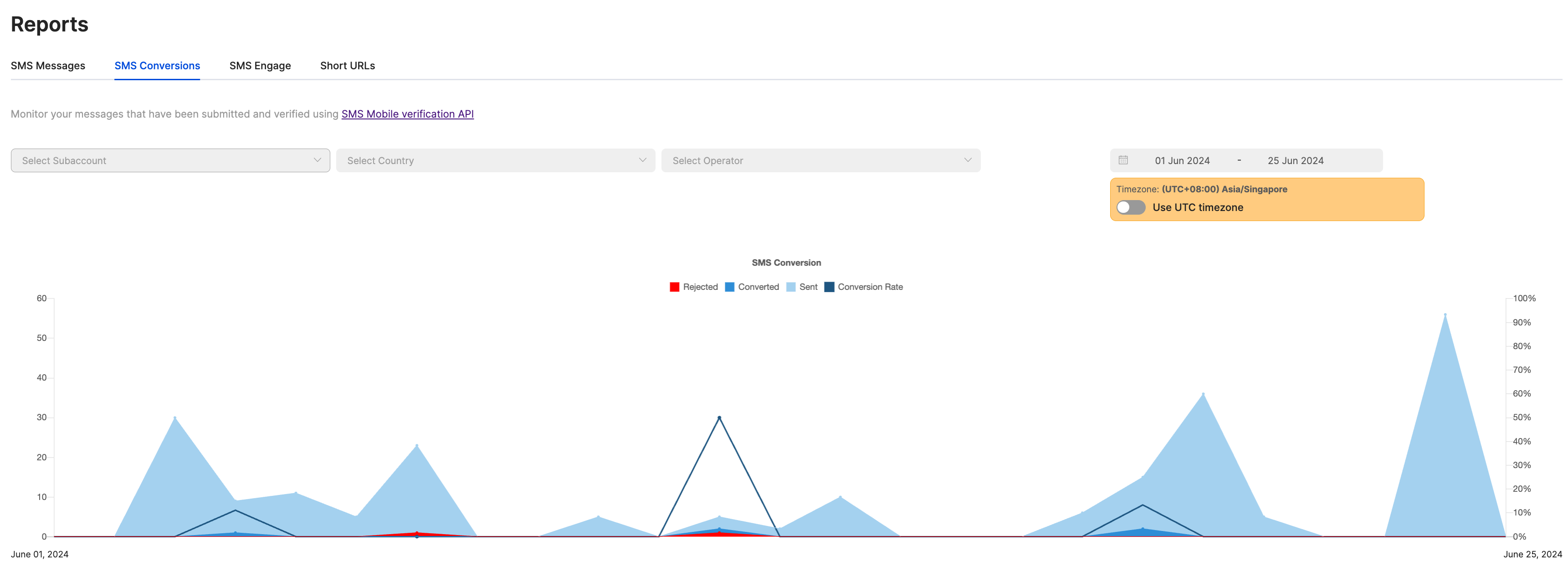
    image

    There is also a more detailed reports section on the same page which will show a detailed breakdown of the status of each verification attempt, conversion rate and cost. You can also export the report as a CSV file as well.
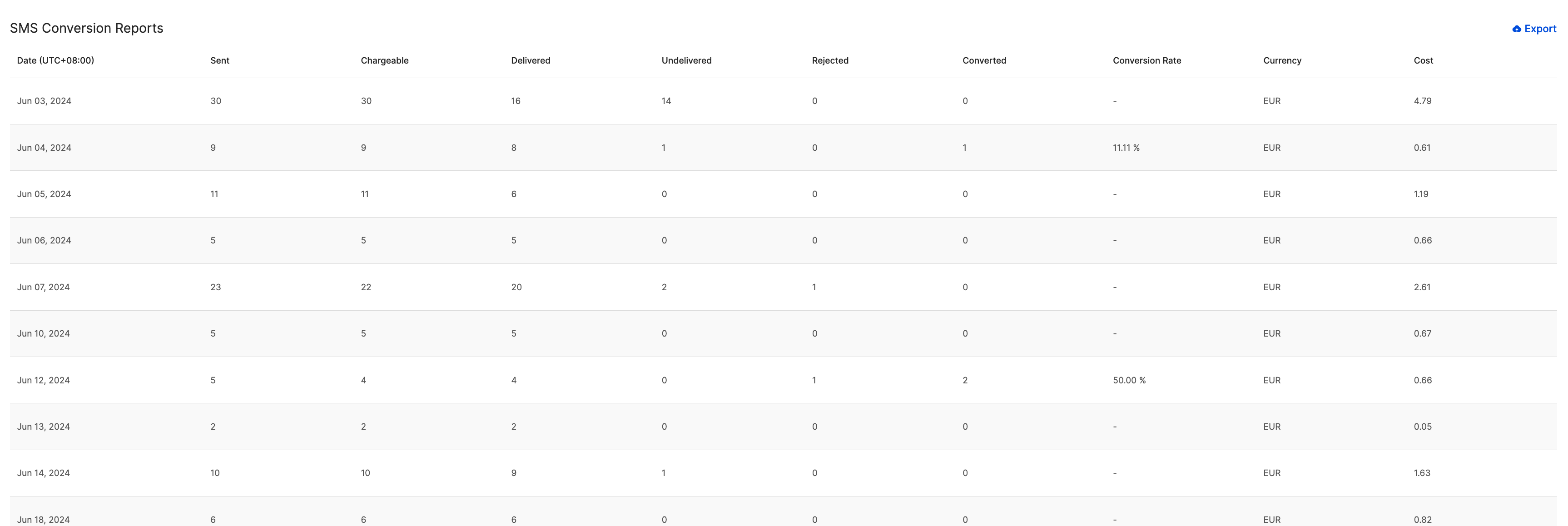
    image

    SMS Engage

    This section will contain statistics on SMS Engage Surveys sent. Please see the section on SMS Engage for more details.

    Short URLs

    8x8 offers a URL Shortening service that can redirect from your chosen domain to our URL shortening domain. This feature allows us to offer click tracking. These Short URLs can be sent as part of SMS API messages or SMS Engage Surveys that you send with 8x8. The statistics for click tracking can been see in this section of the Reports.
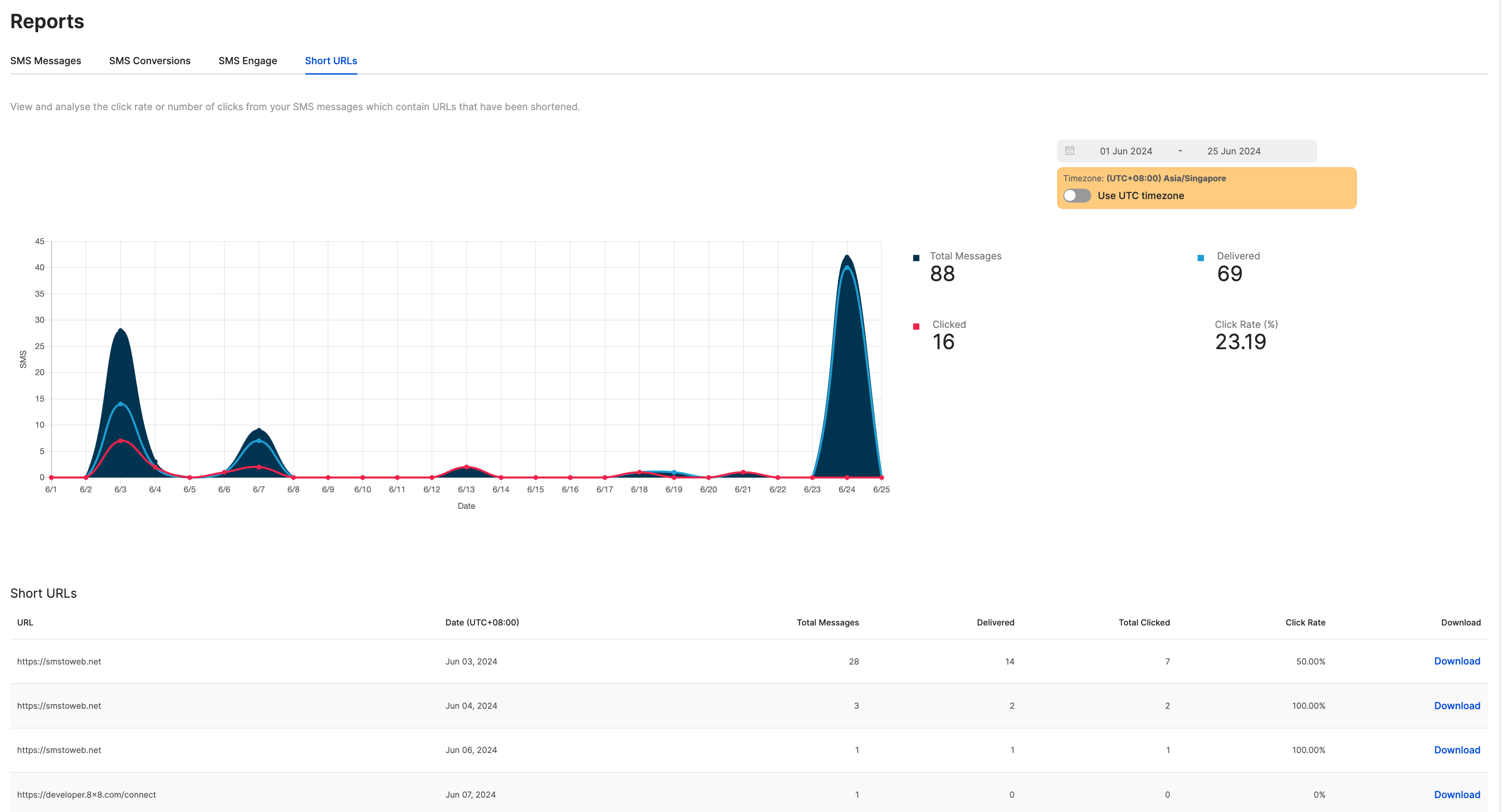
    image

    For further details on how to set up Short URLs, reach out to your Account Manager.

    Logs

    SMS Message List

    Below is the SMS logs in the Connect Dashboard which shows a record of the SMS that were sent and received by this account.
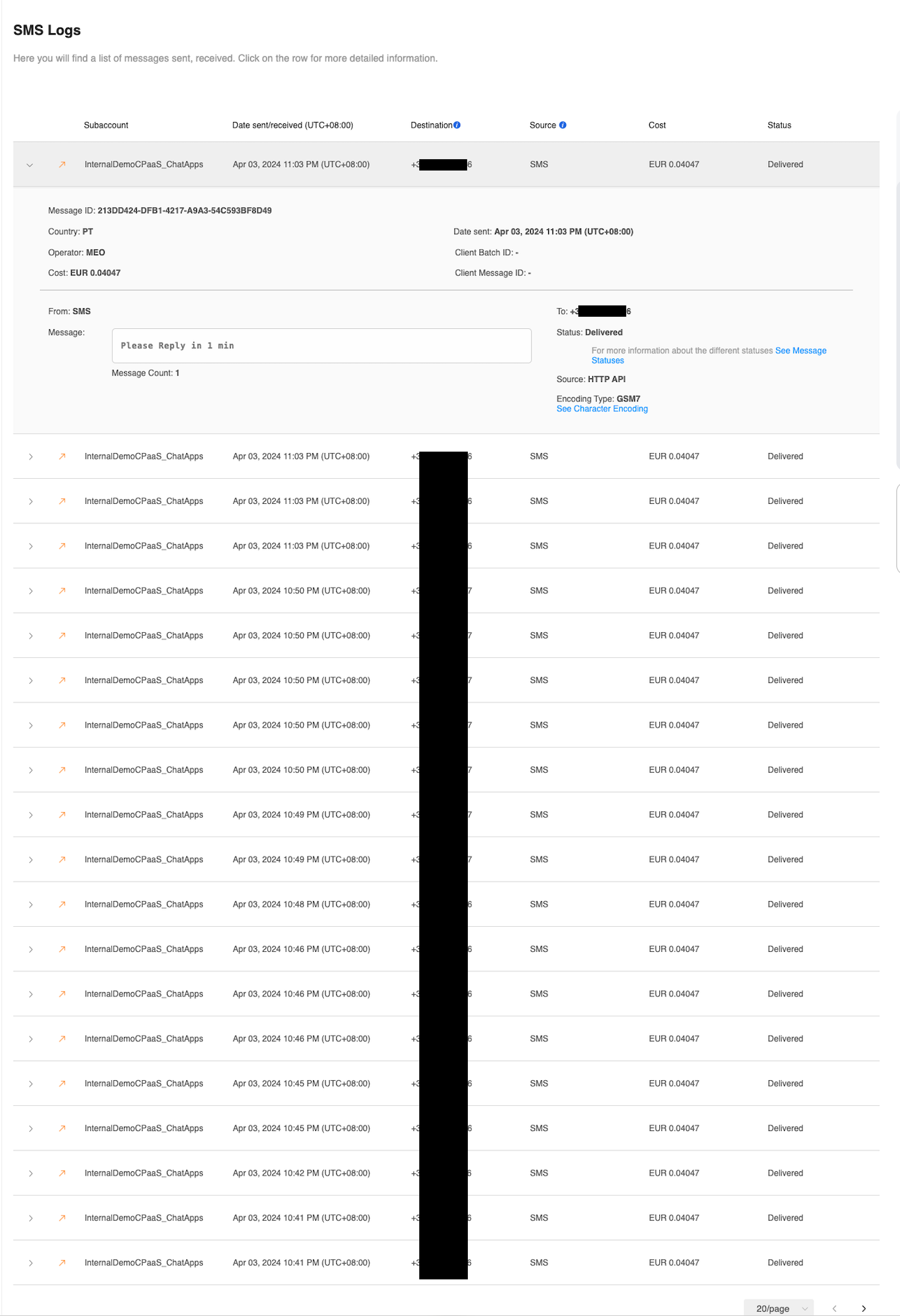
    image

    The SMS Logs above shown shares information about individual SMS messages sent including:

    Column Description
    Subaccount 8x8 subaccount used to send/receive the SMS message.
    Date sent/received When the SMS was sent/received.
    Destination Virtual Number or Mobile Number that received the message.
    Source Sender ID or Mobile Number used to send the message
    Cost Cost of sending the message.
    Status Shows whether the SMS was sent successfully or other potential statuses including unsuccessful sends.

    Individual SMS Record

    Inside each SMS record, the following information is available:
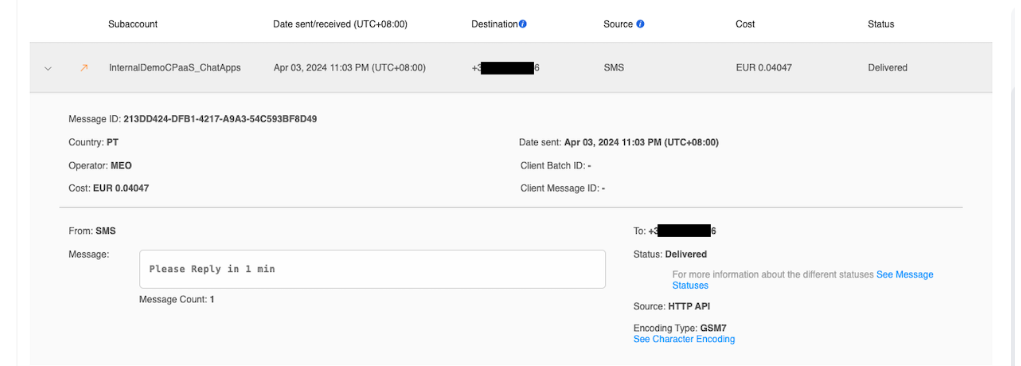
    image

    This table shows a description of each of the fields in the SMS record.

    Column Description
    Message ID Uniquely identifies the message in the system.
    Country The country the message was delivered.
    Operator SMS Operator handling the message.
    Cost Same as above, cost of sending the message.
    Date sent Same as above, the date the message was sent.
    Client Batch ID An optional parameter that can be used in an API call to identify a message with a unique string.
    Client Message ID An optional parameter that can be used in an API call to identify a batch of message with a unique string.
    From Same as Source, Sender ID or Mobile Number used to send the message.
    Message The message body/content.
    To Same as Destination, Virtual Number or Mobile Number that received the message.
    Source (Different from Source in Main Column) Method the message was sent. Most commonly this is the HTTP API meaning API request to our SMS API.
    Encoding Type The SMS encoding usually depends on the characters sent as part of the SMS. Either GSM7 or UCS2.

    Source: https://developer.8x8.com/connect/docs/sms-analytics · 8x8 CPaaS Developer Docs. Synced for support deflection.
  • SMS Engage response webhook

    SMS Engage response webhook

    POST requests are sent by the 8x8 platform in JSON format to the webhook URL configured for your account.

    📘

    You can configure a default webhook URL for your account by contacting 8x8 support team.

    Webhook Validity Period

    If we do not receive a response for the SMS engage survey promptly, our platform will continue checking for up to 48 hours. If the response is recorded after 48 hours, there will be no SMS engage response webhook sent.

    Webhook format

    Request body description

    Property name Property type Description
    umid uuid Unique identifier generated by 8x8 for the message
    surveyId string unique name or identifier created by 8x8 for the SMS Engage
    surveyStartedAt string The date and time when the SMS Engage has been created in ISO 8601 format: yyyy-MM-ddTHH:mm:ss.ffZ
    surveySubmittedAt string The date and time when the client has completed and submitted the SMS Engage.ISO 8601 format: yyyy-MM-ddTHH:mm:ss.ffZ
    templateVariables array of objects Names and values of the variables used to send the SMS Engage
    answers array of objects Answers or responses submitted by the client based on the corresponding questions.

    Template variable object

    Property name Property type Description
    name string Template variable name
    value string Template variable value

    Answer object

    Property name Property type Description
    questionId string Question identifier
    answerId string Answer identifier
    question string Question text
    answer string Answer text

    Sample of SMS Engage webhook

    {
    "umid":"84e7ee9a-5c41-e811-814c-020897df5459",
    "surveyId":"test-surveyid",
    "surveyStartedAt":"2018-04-16T09:59:48Z",
    "surveySubmittedAt":"2018-04-16T10:00:14Z",
    "templateVariables":[
    {
    "name":"firstname",
    "value":"John"
    },
    {
    "name":"order_nr",
    "value":"1010101"
    }
    ],
    "answers":[
    {
    "questionId":"3",
    "answerId":"10003",
    "question":"Dear [url('FirstName')],<br />\nOrder [url('order_nr')] was found as a duplication, please confirm below or your order will be cancelled",
    "answer":"Cancel Now"
    },
    {
    "questionId":"16",
    "answerId":null,
    "question":"Full Name",
    "answer":"John"
    },
    {
    "questionId":"4",
    "answerId":"10005",
    "question":"Do you confirm your response?",
    "answer":"Yes"
    }
    ]
    }

    📘

    The number of questions and their types will depend on the survey you have in place for your SMS Engage campaign.


    Source: https://developer.8x8.com/connect/docs/sms-engage-response-webhook · 8x8 CPaaS Developer Docs. Synced for support deflection.

  • SMPP TLVs

    SMPP TLVs

    SMS - SMPP TLVs

    📘Optional Parameters are fields, which may be optionally included in an SMPP message. (SMPP v3.4 Spec, section 5.3). These fields contain 3 parts, namely Tag, Length and Value.

    Some TLVs are defined by the SMPP protocol and then there is room for vendors to create their own TLVs. Below are the vendor specific TLVs defined by 8x8. These TLVs are supported only when using SMPP to make requests to 8x8


    Mo Message Id

    A unique 36 alphanumeric character string (UUID v4) to identify the MO message at the SMSC. This message ID can be used when contacting 8x8 support regarding the message.

    Field Sized Octets Type Description
    Tag 2 Integer Equal to 0x1502 (5378 Decimal)
    Length 2 Integer Equal to 0x0024 (36 Decimal)
    This means the size of the value is 36 bytes
    Value 36 Octet String Octet string of 36 characters. This is a UUID v4 value which represents the 8x8 unique message Id (UMID)
    Note that this is NOT null-terminated

    Destination Mcc and Destination Mnc

    Mobile Country Code (mcc) and the Mobile Network Code (mnc) values of the destination phone number corresponding to a particular DLR (in Delivered state).

    Field Sized Octets Type Description
    Tag 2 Integer Equal to 0x1503 (5379 Decimal)
    Length 2 Integer Equal to 0x0002 (2 Decimal)
    Value 3 Octet String mcc value as string. 3 characters
    Field Sized Octets Type Description
    Tag 2 Integer Equal to 0x1504 (5380 Decimal)
    Length 2 Integer Equal to 0x0002 (2 Decimal)
    Value 1-3 Octet String mnc value as string. 1 - 3 characters

    Source: https://developer.8x8.com/connect/docs/smpp-tlvs · 8x8 CPaaS Developer Docs. Synced for support deflection.

  • SMPP - Connection

    SMPP - Connection

    8x8 supports SMPP (Short Message Peer-to-Peer), a mature binary protocol widely used in carrier-grade SMS infrastructure. Unlike REST APIs, SMPP uses persistent TCP connections and is designed for sustained, high-volume message throughput with low latency.

    This connection method is a good fit if you are running enterprise messaging software, an SMS gateway, or any platform that natively speaks SMPP. For new integrations without an existing SMPP requirement, the 8x8 SMS API offers a simpler REST-based alternative.

    The 8x8 SMPP environment runs on a high-availability cluster designed for enterprise-scale traffic. Connecting to our regional hostnames provides automatic failover and intelligent load balancing to ensure optimal performance.

    Protocol Specification

    Version: SMPP v3.4
    Format: All PDUs must conform to the standard v3.4 binary specification.


    Connection Details

    The hostname depends on the platform deployment region your account is provisioned in.

    Setting Value
    Hostname (Asia Pacific) smpp.8x8.com
    Hostname (Europe) smpp.8x8.uk
    Port 2775 (Legacy/Non-Secure)
    Port (TLS) 2776 (TLS v1.3)
    system_id your username
    password your password

    Security & Compliance

    • IP Whitelisting: For enhanced security, SMPP binds are strictly controlled via IP Whitelisting. Please provide your source IP addresses to your account manager during onboarding to enable access.
    • Encryption: Port 2775 is maintained for legacy compatibility and transmits in plaintext. Use Port 2776 (TLS v1.3) for all production environments to ensure data integrity.
    • IPSec: For enhanced network-level security, 8x8 also supports IPSec Tunnel binds. Contact support for setup details.

    Binding & Architecture

    A bind is a persistent TCP session between your application and the 8x8 SMPP server. The bind type determines the direction of message flow:

    • bind_transmitter: Dedicated to sending messages (MT traffic).
    • bind_receiver: Dedicated to receiving messages and delivery receipts (MO and DLRs).
    • bind_transceiver: Supports bidirectional traffic on a single connection.

    Performance Optimization

    For high-throughput integrations, we recommend splitting traffic into dedicated transmitter and receiver binds. This architecture prevents "head-of-line blocking," ensuring that a high volume of outbound submissions (submit_sm) does not delay the processing of inbound delivery receipts (deliver_sm).

    Session Management

    • Capacity: Accounts are typically provisioned with a baseline of 4 concurrent binds per system_id.
    • Elasticity: For customers requiring higher parallelization, additional binds can be allocated to meet your architecture's needs.
    • DLR Routing: 8x8 intelligently routes delivery receipts (deliver_sm) to any active bind sharing the same system_id, ensuring consistent updates regardless of which session originated the message.

    Throughput & Performance

    The 8x8 platform is engineered to handle massive, carrier-grade message volumes. To ensure a smooth integration, we apply the following performance baselines:

    • Baseline Throughput: By default, connections start at 50 messages per second (MPS) per bind.
    • Enterprise Scaling: We routinely scale MPS limits significantly higher for high-volume customers. Your account manager can adjust these limits to match your specific production requirements.
    • Asynchronous Windowing: To achieve maximum performance, we recommend using an asynchronous windowing approach, allowing you to submit multiple PDUs without waiting for individual responses.

    Supported PDUs

    PDU Description
    bind_* Authenticate and establish the session
    submit_sm Submit a short message for delivery
    enquire_link Keep-alive heartbeat to maintain the session
    deliver_sm_resp Acknowledge a received deliver_sm (DLR)
    unbind Gracefully terminate the session

    Data Encoding

    When sending messages, set the correct Data Coding Scheme (DCS) value in your submit_sm PDU:

    DCS Value Encoding
    0 or 1 GSM7 (default)
    3 Latin-1 (ISO-8859-1)
    8 Unicode (UCS-2)

    Source: https://developer.8x8.com/connect/docs/smpp-connection · 8x8 CPaaS Developer Docs. Synced for support deflection.

  • Sending SMS using Multi-Channel Sender (MCS)

    Sending SMS using Multi-Channel Sender (MCS)

    Multi-channel Sender

    The Multi-Channel Sender (MCS) campaign creation feature in ConnectThe Multi-Channel Sender (MCS) campaign creation feature in Connect
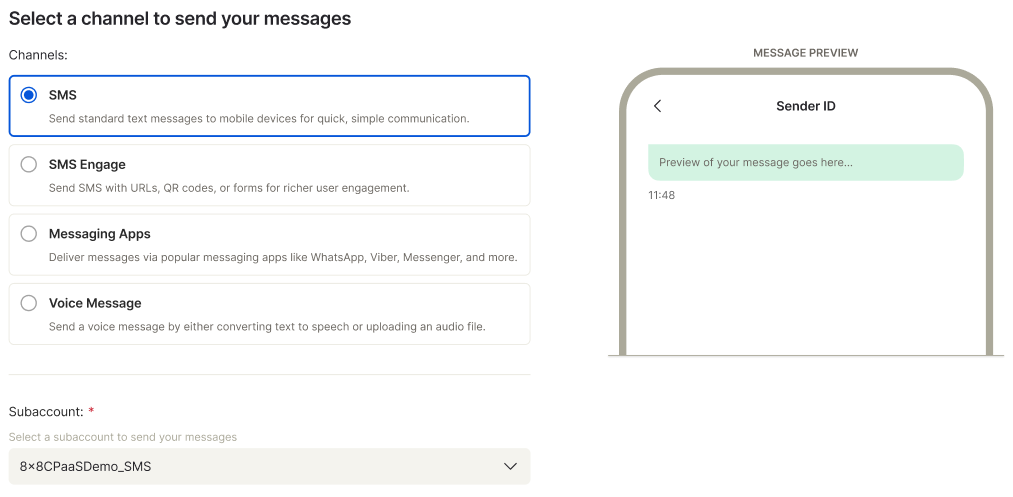

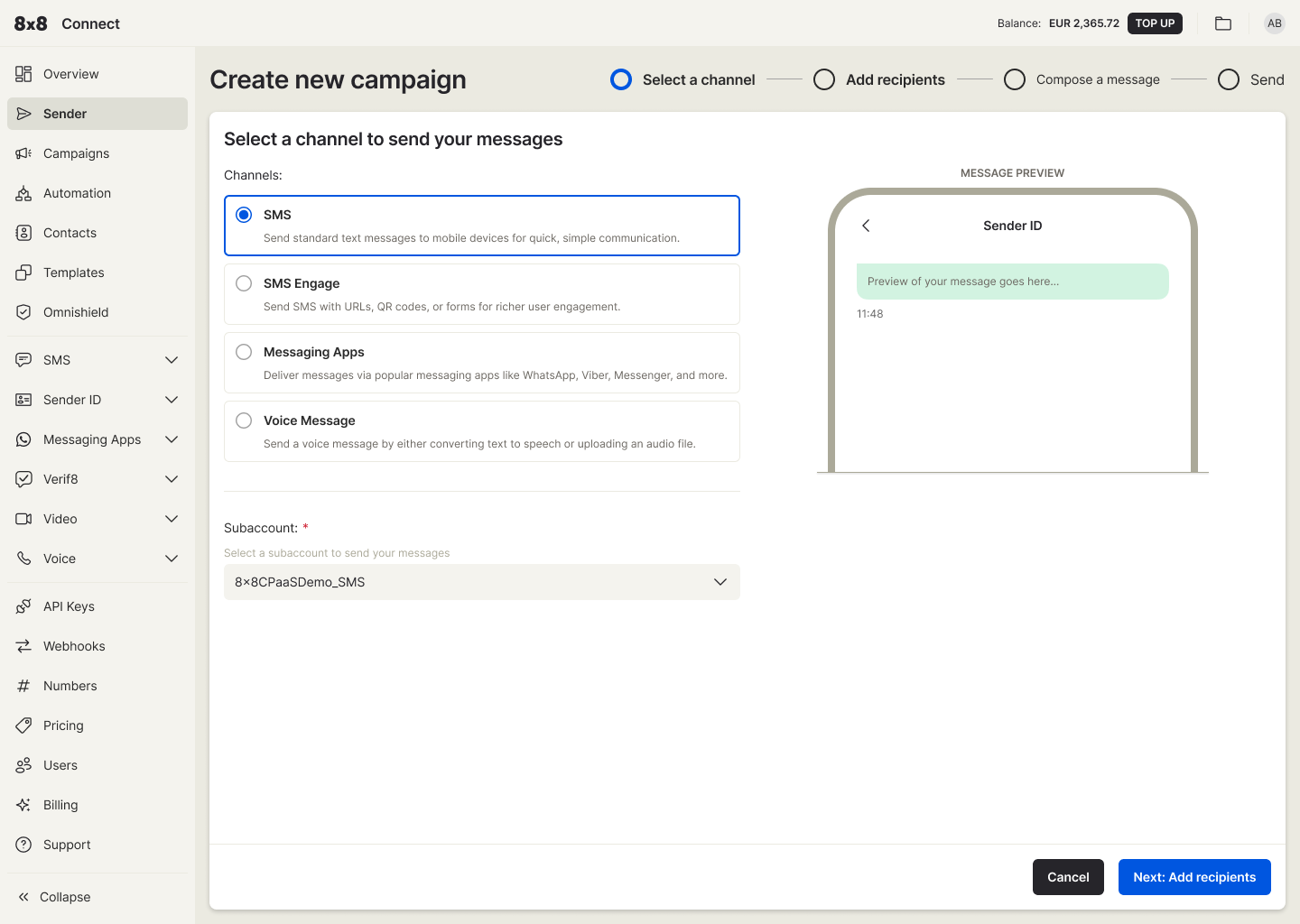
    The Multi-Channel Sender (MCS), or just Sender, is a powerful campaign creation feature within Connect that lets you send various message types. You can use it to dispatch SMS, SMS Engage, WhatsApp, Viber, and Voice (text-to-speech) messages.

    You'll find it conveniently located in the top left navigation menu, right after "Overview."

    Video Guide

    Below is a video guide that covers how to send an SMS message which serves to accompany the content presented on this documentation page.

    Sending SMS

    You can personalise, schedule and send up to a million SMS in one go.

    Steps on sending SMS

    (For this tutorial we will highlight the method for uploading a file since it is the most popular way to send SMS)

    1. Select "SMS" as your channel and select your subaccount.

    (After you sign up, a sub-account is created and pre-selected for you. You may change this if you have different sub-accounts, which can be created by submitting a request to cpaas-support@8x8.com)

    image

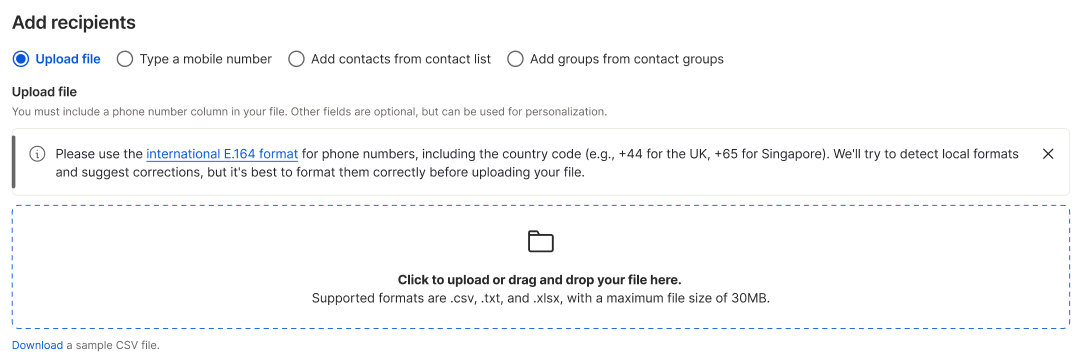
    1. Click "Add recipients and you will be redirected to Recipients page to enter your destination number(s).

    There are four(4) ways you can do this.

    a. Upload a file

    b. Type a mobile number

    c. Add contacts from your contact list

    d. Add group from your contact groups

    image

    1. You can upload your contact list by either clicking the "Drag & drop to upload" icon or simply dragging and dropping your file directly. For best results, we recommend using a .csv file formatted according to our default layout (you can find a sample file in this step for reference).

    image

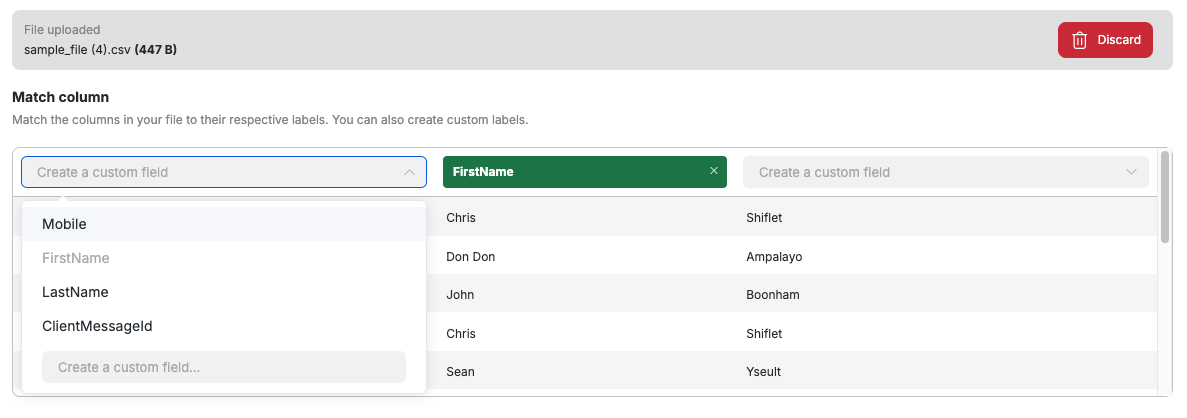
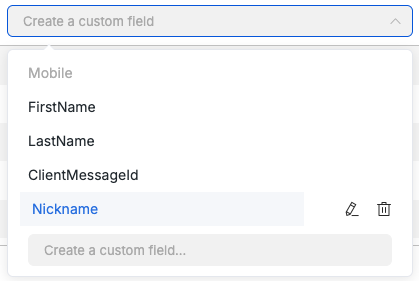
    1. Once you've uploaded your contacts, you can easily adjust the column labels to match your data.

    You'll find standard options like Mobile, FirstName, LastName, and ClientmessageId ready for selection. Need something more specific? Just type in a custom field name and press Enter to create and then select it..

    image Creating a custom field (From the screenshot below, the user typed and entered a new field called Nickname)
    image

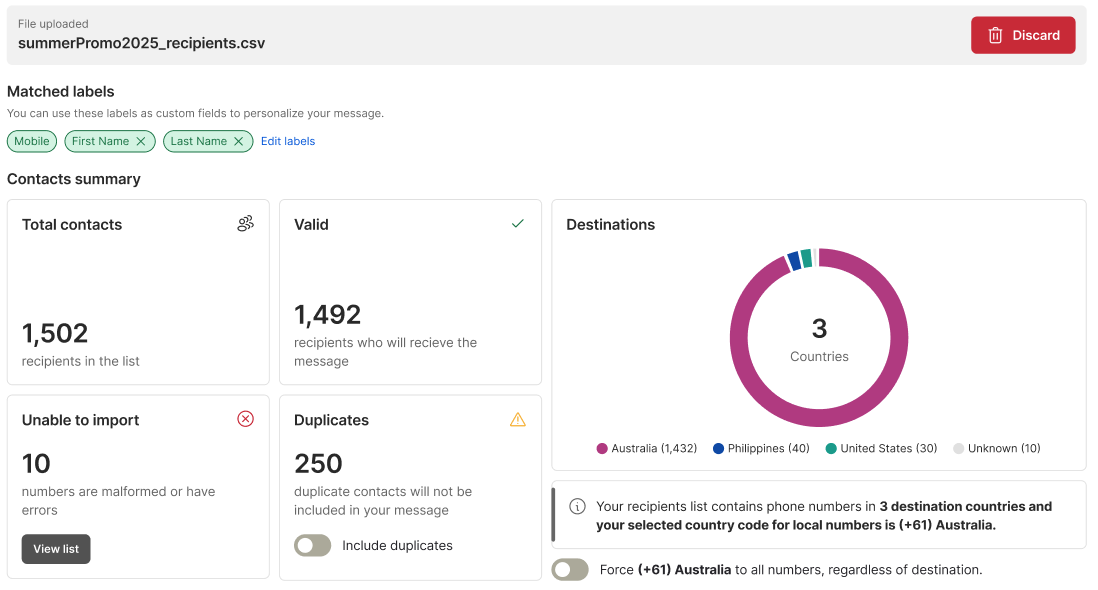
    1. Click "Process contacts" to review your contact list. On this screen, you can verify all the fields you've selected, check country destinations, and see the total valid numbers, as well as any duplicates. If you want specific contacts to receive the same message multiple times, you can choose to "include duplicates."

    Handling Mixed Country Codes in Destination Lists

    If your destination list has phone numbers with different country codes than your current selection for local numbers, a notification will pop up under the Destinations card. You'll get an option to force apply the selected country code to all numbers.

    image

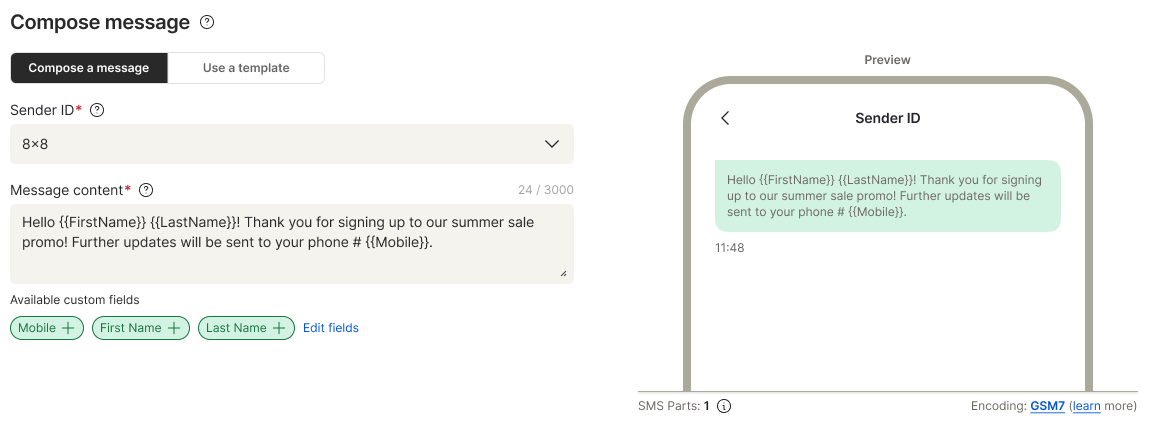
    1. Next, click "Compose a message" to start writing your message.

    Before crafting your message, always enter your Sender ID. We'll automatically save it for you, so next time, just search and pick it from the dropdown list.

    image

    📘 Note:

    Some countries don't support alphanumeric Sender IDs, and even when they do, pre-registration is often required. We also advise against using single-character spacing in your Sender ID, as this can negatively impact message delivery. The impact of single spacing can vary significantly between operators and countries.

    For any assistance with your Sender IDs, please reach out to our support team.

    Compose your message in the text area. To personalize it, simply click on a field from the "Insert custom field" list below.

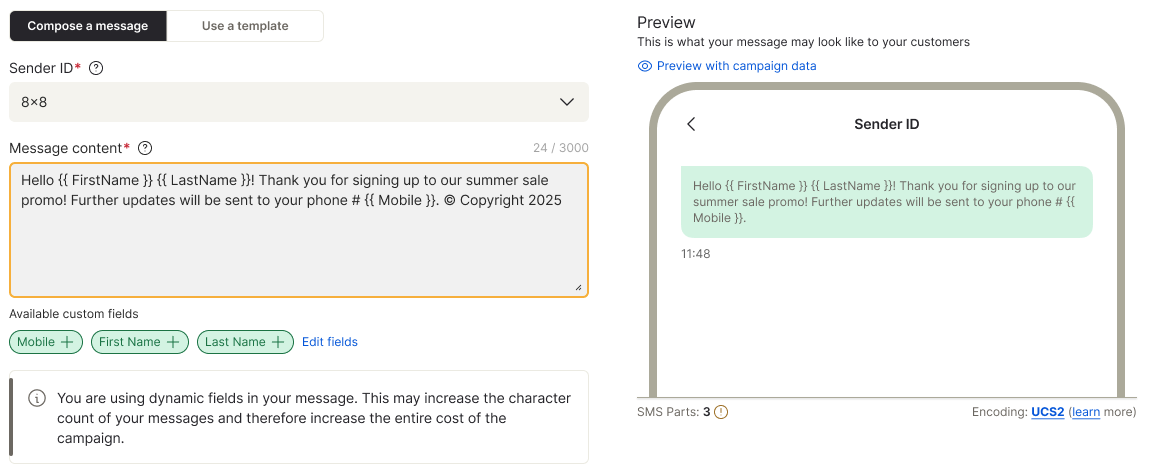
    image SMS Character Encoding Warning

    Our system helps you manage message length and cost when composing SMS. You'll see a warning if your message contains non-GSM7 characters and uses 2 or more SMS parts, just to raise awareness of your increased campaign cost.

    image

    Warning Indicators

    When these conditions are met, you'll see:

    • A warning banner.
    • The text area border turns yellow.
    • A yellow warning icon appears next to the SMS Parts counter.

    image What You Can Do

    The warning banner won't stop you from proceeding; the "Next: Confirm and save" button remains active. You have three options:

    • Close (X) button: Hides the banner. The yellow border and warning icon remain. This isn't saved, so the warning will reappear for future messages under the same conditions.
    • Remove non-GSM7 characters: Cleans your message by removing non-GSM7 characters. The banner dismisses, the text area border resets, and the warning icon disappears. This isn't saved, so the warning will reappear for future messages under the same conditions.
    • Do not show this warning again: Hides the banner, resets the text area, and removes the warning icon. This preference is saved in your cookies, so the warning won't appear again for future messages if you're creating messages on the same device.

    You can also simply proceed to the next step without interacting with the banner at all.

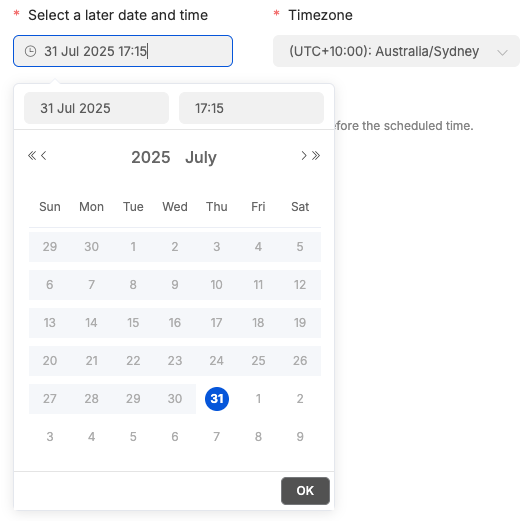
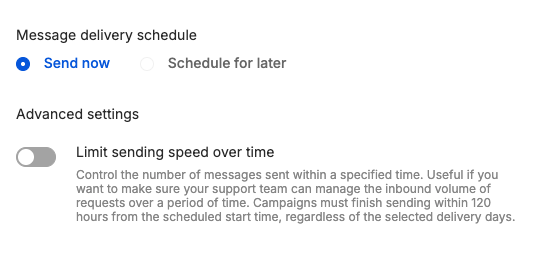
    1. Once your message is ready, click "Send your message(s)". Every message you send, regardless of quantity, is treated as a campaign. A campaign name is generated for you by default, but you're welcome to change it.

    You'll also need to decide when to send your message: "Send message now" is pre-selected for immediate delivery, or you can schedule it for a later time.

    image

    ❗️ Scheduled messages

    Keep in mind you can only cancel scheduled messages up to 3 minutes before their send time. Messages cannot be cancelled if this deadline is missed.

    Advanced SMS campaign settings - Control send speed to match your capacity

    This feature gives you greater control over your SMS campaigns by helping you manage the delivery speed of your messages. It's designed to prevent a sudden flood of customer responses that could overwhelm your support team. By using this throttling mechanism, you can ensure a steady and manageable flow of customer engagement.

    To control the send rate, you must enable the Limit sending speed over time toggle in the "Confirm and save" page during SMS campaign creation for both "Send Now" or "Schedule for later" campaigns.

    image

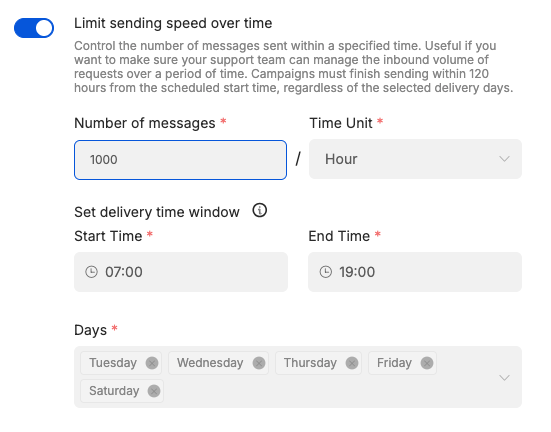
    Once enabled, you can configure the following fields:

    image

    • Number of messages: Set the maximum number of messages to be sent within a specific time unit.
    • Time Unit: Choose from a dropdown menu with options: Minute, Hour, or Day. This selection determines the rate at which messages are sent.
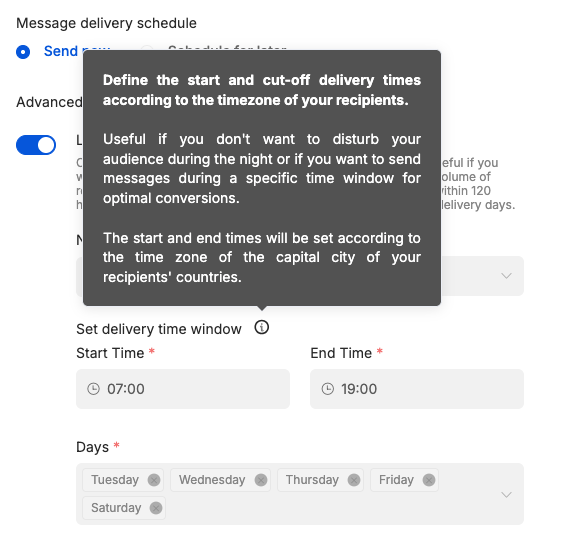
    • Delivery Window: Set a Start Time and End Time to define the hours when messages will be sent. This is useful if you don’t want to disturb your audience during the night or if you want to send messages during a specific time window for optimal conversions.
The start and end times will be set according to the time zone of the capital city of your recipients’ countries.

    image

    • Days: The system defaults to 5 days starting from the campaign creation or scheduled date. You can select or deselect days within this dynamic five-day window. The maximum duration for message throttling is a 120-hour (5-day) delivery window.

    📘 Message sending limits

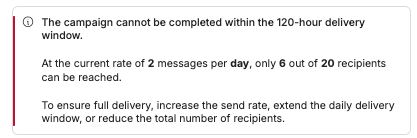
    If your configured send rate won't reach all recipients within the 120-hour delivery window, a validation error will appear, and the "Submit" button will be disabled.

    For example, if you set a rate of 2 messages per day for 3 days to a list of 10 recipients, only 6 messages will be sent, meaning your campaign will be incomplete. To fix this, you can increase the number of messages, change the time unit, extend the delivery window, or reduce the total number of recipients (e.g. split the campaign into multiple smaller ones)

    image

    1. Click "Send" to process and send your message. If you need to re-enter all the fields, simply click "Cancel".
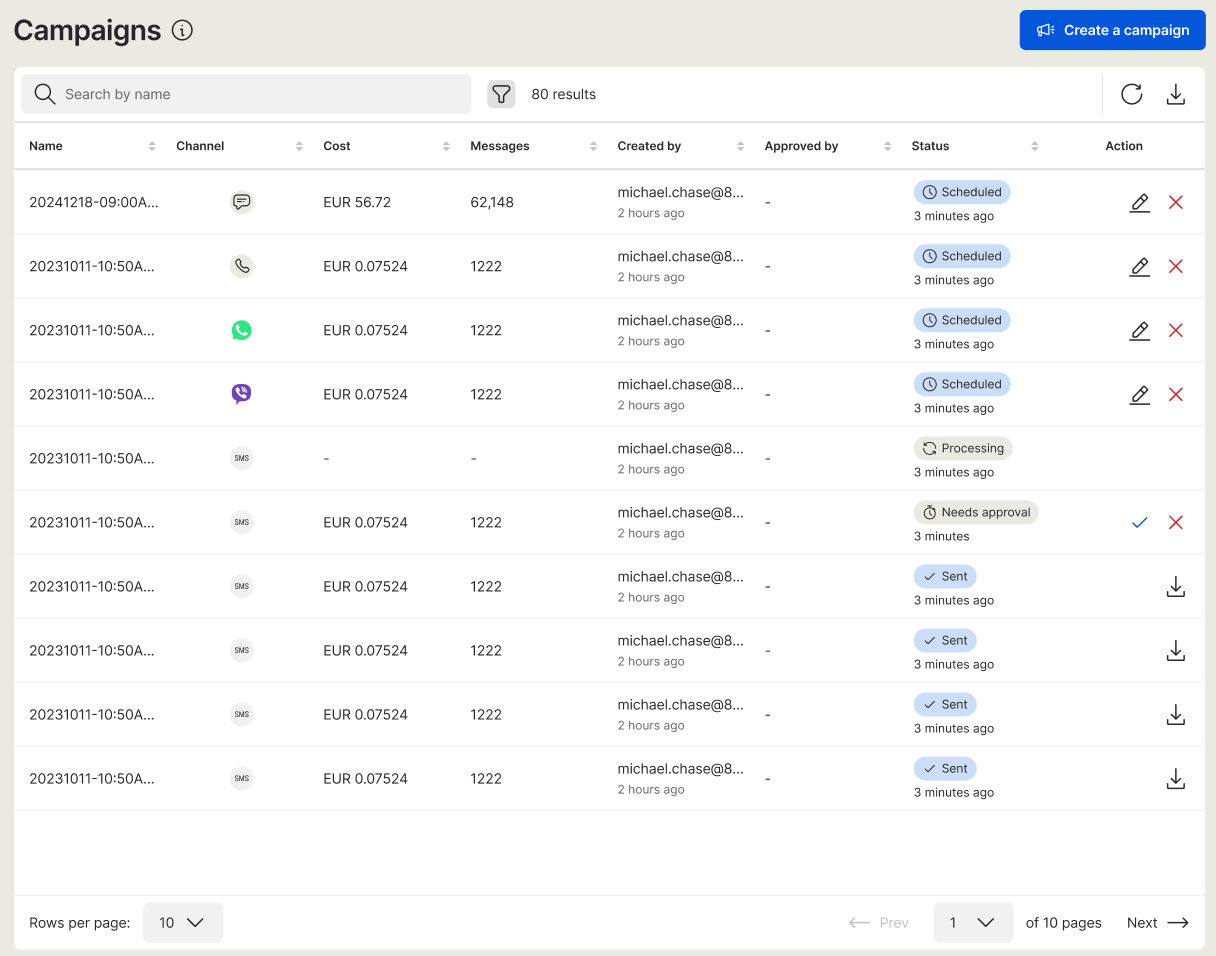
    2. After submitting, you'll be redirected to the list of Campaigns where you can see the last campaign created and its status right at the top of the list.

    image

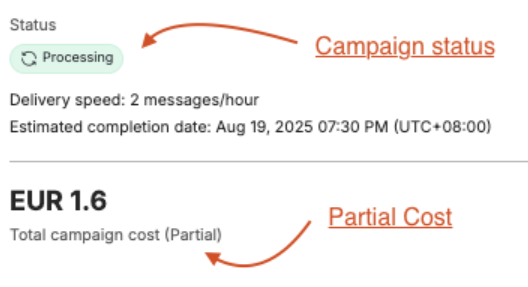
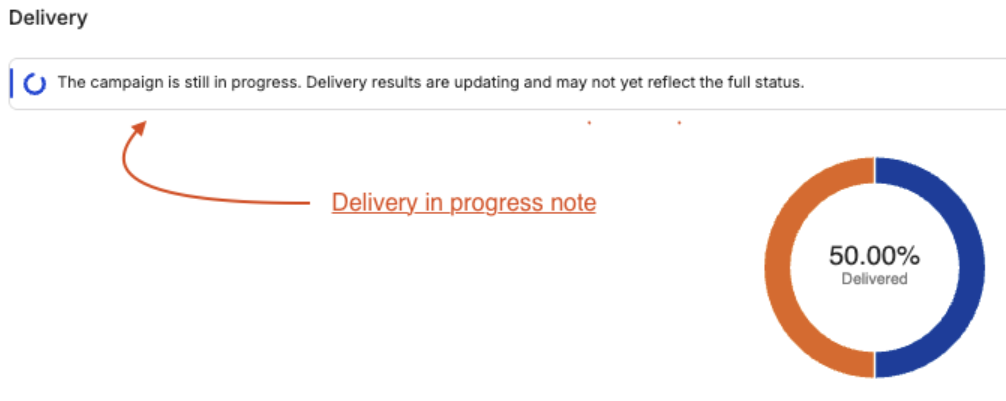
    📘 Campaign status with controlled sending speed over time

    After you submit a campaign that has limited sending speed over time (see above feature), it's added to the Campaign list with a "Processing" status.

    The campaign details page may show an empty state if messages haven't started sending yet. Once messages begin to send, a partial state will be displayed, including a "Delivery in progress" note and a "Partial" cost label showing the running cost.

    image

    image

    Message Status Update Timing
    All messages campaigns will have their status updated every 5 mins for their first day. After that, on the second and succeeding days, status will only be updated once a day at 18:00 UTC (2:00 AM Singapore Time).


    Source: https://developer.8x8.com/connect/docs/sending-sms-using-mcs · 8x8 CPaaS Developer Docs. Synced for support deflection.

  • Send SMS API

    Send SMS API

    To send a single SMS using the 8x8 SMS API you need to submit a JSON object to the URL https://sms.8x8.com/api/v1/subaccounts/{subAccountId}/messages.

    The JSON object has the following properties:

    Property name Property type Description
    destination string* Required. Destination phone number.
    text string* Required. SMS body (ie: text of the message).
    source string Alphanumeric or numeric string used as Sender ID for the SMS.
    clientMessageId string Unique id that you want to associate with the SMS (350 chars max)
    encoding string enum, Character set to use for this SMS. Possible values are AUTO, GSM7, UCS2
    scheduled string timestamp, Pre-defined date and time for this SMS to be sent in the future.
    expiry string timestamp, Maximum date and time for this SMS to be sent at
    dlrCallbackUrl string uri, Webhook URL where delivery status for the SMS will be posted (Overwrites your default account callback URL

    Parameters overview

    Below is a more detailed description of the parameters in the SMS request body (JSON object submitted to the API)

    destination

    • This property is mandatory.
    • This is the destination phone number for the SMS.
    • The destination should be submitted following the international format and should include the country code (the leading + sign can be omitted but this is not an obligation).

    Valid examples: +12025550308, 12025550308

    👍

    We also accept national formats (for national you have to specify the country in the dedicated field).

    text

    • This property is mandatory
    • The text or the message (or SMS body) is the main part of your SMS: it is what is going to be displayed on the destination handset.
    • It can contain characters from the GSM7 character set or from the UNICODE character set (see next section for more information).
    • According to the encoding of the SMS, the number of SMS accounted per message will be proportional to the length of the text:
      • For GSM7 messages:
        • if the total length of the message is inferior or equal to 160 characters then the first and only message part can accommodate 160 characters.
        • If the total length is superior to 160 characters then each message part can contain 153 characters (fewer characters can be fit into one part as extra data space is taken to concatenate the SMS on the destination handset)
      • For Unicode messages:
        • if the total length of the message is inferior or equal to 70 characters then the first and only message part can accommodate 70 characters.
        • If the total length is superior to 70 characters then each message part can contain 67 characters (fewer characters can be fit into one part as extra data space is taken to concatenate the SMS on the destination handset)
      • For Unicode messages, 70 characters = 1 SMS (1 part)
    • The maximum length for a message is 10 message parts. Longer messages will be truncated to this limit and sent.

    source

    • This value is optional.
    • The source value can also be called senderID or TPOA.
    • It is the from address that will be used when delivering the SMS to the handset.
    • It can take different formats:
      • Alphanumeric (example: Acme Corp): this is the case when a source is composed of an alphanumeric string (max 11 characters: letters from the ASCII character set, digits and the space character). Alphanumeric sources are generally used for branded SMS to help the SMS receiver to identify the brand or services which originated the SMS.
      • Numeric (example: +6512345678): this the case when a source is composed of a string made purely of digits (max 17 chars). It can also start with the + sign. Numeric sources are generally used when the originator intends to receive an answer to the SMS as it is interpreted as a regular phone number by the destination handset.

    🚧 Limitations

    According to the country where the SMS is sent to, the sources can be overwritten in order to ensure better delivery. If you have some specific inquiries related to the type of source available for your account towards a specific destination, please contact your account manager.

    clientMessageId

    • This value is optional.
    • If used, the ClientMessageId allows you to submit SMS associated to your custom message ID. That way, you are able to match the information contained in the API response with the ID from your own business logic. You can later read ClientMessageId from delivery reports.
    • The maximum length allowed for the ClientMessageId is 350 characters.

    encoding

    AUTO, GSM7 or UCS2

    • This property is optional. The default value is AUTO.
    • AUTO: the API will analyze the content of your SMS text and select the correct encoding according to the characters used: if your SMS text contains UNICODE characters, then UNICODE will be selected, otherwise it will be GSM7
    • GSM7: by using GSM7, you are forcing the encoding in use to be GSM 7 bit: it will render correctly any of the characters from the character set (See a complete list here). 8x8 SMS API considers each block of 160 GSM 7 bit characters as 1 SMS unit.
    • UCS2: by using UCS2, you are forcing the encoding in use to be UNICODE: it will render correctly any of the characters from the UNICODE character set (See a complete list here). 8x8 SMS API considers each block of 70 UNICODE characters as 1 SMS unit.

    scheduled

    • This property is optional.
    • The scheduled parameter should be used if you wish to schedule your message up to 7 days in advance. The SMS will be stored on the 8x8 SMS platform and sent out at the predefined time and date. You can specify the scheduling timestamp using the standard ISO 8601 format (which includes and specifies the timezone offset to use):

    Example: 2016-11-07T19:20:30+08:00

    expiry

    • This property is optional.
    • The expiry parameter should be used if you wish to specify a maximum time and date for the SMS to be sent. If for any reason the 8x8 SMS platform fails to send the message before the date and time predefined, the SMS will be discarded. You can specify the expiry timestamp using the standard ISO 8601 format (which includes and specifies the timezone offset to use):

    Example: 2016-11-07T19:20:30+08:00

    dlrCallbackUrl

    • This property is optional.
    • The dlrCallbackUrl allows specifying a webhook URL (a.k.a callback URL) that will be used to POST the delivery reports for the SMS sent in the request
    • If included in the request, the webhook URL in the request will be used instead of your default account webhook

    👍

    We strongly recommend to set a default webhook (a.k.a callback URL) for your account using a Webhooks Configuration API

    Response

    8x8 API returns the following response:

    Property name Property type Description
    umid string uuid, unique message ID automatically generated by 8x8
    clientMessageId string Message ID that you submitted (if any)
    destination string Destination phone number to which the SMS was sent to
    encoding string Final encoding that will be used for SMS. Helpful when initial encoding was set to AUTO and you want to know detected SMS encoding.
    status object The object, which contains the information about a message status

    Status object description

    Property name Property type Description
    code string The status code can be either:
    - QUEUED: the SMS has been accepted by 8x8 SMS API and is queued for processing.
    - REJECTED: the SMS has been rejected by 8x8 SMS API and the reason is stated in the description field. It will not be processed.
    description string This field describes the status code and provides additional information explaining the status.

    📘 Downloading SMS APIs (OAS File)

    You can download the OAS File - Click Here

    Please do take note that the file provides all the SMS APIs so please look through the .OAS file and select the specific SMS API(s) required.


    Source: https://developer.8x8.com/connect/docs/send-sms-api-reference · 8x8 CPaaS Developer Docs. Synced for support deflection.

  • Multi-channel Sender (MCS)

    Multi-channel Sender (MCS)

    Multi-channel Sender(MCS) allows users to send single or bulk SMS, Chat Apps and Voice messages. It has a capacity to let you send a message to over 500,000 contacts in a single campaign.


    Source: https://developer.8x8.com/connect/docs/sender · 8x8 CPaaS Developer Docs. Synced for support deflection.

  • Sending SMS in Salesforce Flow Builder

    Sending SMS in Salesforce Flow Builder

    This guide will walk you through the entire process of connecting Salesforce to the 8x8 SMS API to send messages directly from your Salesforce environment from Flow Builder, by utilizing External Services. You can also follow the same invocable actions in Orchestrator, Einstein bots, or OmniStudio Assets.

    We will accomplish this using Salesforce's declarative tools, which allow you to build robust integrations without writing complex code.

    Prerequisites and Requirements

    Before you begin, ensure your Salesforce environment and 8x8 account meet the following requirements.

    Salesforce Platform Requirements

    This guide utilizes Salesforce External Services. According to the official Salesforce documentation, the compatibility and permissions for this feature are as follows:

    • Salesforce Experience: Available in Lightning Experience.
    • Required Editions: Available in Enterprise, Performance, Unlimited, and Developer Editions.
    • Feature Integration: The actions created from an External Service can be used in declarative tools like Flow Builder, Orchestrator, Einstein bots, or Omnistudio.
    • User Permissions Needed:
      • To define an external service: The user needs Modify All Data OR Modify Metadata Through Metadata API Functions permissions.
      • To invoke an external service action from a flow: The user needs the Run Flows permission.

    8x8 Account Requirements

    • 8x8 Connect Account: An active account with SMS services enabled.
    • API Credentials: Your 8x8 Subaccount ID and your API Key (Bearer Token), which you can generate from your 8x8 Connect customer portal.
    • OpenAPI Specification (OAS) File: You will need the OAS file for the SMS API. You can find and download it from the Send SMS API Reference page.

    Part 1: The Foundation - Setting Up Authentication

    First, we need to securely store your 8x8 API credentials in Salesforce.

    Step 1.1: Create the External Credential

    The External Credential is a secure vault for your API key.

    1. Navigate to Setup ⚙️. In the Quick Find box, type External Credentials and select it.
    2. Click New.
    3. Enter the following details:
    • Label: 8x8 CPaaS Authentication
    • Name: X8x8_CPaaS_Authentication
    • Authentication Protocol: Select Custom.
    1. Click Save.

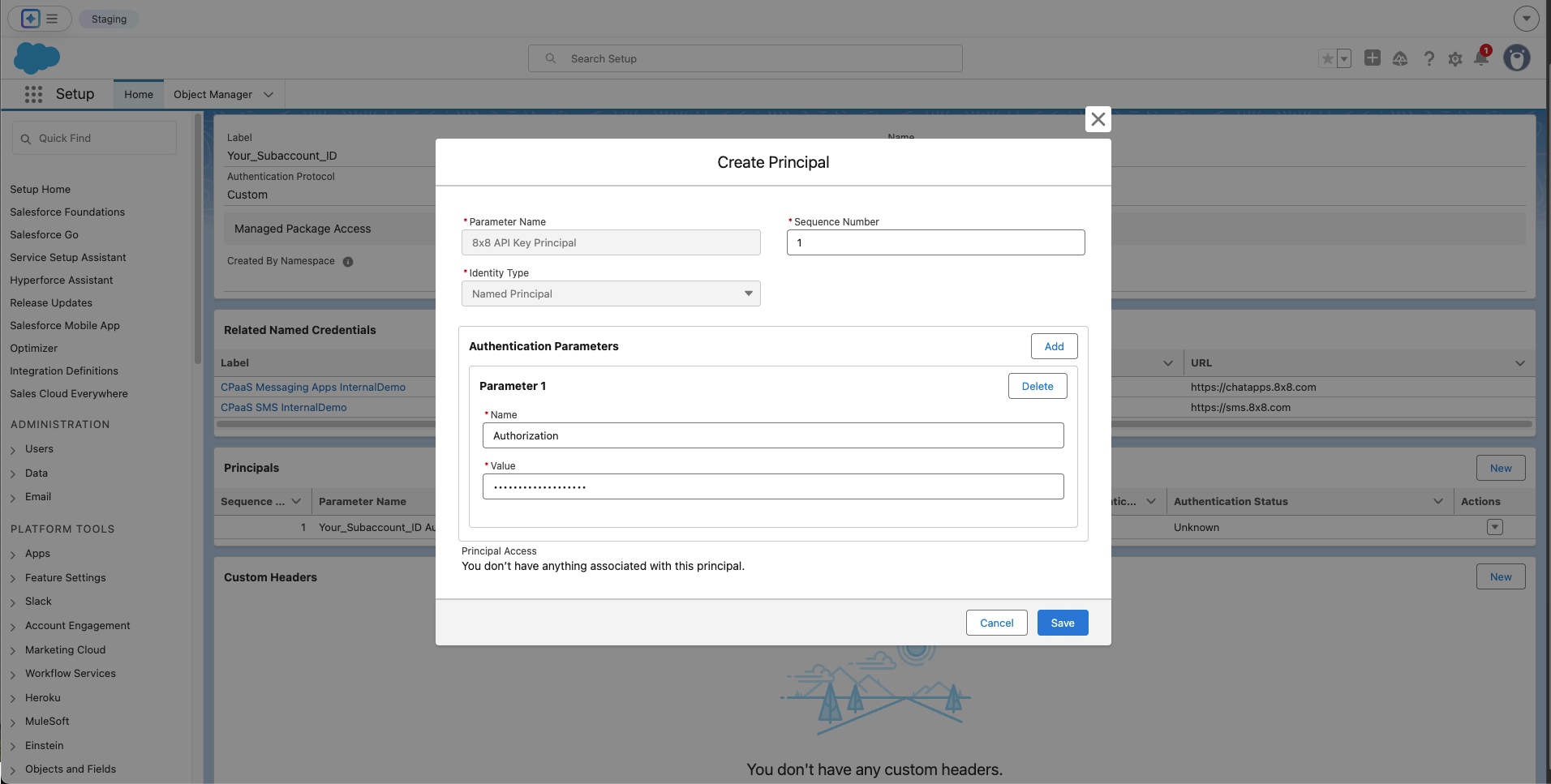
    Step 1.2: Create the Principal

    The Principal holds the actual secret Bearer Token.

    1. On the External Credential page you just saved, scroll down to Principals and click New.
    2. Enter the following details:
    • Principal Name: 8x8 API Key Principal
    • Sequence Number: 1
    1. Under Authentication Parameters, click Add Parameter.
    • Name: Authorization
    • Value: Bearer YOUR_API_TOKEN (Replace with your actual API key).
    1. Click Save.

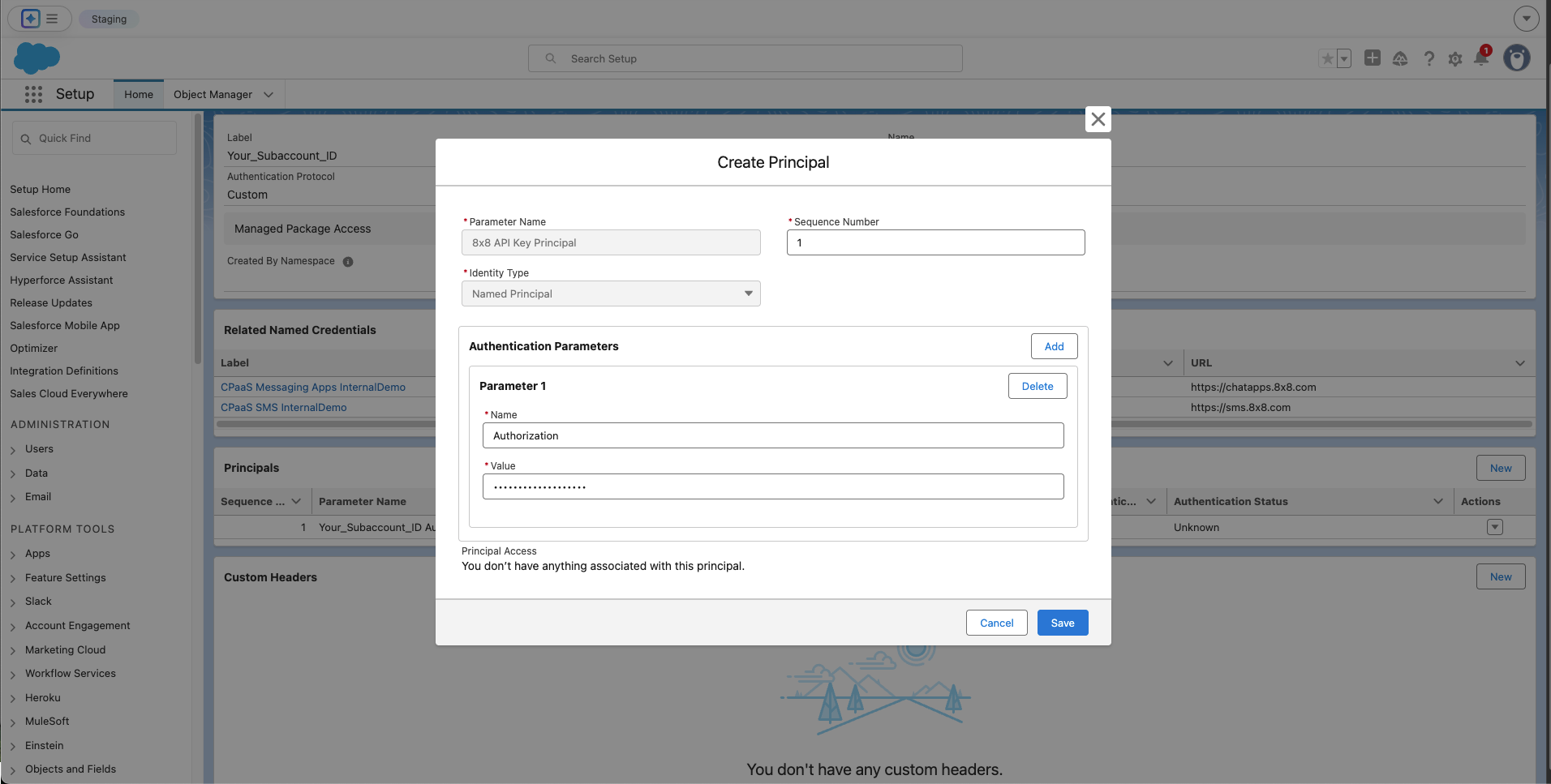
    Create PrincipalCreate Principal

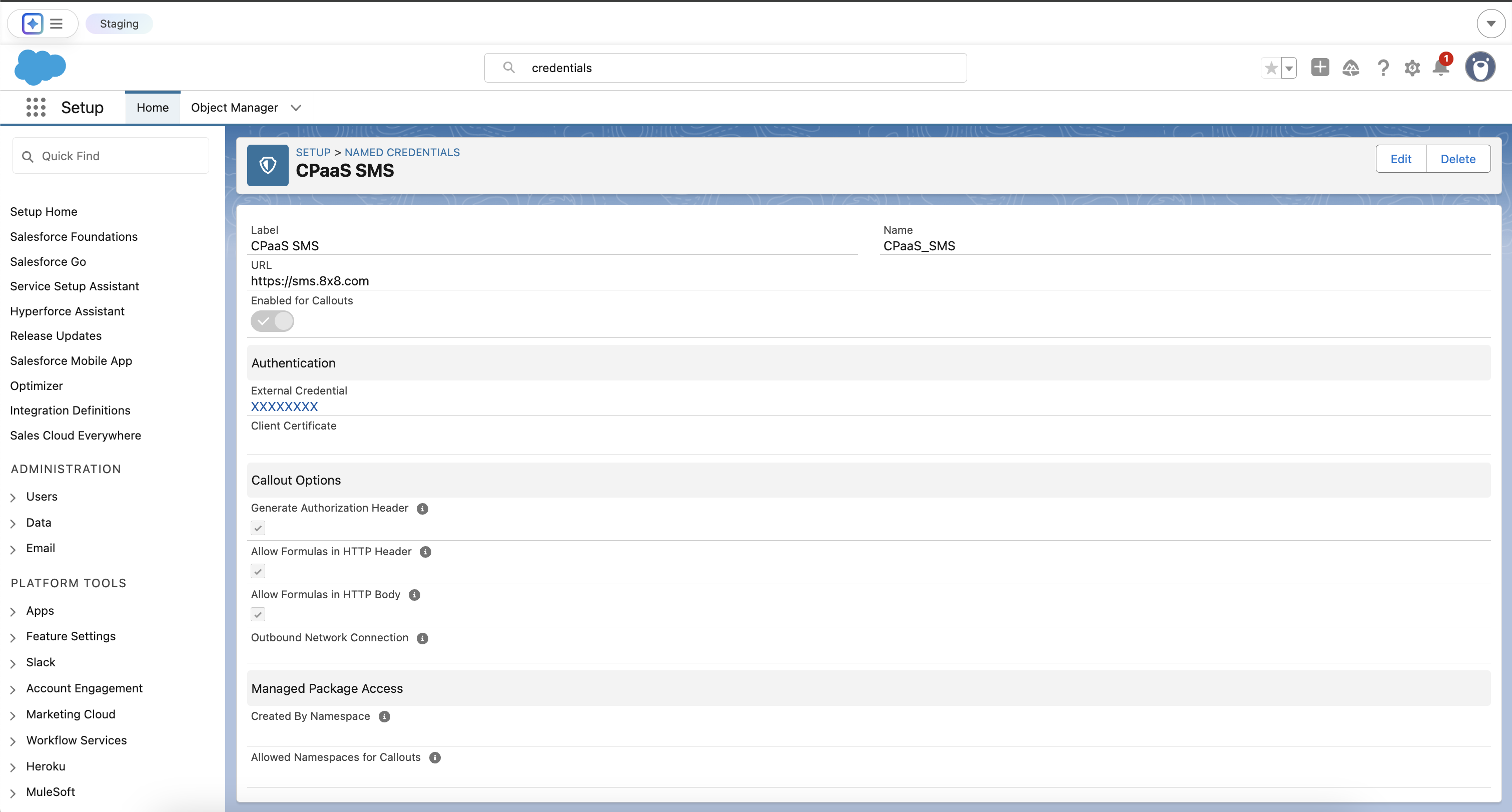
    Step 1.3: Create the Named Credential for SMS

    The Named Credential links the SMS API's specific address (URL) to the authentication secret.

    1. Navigate to Setup ⚙️. In the Quick Find box, type Named Credentials and select it.
    2. Click New.
    3. Enter the following details:
    • Label: 8x8 SMS API
    • Name: X8x8_SMS_API
    • URL: https://sms.8x8.com
    • External Credential: Select the 8x8 CPaaS Authentication credential.
    • Ensure the Generate Authorization Header checkbox is checked.
    1. Click Save.

    Completed Named Credential and External CredentialCompleted Named Credential and External Credential
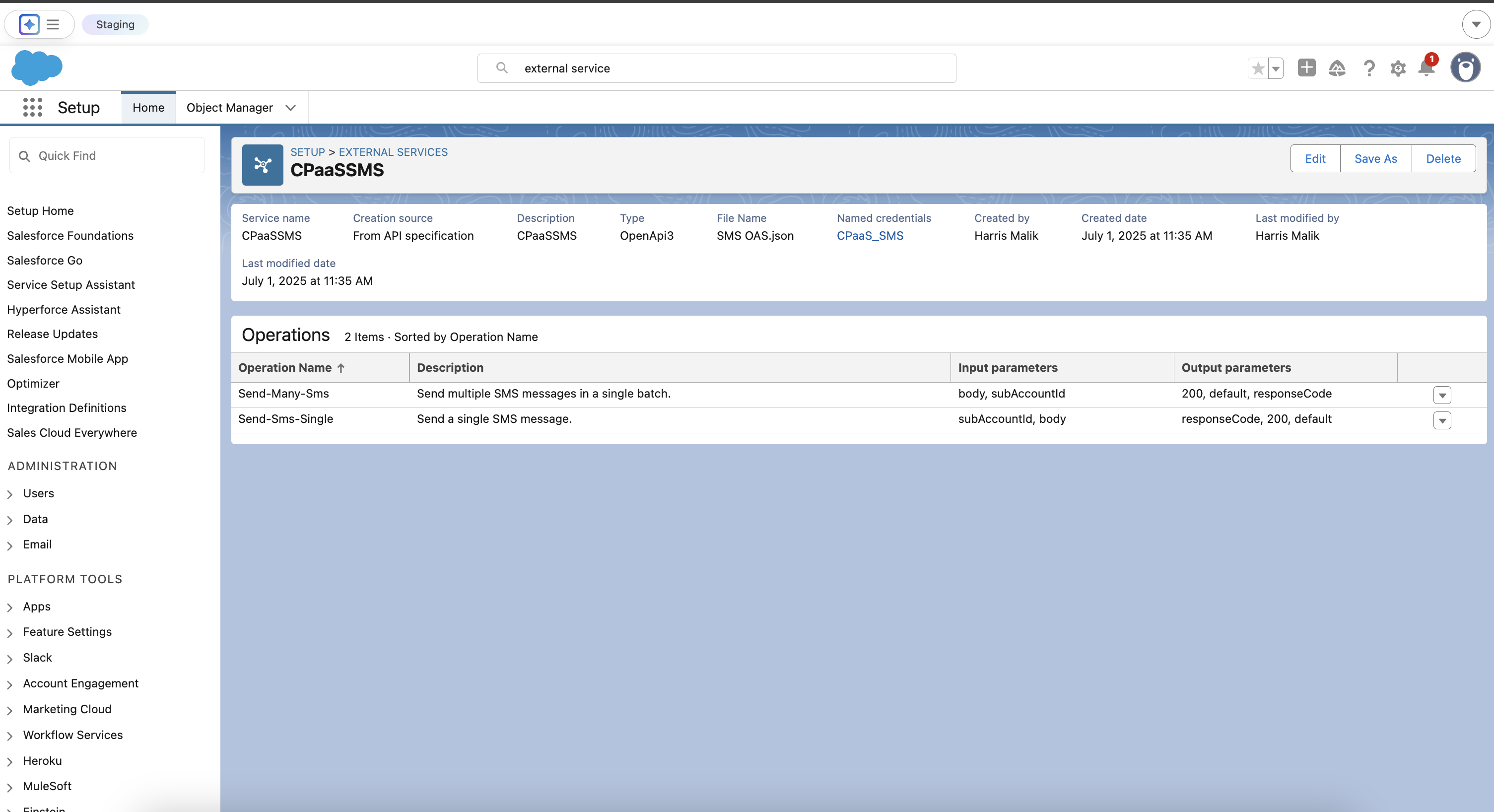

    Part 2: Defining the SMS API Operations

    Now, we will use your SMS OAS file to teach Salesforce about the specific API call to send an SMS.

    1. Navigate to Setup ⚙️. In the Quick Find box, type External Services and select it.
    2. Click Add External Service.
    3. Select From API Specification.
    4. Configure the service:
    • Service Name: CPaaSSMS
    • Named Credential: Select the 8x8 SMS API Named Credential you just created.
    • Service Schema: Select Complete JSON and upload your SMS-specific OAS .json file.
    • Service Schema:
      • Select Upload from local and upload the complete OAS .json file or
      • Select "Complete Schema" and paste the schema below (contains only send single SMS and send batch SMS)
    {
    "openapi":"3.0.1",
    "info":{
    "title":"SMS API",
    "description":"API to send SMS messages",
    "version":"1"
    },
    "servers":[
    {
    "url":"https://sms.8x8.com",
    "description":"Asia-Pacific region"
    },
    {
    "url":"https://sms.us.8x8.com",
    "description":"North America region"
    },
    {
    "url":"https://sms.8x8.uk",
    "description":"Europe region"
    },
    {
    "url":"https://sms.8x8.id",
    "description":"Indonesia region"
    }
    ],
    "paths":{
    "/api/v1/subaccounts/{subAccountId}/messages":{
    "post":{
    "summary":"Send SMS",
    "description":"Send a single SMS message.",
    "operationId":"Send-Sms-Single",
    "parameters":[
    {
    "name":"subAccountId",
    "in":"path",
    "required":true,
    "schema":{
    "type":"string"
    }
    }
    ],
    "requestBody":{
    "required":true,
    "content":{
    "application/json":{
    "schema":{
    "$ref":"#/components/schemas/SmsRequest"
    }
    }
    }
    },
    "responses":{
    "200":{
    "description":"SMS accepted and queued",
    "content":{
    "application/json":{
    "schema":{
    "$ref":"#/components/schemas/SmsResponse"
    }
    }
    }
    }
    },
    "security":[
    {
    "apiKey":[]
    }
    ]
    }
    },
    "/api/v1/subaccounts/{subAccountId}/messages/batch":{
    "post":{
    "summary":"Send SMS Batch",
    "description":"Send multiple SMS messages in a single batch.",
    "operationId":"Send-Many-Sms",
    "parameters":[
    {
    "name":"subAccountId",
    "in":"path",
    "required":true,
    "schema":{
    "type":"string"
    }
    }
    ],
    "requestBody":{
    "required":true,
    "content":{
    "application/json":{
    "schema":{
    "$ref":"#/components/schemas/BatchSmsRequest"
    }
    }
    }
    },
    "responses":{
    "200":{
    "description":"Batch accepted and processed",
    "content":{
    "application/json":{
    "schema":{
    "$ref":"#/components/schemas/BatchSmsResponse"
    }
    }
    }
    }
    },
    "security":[
    {
    "apiKey":[]
    }
    ]
    }
    }
    },
    "components":{
    "securitySchemes":{
    "apiKey":{
    "type":"http",
    "scheme":"bearer"
    }
    },
    "schemas":{
    "SmsRequest":{
    "type":"object",
    "required":[
    "destination",
    "text"
    ],
    "properties":{
    "destination":{
    "type":"string",
    "description":"MSISDN destination number"
    },
    "text":{
    "type":"string",
    "description":"Message body"
    },
    "source":{
    "type":"string"
    },
    "encoding":{
    "type":"string",
    "enum":[
    "AUTO",
    "GSM7",
    "UCS2"
    ]
    },
    "scheduled":{
    "type":"string",
    "format":"date-time"
    },
    "expiry":{
    "type":"string",
    "format":"date-time"
    }
    }
    },
    "SmsStatus":{
    "type":"object",
    "properties":{
    "code":{
    "type":"string",
    "enum":[
    "QUEUED",
    "REJECTED"
    ]
    },
    "description":{
    "type":"string"
    }
    }
    },
    "SmsResponse":{
    "type":"object",
    "required":[
    "umid",
    "destination",
    "status",
    "encoding"
    ],
    "properties":{
    "umid":{
    "type":"string"
    },
    "destination":{
    "type":"string"
    },
    "encoding":{
    "type":"string",
    "enum":[
    "AUTO",
    "GSM7",
    "UCS2"
    ]
    },
    "clientMessageId":{
    "type":"string"
    },
    "status":{
    "$ref":"#/components/schemas/SmsStatus"
    }
    }
    },
    "BatchSmsRequest":{
    "type":"object",
    "required":[
    "messages"
    ],
    "properties":{
    "clientBatchId":{
    "type":"string"
    },
    "messages":{
    "type":"array",
    "items":{
    "$ref":"#/components/schemas/SmsRequest"
    }
    },
    "destinations":{
    "type":"array",
    "items":{
    "type":"string"
    }
    },
    "template":{
    "$ref":"#/components/schemas/SmsTemplateFull"
    },
    "includeMessagesInResponse":{
    "type":"boolean"
    }
    }
    },
    "BatchSmsResponse":{
    "type":"object",
    "required":[
    "batchId",
    "acceptedCount",
    "rejectedCount"
    ],
    "properties":{
    "batchId":{
    "type":"string"
    },
    "clientBatchId":{
    "type":"string"
    },
    "acceptedCount":{
    "type":"integer"
    },
    "rejectedCount":{
    "type":"integer"
    },
    "messages":{
    "type":"array",
    "items":{
    "$ref":"#/components/schemas/SmsResponse"
    }
    }
    }
    },
    "SmsTemplateFull":{
    "type":"object",
    "properties":{
    "source":{
    "type":"string"
    },
    "text":{
    "type":"string"
    },
    "encoding":{
    "type":"string",
    "enum":[
    "AUTO",
    "GSM7",
    "UCS2"
    ]
    },
    "scheduled":{
    "type":"string",
    "format":"date-time"
    },
    "expiry":{
    "type":"string",
    "format":"date-time"
    }
    }
    }
    }
    }
    }
    1. Click Save & Next,
    2. In Select Operations , select the Send-Many-Sms and Send-Sms-Single operations then Next, and Finish.

    Salesforce will now parse the file and make the Send-Sms-Single and Send-Many-Sms operations available as actions in Flow Builder.

    image


    Part 3: Building the SMS Flow

    The body for an SMS message is much simpler than other channels, which makes the Flow easier to build.

    Step 3.1: Create the Flow and Body Variable

    1. Navigate to Setup ⚙️ > Flows and click New Flow. Select Autolaunched Flow.
    2. From the toolbox on the left, create one variable by clicking New Resource.
      • Variable: The SMS Body
    • Resource Type: Variable
    • API Name: smsBody
    • Data Type: Apex-Defined
    • Apex Class: Search for and select the auto-generated class for the SMS request body. It will be named similar to ExternalService__CPaaSSMS_SmsRequest.

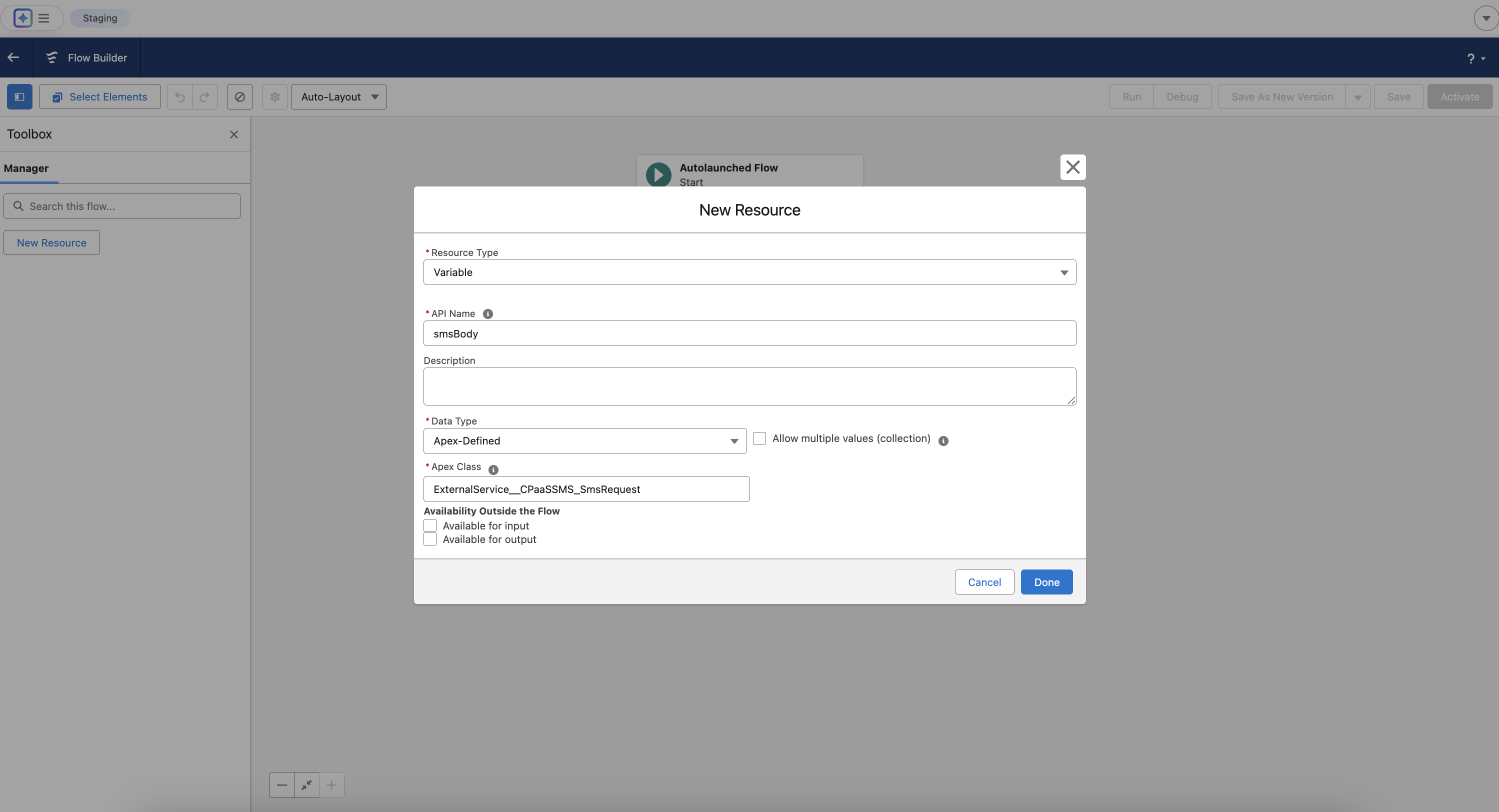
    Configuring the first Variable smsBodyConfiguring the first Variable smsBody
    Step 3.2: Assignment - Set SMS Properties

    We only need one Assignment element to construct the SMS message.

    1. On the flow canvas, click the + icon after the Start element and add an Assignment element.
    2. Label: Set SMS Body
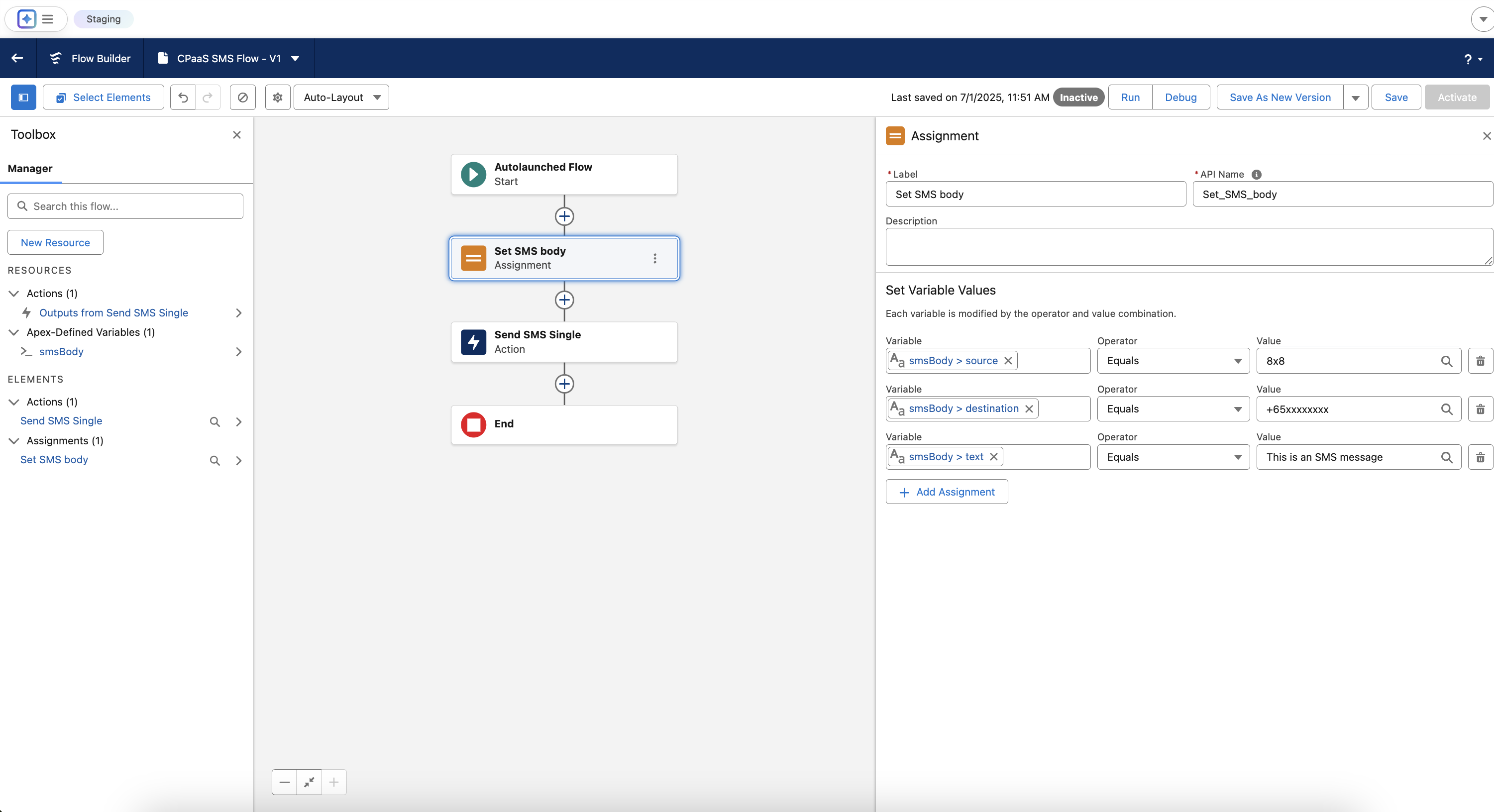
    3. Configure the following assignments.
    • {!smsBody.to} | Equals | +65xxxxxxxxxx (The recipient's phone number)
    • {!smsBody.from} | Equals | 8x8 (Your 8x8-registered SMS Sender ID or phone number)
    • {!smsBody.text} | Equals | This is an SMS message.

    image

    Step 3.3: The Action - Make the API Call

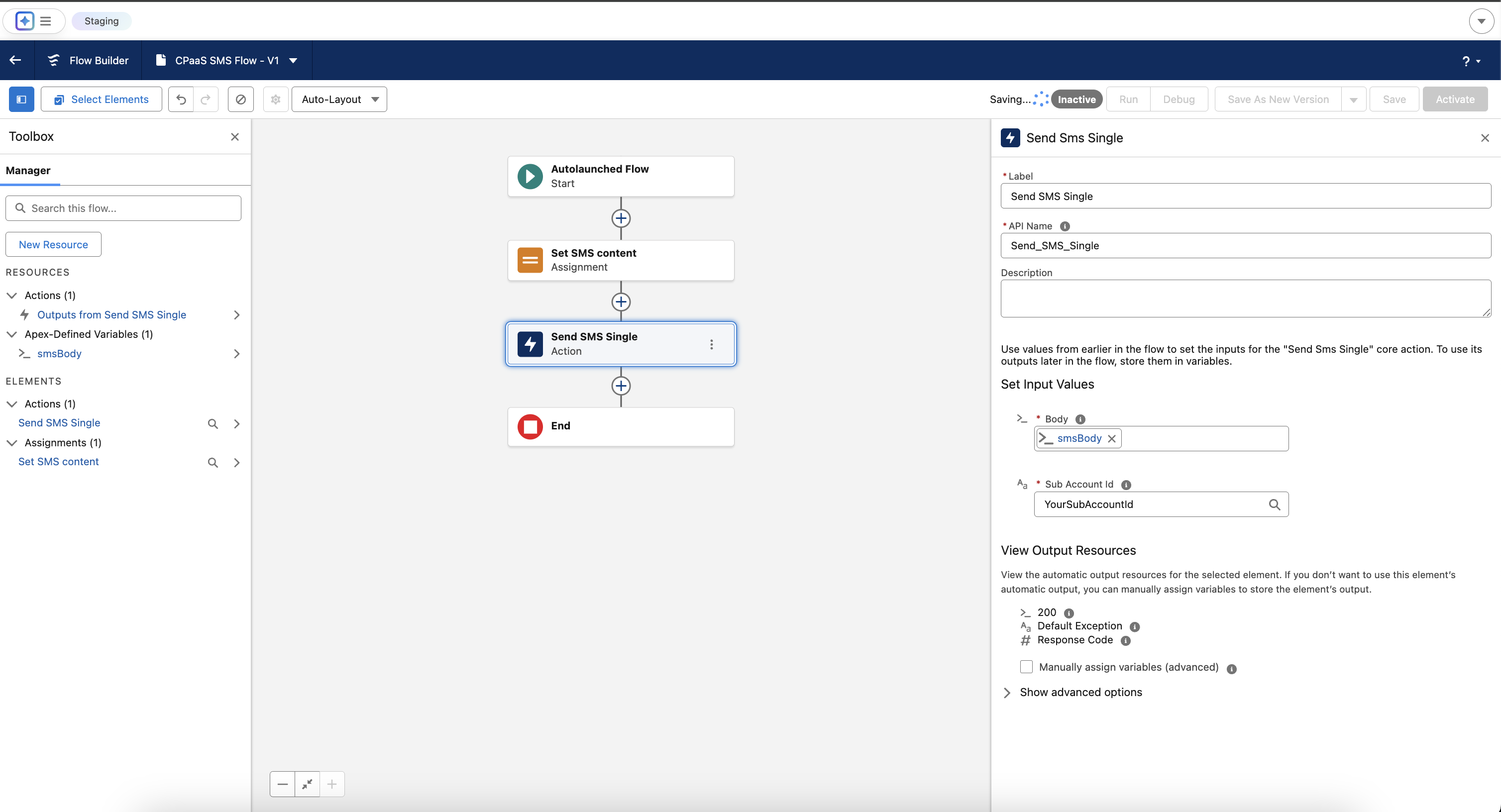
    1. Click the final + and add an Action element.
    2. Search for your SmsApi actions and select the action for sending an SMS.
    3. Label: Send SMS
    4. Configure the inputs:
    • subAccountId: Enter your 8x8 Subaccount ID string here.
    • body: Select your main variable, {!smsBody}.

    image


    Part 4: Permissions and Testing

    This final step ensures your user can run the flow and execute the callout.

    Step 4.1: Assign Permissions

    1. Navigate to Setup ⚙️ > Permission Sets and create a New Permission Set.
    2. Label: CPaaS API Access
    3. In the new Permission Set, find and click on External Credential Principal Access.
    4. Click Edit. Add the 8x8 CPaaS Authentication : 8x8 API Key Principal from the available list to the enabled list. Click Save.
    5. Manage Assignments for the Permission Set and assign it to your user.

    Step 4.2: Debug the Flow

    1. Return to your saved Flow.
    2. Click the Debug button.
    3. Click Run.
    4. Check the debug log on the right for a success message ("All done.") and check your test device for the SMS.

    You have now successfully built a low-code integration to send SMS with the 8x8 SMS API from Salesforce.


    Source: https://developer.8x8.com/connect/docs/salesforce-flowbuilder-8x8-sms-integration · 8x8 CPaaS Developer Docs. Synced for support deflection.

  • Sending Messages in Salesforce Flow Builder

    Sending Messages in Salesforce Flow Builder

    This guide will walk you through the entire process of connecting Salesforce to the 8x8 Business Messaging API (e.g. for WhatsApp) to send messages directly from your Salesforce environment from Flow Builder, by utilizing External Services. You can also follow the same invocable actions in Orchestrator, Einstein bots, or OmniStudio Assets.

    We will accomplish this using Salesforce's declarative tools, which allow you to build robust integrations without writing complex code.

    👍 Good to know

    While this guide focuses on WhatsApp Authentication template, you can use the same approach for other WhatsApp templates, or other supported messaging apps following their respective schema. For SMS, refer to this guide

    Prerequisites and Requirements

    Before you begin, ensure your Salesforce environment and 8x8 account meet the following requirements.

    Salesforce Platform Requirements

    • Salesforce Experience: Lightning Experience.
    • Required Editions: Enterprise, Performance, Unlimited, and Developer Editions.
    • Feature Integration: The actions created from an External Service can be used in declarative tools like Flow Builder, Orchestrator, Einstein bots, or Omnistudio.
    • User Permissions Needed:
      • To define an external service: The user needs Modify All Data OR Modify Metadata Through Metadata API Functions permissions.
      • To invoke an external service action from a flow: The user needs the Run Flows permission.

    8x8 Account Requirements

    • 8x8 Connect Account: An active account with access to the messaging channels you wish to use.
    • API Credentials: Your 8x8 Subaccount ID and your API Key (Bearer Token).

    Part 1: The Foundation - Setting Up Authentication

    First, we need to teach Salesforce how to securely authenticate with the 8x8 Messaging API. This involves creating a secure chain of credentials. A Named Credential specifies the callout endpoint's URL and its required authentication parameters in one definition.

    Step 1.1: Create the External Credential

    The External Credential is a secure vault that will hold your API key.

    1. Navigate to Setup ⚙️. In the Quick Find box, type External Credentials and select it.
    2. Click New.
    3. Enter the following details:
    • Label: 8x8 CPaaS Authentication
    • Name: 8x8_CPaaS_Authentication (this will auto-populate)
    • Authentication Protocol: Select Custom.
    1. Click Save.

    Step 1.2: Create the Principal

    The Principal represents the specific identity and secret used for authentication.

    1. On the External Credential page you just saved, scroll down to Principals and click New.
    2. Enter the following details:
    • Principal Name: 8x8 API Key Principal
    • Sequence Number: 1
    1. Under Authentication Parameters, click Add Parameter.
    • Name: Authorization
    • Value: Bearer YOUR_API_TOKEN (Replace YOUR_API_TOKEN with the actual API key from this page).
    1. Click Save.

    Create PrincipalCreate Principal

    Step 1.3: Create the Named Credential

    The Named Credential links the API's address (URL) to the authentication secret you just stored.

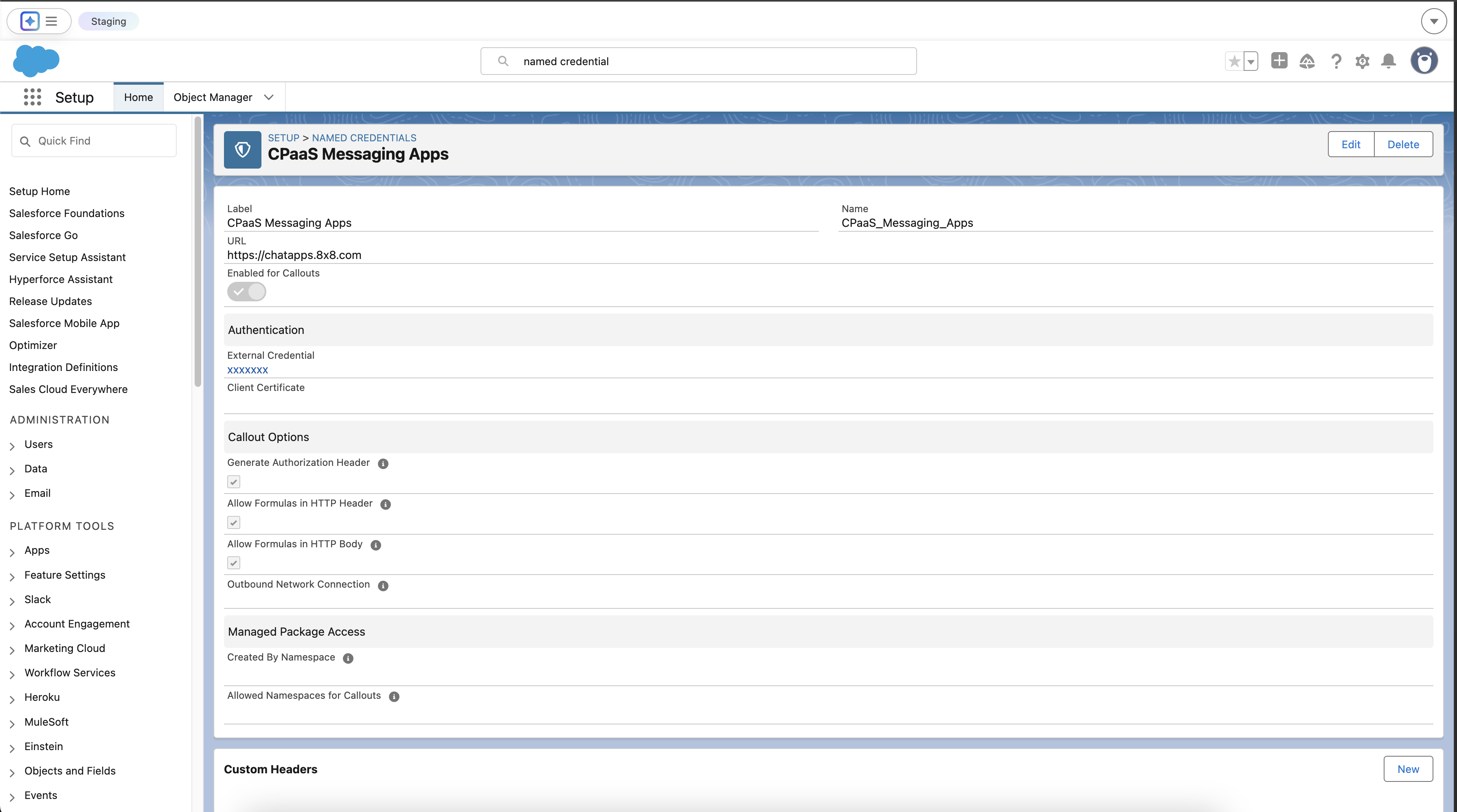
    1. Navigate to Setup ⚙️. In the Quick Find box, type Named Credentials and select it.
    2. Click New.
    3. Enter the following details:
    • Label: 8x8 Messaging API
    • Name: 8x8_Messaging_API
    • URL: https://chatapps.8x8.com (Asia-Pacific deployment region; see full list of regions
    • External Credential: Select the 8x8 CPaaS Authentication credential you created above.
    • Ensure the Generate Authorization Header checkbox is checked.
    1. Click Save.

    ℹ️ Sending SMS

    For SMS, use the corresponding sms endpoint (default is sms.8x8.com) and the appropriate SMS OAS accordingly

    Completed Named Credential and External CredentialCompleted Named Credential and External Credential
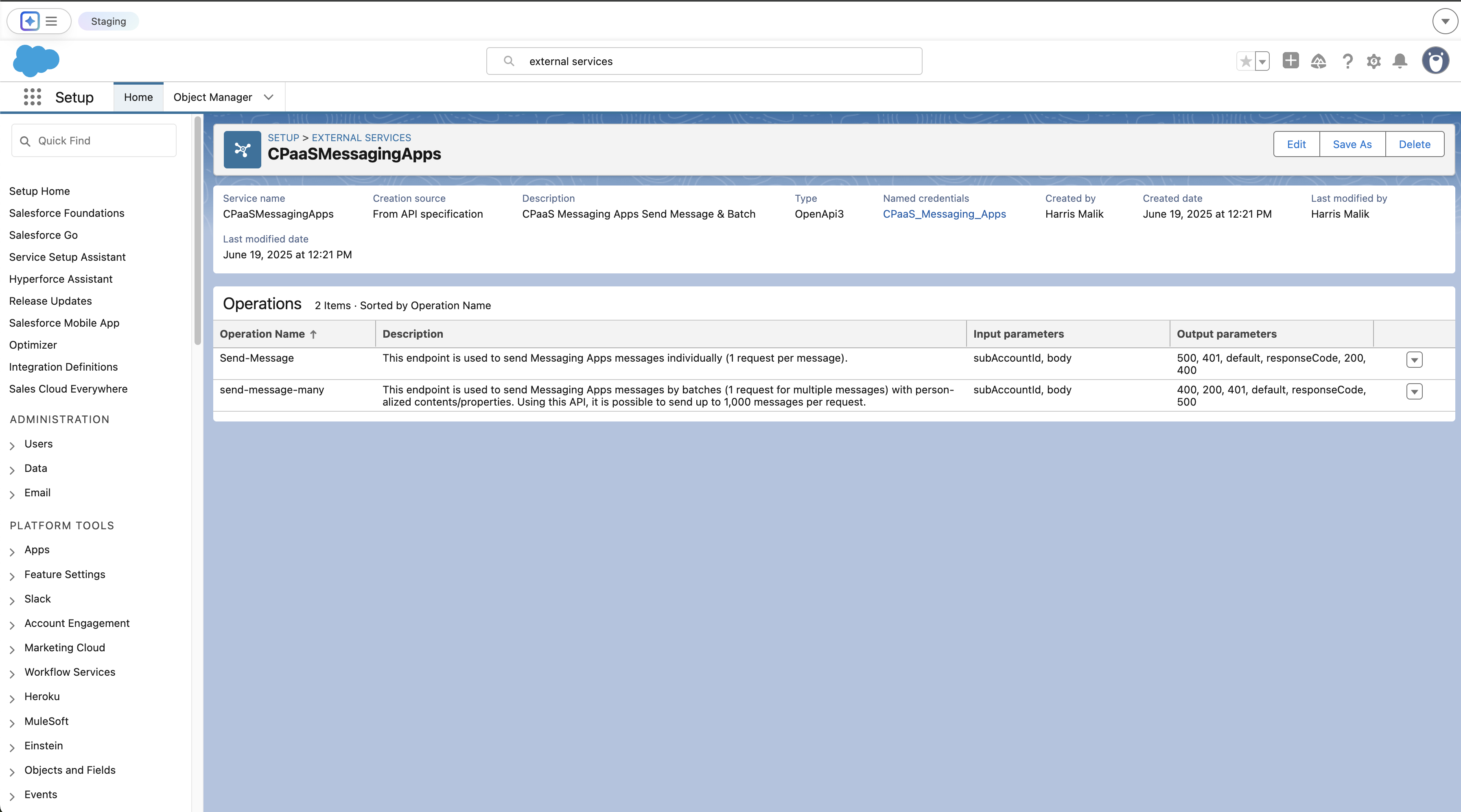

    Part 2: Defining the API Operations

    Next, we will use your OAS file to teach Salesforce about the specific 8x8 API calls.

    1. Navigate to Setup ⚙️. In the Quick Find box, type External Services and select it.
    2. Click Add External Service.
    3. Select From API Specification.
    4. Configure the service:
    • Service Name: CPaasMessagingApps
    • Named Credential: Select the 8x8 Messaging API Named Credential you just created.
    • Service Schema: Select Upload from local and upload the complete OAS .json file or select "Complete Schema" and paste the schema below (contains only send single and send batch API)
    {
    "openapi":"3.0.0",
    "info":{
    "title":"8x8 Send Message API (Single and Batch)",
    "version":"1.0",
    "description":"A minimal OpenAPI spec for the 8x8 Send Message and Send Message Batch operations."
    },
    "servers":[
    {
    "url":"https://chatapps.8x8.com",
    "description":"Asia-Pacific region"
    },
    {
    "url":"https://chatapps.us.8x8.com",
    "description":"North America region"
    },
    {
    "url":"https://chatapps.8x8.uk",
    "description":"Europe region"
    },
    {
    "url":"https://chatapps.8x8.id",
    "description":"Indonesia region"
    }
    ],
    "paths":{
    "/api/v1/subaccounts/{subAccountId}/messages":{
    "post":{
    "summary":"Send message",
    "description":"This endpoint is used to send Messaging Apps messages individually (1 request per message).",
    "tags":[
    "Send Message API"
    ],
    "operationId":"Send-Message",
    "security":[
    {
    "apiKey":[]
    }
    ],
    "parameters":[
    {
    "name":"subAccountId",
    "in":"path",
    "description":"You must replace *{subAccountId}* with the subaccountid that you want to use.",
    "required":true,
    "schema":{
    "type":"string"
    }
    }
    ],
    "requestBody":{
    "description":"Messaging API: request model for send single message",
    "required":true,
    "content":{
    "application/json":{
    "schema":{
    "$ref":"#/components/schemas/single-message-request"
    }
    }
    }
    },
    "responses":{
    "200":{
    "description":"Success response",
    "content":{
    "application/json":{
    "schema":{
    "$ref":"#/components/schemas/single-message-response"
    }
    }
    }
    },
    "400":{
    "description":"Bad Request"
    },
    "401":{
    "description":"Unauthorized"
    },
    "500":{
    "description":"Internal Server Error"
    }
    }
    }
    },
    "/api/v1/subaccounts/{subAccountId}/messages/batch":{
    "post":{
    "summary":"Send message batch",
    "description":"This endpoint is used to send Messaging Apps messages by batches (1 request for multiple messages) with personalized contents/properties. Using this API, it is possible to send up to 1,000 messages per request.",
    "tags":[
    "Send Message API"
    ],
    "operationId":"send-message-many",
    "security":[
    {
    "apiKey":[]
    }
    ],
    "parameters":[
    {
    "name":"subAccountId",
    "in":"path",
    "description":"You must replace *{subAccountId}* with the subaccountid that you want to use.",
    "required":true,
    "schema":{
    "type":"string"
    }
    }
    ],
    "requestBody":{
    "description":"Messaging API: request model for send batch of messages",
    "content":{
    "application/json":{
    "schema":{
    "$ref":"#/components/schemas/batch-message-request"
    }
    }
    }
    },
    "responses":{
    "200":{
    "description":"Success response",
    "content":{
    "application/json":{
    "schema":{
    "$ref":"#/components/schemas/batch-message-response"
    }
    }
    }
    },
    "400":{
    "description":"Bad Request"
    },
    "401":{
    "description":"Unauthorized"
    },
    "500":{
    "description":"Internal Server Error"
    }
    }
    }
    }
    },
    "components":{
    "securitySchemes":{
    "apiKey":{
    "type":"http",
    "scheme":"bearer",
    "description":"8x8 Messaging API accepts an ApiKey Bearer Token authentication method."
    }
    },
    "schemas":{
    "user":{
    "type":"object",
    "properties":{
    "msisdn":{
    "type":"string"
    },
    "country":{
    "type":"string"
    }
    }
    },
    "channel-override":{
    "type":"object",
    "properties":{
    "channel":{
    "$ref":"#/components/schemas/channel-type"
    },
    "fallbackAfter":{
    "type":"integer"
    },
    "successStatus":{
    "$ref":"#/components/schemas/success-status"
    }
    }
    },
    "content":{
    "type":"object",
    "properties":{
    "text":{
    "type":"string"
    },
    "url":{
    "type":"string",
    "format":"uri"
    },
    "fallbackText":{
    "type":"string"
    },
    "sms":{
    "$ref":"#/components/schemas/sms-settings"
    },
    "location":{
    "$ref":"#/components/schemas/location"
    },
    "interactive":{
    "$ref":"#/components/schemas/interactive"
    },
    "video":{
    "$ref":"#/components/schemas/video"
    },
    "template":{
    "type":"object",
    "properties":{
    "name":{
    "type":"string"
    },
    "language":{
    "type":"string"
    },
    "components":{
    "type":"array",
    "items":{
    "type":"object",
    "properties":{
    "type":{
    "type":"string",
    "enum":[
    "header",
    "footer",
    "body",
    "button"
    ]
    },
    "parameters":{
    "type":"array",
    "items":{
    "type":"object",
    "properties":{
    "type":{
    "type":"string",
    "enum":[
    "text",
    "image",
    "video",
    "document",
    "location",
    "payload",
    "couponCode"
    ]
    },
    "text":{
    "type":"string"
    },
    "url":{
    "type":"string"
    },
    "location":{
    "type":"object",
    "properties":{
    "latitude":{
    "type":"number"
    },
    "longitude":{
    "type":"number"
    },
    "name":{
    "type":"string"
    },
    "address":{
    "type":"string"
    }
    }
    },
    "payload":{
    "type":"string"
    },
    "couponCode":{
    "type":"string"
    }
    }
    }
    },
    "index":{
    "type":"integer"
    },
    "subType":{
    "type":"string",
    "enum":[
    "QuickReply",
    "Url",
    "CopyCode"
    ]
    }
    }
    }
    }
    }
    }
    }
    },
    "content-type":{
    "type":"string",
    "enum":[
    "Text",
    "Audio",
    "Video",
    "Image",
    "Location",
    "File",
    "Template"
    ]
    },
    "channel-type":{
    "type":"string",
    "enum":[
    "SMS",
    "WhatsApp",
    "Facebook",
    "RCS",
    "Viber",
    "Line",
    "WeChat",
    "Zalo",
    "Instagram"
    ]
    },
    "success-status":{
    "type":"string",
    "enum":[
    "Accepted",
    "Sent",
    "Delivered",
    "Read"
    ]
    },
    "sms-settings":{
    "type":"object",
    "properties":{
    "encoding":{
    "type":"string"
    },
    "source":{
    "type":"string"
    }
    }
    },
    "location":{
    "type":"object",
    "properties":{
    "latitude":{
    "type":"number"
    },
    "longitude":{
    "type":"number"
    },
    "name":{
    "type":"string"
    },
    "address":{
    "type":"string"
    }
    }
    },
    "video":{
    "type":"object",
    "properties":{
    "thumbnail":{
    "type":"string"
    },
    "filesize":{
    "type":"number"
    },
    "duration":{
    "type":"number"
    }
    }
    },
    "interactive":{
    "type":"object",
    "properties":{
    "type":{
    "type":"string",
    "enum":["button","list","product","product_list"]
    },
    "action":{
    "type":"object"
    },
    "header":{
    "type":"object"
    },
    "body":{
    "type":"object"
    },
    "footer":{
    "type":"object"
    }
    }
    },
    "single-message-response":{
    "type":"object",
    "properties":{
    "status":{
    "type":"object",
    "properties":{
    "state":{
    "type":"string"
    },
    "timestamp":{
    "type":"string",
    "format":"date-time"
    }
    }
    },
    "umid":{
    "type":"string",
    "format":"uuid"
    },
    "user":{
    "$ref":"#/components/schemas/user"
    },
    "clientMessageId":{
    "type":"string"
    }
    }
    },
    "batch-message-response":{
    "type":"object",
    "properties":{
    "batchId":{
    "type":"string",
    "format":"uuid"
    },
    "clientBatchId":{
    "type":"string"
    },
    "acceptedCount":{
    "type":"integer"
    },
    "rejectedCount":{
    "type":"integer"
    },
    "messages":{
    "type":"array",
    "items":{
    "$ref":"#/components/schemas/single-message-response"
    }
    }
    }
    },
    "single-message-request":{
    "type":"object",
    "required":[
    "user",
    "type",
    "content"
    ],
    "properties":{
    "user":{
    "$ref":"#/components/schemas/user"
    },
    "clientMessageId":{
    "type":"string"
    },
    "type":{
    "$ref":"#/components/schemas/content-type"
    },
    "content":{
    "$ref":"#/components/schemas/content"
    },
    "scheduled":{
    "type":"string",
    "format":"date-time"
    },
    "expiry":{
    "type":"string",
    "format":"date-time"
    },
    "dlrCallbackUrl":{
    "type":"string",
    "format":"uri"
    },
    "channels":{
    "type":"array",
    "items":{
    "$ref":"#/components/schemas/channel-override"
    }
    }
    }
    },
    "batch-message-request":{
    "type":"object",
    "required":[
    "messages"
    ],
    "properties":{
    "clientBatchId":{
    "type":"string"
    },
    "template":{
    "$ref":"#/components/schemas/batch-message-template"
    },
    "messages":{
    "type":"array",
    "items":{
    "$ref":"#/components/schemas/single-message-request"
    }
    },
    "includeMessagesInResponse":{
    "type":"boolean",
    "default":false
    }
    }
    },
    "batch-message-template":{
    "type":"object",
    "properties":{
    "type":{
    "$ref":"#/components/schemas/content-type"
    },
    "content":{
    "$ref":"#/components/schemas/content"
    },
    "dlrCallbackUrl":{
    "type":"string",
    "format":"uri"
    },
    "channels":{
    "type":"array",
    "items":{}
    }
    }
    }
    }
    }
    }
    • Select the checkboxes next to the operation names, Save, then Done.

    Salesforce will now parse the file and make the Send-Message and send-message-many operations available as actions in Flow Builder.

    External Services created for both API operationsExternal Services created for both API operations

    Part 3: Building the Automation in Flow Builder

    This is where we build the logic to construct the message and send it. In this example we'll be sending a WhatsApp Authentication template message.

    Step 3.1: Create the Flow and Key Variables

    1. Navigate to Setup ⚙️ > Flows and click New Flow. Select Autolaunched Flow.
    2. From the toolbox on the left, create the following three variables by clicking New Resource. These will be used to build the complex request body.
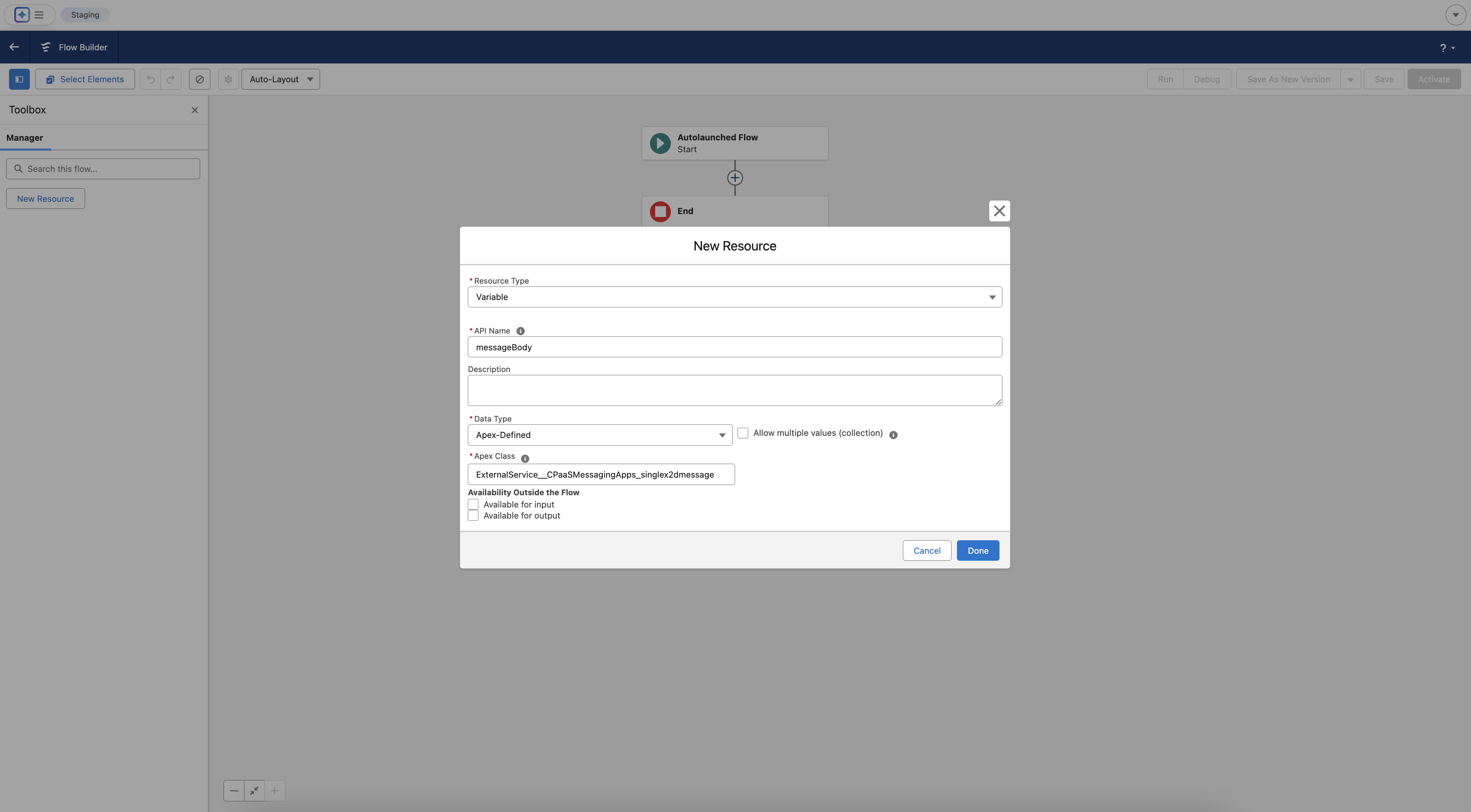
      • Variable 1: The Main Body
    • Resource Type: Variable
    • API Name: messageBody
    • Data Type: Apex-Defined
    • Apex Class: Search for and select the auto-generated class for the request body. It will be named similar to ExternalService__CPaaSMessagingApps_singlex2dmessagex2drequest.

    Configuring the first Variable messageBodyConfiguring the first Variable messageBody
    Repeat the same steps for the rest of the variables as shown below

    • Variable 2: A Single Component

      • Resource Type: Variable
      • API Name: componentVariable
      • Data Type: Apex-Defined
      • Apex Class: Search for the auto-generated class for a component. It will be named similar to ExternalService__CPaaSMessagingApps_content_template_components.
    • Variable 3: A Single Parameter

      • Resource Type: Variable
      • API Name: parameterVariable
      • Data Type: Apex-Defined
      • Apex Class: Search for the auto-generated class for a parameter. It will be named similar to ExternalService__CPaaSMessagingApps_content_template_components_parameters.

    Step 3.2: First Assignment - Set Core Message Properties

    1. On the flow canvas, click the + icon after the Start element and add an Assignment element.
    2. Label: Set Core Message Body
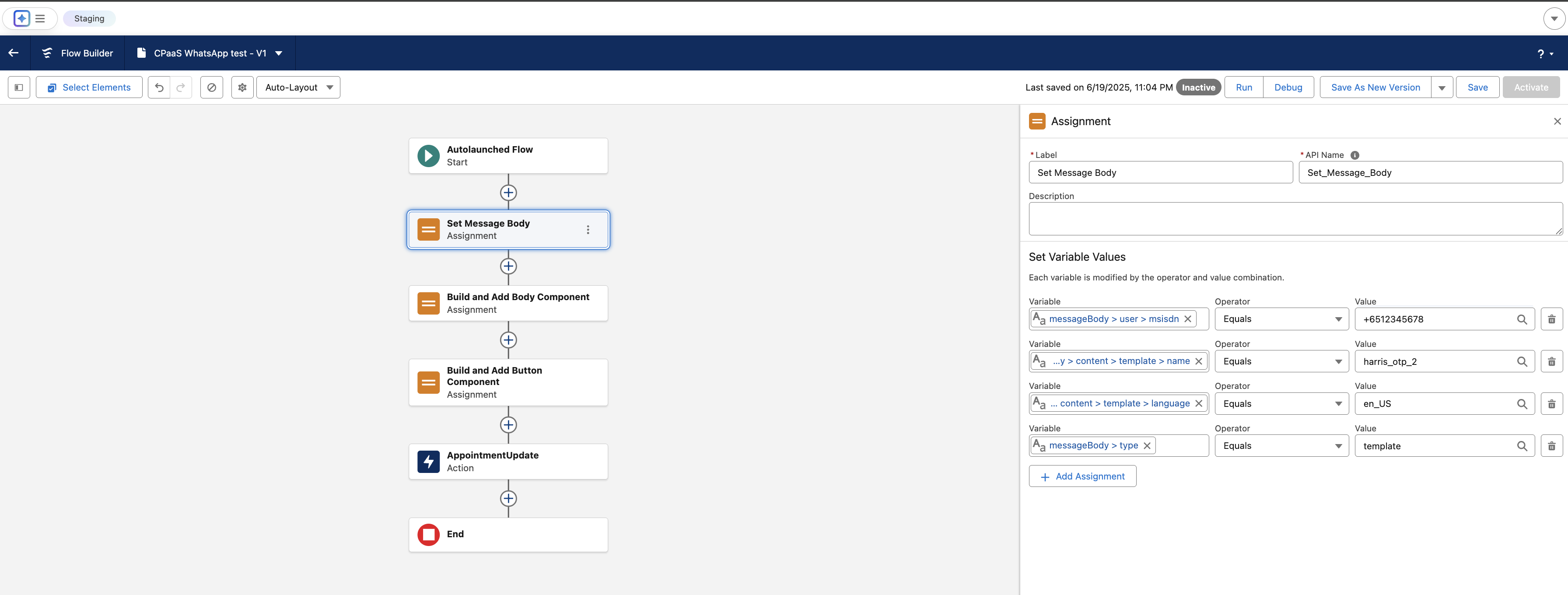
    3. Configure the following assignments:
    • {!messageBody.user.msisdn} | Equals | +6512345678 (A test phone number)
    • {!messageBody.type} | Equals | template
    • {!messageBody.content.template.name} | Equals | your_authentication_template_name
    • {!messageBody.content.template.language} | Equals | en_US

    image

    Step 3.3: Second Assignment - Build the "Body" Component

    1. Click the + on the canvas after the first assignment and add a new Assignment element.
    2. Label: Build and Add Body Component
    3. Configure the assignments to build the component from the inside out:
    • {!parameterVariable.type} | Equals | text
    • {!parameterVariable.text} | Equals | 123456 (Your sample OTP code)
    • {!componentVariable.type} | Equals | body
    • {!componentVariable.parameters} | Add | {!parameterVariable}
    • {!messageBody.content.template.components} | Add | {!componentVariable}

    Step 3.4: Third Assignment - Build the "Button" Component

    1. Click the + again and add a final Assignment element.
    2. Label: Build and Add Button Component
    3. This time, we must first clear our helper variable before reusing it. Configure as follows:
    • {!componentVariable.parameters} | Equals | {!$GlobalConstant.EmptyString}
    • {!parameterVariable.type} | Equals | text
    • {!parameterVariable.text} | Equals | 123456
    • {!componentVariable.type} | Equals | Button
    • {!componentVariable.subType} | Equals | url
    • {!componentVariable.index} | Equals | 0
    • {!componentVariable.parameters} | Add | {!parameterVariable}
    • {!messageBody.content.template.components} | Add | {!componentVariable}

    Step 3.5: The Action - Make the API Call

    1. Click the final + and add an Action element.
    2. Search for your CPaasMessagingApps actions and select Send-Message.
    3. Label: Send WhatsApp Message
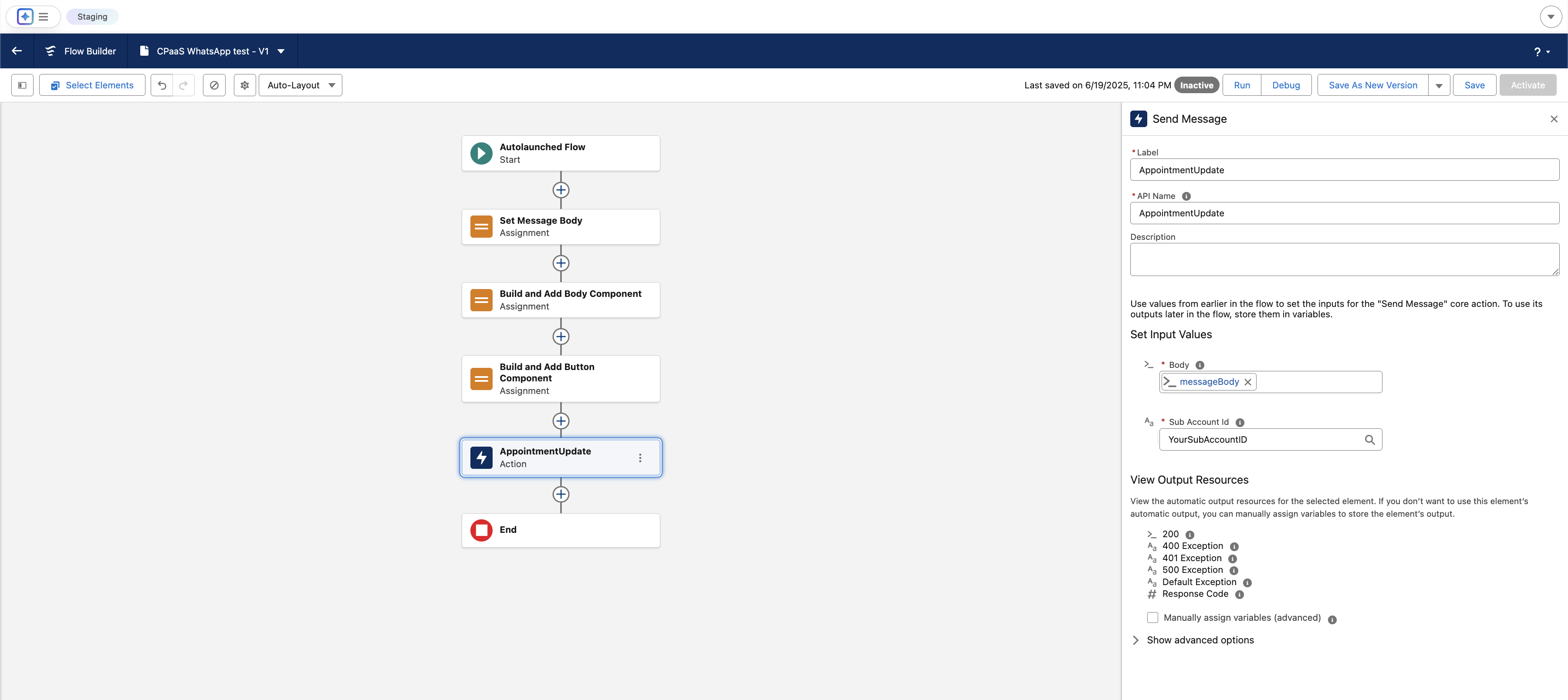
    4. Configure the inputs:
    • subAccountId: Enter your 8x8 Subaccount ID string here.
    • body: Select your main variable, {!messageBody}.

    image


    Part 4: Permissions and Testing

    This final step ensures your user can run the flow and execute the callout.

    Step 4.1: Assign Permissions

    1. Navigate to Setup ⚙️ > Permission Sets and create a New Permission Set.
    2. Label: CPaaS API Access
    3. In the new Permission Set, find and click on External Credential Principal Access.
    4. Click Edit. Add the 8x8 CPaaS Authentication : 8x8 API Key Principal from the available list to the enabled list. Click Save.
    5. Manage Assignments for the Permission Set and assign it to your user.

    Step 4.2: Debug the Flow

    1. Return to your saved Flow.
    2. Click the Debug button.
    3. Click Run.
    4. Check the debug log on the right for a success message ("All done.") and check your phone for the WhatsApp message.

    You have now successfully built a low-code integration to send messages with the 8x8 Messaging API from Salesforce.


    Source: https://developer.8x8.com/connect/docs/salesforce-flowbuilder-8x8-messaging-integration · 8x8 CPaaS Developer Docs. Synced for support deflection.

  • Message types and samples

    Message types and samples

    Please see Messaging API for the full API reference.

    Text Message

    Content: Text only

    Character Limit: Up to 3072 characters

    Use Cases: OTP codes, simple alerts

    Payload sample

    {
    "user":{
    "msisdn":"+10000000000"
    },
    "type":"Text",
    "content":{
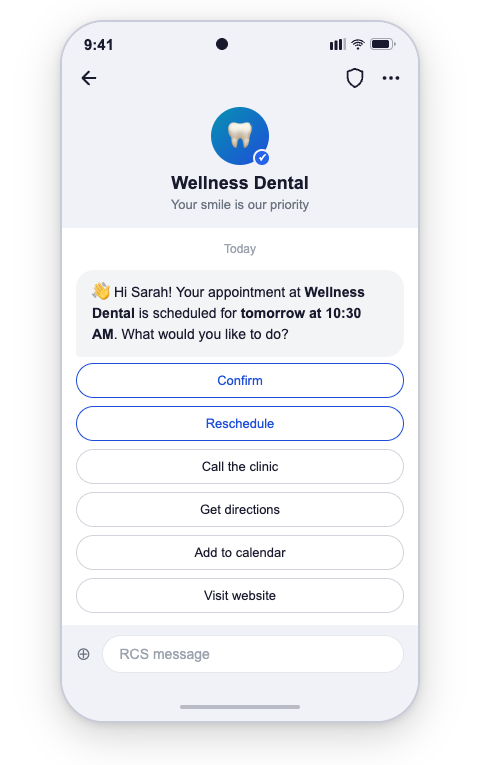
    "text":":wave: Hi Sarah! Just a reminder—your appointment at Wellness Dental is scheduled for tomorrow at 10:30 AM"
    }
    }

    The corresponding message the user will receive:

    Text message example


    Sending a Rich Media Message

    • Media Types Supported: Images, videos, documents
    • File formats: .ogx, .pdf, .aac, .mp3, .mpeg, .mp3, .mp4, .mp4, .3gp, .jpeg, .jpg, .gif, .png, .h263, .m4v, .mp4, .mp4, .mpeg, .webm
    • Text Caption: Up to 2,000 UTF-8 characters
    • File Size Limits: 100MB
    • File URL limit: 2,048 characters

    Image & text

    {
    "user":{
    "msisdn":"+10000000000"
    },
    "type":"Image",
    "content":{
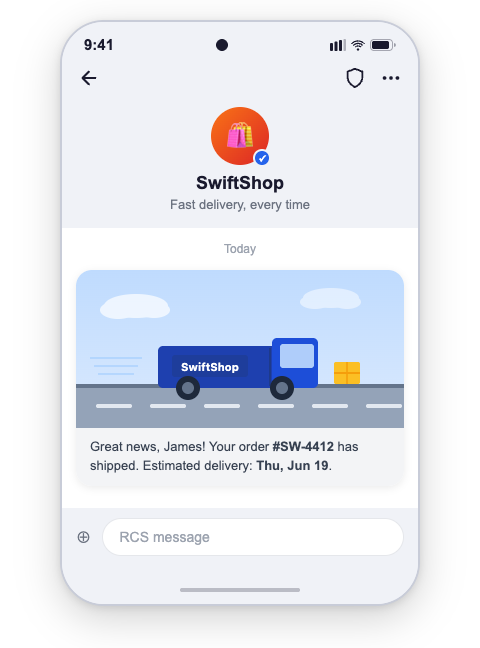
    "url":"https://www.example.com/image.jpg",
    "text":"Hi James! Your order #ORD-8821 has shipped and is on its way. Estimated delivery: tomorrow by 6 PM."
    }
    }

    The corresponding message the user will receive:

    Image and text message example


    Video & text

    {
    "user":{
    "msisdn":"+10000000000"
    },
    "type":"Video",
    "content":{
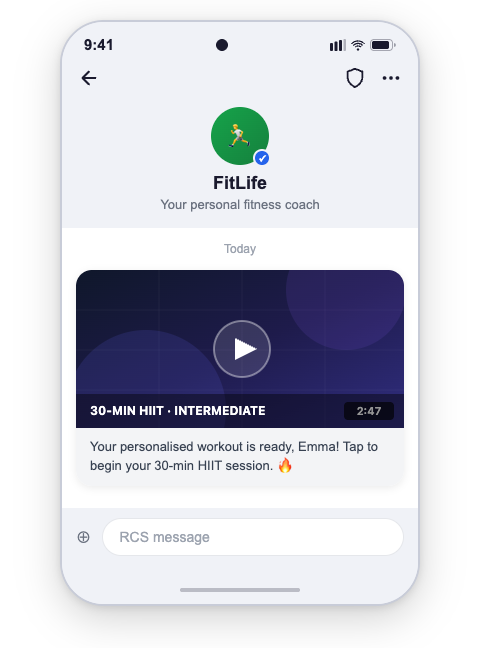
    "url":"https://www.example.com/video.mp4",
    "text":"Hi Emma! Your account setup guide is ready. Watch this short video to get started in minutes."
    }
    }

    The corresponding message the user will receive:

    Video and text message example


    Audio & text

    {
    "user":{
    "msisdn":"+10000000000"
    },
    "type":"Audio",
    "content":{
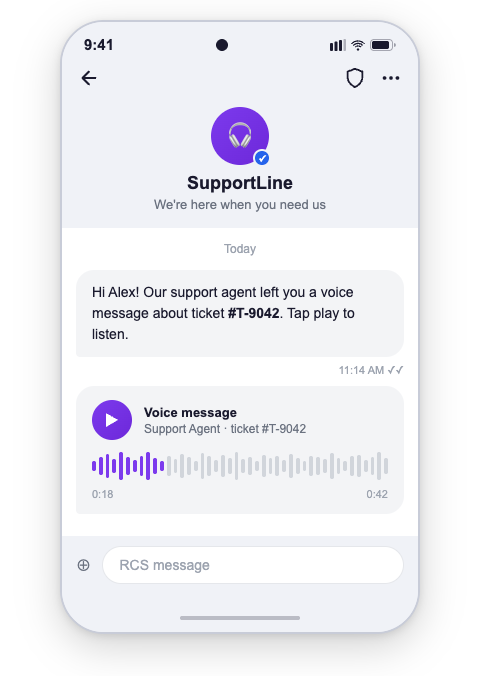
    "url":"https://www.example.com/audio.mp3",
    "text":"Hi Alex! You have a new voice message from our support team regarding your recent request."
    }
    }

    The corresponding message the user will receive:

    Audio and text message example


    File & text

    {
    "user":{
    "msisdn":"+10000000000"
    },
    "type":"Text",
    "content":{
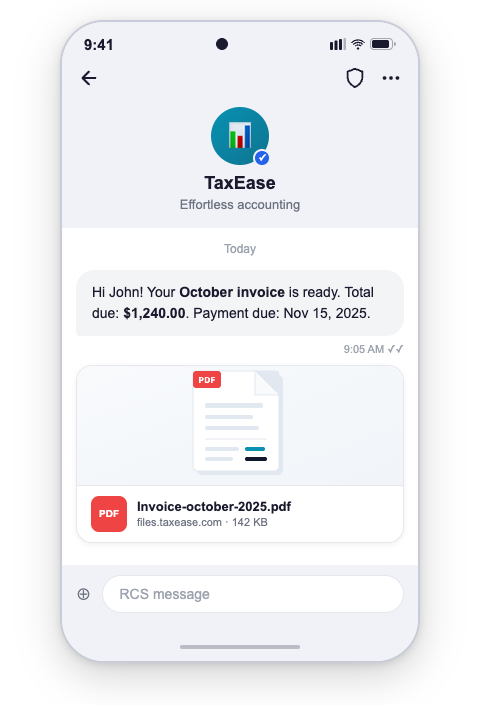
    "url":"https://example.com/links/Invoice-october-2025.pdf",
    "text":"Hey John! Here's your monthly invoice for October. Contact our team if you have any questions. Thank you"
    }
    }

    The corresponding message the user will receive:

    File and text message example


    Rich Card

    A Rich Card bundles a title, description, a single media asset (image or video), and up to four in-card suggestions into one interactive message. Use rich cards for product promotions, appointment confirmations, order summaries, or any scenario where visual content needs to be paired with clear calls to action.

    Content: Title + description + media + in-card suggestions + optional message-level suggestions

    Card Orientation: vertical or horizontal

    Media Height (vertical cards only): SHORT, MEDIUM, or TALL

    Use Cases: Product showcase, booking confirmation, loyalty reward, order summary

    Rich Card — Vertical

    A vertical card displays the media at the top, followed by the title, description, and in-card suggestions. Use MEDIUM or TALL media height when the image is the primary content; use SHORT when the text is the primary content.

    Payload sample

    {
    "user":{
    "msisdn":"+441234567890"
    },
    "type":"RichCard",
    "content":{
    "richCard":{
    "cardOrientation":"vertical",
    "title":"Hey Melissa! New year, new shoes? 👟",
    "description":"Check out our latest arrivals, including the AirPulse, perfect for your next run! Plus, get a free gait analysis with any purchase this week.",
    "media":{
    "height":"SHORT",
    "contentInfo":{
    "fileUrl":"https://www.example.com/rich_card_vertical.jpg",
    "thumbnailUrl":"https://www.example.com/rich_card_vertical.jpg",
    "forceRefresh":false
    }
    },
    "suggestions":[
    {
    "reply":{
    "text":"🛍️ View new arrivals",
    "postbackData":"view_new_arrivals"
    }
    },
    {
    "reply":{
    "text":"📋 Book Gait Analysis",
    "postbackData":"book_gait_analysis"
    }
    },
    {
    "action":{
    "text":"👗 Shop now",
    "postbackData":"shop_now",
    "openUrlAction":{
    "url":"https://developer.8x8.com/connect/docs/rcs/message-types",
    "application":"WEBVIEW",
    "webviewViewMode":"FULL",
    "description":"Shop Bridgepoint Runners"
    },
    "fallbackUrl":"https://developer.8x8.com/connect/docs/rcs/message-types"
    }
    }
    ]
    },
    "suggestions":[
    {
    "reply":{
    "text":"Check my orders",
    "postbackData":"check_my_orders"
    }
    },
    {
    "reply":{
    "text":"Not interested",
    "postbackData":"not_interested"
    }
    }
    ]
    }
    }

    The corresponding message the user will receive:

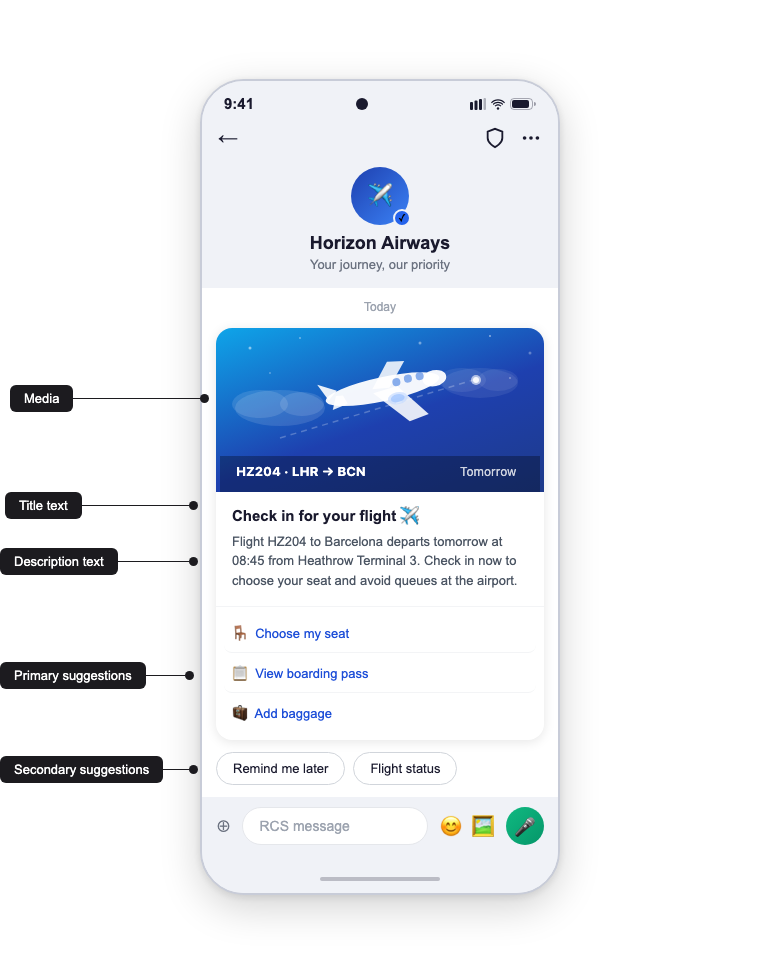
    Rich card vertical — annotated

    The annotations map directly to the payload:

    • Media → content.richCard.media
    • Title text → content.richCard.title
    • Description text → content.richCard.description
    • Primary suggestions → content.richCard.suggestions (in-card, up to 4)
    • Secondary suggestions → content.suggestions (message-level, up to 7)

    Rich Card — Horizontal

    A horizontal card displays the media to the left or right of the text block. Use it when the text is the primary content and the image plays a supporting role (e.g. confirmations, itineraries, compact receipts). Horizontal cards do not use media.height — the carrier sizes the media to the text block.

    Payload sample

    {
    "user":{
    "msisdn":"+441234567890"
    },
    "type":"RichCard",
    "content":{
    "richCard":{
    "thumbnailImageAlignment":"right",
    "cardOrientation":"horizontal",
    "title":"Your reservation at Ebi",
    "description":"We're springing into action to get your table ready for 5:00 PM! 🕔 Have any questions before you arrive?",
    "media":{
    "contentInfo":{
    "fileUrl":"https://www.example.com/rich_card_horizontal.jpg",
    "thumbnailUrl":"https://www.example.com/rich_card_horizontal.jpg",
    "forceRefresh":false
    }
    },
    "suggestions":[
    {
    "action":{
    "text":"Ebi location",
    "postbackData":"ebi_location",
    "viewLocationAction":{
    "latLong":{
    "latitude":37.7749,
    "longitude":-122.4194
    },
    "label":"Ebi Restaurant"
    }
    }
    },
    {
    "action":{
    "text":"Call us",
    "postbackData":"call_ebi",
    "dialAction":{
    "phoneNumber":"+12025551234"
    }
    }
    }
    ]
    },
    "suggestions":[]
    }
    }

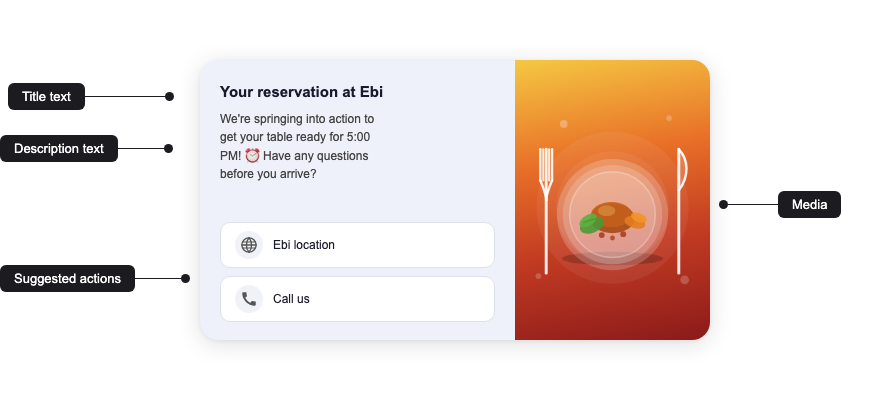
    The corresponding message the user will receive:

    Rich card horizontal — Ebi reservation

    Suggestions: in-card vs. message-level

    A rich card supports two separate suggestion arrays:

    Location Path Limit Renders as
    In-card content.richCard.suggestions Up to 4 Buttons inside the card, tied to the card content.
    Message-level content.suggestions Up to 7 additional Chips below the card, for broader follow-up actions.

    Together, a single message can expose up to 11 suggestions (4 in-card + 7 message-level).

    Rich Card field reference

    Field Type Description
    cardOrientation string vertical or horizontal.
    thumbnailImageAlignment string Horizontal cards only. left or right — positions the media relative to the text block.
    title string Card headline. Max 200 characters.
    description string Supporting body text. Max 2 000 characters.
    media.height string SHORT, MEDIUM, or TALL. Vertical cards only.
    media.contentInfo.fileUrl string (URL) Public URL of the image or video asset.
    media.contentInfo.thumbnailUrl string (URL) Public URL of the thumbnail (used for video).
    media.contentInfo.forceRefresh boolean If true, the carrier re-fetches the media instead of serving a cached copy.
    suggestions[] array In-card chips. Each entry contains either a reply or an action.

    Limits

    Field Limit
    Title 200 characters
    Description 2 000 characters
    In-card suggestions Up to 4 chips
    Message-level suggestions Up to 7 chips
    Media file size Up to 100 MB
    Card payload size 250 KB

    Best practices

    • Keep titles short and scannable; use the description for supporting detail.
    • Pair every card with at least one suggestion so users have a clear next step.
    • Provide a fallbackUrl on every openUrlAction for clients that cannot open the webview.
    • Serve media over HTTPS from a stable, publicly reachable URL — the carrier may cache the asset.
    • Use message-level suggestions for persistent actions (e.g. "Check my orders") and keep in-card suggestions tied to the card's specific offer.

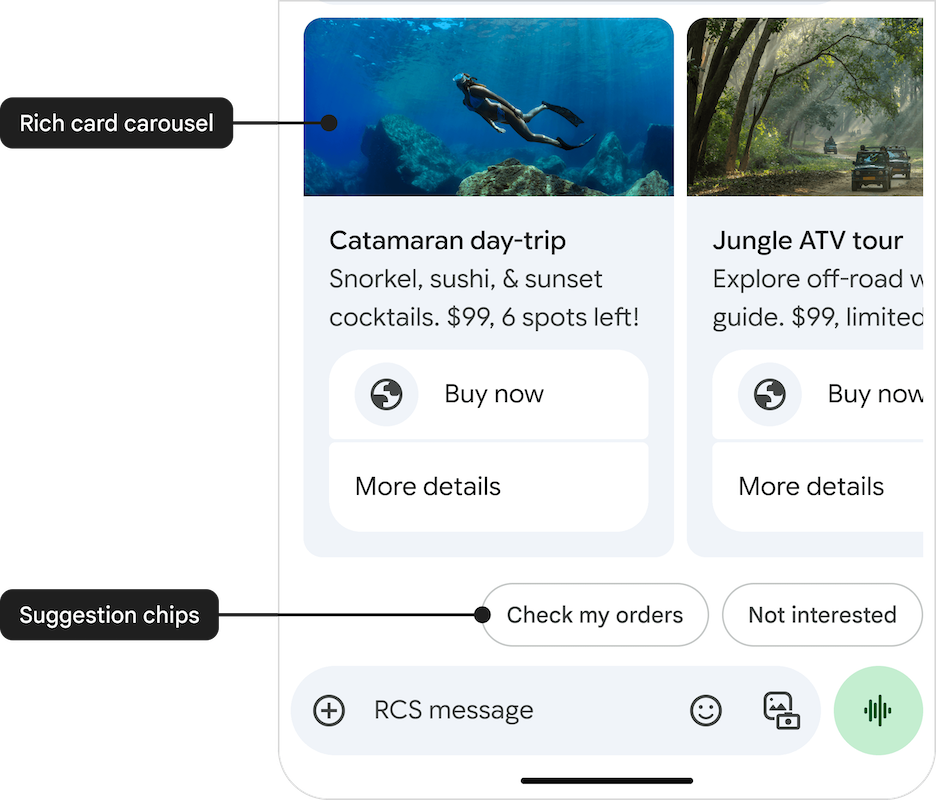
    Carousel

    A Carousel is a horizontally swipeable collection of rich cards delivered in a single message. Use carousels to present multiple comparable items — product variants, tour packages, available appointment slots, or menu choices — so the user can browse options inline without leaving the conversation.

    Each card in the carousel follows the same content model as a standalone rich card (title, description, media, in-card suggestions), but cards in a carousel share a common cardWidth and are always rendered vertically.

    Content: List of 2–10 cards + optional message-level suggestions

    Card Width: small or medium — applied to every card in the carousel

    Use Cases: Product catalogue, tour or package selection, menu, appointment slots, booking options

    Payload sample

    {
    "user":{
    "msisdn":"+441234567890"
    },
    "type":"Carousel",
    "content":{
    "carousel":{
    "cardWidth":"medium",
    "cards":[
    {
    "title":"Catamaran day-trip",
    "description":"Snorkel, sushi, & sunset cocktails. $99, 6 spots left!",
    "media":{
    "height":"short",
    "contentInfo":{
    "fileUrl":"https://www.example.com/catamaran.jpg",
    "thumbnailUrl":"https://www.example.com/catamaran.jpg",
    "forceRefresh":false
    }
    },
    "suggestions":[
    {
    "action":{
    "text":"Buy now",
    "postbackData":"buy_catamaran",
    "openUrlAction":{
    "url":"https://developer.8x8.com/connect/docs/rcs/message-types",
    "application":"WEBVIEW",
    "webviewViewMode":"FULL",
    "description":"Buy catamaran day-trip"
    },
    "fallbackUrl":"https://developer.8x8.com/connect/docs/rcs/message-types"
    }
    },
    {
    "reply":{
    "text":"More details",
    "postbackData":"details_catamaran"
    }
    }
    ]
    },
    {
    "title":"Jungle ATV tour",
    "description":"Explore off-road with an expert guide. $99, limited spots!",
    "media":{
    "height":"short",
    "contentInfo":{
    "fileUrl":"https://www.example.com/atv.png",
    "thumbnailUrl":"https://www.example.com/atv.png",
    "forceRefresh":false
    }
    },
    "suggestions":[
    {
    "action":{
    "text":"Buy now",
    "postbackData":"buy_atv_tour",
    "openUrlAction":{
    "url":"https://developer.8x8.com/connect/docs/rcs/message-types",
    "application":"WEBVIEW",
    "webviewViewMode":"FULL",
    "description":"Buy jungle ATV tour"
    },
    "fallbackUrl":"https://developer.8x8.com/connect/docs/rcs/message-types"
    }
    },
    {
    "reply":{
    "text":"More details",
    "postbackData":"details_atv_tour"
    }
    }
    ]
    }
    ]
    },
    "suggestions":[
    {
    "reply":{
    "text":"Check my orders",
    "postbackData":"check_my_orders"
    }
    },
    {
    "reply":{
    "text":"Not interested",
    "postbackData":"not_interested"
    }
    }
    ]
    }
    }

    The corresponding message the user will receive:

    Carousel — annotated

    The annotations map directly to the payload:

    • Rich card carousel → content.carousel.cards (the swipeable cards themselves)
    • Suggestion chips → content.suggestions (message-level, shown below the carousel)

    Carousel field reference

    Field Type Description
    cardWidth string small or medium. Applies to every card in the carousel.
    cards[] array 2 to 10 card objects. Each card has the same shape as a standalone vertical rich card, minus cardOrientation.
    cards[].title string Card headline. Max 200 characters.
    cards[].description string Card body. Max 2 000 characters.
    cards[].media.height string short, medium, or tall. Applies per card.
    cards[].media.contentInfo.fileUrl string (URL) Public URL of the image or video.
    cards[].media.contentInfo.thumbnailUrl string (URL) Public URL of the thumbnail (used for video).
    cards[].suggestions[] array In-card chips. Up to 4 per card.
    content.suggestions[] array Message-level chips shown below the carousel. Up to 7.

    Limits

    Field Limit
    Cards per carousel 2 minimum, 10 maximum
    Card title 200 characters
    Card description 2 000 characters
    In-card suggestions (per card) Up to 4 chips
    Message-level suggestions Up to 7 chips
    Media file size (per card) Up to 100 MB
    Total payload size 250 KB

    Best practices

    • Keep cardWidth consistent with the content density — use small when titles and descriptions are short; use medium when you need room for longer copy or larger media.
    • Keep the number of cards manageable. 3–5 cards typically convert best; 10 cards is the absolute ceiling.
    • Lead with the most relevant card — users often only browse the first two or three before making a decision.
    • Use the same suggestion pattern on every card (e.g. "Buy now" + "More details") so users learn the pattern quickly.
    • Serve media over HTTPS from a stable, publicly reachable URL — the carrier may cache the asset.
    • Use message-level suggestions for actions that apply to the whole conversation ("Check my orders", "Not interested") rather than to a specific card.

    Suggested Actions

    Suggestions in RCS Business Messaging provide interactive buttons, chips, or quick replies that guide users seamlessly through rich conversational experiences. By using suggestions, brands can streamline user journeys, enhance engagement, improve conversions, and gather immediate user feedback.

    Available Suggestion Types

    Suggestion type One-line description Typical brand use cases Core benefit
    Suggested Reply Sends a predefined text back to your agent or bot. Yes/No, choose size/colour, CSAT "👍/👎", OTP confirmation. Keeps flow structured and speeds funnel completion.
    Dial a Number Opens the dialer with a preset phone number. Escalate to live agent, click-to-call for abandoned carts, fraud alerts. Instant voice escalation builds trust and saves high-value sales.
    View a Location Launches maps focused on a given pin or search term. Store locator, nearest ATM/locker, travel itinerary. Drives measurable footfall from messaging.
    Open URL / Webview Opens browser or in-app webview (full/half/tall). Secure checkout, product page, claim form, loyalty sign-in. Seamless upsell without forcing an app download.
    Create Calendar Event Pre-fills a calendar entry in the user's default calendar. Doctor appointments, flight reminders, webinar invites. Cuts no-shows by embedding reminders directly in the calendar.

    Suggested actions example

    Best practices

    • Limit to 4‑5 suggestions per message to avoid cognitive overload.
    • Use clear, action‑oriented labels (e.g. "Track Order" instead of "Order").
    • Always set postback data so downstream systems can act on replies.
    • Include capability fallback (SMS or URL) when the user's client does not support a given action.
    • Instrument analytics to track tap‑through and optimise suggestion wording.

    Implementation Example

    {
    "user":{
    "msisdn":"+441234567890"
    },
    "type":"Text",
    "content":{
    "text":"👋 Hi Sarah! Just a reminder—your appointment at Wellness Dental is scheduled for tomorrow at 10:30 AM",
    "suggestions":[
    {
    "reply":{
    "text":"Confirm",
    "postbackData":"user_confirmed"
    }
    },
    {
    "reply":{
    "text":"Reschedule",
    "postbackData":"user_rescheduled"
    }
    },
    {
    "action":{
    "text":"Add to Calendar",
    "postbackData":"add_event_to_calendar",
    "createCalendarEventAction":{
    "title":"Dental Appointment",
    "description":"Appointment at Wellness Dental",
    "startTime":"2026-02-15T10:30:00Z",
    "endTime":"2026-02-15T11:00:00Z"
    }
    }
    },
    {
    "action":{
    "text":"View Location",
    "postbackData":"view_clinic_location",
    "viewLocationAction":{
    "latLong":{
    "latitude":37.7749,
    "longitude":-122.4194
    },
    "label":"Wellness Dental"
    }
    }
    },
    {
    "action":{
    "text":"Visit Website",
    "postbackData":"open_website",
    "openUrlAction":{
    "url":"https://developer.8x8.com/connect/docs/rcs/message-types",
    "application":"WEBVIEW",
    "webviewViewMode":"FULL",
    "description":"Visit our website"
    },
    "fallbackUrl":"https://developer.8x8.com/connect/docs/rcs/message-types"
    }
    }
    ]
    }
    }

    Overview of file types and limits

    Supported File formats are

    Category Extensions / MIME types Notes
    Images .jpeg / .jpg (image/jpeg), .png (image/png), .gif (image/gif) Supported in rich cards & media messages
    Video .h263 (video/h263), .m4v (video/m4v), .mp4 (video/mp4, video/mpeg4), .mpeg (video/mpeg), .webm (video/webm) Supported in rich cards & media messages
    Audio .aac (audio/aac), .mp3 (audio/mp3, audio/mpeg, audio/mpg), .mp4 (audio/mp4, audio/mp4-latm), .3gp (audio/3gpp), .ogx / .ogg (application/ogg, audio/ogg) Media messages only
    Documents .pdf (application/pdf) Media messages (not rich cards)
    File size cap Up to 100 MB per attachment

    Limits

    Message element / field Limit
    Plain text message 3 072 characters
    Rich-card title 200 characters
    Rich-card description 2 000 characters
    Suggested-reply text 25 characters
    Suggested-action text 25 characters
    Suggestion chips per message Up to 11 chips (4 in-card + 7 extra)
    Carousel cards per message Up to 10 cards
    Text caption with media 2 000 characters
    Postback data (per suggestion) 2 048 characters
    Rich-card payload size 250 KB

    Source: https://developer.8x8.com/connect/docs/rcs/message-types · 8x8 CPaaS Developer Docs. Synced for support deflection.

  • Okta - Bring Your Own Telephony (BYOT) via SMS

    Okta - Bring Your Own Telephony (BYOT) via SMS

    Overview

    This guide will take you through how to integrate 8x8's SMS API into Okta as an authenticator method using an Okta Inline Hook. Specifically we will be using Okta's Telephony Inline Hook to add 8x8's SMS API as an option.

    For Okta's own guide on bringing your own telephony provider, refer to Okta's reference guide here and use Option 2.

    The diagram below explains how the flow will look like from using Okta together with the Node.js server we will be building in this tutorial to send OTPs via 8x8 SMS API.

    image

    Video Demo

    This Video Demo shows the integration in action and explains a high level of the setup steps in this guide. We recommend referring to this text guide for the full setup.

    Requirements

    • Okta Account (an Okta Dev Account is fine for testing).
    • 8x8 Account and Subaccount with a SMS Sender.
    • JavaScript Knowledge for running the sample code.
    • API Endpoint for Okta to send a HTTP request. Required as part of their Inline Hook integration.

    Setup

    Setup Backend Code

    We will need an example endpoint for Okta to send it's HTTP request to. We have provided some example Node.js server code below for you to use:

    const express =require('express');
    const bodyParser =require('body-parser');
    const axios =require('axios');
    const{ apiKey, subaccount, sender, authKey }=require('./config');
    const app =express();
    constPORT=3000;
    // Middleware to parse JSON bodies
    app.use(bodyParser.json());
    // Function to send a successful response to Okta
    constsendSuccessResponse=(res, umid, transactionMetadata)=>{
    res.status(200).json({
    commands:[
    {
    type:"com.okta.telephony.action",
    value:[
    {
    status:"SUCCESSFUL",
    provider:"8x8",
    transactionId: umid,
    transactionMetadata:JSON.stringify(transactionMetadata)
    }
    ]
    }
    ]
    });
    };
    // Function to send an error response to Okta
    constsendErrorResponse=(res, errorData)=>{
    const errorSummary =`8x8 Error Code: ${errorData.code}. 8x8 Error Message: ${errorData.message}`;
    res.status(500).json({
    error:{
    errorSummary: errorSummary
    }
    });
    };
    app.post('/telephony-hook',async(req, res)=>{
    // Print the request body
    console.log('Received request body:', req.body);
    // Check if the Authorization header is correct
    const authHeader = req.headers['authorization'];
    if(authHeader !== authKey){
    console.log('Unauthorized request');
    return res.status(401).json({error:'Unauthorized'});
    }
    // Check if the required fields are present
    const{ msgTemplate, phoneNumber }= req.body.data.messageProfile;
    if(!msgTemplate ||!phoneNumber){
    console.log('Invalid request data:', req.body.data);
    return res.status(400).json({error:'Invalid request data'});
    }
    // Send OTP using 8x8's SMS API
    try{
    const response =await axios.post(
    `https://sms.8x8.com/api/v1/subaccounts/${subaccount}/messages`,
    {
    source: sender,
    destination: phoneNumber,
    text: msgTemplate,
    encoding:"AUTO"
    },
    {
    headers:{
    'Authorization':`Bearer ${apiKey}`
    }
    }
    );
    // Print successful response
    console.log('OTP sent successfully:', response.data);
    // Respond with a successful delivery response
    sendSuccessResponse(res, response.data.umid, response.data);
    }catch(error){
    // Print error response
    console.log('Failed to send OTP:', error.message);
    // Handle errors from the SMS API and respond with an error delivery response
    if(error.response&& error.response.data){
    sendErrorResponse(res, error.response.data);
    }else{
    sendErrorResponse(res,{code:'UNKNOWN',message:'An unknown error occurred'});
    }
    }
    });
    app.listen(PORT,()=>{
    console.log(`Server is running on port ${PORT}`);
    });

    The code takes as input a inline hook from Okta which is simply an HTTPS request. Then it will extract the phone number and message from the request body and use that information to send an API call to 8x8's SMS API to send an OTP to the destination number. It will return either success or error information to Okta as a final step.

    Please note it requires parameters set in a config.js file as below. All values should be replaced and set with the corresponding values unique to your 8x8 Account and Okta Inline Hook configuration. The apiKey, subaccount and sender can be found in 8x8 Connect under API Keys and Numbers.

    Key Value
    apiKey Your 8x8 API Key.
    subaccount Your 8x8 Subaccount.
    sender Your 8x8 SMS Sender ID or Virtual Number
    authKey Should be set to the same value as the Authentication Secret from the Inline Hook guide setup below. Used by your server to authenticate the request from Okta.

    Here is the example config.js file for reference where the values should be replaced.

    // config.js
    module.exports = {
    apiKey: 'your_8x8_api_key',
    subaccount: 'your_8x8_subaccount',
    sender: 'YourSender',
    authKey: '1234'
    };

    Here is the example package.json for your Node.js application. It includes the packages axios, body-parser and expressed used in the backend server code.

    {
    "name":"okta_inline_hook_integration",
    "version":"1.0.0",
    "main":"server.js",
    "scripts":{
    "test":"echo \"Error: no test specified\" && exit 1",
    "start":"node server.js"
    },
    "keywords":[],
    "author":"",
    "license":"ISC",
    "description":"",
    "dependencies":{
    "axios":"^1.7.3",
    "body-parser":"^1.20.2",
    "express":"^4.19.2"
    }
    }

    After placing this code in the same directory, you can run the following commands to start the server.

    npm install
    npm start

    The output should appear as follows.

    > okta_inline_hook_integration@1.0.0 start
    > node server.js
    Server is running on port 3000

    The server should be exposed to the public internet so that Okta can send a webhook. The exact method is left to you but some options may include ngrok and localtunnel if you are running on your local laptop/desktop dev environment.

    For production, however, this should be running behind a proper web server setup.

    Create Inline Hook

    Go to Workflow > Inline Hooks on the Okta Dashboard. Select Add Inline Hook and Telephony.

    image

    Adding Inline Hook as Authenticators

    In the Create Inline Hook page, fill in the following values.

    Field Description Example Value
    Name Can be any value. We use "8x8 - SMS Authentication" 8x8 - SMS Authentication
    URL Should be set to the URL of your backend server that you send the code.

    For this tutorial we host it locally and use ngrok to expose it for demo purposes. In production you will need a hosting solution.
    https://example.com/endpoint
    Authentication Field Will be sent as part of the request header. Authentication Field is for your backend to authenticate the webhook from Okta. It can be any value

    Refer to Okta's page on authentication and Inline Hooks for reference.
    Authentication
    Authentication Secret (Used with Authentication Field) Will be sent as part of the request header. This should be the value your backend uses to authenticate secretvalue

    image


    After entering the values, click Save.

    Preview the Telephony Inline Hook

    In the next page you should see the following confirming a few of the values from setting up the Inline Hook. Select an Okta user to preview from your organization in data.userProfile and select anything for the requestType, we use MFA enrollment.

    image

    Afterwards click Generate Request in Step 2 on this page, it will generate an example JSON that will be sent to your endpoint so that you know what format to expect from Okta. If needed, change any of the JSON Values such as the messageProfile.phoneNumber field which we use in our tutorial code to send an OTP.

    image

    Click View Response to send the example Inline hook to your server. You should see the JSON response below from the server upon a successful request.

    image

    From our example Node.js server you should see the following output, showing the API request sent from Okta and also the output of the API call to 8x8's SMS API.

    Received request body: {
    eventId: '3IPD5oQfQdOttCCjUWMk3Q',
    eventTime: '2024-08-07T22:15:30.000Z',
    eventType: 'com.okta.telephony.provider',
    eventTypeVersion: '1.0',
    contentType: 'application/json',
    cloudEventVersion: '0.1',
    source: '<redacted>',
    requestType: 'com.okta.user.telephony.pre-enrollment',
    data: {
    context: { request: [Object] },
    userProfile: {
    firstName: 'Rommel',
    lastName: 'Sunga',
    login: '<redacted>',
    userId: '00uit3mfz9gLSSzgQ5d7'
    },
    messageProfile: {
    msgTemplate: 'Your code is 11111',
    phoneNumber: '<Destination Phone Number>',
    otpExpires: '2024-08-07T22:20:25.057Z',
    deliveryChannel: 'SMS',
    otpCode: '11111',
    locale: 'EN-US'
    }
    }
    }
    OTP sent successfully: {
    umid: 'f68ac2f8-9da3-48d8-b8ec-f9702dad3b5b',
    clientMessageId: null,
    destination: '<Destination Phone Number>',
    encoding: 'GSM7',
    status: {
    code: 'QUEUED',
    description: 'SMS is accepted and queued for processing'
    }
    }

    The SMS should also be delivered to your phone.

    image

    This demonstrates the inline hook is now successfully working. Now you can attach the Okta inline hook to any action that would trigger the inline hook in Okta.

    Using the Inline Hook

    Now that the Inline Hook has been added, in order to require it for signing into your Okta organization.

    Add Authenticator

    Ensure that in the Security - Authenticators page that Phone is added as an Authenticator option.

    image

    If it is not already on the list then click Add Authenticator to add it.

    Create new Authentication Policy Rule

    Click Add Rule on the Security - Authentication Policies page.

    image

    In the Edit Rule page, the only change we will make is for AND Authentication methods where we should include the Phone - SMS method along with any other methods we wish to offer the user authenticating into Okta.

    image

    Add to Application

    After creating the Policy, add it to one of your Applications.

    Okta Policy List

    Inline Hook Rule - After Adding Okta Dashboard to the rule.

    Signing In

    When attempting to login to the application that you have configured above, you should receive the following screen prompting you to register for Phone Verification.

    image

    image

    Again the code should be sent to your phone via SMS, follow the prompts to finish logging into application.

    image

    For subsequent sign-ins to the application it should utilize SMS as a verification method.

    Conclusion

    In this tutorial we have shown how to create a Telephony Inline Hook that makes use of 8x8's SMS API to send OTPs via SMS. With this integration, you can leverage the ability of 8x8's SMS API to send an OTP while integrating with Okta.


    Source: https://developer.8x8.com/connect/docs/okta · 8x8 CPaaS Developer Docs. Synced for support deflection.

  • MoEngage - SMS Integration

    MoEngage - SMS Integration

    Introduction

    8x8 CPaaS (Communications Platform as a Service) offers a robust suite of APIs and tools for integrating voice, video, chat, WhatsApp (among other messaging apps channels) and SMS capabilities into your applications.

    📘 Prerequisites

    Ensure that you have your 8x8 account, subaccount and an API key. If there are any issues with your 8x8 credentials reach out to cpaas-support@8x8.com

    Video Demo

    This is an accompanying video guide. It shows how the integration is setup and used in action.

    Configure 8x8 as a Custom SMS Connector (Service Provider)

    This article helps you configure 8x8 as a Custom SMS Connector (Service Provider) on the MoEngage platform for businesses that use MoEngage for their communication campaign scheduling.

    Requirements

    Before proceeding, ensure that you have the following parameters to make calls to the 8x8 SMS API. Both parameters below can be found in your 8x8 Connect Portal in the API Keys section.

    Parameter Description
    API Key Used to authenticate with 8x8's APIs. Please see this page for details.
    Subaccount Your 8x8 subaccount. Your 8x8 account should have a subaccount created for it by default. You can request a new subaccount from our support team at cpaas-support@8x8.com.

    Configure in Revamped UI

    Log in to the MoEngage Dashboard and follow these steps:

    1. Navigate to Settings -> Channel -> SMS.
    2. On the Sender Configuration tab, click + Add sender. The Add sender page is displayed.
    3. In step 1 "Service Provider", click + Add custom service provider. The Add Custom Connector sender page is displayed.
    4. Add the following details in step 2 "Sender Details".
    Field Description
    Mark as Default Turn this toggle on to mark the sender as the default sender for the service provider being configured. If marked as default, this sender will be used for sending all SMS campaigns from MoEngage unless you select a different sender while creating the campaign.
    Service Provider Name This field identifies the service provider you are configuring on the MoEngage Dashboard and has to be unique. Enter "8x8 SMS”.
    Sender Name This field identifies the sender. Enter "8x8 SMS".
    Sender Type Select the sender type. Available options are:
    Transactional: Select this option to use the sender for sending alerts about transactions, OTPs, security information, or any information that can be classified as transactional in nature.
    Promotional: Select this option to use the sender for sending information about your brand, promoting deals, or engaging with users.
    1. Configure the Webhook by adding the following details:
    Field Description
    API URL This field contains information about the URL that should be used to send an API request to the sender. You can get this information from the API documentation of the sender. Enter the API Endpoint of the sender here. The API URL for 8x8 is: https://sms.8x8.com/api/v1/subaccounts/{Subaccount}/messages{subaccount} in the URL should be replaced by your 8x8 subaccount. This can be found from the 8x8 Connect Dashboard in the API Keys section.
    Method Select POST as the HTTP method.
    URL parameters Add the URL Parameters to be passed to the API as Key-Value pairs using this option. You can get this information from the API documentation of the sender. For example, if the API URL call uses the GET method, all the parameters such as API Key, Authorization, and so on, are passed as URL Parameters.
    Headers Add the Request Headers to be passed to the API as Key-Value pairs using this option.Content-Type: application/jsonAuthorization: Bearer {Api Key}
    You can find your API key in the 8x8 Connect Dashboard's API Key section.
    Body type Configure the body for your requests. Select JSON and add the
    following details:
    In the message field, add Moesms_message to pass the MoEngage message into the request.
    In the sender field, add the Sender ID in your 8x8 account.
    In the recipient field, add Moesms_destination to add the recipient to the message.
    1. Click Send Test SMS to verify your configuration.
    2. Click Save to save the sender configuration.
    3. You can configure delivery tracking after creating the sender in the MoEngage Dashboard.
    4. You can map the attributes of the delivery tracking response manually or automatically.

    Source: https://developer.8x8.com/connect/docs/moengage-sms-integration · 8x8 CPaaS Developer Docs. Synced for support deflection.

  • Message status reference

    Message status reference

    8x8 API uses the following universal object for describing the message state across different APIs.

    Object structure

    Parameter name Type Description
    state string General status of the message.The property is mandatory for status object and always has a value
    detail string Optional additional detail of the state property in status.
    timestamp string UTC date and time when the status was observed expressed in ISO 8601 format: yyyy-MM-ddTHH:mm:ss.ffZThe property is mandatory for status object and always has a value
    errorCode integer Error code for the operation. This property is optional and set only for errors.
    errorMessage string Description of the error.
    This property is optional and set only for errors.

    State

    Possible values for state:

    • queued: The request is accepted and queued for processing.
    • rejected: The request has been rejected by 8x8
    • sent: The message has been sent to the operator and we have not received an acknowledgment yet.
    • delivered: The message has been delivered to the destination and we have received confirmation from the operator.
    • undelivered: We have received a delivery receipt from the operator that the message was not delivered.
    • read: The message was delivered and read.

    Detail

    Possible values for details:

    • delivered_to_operator: The message has been delivered to the operator. Associated with delivered state
    • delivered_to_recipient: The message has been delivered to the recipient. Associated with delivered state.
    • rejected_by_operator: The message has been rejected by the operator. Associated with undelivered status.
    • undelivered_to_recipient: The message has been delivered but rejected by the target device. Associated with undelivered state.

    Samples of the status object

    Message sent successfully

    "status":{
    "state":"queued",
    "timestamp":"2020-12-22T01:24:30.6030893Z"
    }

    Source: https://developer.8x8.com/connect/docs/message-status-references · 8x8 CPaaS Developer Docs. Synced for support deflection.

  • Tutorial: Google Sheets and SMS

    Tutorial: Google Sheets and SMS

    Requirements

    • An 8x8 Connect account
    • Make.com account
    • Google Sheet

    Tutorial

    This tutorial will take you through an example of how to use Make, Google Sheets and 8x8 SMS API together to automate sending an SMS whenever a new entry is added to Google Sheets.

    Google Sheet Setup

    Before we start on the Make.com scenario, create a new Google Sheet in your Google Account that you can access with the following format. This will be used later to add new rows and trigger the Make.com Scenario.

    The sheet should have Phone Number in Cell A1 and Message in Cell B1 to serve as headers.

    Add phone number and message columns

    Add phone number and message columns

    Create a New Scenario

    The create button is located on the top right from the Dashboard.

    image

    Add a Trigger

    The trigger is the first action in a scenario, here we will select "Google Sheets"

    image

    In the list of triggers/actions for Google Sheets, select "Watch new rows"

    image

    Then you will want to add a new connection.

    image

    This will prompt you to connect your Google account and then specify the information about your Google Sheet.

    image

    It will then prompt you to decide which row to start watching, in this example our Google Sheet is blank so we will select 2 since our new data should start at row 2.

    image

    After that, we will select the "Add another module" Option and select 8x8 from the list.

    image image Afterwards, you can specify the following fields which are required:
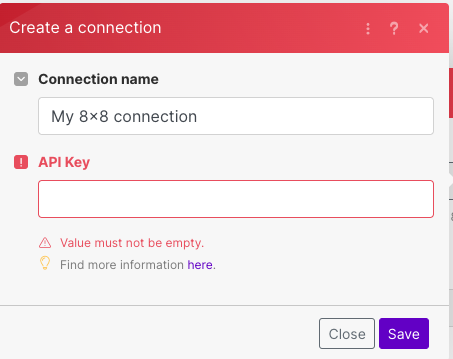
    • Subaccount: Enter in your 8x8 subaccount
    • Destination: Select the output that contains the Phone Number in the Google Sheet
    • Text: Select the output that contains the Message in the Google Sheet

    image

    When you connect for the first time to 8x8, you will be prompted for an 8x8 API Key which can be obtained from the 8x8 Connect Dashboard under the API Keys section.

    image

    Enable your Make.com Scenario

    Turn on Scheduling on the Bottom Left and select your desired frequency, by default, it will check every 15 minutes.

    image

    Add a Row and Receive an SMS

    Once you add a row to your Google Sheet, this should trigger Make.com to send you an SMS at the specified phone number. This may not be immediate as it needs to wait for the scheduled interval.

    image

    This should result in an SMS being sent to the destination specified.

    image

    Potential Future Use Cases

    Make.com is not limited to using 8x8 with Google Sheets of course. There may be other modules connecting to other apps that would be useful.

    To see a full list of make.com apps, see their webpage here.

    Supported Modules

    Here are the list of supported modules for Make.com:

    • Send a Single SMS
    • Send a Bulk SMS
    • Send a Single Chat App Message
    • Make an API Call

    image


    Source: https://developer.8x8.com/connect/docs/make · 8x8 CPaaS Developer Docs. Synced for support deflection.

  • Inbound SMS

    Inbound SMS

    8x8 SMS API exposes a webhook mechanism to let you receive Inbound SMS (SMS sent to your virtual numbers) on a callback URL of your choice.
    Whenever you receive inbound SMS, the 8x8 SMS platform sends a POST request to the endpoint of your choice with a JSON body containing the inbound SMS and the associated data.

    Requirements

    To use inbound SMS capabilities, liaise with your account manager to activate the following:

    • A virtual mobile number where your user will send their SMS
    • An inbound SMS callback URL: set the URL, where 8x8 platform should forward the inbound messages addressed to your virtual number

    📘

    You can configure your callback using Webhooks Configuration API

    Inbound SMS flow

    1. A user sends an SMS to one of your virtual numbers
    2. 8x8 receives the SMS on your behalf
    3. 8x8 programmatically sends the SMS to the callback URL configured for your virtual number using POST request.
    4. The POST request body, in the JSON format contains the SMS body and all associated data (UMID, source, destination, encoding, timestamp)

    Retry logic

    In case of connection error/timeout or HTTP response code 4XX or 5XX, there will be multiple retry attempts with progressive intervals: 1, 10, 30, 90 sec.

    Webhook format

    Request body description

    Parameter name Parameter type Description
    namespace string A generic namespace for incoming webhook.
    Equal to SMS for inbound SMS.
    eventType string Webhook type.
    Equals to inbound_message_received for inbound SMS.
    description string Human-readable description of the incoming event
    payload object Inbound message information, see below.

    Payload object description

    Parameter name Parameter type Description
    umid uuid Unique message ID for the inbound message
    subAccountId string Id of the sub-account which owns the virtual number.
    timestamp string UTC date and time when the message was received expressed in ISO 8601 format.
    source string Originating address of the SMS (sender number)
    destination string The destination address of the SMS (virtual number)
    body string Content of the SMS
    encoding string The encoding used in the SMS body (GSM7 / UCS2)
    smsCount integer Number of SMS segment in the message
    price object Price information of the message, please see Price object reference for details

    ❗️

    If the request you receive has a different structure from described in this document, please contact our support to activate the latest format for your account.

    Sample inbound SMS callback body

    {
    "namespace":"SMS",
    "eventType":"inbound_message_received",
    "description":"SMS inbound message",
    "payload":{
    "umid":"9e09ac86-bd74-5465-851d-1eb5a5fdbb9a",
    "subAccountId":"SubAccount-1",
    "timestamp":"2016-01-01T14:34:56.017Z",
    "source":"+6581968289",
    "destination":"+4534735477",
    "body":"Test MO message",
    "encoding":"GSM7",
    "smsCount":2,
    "price":{
    "total":0.0446592,
    "perSms":0.0446592,
    "currency":"EUR"
    }
    }
    }

    Source: https://developer.8x8.com/connect/docs/inbound-sms · 8x8 CPaaS Developer Docs. Synced for support deflection.

  • Getting started with SMS API

    Getting started with SMS API

    The SMS API enables 8x8 customers to both send and receive SMS messages through a variety of use cases:

    • Send SMS Messages:
      Send individual SMS messages on demand.

    • Bulk Messaging:
      Send up to 10,000 SMS messages in a single API request for large-scale campaigns.

    • Delivery Status Updates:
      Receive callbacks with real-time delivery status for each sent SMS.

    • Inbound SMS Handling:
      Process inbound SMS messages sent to virtual phone numbers.

    • SMS Engage Surveys:
      Invite users to participate in SMS engage surveys, either individually or in bulk, and capture their responses.

    • OTP Feedback Transmission:
      Provide feedback on OTP SMS outcomes to dynamically optimize SMS delivery quality.

    • Activity Retrieval:
      Retrieve detailed SMS activity logs for analysis and data reconciliation.

    📘 Downloading SMS APIs (OAS File)

    You can download the OAS File - Click Here

    _ Please do take note that the file provides all the SMS APIs so please look through the .OAS file and select the specific SMS API(s) required._

    Server Regions

    To ensure the use of the correct platform deployment region, it is necessary to modify the base URL to correspond with the provisioned region of your account. Refer to the table below for the appropriate base URL associated with each platform region.

    For more information on platform regions, please visit the following page.

    List of server URLs:

    API Region Base URL
    Asia Pacific (default) https://sms.8x8.com
    North America https://sms.us.8x8.com
    Europe https://sms.8x8.uk
    Indonesia https://sms.8x8.id

    Source: https://developer.8x8.com/connect/docs/getting-started-with-sms-api · 8x8 CPaaS Developer Docs. Synced for support deflection.

  • Detrack - SMS Integration

    Detrack - SMS Integration

    Introduction

    Detrack is a scalable, smart, and easy to use tracking service with automatic real-time notifications when orders are delivered.

    Detrack provides a rule-based email and text / SMS notification feature, that allows users to send email and text messages to customers, company staff, or any other person who needs to receive those messages based on event triggers.

    With this integration, we can leverage the Detrack event triggers and 8x8 API to send SMS when an event occurs.


    Video Demo

    This video demo will show how you can integrate 8x8's SMS API with Detrack in order to send SMS notifications.


    Integrating Detrack notifications with SMS

    1. From the Detrack Dashboard, Go to Settings > Notifications.

    Navigate to Detrack Notifications

    1. Go to Text / SMS settings tab and fill out the following required values.
    Field Value
    Text / SMS Provider 8x8 (Wavecell)
    Country Code Country Code of your Sender ID
    Sender ID Your Sender ID or Virtual Number
    Send test Text / SMS To The number you would like to send your test notifications to.
    8x8 (WaveCell) API Key Your 8x8 API Key. Please generate one from the following page if you do not have it.
    8x8 (WaveCell) Sub-account Id The Subaccount ID containing the Sender ID / Virtual Number you would like to send from.

    Text / SMS Settings Example

    Text / SMS Settings Example

    1. Then go to the Notification settings tab for a list of notifications that have been pre-set for you. You can click on any existing notification to edit it or click on the Add Notification button to add a new notification (or trigger event).

    Add Notifications The steps to configure a Notification are continued in the following section below.
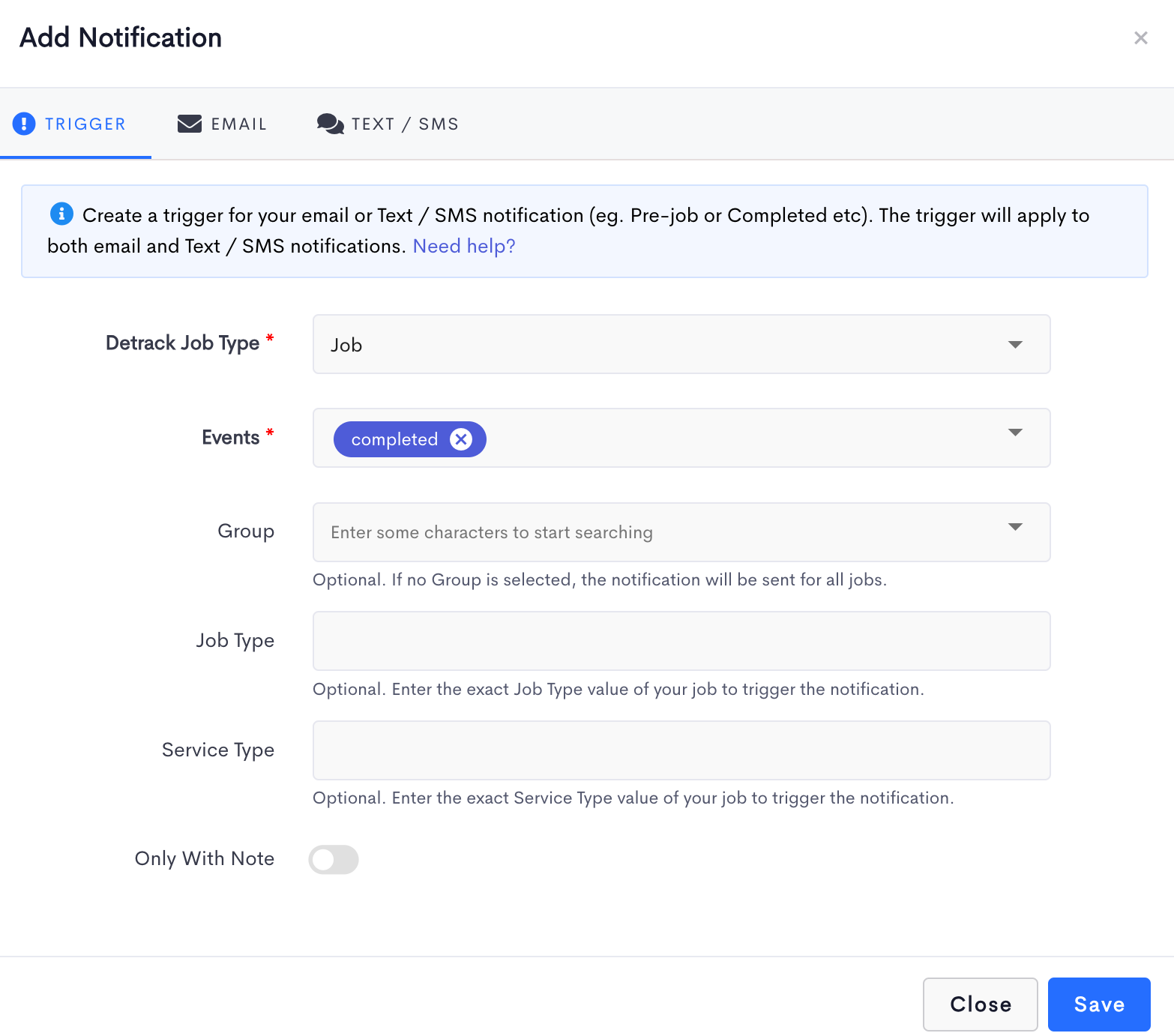
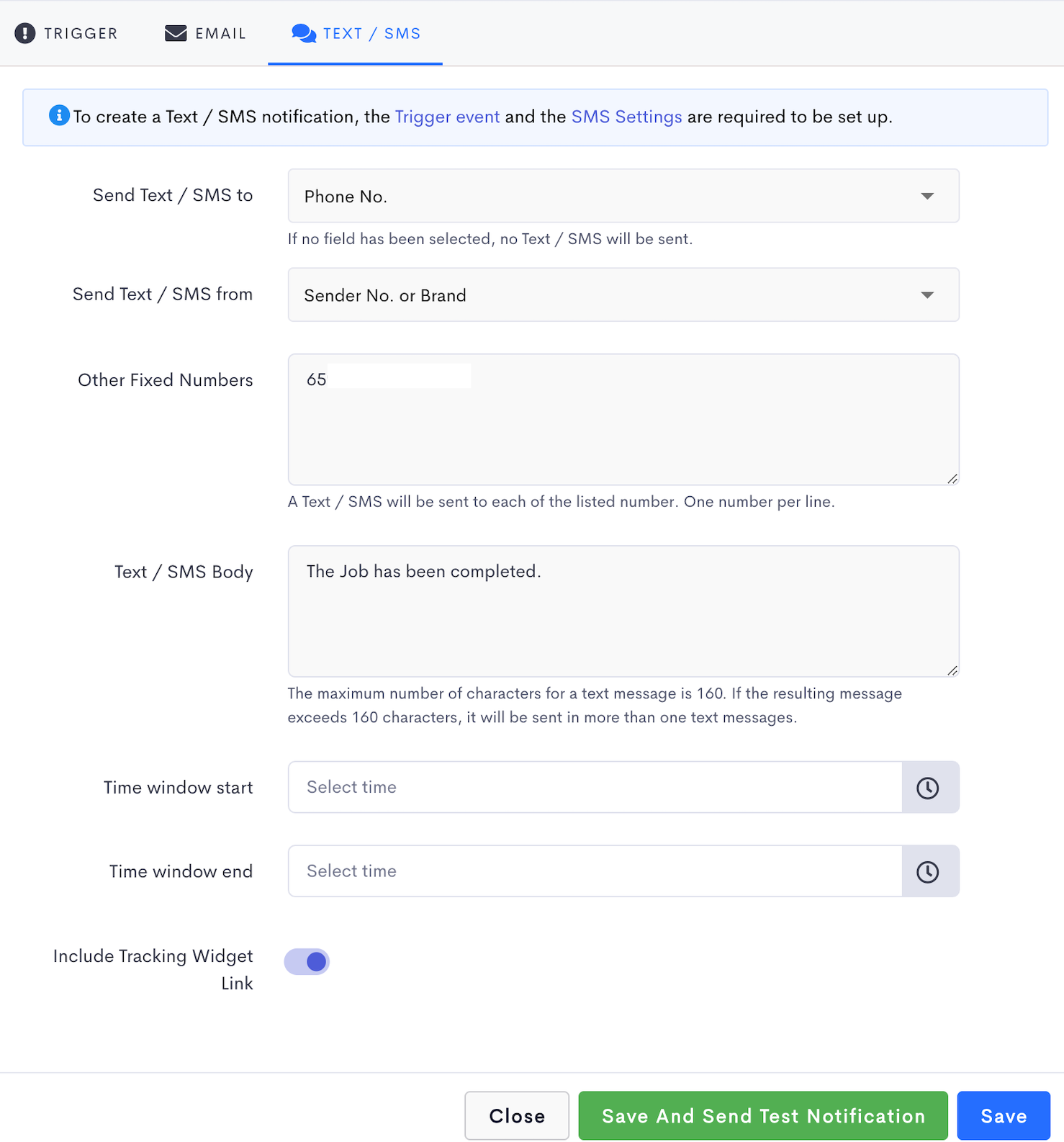

    Configuring your Detrack Notifications

    1. From the Add Notification form, go to the Trigger tab.
    2. Select the Detrack Job Type i.e Job (Delivery + Collection) / Delivery / Collection. In this example we select a Job.
    3. Select the Events that will trigger the notification. In this example we select a completed event.
    4. Select the Group that you wish to filter. If no Group is selected, then notifications are sent for all jobs regardless of Group.
    5. If the Failed event is selected, you will be able to select a failed Reason to filter. If no Reason is selected, then notifications will be sent for all failed jobs regardless of Reason.
    6. If the Pre-job event is selected, you will be able to select which day and what time to send notifications.
    • For the Pre-job Sending Date option, you can select up to 5 days prior to the scheduled date to send the notification.
    • For the Pre-job Sending Time option, you can select the time of the selected day (above) to send the notification.

    Trigger


    Customizing text / SMS notifications

    1. Go to the Text / SMS tab.
    2. For the Send Text / SMS to option, select the field containing the mobile number that you wish to notify when the event is triggered. This field is optional – you can choose not to send any text by not selecting any field.
    3. If you wish to notify other recipients such as internal staff or 3rd party contractors, enter their mobile numbers (one per line) in the Other Fixed Numbers box provided. This field is optional – you can choose not to send any text to others by leaving the field empty.
    4. Type your customized text message in the Text / SMS body field.
    5. A tracking link will be included in your text message after the text body. The link, when tapped on smartphones, will send the recipients to a direct tracking page where they can easily track the status of their deliveries. The recipients will also be able to rate the Goods / Service, the Driver, as well as provide feedback regarding the delivery to you.
    6. Click Save and send a text notification button to send a sample text notification to the test phone number or click Save to save your settings.

    SMS content


    Source: https://developer.8x8.com/connect/docs/detrack · 8x8 CPaaS Developer Docs. Synced for support deflection.

  • CleverTap - SMS Integration

    CleverTap - SMS Integration

    Clevertap is a Mobile Marketing Platform with app marketing automation helping app marketers to retain user engagement.

    CleverTap supports any SMS provider via an HTTP integration. The SMS provider should support receiving messages via the HTTP protocol.

    Some use cases

    • Send an SMS or Chat Apps message marketing offers from an event being tracked.
    • Send an SMS or Chat Apps message notifications to customers triggered from the mobile or web app.

    Product scope

    • Clevertap

    What you'll need

    • 8x8 SMS or Chat Apps
    • Clevertap (paid or trial)

    Video Guide

    This video serves as a companion to this documentation page.

    Setup Clevertap's SMS generic integration

    In the CleverTap Dashboard, navigate to Settings > Engage > Channels > SMS

    image

    Setup

    In the Setup Tab, enter the following:

    Provider: Other (Generic)

    Nickname: Any value is fine

    Callback URL: Default

    Request Type: POST

    HTTP Endpoint: https://sms.8x8.com/api/v1/subaccounts/{subAccountId}/messages/batch

    Replace {subAccountId} above with the subaccountID you would like to use. You can find your subAccountID in your 8x8 Customer Portal under API Keys.

    image

    Authentication

    Navigate to the Authentication section and fill in the following field.

    Type: No Authentication

    image

    Headers

    For headers, fill in the following key value pairs.

    Authorization: Bearer

    You can find or generate your API Keys in your 8x8 Customer Portal under API Keys.

    Content-Type: application/json

    image

    Parameters

    Fill in the following values for Parameters

    Type: JSON

    Input Box:

    {
    "source":"<Any Sender ID or Virtual Number>",
    "destination":"$$To",
    "text":"$$Body",
    "mid":"$$MessageID",
    "encoding":"Auto"
    }

    You will need to use a Sender ID or Virtual Number that is registered to your 8x8 account in the source value.

    Batch: Unchecked

    image

    Other Parameters

    These can be left unchecked/checked depending on your desired settings in Clevertap.

    Custom Key-value pairs in campaigns: Unchecked or Checked, depending on your preference.

    Mark as default: Unchecked or Checked, depending on your preference.

    image

    Testing SMS and Saving Channel Settings

    Before leaving, you can send a test SMS using the Send test SMS link at the bottom of the page.

    Send SMS Test

    Successful Confirmation Dialog

    SMS Received on Mobile

    Once the test is successful you can hit save to use 8x8 as an SMS Provider.


    Source: https://developer.8x8.com/connect/docs/clevertap-sms-integration · 8x8 CPaaS Developer Docs. Synced for support deflection.

  • «
  • ‹
  • 1
  • 2
8x8 Logo
  • 8x8 YouTube
  • 8x8 Facebook
  • 8x8 Twitter
  • 8x8 Blog
  • 8x8 LinkedIn
  • 8x8 Instagram

Company

  • About Us
  • Careers
  • Contact Us

Our Products

  • SMS
  • Chat Apps
  • Video Interaction
  • Voice
  • Pricing

Media

  • Customer Success Stories
  • News
  • Events
  • Blog

Resources

  • Documentation
  • Service Status
  • Ask for support
Privacy Policy | Terms of Use | Acceptable Use Policy
© 2025 8x8, Inc. All rights reserved.