See Details
Logo CPaaS Help Center Developer Premium Support Status
Sign in Contact Support
  1. 8x8 CPaaS Help Center
  2. Integrations

Integrations

  • Zapier

    Zapier

    Zapier is a service that helps you automate workflows between different apps automatically.

    Zapier allows you to instantly connect 8x8 with 5,000+ apps to automate your work and find productivity superpowers.

    Some use cases

    • Send an SMS message when you receive a specific email.
    • Send an SMS blast to customers when there's a new post on Instagram.
    • Send an SMS/Whatsapp template message when an invoice in Xero is marked as paid.
    • Send an SMS/Whatsapp template message when an invoice in Xero is due.

    Product scope

    • All of Zapier's Apps

    What you'll need

    • An 8x8 Connect account
    • Paid or trial professional Zapier account

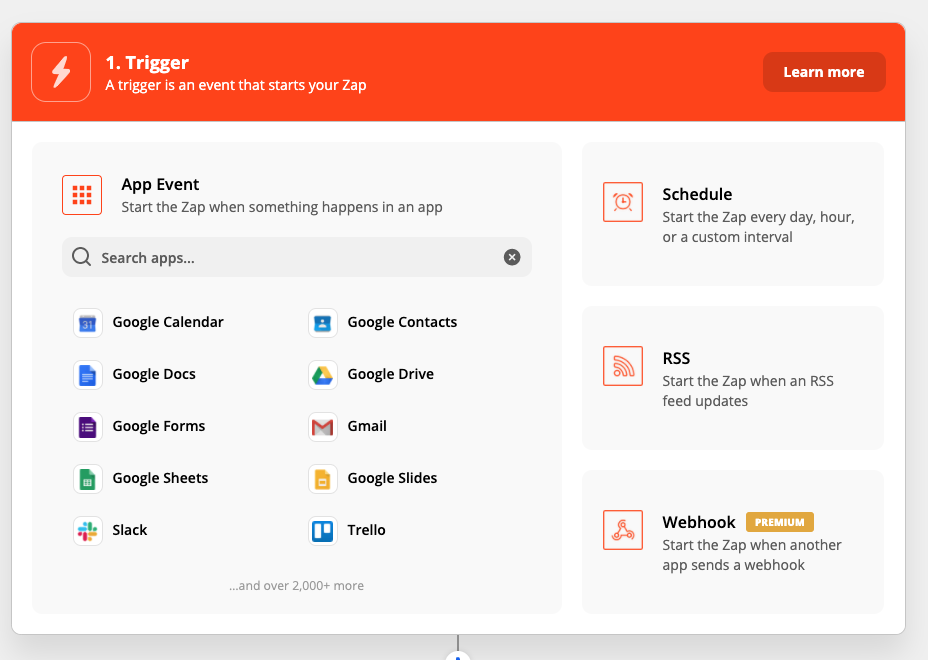
    Creating a zap with your Zapier account and 8x8 app

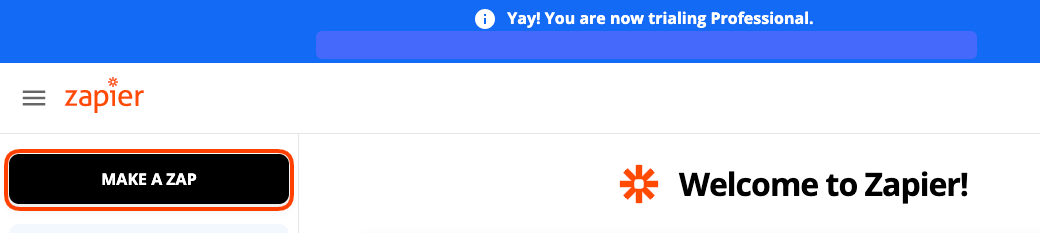
    1. Login to your Zapier Account and create a new Zap by clicking "Make a Zap".

    zapier

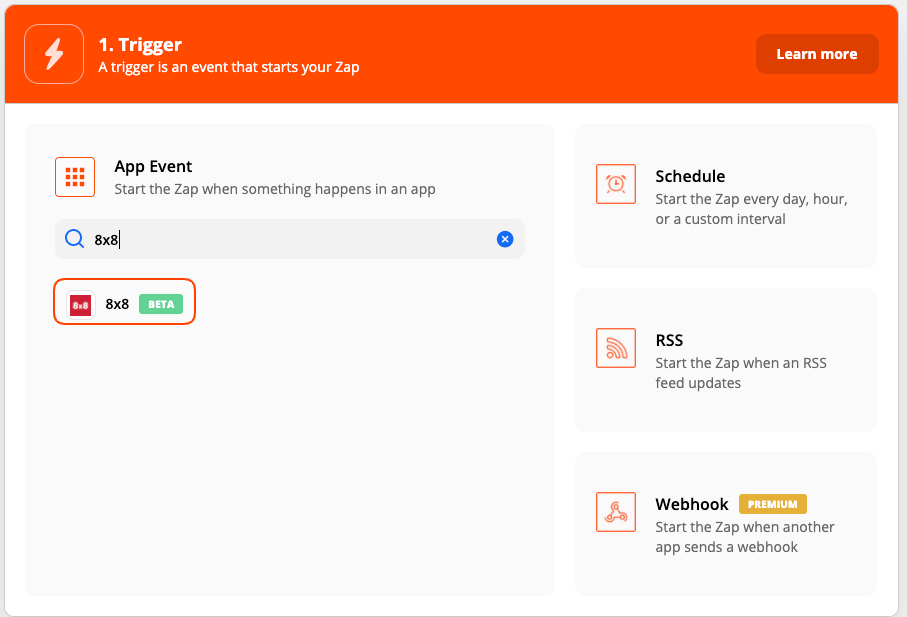
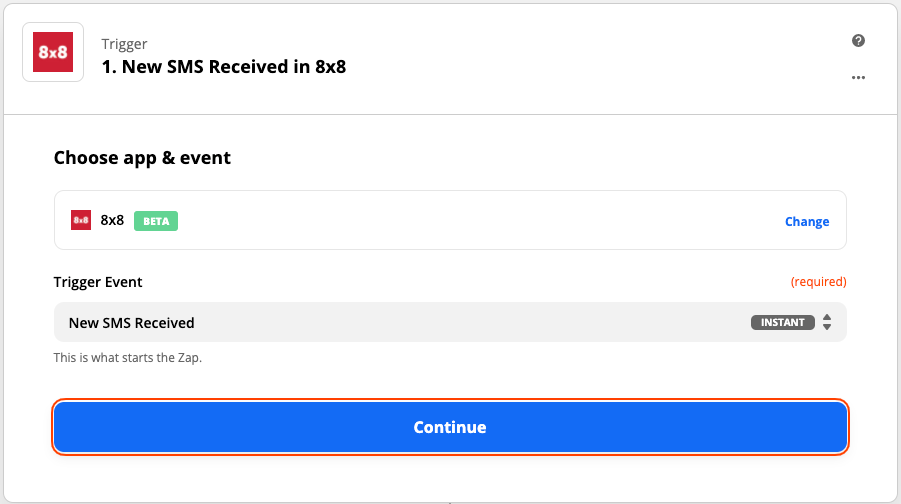
    1. Whether you want to use 8x8 app as a trigger or action, search "8x8" from the list of apps.

    zapier

    zapier

    1. Click continue.

    zapier

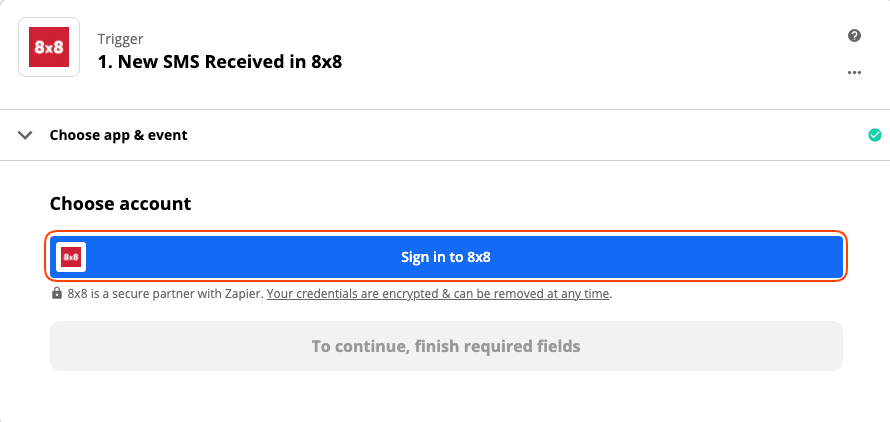
    1. You will be prompted to Choose account, click Sign in to 8x8.

    zapier

    1. You will be asked to enter your 8x8 apiKey and subaccountID. Assuming you have successfully logged into 8x8's Connect Portal
    2. If you entered them correctly, you’ll get sent back to your Zap where you will now have your 8x8 Connect account successfully connected!

    Supported Triggers

    • New Chat Apps message received : Triggers when a new Chat app message is received.
    • New SMS message received : Triggers when a new SMS message is received.
    • New Delivery receipt : Triggers when an SMS message has been rejected or delivered.

    Supported Actions

    • Send Single SMS : Sends an SMS to a given phone number.
    • Send Bulk SMS : Sends an SMS to multiple phone numbers at the same time.
    • Send Single Chat app message : Sends a single chat app message whether it is a Whatsapp, Viber, or ZNS message.
    1. Once you've connected 8x8 you can start connecting it with other applications supported by Zapier.

    Click here to see some popular Zaps/Integrations that use 8x8.


    Source: https://developer.8x8.com/connect/docs/zapier · 8x8 CPaaS Developer Docs. Synced for support deflection.

  • Salesforce Chat Configuration Guide

    Salesforce Chat Configuration Guide

    ❗️ Salesforce Chat Deprecation

    Salesforce has announced that Salesforce Chat will be retired on February 14, 2026. Read the announcement and affected Salesforce editions here.

    Introduction

    This guide will take you through the necessary configurations on Salesforce and the information you need to send to 8x8 in order to get your Salesforce Chat integration working.

    Video Demo / Guide

    Viber Integration Video

    This Viber Integration video shows only what the integration looks like with just the Viber channel active through Chatapps API. It is the simpler scenario that this guide walks you through.

    SMS + Viber Integration Video

    This video shows two channels working, SMS and Viber and is a bit more complex than setting up just one channel. It also shows assigning one agent to one number, taking care of agency use cases where you always want to tie a specific agent to a phone number.

    WhatsApp Integration Video

    This video shows the integration with Salesforce Chat and WhatsApp.

    Prerequisites

    • 8x8 Connect Account
    • Salesforce Service Cloud Lightning account
    • Salesforce license with Chat (formerly known as Live Agent)

    Salesforce Integration Steps

    Queues

    In Salesforce Setup Home, navigate to Administration > Users > Queues. We will need to set up a queue for the incoming chats. These chats will be rotated between the agents associated with this queue.
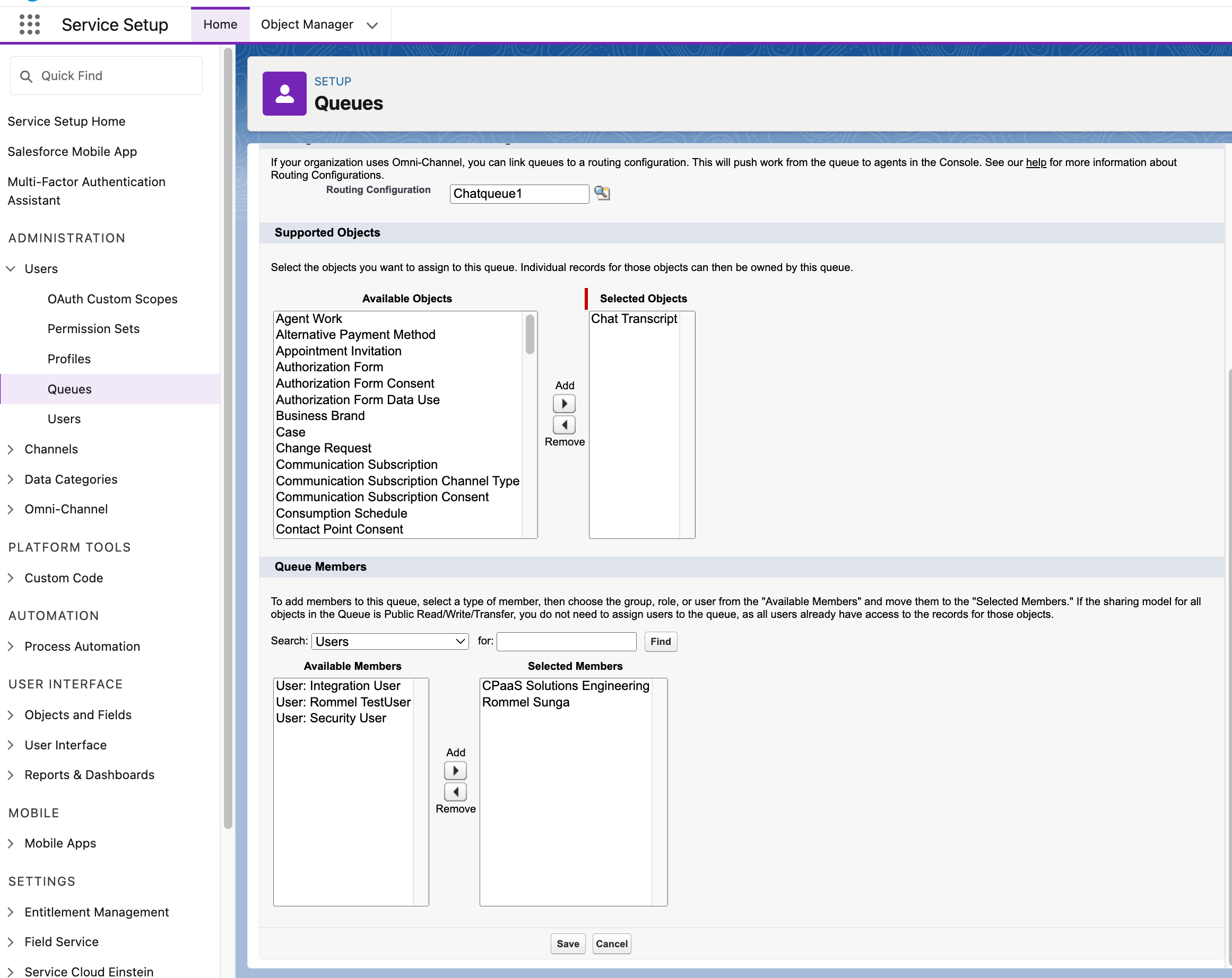
    image Make sure to add the Salesforce users that you would like to be part of handling the queue here.
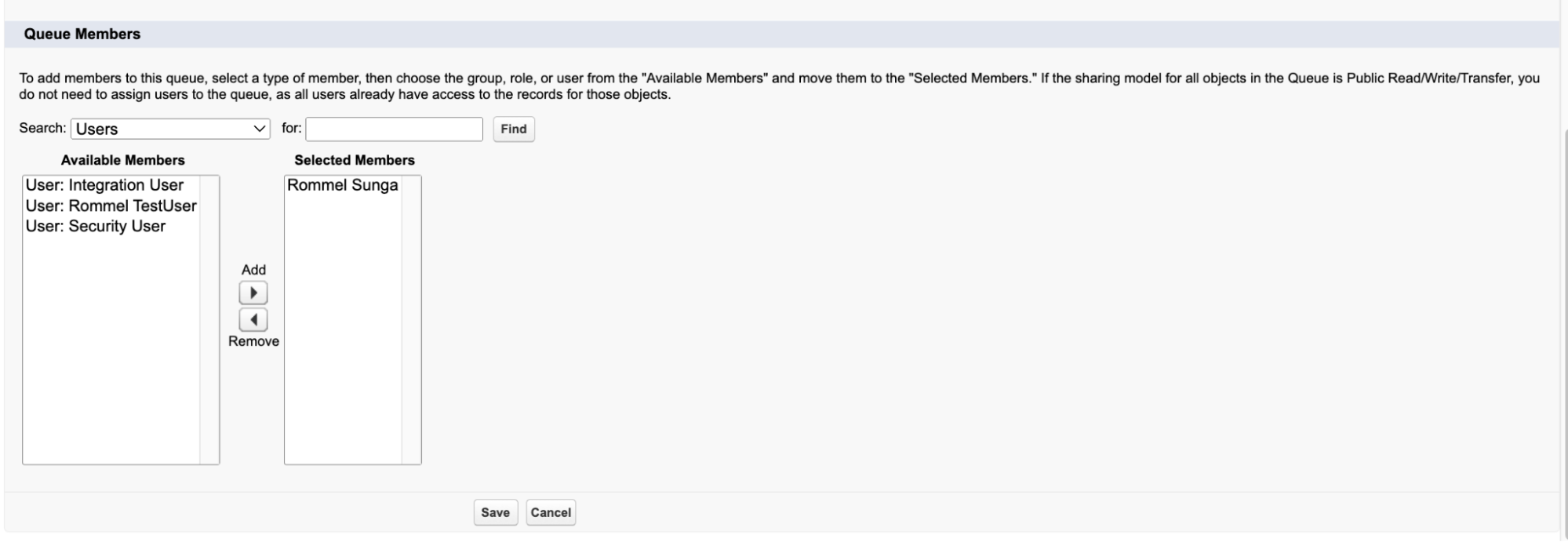
    image

    Chat

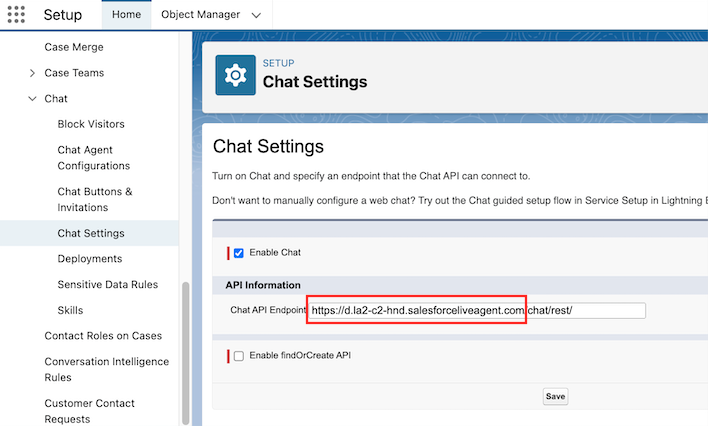
    In Salesforce Setup Home, navigate to Service > Chat > Chat Settings and check the Enable Chat box

    Note down the Chat API Endpoint URL to send to 8x8’s Support Team. Our team only requires the domain, which is only the first portion of the URL highlighted in red below.
    image

    Chat Buttons and Invitations

    In the Chat Buttons and Invitations we want to create a new chat group
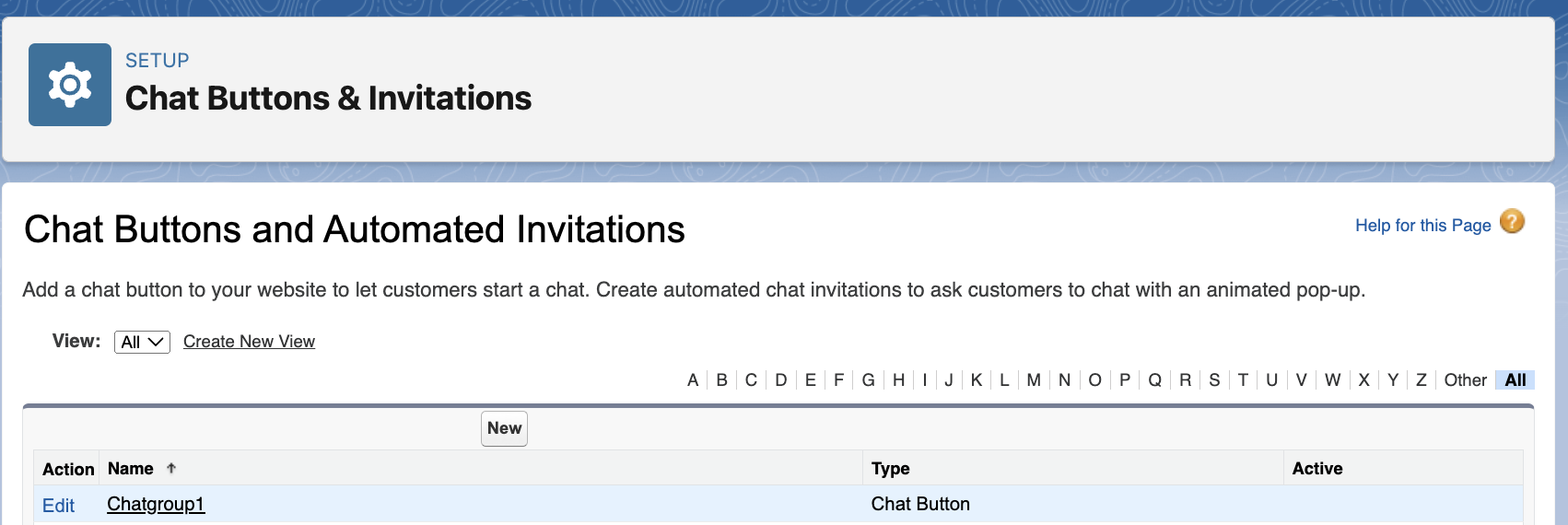
    image Below are the required settings. Settings outside of this are optional.

    Type: Chat Button

    Name:

    Developer Name:

    Queue: Choose the queue you created previously
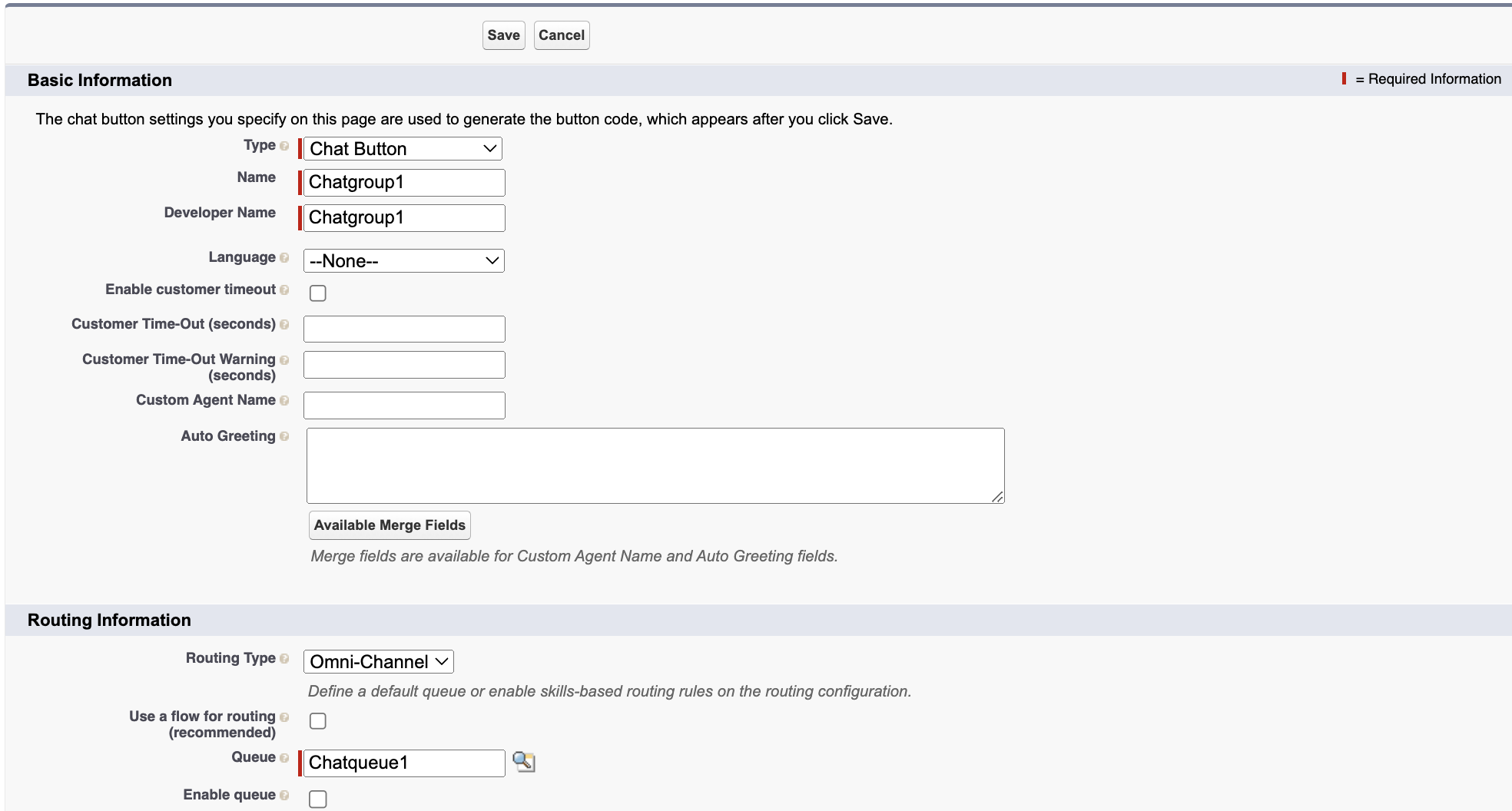
    image image

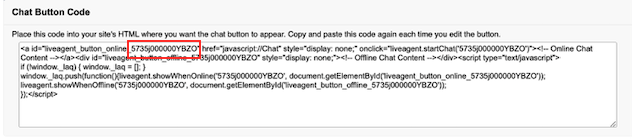
    Note down the ButtonId in the Chat Button Code highlighted in red to send to 8x8’s Support Team.

    Chat Deployments

    In Salesforce Setup Home, navigate to Service > Chat > Deployments, create a new deployment.
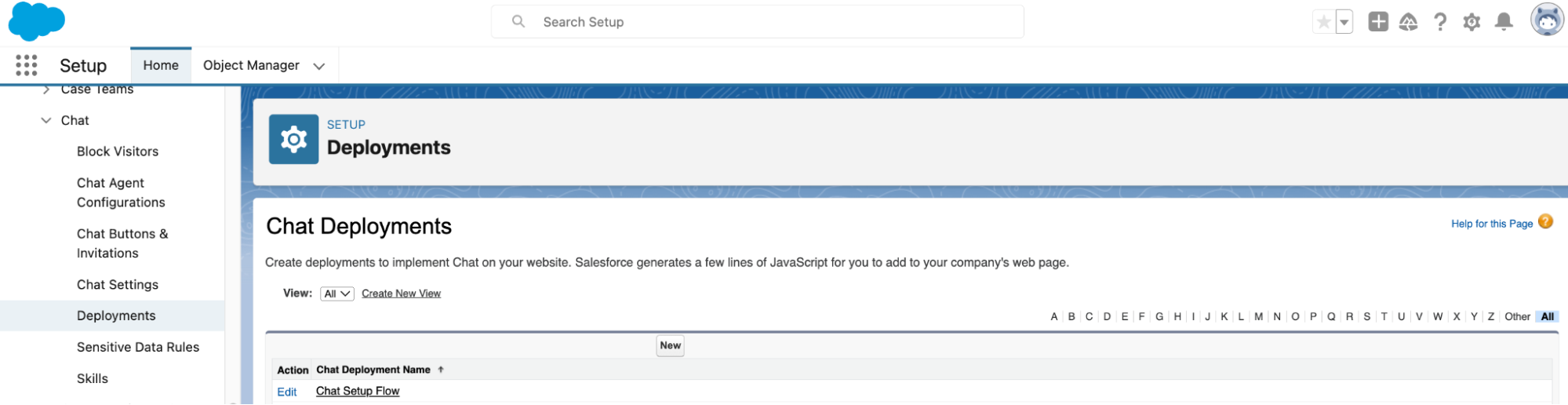
    image Below are the required settings. Settings outside of this are optional.

    Chat Deployment Name:

    Developer Name:

    Chat Window Title:
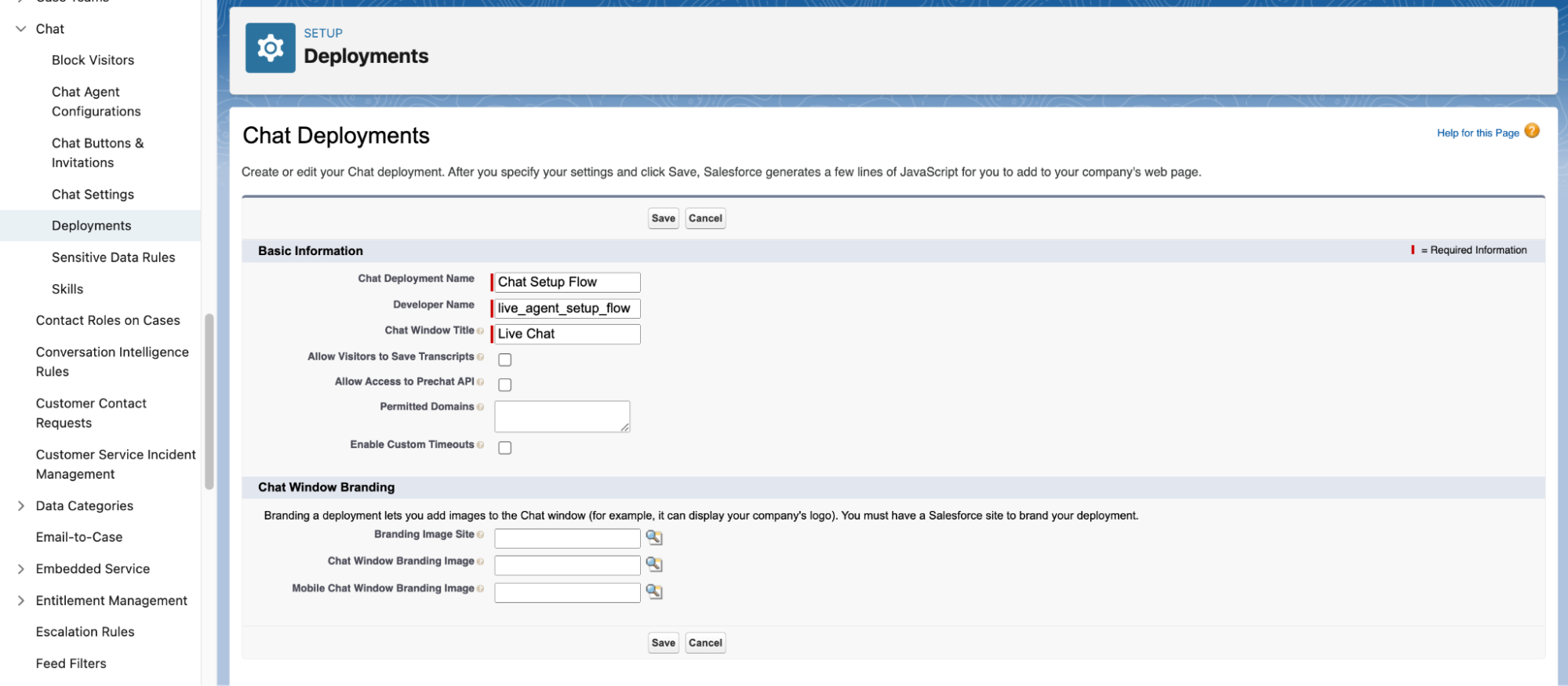
    image Note down the OrganizationId and the DeploymentId in the Deployment Code highlighted in red/blue to send to 8x8’s Support Team.
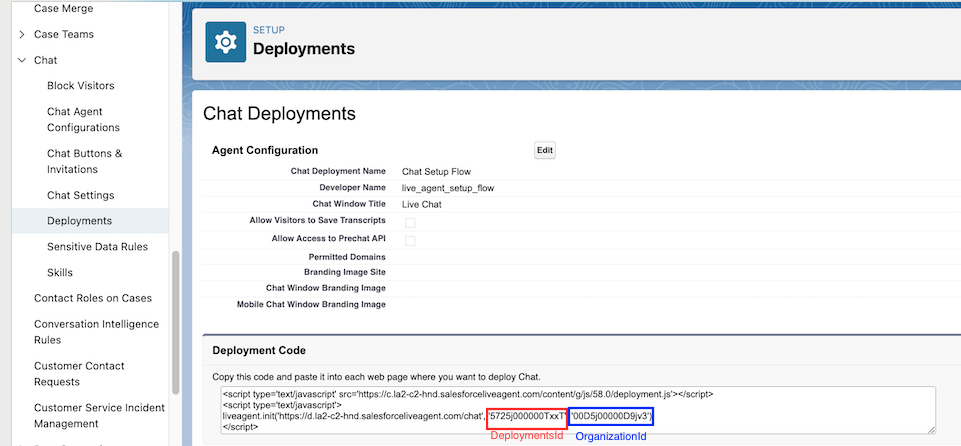
    image

    8x8 Support Team Configuration

    Once you have configured these settings, send an email to cpaas-support@8x8.com with the following information that can be collected from the steps above:

    ButtonId - (Example: 835j000000YBZO)

    DeploymentsId - (Example: 4725j000000TxxT)

    OrganisationId - (Example: 00D4j00000D9jv3)

    Chat API Endpoint - (Example: https://c.la2-d2-hnd.salesforceliveagent.com)

    8x8 Subaccount - (Can be found in 8x8 Connect Dashboard -> API Keys)

    Note: Please ensure the ButtonId and DeploymentId are from the same deployments

    For Viber Support: In addition to providing the above information, ask the support team to provision a new Viber account and assign it to your 8x8 sub account that you plan to use with this integration.

    FAQ and Known Limitations

    This section is intended to answer frequently asked questions (FAQ) about the integration and also share any known limitations of the integration.

    Question Answer
    What happens to the messages if all agents are offline? If all agents are offline, 8x8 will keep retrying every hour for 3 days to resend the message so it is assigned. Note that an agent will have to be online at the point in time 8x8 retries to send, it will not retry the moment an agent is online.

    For example if a customer sends a message at 2:00PM but no agents are online then 8x8 retries at 3:00PM. If an agent is online only at 3:01PM then the chat transcript (object created in Salesforce) will not be assigned successfully and 8x8 will retry at 4:00PM. However If an agent is only from 2:59PM onwards, then the chat transcript should be successfully assigned. Note it is not always the top of the hour that 8x8 will retry.
    Can we include custom fields? No, currently the integration does not allow custom fields. We pass the same API request to Salesforce for all customers.
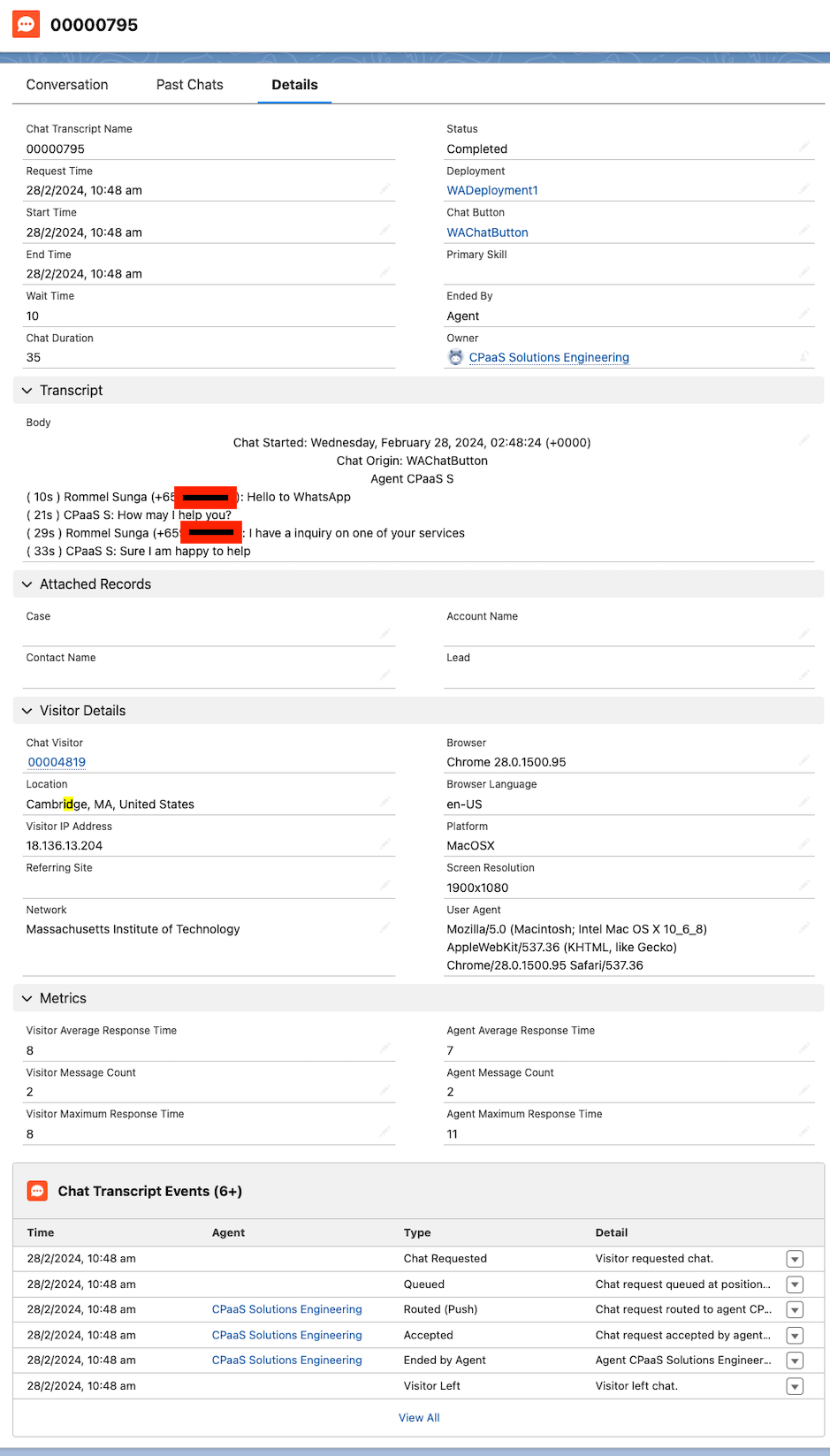
    What fields are included as part of the Chat Transcript Object & Chat Visitor that is created? For the Chat Transcript Object, which is the main Salesforce object associated with this integration, the following fields would be available that were passed through 8x8's API call.

    Deployment: What Salesforce Deployment is Associated with the Chat Transcript
    Chat Button: What Button ID is Associated with the Chat Transcript

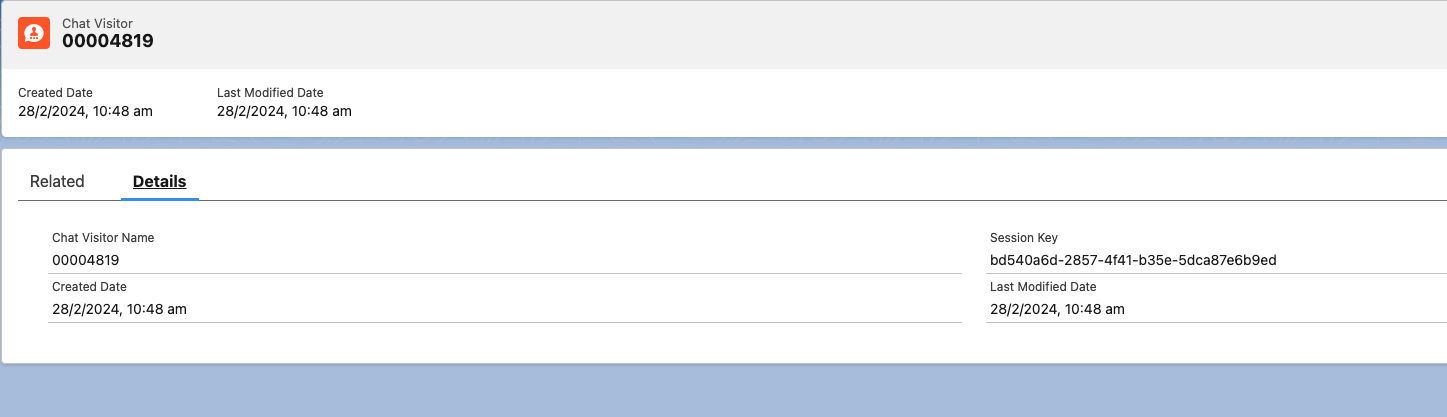
    For the Chat Visitor
    Session Key: Session ID associated with this chat session

    To see an example of each record, please view the section below that gives an example of each object.
    Can the look of the integration be changed? Our integrations feeds directly into Salesforce Chat and utiliizes their UI directly. Any changes would be subject to what can be done in the Salesforce UI, we would advise to consult with either your Salesforce administrator or Salesforce Support themselves.
    Can we route via phone number? The integration does not include phone number information in the API call and it will not be available in the Chat Transcript object. The phone number is shown in the Chat Transcript, but it is not retrievable as per our last check with Salesforce via API or in a Salesforce field itself.

    One potential way to route is to use multiple phone numbers for each group of agents. For example if you have a group of agents that should be reached with +65 1111 2222 and another group of agents that should be reached with +65 3333 4444, then customers can effectively be routed based on which store they have called. This will require you to create a new chat queue and associated objects per phone number.

    Salesforce Chat Transcript Object & Chat Visitor Object Example

    This section gives a view of the two main objects associated with each chat session and what the agent will see when viewing them.

    Here is the Chat Transcript Object:
    image

    Here is the Chat Visitor Object:

    image

    Useful References

    Salesforce Chat Setup Guide

    Source: https://developer.8x8.com/connect/docs/salesforce-live-agent · 8x8 CPaaS Developer Docs. Synced for support deflection.

  • Salesforce Flow Builder

    Salesforce Flow Builder

    These guides provide step-by-step instructions to integrate 8x8 Messaging APIs (e.g., WhatsApp, SMS, Viber) with Salesforce. The guides utilize Salesforce's low-code tools, like External Services and Flow Builder, and are designed for technical users such as Salesforce Administrators and Business Analysts. Learn to configure authentication, import an API specification, and build messaging automations declaratively.

    Available Guides

    • Integrating 8x8 Messaging Apps (WhatsApp, Viber, etc.) with Salesforce

      • A comprehensive guide to integrating the 8x8 Messaging API. Learn the end-to-end process, focusing on how to handle complex, nested JSON structures, such as those used for WhatsApp templates.
    • Integrating 8x8 SMS API with Salesforce

      • A comprehensive guide to integrating the 8x8 SMS API. Learn the end-to-end process, including how to handle the direct and simple structure required for sending SMS.

    Source: https://developer.8x8.com/connect/docs/salesforce-flow-builder · 8x8 CPaaS Developer Docs. Synced for support deflection.

  • Oracle Responsys

    Oracle Responsys

    Oracle Responsys helps you manage, personalize, and orchestrate interactions across all channels to deliver timely, helpful messages in the moments that matter—all without code, complex technical training, or reliance on other experts.

    With 8x8’s cloud communications platform, businesses and developers alike can incorporate SMS functionality into one of their communications channels.

    Choosing 8x8 for your Oracle Responsys SMS

    1. Search for SMS code in SPAN marketplace by inputing a country
    2. Select Wavecell from list aggregators offerings SMS codes in the country you will be sending your message.
    3. This will trigger an order for a code where we get the order and change your DR format to Responsys.
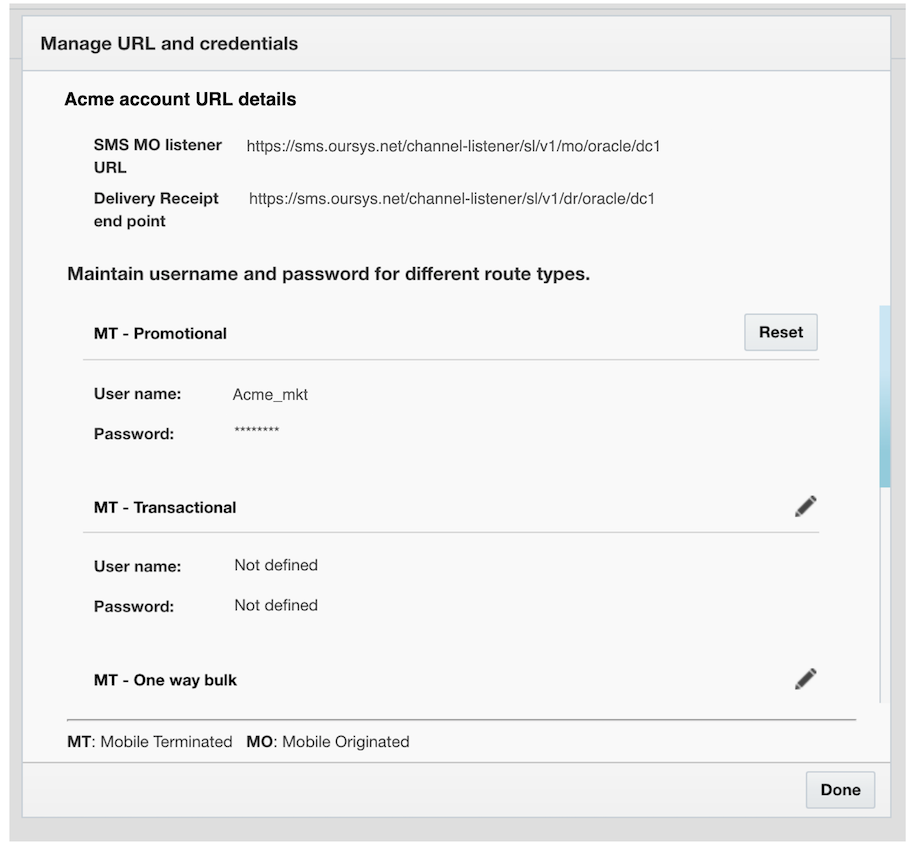
    4. Wavecell will configure your credentials in SPAN configuration for the order, which will allow your requests to be accepted by Wavecell's platform. (Please see the image below)

    920


    Source: https://developer.8x8.com/connect/docs/oracle-responsys · 8x8 CPaaS Developer Docs. Synced for support deflection.

  • Okta - Bring Your Own Telephony (BYOT)

    Okta - Bring Your Own Telephony (BYOT)

    Okta BYOT enables organizations to use 8x8 for Multi-Factor Authentication (MFA) to provide secure user access, benefiting companies that need to meet regulatory compliance or prefer to leverage existing telephony investments for MFA.

    Choose your OTP delivery method for Okta multi-factor authentication:

    SMS Delivery

    SMS BYOT Guide
    Text message delivery using 8x8 SMS API

    Voice Delivery

    Voice BYOT Guide
    Automated voice call delivery using 8x8 Voice API


    Source: https://developer.8x8.com/connect/docs/okta-bring-your-own-telephony-byot · 8x8 CPaaS Developer Docs. Synced for support deflection.

  • Make.com

    Make.com

    Overview

    Make.com is a platform that allows you to automate workflows across various applications seamlessly.

    Make enables you to instantly integrate 8x8 with over 1500+ apps, allowing you to automate tasks and unlock productivity enhancements.

    Supported Modules

    Messages

    • Send a Single SMS
    • Send Bulk SMS
    • Send a single Messaging App message (WhatsApp, Viber, etc.)
    • Watch Outbound Messages Status
      • Triggers when an outbound message status has been changed
    • Watch Messaging App Inbound Messages
      • Triggers when you have a new inbound Messaging App message
    • Watch SMS Inbound Messages
      • Triggers when you have a new inbound SMS message

    Other

    • Make an API Call
      • Performs an arbitrary authorized API call

    Source: https://developer.8x8.com/connect/docs/makecom-1 · 8x8 CPaaS Developer Docs. Synced for support deflection.

  • Integrations Overview

    Integrations Overview

    Intergrations - Customer Support

    Integration Link to Integration
    Salesforce Live Agent - Integrate Chat Apps messaging from within Salesforce Link to Integration
    Zendesk Support - Send and receive notifications about ticket updates from different Chat apps channelsZendesk Notifcation Webhook- Leverage the Zendesk triggers system and 8x8 API to send SMS when an event occurs on Zendesk Link to IntegrationLink to Integration
    Freshdesk - Integrate SMS or Chat Apps messaging within Feshdesk's ticketing Link to Integration

    Integrations Automated Workflows

    Integration Link to Integration
    Zapier - Connect your apps on Zapier Link to Integration
    Workato - Integrate SMS messaging with Workto's workflow Link to Integration
    Apple's Shortcuts- Send SIngle SMS API request using the Apple's Shortcut App Link to Integration
    Make - Connect your apps on Make Link to Integration
    Cognigy - Connect to Cognigy, a Conversational AI platform. Link to Integration

    Security

    Integration Link to Integration
    Auth0 - Identity and authentication service that can integrate 8x8 SMS to send one-time passwords for 2FA Link to Integration
    Okta - Identity and access management platform that can integrate 8x8 SMS to send one-time passwords (OTP) for 2FA via inline hooks Link to Integration

    Logistics

    Integration Link to Integration
    Detrack - Easy to use tracking service with automatic real-time notifications that send SMS notification based on event triggers Link to Integration

    Mobile and Web Marketing

    Integration Link to Integration
    CleverTap - Add SMS or Chat Apps messaging in your mobile marketing campaigns Link to Integration
    Braze - Engage more customers with SMS or Chat Apps with Braze Link to Integration
    Adobe Campaigns - allows you to launch, measure, and automate campaigns across every channel. Use 8x8 SMS functionality into one other communication channel Link to Integration
    Oracle Responsys - helps you manage, personalize, and orchestrate interactions across all channels to deliver timely, helpful messages in the moments that matter Link to Integration
    MoEngage - allows you to launch, measure, and automate campaigns via Whatsapp. Link to Integration

    Source: https://developer.8x8.com/connect/docs/integrations-overview · 8x8 CPaaS Developer Docs. Synced for support deflection.

  • iframe integration

    iframe integration

    In order to provide a seamless experience to Agents, the Agent portal can be embedded in another web application.

    This allows Video Interaction capabilities to be easily added to another system (claim management system, customer support tool, banking application…).

    The following method provides a way for an agent to login and/or to join the room without manually entering his password and generating an invite.

    We recommend to use the following method while opening the agent console in an iframe, inside your existing application.

    Your users must be logged in and identified, in your application, before opening the iframe.

    You can load the Agent Portal in an iframe using the following URL:

    https://video-agent.8x8.com/?user=product@8x8.com&token=eyJiJIUzI1NiME5B87.qPWXyNNDHBxLftaHarcSgm0c

    “User” is the login of the agent who is joining the call. This agent needs to be already existing in the Video Interaction directory.

    “token” is the auth_token that you have created previously.

    Example:

    <iframeheight="850px"width="90%"src="https://video-agent.8x8.com?user=product@8x8.com&token=eyJiJIUzI1NiME5B87.qPWXyNNDHBx_LftaHarcSgm0c"allow="microphone; camera"></iframe>

    Embedded Mode:

    When using the iframe mechanism, you might want to display a simplified UI, more adapted to iframe size.

    In order to do this, you can use the URL parameter ?mode=embedded to display the again portal without the left menu and top bar.

    When doing so, agent won’t be able to generate new invite, hence this should be used with a token.

    Example:

    <iframeheight="850px"width="90%"src="https://video-agent.8x8.com?mode=embedded&user=product@8x8.com&token=eyJiJIUzI1NiME5B87.qPWXyNNDHBx_LftaHarcSgm0c"allow="microphone; camera"></iframe>

    image


    Source: https://developer.8x8.com/connect/docs/iframe-integration · 8x8 CPaaS Developer Docs. Synced for support deflection.

  • Freshdesk

    Freshdesk

    Freshdesk is a customer support software providing automated helpdesk support for companies to effectively manage their customer care and support.

    By integrating 8x8 Chat Apps product into FreshDesk Support you get the best of both products, a simple and unique Chat Apps API with no deployment needed, as well as the best customer service front end, with advanced configurations available.

    Video Guide

    Use cases

    • Receive and send Chat Apps message for FreshDesk support.
    • Automate assigning of Chat Apps messages triggered based on status changes.

    Product scope

    • 8x8 Chat Apps Account
    • FreshDesk (Growth plan or higher)

    What you'll need

    • A 8x8 Connect account with Chat Apps enabled
    • Your FreshDesk Support account: This integration is based on Freshdesk automation features, which are only available for the Growth plan (or higher)
    • ChannelId and Access Key (Request from 8x8 Support Team for the Freshdesk Integration)

    Creating your Chat Apps integration with Freshdesk Support's automation feature

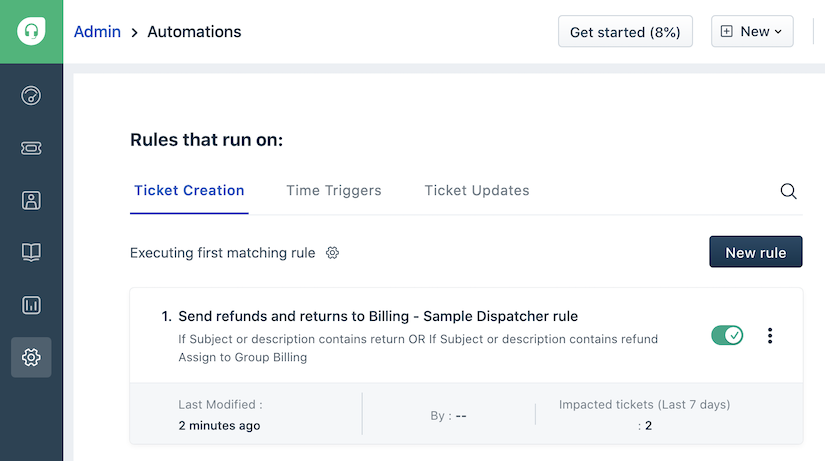
    1. Let’s setup the first Automation, go to Settings, then Automations (under Productivity)

    freshdesk-1


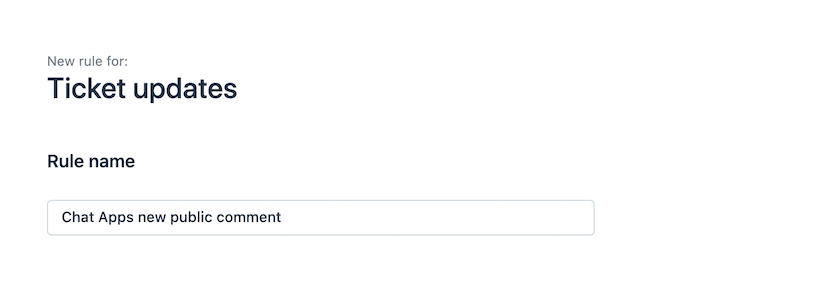
    2. Under Ticket Updates, let’s create a new rule called "ChatApps new public comment"

    freshdesk-2


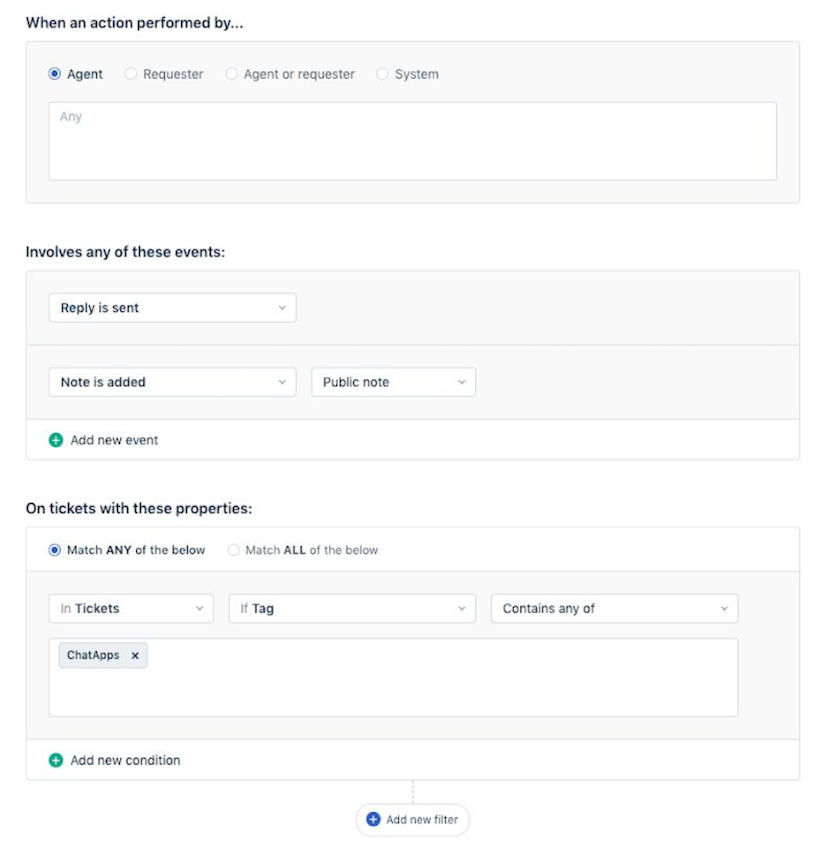
    3. Let’s configure the following fields

    freshdesk-3

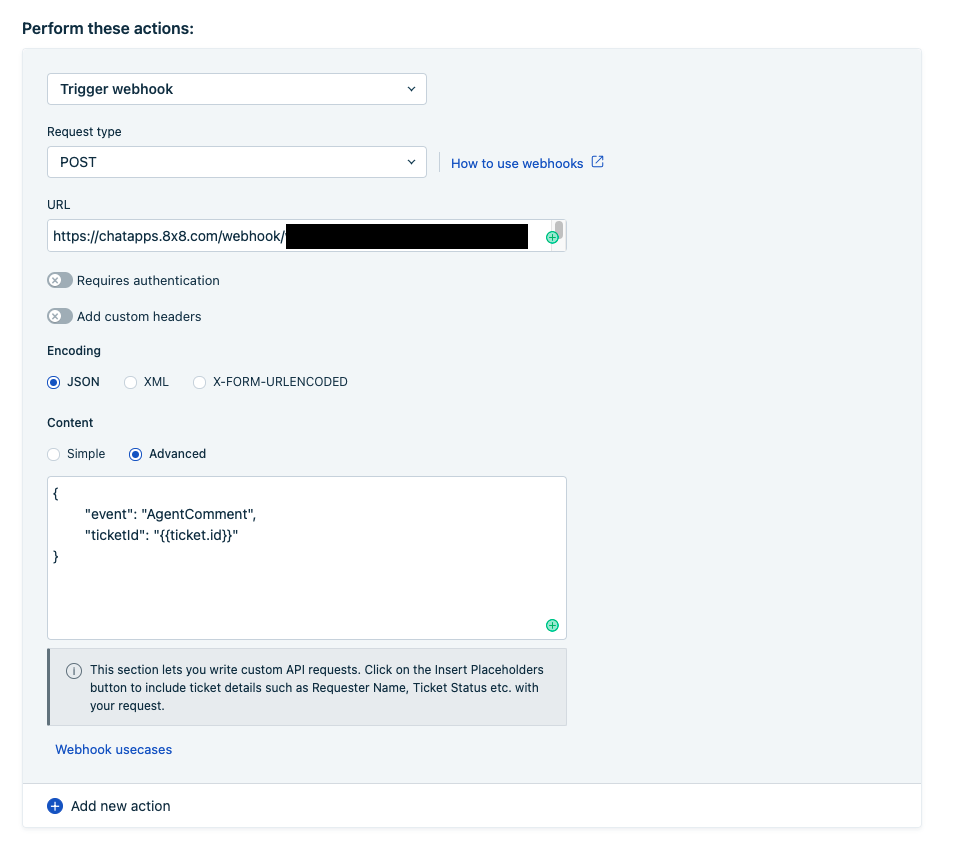
    freshdesk-4

    • Your URL should be:

    https://chatapps.8x8.com/webhook/freshdesk/{ChanelId}?accessKey={accessKey}

    • {ChanelId} and {accessKey} will be sent to you.

    • For example: https://chatapps.8x8.com/webhook/freshdesk/1234-abcd-1234-abcd?accessKey=123456789

    • Your JSON content should be:

    {
    "event":"AgentComment",
    "ticketId":"{{ticket.id}}"
    }

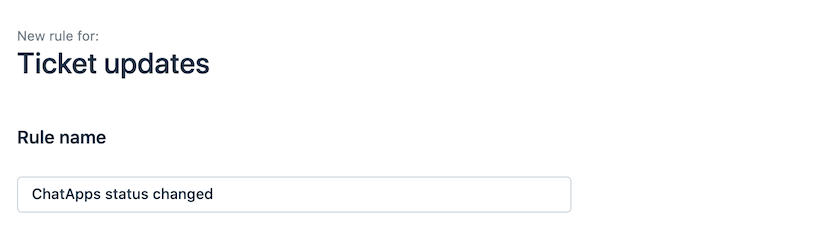
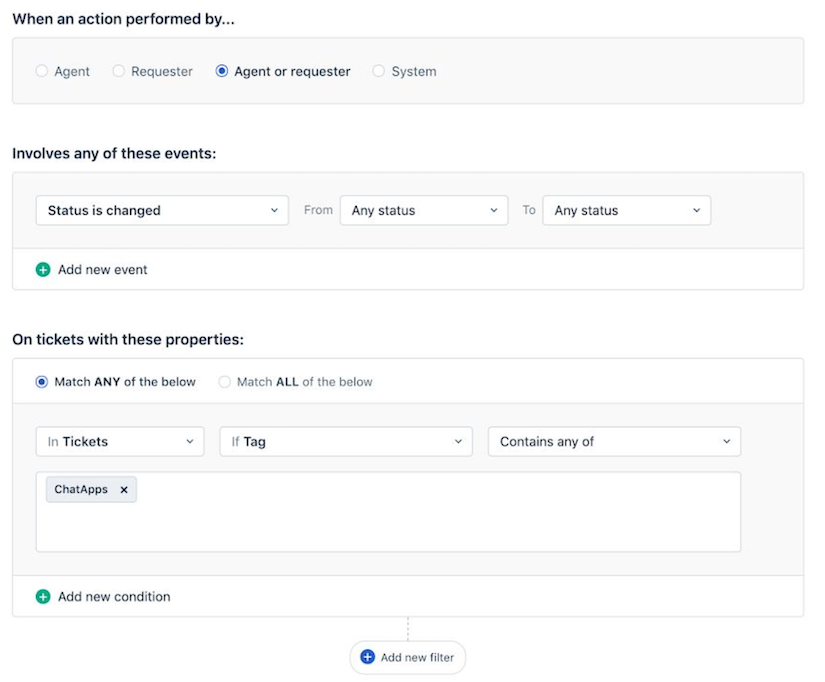
    4. Under Ticket Updates again, let’s create another rule called ChatApps status changed

    freshdesk-5


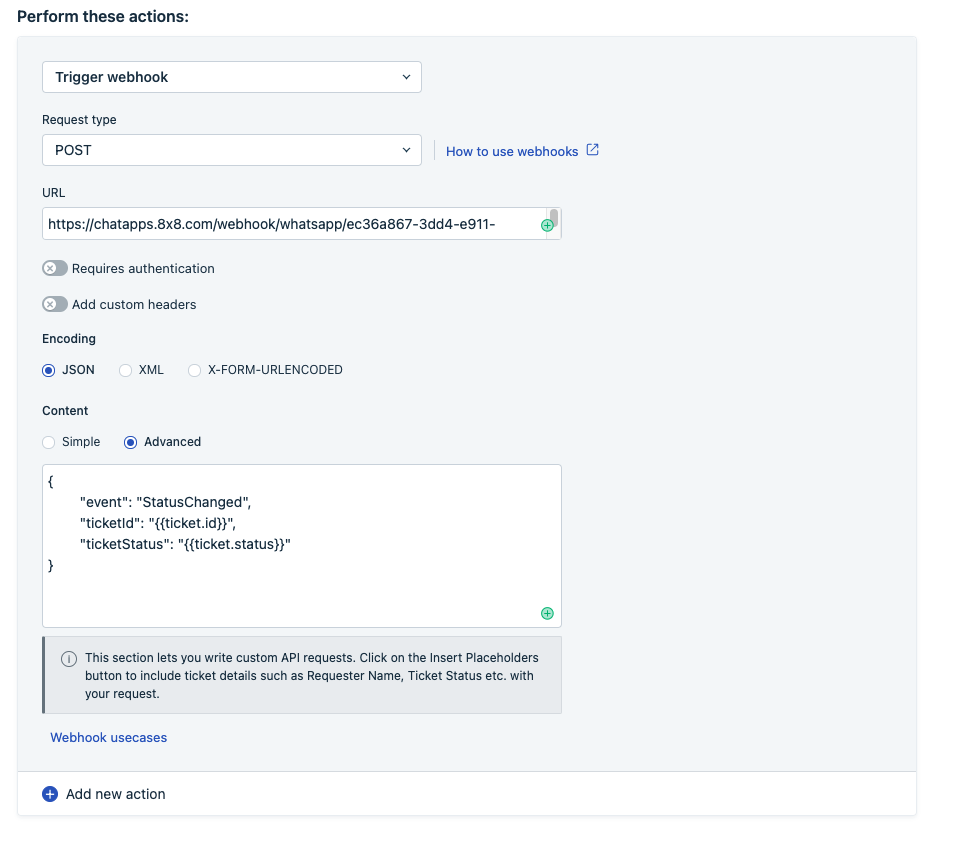
    5. Let’s configure the following fields:

    freshdesk

    image

    URL is the same as the above

    Your JSON now should be

    {
    "event":"StatusChanged",
    "ticketId":"{{ticket.id}}",
    "ticketStatus":"{{ticket.status}}"
    }

    6. Once this is done, you will need to send to 8x8 the following information

    • URL, the path to customer Freshdesk API:https://{YOUR_SUBDOMAIN}.freshdesk.com/api/v2
    • ApiToken, your Freshdesk ApiToken, of an admin user.
    • TicketTag, which will be added to tickets created by 8x8 (Chat Apps, for instance)
    • DefaultTicketSubject, ticket subject which will be used for a new ticket starting from an incoming message

    📘 Optional Step

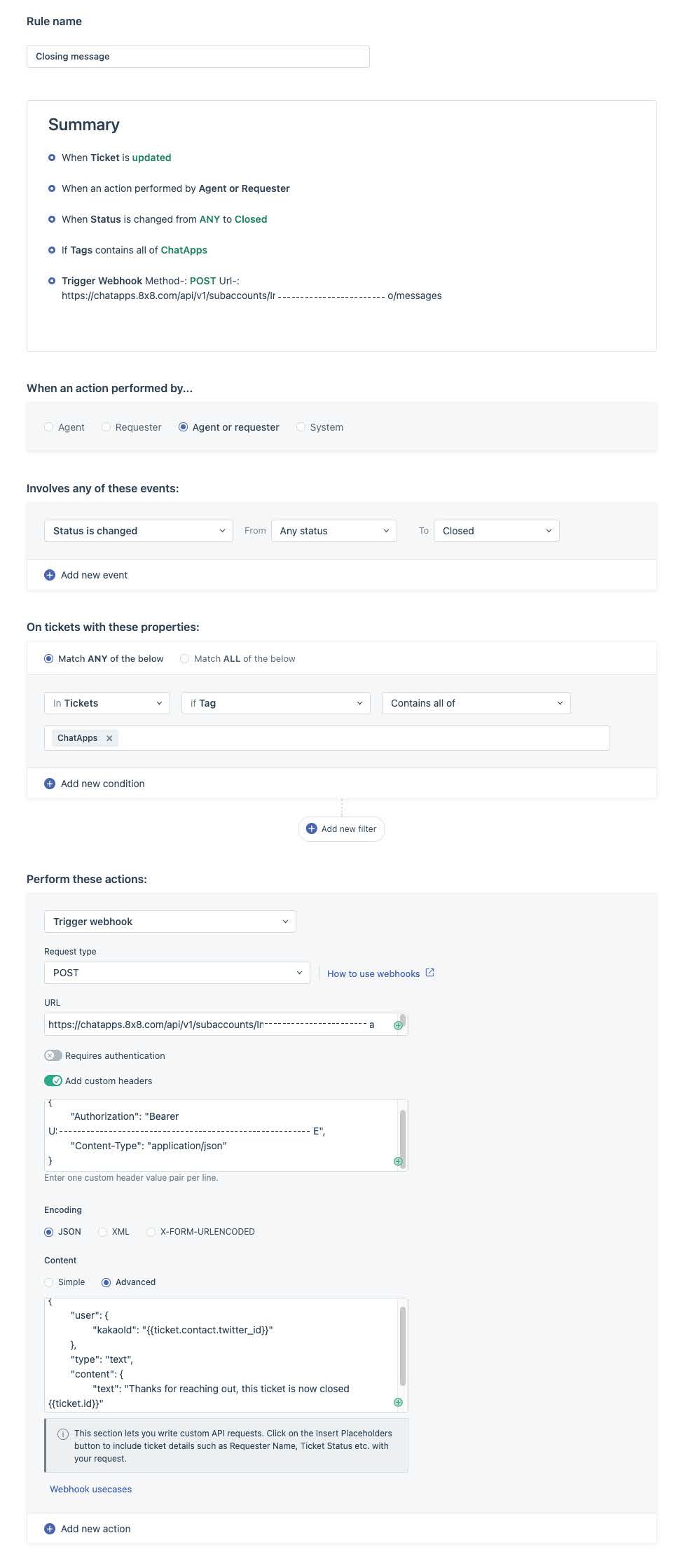
    If you would like to send an automatic message to your users, when closing a ticket, you can use the instructions below to set it up.

    Automatic Closing Message

    • Create a new Automation rule under "Ticket Updates" Category
    • Set the correct tag and rules (tag should be consistent to what you used in other rules)
    • Select Trigger webhook - POST on https://chatapps.8x8.com/api/v1/subaccounts/{{subaccountid}}/messages
      • please replace {{subaccountid}} with your subaccountIdwhich can be found in 8x8 Connect
    • custom header: {"Authorization": "Bearer YprcJ**\*\***\*\*\*\***\*\***","Content-Type": "application/json"}

    8x8 Bearer token can be found in the API Keys section of your 8x8 connect account

    Your JSON advance body:

    {
    "user":{
    "msisdn":{{ticket.requester.mobile}}
    },
    "type":"Text",
    "content":{
    "text":"Thanks for your reaching out, your ticket {{ticket.id}} is now closed"
    }
    }

    You can modify the "text" field above to include any message and use any FreshDesk ticket field.

    FreshDesk-Closing message


    Source: https://developer.8x8.com/connect/docs/freshdesk · 8x8 CPaaS Developer Docs. Synced for support deflection.

  • Cognigy

    Cognigy

    Cognigy is a premier Conversational AI platform that empowers organizations to build and deploy advanced virtual agents, streamlining customer interactions across various channels without the need for deep technical expertise. Among its robust capabilities, Cognigy Extensions stand out by enabling seamless integration with external services and systems, such as the 8x8, to enhance conversational experiences with functionalities like sending SMS messages directly from the conversational interface

    This document will outline the pre-requisites, and how to install and use 8x8 Send SMS node

    Pre-requisites

    • Cognigy subscription
    • 8x8 Connect account

    Installing the 8x8 Extension

    1. Login to Cognigy
    2. On the left menu, click on Manage, then Extensions
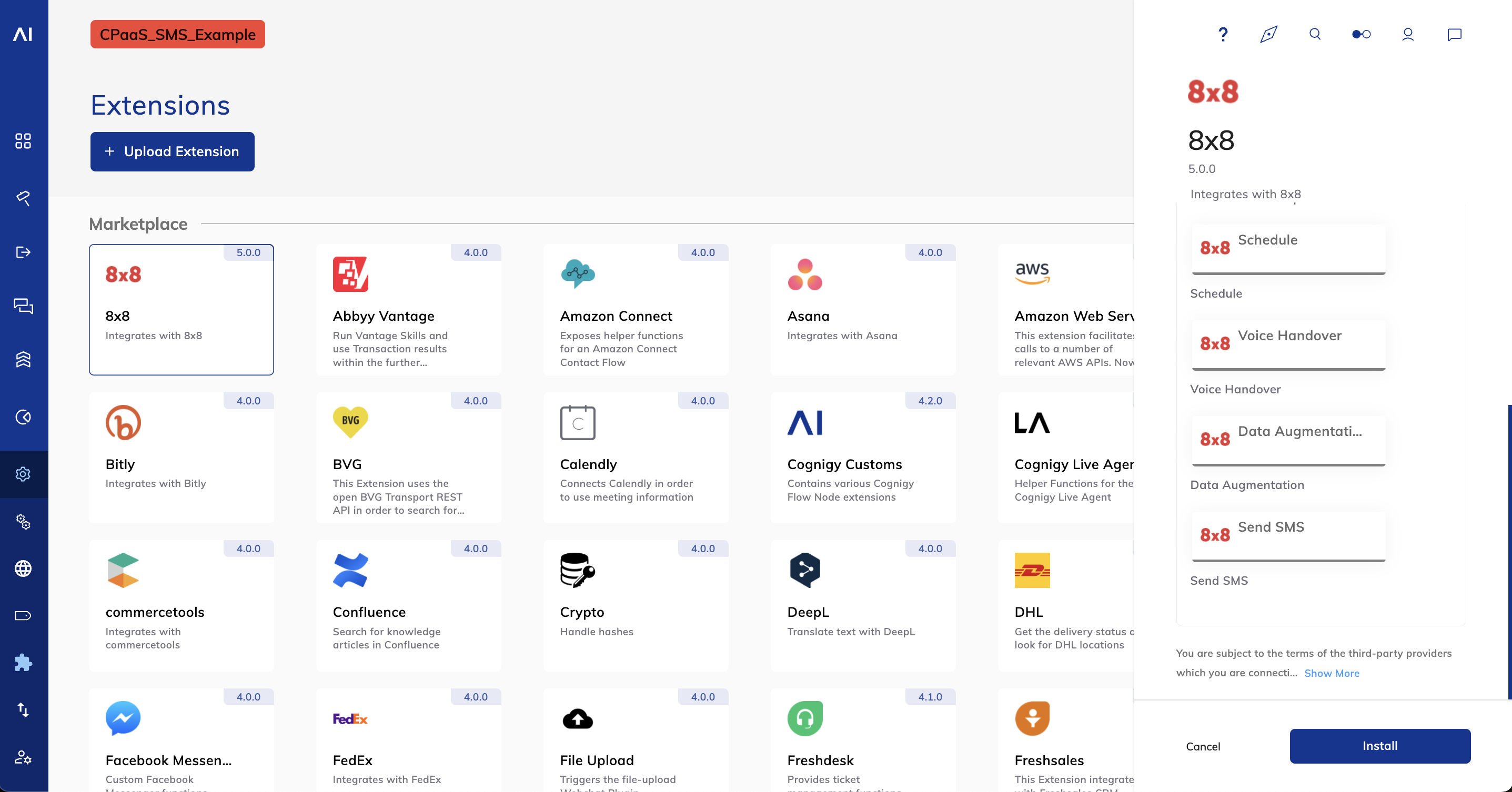
    3. In the Marketplace section, select 8x8 and on the right panel that pops up, select Install

    image

    Node: Send SMS

    This node enables you to send outbound SMS messages to enhance customer engagement and deliver timely notifications. Configure it with your 8x8 Connect credentials, define message content, and specify recipient numbers for personalized communication.

    Important requirement

    This Extension needs a Connection to be defined and passed to the Nodes. The Connection must have the following keys:

    • API Key
      • key: apiKey
      • value: Your 8x8-Connect API Key
    • Subaccount Id
      • key: subAccountId
      • value Your Subaccount Id

    Setup Steps

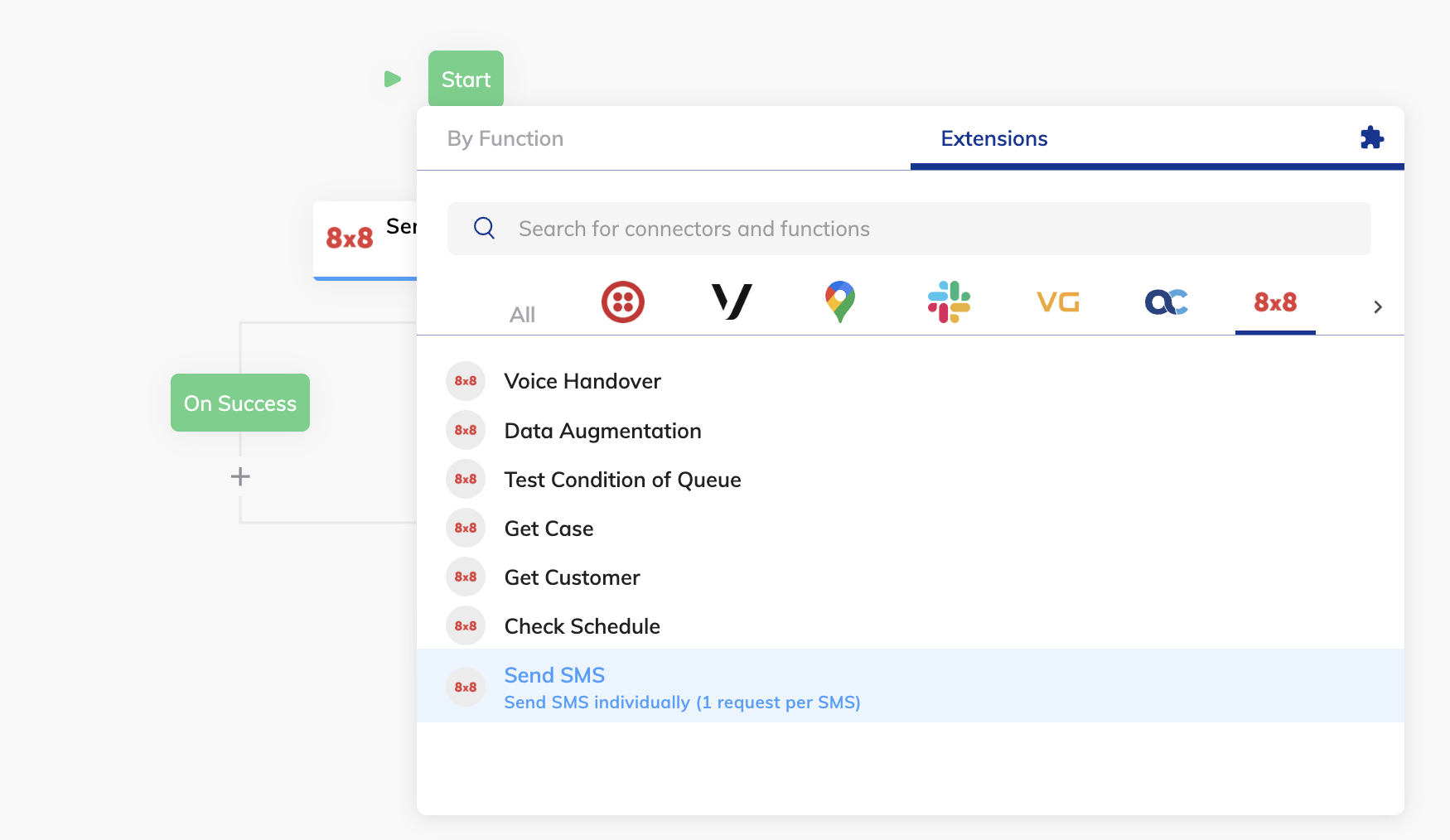
    1. In your flow, click the (+) icon to add a node. Select Extensions, scroll to the right and select 8x8
    2. In the dropdown list, select Send SMS image
    3. Click on the Send SMS node.
    4. In the Edit Node section on the right, click on the (+) icon under 8x8 SMS Connection.
    5. Set up the node connection with apiKey and subAccountId from your 8x8 Connect account.

    Optional: Set up the Sender ID in the Source field if you have a Sender ID depending on your country's regulations. Reach out to cpaas-support@8x8.com if you need help.

    This Flow Node sends an SMS message to a provided destination, while the result is stored in the input or context object:

    {
    "umid":"158ebe36-14f6-4b51-8121-b099006d829a",
    "clientMessageId":null,
    "destination":"+6512345678",
    "encoding":"GSM7",
    "status":{
    "code":"QUEUED",
    "description":"SMS is accepted and queued for processing"
    }
    }

    Exit Points

    The node will confirm successful message dispatch or failure, allowing for appropriate flow actions.

    • SMS Success
    • SMS Error

    Source: https://developer.8x8.com/connect/docs/cognigy · 8x8 CPaaS Developer Docs. Synced for support deflection.

  • CleverTap

    CleverTap

    Clevertap is a Mobile Marketing Platform with app marketing automation helping app marketers to retain user engagement. Please see our pages in this section for details on our integrations:

    • SMS
    • WhatsApp

    Source: https://developer.8x8.com/connect/docs/clevertap · 8x8 CPaaS Developer Docs. Synced for support deflection.

  • Braze

    Braze

    Braze is a comprehensive customer engagement platform that powers relevant and memorable experiences between consumers and the brands they love.

    With 8x8’s cloud communication platform, businesses and developers alike can incorporate SMS functionality into their user engagement strategies.

    Some use cases

    • Send a personalized SMS message to potential customers triggered from an app or web
    • Send SMS notifications to customers based on app or web event

    Product scope

    • Braze products

    What you'll need

    • A 8x8 customer Portal account
    • Your Braze account

    Creating a Braze webhook

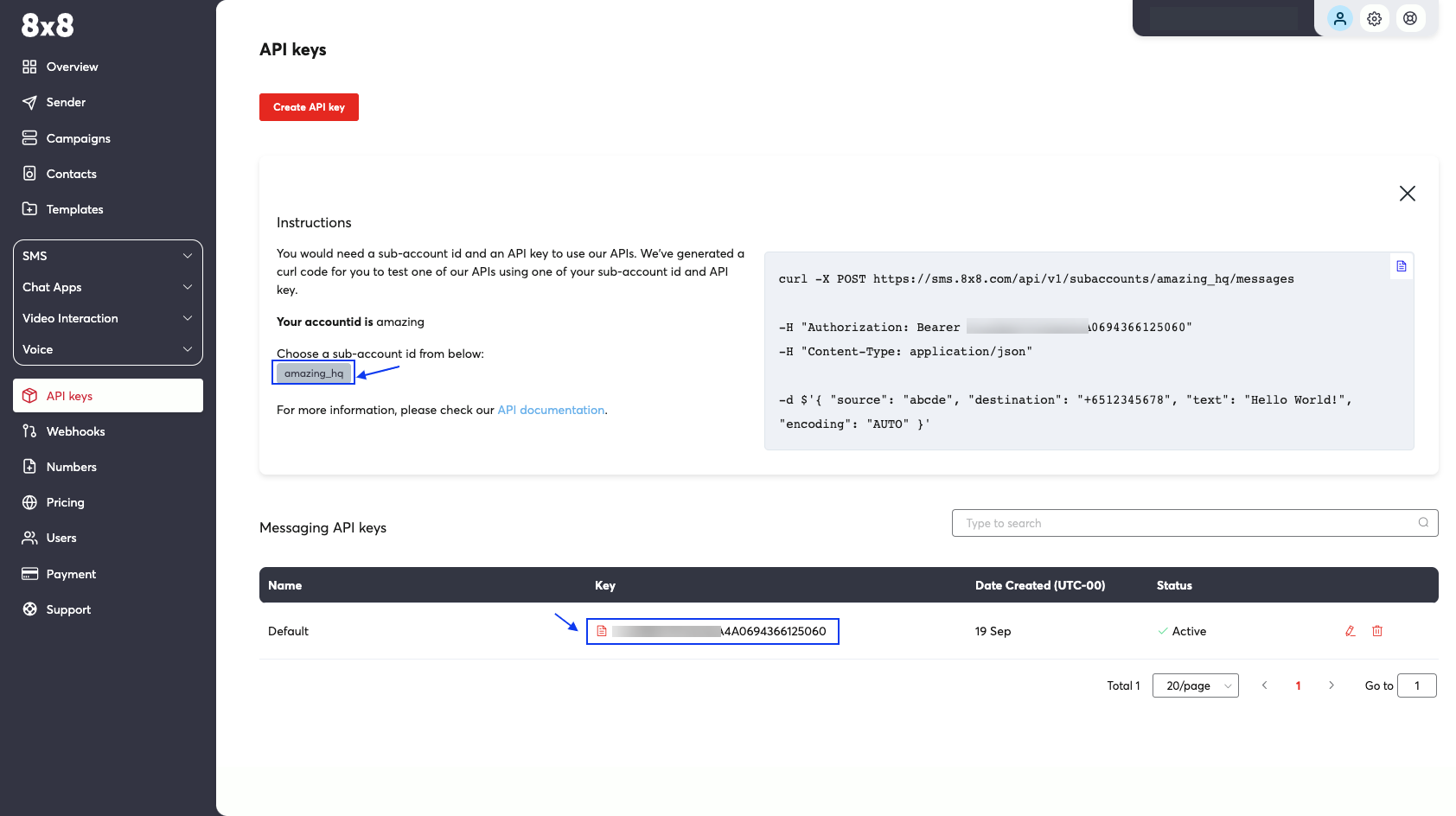
    1. Head to 8x8 Connect to get your API Key and Subaccount Id
    2. Navigate to the webhook template editor in Braze Portal
    3. Create a new template in Braze Portal
    4. Save your template in Braze Portal

    Get your subaccount id and API key from 8x8 Connect. Enter your email address and password to get access to your account dashboard. Head over to the side menu > API keys section. Create an API key if empty and then keep the API Key value.

    1684 After retrieving the Sub-Account ID and API key from 8x8 connect, navigate to your Braze account, and under Engagement click Templates & Media and select the Webhook Templates tab to create a new webhook template.
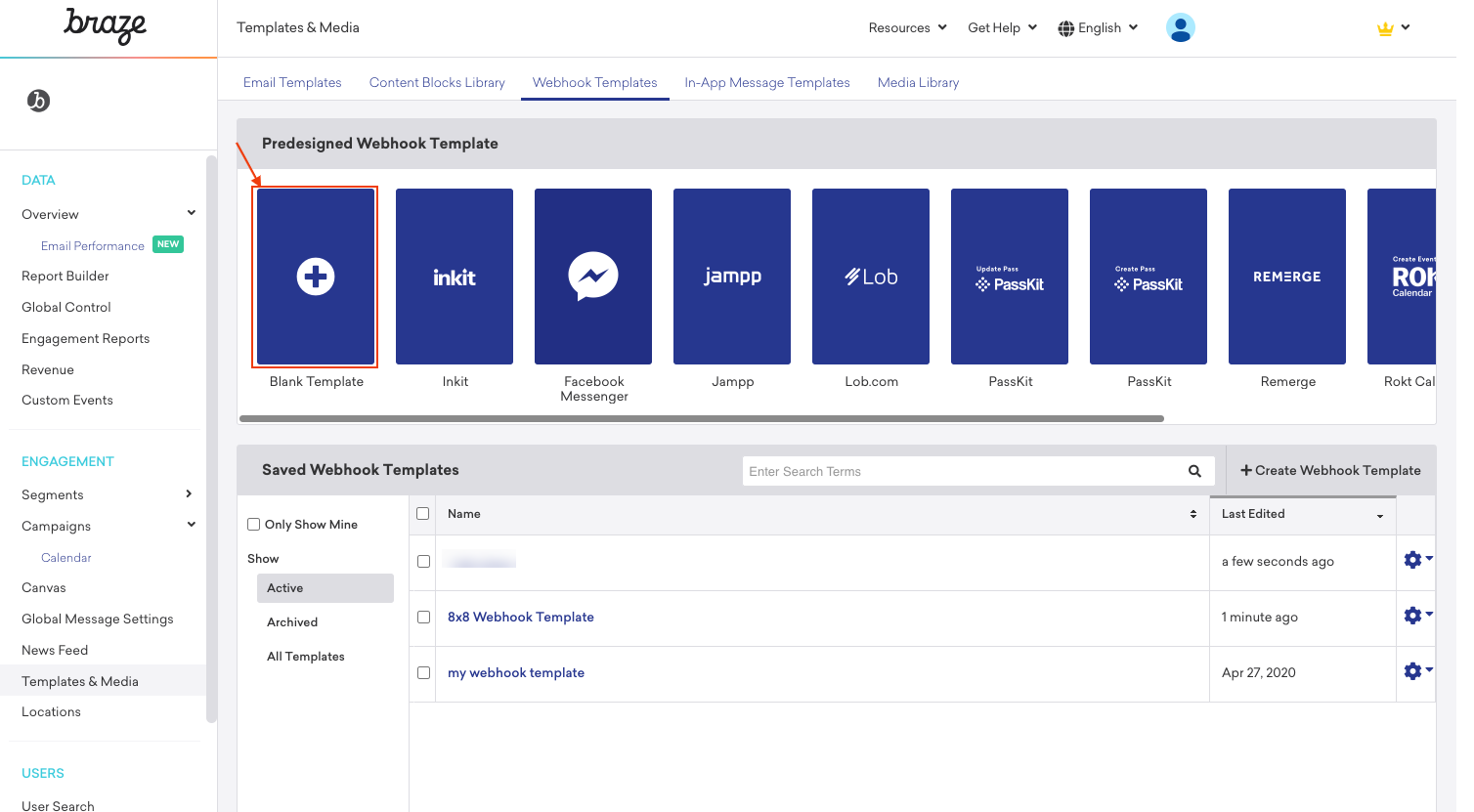
    From there, select Blank Template to set up a new webhook.

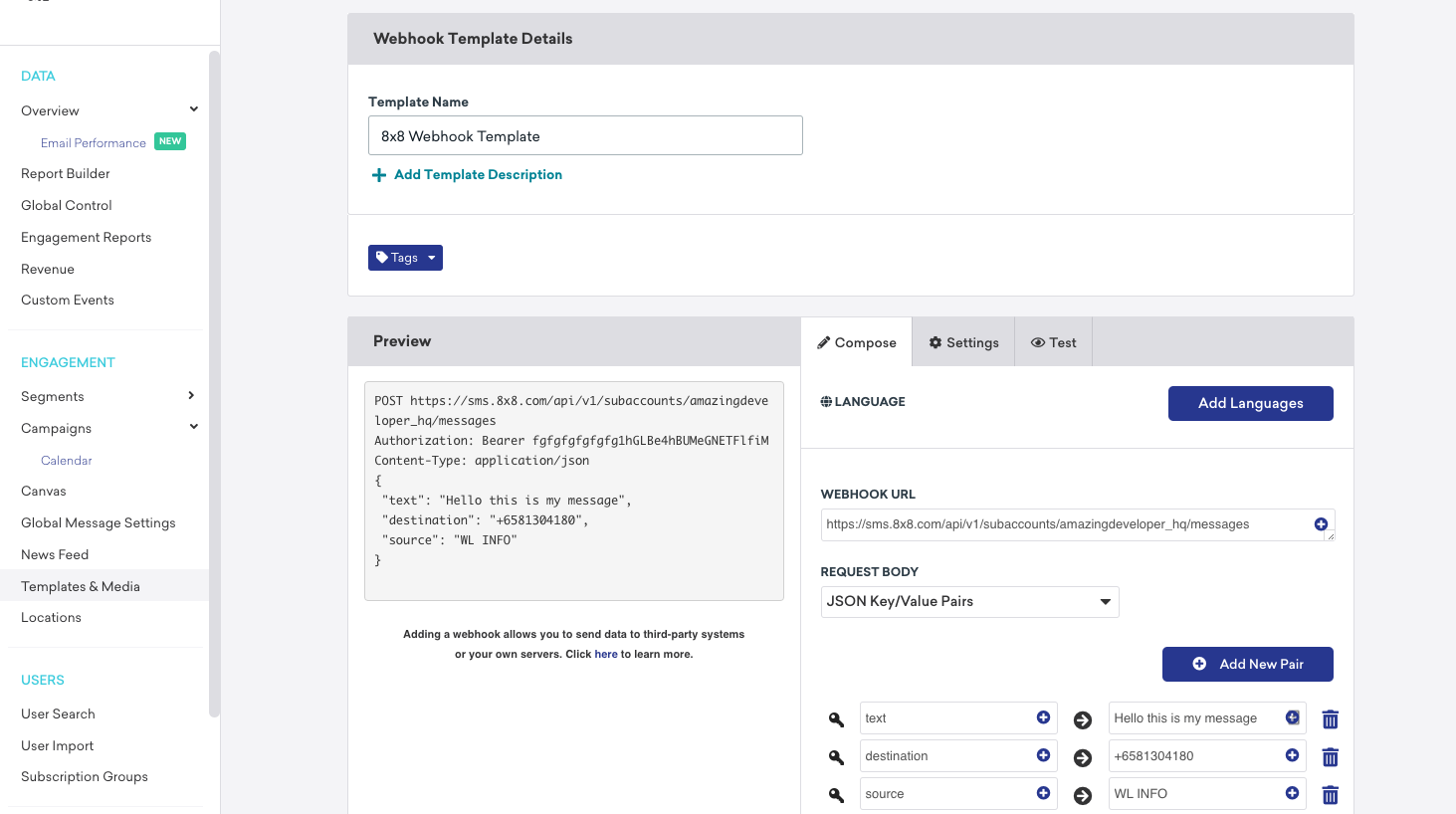
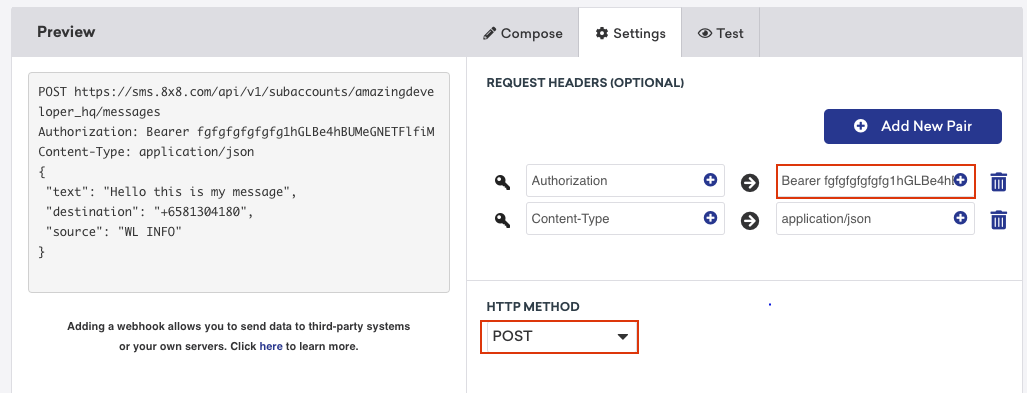
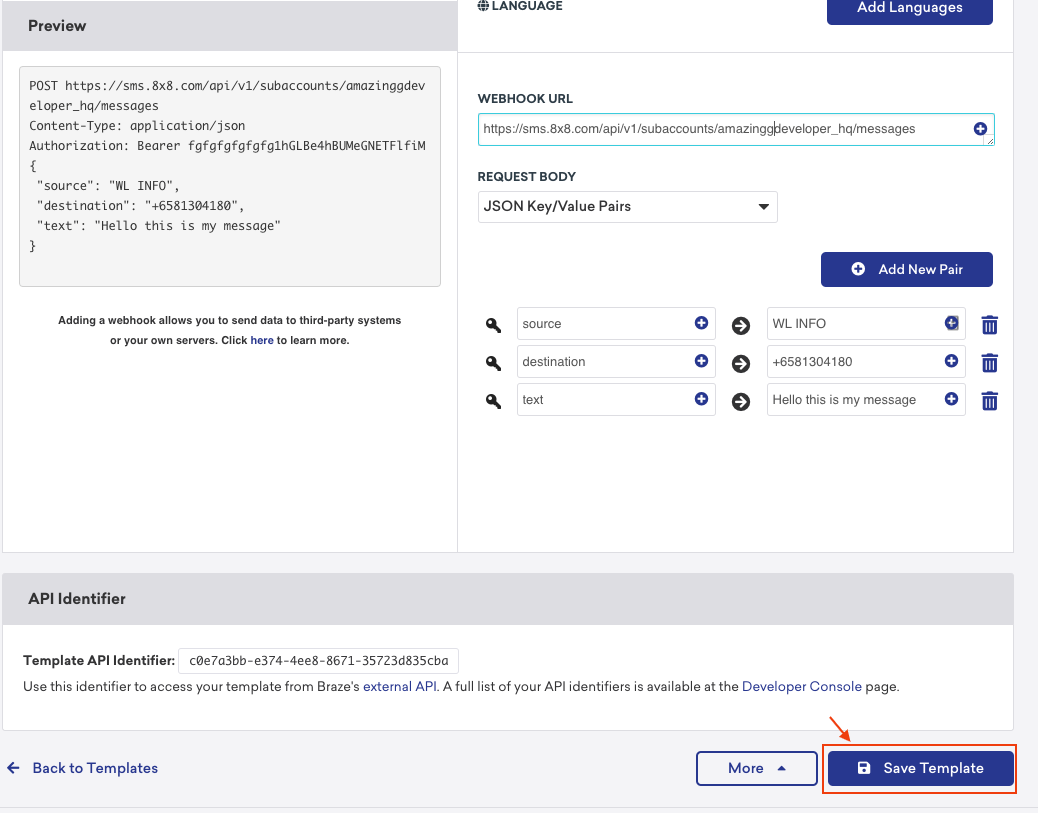
    1508 Add https://sms.8x8.com/api/v1/subaccounts/{subAccountId}/messages under WEBHOOK URL, where subAccountID is the Sub-Account ID from your API Keys page which can be found in the API Keys menu. REQUEST BODY should be the default option which is JSON Key/Value Pairs. Now add three new pairs in any order named source, destination, and text. The source should be the sender ID which is the name or number you will see when you receive an SMS, the destination is the mobile number in an international format where you are sending the SMS and text is the body message of your SMS. After it’s successfully set up, it should look similar to the image below:

    1463 Now, from the Settings tab, add two new request headers named Authorization, which has the value Bearer and Content-Type which has the value application/json.
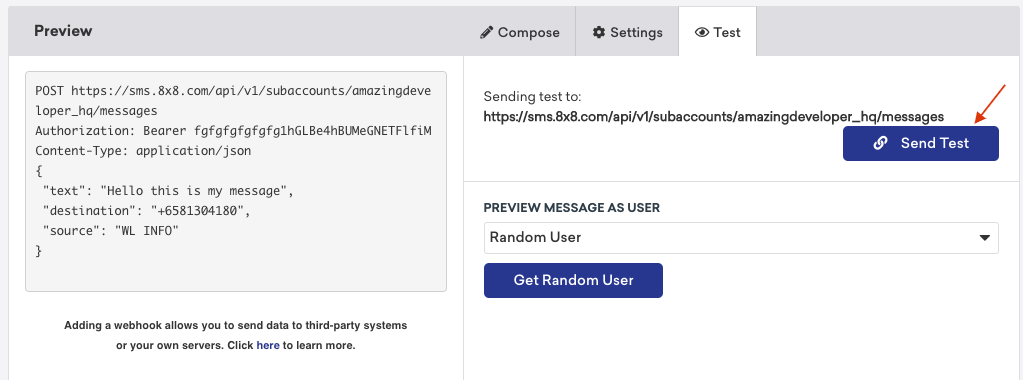
    1027 Finally, to perform a test on the webhook, navigate to the Test tab and click on the Send Test button.
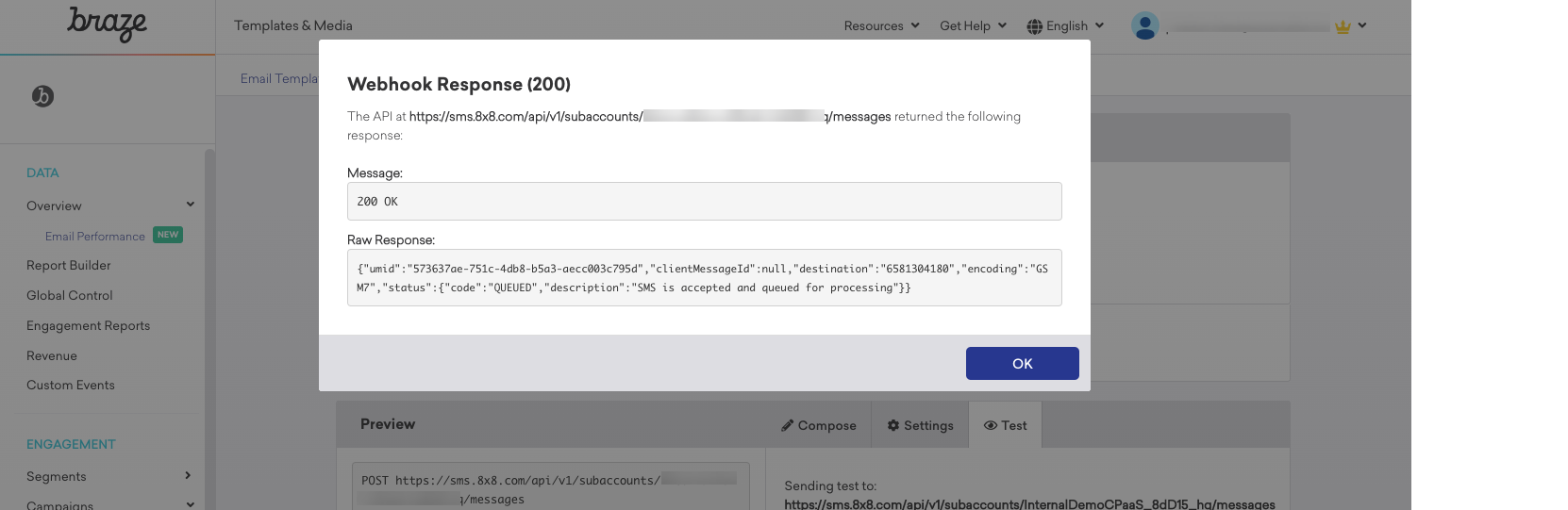
    1023 If everything is set up properly, a successful webhook response (200) message should appear as shown below.
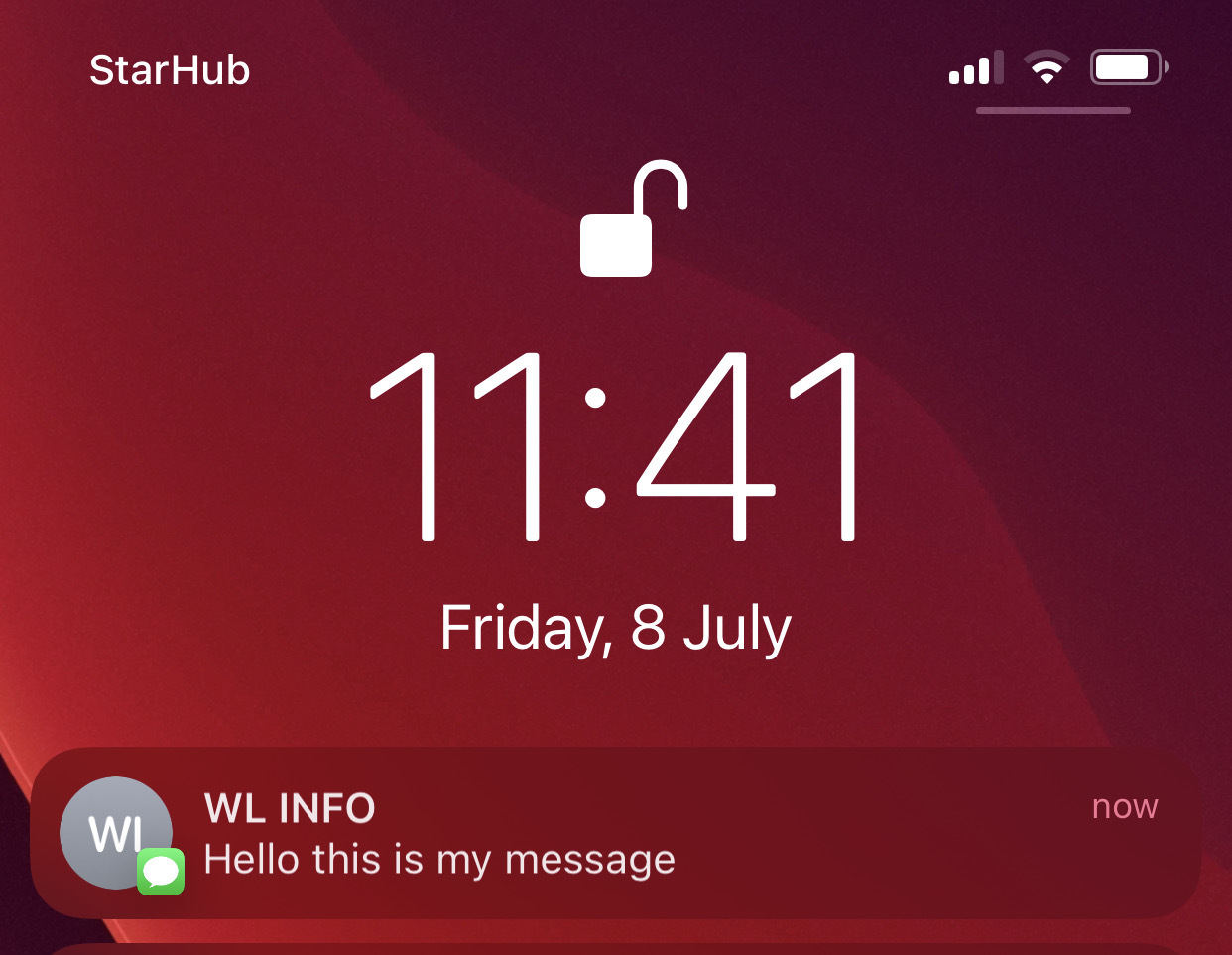
    1662 Your test sample message should look like this on the receiver's mobile phone.
    1242 After a successful test, click the Save Template button and your webhook will be established for future use within your app.
    1038


    Source: https://developer.8x8.com/connect/docs/braze · 8x8 CPaaS Developer Docs. Synced for support deflection.

  • Apple's Shortcuts

    Apple's Shortcuts

    Previously known as Workflow, Apple’s new automation app, Shortcuts, lets users create powerful workflows and automation with simple building blocks that can be triggered with a tap of a button. One of the best things about Shortcuts is its ability to interact with any web API.

    What you'll need

    • 8x8 Connect Account
    • 8x8 SMS and Chat Apps Service
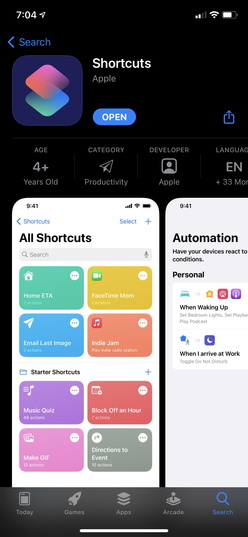
    • The Shortcuts app from the App Store

    248

    Send Bulk SMS Using Apple’s Shortcuts

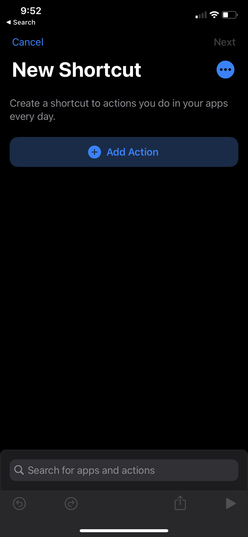
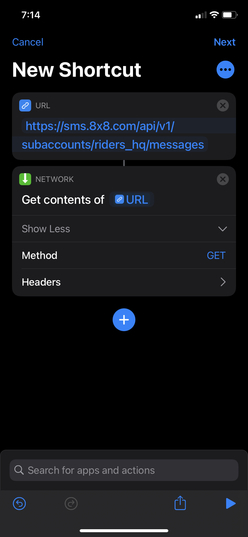
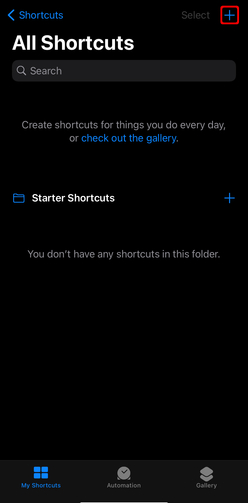
    1. Open Shortcuts and tap Create Shortcut, or + from the upper-right corner of the screen.

    248 248

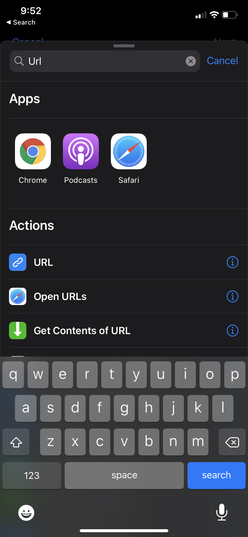
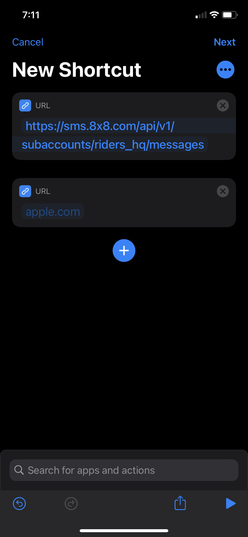
    Then, search for URL, and type in your SMS API endpoint, as shown. Your endpoint can be found in your API Keys, and will be in the following format: https://sms.8x8.com/api/v1/subaccounts/{subAccountId}/messages

    248 248

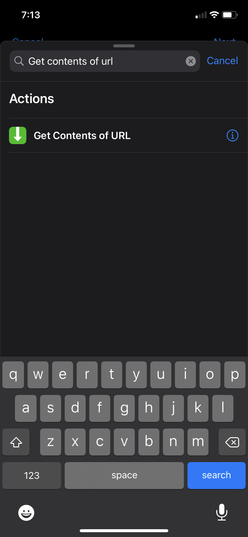
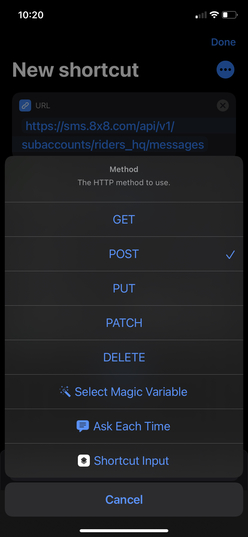
    1. Add another action by searching for “Get Contents of URL”. Under Advanced, select POST as your Method.

    248 248 248

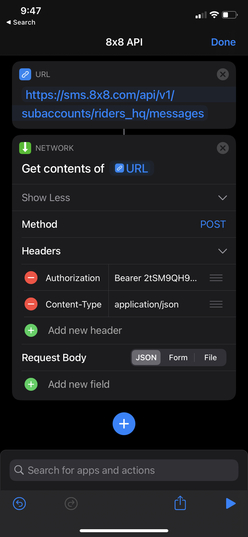
    Add Headers as follows:

    Authorization | Bearer {api key}
    Content-type | application/JSON

    248

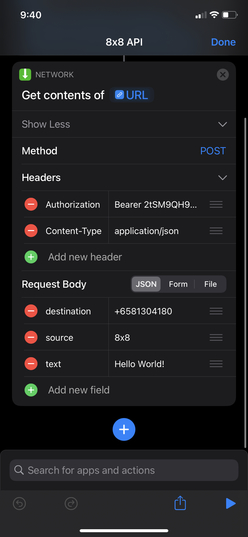
    1. Add a request body by selecting JSON. Fill out the following fields in your request body:
    Destination – The mobile number you are sending the SMS to
    Source – Your Sender ID
    Text – Your text message content

    248

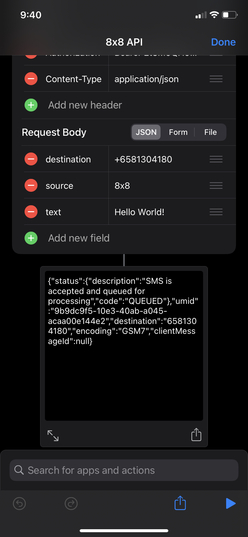
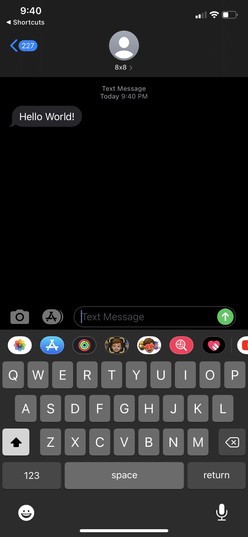
    1. Now run it by clicking on the play sign on the bottom right. You should receive an SMS (if you use your own mobile phone) and see a JSON response.

    248 248

    Sending Bulk SMS Using An Excel File

    8x8’s SMS API supports sending SMS for multiple numbers using a .csv or excel file. Using this API endpoint, you will be able to create a Shortcut that will send SMS to multiple numbers. To simplify things for you, we’ve already made the shortcut that you can reuse or modify to your own preference. Access our shortcut now.

    All you have to do is change the following information on the shortcut we’ve shared.

    For the SMS API endpoint, it should follow the following format: https://sms.8x8.com/api/v1/subaccounts/{subAccountId}/messages/batch

    Your headers should be as follows:

    Authorization | Bearer {api key}
    Content-type | application/json

    To run your shortcut, you need an excel file with the phone numbers stored on your iOS device. Just share the excel file with Shortcuts, we’ll use this shortcut to parse the excel files before sending the data to the API. Fill in the message body and sender ID that you’d like to send from, and that’s it!


    Source: https://developer.8x8.com/connect/docs/apples-shortcuts · 8x8 CPaaS Developer Docs. Synced for support deflection.

8x8 Logo
  • 8x8 YouTube
  • 8x8 Facebook
  • 8x8 Twitter
  • 8x8 Blog
  • 8x8 LinkedIn
  • 8x8 Instagram

Company

  • About Us
  • Careers
  • Contact Us

Our Products

  • SMS
  • Chat Apps
  • Video Interaction
  • Voice
  • Pricing

Media

  • Customer Success Stories
  • News
  • Events
  • Blog

Resources

  • Documentation
  • Service Status
  • Ask for support
Privacy Policy | Terms of Use | Acceptable Use Policy
© 2025 8x8, Inc. All rights reserved.