See Details
Logo CPaaS Help Center Developer Premium Support Status
Sign in Contact Support
  1. 8x8 CPaaS Help Center
  2. Contacts, Batches & Automation

Contacts, Batches & Automation

  • Search for groups

    Search for groups

    GET https://contacts.8x8.com/api/v1/accounts/:accountId/groups

    Search for groups

    Request

    Path Parameters

      accountId stringrequired

      Possible values: >= 32 characters and <= 36 characters, Value must match regular expression ^[0-9A-Fa-f]{8}[-]?(?:[0-9A-Fa-f]{4}[-]?){3}[0-9A-Fa-f]{12}$

      You must replace {accountId} with the accountid that you want to use.

    Query Parameters

      limit int32

      Possible values: >= 1 and <= 500

      Number of items to include in the response

      Default value: 20
      offset int32

      Possible values: >= 0

      Page offset. Setting limit to 10 and offset to 0 returns the first 10 items. Increment offset to retrieve more items.

      name string

      Group name to search for

    OK

    Schema

      items object[]required

    • Array [
    • idnumber
      contactsnumber
      createdAtstring

      Possible values: non-empty

      namestring

      Possible values: non-empty

      descriptionstring
      isBlacklistboolean
    • ]
    • pagenumberrequired
      totalPagesnumberrequired
      totalCountnumberrequired
      totalFilterednumberrequired
      hasPreviousPagebooleanrequired
      hasNextPagebooleanrequired
    {
    "items":[
    {
    "id":0,
    "contacts":0,
    "createdAt":"string",
    "name":"string",
    "description":"string",
    "isBlacklist":true
    }
    ],
    "page":0,
    "totalPages":0,
    "totalCount":0,
    "totalFiltered":0,
    "hasPreviousPage":true,
    "hasNextPage":true
    }

    Bad request error response

    Schema

      codeintegerrequired

      Error code

      messagestring

      Error description

      errorIdstring<uuid>required

      Unique id of error. You can use it as reference when sending enquiries to 8x8 support

      timestampstring<date-time>required

      Data and time of the error occurence

    {
    "code":1001,
    "message":"Provided subAccountId doesn't belongs to your account",
    "errorId":"91b106f0-c0da-4aba-a43a-7af9c5893a80",
    "timestamp":"2017-04-19T02:31:19.4297387+00:00"
    }
    {
    "code":1002,
    "message":"Invalid MSISDN format (not E.164 international number)",
    "errorId":"b4478860-b76c-e811-814e-022a35cc1c71",
    "timestamp":"2018-08-04T09:25:40.9235752+00:00"
    }

    Source: https://developer.8x8.com/connect/reference/groups-api · 8x8 CPaaS Developer Docs. Synced for support deflection.

  • Get contact information by id

    Get contact information by id

    GET https://contacts.8x8.com/api/v1/accounts/:accountId/contacts/:contactId

    Get contact information by contact id

    Request

    Path Parameters

      accountId stringrequired

      Possible values: >= 32 characters and <= 36 characters, Value must match regular expression ^[0-9A-Fa-f]{8}[-]?(?:[0-9A-Fa-f]{4}[-]?){3}[0-9A-Fa-f]{12}$

      You must replace {accountId} with the accountid that you want to use.

      contactId stringrequired

      Contact Id

    OK

    Schema

      idnumberrequired
      createdAtstring
      firstNamestring

      Possible values: non-empty

      lastNamestring

      Possible values: non-empty

      externalIdstring

      Possible values: non-empty

      countrystring

      Possible values: non-empty

      groups object[]

      Possible values: >= 1

    • Array [
    • idnumber
      contactsnumber
      createdAtstring

      Possible values: non-empty

      namestring

      Possible values: non-empty

      descriptionstring
      isBlacklistboolean
    • ]
    • addresses objectrequired

      All addresses are optional, but at least one address should be provided

      msisdnstring

      Phone number. We accept both international and national formats (for national you have to specify a country in the dedicated field).

      Possible values: non-empty, Value must match regular expression ^\+{0,1}[1-9]{1}[0-9]{6,14}$

      weChatUserIdstring

      Possible values: <= 128 characters

      facebookUserIdstring

      Possible values: <= 128 characters

      emailstring<email>

      Possible values: <= 320 characters

      zaloIdstring

      Possible values: <= 128 characters

      lineIdstring

      Possible values: <= 128 characters

      kakaoTalkIdstring

      Possible values: <= 128 characters

      customAttributesobject
    {
    "id":0,
    "createdAt":"string",
    "firstName":"string",
    "lastName":"string",
    "externalId":"string",
    "country":"string",
    "groups":[
    {
    "id":0,
    "contacts":0,
    "createdAt":"string",
    "name":"string",
    "description":"string",
    "isBlacklist":true
    }
    ],
    "addresses":{
    "msisdn":"string",
    "weChatUserId":"string",
    "facebookUserId":"string",
    "email":"user@example.com",
    "zaloId":"string",
    "lineId":"string",
    "kakaoTalkId":"string"
    },
    "customAttributes":{}
    }

    The entity doesn't exist

    Schema

      codeintegerrequired

      Error code

      messagestring

      Error description

      errorIdstring<uuid>required

      Unique id of error. You can use it as reference when sending enquiries to 8x8 support

      timestampstring<date-time>required

      Data and time of the error occurence

    {
    "code":1001,
    "message":"Provided subAccountId doesn't belongs to your account",
    "errorId":"91b106f0-c0da-4aba-a43a-7af9c5893a80",
    "timestamp":"2017-04-19T02:31:19.4297387+00:00"
    }
    {
    "code":4018,
    "message":"Invalid jobId",
    "errorId":"aa400d4b-fffe-ea11-8277-00155d4ff7ed",
    "timestamp":"2020-09-25T07:18:22.78Z"
    }

    Source: https://developer.8x8.com/connect/reference/get-contact-by-id · 8x8 CPaaS Developer Docs. Synced for support deflection.

  • Create contact

    Create contact

    POST https://contacts.8x8.com/api/v1/accounts/:accountId/contacts

    Create a new contact

    Request

    Path Parameters

      accountId stringrequired

      Possible values: >= 32 characters and <= 36 characters, Value must match regular expression ^[0-9A-Fa-f]{8}[-]?(?:[0-9A-Fa-f]{4}[-]?){3}[0-9A-Fa-f]{12}$

      You must replace {accountId} with the accountid that you want to use.

    Body

      firstNamestring

      Possible values: non-empty and <= 200 characters

      lastNamestring

      Possible values: non-empty and <= 200 characters

      externalIdstring

      Possible values: non-empty and <= 50 characters

      countrystring

      Please use Alpha-2 country code (two character country codes)

      Possible values: >= 2 characters and <= 2 characters

      groups object[]

      Possible values: >= 1, <= 10

    • Array [
    • idintegerrequired

      Group identitifer

    • ]
    • addresses objectrequired

      All addresses are optional, but at least one address should be provided

      msisdnstring

      Phone number. We accept both international and national formats (for national you have to specify a country in the dedicated field).

      Possible values: non-empty, Value must match regular expression ^\+{0,1}[1-9]{1}[0-9]{6,14}$

      weChatUserIdstring

      Possible values: <= 128 characters

      facebookUserIdstring

      Possible values: <= 128 characters

      emailstring<email>

      Possible values: <= 320 characters

      zaloIdstring

      Possible values: <= 128 characters

      lineIdstring

      Possible values: <= 128 characters

      kakaoTalkIdstring

      Possible values: <= 128 characters

      customAttributesobject

    You'll receive 200 OK if the contact has been merged with another contact based on one of provided addresses

    Schema

      idnumberrequired
      createdAtstring
      firstNamestring

      Possible values: non-empty

      lastNamestring

      Possible values: non-empty

      externalIdstring

      Possible values: non-empty

      countrystring

      Possible values: non-empty

      groups object[]

      Possible values: >= 1

    • Array [
    • idnumber
      contactsnumber
      createdAtstring

      Possible values: non-empty

      namestring

      Possible values: non-empty

      descriptionstring
      isBlacklistboolean
    • ]
    • addresses objectrequired

      All addresses are optional, but at least one address should be provided

      msisdnstring

      Phone number. We accept both international and national formats (for national you have to specify a country in the dedicated field).

      Possible values: non-empty, Value must match regular expression ^\+{0,1}[1-9]{1}[0-9]{6,14}$

      weChatUserIdstring

      Possible values: <= 128 characters

      facebookUserIdstring

      Possible values: <= 128 characters

      emailstring<email>

      Possible values: <= 320 characters

      zaloIdstring

      Possible values: <= 128 characters

      lineIdstring

      Possible values: <= 128 characters

      kakaoTalkIdstring

      Possible values: <= 128 characters

      customAttributesobject
    {
    "id":0,
    "createdAt":"string",
    "firstName":"string",
    "lastName":"string",
    "externalId":"string",
    "country":"string",
    "groups":[
    {
    "id":0,
    "contacts":0,
    "createdAt":"string",
    "name":"string",
    "description":"string",
    "isBlacklist":true
    }
    ],
    "addresses":{
    "msisdn":"string",
    "weChatUserId":"string",
    "facebookUserId":"string",
    "email":"user@example.com",
    "zaloId":"string",
    "lineId":"string",
    "kakaoTalkId":"string"
    },
    "customAttributes":{}
    }

    You'll receive 201 Created if the contact has been created

    Schema

      idnumberrequired
      createdAtstring
      firstNamestring

      Possible values: non-empty

      lastNamestring

      Possible values: non-empty

      externalIdstring

      Possible values: non-empty

      countrystring

      Possible values: non-empty

      groups object[]

      Possible values: >= 1

    • Array [
    • idnumber
      contactsnumber
      createdAtstring

      Possible values: non-empty

      namestring

      Possible values: non-empty

      descriptionstring
      isBlacklistboolean
    • ]
    • addresses objectrequired

      All addresses are optional, but at least one address should be provided

      msisdnstring

      Phone number. We accept both international and national formats (for national you have to specify a country in the dedicated field).

      Possible values: non-empty, Value must match regular expression ^\+{0,1}[1-9]{1}[0-9]{6,14}$

      weChatUserIdstring

      Possible values: <= 128 characters

      facebookUserIdstring

      Possible values: <= 128 characters

      emailstring<email>

      Possible values: <= 320 characters

      zaloIdstring

      Possible values: <= 128 characters

      lineIdstring

      Possible values: <= 128 characters

      kakaoTalkIdstring

      Possible values: <= 128 characters

      customAttributesobject
    {
    "id":0,
    "createdAt":"string",
    "firstName":"string",
    "lastName":"string",
    "externalId":"string",
    "country":"string",
    "groups":[
    {
    "id":0,
    "contacts":0,
    "createdAt":"string",
    "name":"string",
    "description":"string",
    "isBlacklist":true
    }
    ],
    "addresses":{
    "msisdn":"string",
    "weChatUserId":"string",
    "facebookUserId":"string",
    "email":"user@example.com",
    "zaloId":"string",
    "lineId":"string",
    "kakaoTalkId":"string"
    },
    "customAttributes":{}
    }
    {
    "id":41764986,
    "createdAt":"2022-04-18T07:39:55.52Z",
    "externalId":"87668",
    "country":"US",
    "groups":[
    {
    "id":8199,
    "contacts":1,
    "createdAt":"2022-04-13T08:41:47.82Z",
    "name":"some group",
    "description":"General",
    "isBlacklist":false
    }
    ],
    "addresses":{
    "msisdn":"16511112222"
    },
    "customAttributes":{}
    }

    Bad request error response

    Schema

      codeintegerrequired

      Error code

      messagestring

      Error description

      errorIdstring<uuid>required

      Unique id of error. You can use it as reference when sending enquiries to 8x8 support

      timestampstring<date-time>required

      Data and time of the error occurence

    {
    "code":1001,
    "message":"Provided subAccountId doesn't belongs to your account",
    "errorId":"91b106f0-c0da-4aba-a43a-7af9c5893a80",
    "timestamp":"2017-04-19T02:31:19.4297387+00:00"
    }
    {
    "code":1002,
    "message":"Invalid MSISDN format (not E.164 international number)",
    "errorId":"b4478860-b76c-e811-814e-022a35cc1c71",
    "timestamp":"2018-08-04T09:25:40.9235752+00:00"
    }

    Conflict: more than one contact was found based on a provided set of addresses.

    Schema

      codeintegerrequired

      Error code

      messagestring

      Error description

      errorIdstring<uuid>required

      Unique id of error. You can use it as reference when sending enquiries to 8x8 support

      timestampstring<date-time>required

      Data and time of the error occurence

    {
    "code":1001,
    "message":"Provided subAccountId doesn't belongs to your account",
    "errorId":"91b106f0-c0da-4aba-a43a-7af9c5893a80",
    "timestamp":"2017-04-19T02:31:19.4297387+00:00"
    }

    Source: https://developer.8x8.com/connect/reference/create-contact · 8x8 CPaaS Developer Docs. Synced for support deflection.

  • Contacts API
    Version: 1

    Contacts API

    Contacts API v1

    Authentication

    • 8x8 SMS API accepts an ApiKey Bearer Token authentication method.

    • You can generate tokens from your customer portal https://connect.8x8.com/

    • You need to include the following header in your requests: Authorization: Bearer {apiKey}

    Note: Replace the {apiKey} placeholder with the key generated from the customer portal.


    If you haven't created your account yet, please go to 8x8 website https://connect.8x8.com to sign up.

    Security Scheme Type:

    http

    HTTP Authorization Scheme:

    bearer

    Contact

    8x8 Inc: cpaas-support@8x8.com

    URL: https://cpaas.8x8.com

    Terms of Service

    https://cpaas.8x8.com/sg/terms-and-conditions/

    Source: https://developer.8x8.com/connect/reference/contacts-api · 8x8 CPaaS Developer Docs. Synced for support deflection.

  • Batch delete contacts

    Batch delete contacts

    POST https://contacts.8x8.com/api/v1/accounts/:accountId/contacts/batches/deleteContacts

    Use this endpoint to delete multiple/all contacts in batch. Provide ids or msisdns to remove specific contacts, or set "all": true to delete all contacts in your account.

    Request

    Path Parameters

      accountId stringrequired

      Possible values: >= 32 characters and <= 36 characters, Value must match regular expression ^[0-9A-Fa-f]{8}[-]?(?:[0-9A-Fa-f]{4}[-]?){3}[0-9A-Fa-f]{12}$

      You must replace {accountId} with the accountid that you want to use.

    Body

      idsinteger[]
      msisdnsstring[]
      allboolean

      Set true to delete all contacts in your account

    Accepted

    Schema

      idstring<uuid>

      Batch job id

      typeBatch type (string)

      The type of the batch job

      Possible values: [createContacts, deleteContacts, copyContacts, moveContacts, deleteGroups]

      statusBatch Status (string)

      The status of the batch job

      Possible values: [queued, inProgress, failed, completed, stopped, timeout]

      createdAtstring

      Job created date and time

    {
    "id":"3fa85f64-5717-4562-b3fc-2c963f66afa6",
    "type":"createContacts",
    "status":"queued",
    "createdAt":"string"
    }

    Bad request error response

    Schema

      codeintegerrequired

      Error code

      messagestring

      Error description

      errorIdstring<uuid>required

      Unique id of error. You can use it as reference when sending enquiries to 8x8 support

      timestampstring<date-time>required

      Data and time of the error occurence

    {
    "code":1001,
    "message":"Provided subAccountId doesn't belongs to your account",
    "errorId":"91b106f0-c0da-4aba-a43a-7af9c5893a80",
    "timestamp":"2017-04-19T02:31:19.4297387+00:00"
    }
    {
    "code":1002,
    "message":"Invalid MSISDN format (not E.164 international number)",
    "errorId":"b4478860-b76c-e811-814e-022a35cc1c71",
    "timestamp":"2018-08-04T09:25:40.9235752+00:00"
    }

    Source: https://developer.8x8.com/connect/reference/batch-delete-contacts · 8x8 CPaaS Developer Docs. Synced for support deflection.

  • Move contacts between groups

    Move contacts between groups

    POST https://contacts.8x8.com/api/v1/accounts/:accountId/groups/batches/moveContacts

    Move contacts from one group to another one. This operation will delete contacts in the original group.

    Request

    Path Parameters

      accountId stringrequired

      Possible values: >= 32 characters and <= 36 characters, Value must match regular expression ^[0-9A-Fa-f]{8}[-]?(?:[0-9A-Fa-f]{4}[-]?){3}[0-9A-Fa-f]{12}$

      You must replace {accountId} with the accountid that you want to use.

    Query Parameters

      from integerrequired

      Identifier of the source group

      to integerrequired

      Identifier of the destination group

    Accepted

    Schema

      idstring<uuid>

      Batch job id

      typeBatch type (string)

      The type of the batch job

      Possible values: [createContacts, deleteContacts, copyContacts, moveContacts, deleteGroups]

      statusBatch Status (string)

      The status of the batch job

      Possible values: [queued, inProgress, failed, completed, stopped, timeout]

      createdAtstring

      Job created date and time

    {
    "id":"3fa85f64-5717-4562-b3fc-2c963f66afa6",
    "type":"createContacts",
    "status":"queued",
    "createdAt":"string"
    }

    Bad request error response

    Schema

      codeintegerrequired

      Error code

      messagestring

      Error description

      errorIdstring<uuid>required

      Unique id of error. You can use it as reference when sending enquiries to 8x8 support

      timestampstring<date-time>required

      Data and time of the error occurence

    {
    "code":1001,
    "message":"Provided subAccountId doesn't belongs to your account",
    "errorId":"91b106f0-c0da-4aba-a43a-7af9c5893a80",
    "timestamp":"2017-04-19T02:31:19.4297387+00:00"
    }
    {
    "code":1002,
    "message":"Invalid MSISDN format (not E.164 international number)",
    "errorId":"b4478860-b76c-e811-814e-022a35cc1c71",
    "timestamp":"2018-08-04T09:25:40.9235752+00:00"
    }

    Source: https://developer.8x8.com/connect/reference/batch-move-contacts · 8x8 CPaaS Developer Docs. Synced for support deflection.

  • Copy contacts between groups

    Copy contacts between groups

    POST https://contacts.8x8.com/api/v1/accounts/:accountId/groups/batches/copyContacts

    Copy contacts from ony group to another one.

    Request

    Path Parameters

      accountId stringrequired

      Possible values: >= 32 characters and <= 36 characters, Value must match regular expression ^[0-9A-Fa-f]{8}[-]?(?:[0-9A-Fa-f]{4}[-]?){3}[0-9A-Fa-f]{12}$

      You must replace {accountId} with the accountid that you want to use.

    Query Parameters

      from integerrequired

      Identifier of the source group

      to integerrequired

      Identifier of the destination group

    Accepted

    Schema

      idstring<uuid>

      Batch job id

      typeBatch type (string)

      The type of the batch job

      Possible values: [createContacts, deleteContacts, copyContacts, moveContacts, deleteGroups]

      statusBatch Status (string)

      The status of the batch job

      Possible values: [queued, inProgress, failed, completed, stopped, timeout]

      createdAtstring

      Job created date and time

    {
    "id":"3fa85f64-5717-4562-b3fc-2c963f66afa6",
    "type":"createContacts",
    "status":"queued",
    "createdAt":"string"
    }

    Bad request error response

    Schema

      codeintegerrequired

      Error code

      messagestring

      Error description

      errorIdstring<uuid>required

      Unique id of error. You can use it as reference when sending enquiries to 8x8 support

      timestampstring<date-time>required

      Data and time of the error occurence

    {
    "code":1001,
    "message":"Provided subAccountId doesn't belongs to your account",
    "errorId":"91b106f0-c0da-4aba-a43a-7af9c5893a80",
    "timestamp":"2017-04-19T02:31:19.4297387+00:00"
    }
    {
    "code":1002,
    "message":"Invalid MSISDN format (not E.164 international number)",
    "errorId":"b4478860-b76c-e811-814e-022a35cc1c71",
    "timestamp":"2018-08-04T09:25:40.9235752+00:00"
    }

    Source: https://developer.8x8.com/connect/reference/batch-copy-contacts · 8x8 CPaaS Developer Docs. Synced for support deflection.

  • Automation API
    Version: 1.0

    Automation API

    API for managing workflows on 8x8 Automation

    Authentication

    Security Scheme Type:

    http

    HTTP Authorization Scheme:

    bearer

    Contact

    8x8 Inc: cpaas-support@8x8.com

    URL: https://cpaas.8x8.com

    Terms of Service

    https://cpaas.8x8.com/sg/terms-and-conditions/

    Source: https://developer.8x8.com/connect/reference/automation-api · 8x8 CPaaS Developer Docs. Synced for support deflection.

  • Short URL Clicks

    Short URL Clicks

    8x8 SMS API provides a webhook that notifies you whenever someone clicks a shortened URL in an SMS message sent from your sub-account.

    If URL shortening is enabled for your sub-account, any links in your messages are automatically converted to short URLs. When a recipient clicks one of those links, 8x8 sends a POST request to your configured webhook endpoint with details about the click.

    Requirements

    To use the Short URL Click webhook feature, coordinate with your account manager to activate the following:

    • Short URL feature enabled for your sub-account: allows 8x8 to automatically shorten links in your outbound SMS.
    • Short URL Click webhook: the callback URL where 8x8 will send click events whenever a recipient clicks a shortened link in your SMS.

    📘
    You can configure your callback using Webhooks Configuration API

    Webhook format

    Request body description

    Parameter name Parameter type Description
    namespace string A generic namespace for incoming webhook.
    Equal to SMS.
    eventType string Webhook type.
    Equals to short_url_clicked.
    description string Human-readable description of the event.
    payload object Contains the short URL click information.

    Payload object description

    Parameter name Parameter type Description
    eventId uuid Unique identifier for the click event.
    occurredAt string UTC timestamp of when the click occurred (ISO 8601).
    umid uuid Unique ID of the original SMS message.
    destination string Phone number of the recipient (E.164 format).
    shortUrl string The shortened URL that was clicked.
    targetUrl string The final destination URL.

    Sample webhook body

    {
    "namespace":"SMS",
    "eventType":"short_url_clicked",
    "description":"Short URL from SMS clicked",
    "payload":{
    "eventId":"0f6a0c0f-8b67-4a3a-a6c3-7b0ecf0d2b1a",
    "occurredAt":"2025-10-03T12:00:00Z",
    "umid":"9e09ac86-bd74-5465-851d-1eb5a5fdbb9a",
    "destination":"+12025550293",
    "shortUrl":"https://2g.to/abc123/abc",
    "targetUrl":"https://example.com/landing?c=fall_campaign"
    }
    }

    Retry logic

    In case of connection error/timeout or HTTP response code 4XX or 5XX, there will be multiple retry attempts with progressive intervals: 1, 10, 30, 90 sec.


    Source: https://developer.8x8.com/connect/docs/short-url-clicks · 8x8 CPaaS Developer Docs. Synced for support deflection.

  • Agent Profile & Storefront

    Agent Profile & Storefront

    When a user opens a conversation with your RCS agent, they see a verified profile page — your agent's storefront. This is what establishes trust before they read a single message.

    Every element shown here maps directly to a field you submit during agent registration.

    8x8Let's power your CX
    8x8
    8x8
    Demonstrate the power of RCS

    📞Call

    🌐Website

    ✉️Email

    Info
    Options
    📞
    (656) 221-1521
    Get in Touch
    🌐
    https://cpaas.8x8.com/
    Visit Us
    Logo & banner
    The circular icon and the header image. These are the first things a user sees and must be verified by the carrier.
    Agent name
    Your verified brand name. Shown with a green verified checkmark in production once carrier vetting completes.
    Agent description
    A short line (≤100 chars) under the name explaining what the agent does or what the user is opting into.
    Action buttons
    Call, Website, and Email shortcuts pulled from your support contact details submitted at registration.
    Info tab
    The full contact card: phone number, website, email, and links to your privacy policy and terms of service.

    Verified identity: Unlike SMS, RCS displays your brand name, logo, and a verified badge — so the customer knows the message is genuinely from you before they read a word.


    Storefront field reference

    Storefront element Registration field Spec
    Agent name Brand / Program Name Max 40 characters
    Agent description Agent description Max 100 characters. Describe what the agent does or what the user is opting into.
    Tagline Brand slogan Max 100 characters. A short brand phrase (separate from the description).
    Logo Logo file 224×224 px · max 50 KB · PNG or JPEG · rendered as a circle — leave padding so edges aren't cut off
    Banner Hero / banner image 1440×448 px · max 200 KB · JPEG or PNG · avoid transparent backgrounds (renders poorly in dark mode)
    Call button Customer service phone + label E.164 format, e.g. +18668794647
    Website button Customer service website + label Publicly accessible HTTPS URL
    Email button Customer service email + label Public support email address
    Info tab — Privacy policy Privacy policy URL Publicly accessible HTTPS URL
    Info tab — Terms Terms of service URL Publicly accessible HTTPS URL
    Use case Agent use case Transactional, Promotional, or Multi-purpose (see below)

    Agent description vs. brand slogan

    These are two separate fields that are easy to confuse:

    • Agent description — tells the user what the agent does or what they're opting into. This is the line shown directly under your agent name on the storefront. Example: Event alerts and live demos of 8x8 RCS capabilities
    • Brand slogan — a short brand phrase. Example: Explore the future of business messaging.

    Both have a 100-character limit.


    Choosing a use case

    Use case What it covers When to choose it
    Transactional Order receipts, booking confirmations, payment alerts, OTPs You only send messages tied to an existing customer relationship
    Promotional Marketing offers, coupons, sales alerts You send marketing or promotional messages
    Multi-purpose Both transactional and promotional You send both types — register here to avoid re-submission later
    caution

    If you register as Transactional but later send promotional messages, you will need to re-submit for approval. When in doubt, register as Multi-purpose.


    Brand color

    Your brand color is used for interactive elements such as buttons and suggested replies.

    • Format: HEX code (e.g. #E91B0C)
    • Requirement: Must have a minimum 4.5:1 contrast ratio against white text. Verify this with a contrast checker before submitting.

    Source: https://developer.8x8.com/connect/docs/rcs/agent-profile · 8x8 CPaaS Developer Docs. Synced for support deflection.

  • Branches

    Branches

    🚧 [BETA]

    This product is currently in early access. Please reach out to your account manager to get more information.

    A branch is a specific type of step, allowing you to split your workflow definition, based on a condition. Here is an example of branch:

    {
    "id":"step_1",
    "stepType":"Branch",
    "selectNextStep":{
    "branch1":"{{isCountryCode(data.payload.user.msisdn, 'SG')}}",
    "branch2":"{{isCountryCode(data.payload.user.msisdn, 'US')}}",
    "branch3":null
    }
    }

    As you can see, the stepType is Branch.

    In this case, you need to define the next steps and the condition. This can be done using selectNextStep and by listing the branches. You can use any branch name (here we used the names branch1, branch2 and branch3).

    The branch names defined here will be used as the step id for the following steps. In the example above the next step will start with "id": "branch1",

    Inside each branch, you need to define a condition, for more detail, see the Scripting section below.

    In the example above, we are creating the following logic:

    • branch1 will be selected if the source number has a Singapore country code
    • branch2 will be selected if the source number has a US country code
    • branch3 will be selected otherwise
    Property Description Type
    id Unique id of the step. string
    stepType Step type. string
    inputs Wait step supports the following input parameters.
    - minutes: Number of minutes to wait before executing the next step.
    object
    selectNextStep Step ids of the branches and the conditions. string

    Source: https://developer.8x8.com/connect/docs/getting-started-with-automation-api-1 · 8x8 CPaaS Developer Docs. Synced for support deflection.

  • Getting started with Contacts API

    Getting started with Contacts API

    Our Contacts API will help you manage your contacts through our RESTful api endpoints.
    It will allow you to:

    • Create a single contact or batch of contacts

    • Update information about a particular contact

    • Delete a single contact or batch of contacts

    • View a contact's information

    • Create a contact group and add contacts to that group

    • Blacklist a group of contacts

      and more just to name a few.

    Server Regions

    To ensure the use of the correct platform deployment region, it is necessary to modify the base URL to correspond with the provisioned region of your account. Refer to the table below for the appropriate base URL associated with each platform region.

    For more information on platform regions, please visit the following page.

    List of server URLs:

    API Region Base URL
    Asia (default) https://contacts.8x8.com
    Europe https://contacts.8x8.uk
    North America https://contacts.us.8x8.com
    Indonesia https://contacts.8x8.id

    Source: https://developer.8x8.com/connect/docs/getting-started-with-contacts-api · 8x8 CPaaS Developer Docs. Synced for support deflection.

  • Getting started with Automation API

    Getting started with Automation API

    🚧 [BETA]

    This product is currently in early access. Please reach out to your account manager to get more information.

    Overview

    The Automation API allows you to create and manage complex business workflows. A workflow is a sequence of triggers, conditions and actions which we will be running for you, it can be seen as a business logic.

    We will be using the following terms in this document:

    • Workflow definition, the blueprint of a business flow.
    • Workflow instance, the runtime object that executes the business logic defined in the corresponding workflow definition.
    • Trigger, an external event that starts a workflow without manual intervention.
    • Step, a basic building block of a workflow definition which represents an action to be taken.
    • Branch, a step that allows you to define alternate paths for the workflow based on conditions.
    • Workflow context, data captured in a workflow instance which persists between steps.

    Use Cases

    The Automation API allows you to tackle many business processes, here are some examples of the most common use cases:

    • Auto Reply: for each incoming message (SMS or ChatApps) I want to send an automatic reply to the user. It can be to acknowledge reception or to share a link for support enquiries.

    • Out of Office: outside of business hours, I want to send an automatic reply to the users, to let them know when I will get back to them.

    • Fallback: for each undelivered outbound message, I want to call another API to make sure my message got delivered through another channel.

    • Split messages: for all messages coming from a +1 (US) number, I want to send them to a CRM using a custom API call. For all other messages, I want to send them to a different CRM.

    • Custom integration: I want some of the incoming messages to be pushed to my ordering system, for this I will use the Automation service to make a custom API call to my system.

    • Content based rule: I'm running a campaign where users need to send a specific message to my number. I can filter only the message with this content, to confirm customers they are enrolled and push the registered user numbers to my system, using an API call.

    • Mix and match: mix any of the examples above. For example, for messages outside of business hours coming from a +44 (UK) number, I want to send an auto reply. For all messages coming from +65 (Singapore) number, I want to do a custom API call and for all the other messages do nothing.

    These are just some example, as you can design the workflow definitions, you can create many more flows to support other use cases. Feel free to contact us for support.

    Authentication

    Automation API uses Bearer authentication scheme. All requests to automation server must contain the HTTP authorization header with the value Bearer {apiKey} where {apiKey} for the account can be obtained from 8x8 Connect https://connect.8x8.com/. The account must be registered in the automation service before it can be used (please reach out to your account manager for more information).

    How to use the API

    Here is how you would likely interact with the Automation API:

    WORKFLOW CREATION

    1. Create a new workflow definition, you are submitting your blueprint -> /connect/reference/create-definition

    WORKFLOW DEFINITION MANAGEMENT

    1. Get your workflow definitions, to make sure your definition is there -> /connect/reference/get-all-definitions

    2. Retrieve your workflow, based on the workflowId, to verify it -> /connect/reference/get-specific-definition

    3. If you want to modify your definition, you can use this -> /connect/reference/update-existing-definition

    4. If you want to delete your definition, you can use this -> /connect/reference/delete-definitions

    WORKFLOW INSTANCE MANAGEMENT 6) To test your workflow, you can trigger it manually -> /connect/reference/start-workflow-instance

    1. To retrieve the workflow instance of a specific workflow definition -> /connect/reference/get-workflow-instances

    2. To suspend, resume or terminate a workflow instance -> /connect/reference/patch-workflow-instance

    3. To get errors of a workflow instance -> /connect/reference/get-instance-errors

    As you can see, only the step #1 is mandatory. If you know that your workflow is valid, and that you can test it without the API (by actually sending an incoming message for example), you only need to perform the first step (create a workflow definition).

    The other items are here to help you manage your workflow definition, test them manually and debug them.

    Workflow definition example

    Here is a simple example of a workflow definition.

    This definition contains the following attributes:

    • the trigger is any Inbound Chat Apps message on the subaccount acme_corp_chatapps
    • there are no conditions, all instances will result in sending a Chat Apps message
    • the instance will send an auto reply message to any incoming Chat Apps message
    {
    "subAccountId":"acme_corp_chatapps",
    "trigger":"inbound_chat_apps",
    "status":"enabled",
    "definition":{
    "name":"Auto Reply ChatApps",
    "steps":[
    {
    "id":"send_CA",
    "stepType":"ChatAppsMessage",
    "inputs":{
    "subAccountId":"acme_corp_chatapps",
    "user":{
    "msisdn":"{{data.payload.user.msisdn}}"
    },
    "type":"text",
    "content":{
    "text":"Hello, thank you for your message, we will get back to you as soon as possible."
    }
    }
    }
    ]
    }
    }

    Source: https://developer.8x8.com/connect/docs/getting-started-with-automation-api · 8x8 CPaaS Developer Docs. Synced for support deflection.

  • Create a group and add a contact to that group

    Create a group and add a contact to that group

    👍

    Please see Create a group for the full API reference

    Create a group

    To create a group you need to submit a JSON object to the URL

    POST https://contacts.8x8.com/accounts/{accountId}/groups

    Request body should look like this:

    {
    "isBlacklist":false,
    "name":"Group 1",
    "description":"Team that belongs to group 1"
    }

    If successful you will get a response similar to this:

    {
    "id":8334,
    "contacts":0,
    "createdAt":"2022-05-13T07:03:08.54Z",
    "name":"Group 1",
    "description":"Group 1 team",
    "isBlacklist":false
    }

    Otherwise you will get a 400 or a 409 error response.

    Assuming you've successfully created the group, to add contacts you need to submit a JSON object to the URL

    POST https://contacts.8x8.com/api/v1/accounts/accountId/groups/{groupId}/contacts

    Groupid is the id of the group you just created. For this example 8334 is the group id.

    When you send a request, it should be an array of contact id like the one below:

    {
    "contacts":[
    41702128,41702329
    ]
    }

    You can use Get contact information by id to get the id of a contact or Search contacts where the list shows the id of each contact.

    Response:

    Returns 201 Created with location header if the request was successful. If the request failed, an error object will be returned as 404.


    Source: https://developer.8x8.com/connect/docs/create-a-group-and-add-a-contact-to-that-group · 8x8 CPaaS Developer Docs. Synced for support deflection.

  • Creating a contact

    Creating a contact

    👍

    Please see Create contact for the full API reference

    To create a single contact you need to submit a JSON object to the URL

    POST https://contacts.8x8.com/accounts/{accountId}/contacts

    Request body should look like this:

    {
    "firstName":"Chathuranga",
    "lastName":"Pathirana",
    "externalId":"externalSystemId",
    "country":"SG",
    "groups":[
    {"id":72},
    {"id":82}
    ],
    "addresses":{
    "msisdn":"6580000000",
    "weChatUserId":"oJQxo6XXXXXXXXXXXXXXXXX",
    "facebookUserId":"19520000000000",
    "email":"user@example.com"
    },
    "customAttributes":{
    "company":"Google",
    "jobTitle":"CEO"
    }
    }

    Response:

    Returns 201 Created with location header if the request was successful. If the request failed, an error object will be returned.


    Source: https://developer.8x8.com/connect/docs/creating-a-contact · 8x8 CPaaS Developer Docs. Synced for support deflection.

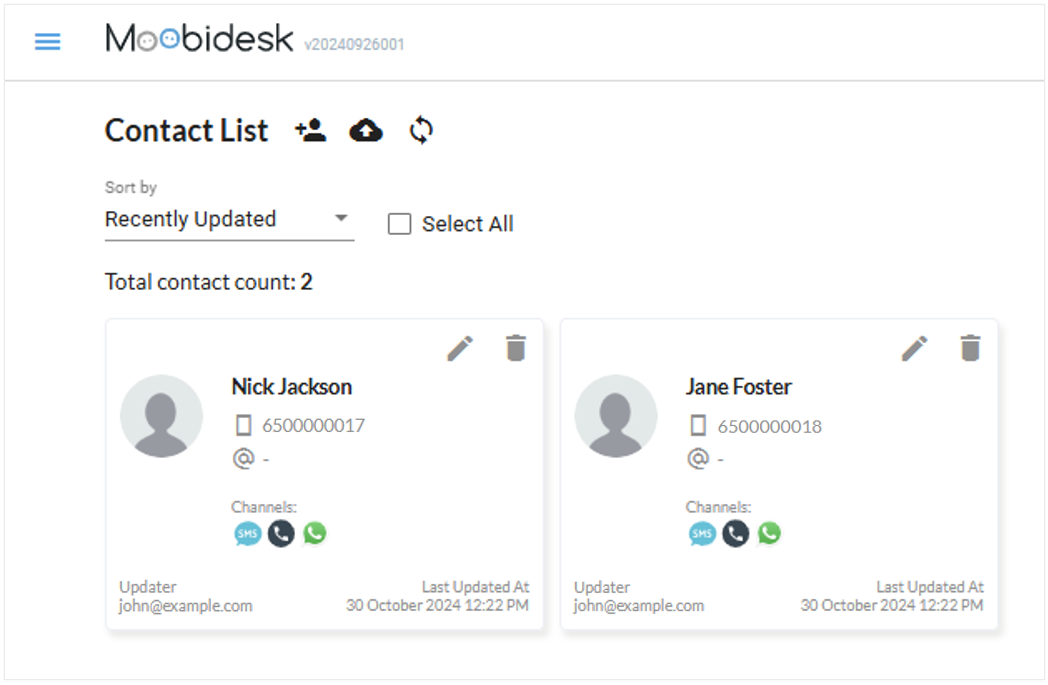
  • Contact Management

    Contact Management

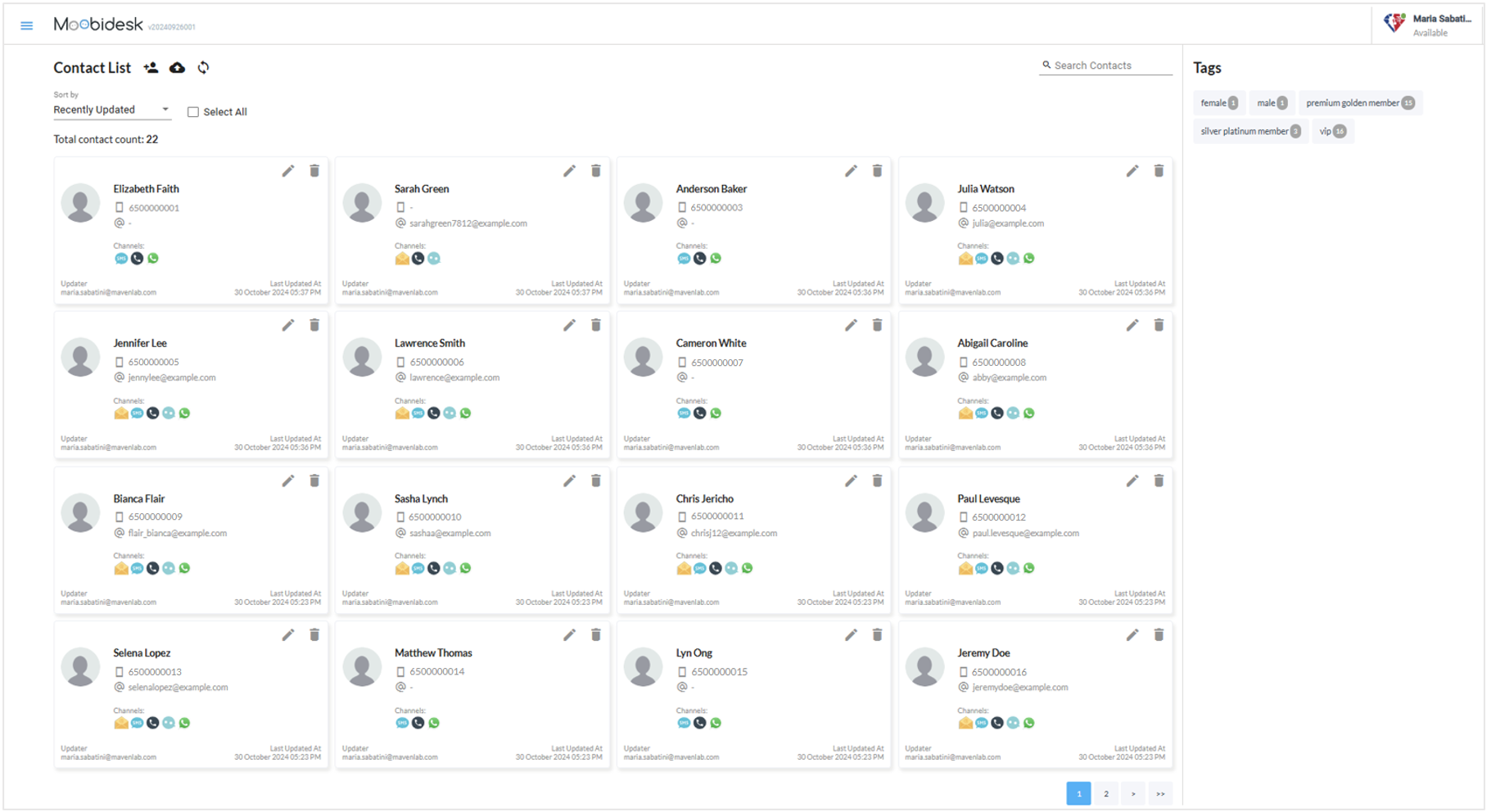
    The Contacts module provides a unified customer database with interaction history across all communication channels.

    Contact Overview

    Contact List View

    Contact List

    The main contact list displays:

    • Name: Customer full name
    • Phone: Primary contact number
    • Email: Email address
    • Source: Channel of first contact (WhatsApp, Email, Facebook)
    • Last Interaction: Most recent conversation timestamp
    • Status: Active, Inactive, or Blocked

    Search & Filter

    Quick Search: Search by name, phone, email, or any custom attribute

    Advanced Filters:

    • Channel source
    • Date range of last contact
    • Custom attribute values
    • Conversation status

    Contact Details

    Profile Information

    Contact Details

    Each contact record contains:

    • Basic Info: Name, phone, email
    • Channel Identifiers: WhatsApp number, Facebook ID, Email address
    • Custom Attributes: Organization-defined fields (e.g., Account ID, Customer Tier, Region)
    • Tags: Categorical labels for segmentation
    • Notes: Internal agent comments and context

    Interaction History

    View complete conversation timeline:

    • All messages across channels
    • Agent assignments
    • Conversation status changes
    • Tags and labels applied
    • Timestamps for all interactions

    Managing Contacts

    Creating Contacts

    Contacts are automatically created when:

    • A customer initiates a conversation
    • An agent starts an outbound conversation
    • Contacts are imported via bulk upload

    Manual Creation:

    1. Navigate to Contacts → Add Contact
    2. Enter required fields (name, channel identifier)
    3. Add optional custom attributes
    4. Save contact record

    Updating Contacts

    • Edit any field directly from the contact detail view
    • Update custom attributes as new information becomes available
    • Add internal notes for agent reference

    Merging Contacts

    When duplicate records exist:

    1. Select the duplicate contacts
    2. Choose "Merge Contacts"
    3. Select the primary record to retain
    4. Confirm merge - interaction history will be consolidated

    Blocking Contacts

    Block contacts to prevent future conversations:

    1. Open contact record
    2. Select "Block Contact"
    3. Blocked contacts cannot initiate new conversations
    4. Unblock at any time to restore access

    Custom Attributes

    Attribute Configuration

    Administrators can define custom contact fields:

    • Text: Free-form text input
    • Number: Numeric values
    • Date: Date picker
    • Dropdown: Predefined value list
    • Boolean: Yes/No toggle

    Use Cases

    • Customer segmentation for targeted broadcasts
    • Personalized conversation routing
    • Advanced reporting and analytics
    • CRM data synchronization

    Contact Import/Export

    Bulk Import

    Import contacts via CSV:

    1. Download CSV template
    2. Populate contact data (name, phone, email, custom attributes)
    3. Upload file via Contacts → Import
    4. Review validation errors and reupload if needed

    CSV Format Requirements:

    • Phone numbers in E.164 format (+1234567890)
    • Valid email addresses
    • Custom attributes must match configured field names

    Export

    Export contact lists for external analysis:

    1. Apply desired filters
    2. Select "Export Contacts"
    3. Download CSV with all visible fields

    Privacy & Compliance

    • Contact data is encrypted at rest and in transit
    • Access is restricted by user role permissions
    • Audit logs track all contact modifications
    • Support GDPR data deletion requests through Administrator actions

    Source: https://developer.8x8.com/connect/docs/moobidesk/contacts · 8x8 CPaaS Developer Docs. Synced for support deflection.

  • Automation Builder

    Automation Builder

    Overview

    The Automation Builder consists of both an API platform which is covered in it's own section of our documentation and also a UI that is located in 8x8 Connect.

    The UI allows you to do similar tasks such as creating and managing complex business workflows.

    Video Guide

    Note: The Video Guide contains an older version of the Automation Builder UI. Some new steps have been added since publishing and some changes may have occured.


    Source: https://developer.8x8.com/connect/docs/automation-builder · 8x8 CPaaS Developer Docs. Synced for support deflection.

  • Adobe Campaigns

    Adobe Campaigns

    Adobe Campaign allows you to launch, measure, and automate campaigns across every channel. Harmonizing all of your marketing channels is not an impossible task. With the help of Adobe Campaign, you can bring customer data from different systems, devices, and channels into a single profile. Then, deliver timely and relevant campaigns that meet your customers in the right places and right ways along their customer journey.

    With 8x8 cloud communication platform, businesses and developers alike can incorporate SMS functionality into one of their communications channels.

    Configuring SMS Channel

    To send SMS messages, one or several external accounts must be configured by an administrator under the Administration > Channels > SMS > SMS accounts menu.

    The steps for creating and modifying an external account are detailed in the External accounts section. You will find below the parameters specific to external accounts for sending SMS messages.

    Defining an SMS Routing

    The external account SMS routing via SMPP is provided by default, but it can be useful to add other accounts. If you want to use the SMPP protocol, you can also create a new external account. For more information on SMS protocol and settings, refer to this technical note.

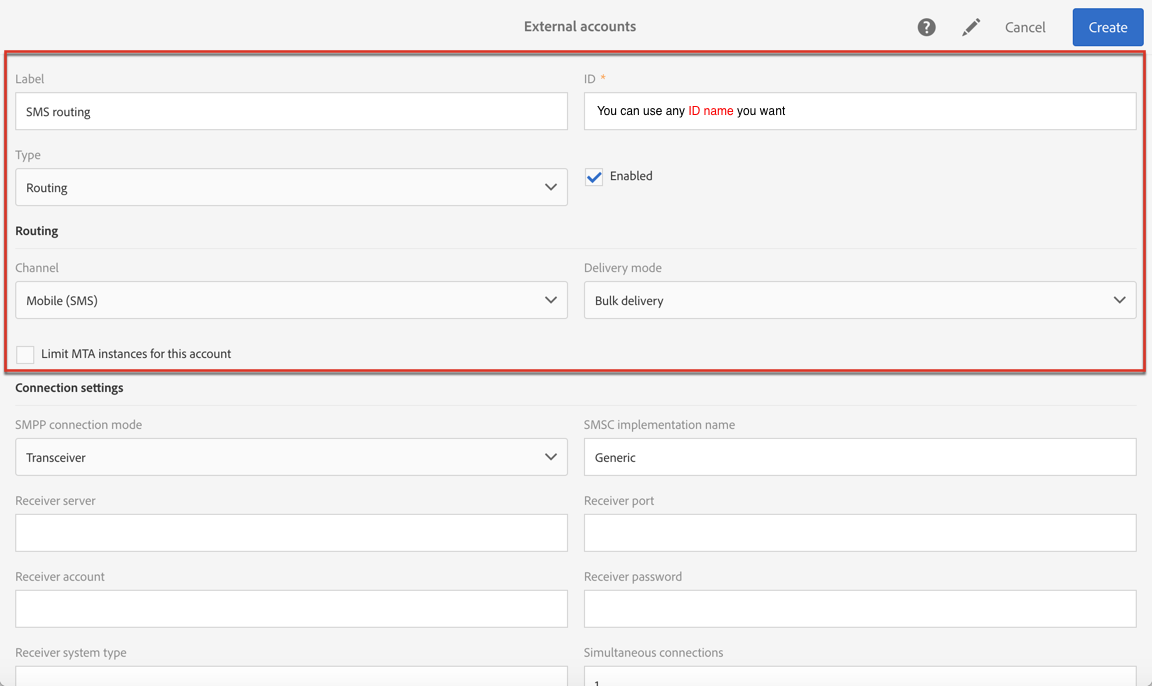
    1. Create a new external account from Administration > Application settings > External accounts.
    2. Define the account type as Routing , the channel as Mobile (SMS) and the delivery mode as Bulk delivery.
    1152 3. Define the connection settings. To enter the connection settings specific to sending SMS messages. Please enter the following details:

    • SMPP connection mode: Transceiver
    • Receiver server: smpp.8x8.com
    • Receiver port: 2776 (TLS v1.3)
    • Receiver account and password will be provided by your account manager. Please contact hello-cpaas@8x8.com) if you have not been allocated someone directly.
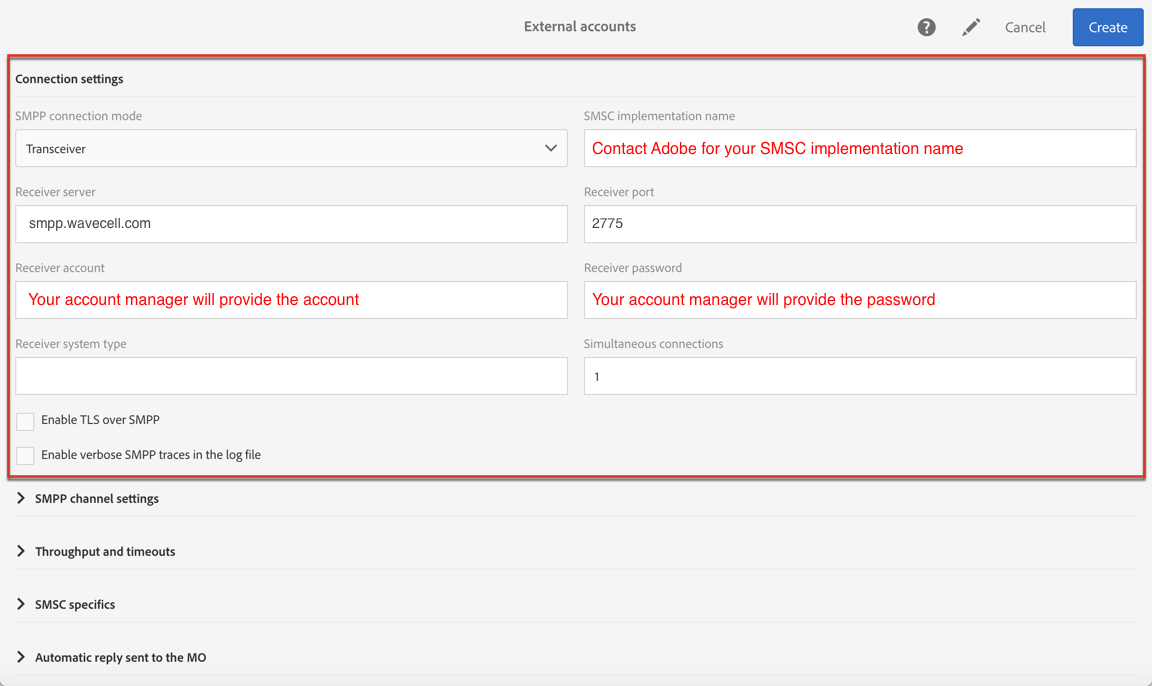
    1152 The Enable TLS over SMPP option encrypts SMPP traffic using TLS v1.3. Ensure you use port 2776 for your Receiver port.

    Enable verbose SMPP traces in the log file allows you to dump all SMPP traffic in log files. This option must be enabled to troubleshoot the connector and to compare with the traffic seen by 8x8.

    1. Contact Adobe who will give you the value to enter into the SMS-C implementation name field for 8x8l.

    2. Define the SMPP channel settings. You can learn more in the SMS encoding and formats section.

    Enable the Store incoming MO in the database if you want all incoming SMS to be stored in the inSMS table. For more information on how to retrieve your incoming SMS, refer to this section.

    The Enable Real-time KPI updates during SR processing option allows the Delivered or Bounces + Errors KPIs to be updated in real time after sending your delivery. These KPIs can be found in the Deployment window and are directly recalculated from the SR (Status Report) received from 8x8.

    1. Define the Throughput and timeouts parameters. You can specify the maximum throughput of outbound messages ("MT", Mobile Terminated) in MT per second. If you enter "0" in the corresponding field, the throughput will be unlimited. The values of all of the fields corresponding to durations need to be completed in seconds. Service type should be "smpp".
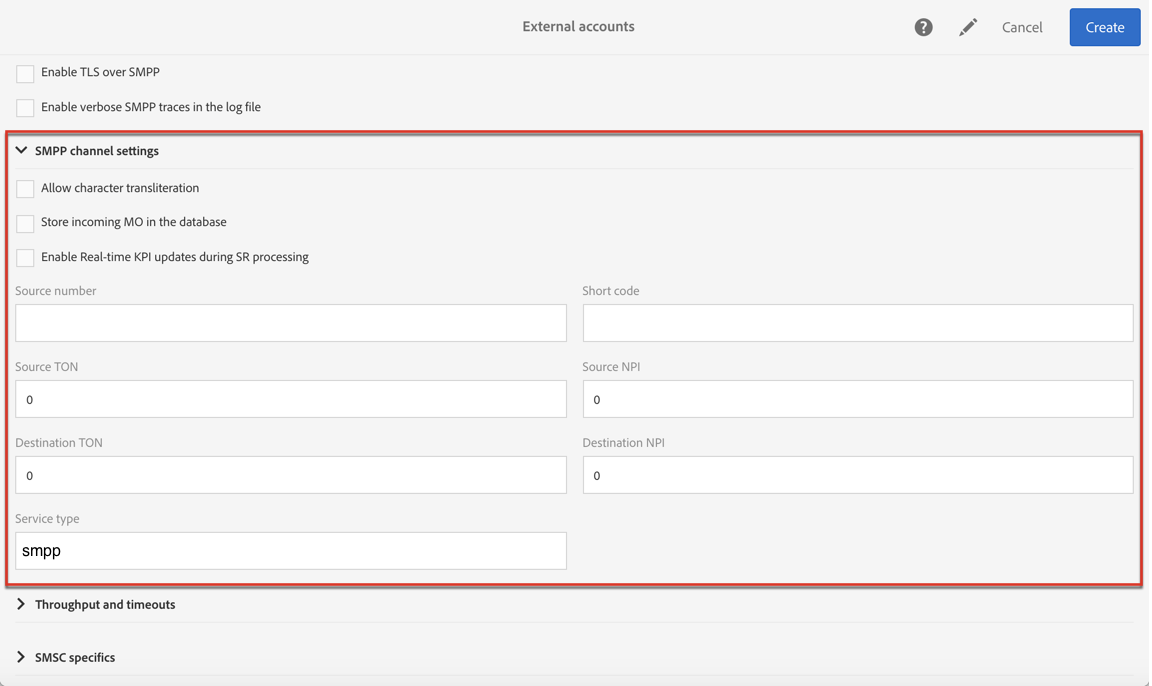
    1152 7. Define the SMS-C specific parameters in case you need to define a specific encoding mapping. For more information, refer to the SMSC specifics section. Enable the Send full phone number (send characters other than digits) option if you don't want to respect the SMPP protocol and transfer the + prefix to the server of 8x8 (SMS-C). 8. If needed, define automatic replies to trigger actions based on the content of a reply. For more on this, refer to this section . 9. Save the configuration of the SMS routing external account.

    You can now use your new routing to send SMS messages with Adobe Campaign.

    Source: https://developer.8x8.com/connect/docs/adobe-campaigns · 8x8 CPaaS Developer Docs. Synced for support deflection.

8x8 Logo
  • 8x8 YouTube
  • 8x8 Facebook
  • 8x8 Twitter
  • 8x8 Blog
  • 8x8 LinkedIn
  • 8x8 Instagram

Company

  • About Us
  • Careers
  • Contact Us

Our Products

  • SMS
  • Chat Apps
  • Video Interaction
  • Voice
  • Pricing

Media

  • Customer Success Stories
  • News
  • Events
  • Blog

Resources

  • Documentation
  • Service Status
  • Ask for support
Privacy Policy | Terms of Use | Acceptable Use Policy
© 2025 8x8, Inc. All rights reserved.